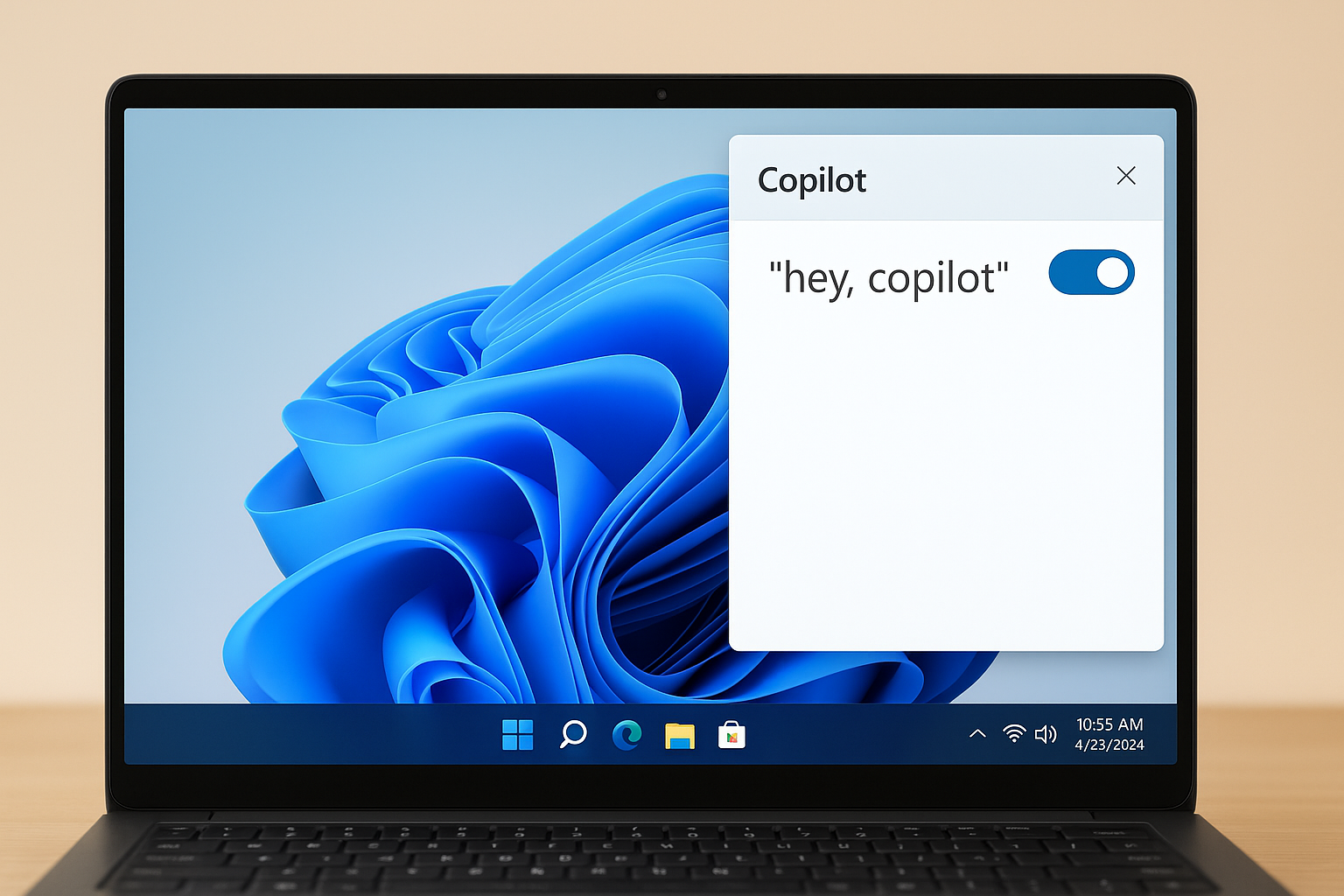
Microsoft Excel’s Copilot feature serves as an AI assistant that enhances your experience by helping you analyze, understand, and visualize your data more efficiently. With a Copilot Pro subscription and an active Microsoft 365 Personal or Family account, you can leverage this tool to interact with your datasets in a more intuitive way.
Getting started with Copilot in Excel
Before you can utilize Copilot in Excel, there are certain prerequisites you need to fulfill. First, ensure that you have an Excel table containing data in your worksheet; without it, the Copilot button will remain inactive.
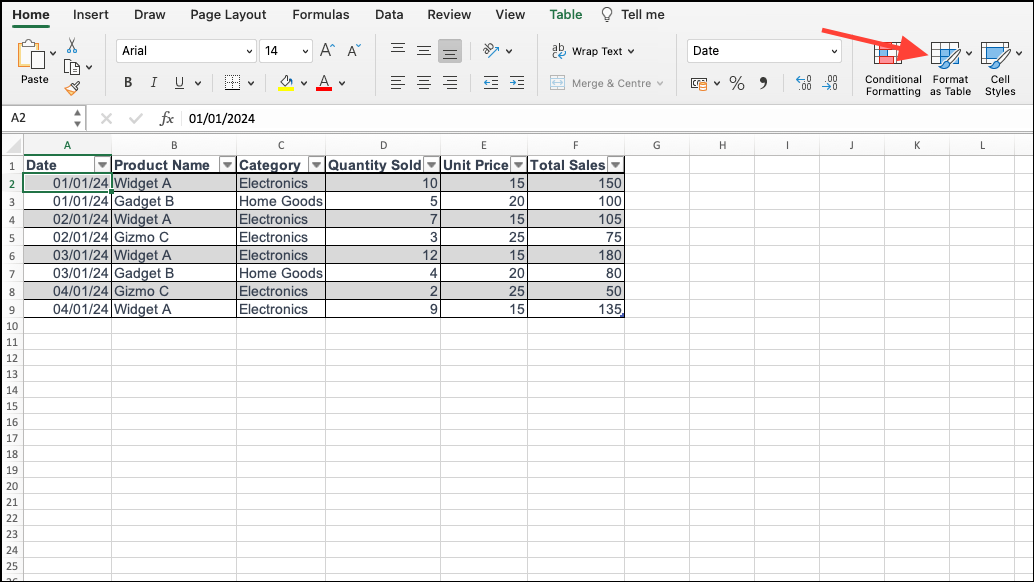
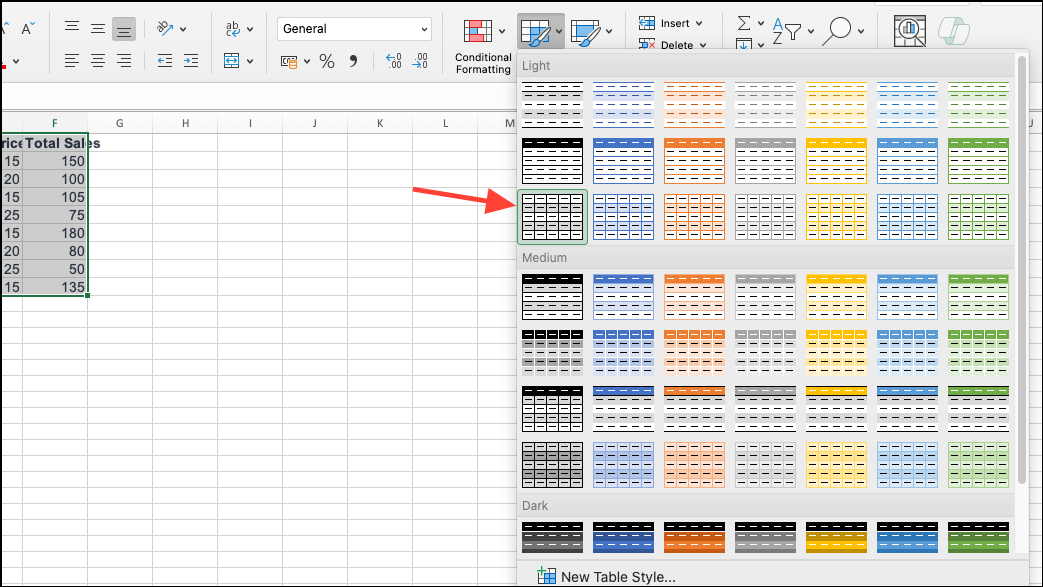
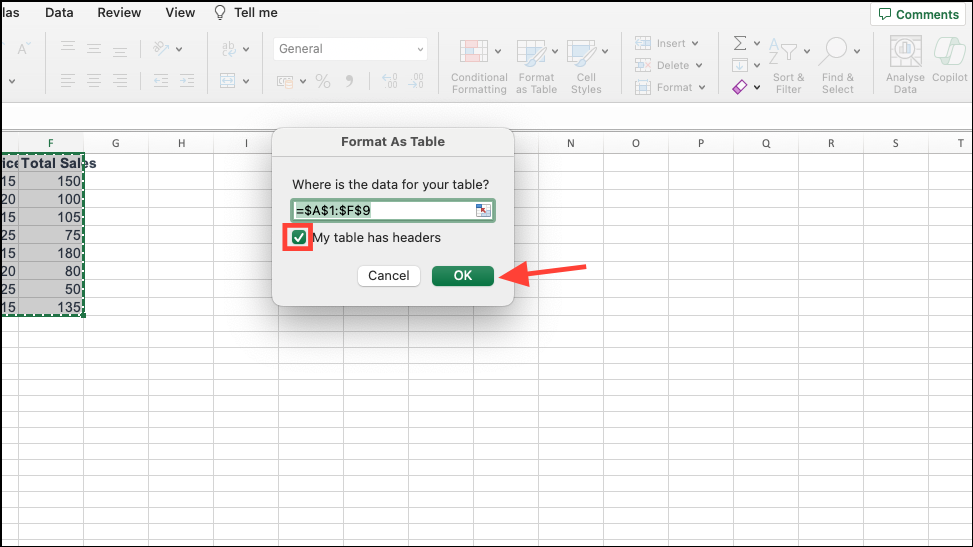
Now, your data is formatted as an Excel table.
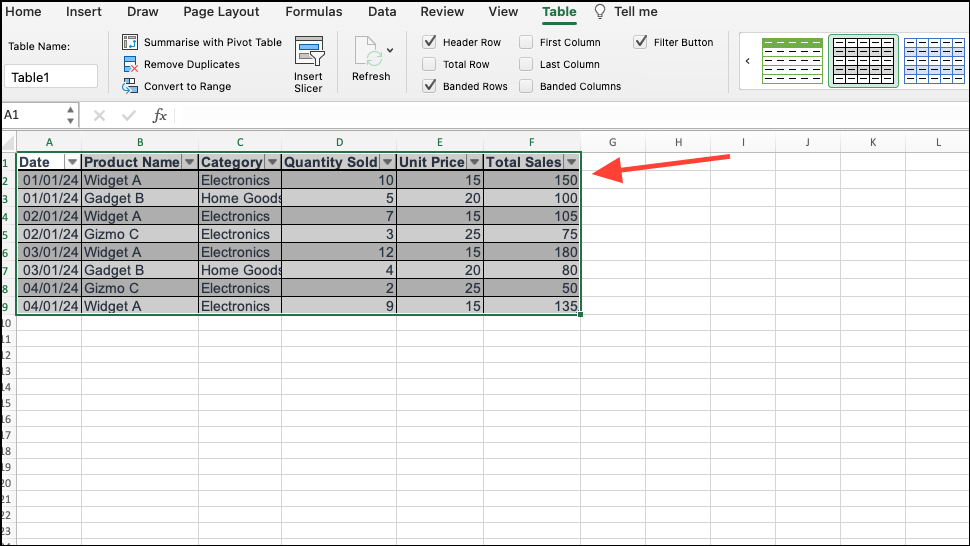
Additionally, it’s important to save your worksheet to OneDrive or SharePoint. Copilot in Excel requires the workbook to be stored in the cloud to function properly. Once you’ve saved your file online, the Copilot feature will become accessible.
Using Copilot in Excel
With your data prepared and your workbook saved to the cloud, you can now start leveraging Copilot’s capabilities to enhance your data analysis.
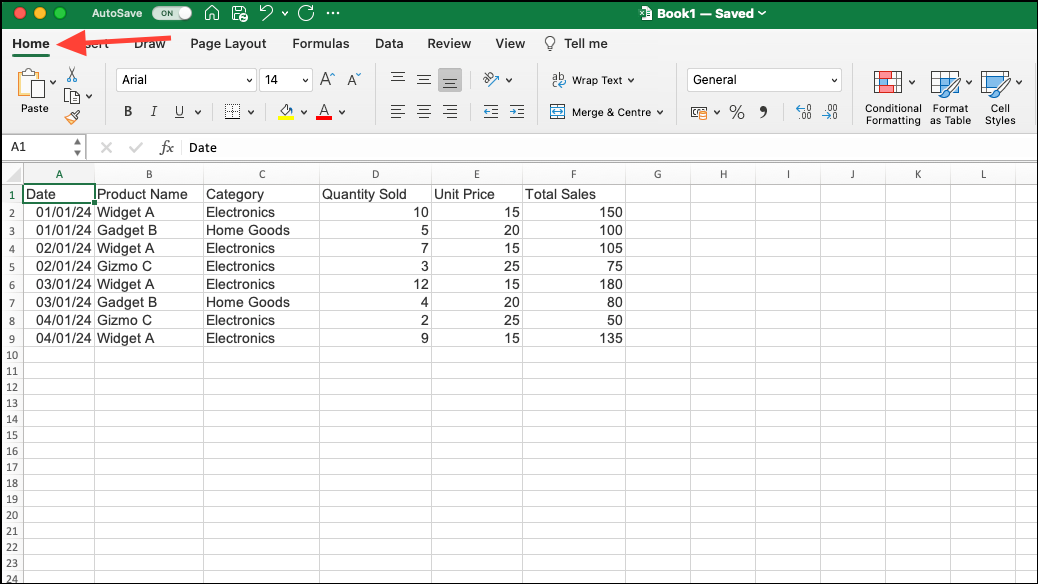
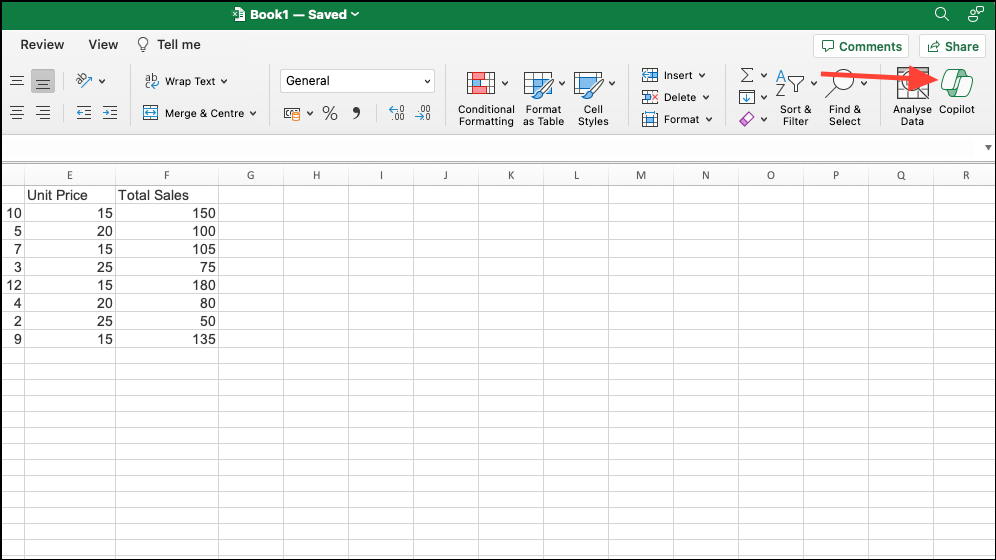
If your current data isn’t formatted as an Excel table, Copilot can assist you in converting it. Simply select the data range, and Copilot will provide options to create a table from your selection.
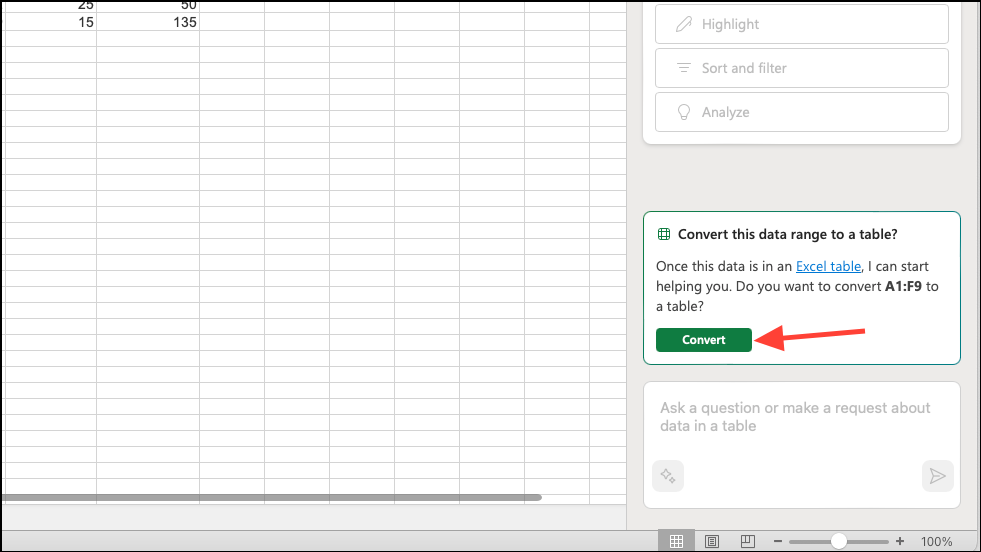
To interact with Copilot effectively, ensure that a cell or range within your Excel table is selected. This allows the AI to provide context-aware assistance based on your data.
Find insights with Copilot
Copilot can help you uncover valuable insights from your data, such as trends, patterns, and summaries.
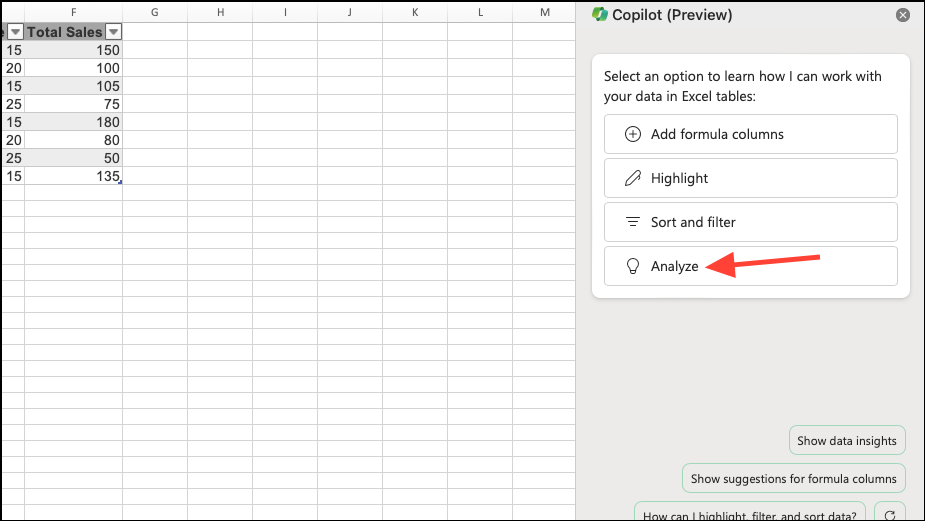
Copilot will process your data and present you with a list of suggested prompts related to your dataset.
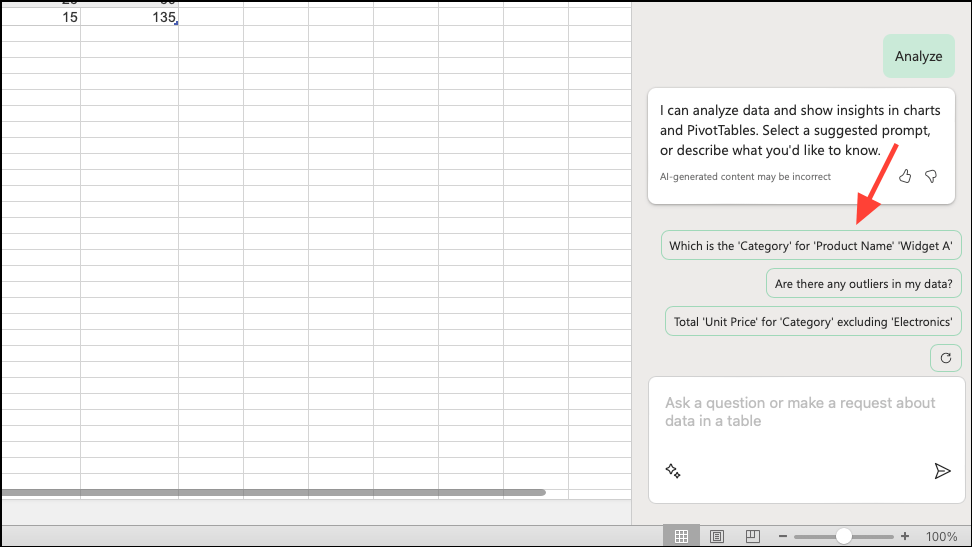
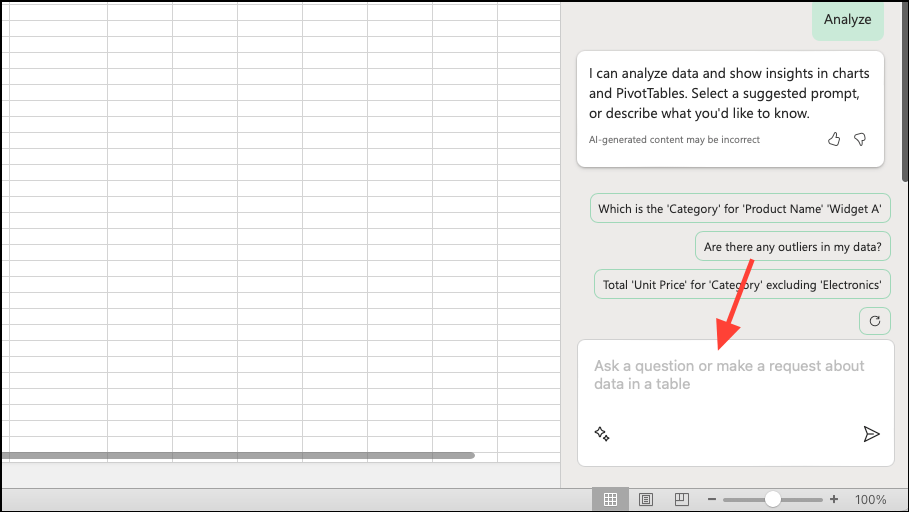
Copilot will generate insights in various forms, such as PivotTables, charts, summaries, or highlight significant trends and outliers. If you find a chart or analysis useful, you can add it to your workbook.
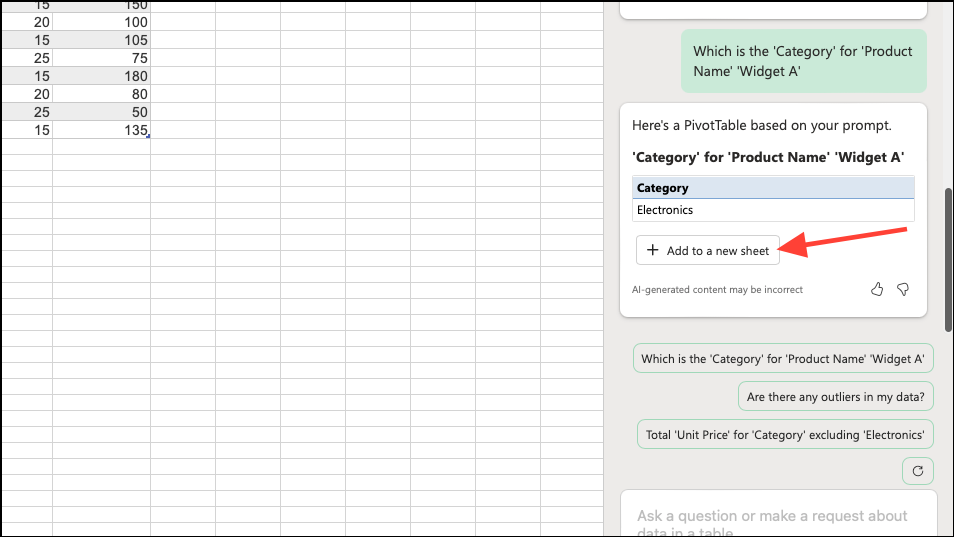
You can explore additional insights by clicking on other suggested prompts or refresh the suggestions by clicking on the ‘Refresh’ button.
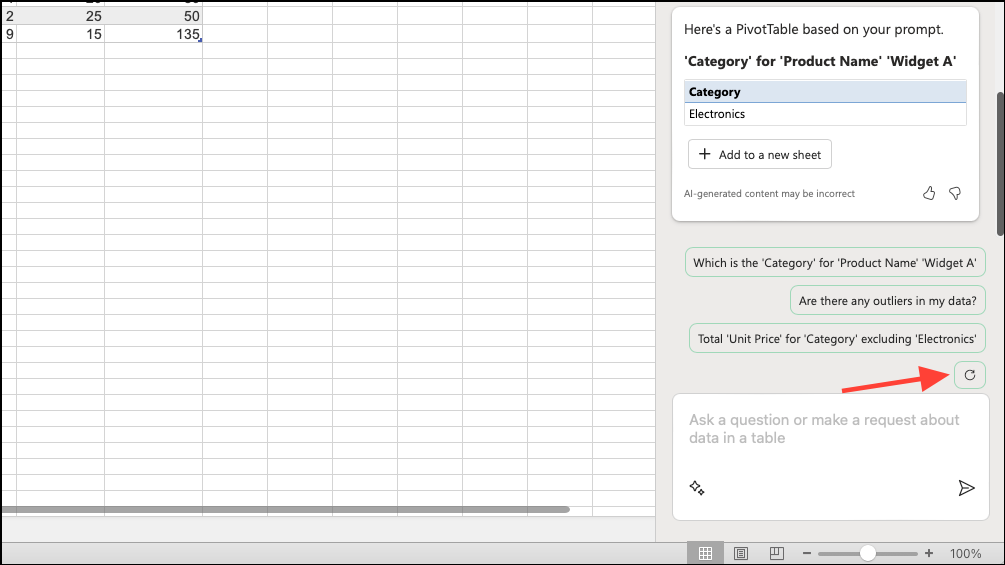
By analyzing your data through Copilot, you can gain a deeper understanding and make more informed decisions based on the insights provided.
Highlight and sort your data
Copilot can assist in organizing your data by highlighting key information and sorting or filtering your table based on specific criteria.
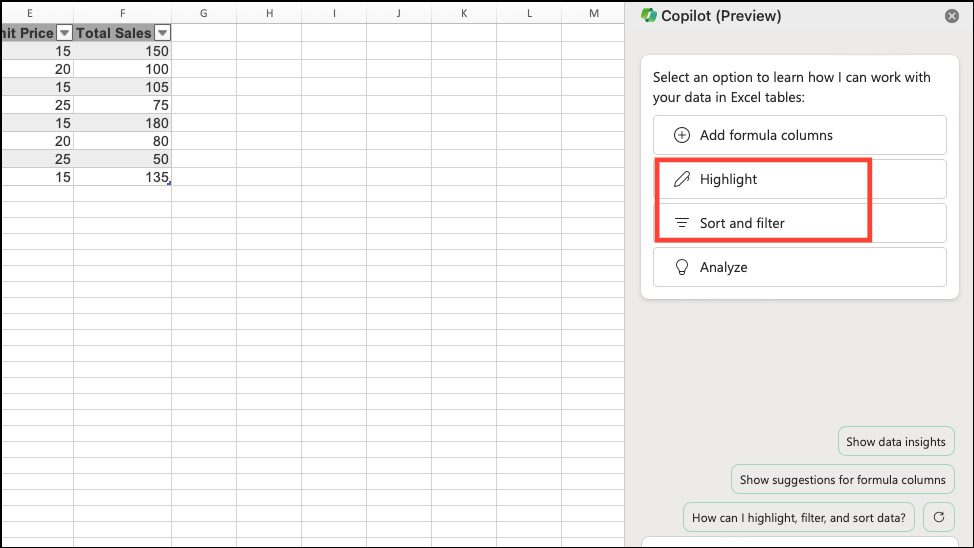
Copilot will analyze your data and offer relevant prompts for highlighting, sorting, or filtering.
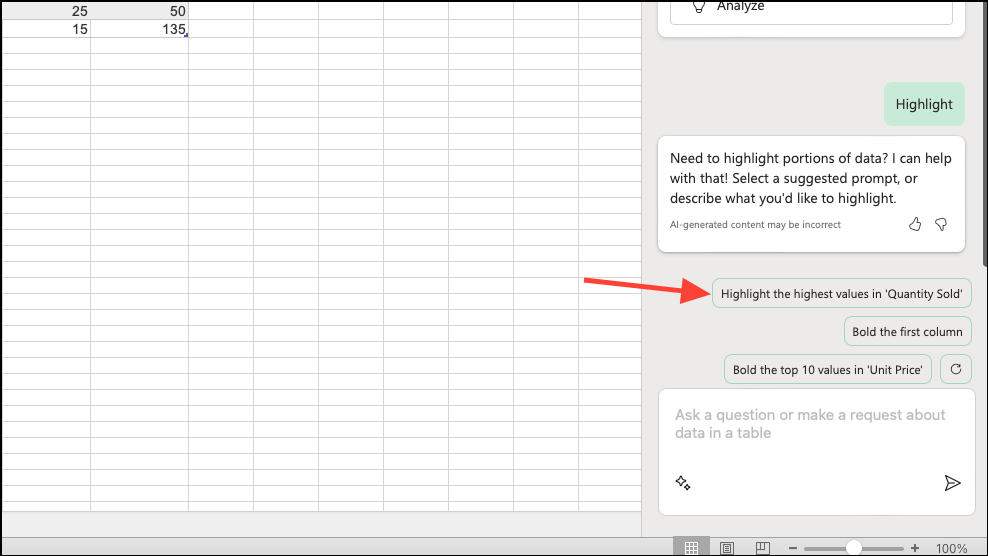
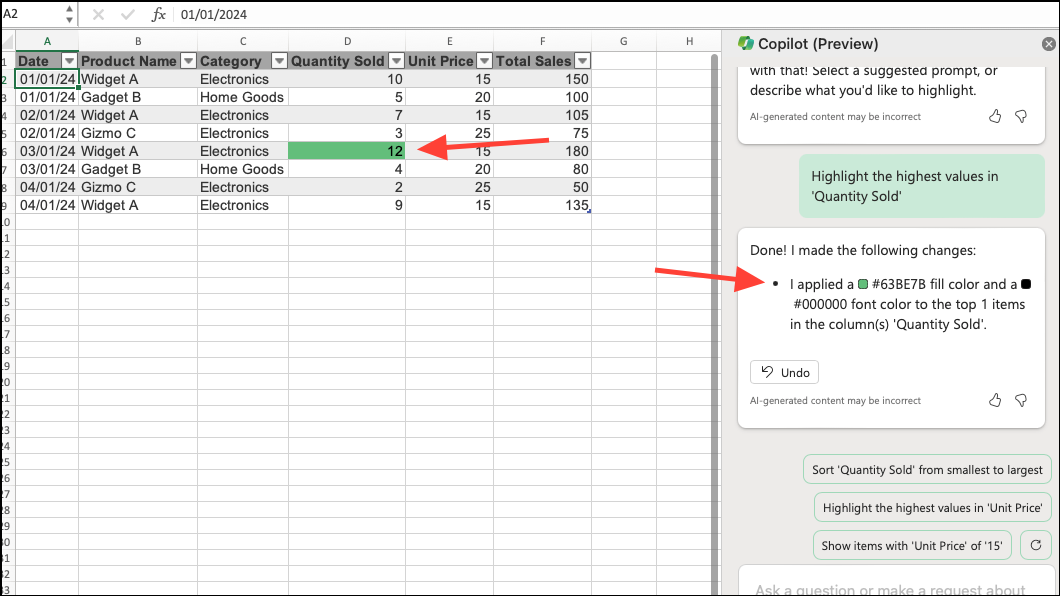
You can also provide custom instructions by typing your own prompt to specify exactly how you’d like Copilot to manipulate your table.
Generate formula columns
Creating new columns with formulas can be streamlined using Copilot. It can help you devise formulas and insert the new columns into your table seamlessly.
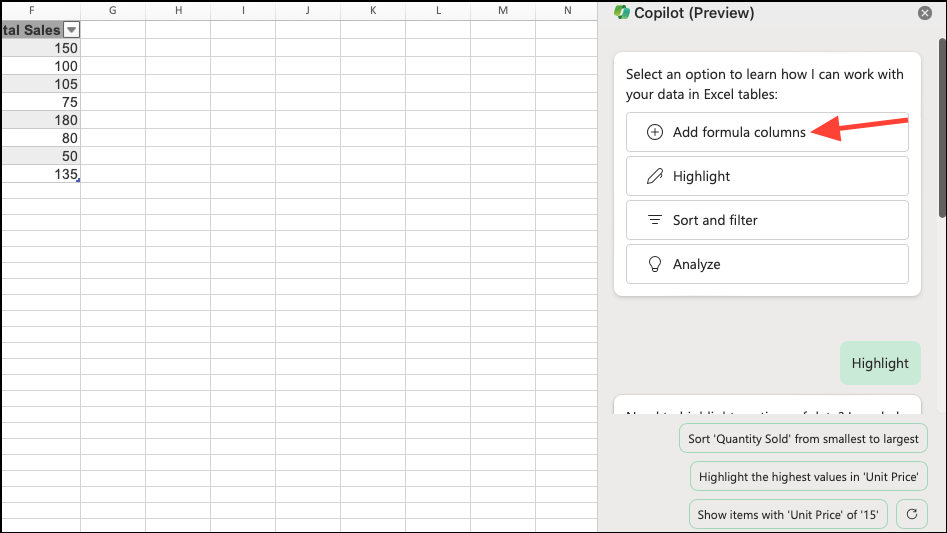
Copilot will suggest a list of possible formula columns that you might find useful.
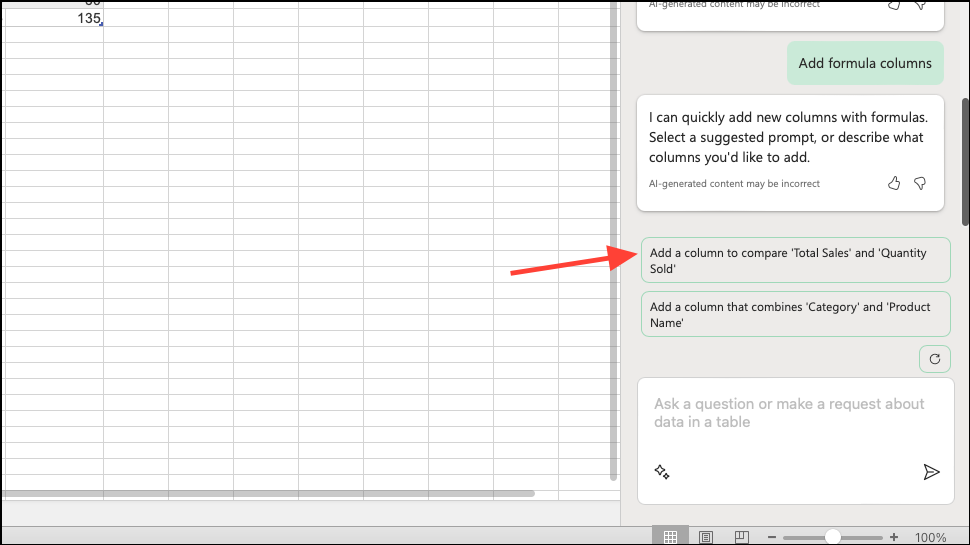
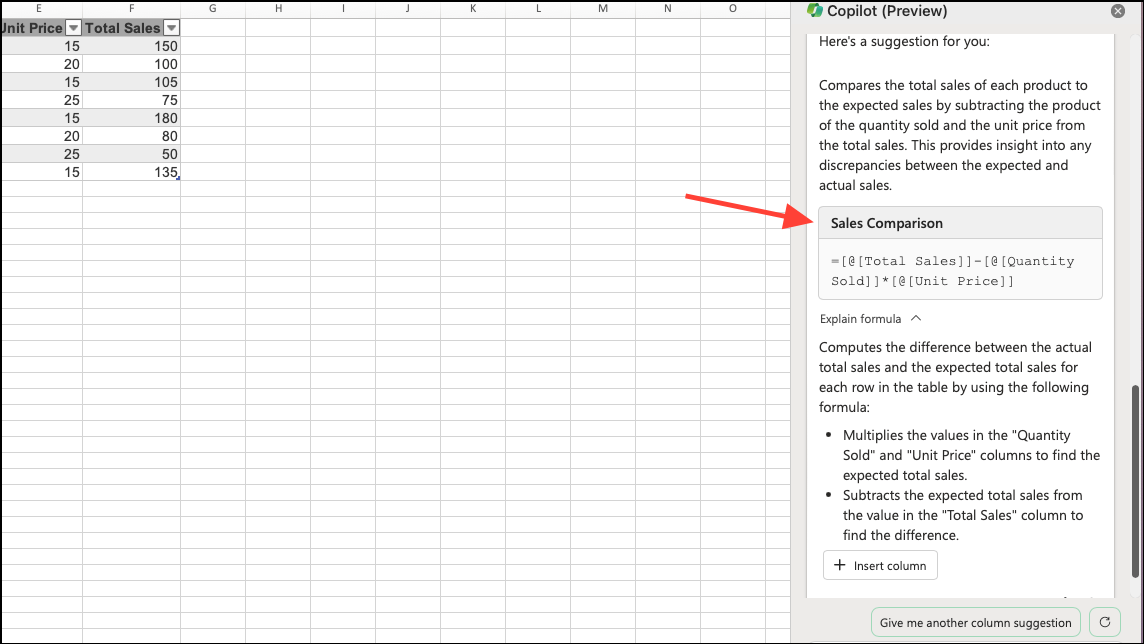
Copilot will generate the formula and provide an explanation of how it works.
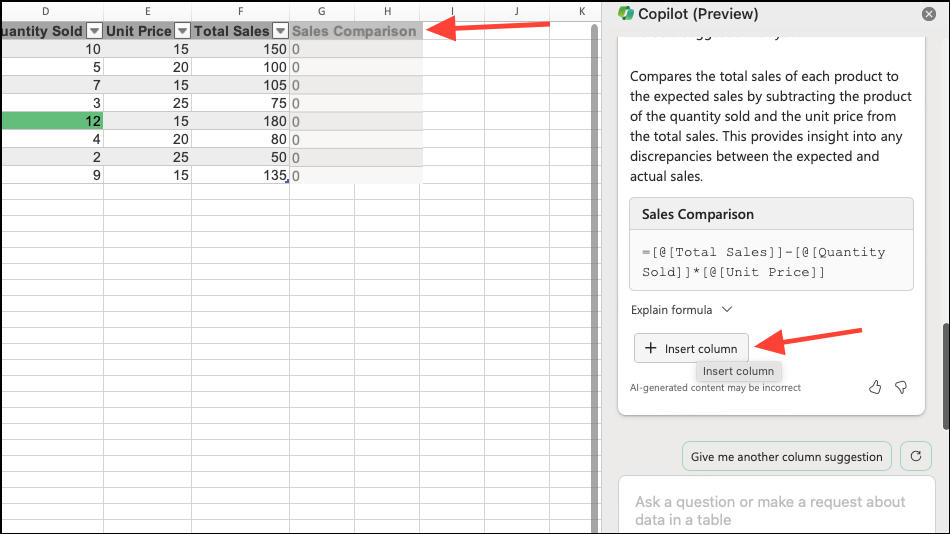
By integrating Copilot into your Excel workflow, you can enhance your data analysis and visualization processes. This intelligent assistant simplifies complex tasks, making data manipulation more accessible and efficient, ultimately empowering you to derive meaningful insights from your datasets.