How to Enable “Hey, Copilot” on Windows 11 — Setup, voice use, and fixes
Turn on the wake word in the Copilot app, start hands‑free voice, and fix common issues with clear steps.
Turn on the wake word in the Copilot app, start hands‑free voice, and fix common issues with clear steps.
by Shivam Malani
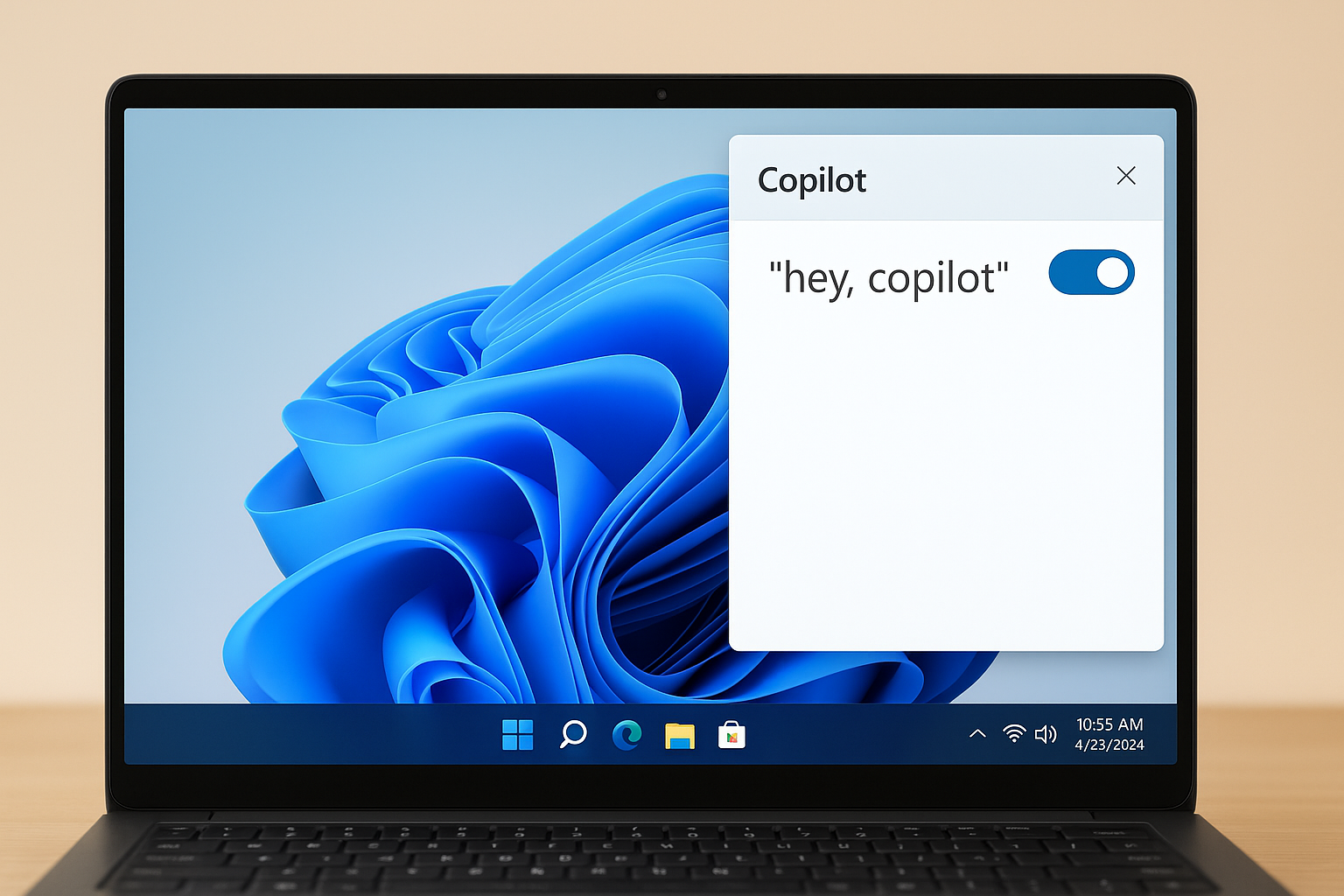
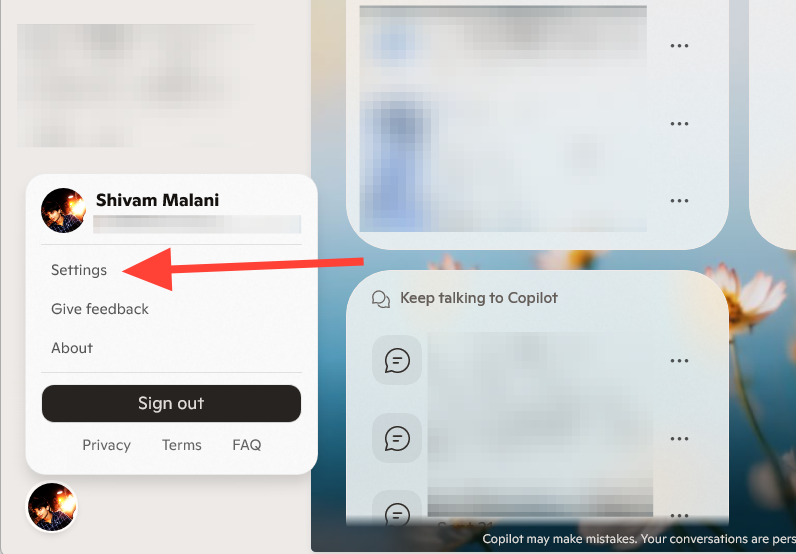
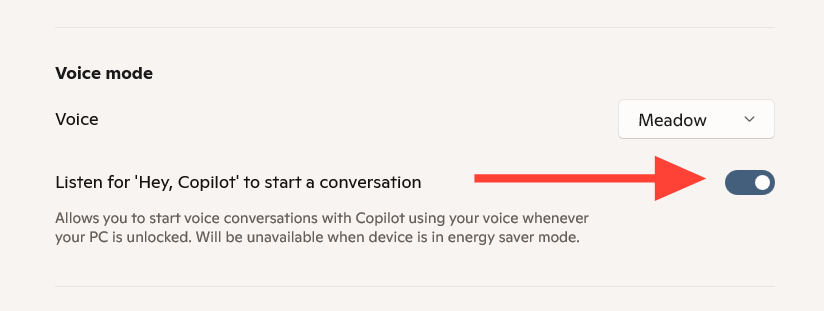
Open the Copilot app, go to Account > Settings, and switch on “Listen for ‘Hey, Copilot’” under Voice mode.
“Hey Copilot” is opt‑in. Detection runs locally on your PC and works only when your device is on and unlocked; responses require internet. The steps below cover setup, everyday use, and reliable fixes if the toggle is missing or the wake word doesn’t respond.
Install or update the Copilot app. If it’s missing, use the official guide to install Copilot on Windows. Updating via Microsoft Store ensures you get the wake word toggle.
Say “Hey Copilot” followed by your request, for example, “Hey Copilot, summarize this window” or “Hey Copilot, set a reminder for 3 PM.” Speak clearly at a normal volume.
End the voice session by saying “Goodbye,” or select the X on the floating voice UI. If you stop talking for a few seconds, Copilot ends the session automatically and plays a short tone.
Start a voice conversation anytime by holding the Copilot key or holding Windows + C for 1–2 seconds. Copilot greets you and begins listening immediately.
To disable or re‑enable press‑to‑talk, open Account > Settings > Copilot Keyboard Shortcuts > Press and Hold, then toggle the switch. This is useful if you prefer the wake word only.
Decide whether shortcuts open Quick view or the full app. Go to Account > Settings > Copilot Keyboard Shortcuts and choose the behavior that fits your workflow.
Shortcut
Default action
Copilot key
Opens Copilot (Quick view or full app based on settings).
Windows + C
Opens Copilot; hold for 1–2 seconds to start voice.
Alt + Space
Opens Copilot (Quick view or full app based on settings).
Privacy, availability, and requirements
Wake word detection runs on your device using an in‑memory audio buffer of about ten seconds. That buffer isn’t recorded or stored, and audio is only sent to the cloud after Copilot detects “Hey Copilot.”
Your PC must be powered on and unlocked. When unlocked, the wake word responds to any voice it hears in range.
Wake word recognition works offline, but Copilot’s responses require internet. If you’re offline, the voice UI may open, then end when it can’t connect.
“Hey Copilot” is not on by default. It’s available with newer Copilot app builds (starting around version 1.25051.10.0 and later) and rolled out in stages. Early availability targeted Windows Insiders with English as the display language, then broadened gradually.
Windows will show the microphone “in use” when the wake word is enabled and Copilot is running, or during any active Copilot Voice session. This is expected behavior.
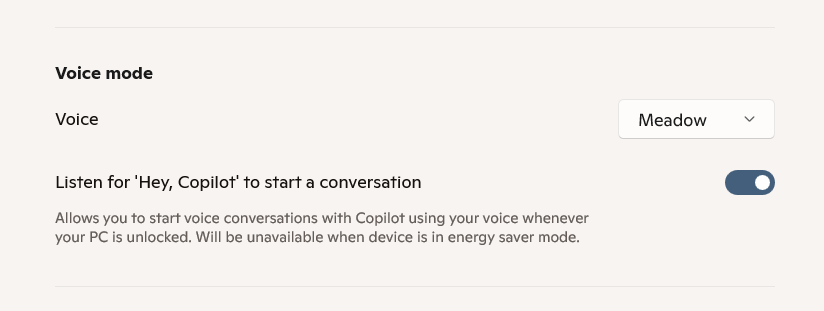
Open Copilot > Account > Settings > Voice mode and confirm “Listen for ‘Hey, Copilot’” is On. If you don’t see the toggle, update the Copilot app from Microsoft Store and try again.
Keep your PC unlocked and connected to the internet while testing. Say a complete request like “Hey Copilot, what’s on my screen?” to verify end‑to‑end behavior.
Check microphone access in Settings > Privacy & security > Microphone. Turn on “Microphone access,” allow apps to use the microphone, and enable Copilot if it appears in the list.
Use press‑to‑talk as a fallback. Hold the Copilot key or hold Windows + C for 1–2 seconds to start a voice session while waiting for the wake word rollout on your device.
Once the toggle is on and the app is updated, “Hey Copilot” gives you reliable, hands‑free access whenever your PC is awake and unlocked.