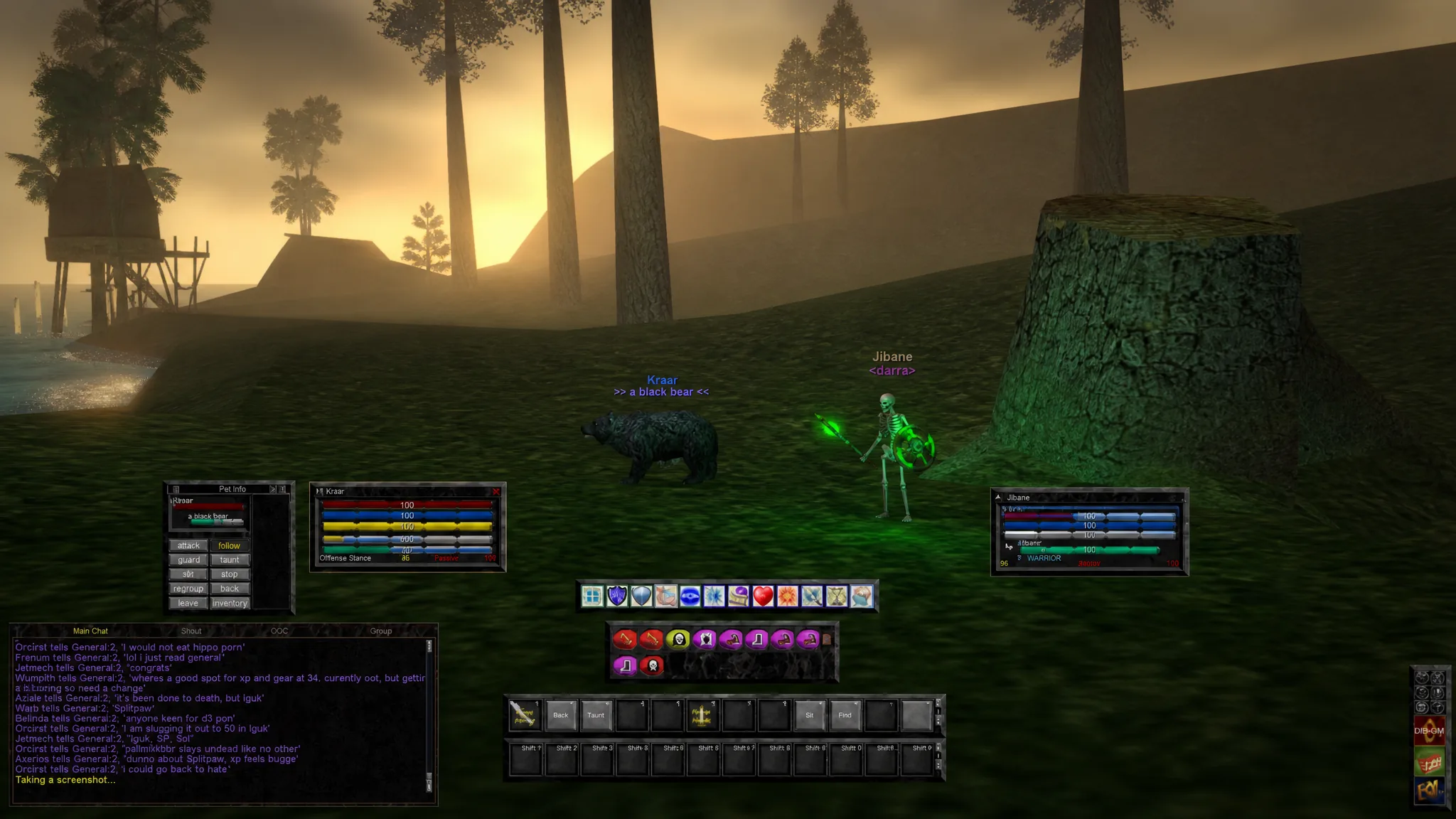
The default interface in EverQuest Legends plays like the game it is built on, which means grey boxes, flat bars, and windows scattered wherever the client feels like putting them. The good news is that almost every piece of it can be moved, resized, restyled, and locked. With a short setup pass you can pull the whole thing into a compact, modern layout before you start grinding levels.
Quick answer: Load the default_modern UI skin first (press Alt + O, choose Load UI Skin), then drag each window into a bottom band, resize your hotbar and spell bar, and lock windows you do not want to move. Right-click any window to reach its display, size, and transparency options.
Load the modern skin before you touch anything else
Three UI themes ship with the game: default, default_light, and default_modern. The modern theme swaps the marble window borders for a flat matte-black look that is easier on the eyes, and it is the most popular starting point for a clean layout. Load it first, because switching skins later can undo positioning work you have already done.
Alt + O to open the Options window and click the Interface tab. This is the same window you reach through the multi-menu in the bottom-right corner.default_modern from the skin list, then click Load Skin. The window borders reload into the matte-black style, and every window inherits the new look.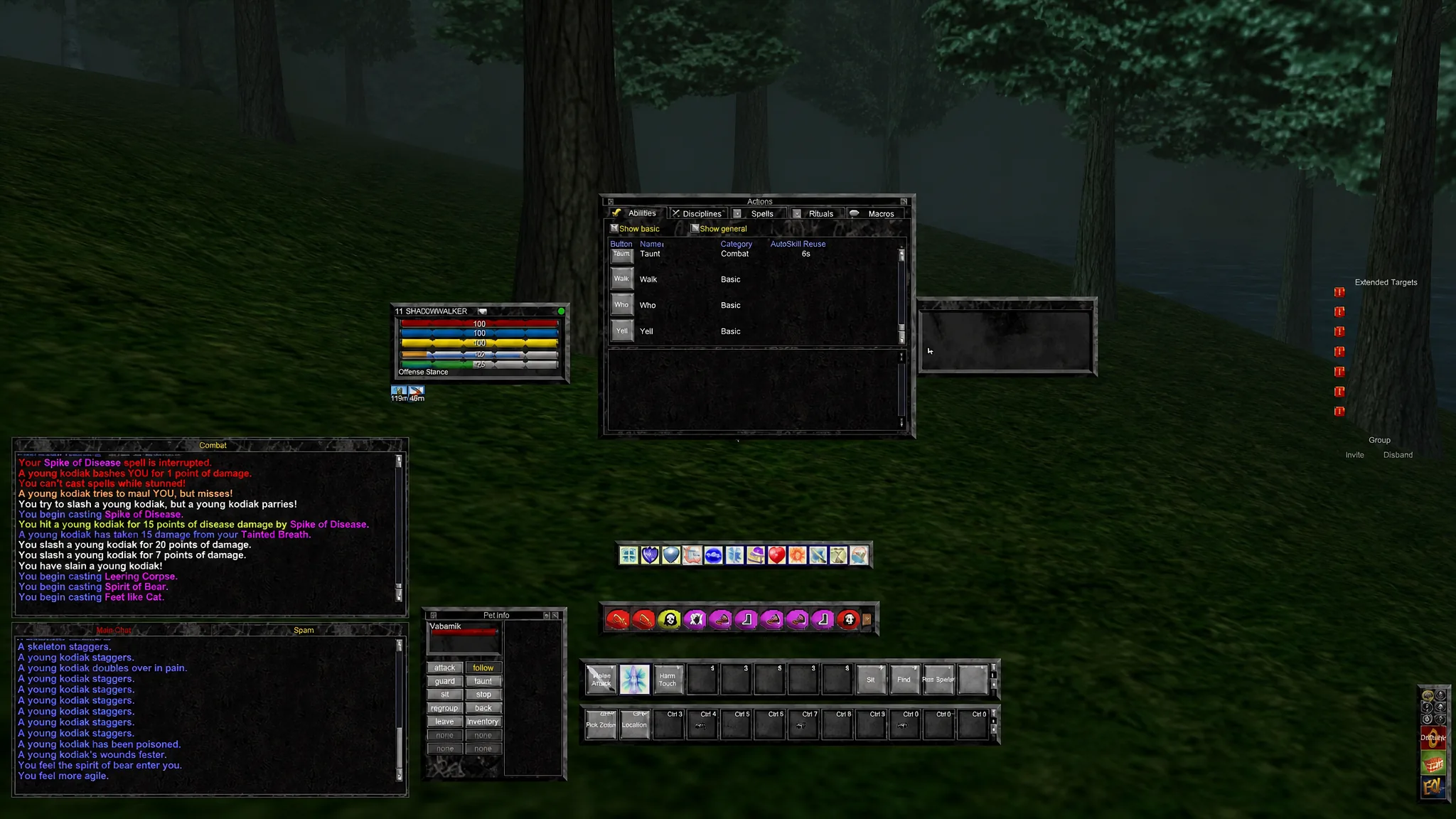
Tame the chat window with a spam filter tab
Chat opens with two tabs, one for social and one for combat. The single biggest quality-of-life change is a dedicated spam tab that soaks up noisy messages so your main tabs stay readable. Right-clicking a chat window controls font size, filters, new tabs, and window locking.
To reposition any chat window, hover over a corner until a circular icon appears, then left-click and drag it where you want. A useful final touch is to right-click each window, mouse over Window, and choose Lock so you do not knock it out of place mid-fight. Most UI windows support locking.
Place your health, target, and extended target windows
Your player and target windows carry the information you check constantly, so put them somewhere your eyes already rest. On a large screen, many players keep them near the center or clustered in one corner, similar to a Final Fantasy XIV or World of Warcraft setup.
The separate target-of-target window can be toggled with Ctrl + U, but that information is already built into the target window, so you can usually leave it off.
Rebuild the hotbars and spell bar to feel like a modern MMO
Spells and abilities live in two different places. Abilities, macros, items, and socials go on hotbars, while memorized spells sit on the spell bar. You cannot drag spells onto a hotbar, but the spell bar has its own default hotkeys, Alt + Number, which you can rebind if they clash with anything.
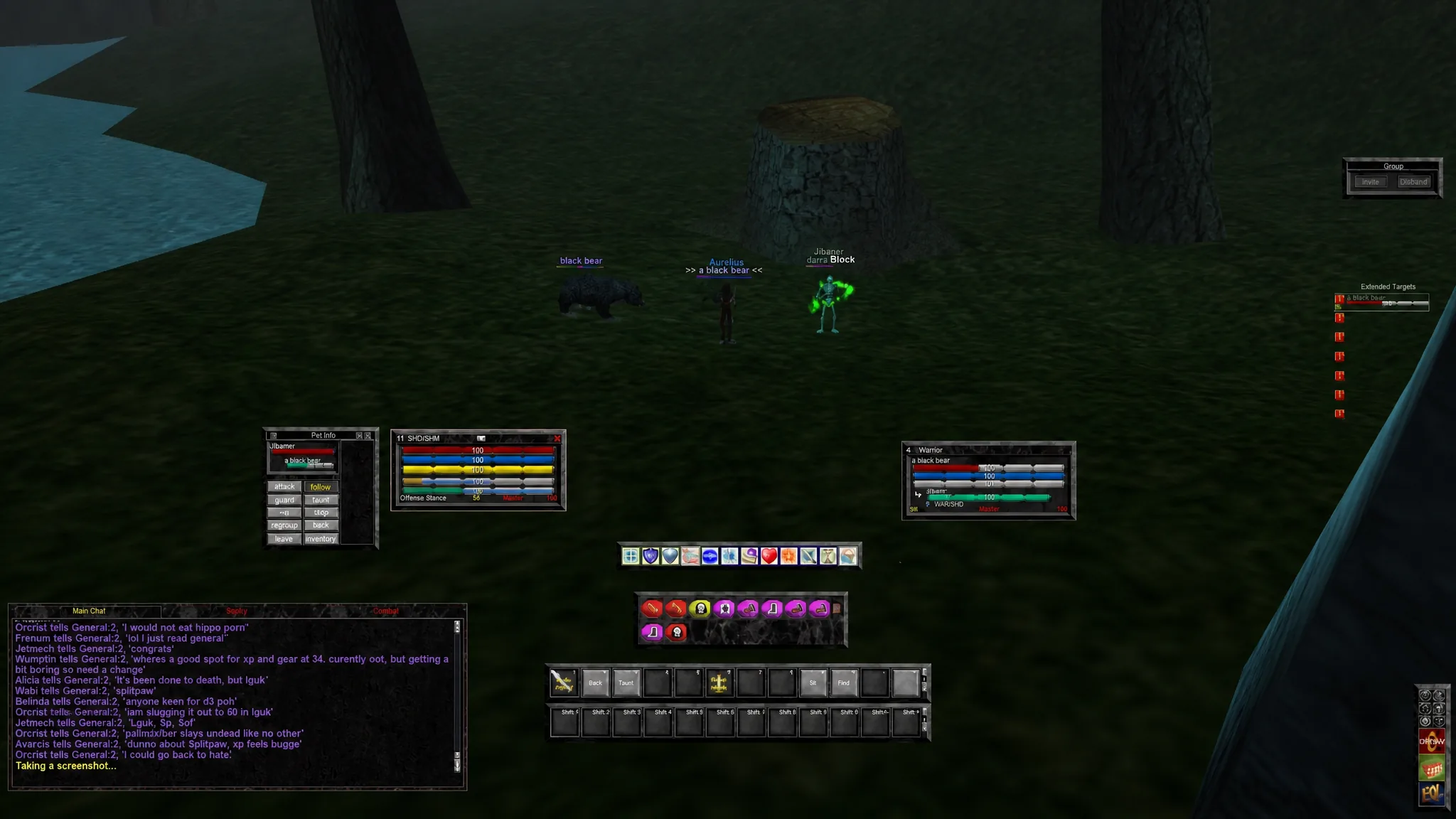
Some players add extra hotbars and shrink them to make room. Opening Hotkeys 2, 3, and 4 from the main menu and setting each one to a smaller button size, then lining them up in a row above the main bar, keeps every macro in reach without eating the screen.
Game options that prevent costly mistakes
A handful of settings in the Options window make everyday play smoother and stop old EverQuest habits from getting you killed. The most important one is turning off Attack on Right Click, which stops you from swinging at a merchant when you meant to open their store.
| Option (under Options) | Setting |
|---|---|
| General → Target Click Shows Help | Turn Off |
| General → Attack on Right Click | Turn Off |
| General → Click Through Self & Pets | Turn On |
| General → Persistent Autoattack | Turn On |
| General → Feign Death Toggle | Turn On |
| Nameplates → Show Pet Names | Turn Off |
| System → Far Clip Plane | Max Out |
| System → Near Clip | Farthest |
| System → Sky Type | Complex |
Maxing the Far Clip Plane increases how far you can see, which matters for spotting mobs and navigation. If you plan to raid, open System and then Particle Display Settings and strip out excess spell animations so you can actually see what is happening during a busy fight. You can also set autorun/walk to the middle mouse button under Controls and then Movement if that feels comfortable.
Add a location macro and auto-used abilities
Two small additions save real time as you level. A location macro reports your exact coordinates on demand, which is handy for tracking down NPCs or specific spots, and Autoskill lets the game fire certain abilities for you in combat.
L to open your macros, find a free slot, and right-click it to create a macro. Name it something like “Location.”/loc and accept. Drag the macro onto a hotbar, and pressing it will print your current coordinates.You will know the layout took hold when your windows stay put across logins and the modern skin persists after a relog. If a window keeps drifting, it is not locked, so right-click it and lock it. From here the interface is yours to fine-tune, and leaving a few empty hotbar slots is worth it for the macros you will inevitably want later.