How to Redirect Microsoft Edge System Links to Chrome on your Windows PC using MSEdgeRedirect Tool
Annoyed by system links opening in Microsoft Edge? Install MSEdgeRedirect Tool on your Windows 11 PC and configure all links to open in Chrome.
Annoyed by system links opening in Microsoft Edge? Install MSEdgeRedirect Tool on your Windows 11 PC and configure all links to open in Chrome.
by Parth Sawhney
If you’re tired of Microsoft Edge opening system links even after setting a different default browser, there’s a solution that lets you redirect those links to Google Chrome instead. By using the open-source MSEdgeRedirect tool, you can ensure all your links open in Chrome, bypassing Microsoft’s insistence on Edge.
Install and set up MSEdgeRedirect Tool on your Windows PC
Before you can redirect Microsoft Edge links to Chrome, you’ll need to download and install the MSEdgeRedirect tool from GitHub. Follow these steps to set it up on your Windows computer.
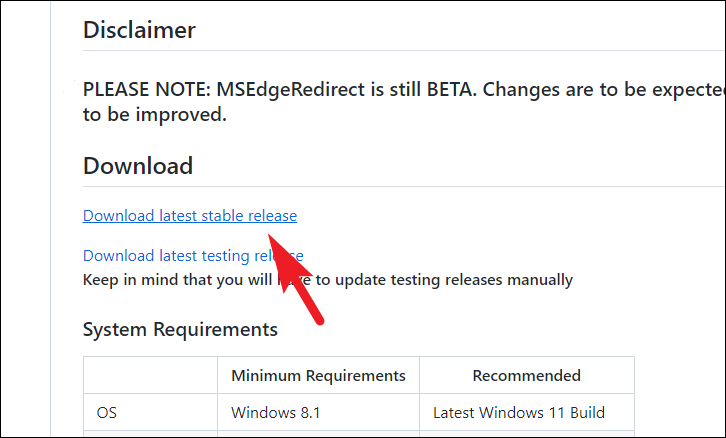
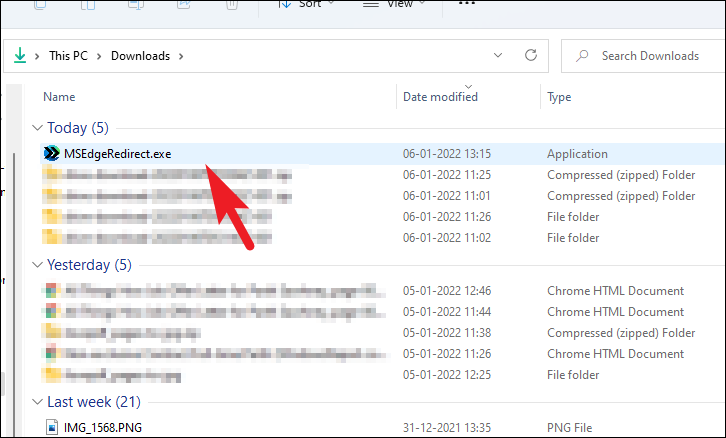
Open your preferred web browser and navigate to the MSEdgeRedirect GitHub page at github.com/rcmaehl/MSEdgeRedirect. Scroll down to the ‘Download’ section and click on ‘Download latest stable release’ to get the tool.
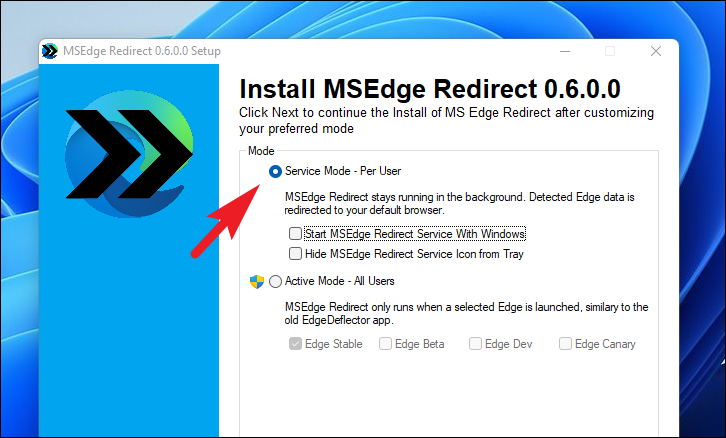
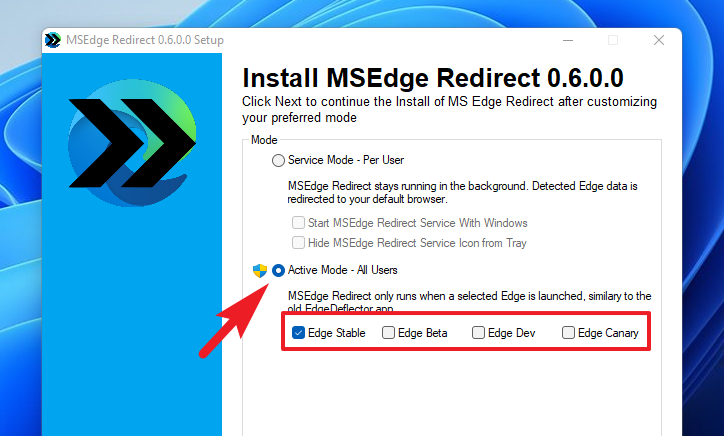
Choose the operation mode for MSEdgeRedirect. If you want the tool to work only for your user account, select ‘Service Mode.’ If you prefer to apply it for all users or redirect links from specific Edge versions, select ‘Active Mode.’
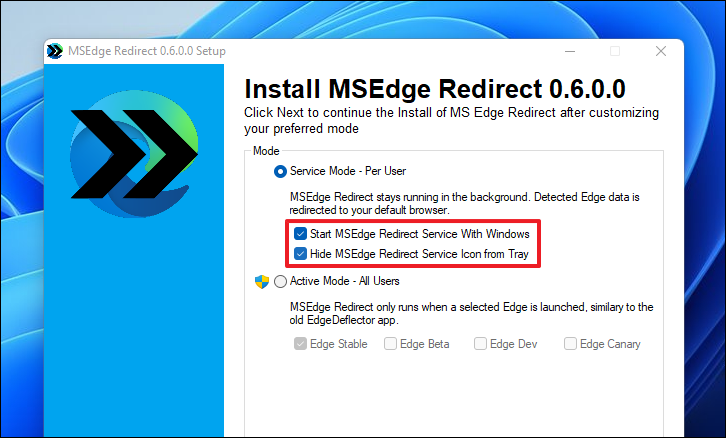
If you chose ‘Service Mode,’ you can opt to start MSEdgeRedirect when Windows starts by checking ‘Start MSEdgeRedirect Service With Windows.’ You can also hide the tray icon by checking ‘Hide MSEdgeRedirect Service Icon from Tray’ to keep your system tray uncluttered.
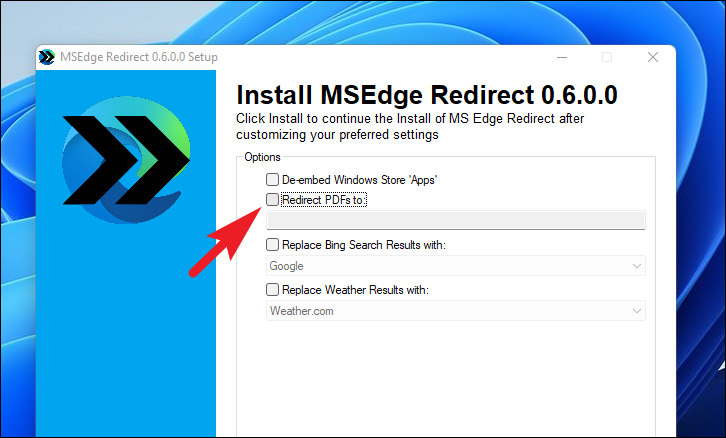
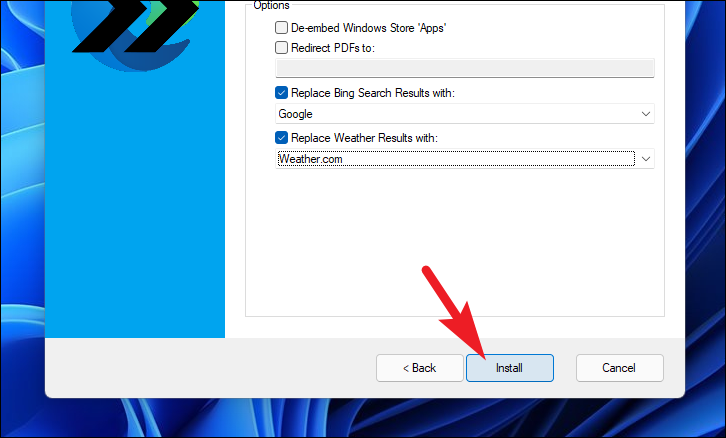
On the next screen, you have additional options. You can redirect PDF links to your preferred PDF reader, replace Bing search results with another search engine, or change the weather information source.
To redirect PDFs, check the box next to ‘Redirect PDFs to:’. This will open a file explorer window where you can select the .exe file of your PDF reader.
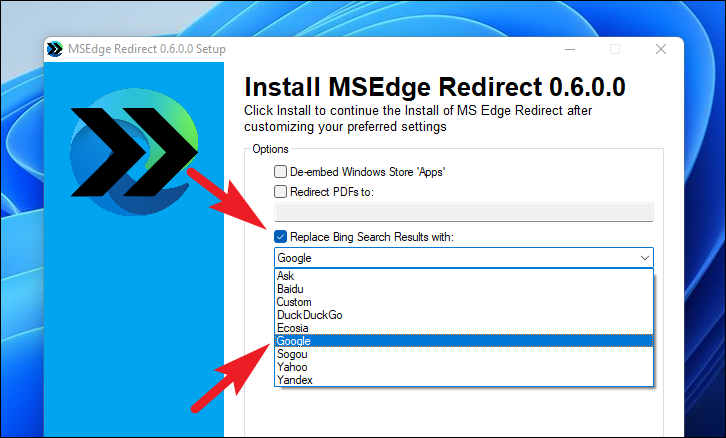
To replace Bing as the default search engine, check ‘Replace Bing Search Results with’ and select your preferred search engine from the drop-down menu.
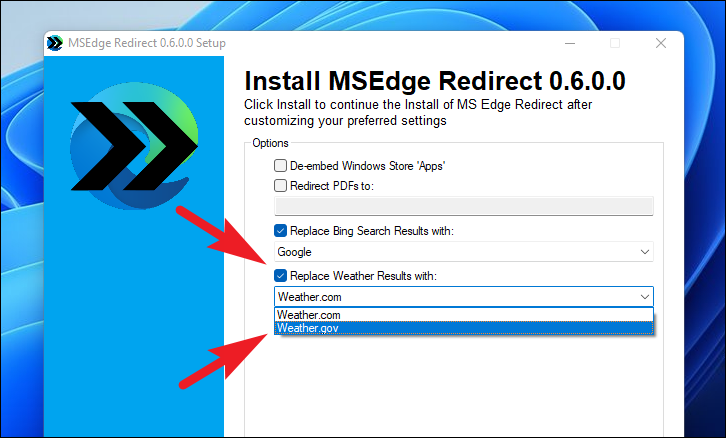
To change the weather information source, check ‘Replace Weather Results with:’ and choose your desired source from the drop-down menu.
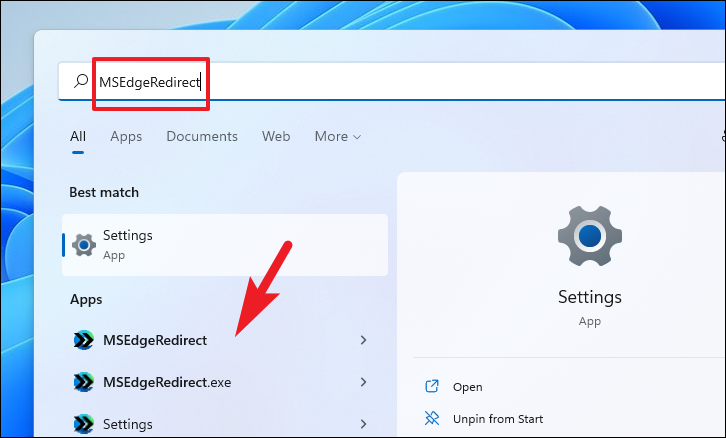
If you didn’t choose to start MSEdgeRedirect with Windows, you’ll need to launch it manually each time you log in. To do this, open the Start Menu, type ‘MSEdgeRedirect,’ and click on the ‘MSEdgeRedirect Tool’ to start the service.
With MSEdgeRedirect configured, you can now enjoy using Chrome for all your links without interruptions from Microsoft Edge.