Gaming How-To

Aniimo: How to Bulk Select Aniimos in Manage Mode

Filter your storage to Common and Good ratings, select every match at once, and release the excess for Farewell Gifts.

Filter your storage to Common and Good ratings, select every match at once, and release the excess for Farewell Gifts.

Image: Pawprint Studio

Your Aniimo box fills up fast, and clearing it one creature at a time is a slog. Manage Mode fixes that. It turns on individual checkmarks and a single control that grabs everything on screen, so you can filter down to the low-tier catches you don’t want and release the whole batch in a couple of clicks.

Quick answer: Open the Aniimo screen with P, filter by the ratings you want gone (such as Common and Good), tap Manage, tick Select all on this page, uncheck anything you want to keep, then hit Release and confirm.


Storage limits and what releasing returns

There is no way to expand your storage. It caps at 25 boxes holding 24 Aniimo each, for a hard ceiling of 600 Aniimo. Once you’re full, releasing is the only way to make room.

Releasing hands back resources called Farewell Gifts, which are upgrade materials. In one clear-out, letting go of 278 Aniimos returned 113 white flower items and 663 green sprout currency. The amounts scale with how many you release.

Releasing is permanent, and any training materials you invested into those Aniimo are not refunded.


Filter to the Aniimos you want to clear

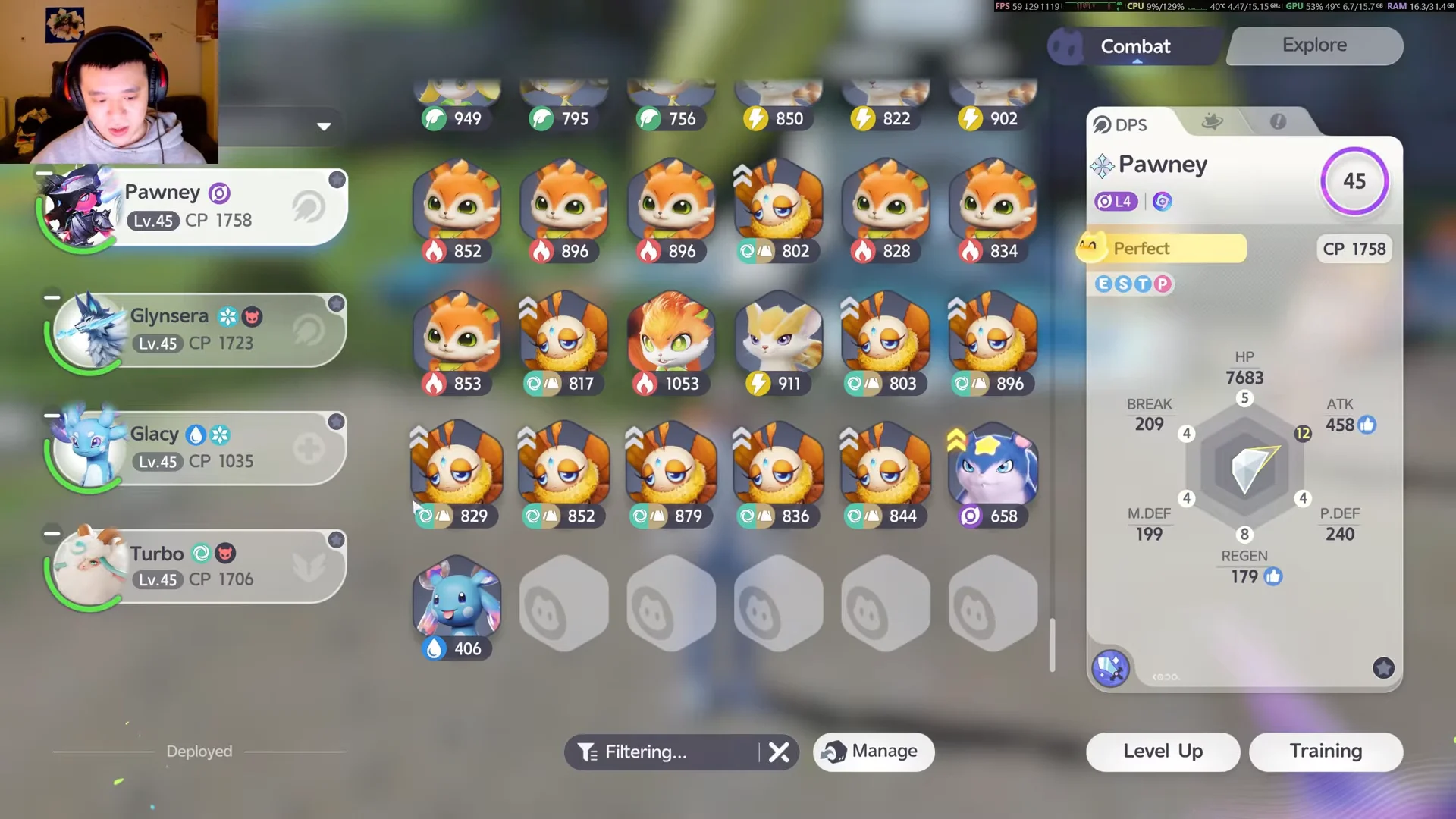
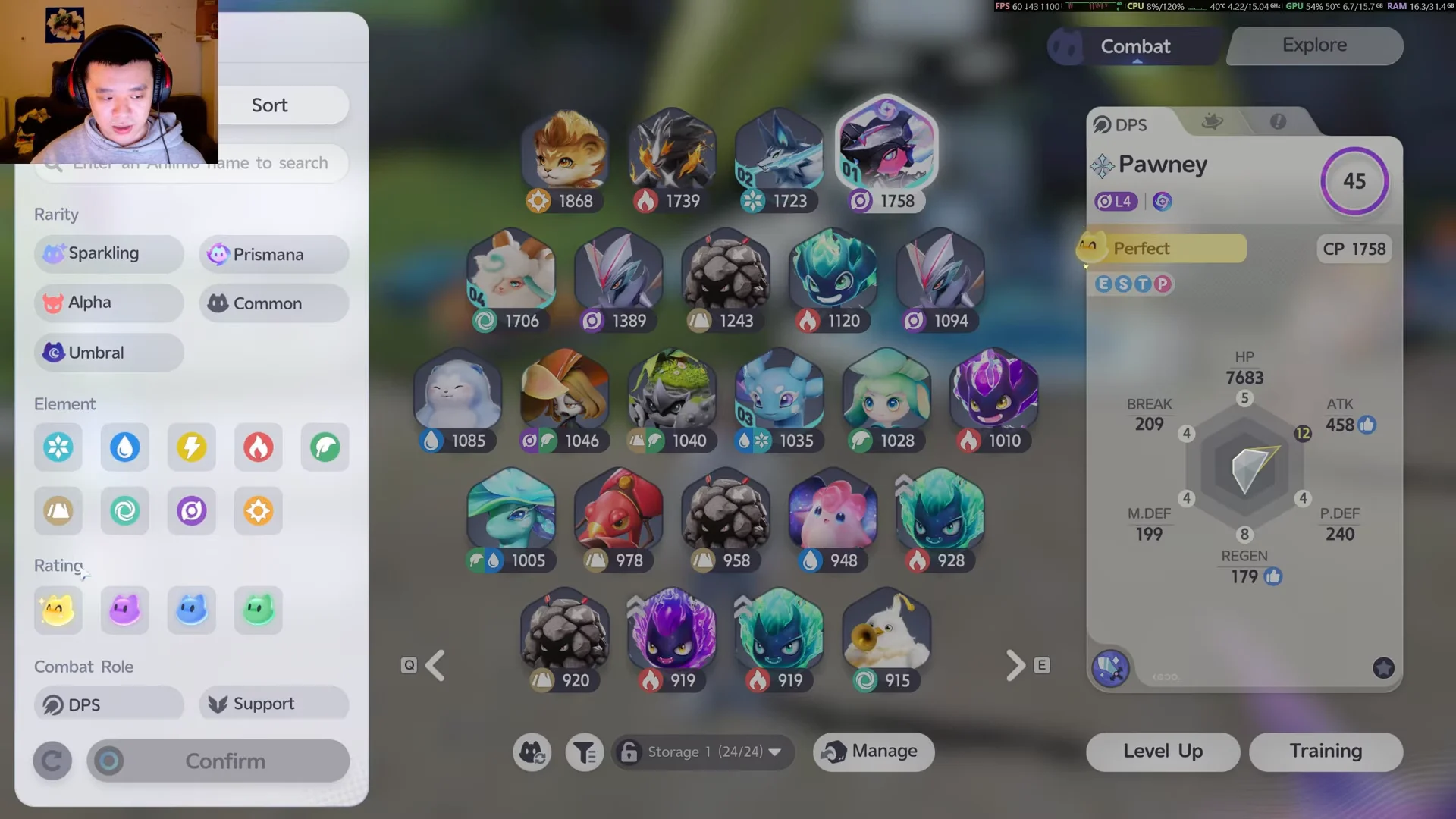
Before selecting anything, narrow the list so you’re only looking at the creatures you’re happy to lose. The filter panel sits at the bottom of the grid and lets you sort by more than one trait.

  • Rarity
  • Element
  • Rating
  • Combat Role (DPS or Support)

The safest filter for a mass clear-out is Rating. Picking Common and Good isolates the lowest-value catches, which are the ones worth releasing first.
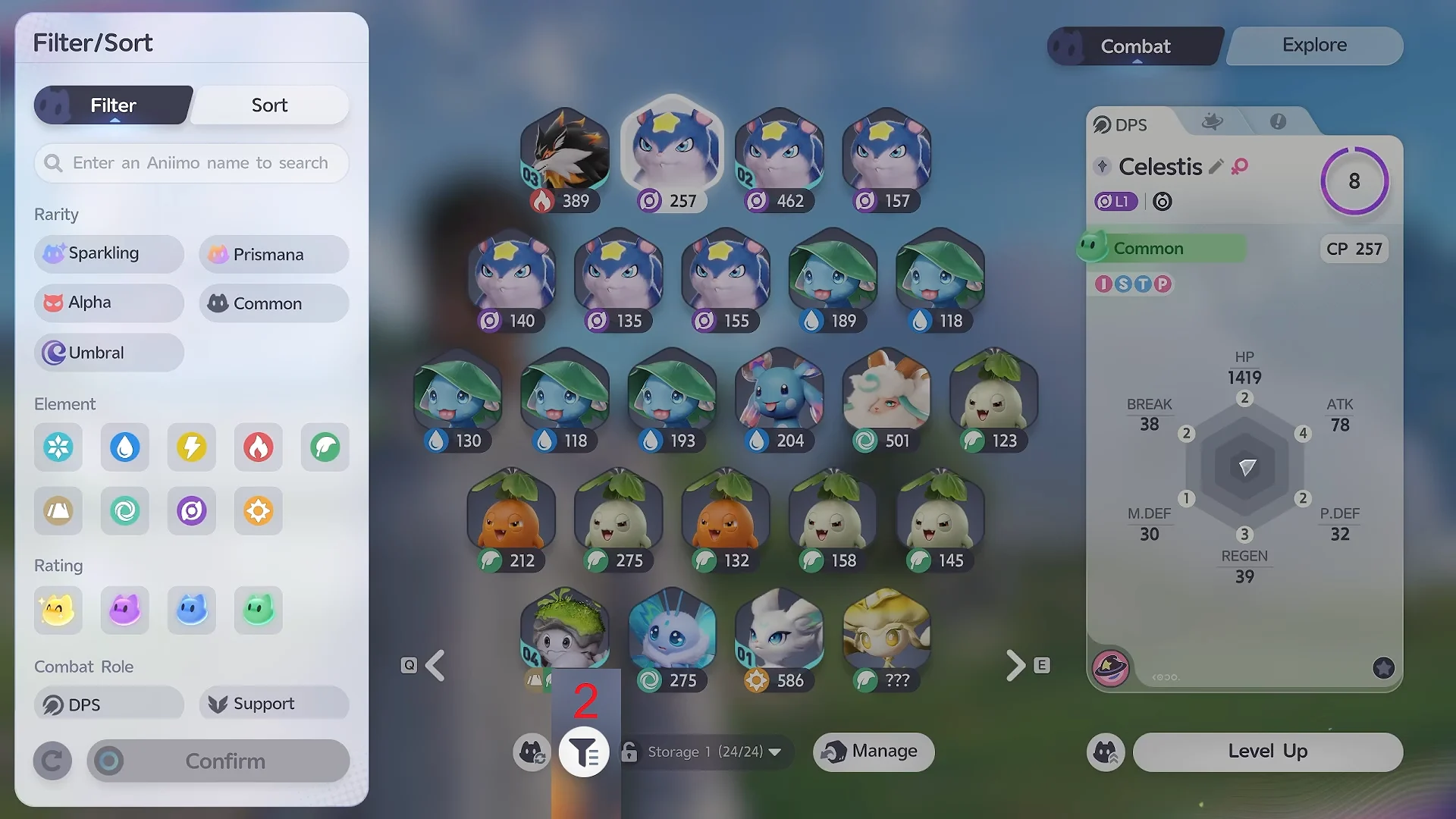
Filter / Sort Menu01:54Filter / Sort Menu
The Filter/Sort panel where you choose which ratings, rarities and roles to display before selecting. Shown at 01:54 in AniimoSync’s video. Image: Pawprint Studio

Bulk select and release with Manage Mode

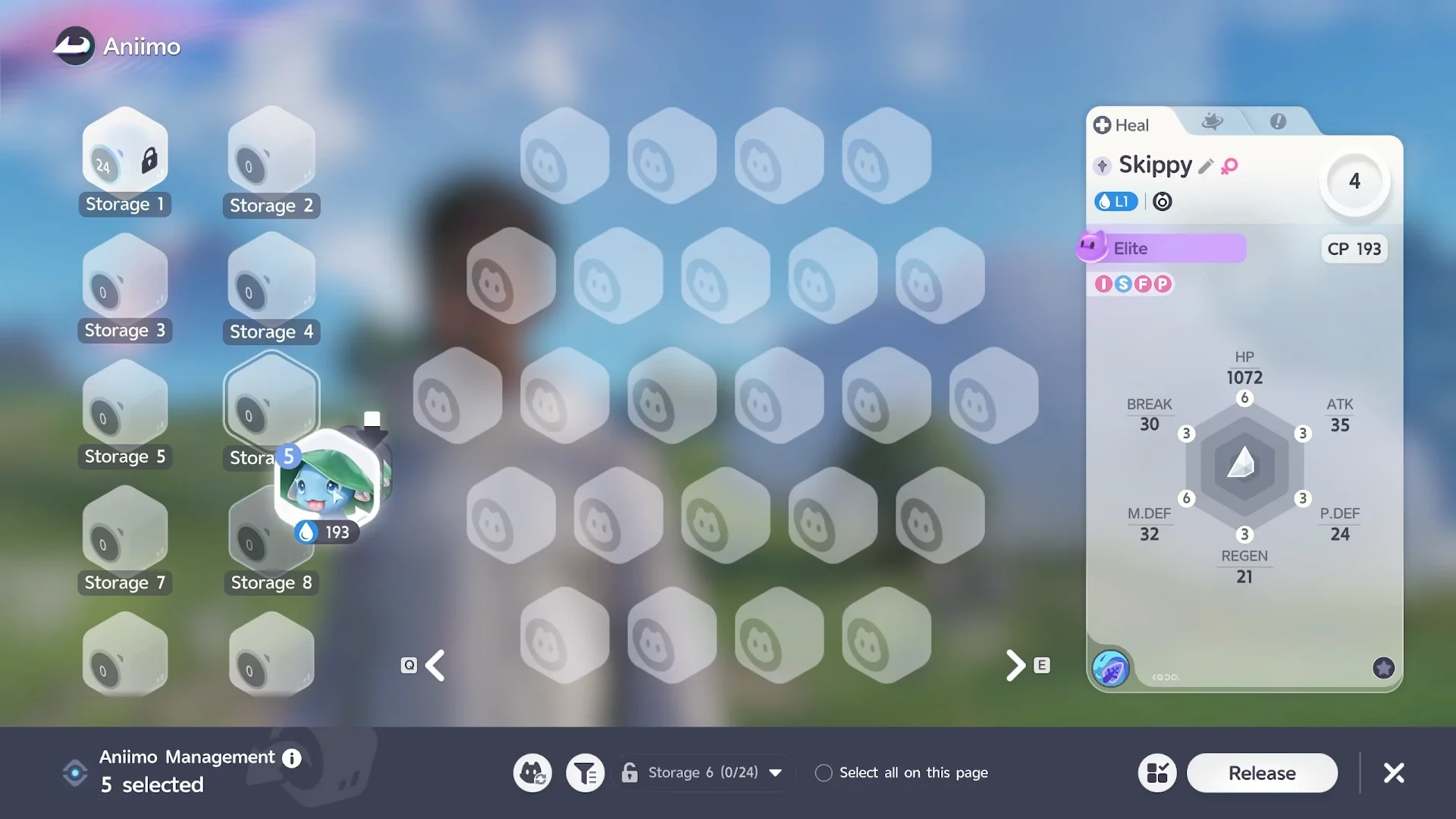
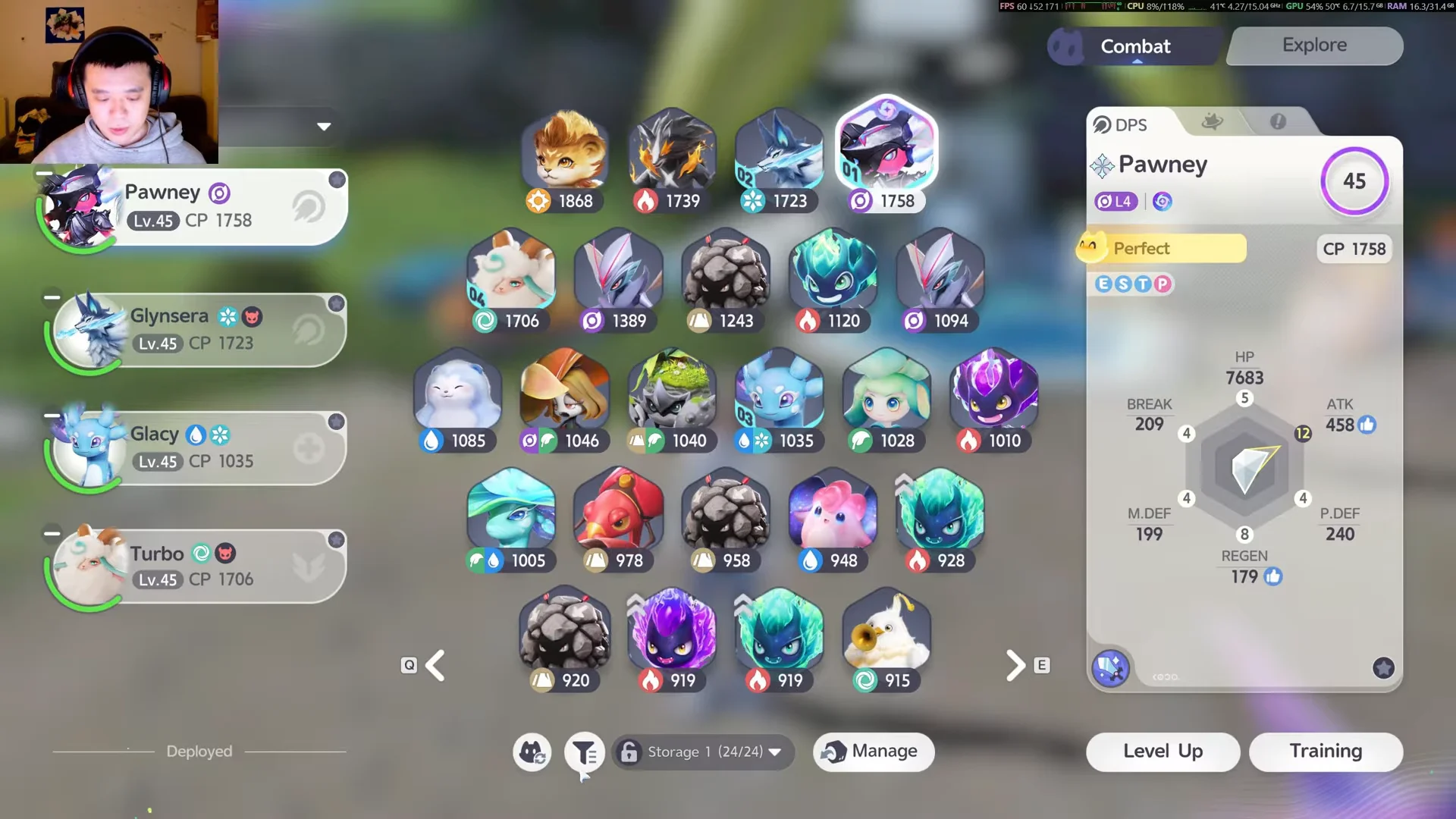
Press P or click the Aniimo tab icon in the top-right to open the storage screen. A full inventory can spread across many pages, so this is where you’ll do the whole job.
Accessing Aniimo Storage00:21Accessing Aniimo Storage
The storage grid you land on after opening the Aniimo screen, ready for filtering. Shown at 00:21 in StingKnight’s video. Image: Pawprint Studio
Select the filter icon beneath the grid. In the Rating section, mark tiers for removal, for example Common and Good, then choose Confirm.
Applying Rating Filter00:30Applying Rating Filter
Selecting the low ratings in the filter so only creatures you're willing to release remain on screen. Shown at 00:30 in StingKnight’s video. Image: Pawprint Studio
Scroll through the filtered results from top to bottom to confirm the list only shows the ratings you picked. This is your last visual check before selecting anything.
Reviewing Filter Results00:44Reviewing Filter Results
The filtered results, showing only the ratings you chose, with the Filtering control active. Shown at 00:44 in StingKnight’s video. Image: Pawprint Studio
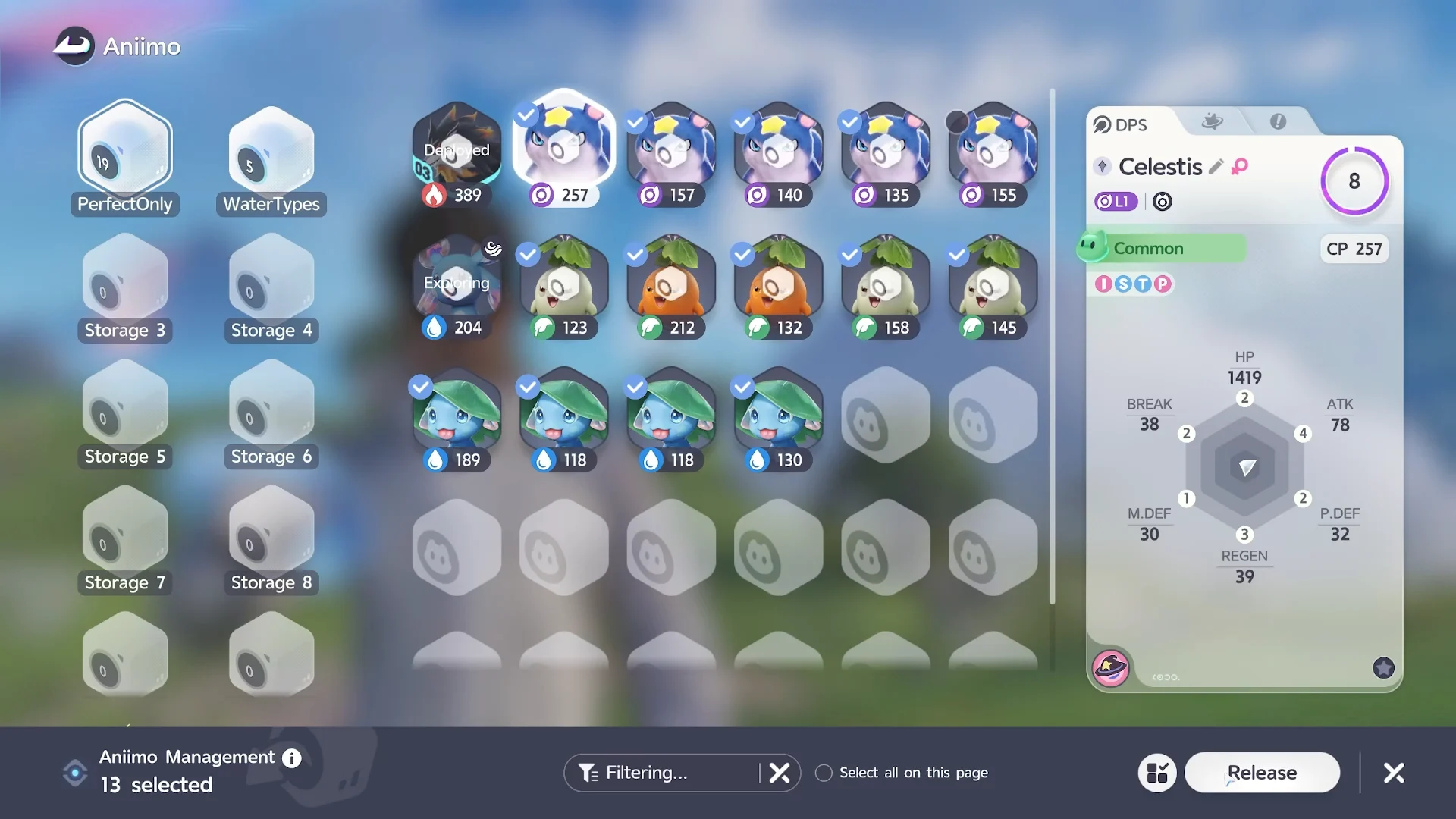
At the bottom center, choose Manage. Manage Mode then activates, placing a checkmark on each Aniimo and displaying the Select all on this page option.
Tick Select all on this page. This marks all of the currently displayed Aniimo at once, so you’re no longer clicking each creature individually.
Manage Button and Batch Moving03:21Manage Button and Batch Moving
Manage Mode lets you grab many Aniimos together instead of handling them one by one. Shown at 03:21 in AniimoSync’s video. Image: Pawprint Studio
Scroll back through the choices and click any high-level or high-CP creature you plan to keep, clearing its checkmark. Evolved forms and special-form Aniimo may be included despite low rarity, so inspect the top rows closely.
Click Release in the bottom-right corner. A confirmation window titled Released Aniimo List appears, showing the total count and the Farewell Gifts you’ll receive.
Filtering and Mass Releasing04:22Filtering and Mass Releasing
The release confirmation window listing the selected creatures and the Farewell Gift reward. Shown at 04:22 in AniimoSync’s video. Image: Pawprint Studio
Review the count and gift list, then click Confirm. The game processes the batch and returns your Farewell Gift items on screen.

How to confirm the release worked

You’ll know it went through when the Farewell Gift items pop up on screen and the storage pages you just cleared show empty slots. The confirmation message reads that the released Aniimo left a few items behind, and your owned count drops by the number you let go.

If you keep a box for teams, Prismana, Sparkling, or rare variants, lock it first so nothing important gets caught in a filter you rush through.

With the filter set to Common and Good and the deselection pass done, one Manage Mode run can free up dozens of slots at once and keep your storage under the 600-Aniimo ceiling without touching anything you actually use.