Aniimo lets you set the time of day by hand instead of waiting for the clock to roll over. This matters because certain creatures, quests, and puzzles only respond to a specific part of the cycle, so being able to jump straight to Nighttime or back to daylight saves real waiting time.
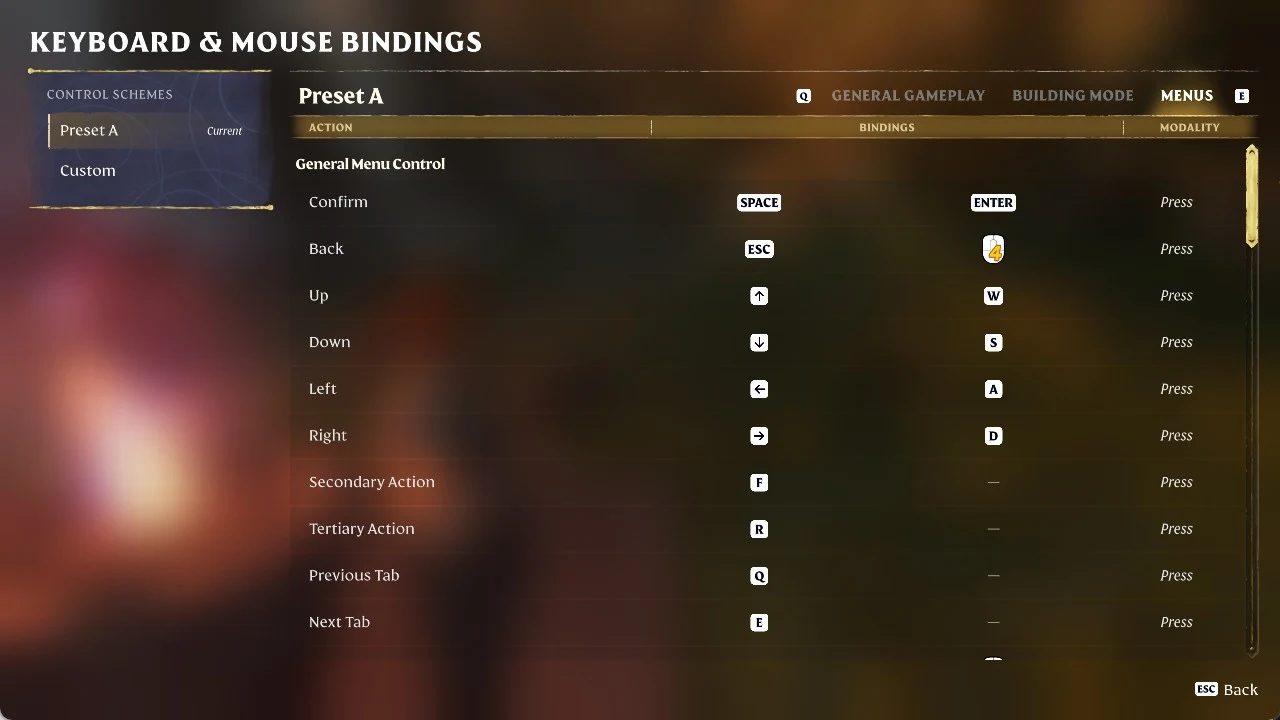
Quick answer: Bring up the menu (PC: Esc), select the sun-and-moon symbol in the bar along the right edge, choose a period on the circular dial, then confirm. There is no cooldown, so you can change it whenever you like.
Unlock the time change feature first
You gain access to the Day and Night control as you advance the main story, during the Ceremony Preparations quest, which is the eighth main quest. Its objective has you set the time to night at the Elder’s House and rest there, introducing you to the feature.
Once you have completed that step, the sun and moon control stays available in the menu for the rest of the game and can be used whenever you need it.
Change the time of day, step by step
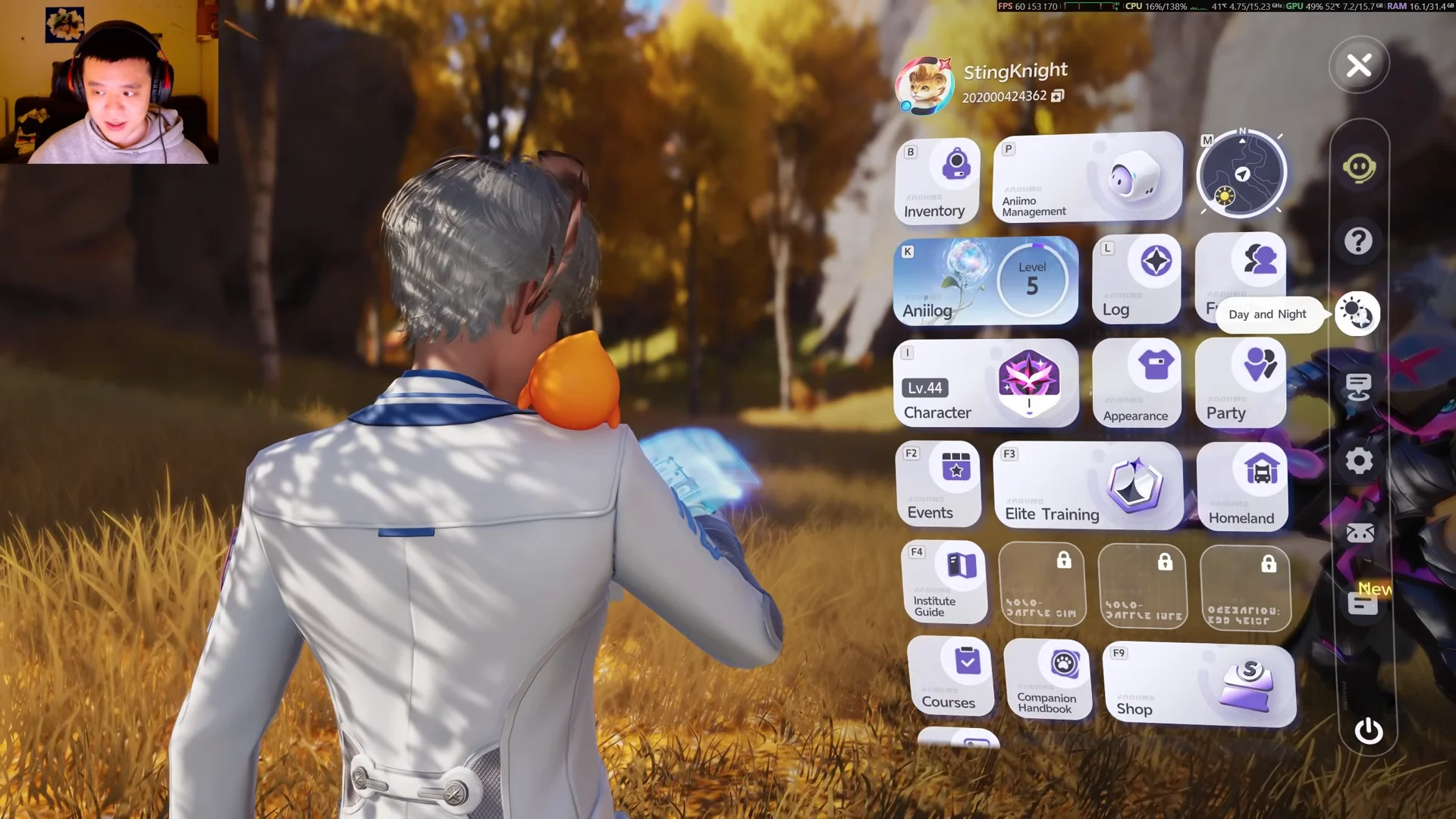
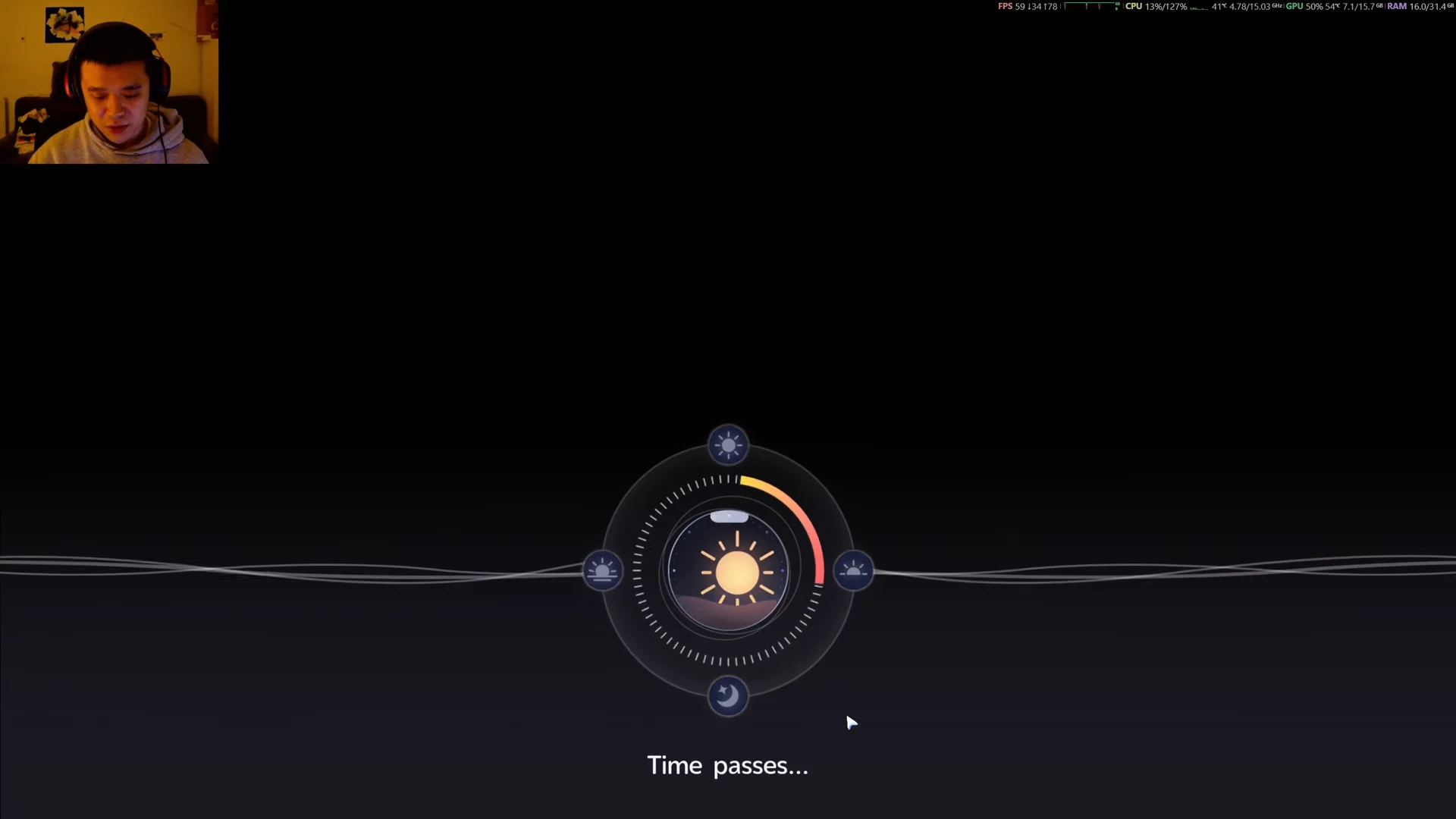
You know it worked when the sky and lighting update to match your selection, for example the night sky appearing after you choose Nighttime. If you picked the wrong period, just repeat the steps. There is no cooldown and no rest requirement, so you can change back and forth freely.
The four time periods on the dial
| Period | What it sets |
|---|---|
| Noon | Bright daylight; daytime creatures are active. |
| Dusk | Transition between day and night. |
 Nighttime Nighttime | Dark hours; nocturnal species and night forms appear. |
| Early Morning | Dawn; transition back into the daytime cycle. |
A dark-looking sky isn’t necessarily nighttime. Thunderstorms and heavy rain can dim the sky in daytime, so consult the in-game clock—not the scenery—when searching for a creature that appears only at night.
Why you would change the time
- Creature spawns: Some species and forms only appear during certain hours. Veilfloat and Luminelle at Tideblossom Coast are active at night, while forms like Flutternym Night Form show up only after dark.
- Quests and puzzles: Certain objectives tell you to “rest for the night,” while puzzles like the Lumin Marking puzzle on Tideblossom Coast are usable only at Nighttime.
- Photo Mode: Different lighting changes sun and moon placement and shadows, so switching time lets you frame outdoor shots the way you want.
To check which creatures appear at particular times, bring up the map and choose the closest Bloom, then review the species shown for that area. A “Nighttime” or “Noon” label beside a species means it appears only during that period; the Aniilog provides the same spawn requirements for every species.
Time does not change the weather
Switching the time of day has no effect on weather. Rain, snow, and thunderstorms run on a real-time clock that is independent of the in-game hour. If you need a specific weather condition to catch a creature, changing the time will not produce it. You will need to wait for a natural weather change or use the Nurture menu at a Bloom once you have the area’s Silver Medal.