Aniimo’s account system is simpler than it looks, but it has one step you cannot redo. Everything hangs off an email-based account called the Aniimo Pass. Steam, Epic, PlayStation Network, Microsoft, and the mobile logins are just doors into that Pass, and progress only follows you between platforms when every door opens onto the same one.
Quick answer: Sign in with the same Aniimo Pass email on every platform and use the same server. On PS5 and Xbox, complete the link prompt at first launch — it appears once.
What the Aniimo Pass controls
The Pass is the account that actually holds your character, roster, currency, and mailbox. Platform logins sit on top of it. Two different store logins can point at the same Pass, in which case your progress is genuinely shared, or at two different ones, in which case you have two accounts that will never meet.
- Your progress stays synchronized between PC, console, and mobile when they use the same server.
- Data on different servers is independent by design, and nothing moves a character between them.
- A single email address may connect to several third-party platform accounts.
- Each individual third-party account can be linked to only one email.
- Once linked, PS5 and Xbox retain controller functionality along with achievement and trophy tracking.
Because PC and mobile share the same data outright, signing into the phone client with your PC Pass continues that exact character. Consoles are the exception, and they are where people lose accounts.
Link your email on PC
When you sign in to Steam, the game lets you link an Aniimo Pass email. If you close that prompt before entering the world, the in-game Email Link page remains available for linking later. The instructions below work the same way on the PC client in either case.
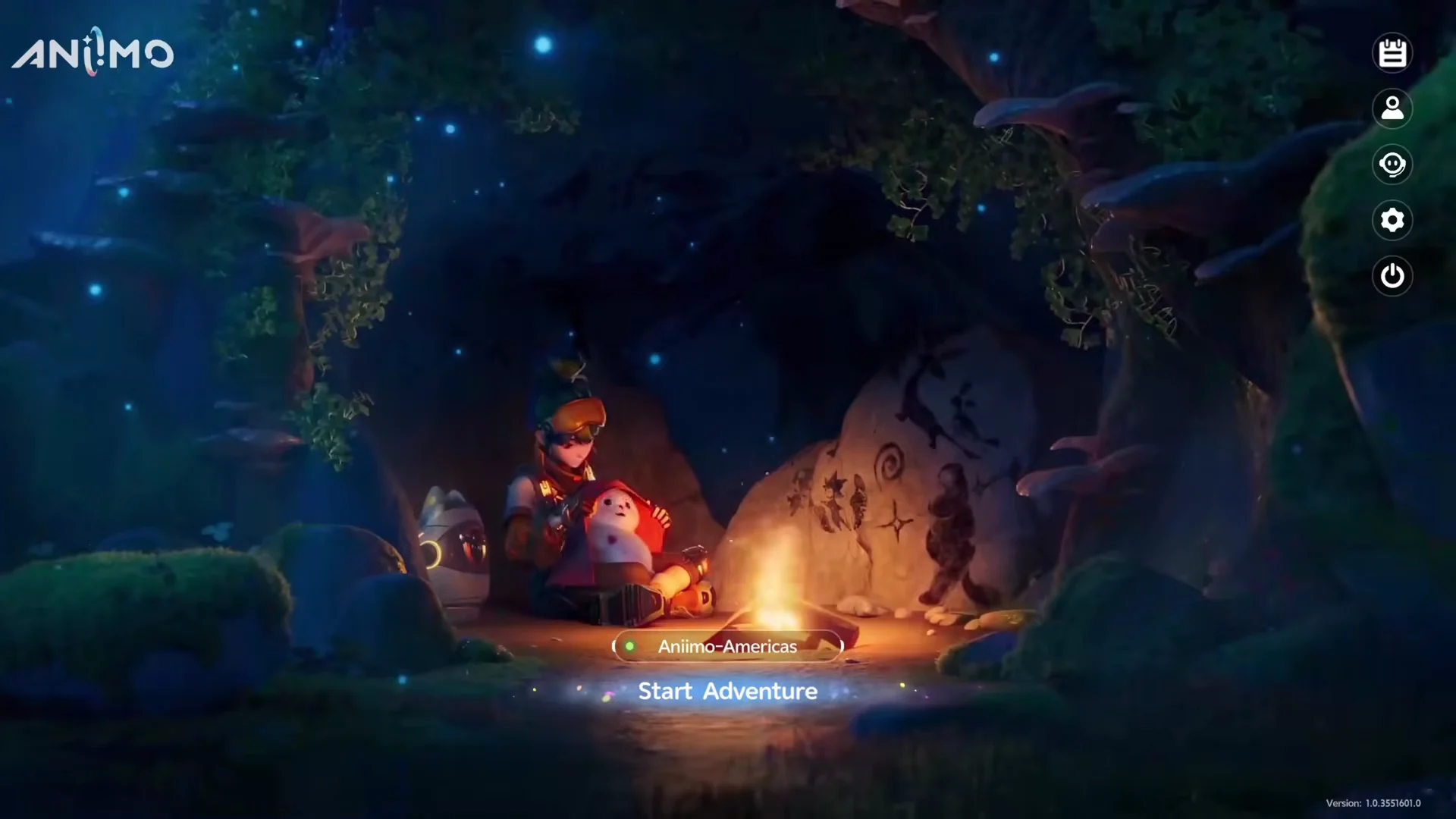
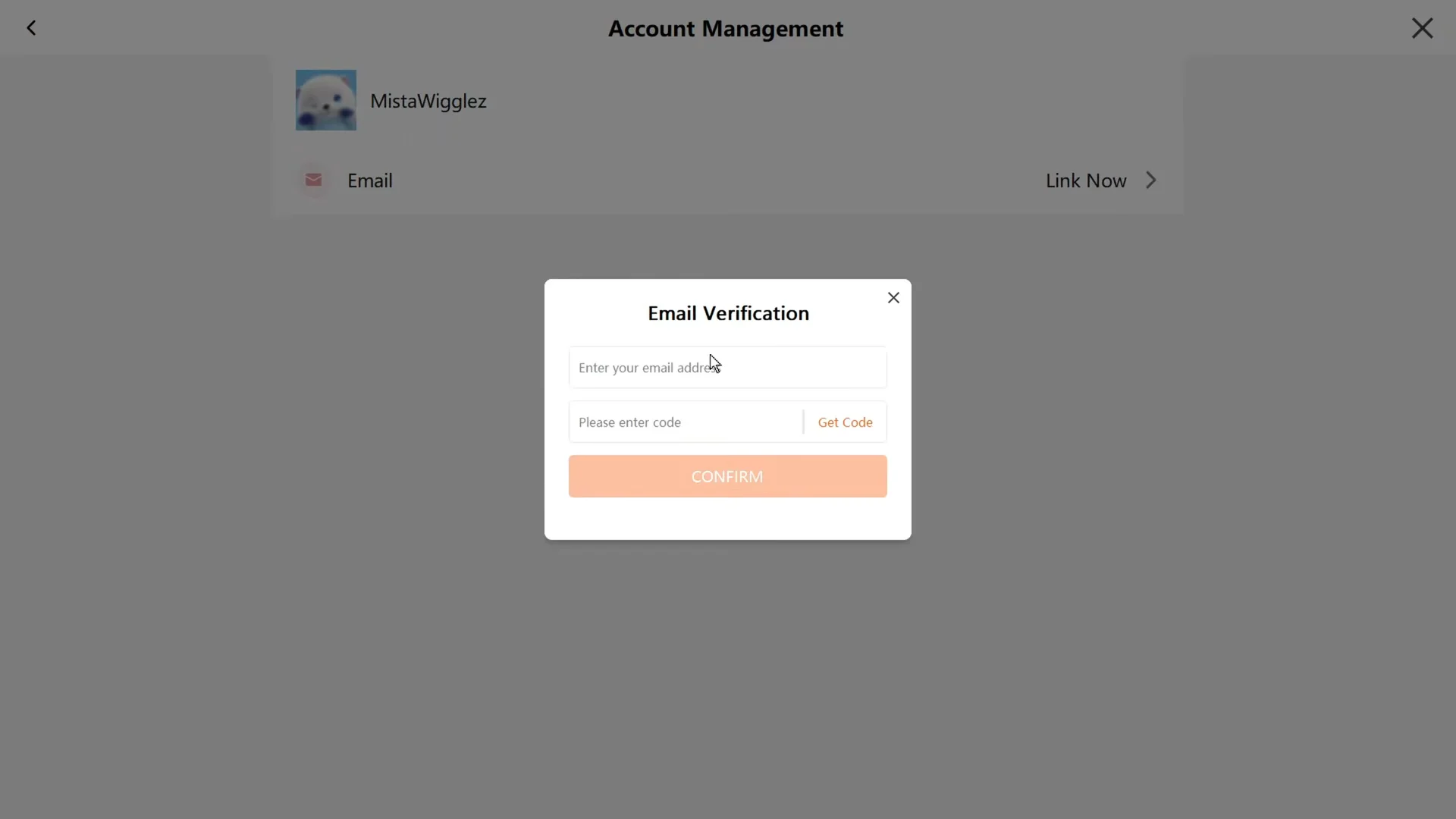
An address that is already attached to another Pass will be rejected. There is no self-service fix for that conflict — the only route is Support.
Link or change the email on mobile
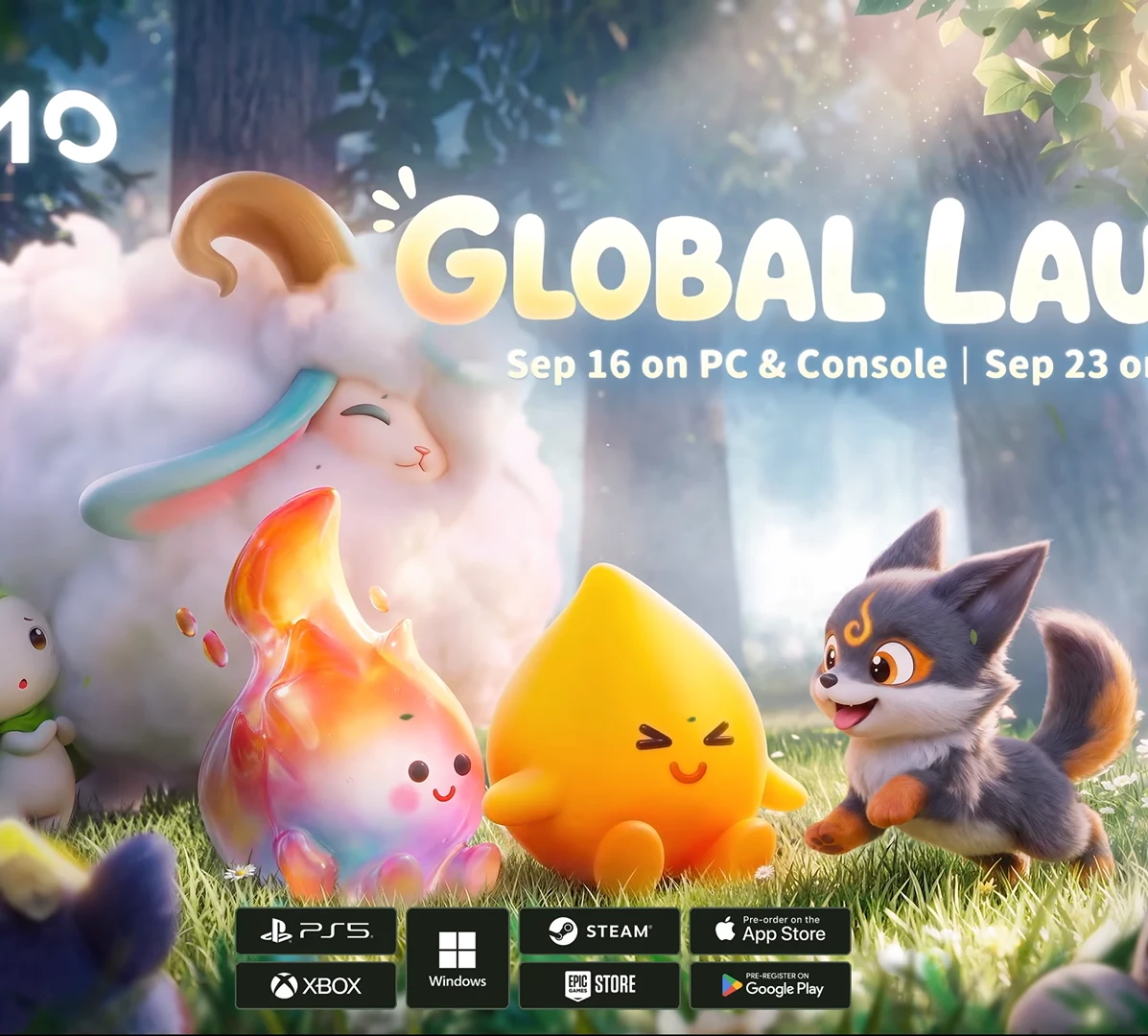
Aniimo’s phone edition launched on September 23, 2026, using the same servers as the other versions. For a new installation, get the client through the App Store, Google Play, or the official Aniimo site. Because mobile has more menu layers than PC, it is generally the better place to resolve account issues.
On a player’s initial sign-in, choosing a third-party login provides an opportunity to attach an email. Decide which account you want to retain before proceeding beyond that screen.
The one-time link prompt on PS5 and Xbox
Read this part before you press Start Game on a console. The prompt offering to link an existing Aniimo Pass appears only the first time a PSN account or a Microsoft account logs into Aniimo. That single popup is the entire window.
- Complete it, and your console session joins your existing PC or beta account, sharing everything on that server.
- Skip it, and that console account registers a brand-new Aniimo Pass that cannot be linked to your existing one later.
So have the email ready before you launch. If you already skipped it, treat the outcome as permanent and take the question to Support rather than playing on and building a second character you will want back.
Pre-order packs follow the platform account that bought them. The contents arrive in the in-game mailbox of the first character created on that console account, so a PS5 pack and an Xbox pack can both be claimed once both platform accounts point at the same Pass.
Servers decide what a linked account actually shares
Aniimo runs three service regions: Aniimo-America, Aniimo-Europe, and Aniimo-Apac. Linking solves the account half of the problem, not the region half. A character on Aniimo-Europe simply does not exist on Aniimo-America, and signing in with the same email will not merge them.
| Platform | How your server is set |
|---|---|
| PC (official launcher, Steam, Epic) | You choose at character creation |
| PlayStation 5 | Your PSN account’s registered region determines the assignment automatically. |
| Xbox | Pick the server your existing character already uses |
| iOS and Android | Pick the server your existing character already uses |
The PS5 rule is the one that catches people out. A French PSN account lands on Europe, so if the character you want to keep lives on America, linking that PSN account to your Pass will not bring it with you.
If you tested Aniimo with a different email
Test data was discarded, while test rewards remain associated with the address used for testing. The appropriate solution depends on your current progress in the live game.
| Your situation | What to do |
|---|---|
| Third-party login, no character created yet | Link the test email in Account Center |
| Third-party login, character you can afford to lose | Swap emails in Settings, then log back in |
| Character you cannot afford to lose | Contact Support |
| You tested through Steam and received rewards | Contact Support |
Before you create a character
Sign in using the address you intend to keep. Then open Account Center, choose Account Management, select Email, and attach the address from your tests. You can do this on PC, through the mobile client, or on the official website.
After you have already created a character
Use this method only when losing the character is acceptable. Go to Settings, enter Account, attach an unrelated email address, remove the third-party account, sign out, and sign back in with your test address. If the character is important, stop and contact Support instead.
How to confirm the link worked
You know the link took when the second device drops you into your existing character rather than character creation. Check the character name, the server label, your roster, and your currency balances against the platform you normally play on. Rewards are the other tell — pre-registration, beta, and web event items land in the mailbox of the account tied to the verified email.
Then run a low-risk test before spending anything. Claim a piece of ordinary mail or change one harmless setting, close the client, and open the game on the other device to see whether the change followed you. Do that before you buy currency or claim a one-time entitlement.
If the client opens character creation instead of your save, stop there. Do not finish a new character and do not start unlinking things at random — confirm the server and email first, restart the client, and then reach Support in-game through Menu then Support, or by pressing F10 on PC. The written route is [email protected], and having your UID and login email ready speeds it up.
One last piece of housekeeping once everything is joined up: an Aniimo account can be suspended, restricted, or closed after 365 days without a login, with an in-game notice first. A single sign-in a year on any linked platform keeps the Pass, the character, and the Homeland attached to it alive.