

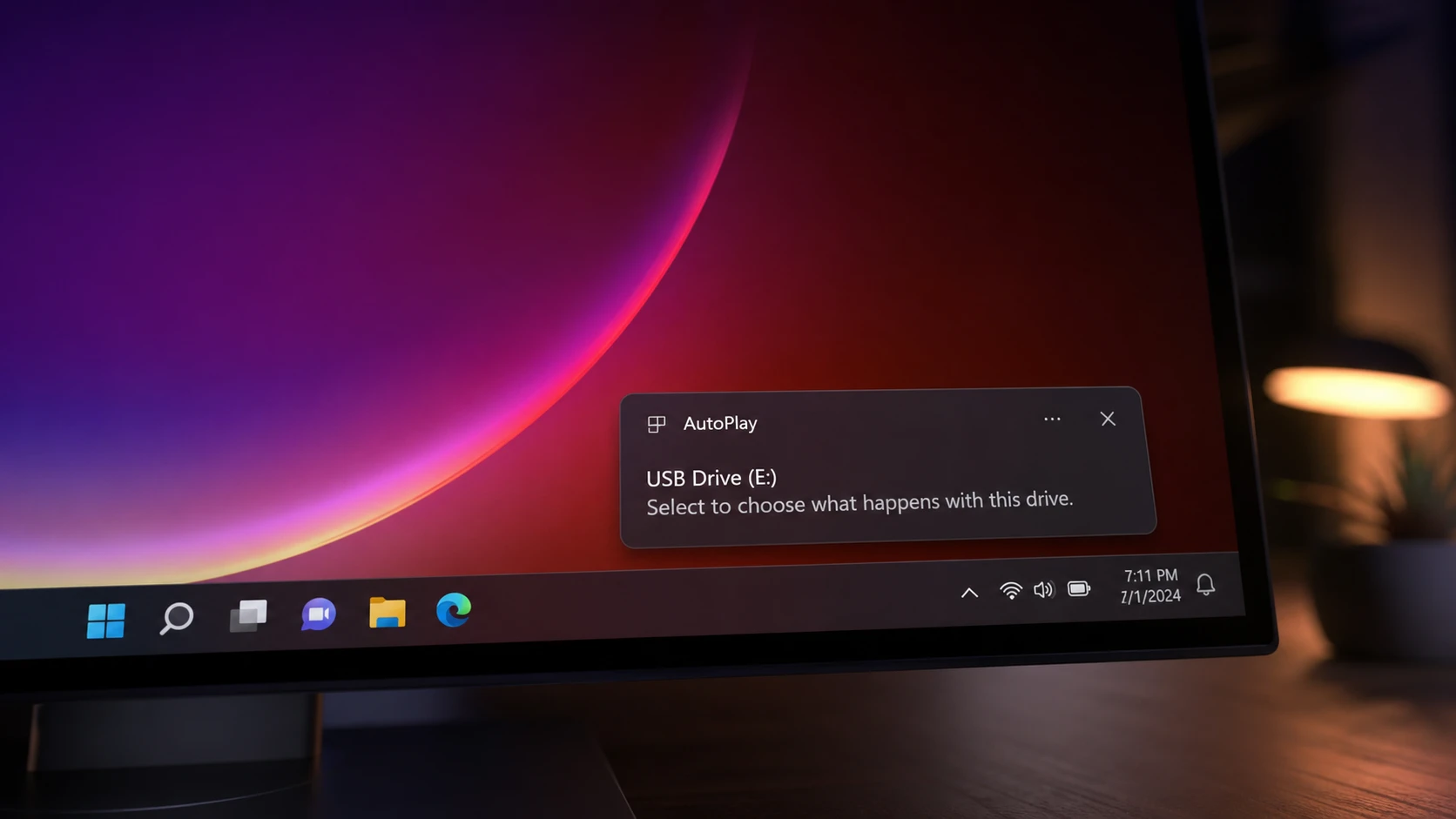
When you plug in a USB stick, insert a memory card, or load a CD or DVD, Windows 11 is supposed to pop up a prompt asking what to do with it. When that prompt stops appearing, the drive still mounts, but you have to open File Explorer and dig through This PC to reach the files. The fix almost always comes down to a toggle that got switched off, a background service that stopped running, or a default action set to do nothing.
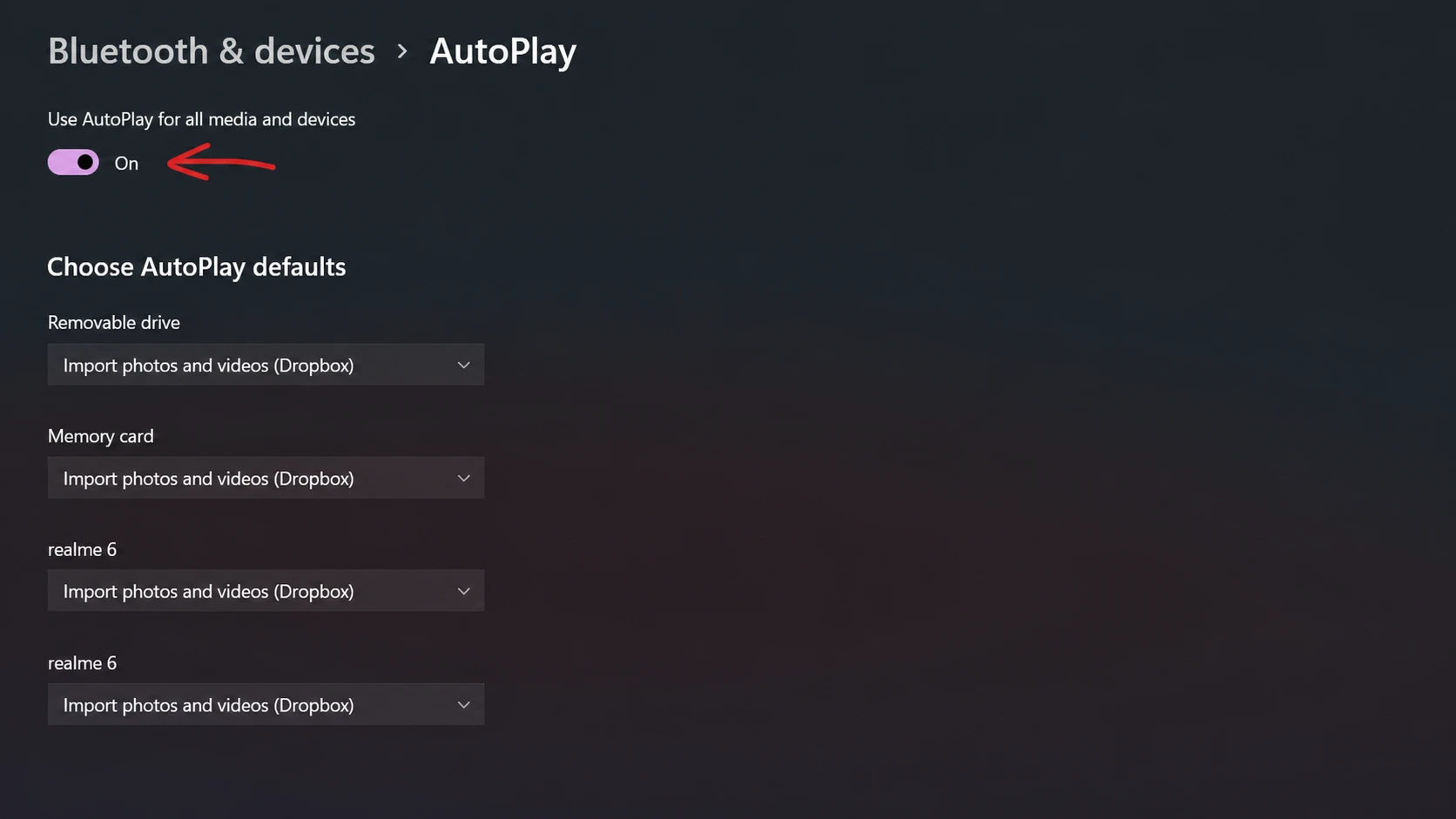
Quick answer: Open Settings > Bluetooth & devices > AutoPlay, turn Use AutoPlay for all media and devices off and back on, then set Removable drive to Ask me every time or Open folder to view files. If the prompt still does not show, start the Shell Hardware Detection service and set it to Automatic.
Why AutoPlay stops working in Windows 11
The prompt depends on a chain of settings and one background service. If any link breaks, nothing happens when you connect a device. These are the conditions that have to be true for the prompt to appear.
| Cause | What goes wrong |
|---|---|
| AutoPlay toggle off | The master switch in Settings is disabled, so no media triggers a prompt. |
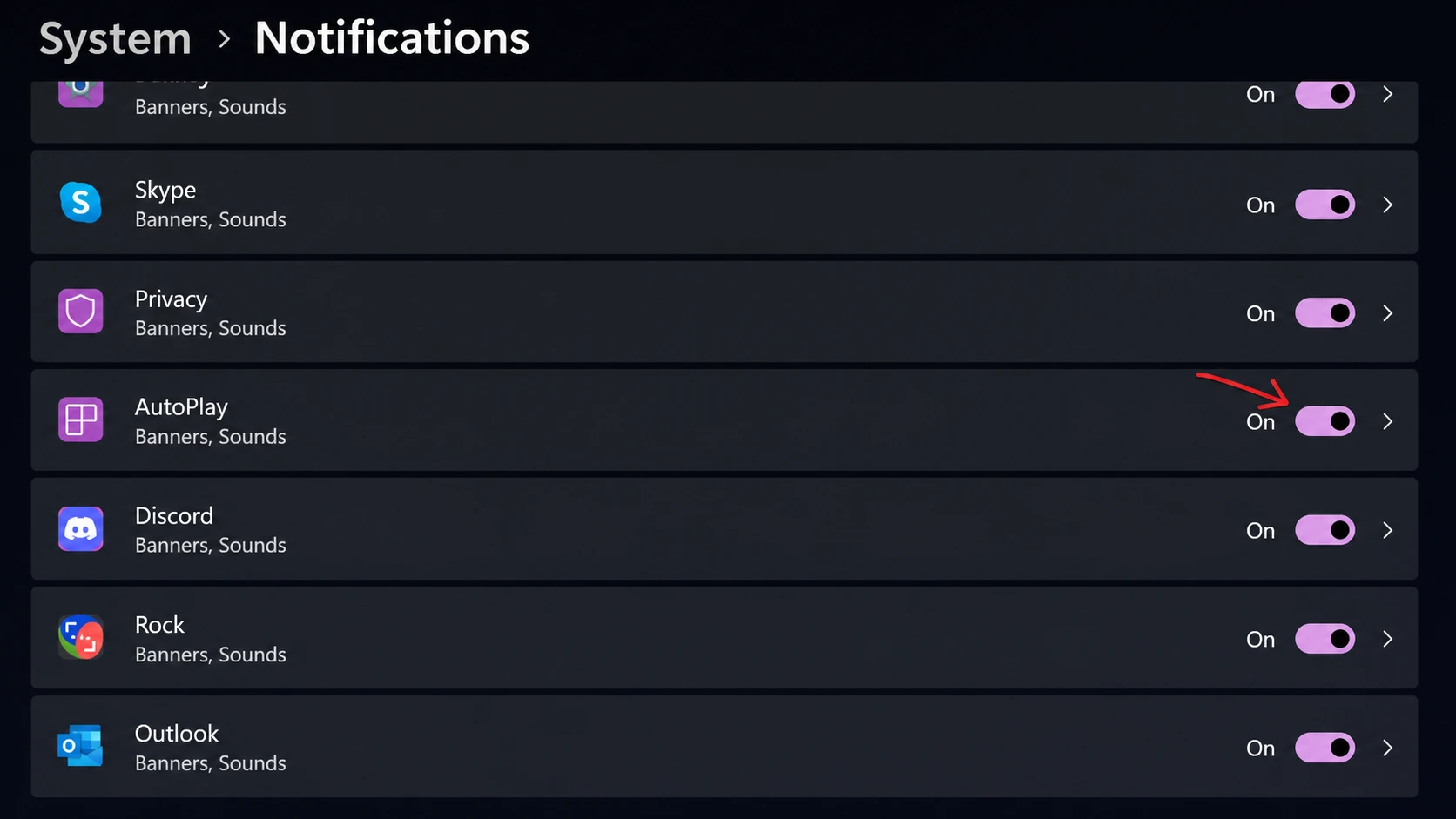
| Notifications blocked | AutoPlay shows its prompt as a notification; if notifications are off, you never see it. |
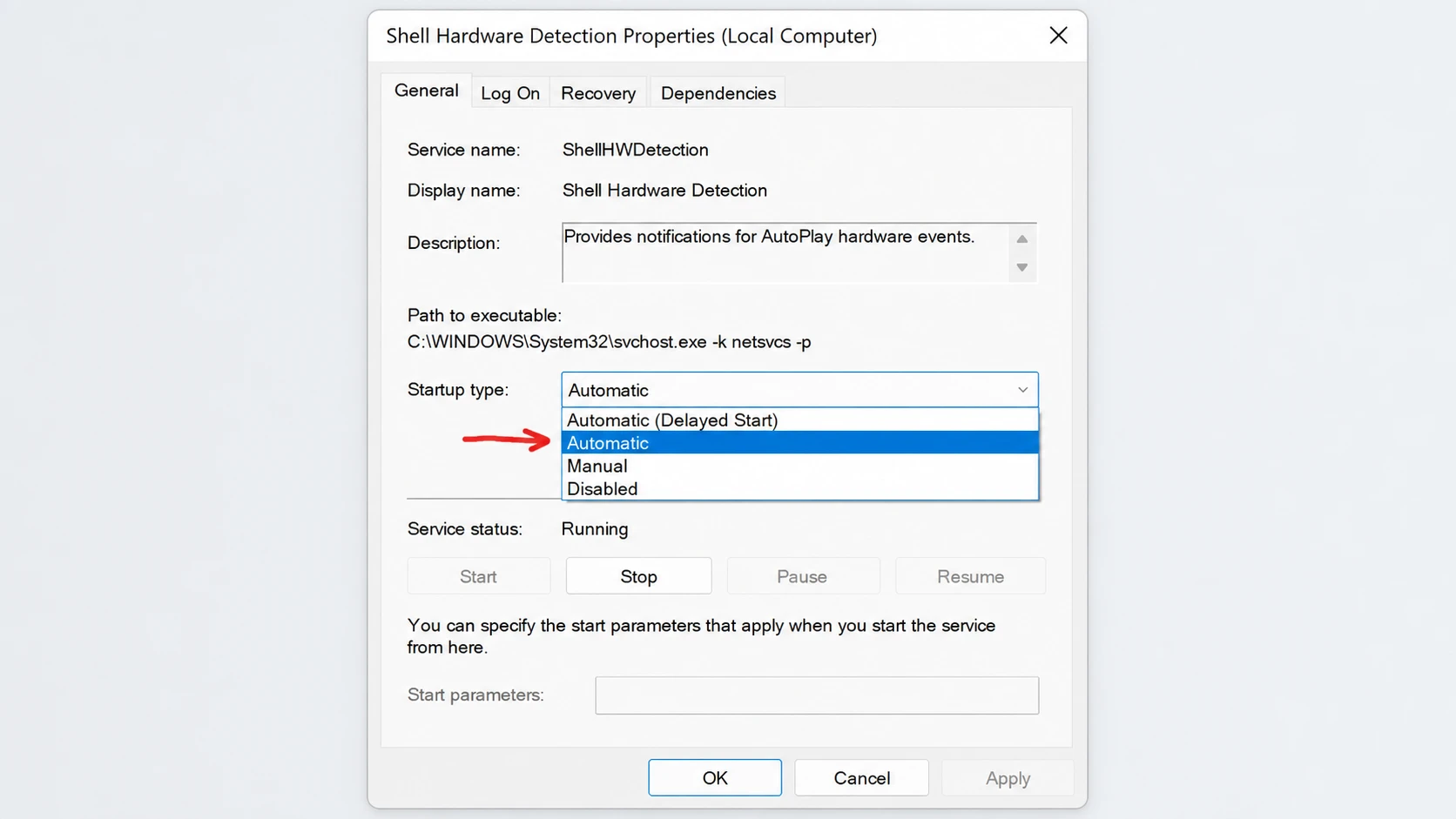
| Shell Hardware Detection stopped | This service detects hardware events. If it is not running, AutoPlay cannot react. |
| Default set to “Take no action” | Windows recognizes the drive but is told to do nothing. |
| Group Policy restriction | A policy (often on work PCs) forces AutoPlay off system-wide. |
| Corrupted settings | Misconfigured values that a reset clears. |
Re-enable AutoPlay in Settings
A simple off-and-on of the main toggle clears most temporary glitches. This is the first thing to try.
Turn on AutoPlay notifications
The AutoPlay prompt arrives as a system notification. If notifications are switched off for it, the feature looks broken even when everything else is correct.
Start the Shell Hardware Detection service
AutoPlay relies on the Shell Hardware Detection service to spot when you connect a device and to fire the prompt. If that service is stopped or set to Manual or Delayed start, nothing happens. Set it to run automatically.
You can also start the service from an elevated Command Prompt instead of opening the Services window:
net start shellhwdetectionSet the AutoPlay default action for removable drives
Even with AutoPlay turned on, Windows does nothing if the chosen default is “Take no action.” Point the removable drive at a real action so you get a response.
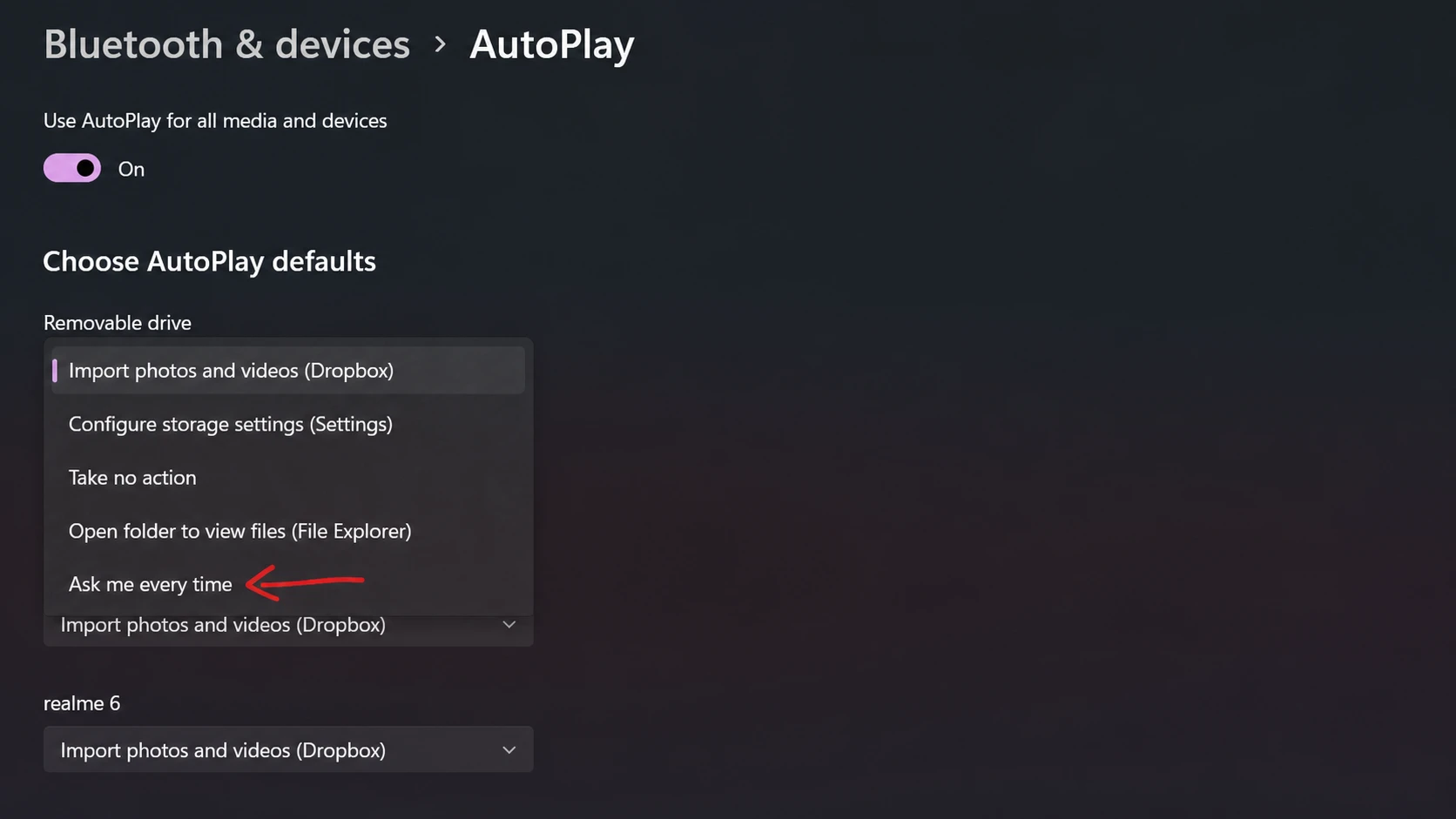
Check Local Group Policy on managed PCs
On work or school computers, an administrator may have switched AutoPlay off through Group Policy. In that case the right move is to contact whoever manages the device. On a personal Windows 11 Pro, Education, or Enterprise machine, you can change the policy yourself with the Group Policy Editor. Home edition does not include it by default.
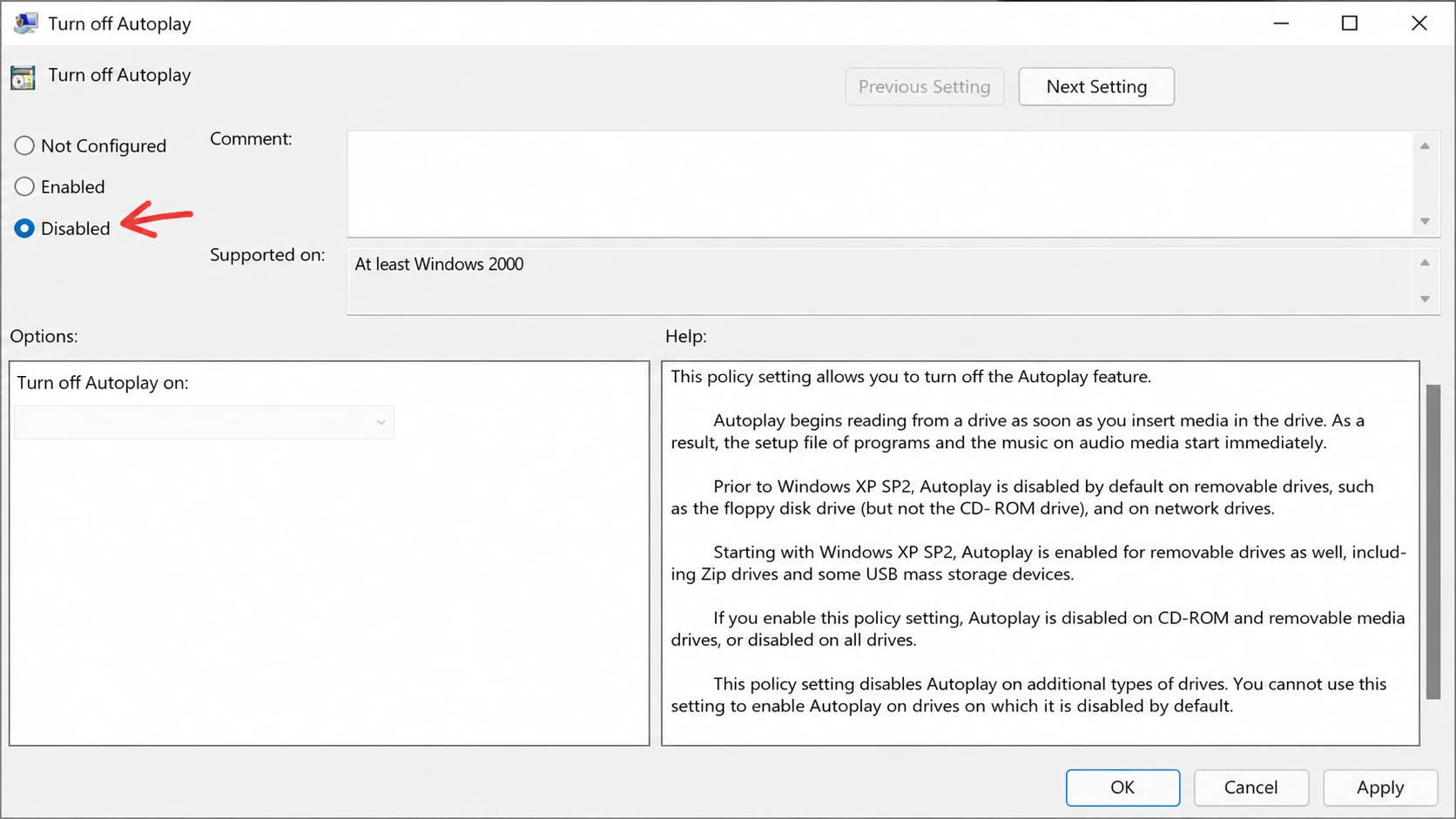
Reset AutoPlay to default settings
If the settings are tangled and nothing above sticks, wipe the customizations and return AutoPlay to its original state from the Control Panel.
control, and press Enter to open the Control Panel. Set the view to Large icons and select AutoPlay.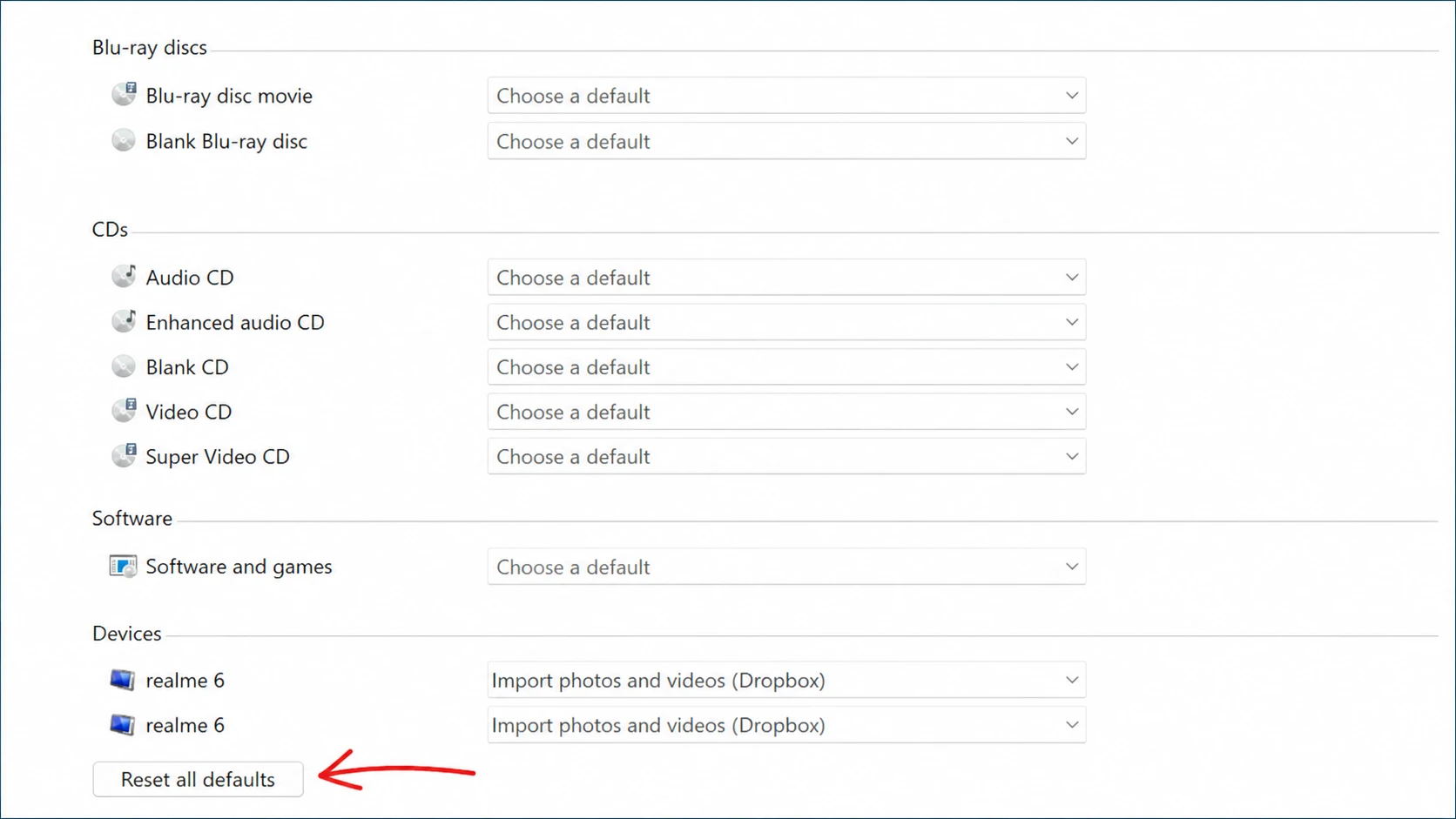
Other things to rule out
If AutoPlay works for some devices but not one specific drive, the drive itself may be the problem. A corrupted or improperly formatted USB stick can fail to register, so try a different device to isolate it. Disconnecting every USB device and plugging them back in one at a time also helps find a single device that interferes with detection.
It is also worth installing pending updates. Open Settings > Windows Update, click Check for updates, install anything available, and restart. Updates can correct a recent change that reset AutoPlay behavior. Security software occasionally blocks AutoPlay too, so briefly disabling it can confirm whether a third-party program is the cause.
You will know the fix worked the moment Windows shows the AutoPlay prompt, or opens File Explorer automatically, the next time you connect a drive. Keep in mind that AutoPlay applies only to removable media, and if you ever decide the prompts are more annoying than useful, the same toggle in Settings, the Control Panel, or Group Policy turns the feature back off just as quickly.



