Check If Someone Is Remotely Accessing Your Windows 11 PC
Learn various methods to detect, confirm, and stop unauthorized remote access on your Windows 11 computer, with practical instructions and security tips.
Learn various methods to detect, confirm, and stop unauthorized remote access on your Windows 11 computer, with practical instructions and security tips.
by Pallav Pathak
Unexpected mouse movements, new user accounts, or programs opening on their own can signal that someone is remotely accessing your Windows 11 PC. Identifying and stopping unauthorized remote sessions quickly reduces the risk of data theft, privacy invasion, and further system compromise. Below, you’ll find detailed instructions to check for remote access, confirm suspicious activity, and secure your PC against future threats.
Check for Remote Access Using Windows Event Viewer
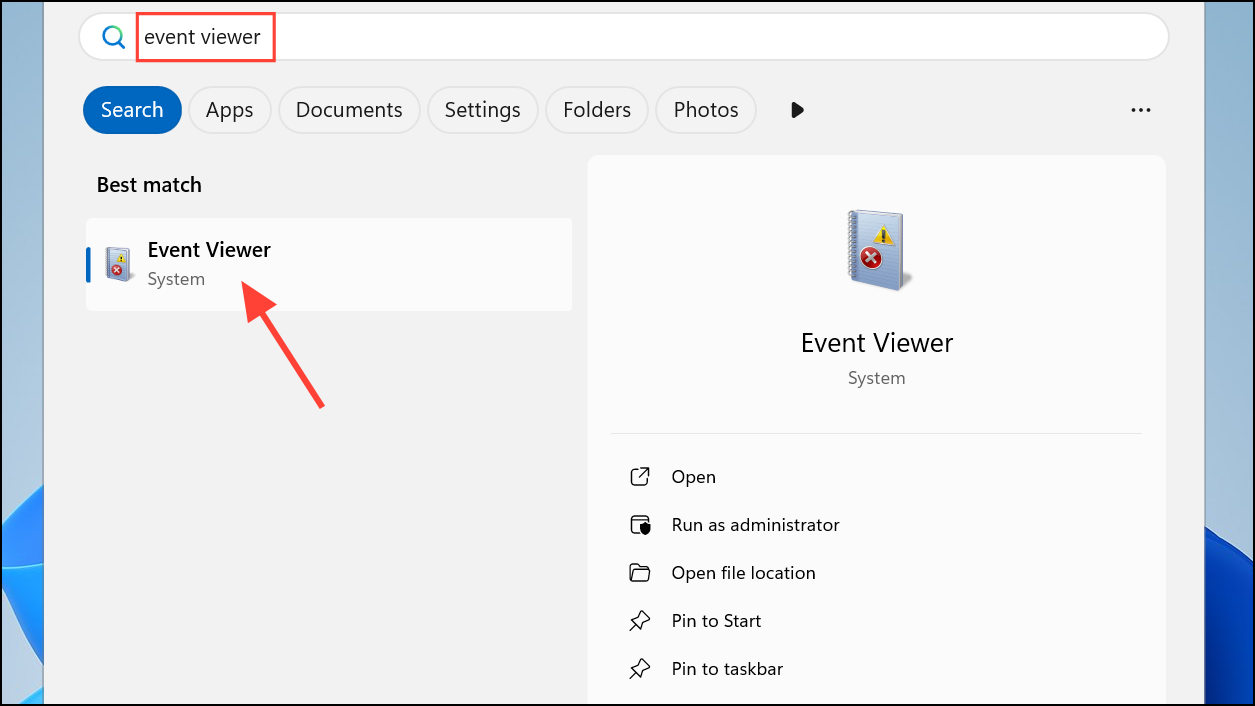
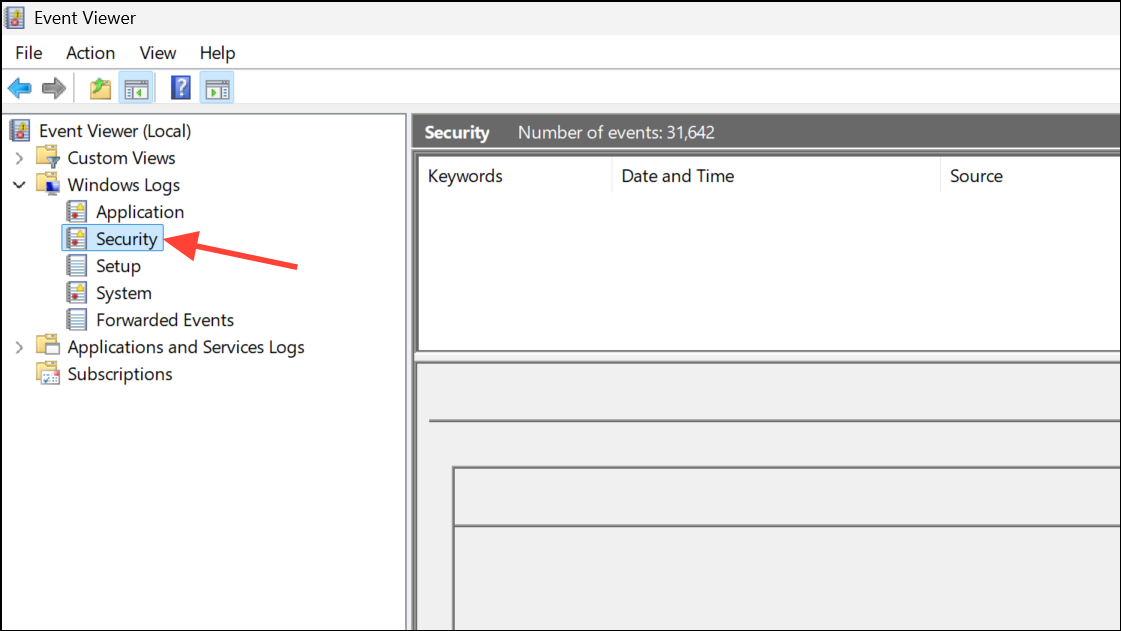
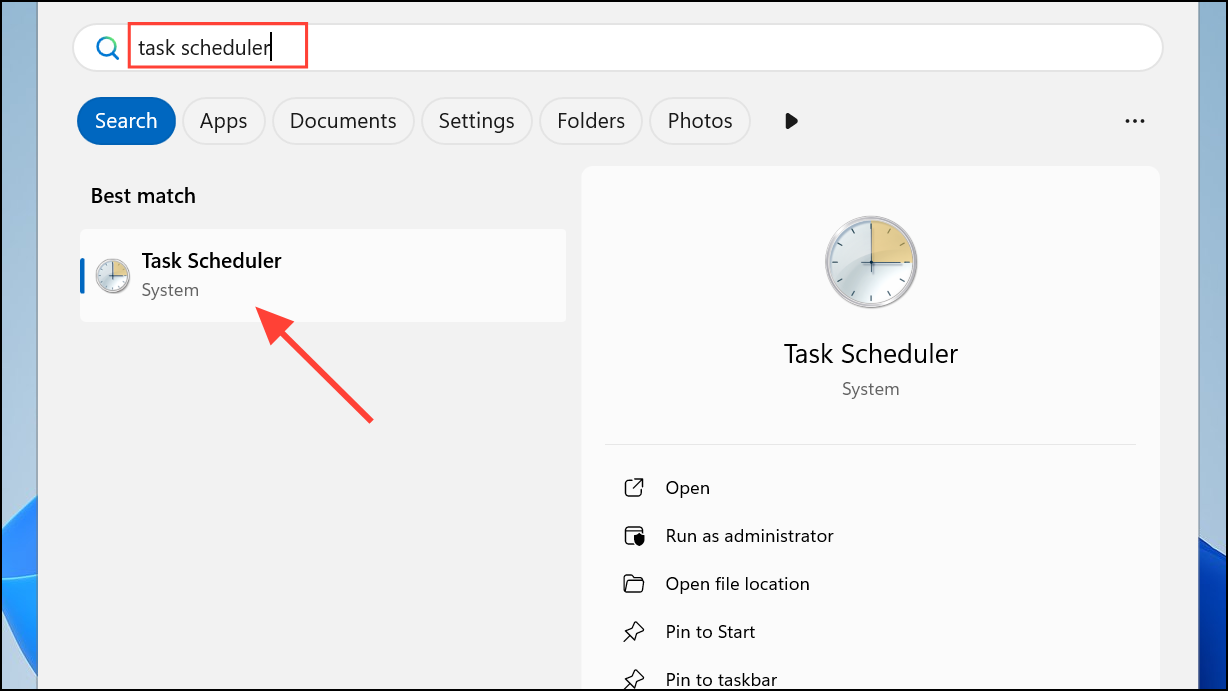
Open Event Viewer by searching for it in the Windows Search bar and selecting the matching result. Event Viewer logs system activity, including remote access attempts.
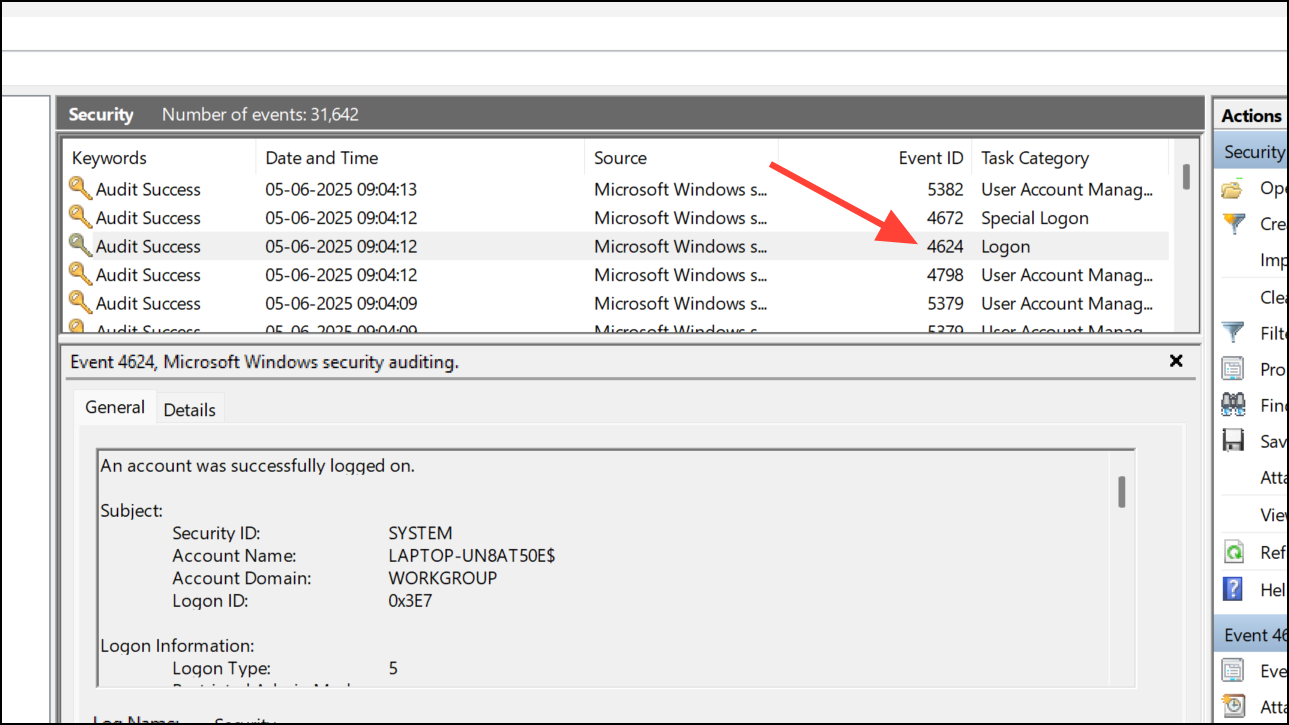
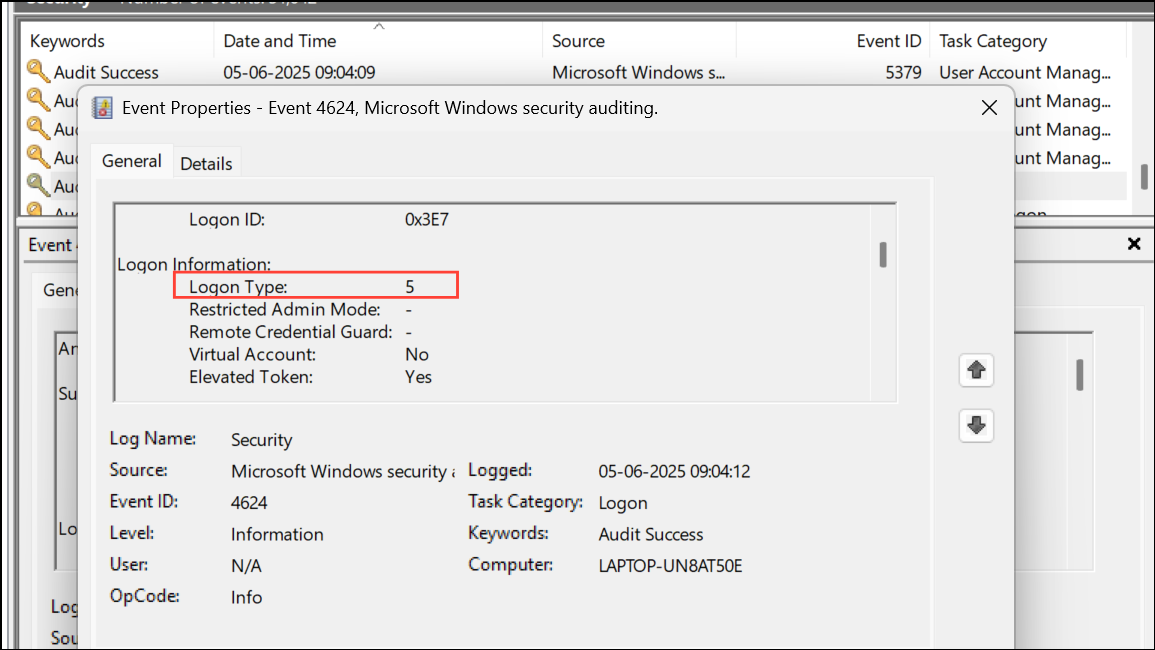
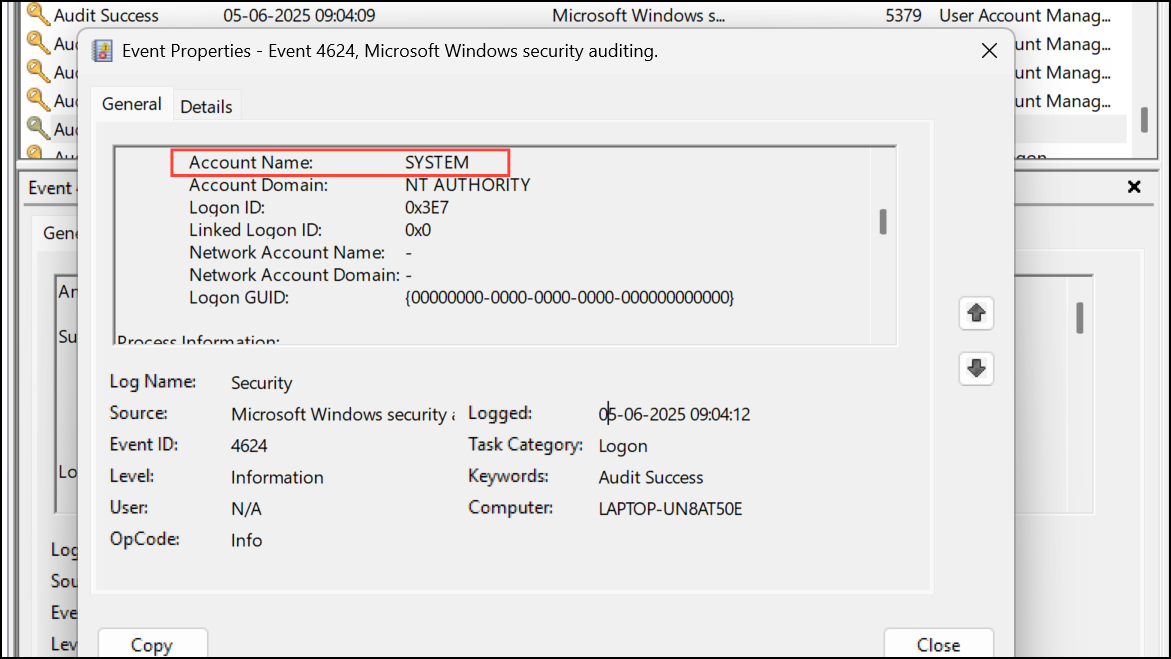
Double-click each 4624 event and check the details for Logon Type 10. Logon Type 10 is specifically used for Remote Desktop (RDP) connections. If you see this logon type and you did not initiate a remote session, it suggests someone accessed your PC remotely.
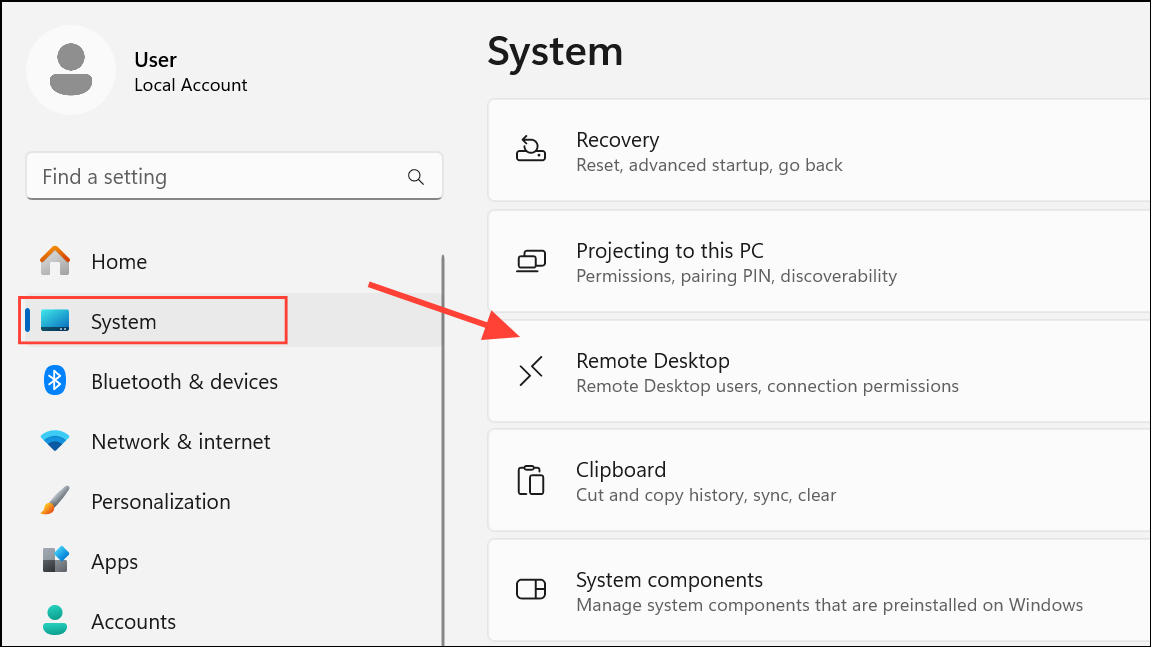
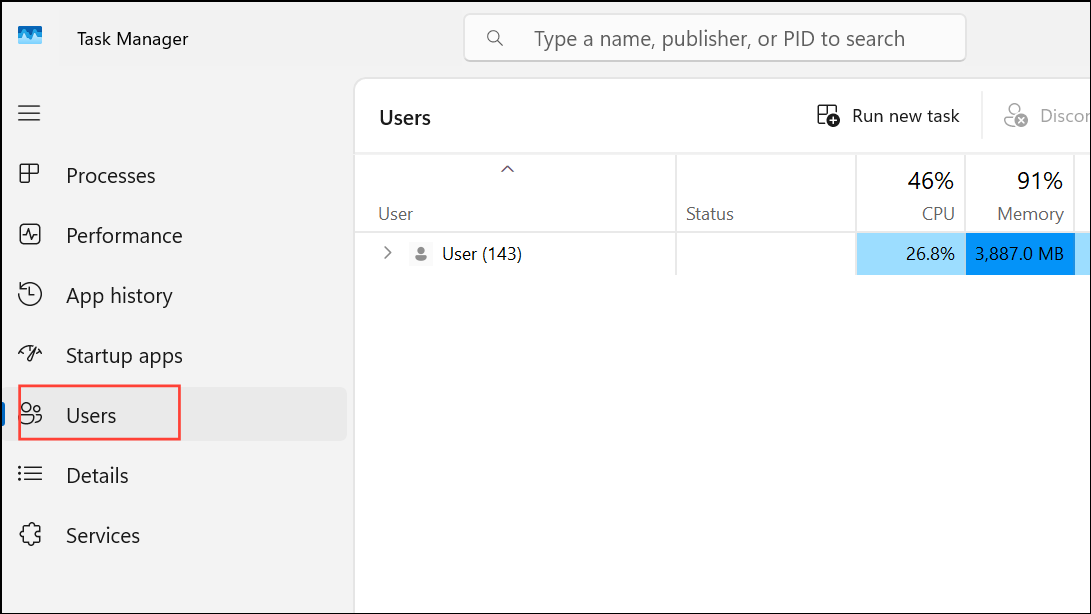
Click the arrow next to Remote Desktop users to view the list of accounts permitted to access your PC remotely. Remove any unfamiliar users by selecting them and choosing Remove.
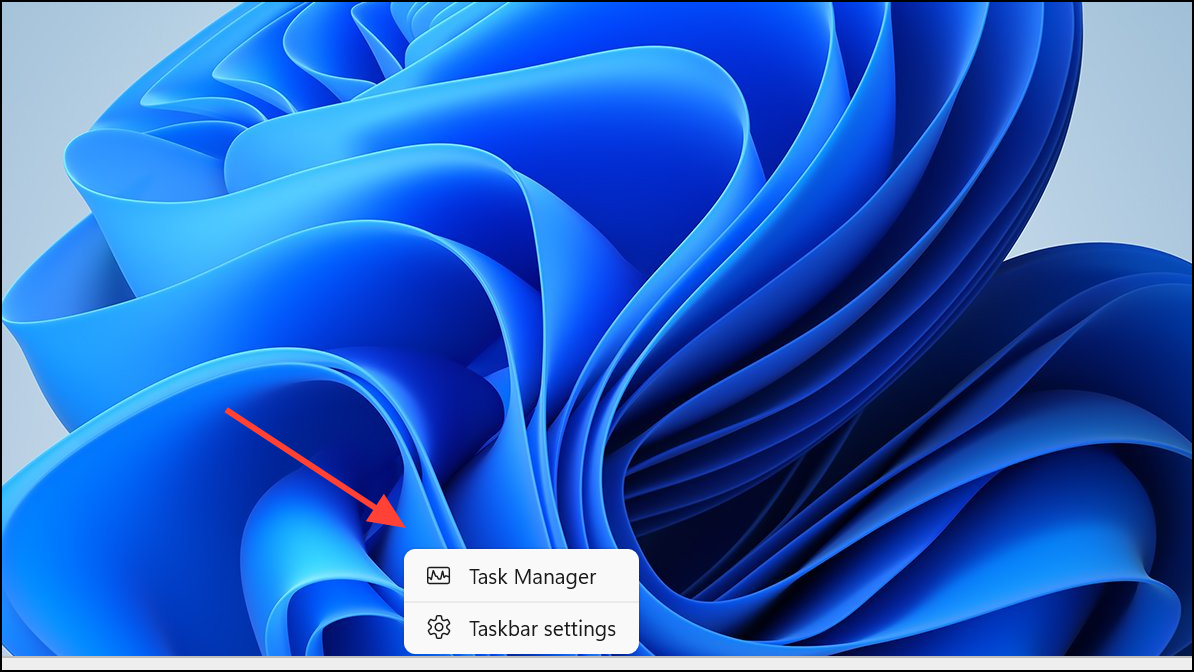
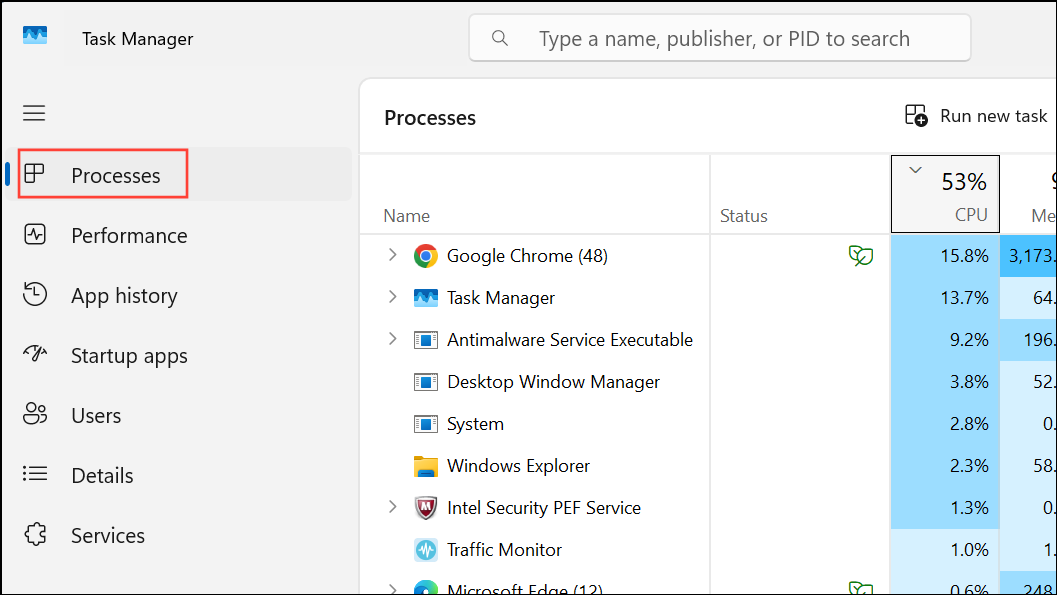
Check the Processes tab for unfamiliar or suspicious applications, especially those associated with remote access tools such as TeamViewer, AnyDesk, VNC, or Chrome Remote Desktop. If you find programs you didn’t install, right-click and select End Task, then uninstall them via Windows Settings.
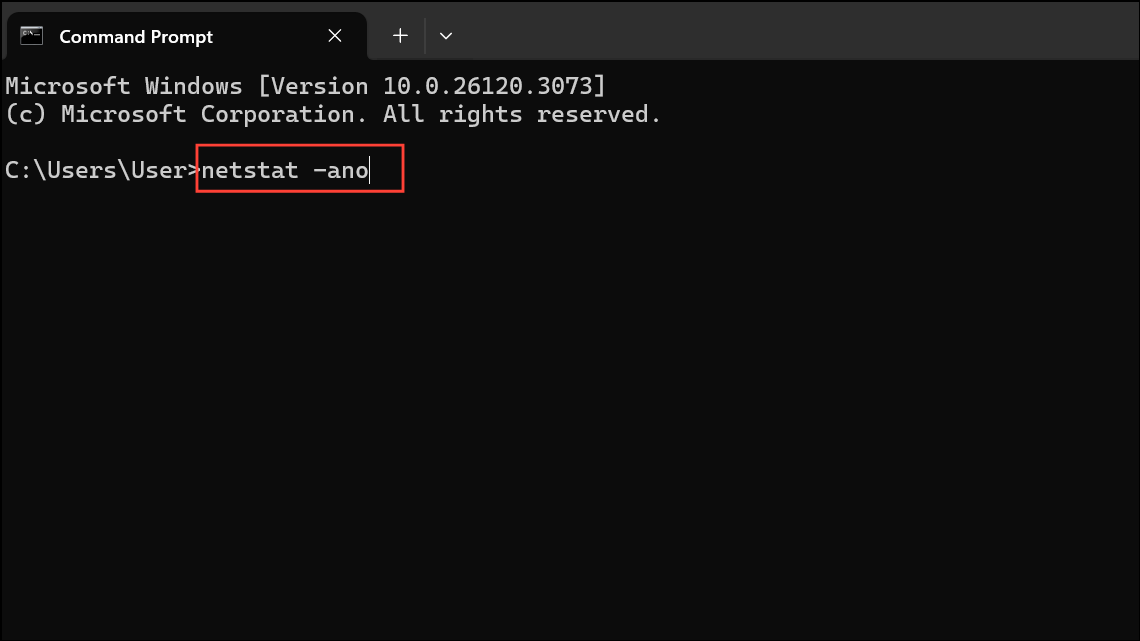
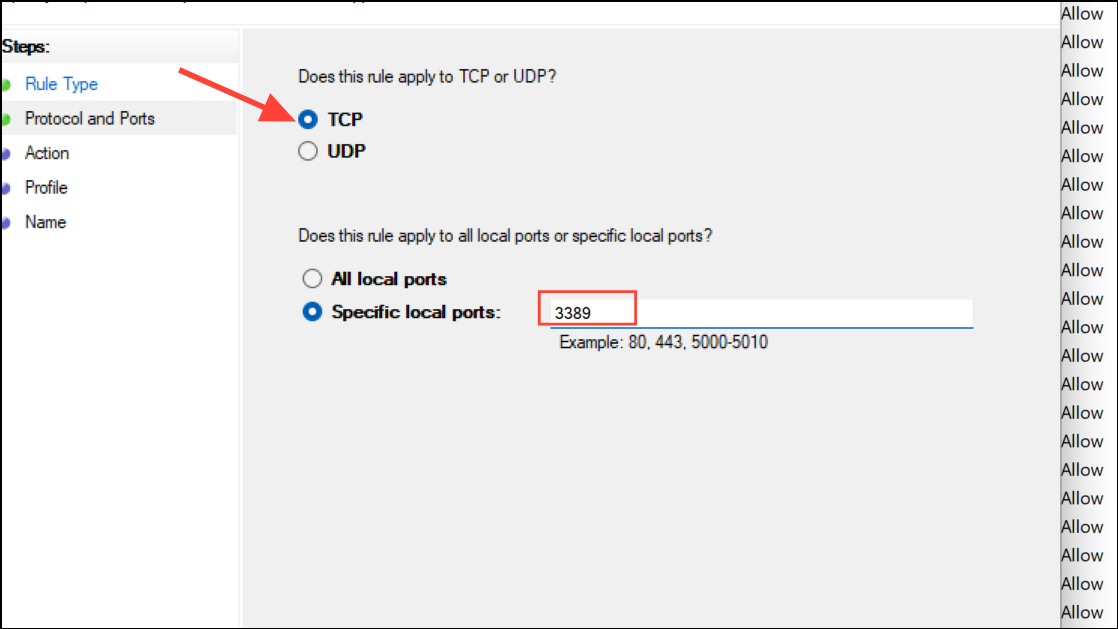
Look for connections on common remote access ports such as 3389 (RDP), 5900 (VNC), 5938 (TeamViewer), 6568 (AnyDesk), and 8200 (GoToMyPC). Unusual or persistent connections on these ports may indicate remote access.
Match any suspicious PID to the corresponding process in Task Manager by enabling the PID column in the Details tab. Investigate or terminate unknown processes as needed.
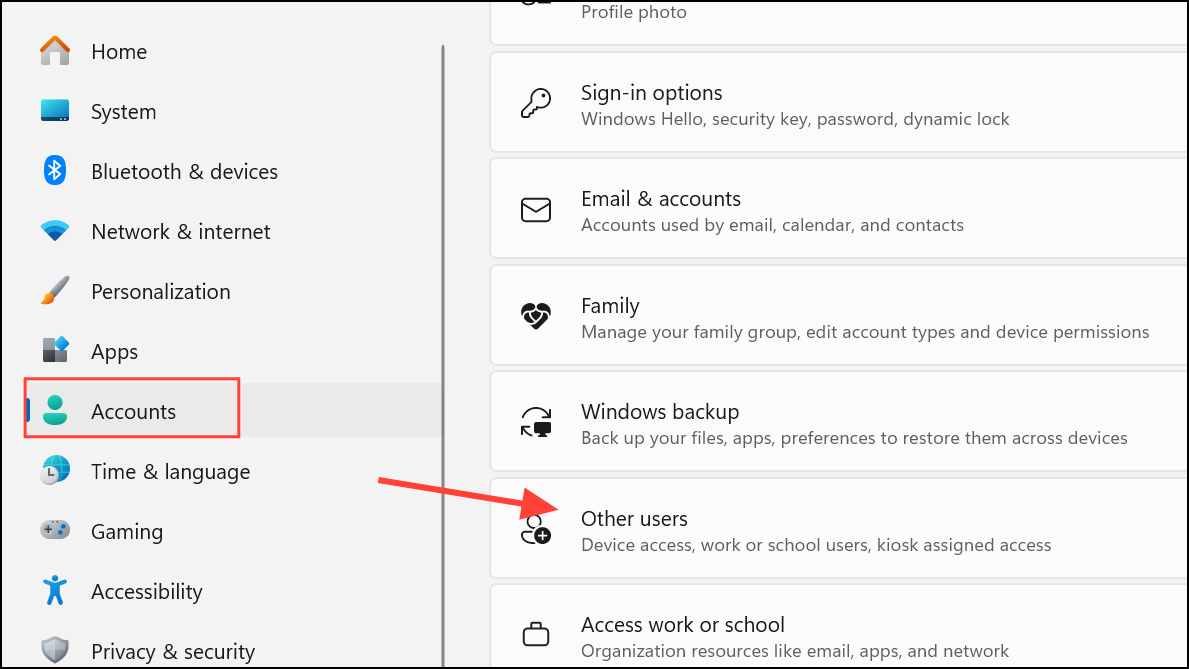
Open Settings → Accounts → Family & other users. Review the list of user accounts. Remove any that you did not create, as attackers sometimes add accounts for persistent access.
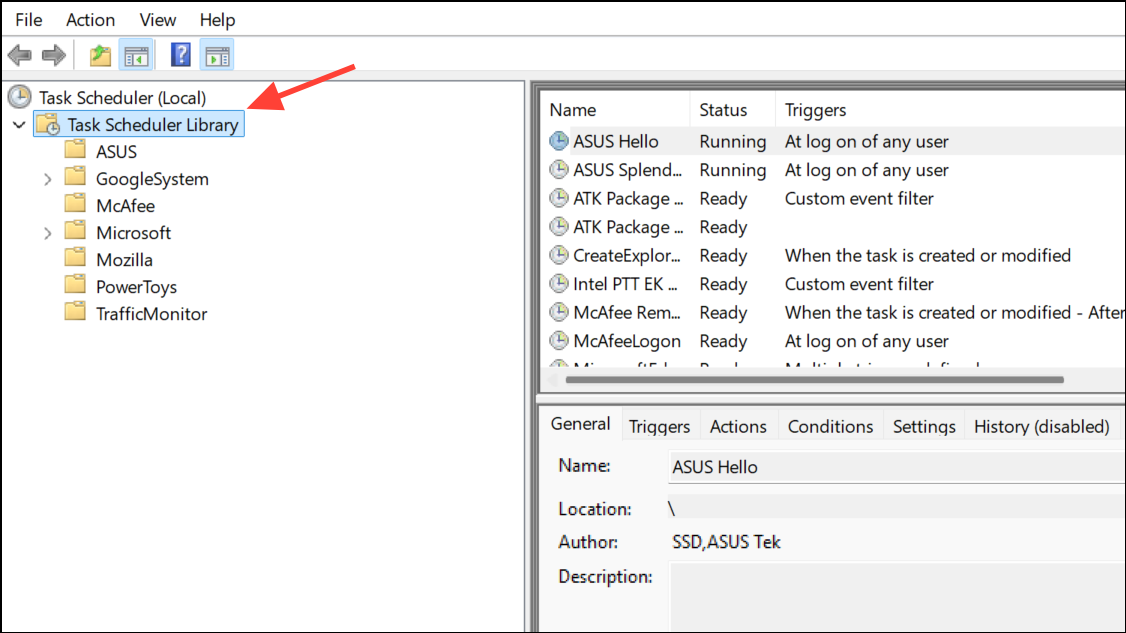
In the left panel, expand Task Scheduler Library. Look for tasks or folders with unfamiliar names. Right-click and select Properties to check the Actions and Triggers tabs. Tasks launching unknown programs or scripts can be a sign of malware-driven remote access.
Disconnect your PC from the internet as soon as you suspect a remote intrusion. This immediately severs active remote sessions and limits further unauthorized actions.
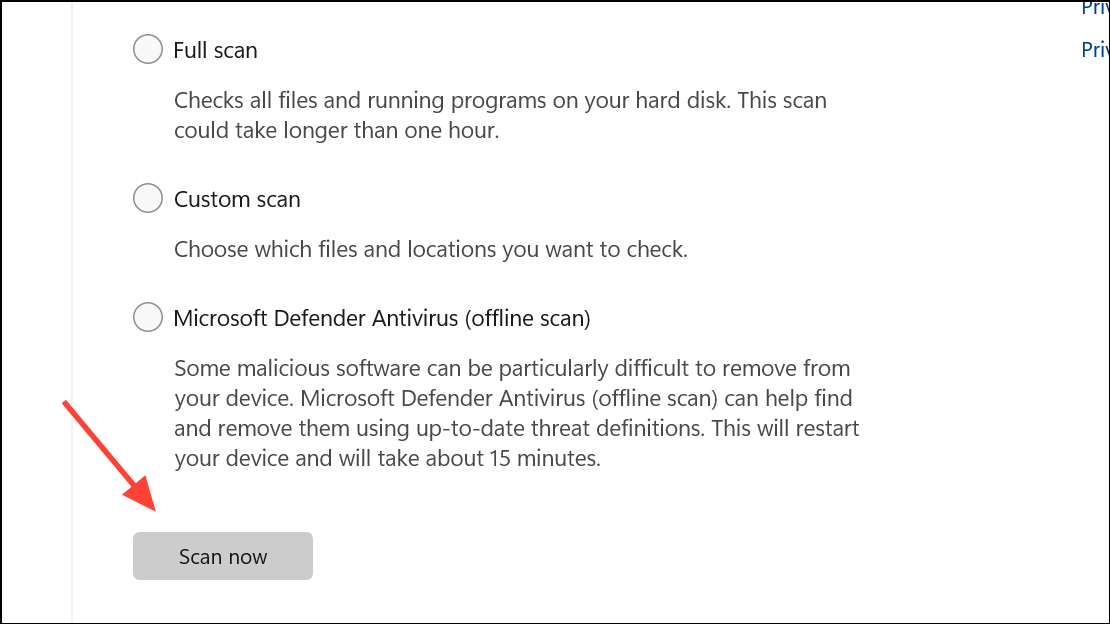
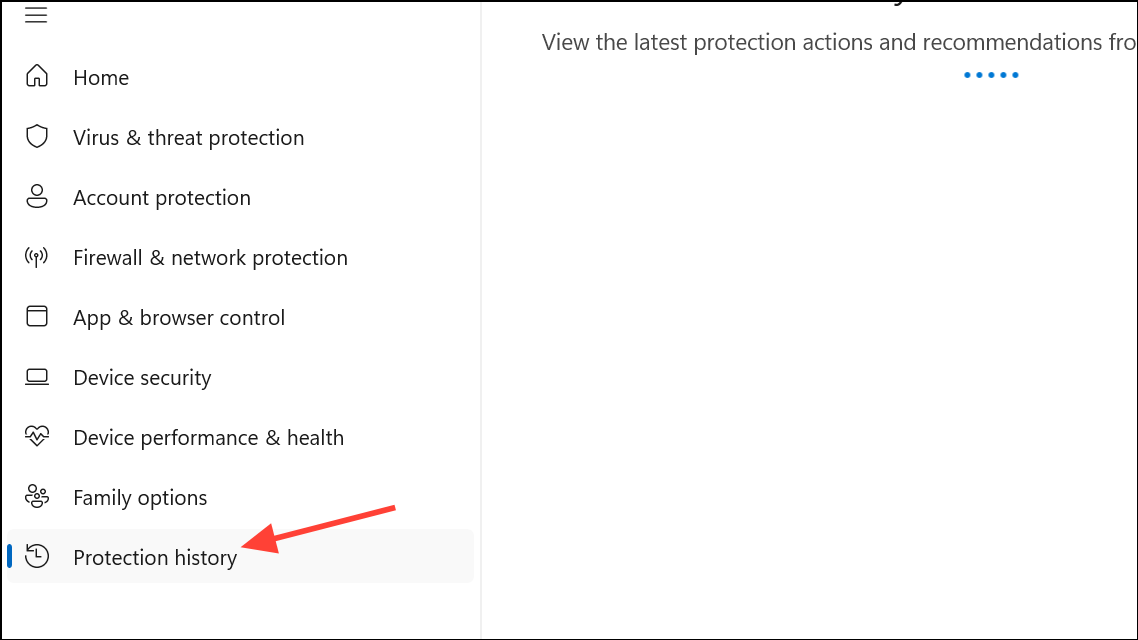
Use Windows Security by searching for Windows Security in the Start menu. Go to Virus & threat protection → Scan options, select Microsoft Defender Antivirus (offline scan), and click Scan now. This scan checks for advanced threats such as rootkits that may evade standard scans.
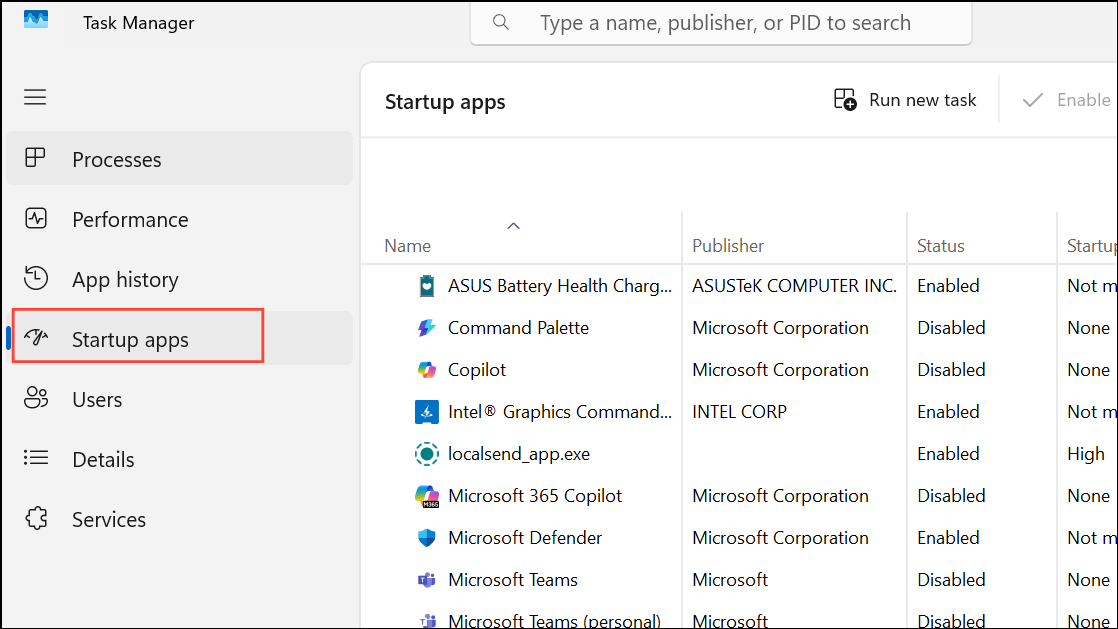
Manually uninstall any remote access tools you don’t use or recognize by going to Settings → Apps → Installed apps and removing suspicious entries. Also, check your browser extensions for unfamiliar add-ons and remove them.
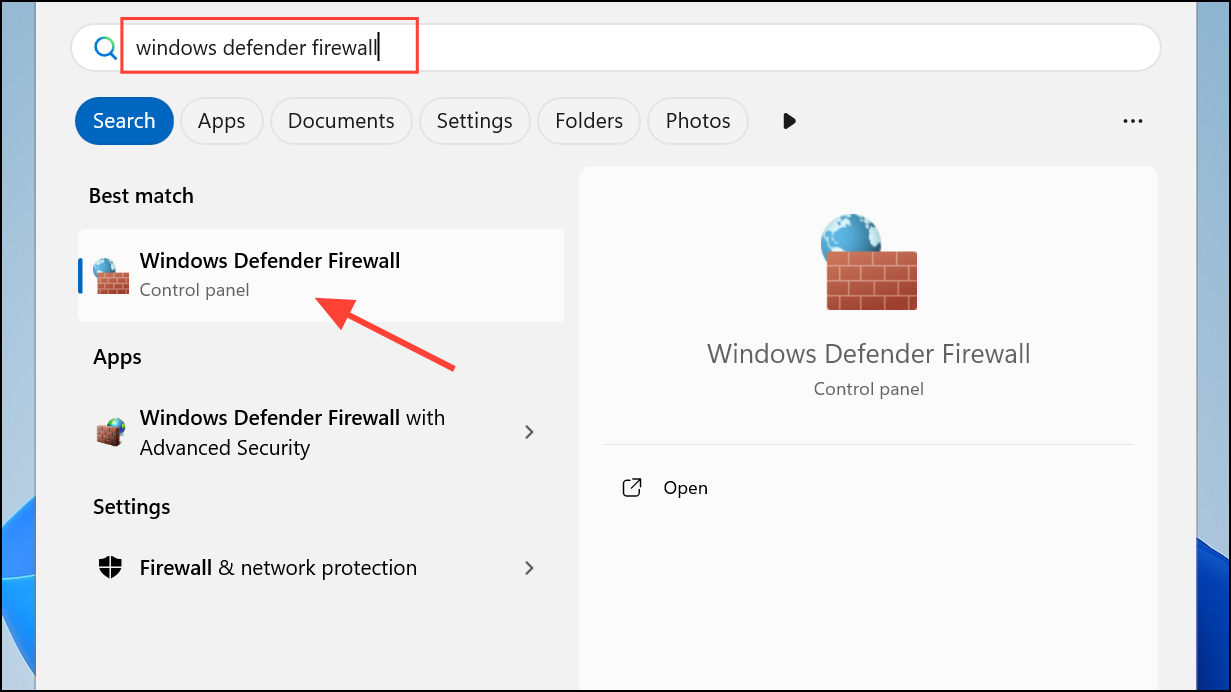
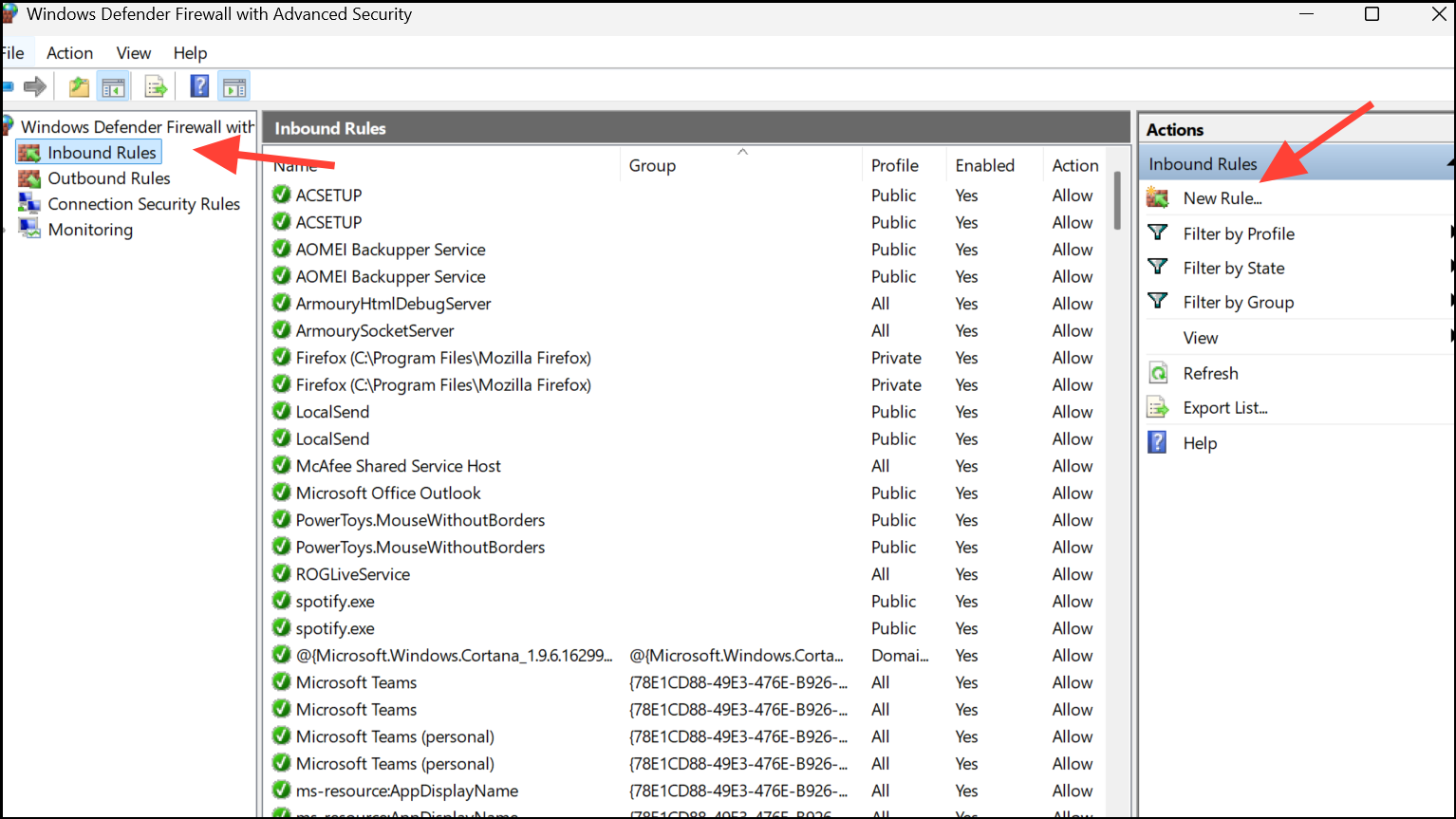
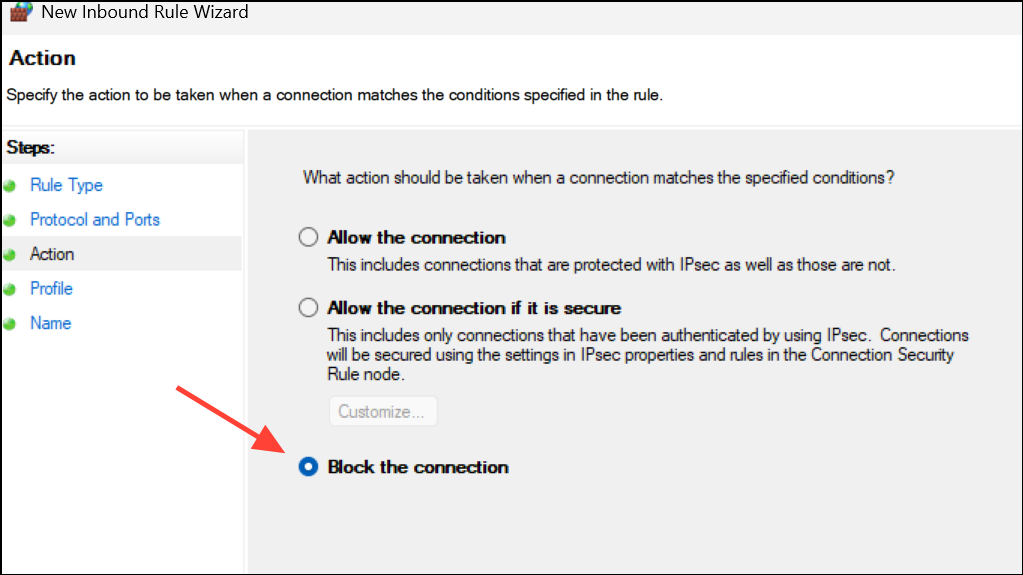
Select Block the connection, click Next, and complete the rule setup. Repeat for each port you wish to block. Assign clear names to each rule for easy identification.
This step prevents new remote connections on the specified ports, reducing the risk of future unauthorized access.
Perform a Clean Windows Installation (If Necessary)
If malware persists or you continue to see suspicious activity after following the above steps, consider performing a clean Windows install. Back up important files to an external drive, avoiding cloud storage if you suspect infection.
Download the latest Windows installation media from Microsoft’s official website. Boot from the installation media and choose the option to perform a clean install, which erases all data and resets your system to a secure state.
This step is a last resort but is highly effective at removing persistent threats that evade detection or removal.
Regularly monitoring your system for unusual activity, keeping your security software updated, and limiting remote access permissions significantly reduces your risk of unauthorized remote access. Staying proactive with these checks helps you maintain control and privacy over your Windows 11 PC.