
Processor cache memory—specifically the L2 and L3 cache—directly impacts how quickly your system can process instructions and access frequently used data. On Windows 11, knowing your CPU’s cache size can help you make informed decisions about performance troubleshooting, software compatibility, and upgrade planning. Several built-in tools and third-party utilities allow you to check your processor’s cache memory size quickly and accurately, without restarting your computer or accessing the BIOS.
Check Processor Cache Memory Size Using Task Manager
Ctrl + Shift + Esc on your keyboard. If Task Manager launches in compact mode, click More details at the bottom to expand the view.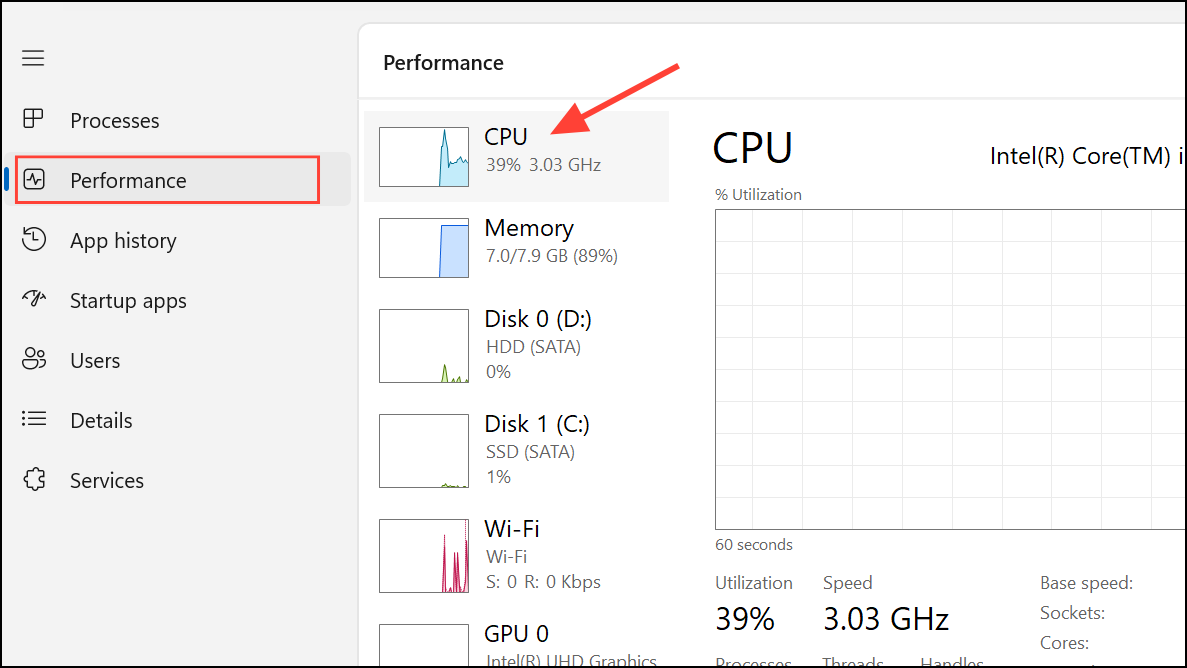
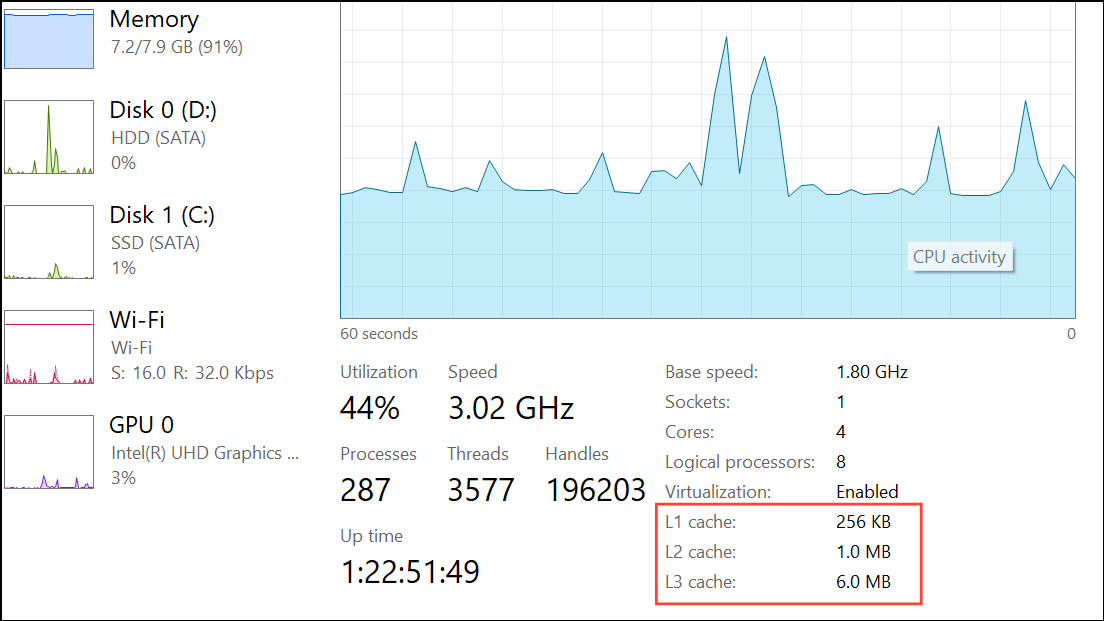
This method provides a straightforward, graphical overview of your CPU’s cache configuration, making it ideal for quick checks and comparisons.
Check Processor Cache Memory Size Using Command Prompt
cmd and press Enter to launch Command Prompt. To open Command Prompt with admin privileges, click Run as administrator.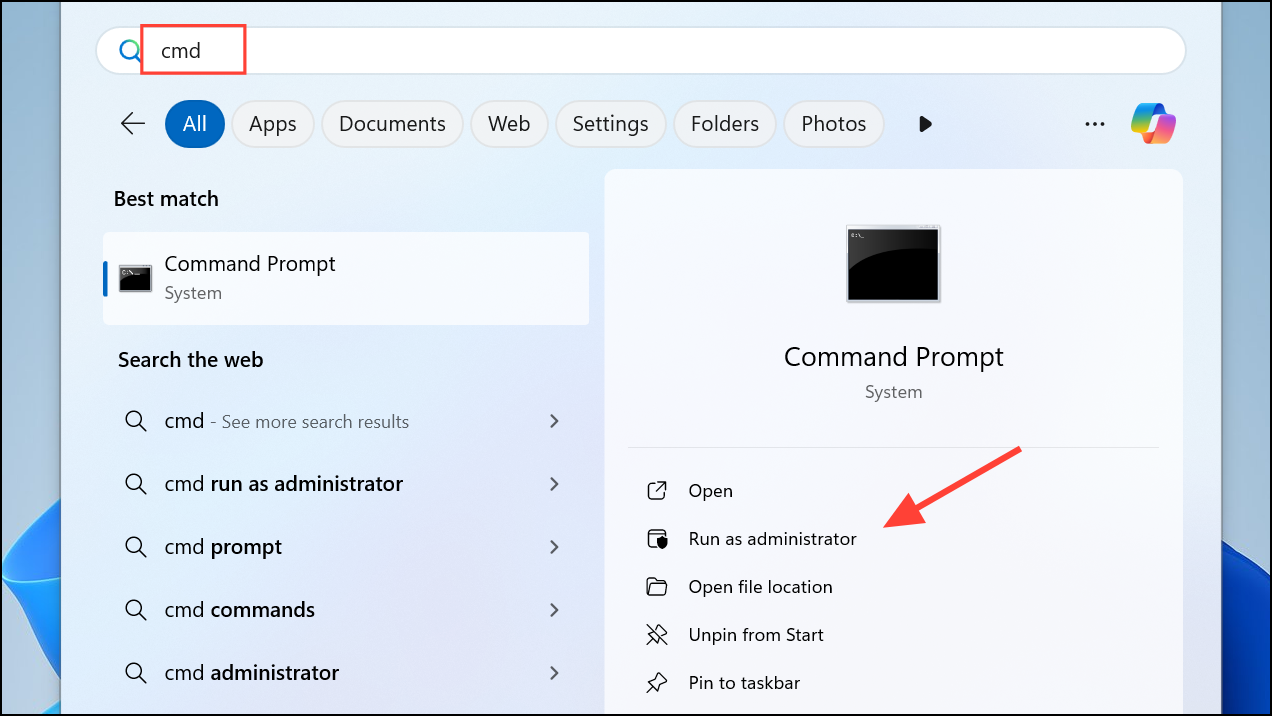
wmic cpu get L2CacheSize, L3CacheSize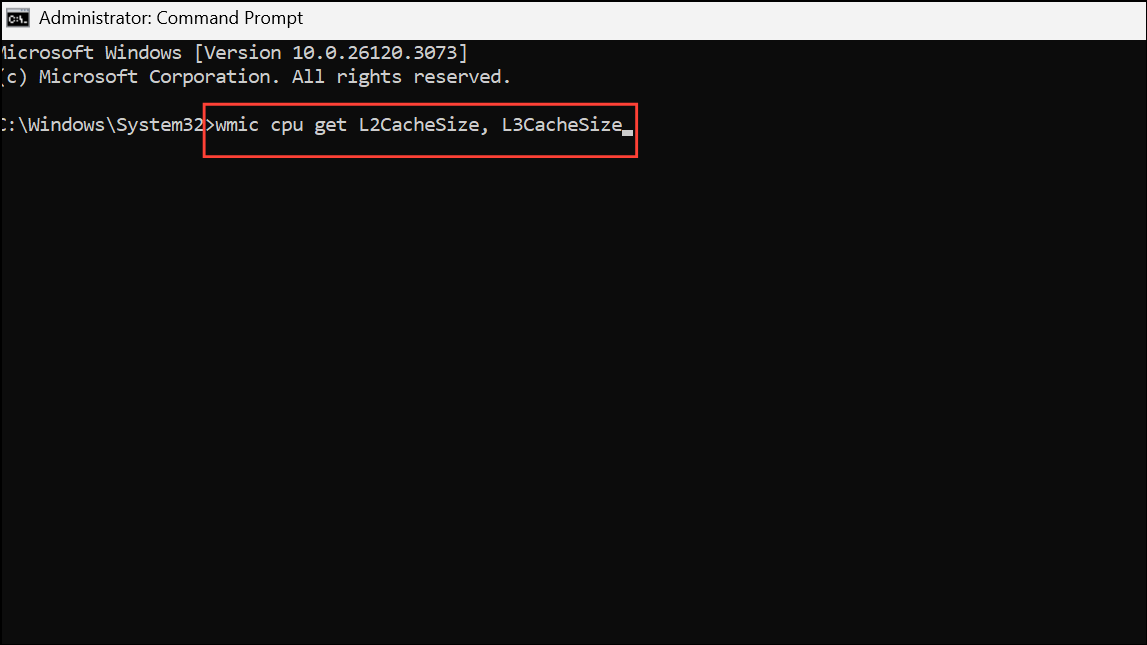
2560 8192 indicates 2.5MB of L2 cache and 8MB of L3 cache.This approach is efficient for users comfortable with command-line tools or when working on remote systems without a graphical interface.
Find Processor Cache Size Using System Information and Web Search
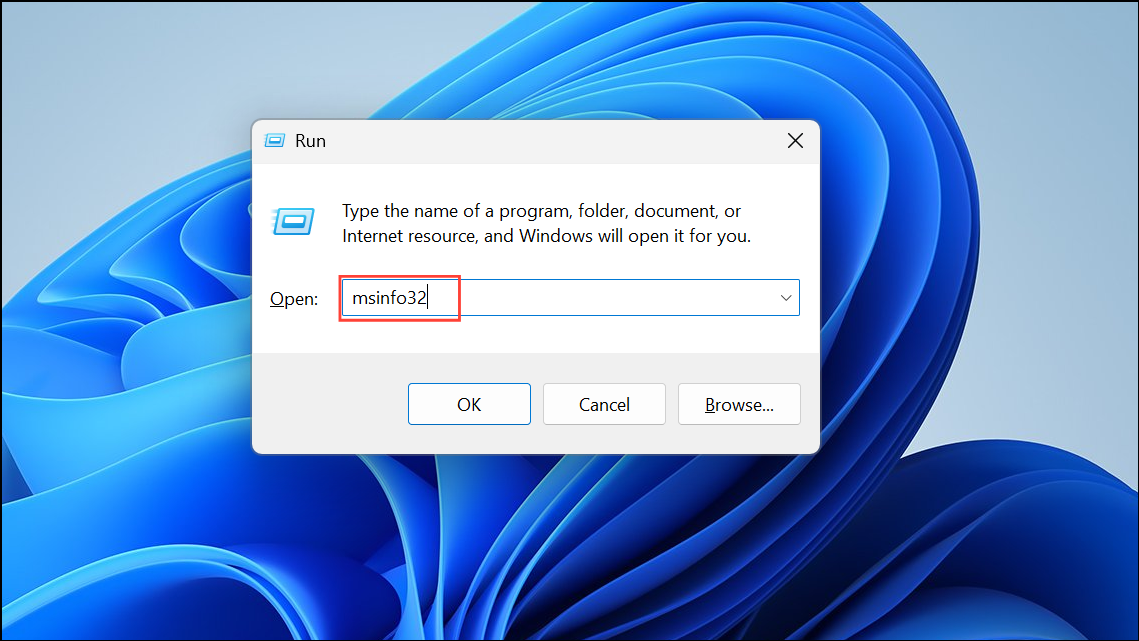
Intel Core i7-12700K).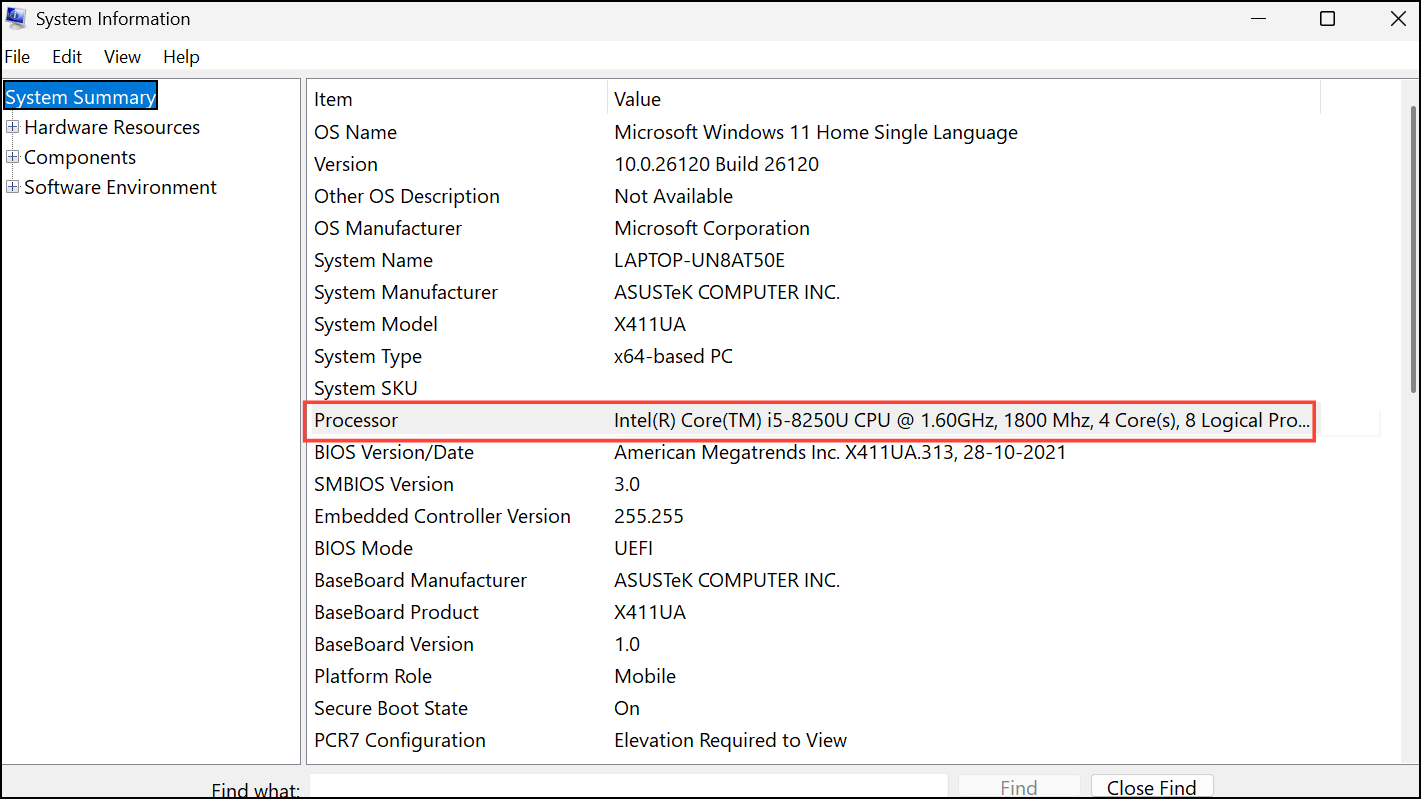
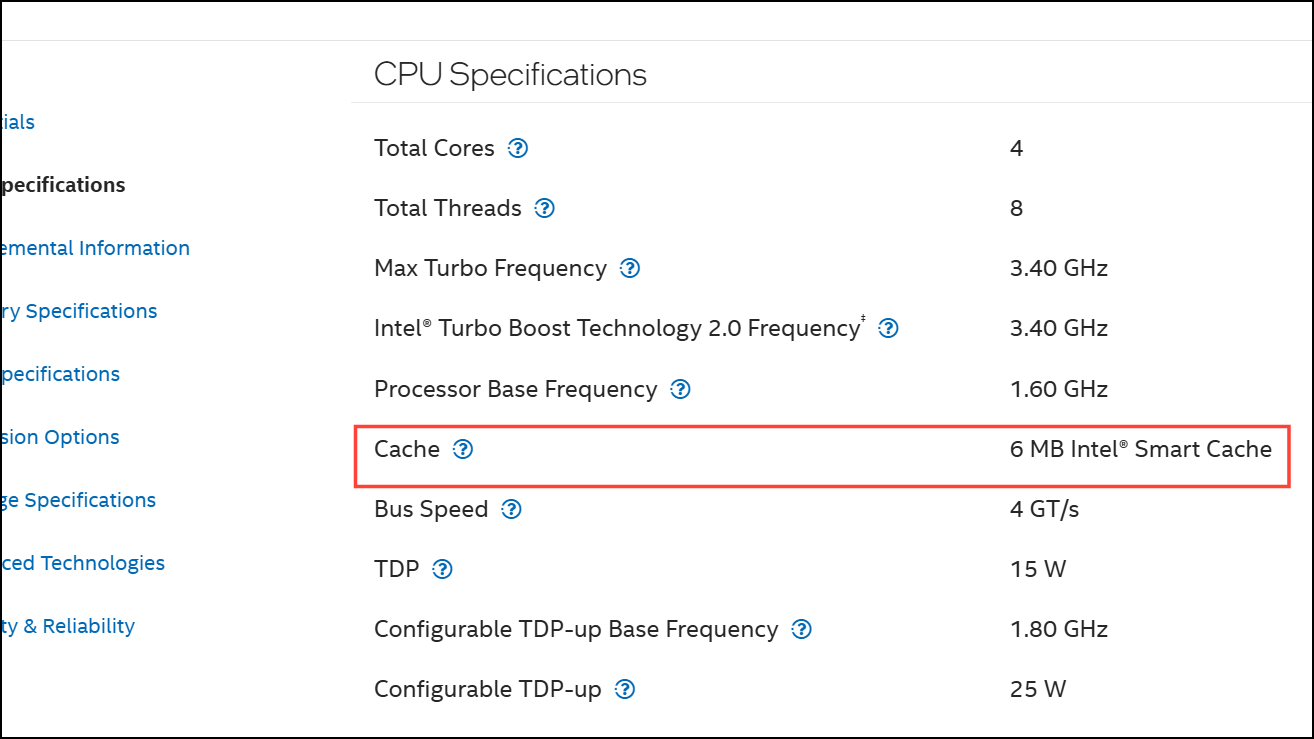
This method is useful when you need the most precise hardware specifications, especially for less common CPUs or when built-in tools provide incomplete cache details.
Check Processor Cache Memory Size Using Third-Party Utilities
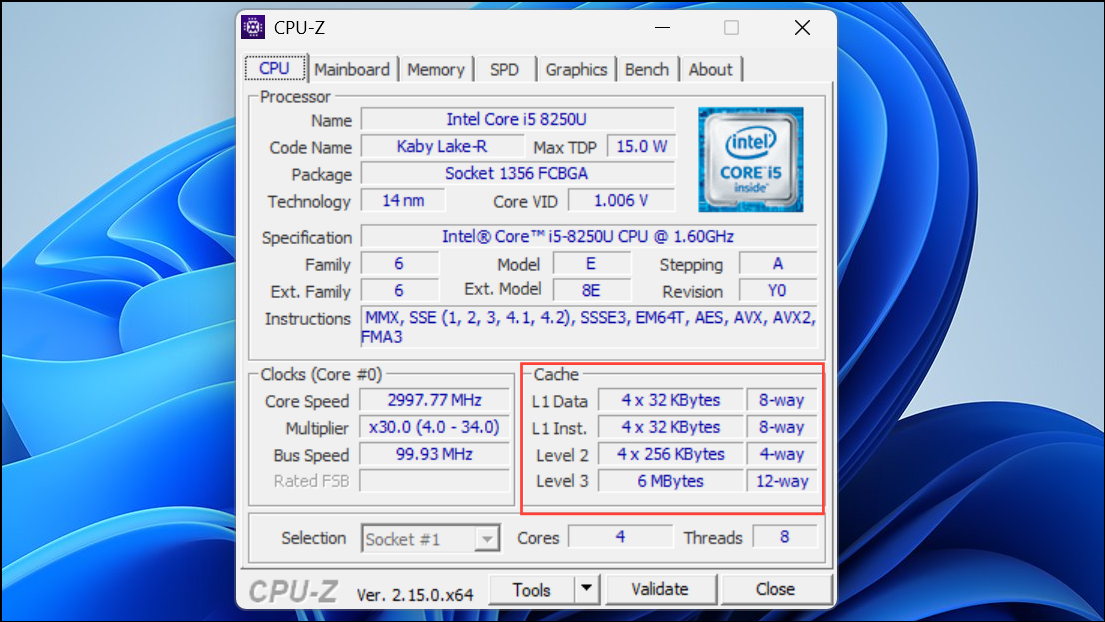
These third-party tools offer a comprehensive view of your CPU, including cache levels, core counts, and additional features. They are especially useful when you want a deeper dive into processor architecture or need to verify advanced attributes like virtualization support.
Alternative Methods and Tips
wmic or msinfo32 output to verify these details accurately.Checking your processor’s cache memory size in Windows 11 is straightforward with Task Manager, Command Prompt, System Information, or third-party tools. Regularly reviewing this data helps optimize your PC’s performance and guides upgrade decisions.



