

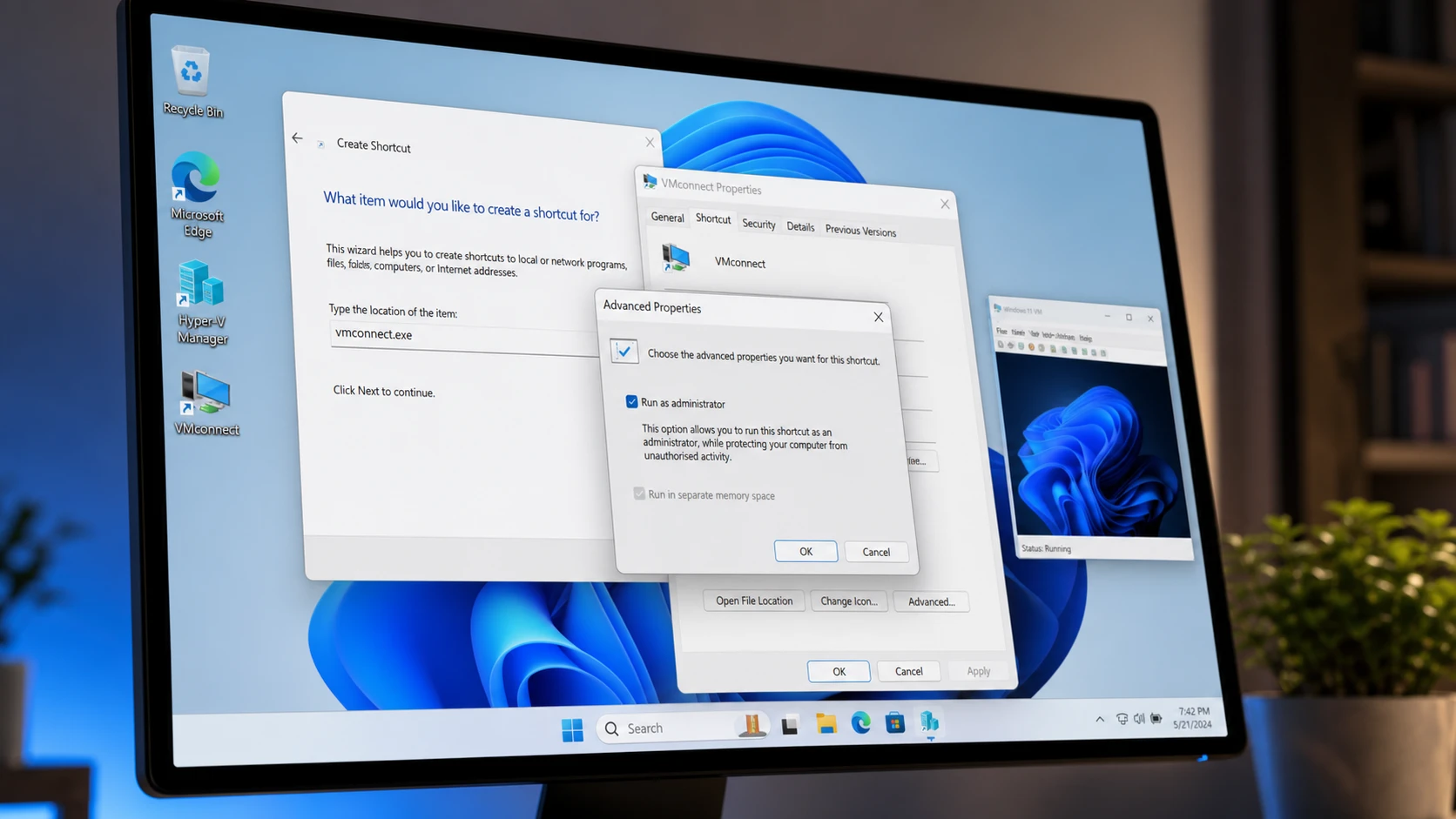
Opening Hyper-V Manager, finding a virtual machine, and double-clicking it every time adds friction you do not need. A desktop shortcut points straight at a single VM, so one click connects to it and starts it. The shortcut relies on vmconnect.exe, the same connection tool Hyper-V Manager uses behind the scenes.
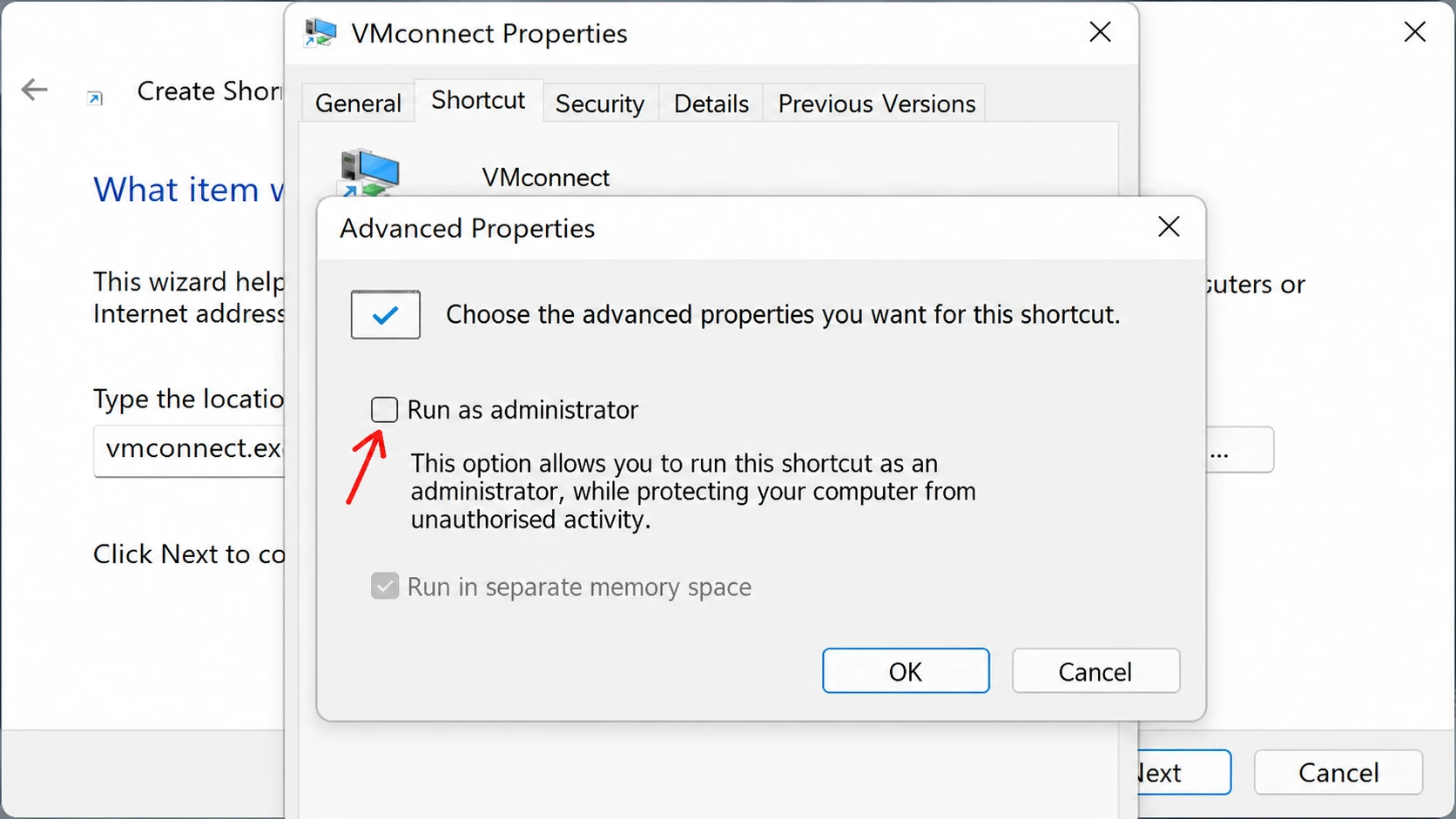
Quick answer: Create a new desktop shortcut with the target vmconnect.exe localhost "VMName", replace VMName with your virtual machine’s exact name, then open the shortcut’s Properties, click Advanced, and check Run as administrator.
Requirements before you start
Hyper-V runs on 64-bit versions of Windows 11 Pro, Enterprise, and Education. It is not part of the Home edition. You also need to be signed in as an administrator to create and use the shortcut, and at least one virtual machine must already exist in Hyper-V Manager.
| Requirement | Detail |
|---|---|
| Windows edition | Windows 11 Pro, Enterprise, or Education (64-bit) |
| Account type | Administrator |
| Hyper-V | Feature enabled, with a VM already created |
| Connection tool | vmconnect.exe at C:\Windows\System32\vmconnect.exe |
Before building the shortcut, open Hyper-V Manager and note the virtual machine’s name exactly as it appears in the list. The name must match character for character, including spaces, for the shortcut to connect.
Create the Hyper-V VM desktop shortcut
VMName with your virtual machine’s exact name, then click Next.vmconnect.exe localhost "VMName"For a VM called W10 UEFI, the target reads vmconnect.exe localhost "W10 UEFI". Here localhost tells the tool the VM lives on your own machine, and the name in quotes identifies which VM to open. If your VM name has no spaces, you can drop the quotation marks.
Note: Running as administrator matters only when vmconnect.exe is launched from a shortcut. Without it, the shortcut throws a connection error even though opening the same VM through Hyper-V Manager never prompts for elevation.
Confirm the shortcut works
Double-click the shortcut. Windows shows a User Account Control prompt because of the administrator setting, and after you approve it the Virtual Machine Connection window opens directly to your VM. From there you can click Start inside the window to power on the machine. If the VM was already running, you connect straight to its session.
Once it works, you can place the shortcut anywhere you like. Pin it to the taskbar or Start, add it to All apps, assign a keyboard shortcut, or move it into either Start Menu folder so it appears alongside your other apps.
C:\Users\<user>\AppData\Roaming\Microsoft\Windows\Start Menu\Programs
C:\ProgramData\Microsoft\Windows\Start Menu\Programs
Why the shortcut fails to connect
| Problem | Cause and fix |
|---|---|
| Connection error on launch | Run as administrator is not checked. Reopen Properties, click Advanced, and enable it. |
| VM not found | The name in the target does not match the name in Hyper-V Manager. Copy the exact name, including spaces. |
| Quotation issue | If the VM name has no spaces, remove the quotation marks around it. |
| VM will not boot | Check the VM’s memory, processor, and configuration in Hyper-V settings. |
Start the VM automatically with one click
The basic shortcut connects to a VM but does not power it on if it is shut down. To both start a stopped VM and connect in a single action, point the shortcut at PowerShell instead. Use this as the target and replace NAME with your VM name.
C:\Windows\System32\WindowsPowerShell\v1.0\powershell.exe -Command "$VM = 'NAME'; if ((Get-VM -Name $VM).State -ne 'Running') {Start-VM -Name $VM;} vmconnect.exe localhost $VM;"This checks whether the VM is already running, starts it if it is not, and then opens the connection window. Apply the same Run as administrator setting through the shortcut’s Advanced properties. If your VM name contains a space, keep it inside the single quotes as shown; if it has no space, the quotes are optional.
With either approach in place, a single desktop icon replaces the whole routine of opening Hyper-V Manager, locating the VM, and starting it, which keeps frequent virtual machines a click away.



