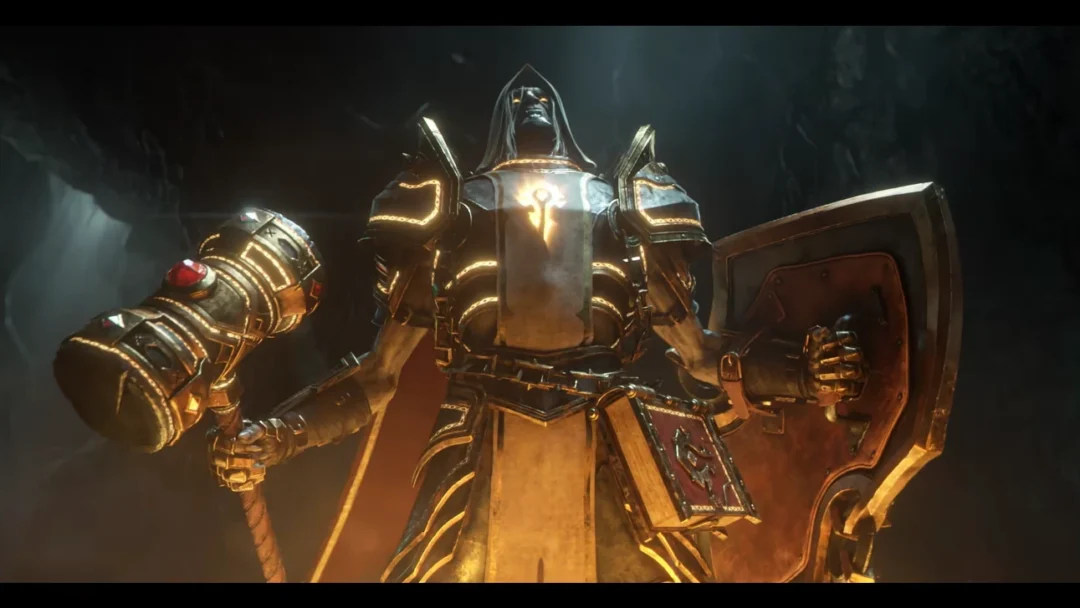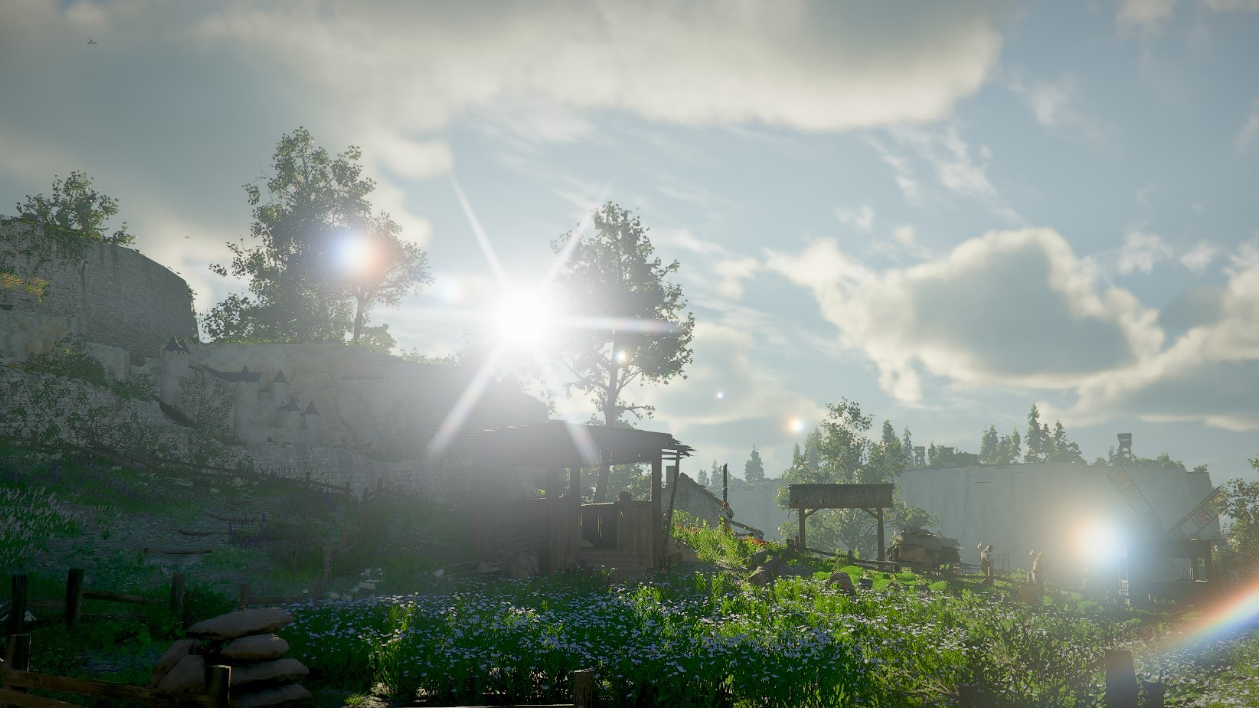
Crimson Desert from Pearl Abyss launched on PC, PS5, and Xbox Series X|S on March 19, 2026, and the good news is that it shipped in a surprisingly solid technical state. The engine scales well across hardware tiers, and most players can run the Cinematic preset without major hitches right out of the box. That said, the game does have a handful of visual quirks — noisy shadows indoors, aggressive object pop-in, and a strange rain bug — that are worth addressing. A carefully tuned settings profile can deliver roughly 18 percent better frame rates than the default Cinematic preset while keeping image quality nearly identical.
Quick answer: Start with the Cinematic preset, then drop Model Quality and Shadow Quality to Ultra, set Volumetric Fog Quality to High, turn Blur Intensity to 0, and use DLSS 4.0 (Nvidia) or FSR 4 Native (AMD) for upscaling. Enable Ray Reconstruction if your GPU has the headroom.
Crimson Desert optimized settings table
The table below lays out every graphics option and its recommended value. Most settings stay at Cinematic or Ultra; the meaningful performance gains come from a handful of targeted drops that have almost no visible impact on image quality.
| Setting | Recommended Value |
|---|---|
| Model Quality | Ultra |
| Texture Quality | Cinematic |
| Shadow Quality | Ultra |
| Ray Tracing | On |
| Lighting Quality | Ultra |
| Reflection Quality | Cinematic |
| Advanced Weather Effect | On |
| Water Quality | Cinematic |
| Foliage Density | Cinematic |
| Volumetric Fog Quality | High |
| Effect Quality | Cinematic |
| Simulation Quality | Cinematic |
| Post-processing Effect Quality | Cinematic |
| Blur Intensity | 0 |
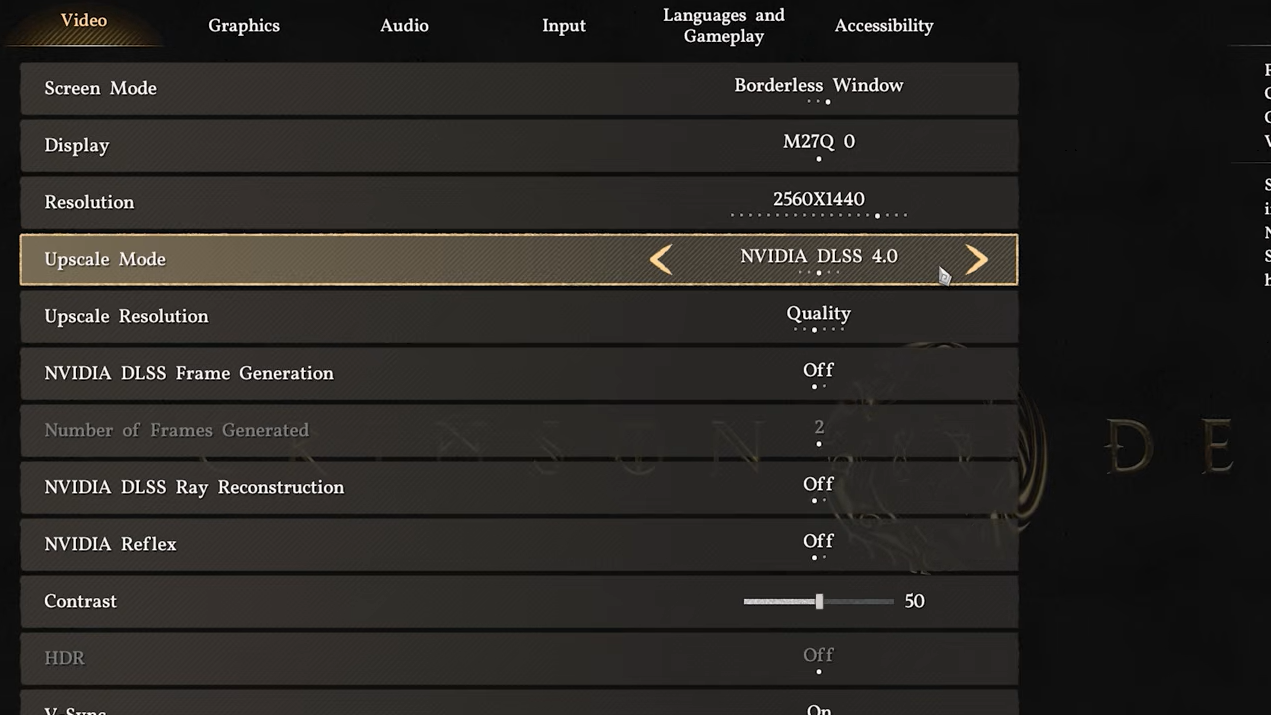
| Upscaling (Nvidia, low noise) | DLSS 4.0 |
| Upscaling (AMD) | FSR 4 Native |
| Ray Reconstruction (Nvidia) / Ray Regeneration (AMD) | On (high-end GPUs) |
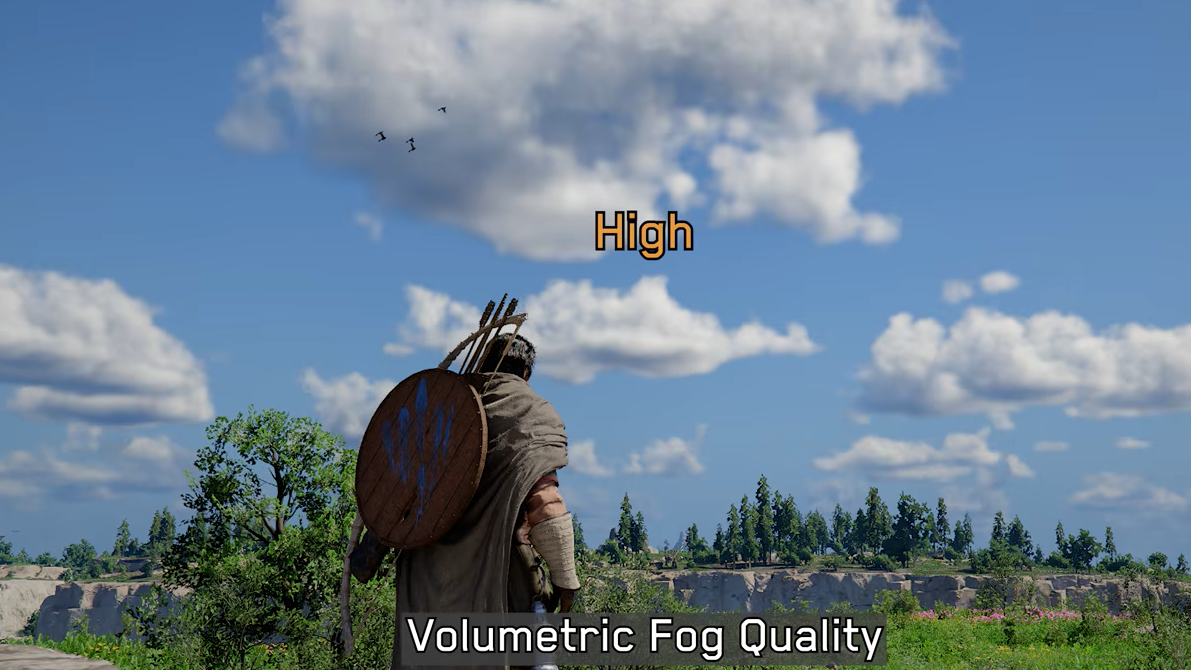
The two biggest wins here are Volumetric Fog Quality dropping from Cinematic to High and Blur Intensity going to zero. Motion blur rarely adds anything worth keeping in a fast-paced action RPG, so disabling it is an easy call. Model Quality and Shadow Quality can both sit at Ultra instead of Cinematic without a meaningful visual downgrade, and the combined savings add up to that ~18 percent performance improvement.
Fix shadow noise and artifacts in interiors
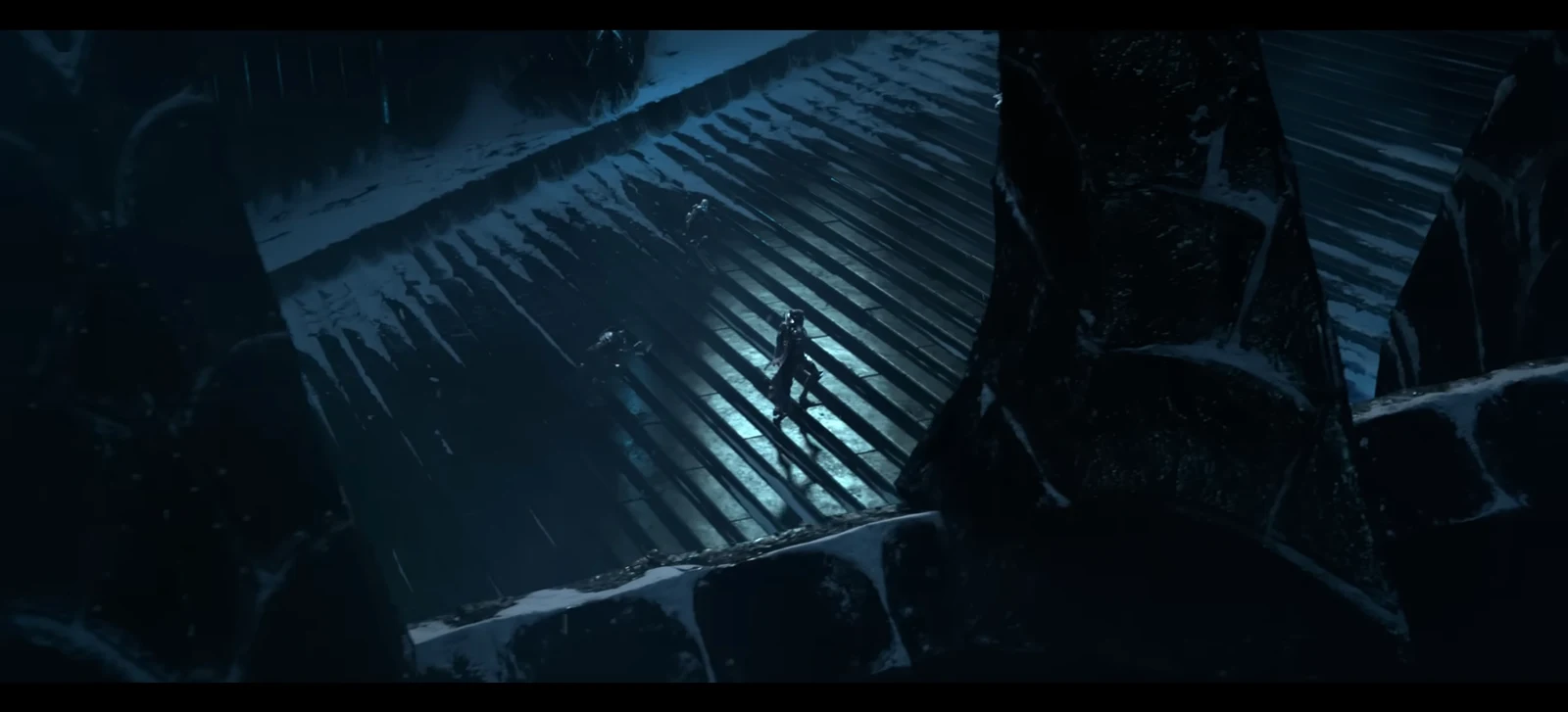
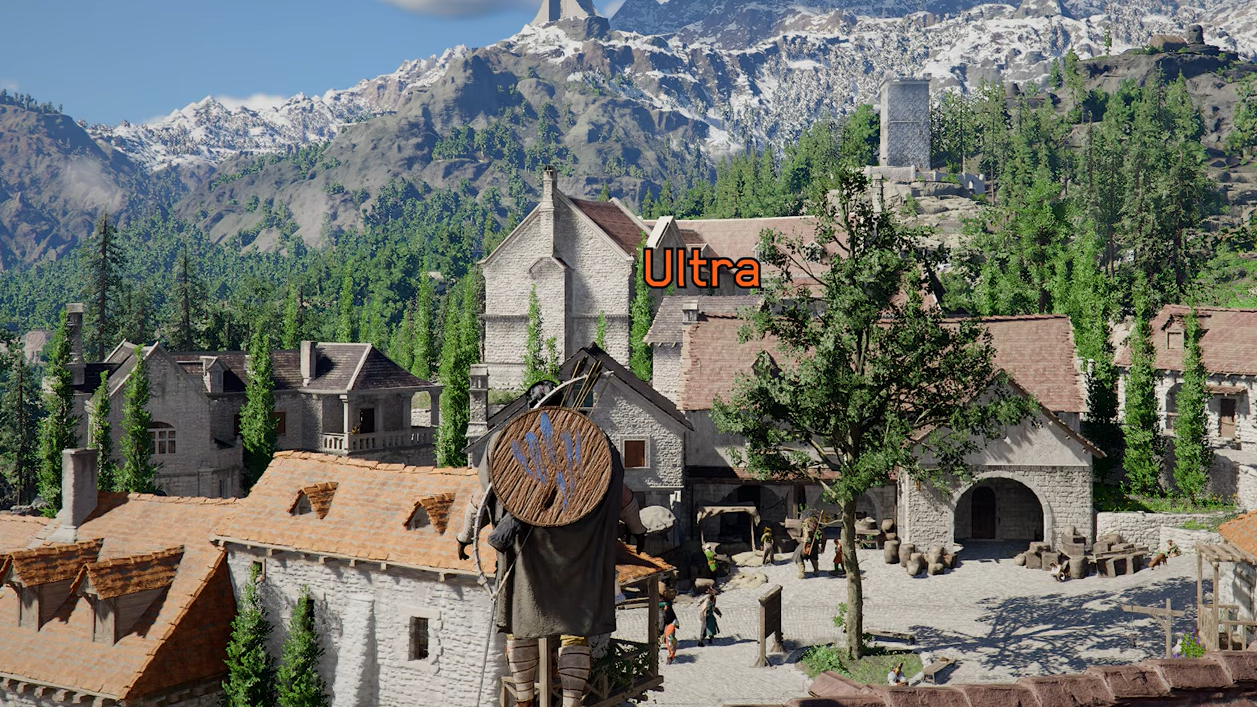
The most common visual complaint in Crimson Desert right now involves noisy, grainy shadows inside buildings and caves. The issue stems from the game’s ray-traced lighting pipeline, and cranking settings higher does not necessarily help — setting Lighting Quality to Max actually makes the noise worse.
To minimize shadow noise, keep these four things in mind:
Ray Reconstruction and Ray Regeneration
Nvidia’s Ray Reconstruction and AMD’s Ray Regeneration are denoising technologies that replace the game’s built-in denoiser with a neural network. In Crimson Desert, enabling either of these features does more than just clean up noise — it appears to unlock a visual quality tier beyond what the Max settings alone can produce. Shadows gain sharper definition, and object detail improves noticeably.
The trade-off is performance. Ray Reconstruction is demanding, and on some high-end GPUs, it can cut frame rates roughly in half. If you have the headroom — say, an RTX 5080 or above running at a comfortable frame rate — it is worth enabling. On mid-range hardware, you are better off leaving it disabled and relying on the optimized settings above.
DLSS 4.0 vs. DLSS 4.5 in Crimson Desert
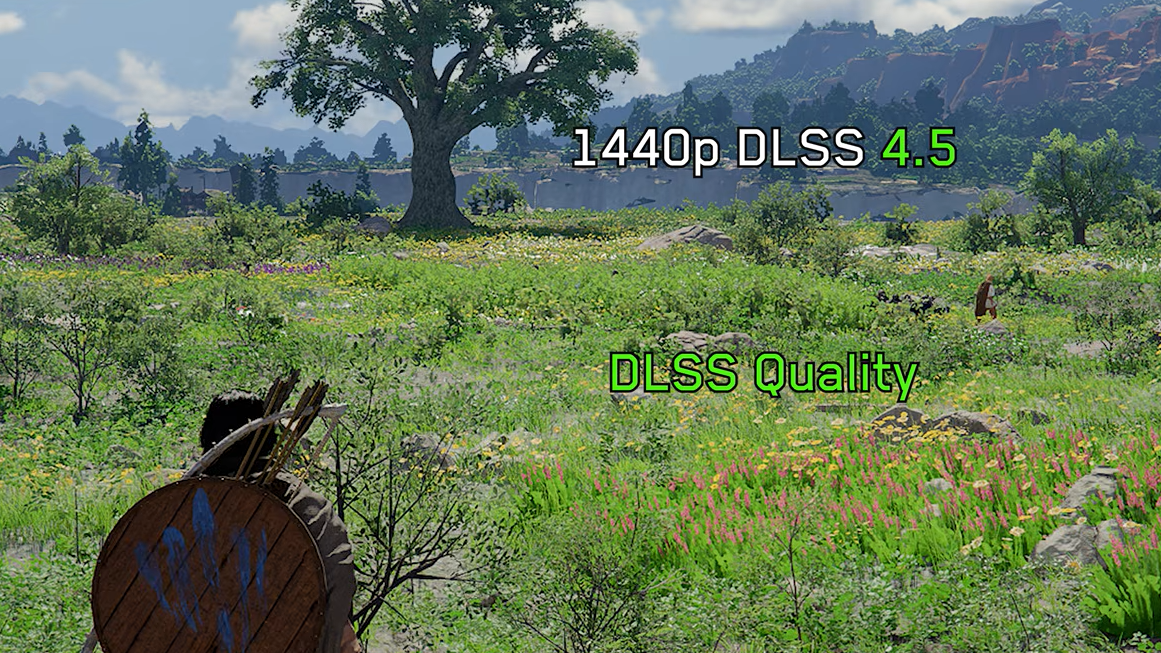
Normally you would expect the newer version of DLSS to produce better results, but Crimson Desert is an exception right now. DLSS 4.0 consistently delivers a cleaner, less noisy image than DLSS 4.5, particularly in indoor environments with ray-traced lighting. The difference is especially obvious at lower upscaling quality levels like Balanced or Performance, where DLSS 4.5 introduces visible grain that 4.0 handles more cleanly.
For AMD users, FSR 4 Native is the recommended upscaling path. It produces solid image quality and avoids the noise issues that plague some of the DLSS modes. Native rendering without any upscaling is also perfectly viable given how well the game performs on most hardware.
Object pop-in and VRAM usage
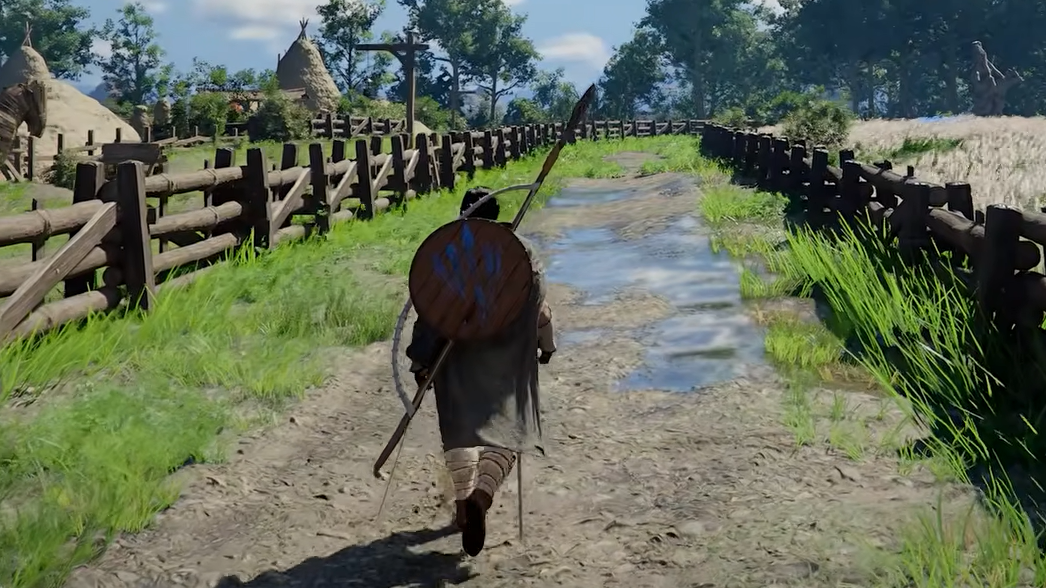
One issue that no settings change can fully solve is object pop-in. Trees, rocks, and environmental details visibly snap into existence as you move through the world, particularly at higher speeds on horseback. This happens even at the highest graphics preset and appears to be a fundamental engine-level behavior rather than a settings problem.
The likely cause is aggressive VRAM management. Crimson Desert uses only around 6–7 GB of VRAM regardless of your settings, even on GPUs with 16 GB or more available. The engine appears to be capping its own memory usage to maintain compatibility with lower-spec hardware, and the pop-in is a side effect of that conservative approach. Pearl Abyss’s previous game, Black Desert Online, exhibited similar pop-in behavior, so it remains to be seen whether this will be patched or is simply a characteristic of the engine.
GPU compatibility note
Some players with older AMD GPUs — particularly the Radeon RX 6600 — have reported receiving an error message stating that their graphics device is not supported, even though the card meets the game’s minimum requirements. If you encounter this, check for a driver update from AMD, as launch-day driver profiles often resolve false compatibility flags. A day-one patch from Pearl Abyss may also address the issue.
Crimson Desert is one of the better-optimized AAA PC launches in recent memory, and most players will not need to spend much time in the settings menu. Apply the optimized profile above, address the shadow noise if it bothers you, and enable Ray Reconstruction only if your GPU can absorb the hit. The pop-in and rain bug are real annoyances, but they fall squarely in the “patchable” category — and Pearl Abyss has already shown willingness to ship fixes quickly.