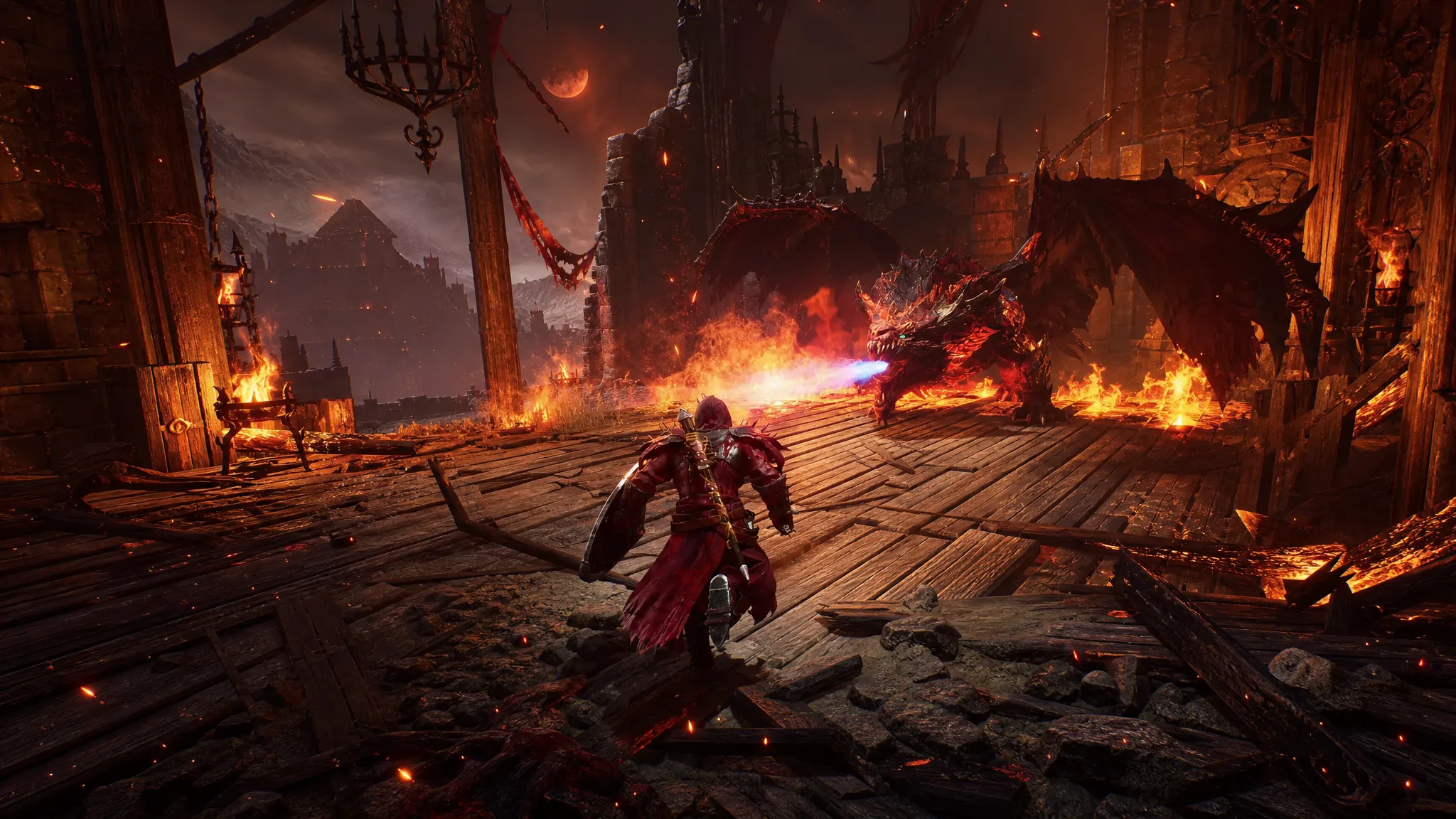
Crimson Moon runs on a mix of dynamic shadows, volumetric fog, and particle-heavy combat that can hammer a graphics card the moment several enemies and abilities hit the screen at once. Out of the box, the default presets leave a lot of stutter on the table. The fix is a Custom profile that protects a steady frame rate instead of chasing the prettiest possible image.
Quick answer: Set Graphics Quality to Custom, cap the frame rate at 60 FPS, turn Vertical Sync and Motion Blur off, drop Global Illumination, Shadows, Visual Effects, and Reflections to Low, and set Resolution Scale to 70%. Limiting the frame rate is the single change that smooths out most of the stutter.
Best Crimson Moon PC graphics settings
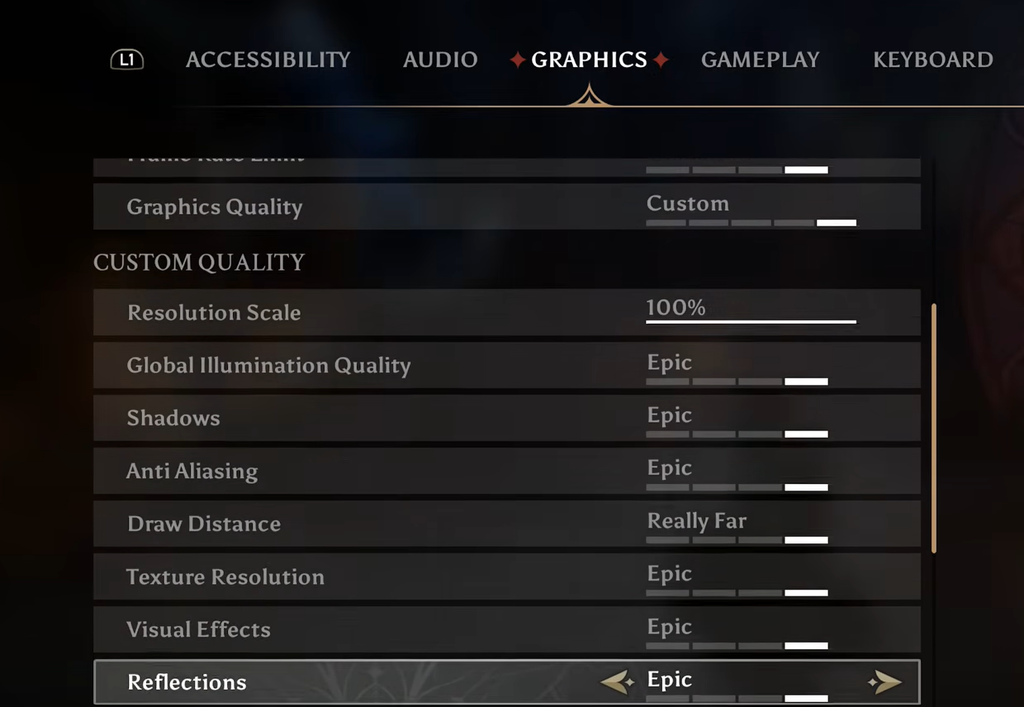
These values target machines closer to the minimum requirements, so players on stronger hardware can raise a few options and still hold a stable frame rate. The most important step is switching Graphics Quality to Custom so you control the expensive settings yourself rather than letting a preset decide.
| Setting | Recommended value |
|---|---|
| Display Mode | Personal preference |
| Resolution | Native monitor resolution |
| Vertical Sync | Off (turn on only if stutters persist) |
| Motion Blur | Off |
| Frame Rate Limit | 60 FPS |
| Graphics Quality | Custom |
| Resolution Scale | 70% |
| Global Illumination Quality | Low |
| Shadows | Low |
| Anti Aliasing | Medium |
| Draw Distance | Close |
| Texture Resolution | Medium |
| Visual Effects | Low |
| Reflections | Low |
| Post Processing | Medium (drop to Low if frames dip) |
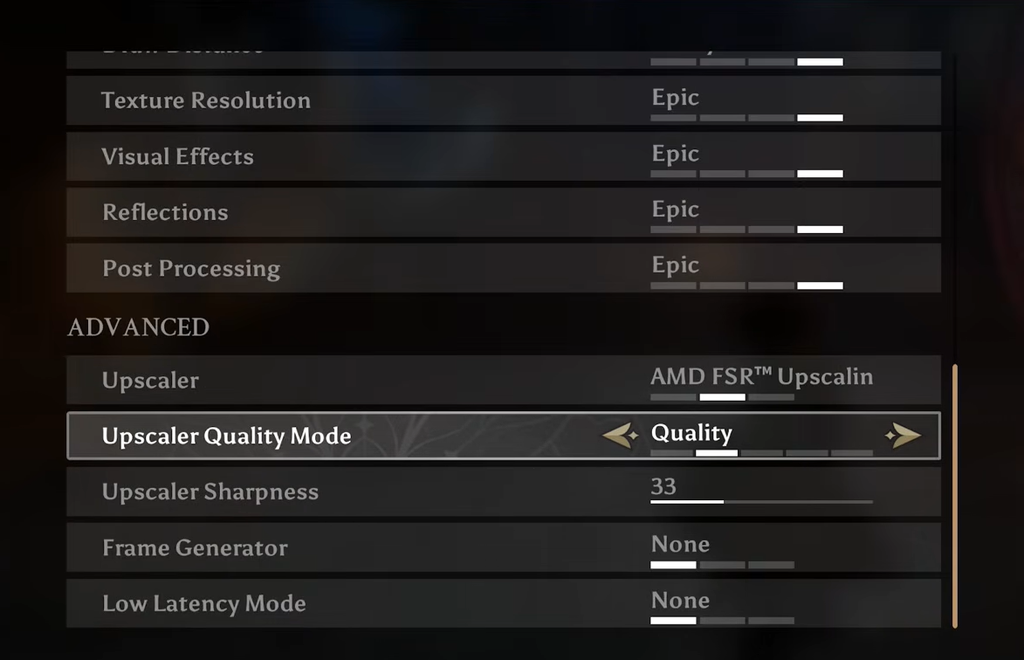
| Upscaler | None (enable if you get frame drops) |
| Frame Generator | None |
| Low Latency Mode | None |
The 60 FPS cap matters more than any individual quality slider. Pushing above it introduces stutters in certain stages, so locking the frame rate produces a smoother, more consistent result than an unlimited counter that keeps swinging.
Keep the Upscaler off if your frames are steady. If you start dropping frames in busy fights, switching it on is the quickest way to buy back performance without touching everything else.
Which settings cost the most performance
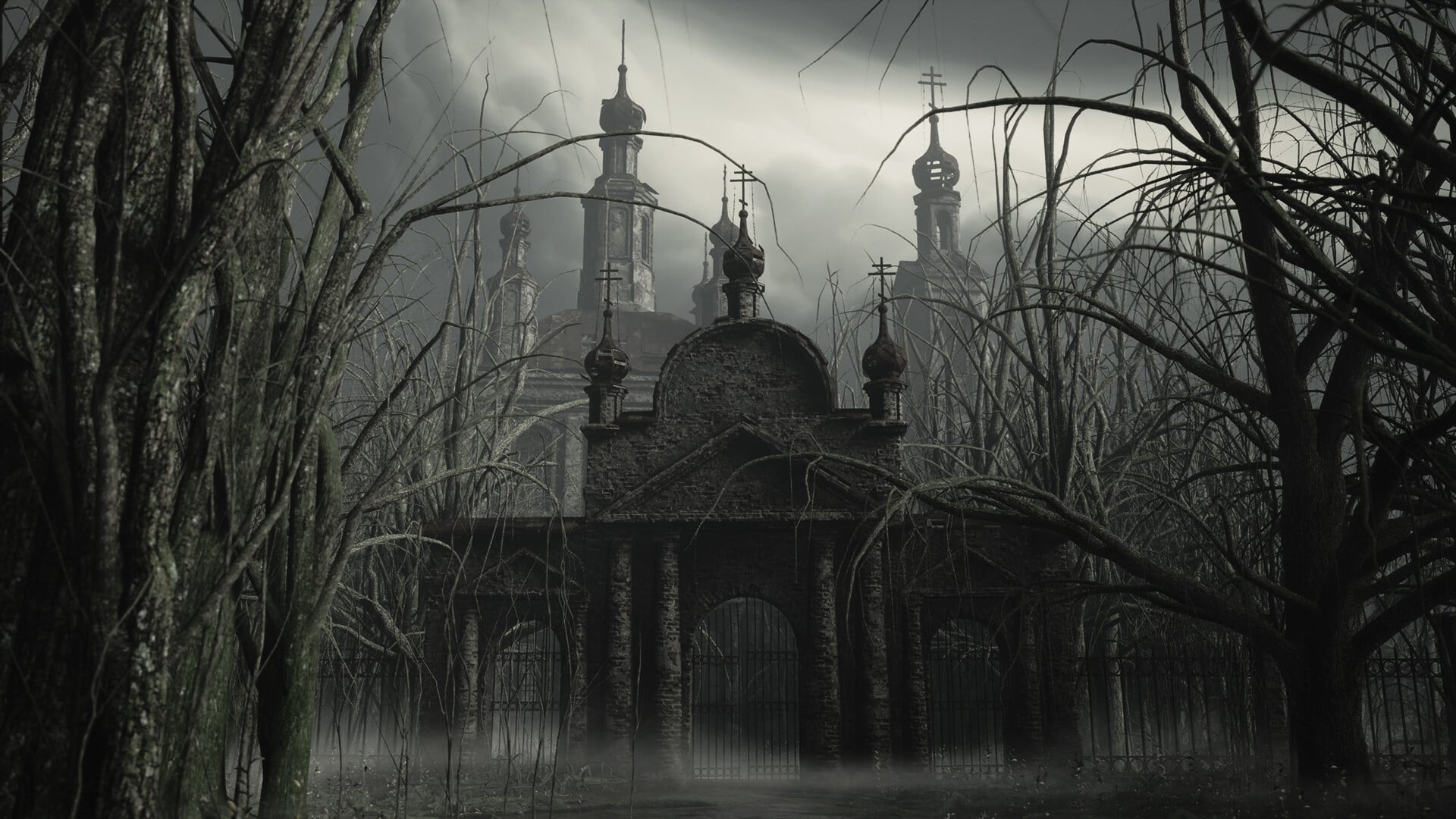
Before touching anything, it helps to know where the frames actually go. The heaviest options are the ones tied to shadows, lighting, volumetric effects, ambient occlusion, and large amounts of transparent particles. Crimson Moon leans on all of them, especially in its gothic city of Gildenarch.
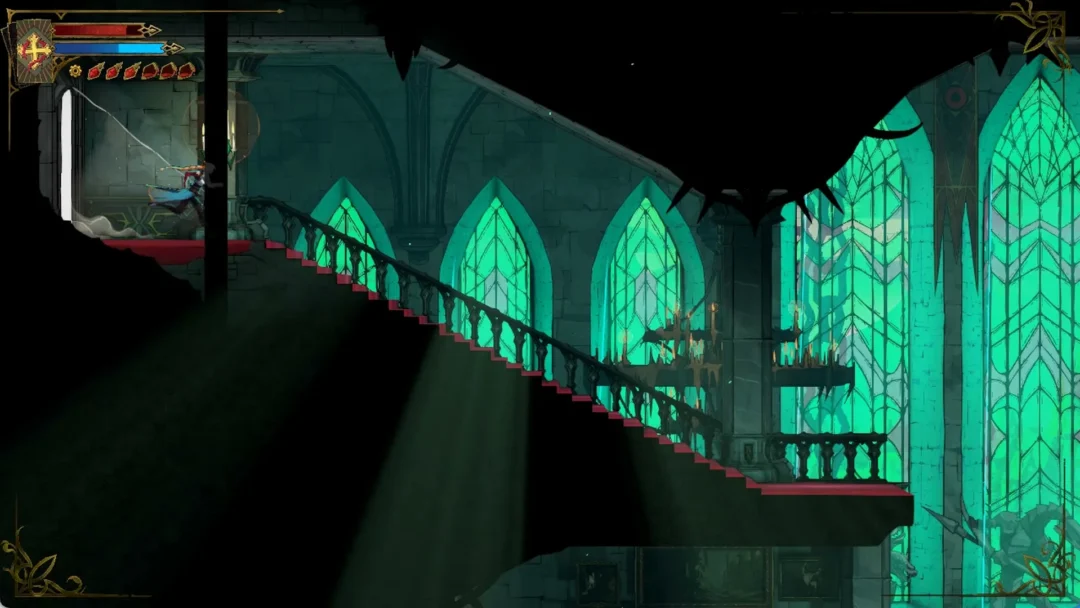
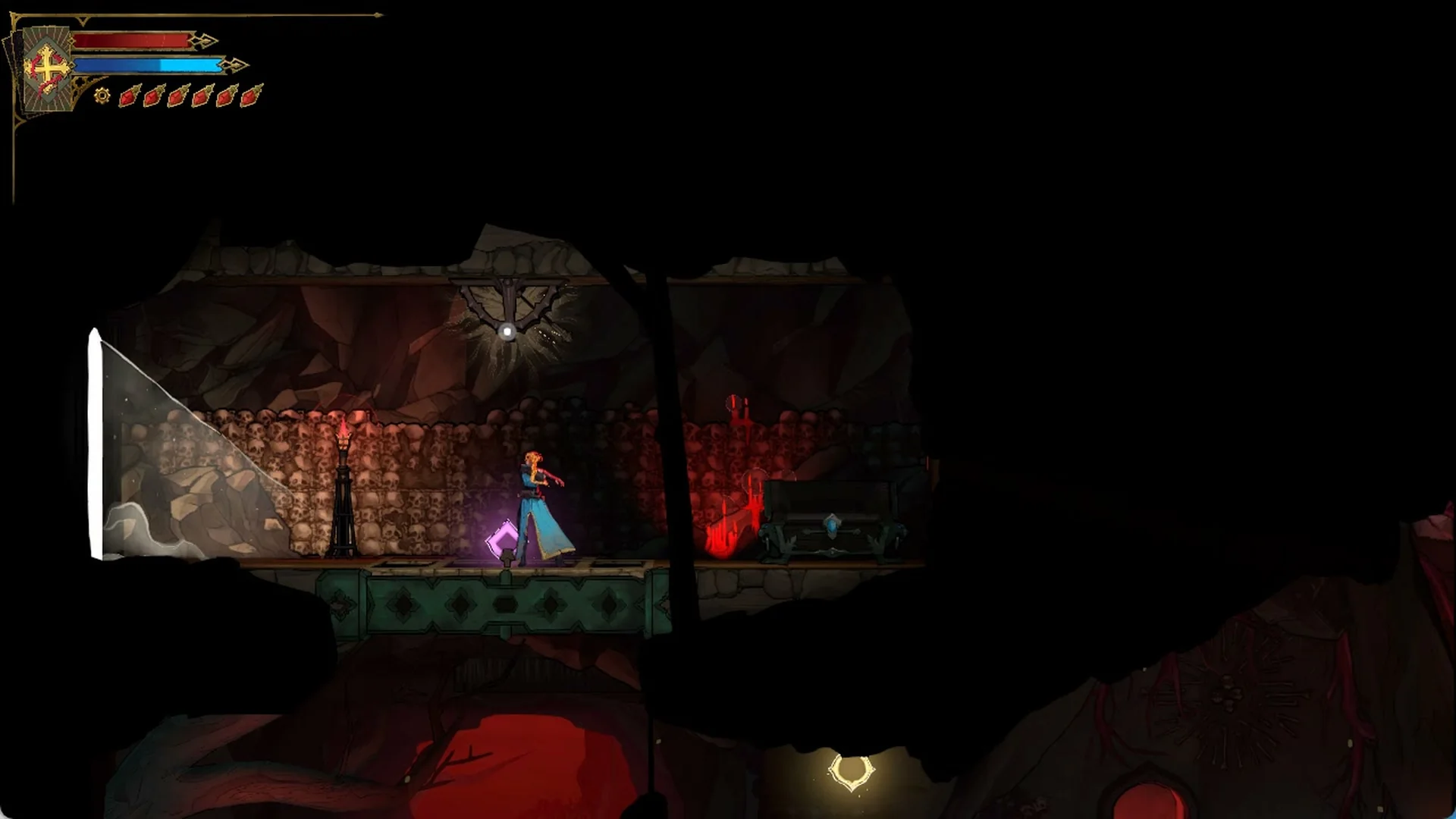
Dynamic shadows are the worst offender because they generate a large workload without a matching jump in visual clarity. Volumetric fog behaves the same way. It looks striking in a cathedral with light shafts, but during combat it becomes another effect competing for GPU time. When a Nephilim triggers a powerful ability against a crowd of enemies, the game suddenly processes particles, lighting, animation, shadows, and post-processing all at once, and that is where frame times fall apart.
The rule is simple. Protect frame consistency before chasing fidelity. A steady 60 that never dips feels far better than a counter bouncing between the high 40s and 60s. If you need to claw back frames, lower Shadows, Global Illumination, Visual Effects, and Post Processing first.
Best Crimson Moon Steam Deck settings
Crimson Moon is verified for Steam Deck by developer ProbablyMonsters, but “supported” does not mean it runs perfectly at high settings. The Deck’s eight RDNA 2 compute units share a limited power budget with the CPU, and Gildenarch’s fog, shadows, and crowded fights push that hardware hard. A native 60 FPS target is not realistic in the heaviest scenes, so aim for a locked 30 or a carefully tuned 40 instead.
Start from a Custom profile rather than a global preset. Manually controlling the expensive options gives far more predictable frame times than any one-click setting.
Display settings
| Setting | Recommended value |
|---|---|
| Resolution | 1280×800 |
| Display Mode | Borderless Windowed |
| V-Sync | Off |
| Motion Blur | Off |
| FOV | 90 |
| Frame Target | 30 or 40 FPS |
Keep the native 1280×800 output. Dropping resolution too aggressively makes distant geometry and character silhouettes look soft, which hurts in a game built around reading incoming attacks. Motion Blur off is both a performance and a readability win, since a smeared screen makes dodging and parrying harder. Leave V-Sync off if you manage the frame target through SteamOS.
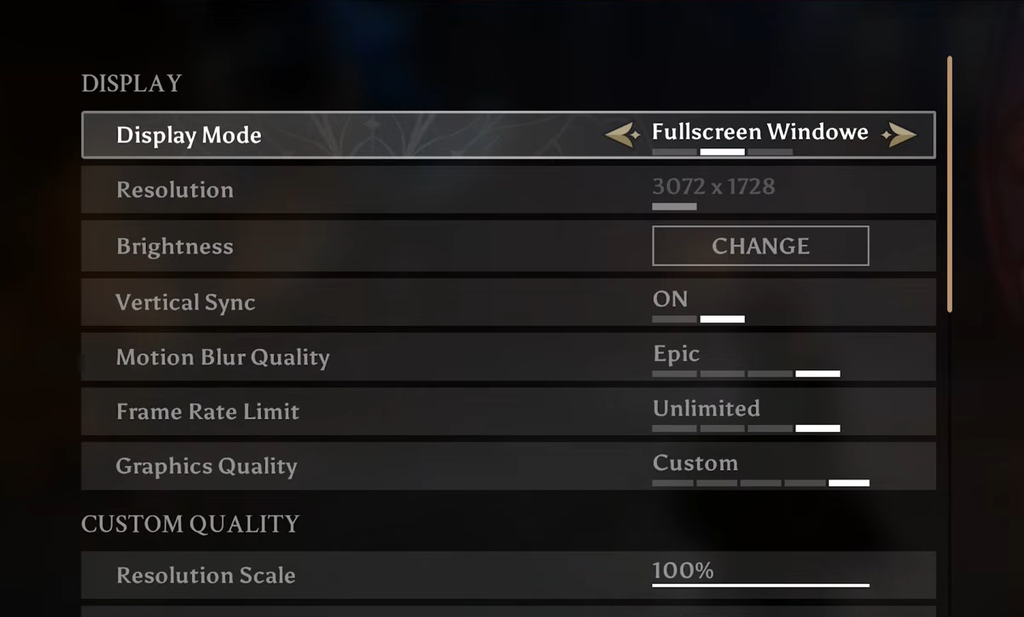
Graphics settings
| Graphics option | Best setting |
|---|---|
| Texture Quality | Medium |
| Shadow Quality | Low |
| Lighting Quality | Low/Medium |
| Effects Quality | Low |
| Post-Processing | Low |
| Anti-Aliasing | TAA |
| Ambient Occlusion | Low |
| Volumetric Fog/Clouds | Low |
| Anisotropic Filtering | 4x |
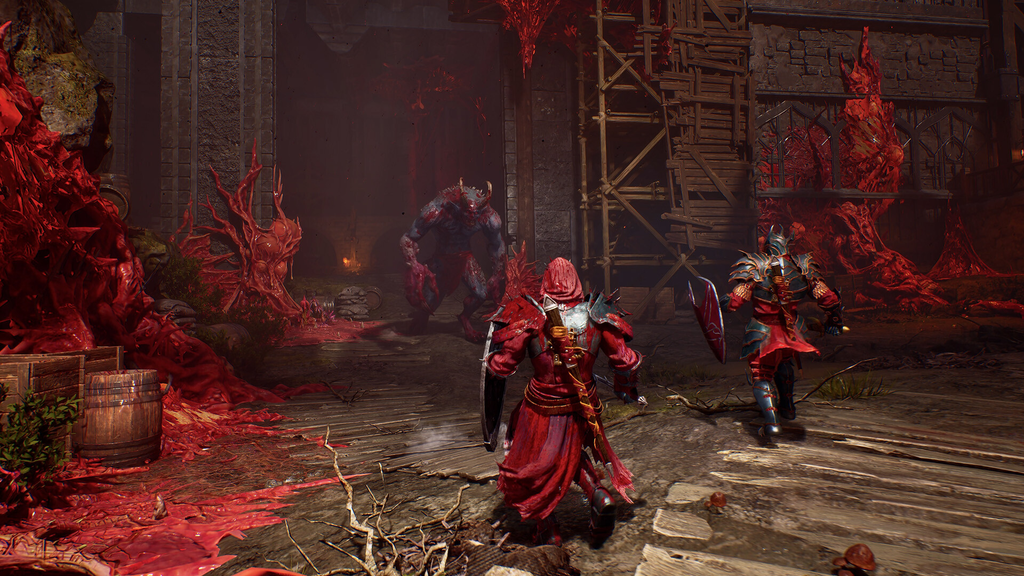
Medium textures still look sharp on the seven-inch screen while easing memory pressure, so there is no reason to drop them to Low. Shadows are the first thing to sacrifice, since the performance saved in combat is worth far more than the drama lost. Effects at Low keeps the game responsive during spell-heavy fights without turning combat into a flat mess. Keep Ambient Occlusion on at Low so objects retain some depth in dark rooms, and pin Volumetric Fog to Low because it is one of the most demanding effects on weaker GPUs.
Lighting is the one area worth a bit of flexibility. For maximum consistency, use Low. If you have frame headroom in solo play, Medium adds noticeably to the gothic atmosphere. In co-op, keep it at Low, since two players casting abilities at once is exactly when extra lighting math becomes painful.
AMD FSR settings for the Steam Deck
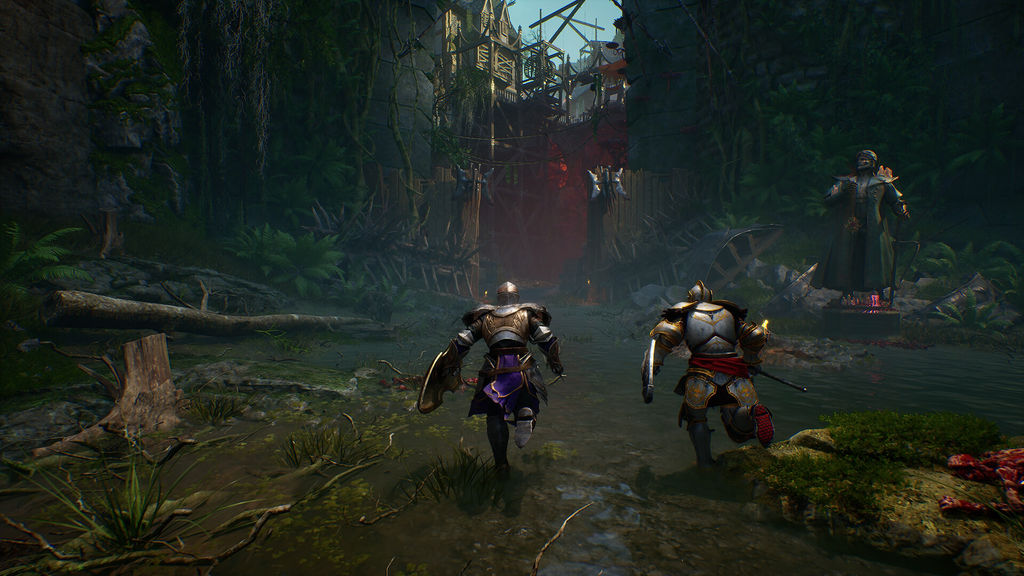
Native 800p holds up in exploration but struggles during large encounters, and that is where AMD FSR earns its place. The dark environments hide most of the compromises from temporal upscaling, while the extra headroom keeps big fights stable.
- Upscaler: AMD FSR
- Preset: Balanced for general play, Quality if you mostly explore alone
- Sharpness: 60–70%
- Output resolution: 1280×800
Balanced is the default worth using. FSR Quality produces a cleaner picture, but do not trade a stable frame rate just to sharpen distant walls. Keep sharpness in the 60–70% range. Too little looks soft, and too much creates ugly halos around characters and geometry.
30 FPS vs 40 FPS on the Deck
Choose 30 FPS at 30 Hz when you want maximum stability, longer battery life, or smoother co-op, and when large fights are dipping at 40. A properly locked 30 feels surprisingly good in a slower, weightier action RPG.
If your Deck can hold it, 40 FPS at 40 Hz is the better target. The jump from 30 to 40 makes camera movement and combat feel more responsive without demanding the power a stable 60 would need, and it leaves the hardware some breathing room.
SteamOS performance menu
Once the in-game options are set, open the Quick Access Menu and tune the system controls.
| SteamOS option | Recommended setting |
|---|---|
| Frame Limit | 30 or 40 FPS |
| Refresh Rate | Match FPS |
| TDP Limit | Off |
| GPU Clock | 1400–1500 MHz manual |
| Proton | Proton Experimental or current GE-Proton |
Leave the TDP limit off. Crimson Moon needs the full power envelope during demanding combat, and capping it can make the frame rate collapse when the screen fills up. A manual GPU clock around 1400–1500 MHz helps with consistency by stopping the GPU from constantly changing clocks. Test 1400 MHz first, then try 1500 MHz if performance still fluctuates.
Confirming the fix and remaining stutters
You will know the settings worked when frame times stay flat during heavy fights instead of spiking each time a big ability lands. On PC, if stutters survive the frame cap, turn Vertical Sync on and drop Post Processing to Low before touching anything else. On the Deck, if 40 FPS keeps dipping in crowded scenes, step down to a locked 30 rather than lowering image quality further.
Some graphical issues at launch are tied to the game itself rather than your configuration, and post-launch patches are expected to clean several of them up. Until then, the frame cap on PC and a locked 30 or 40 on Steam Deck give the most reliable, stutter-free way to play Crimson Moon right now.