

Cross Device Experience Host is the background component Windows 11 installs when you let your PC connect to a phone. When you flip on the option under Bluetooth & devices, Windows tries to pull it from the Microsoft Store. On many machines that download simply reads “pending” and never finishes, or an existing copy refuses to update. Until it installs cleanly, phone linking and mobile-device features stay disabled.
Quick answer: Open Command Prompt as administrator and run winget install 9NTXGKQ8P7N0. Approve the prompt and wait for it to report success, then return to Settings and turn the mobile-devices toggle back on.
Force the install with winget
The most reliable fix bypasses the Store download that gets stuck on “pending” and installs the package directly by its product ID.
cmd in the Windows search box, right-click Command Prompt, and choose Run as administrator. Select Yes if a User Account Control window appears.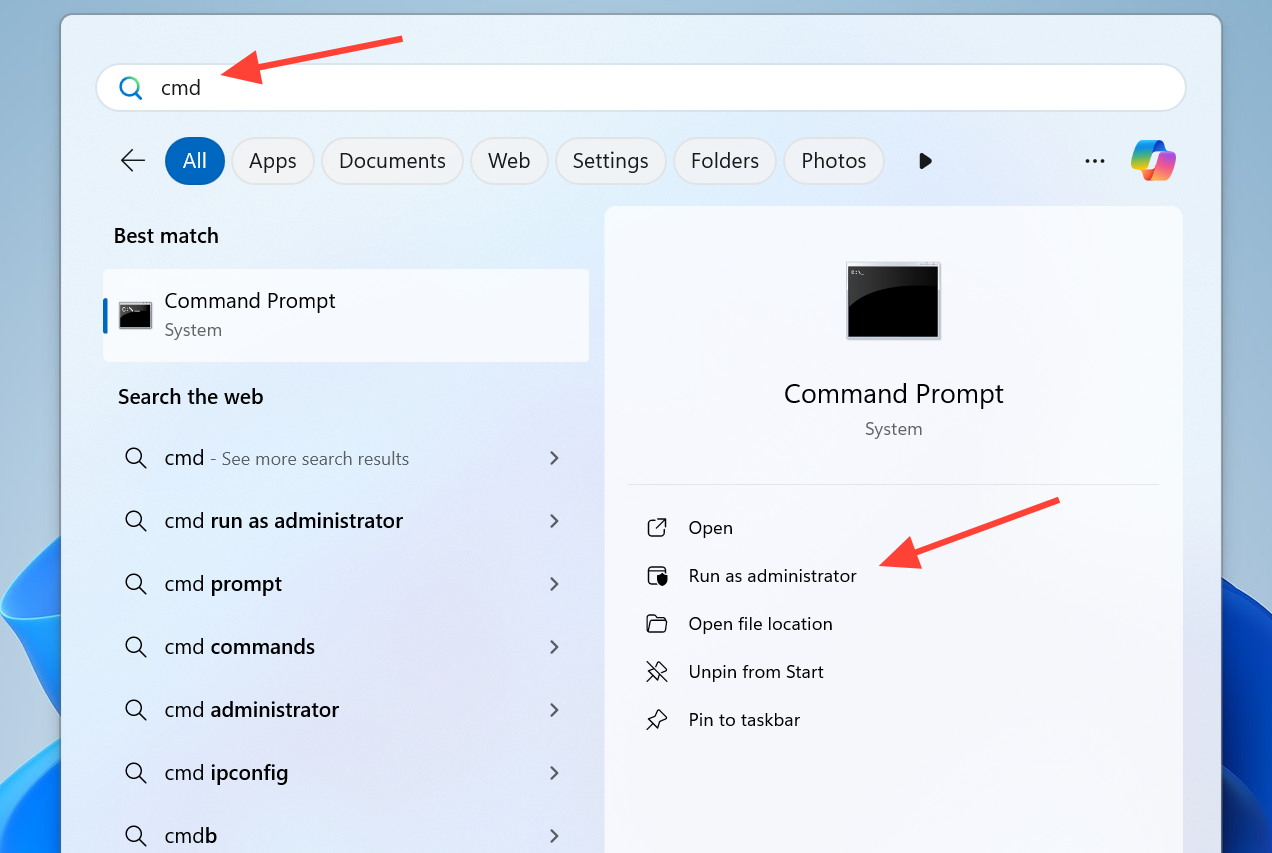
winget install 9NTXGKQ8P7N0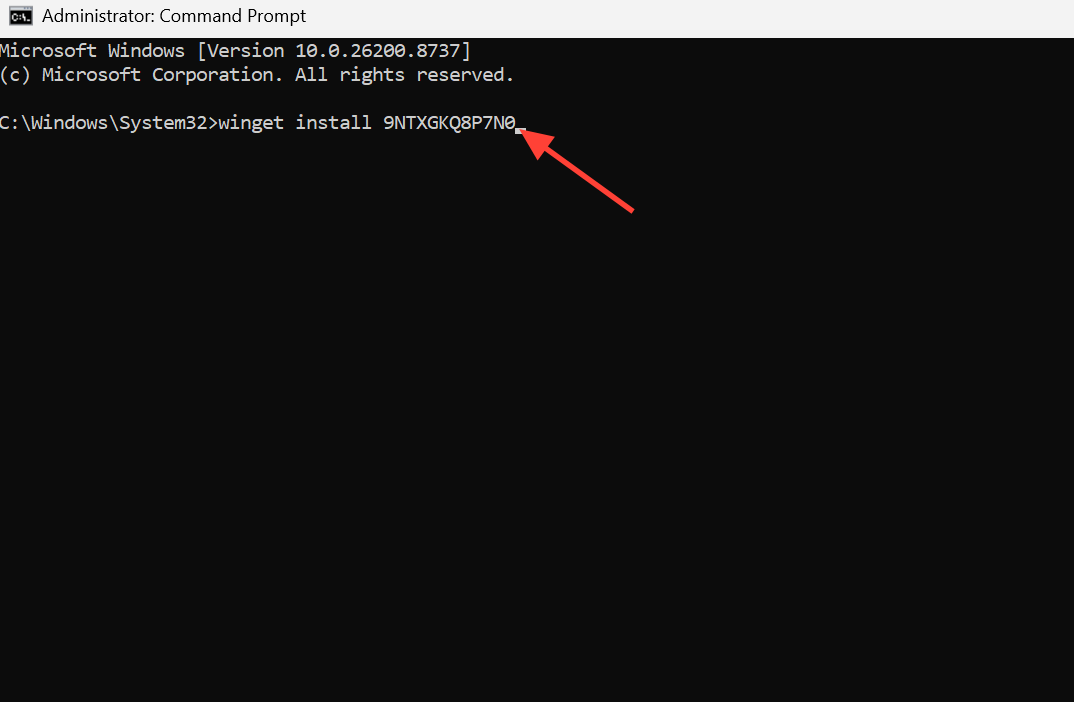
Clear the Microsoft Store cache
A corrupted Store cache is a common reason installs and updates hang. Resetting it forces Windows to rebuild those files.
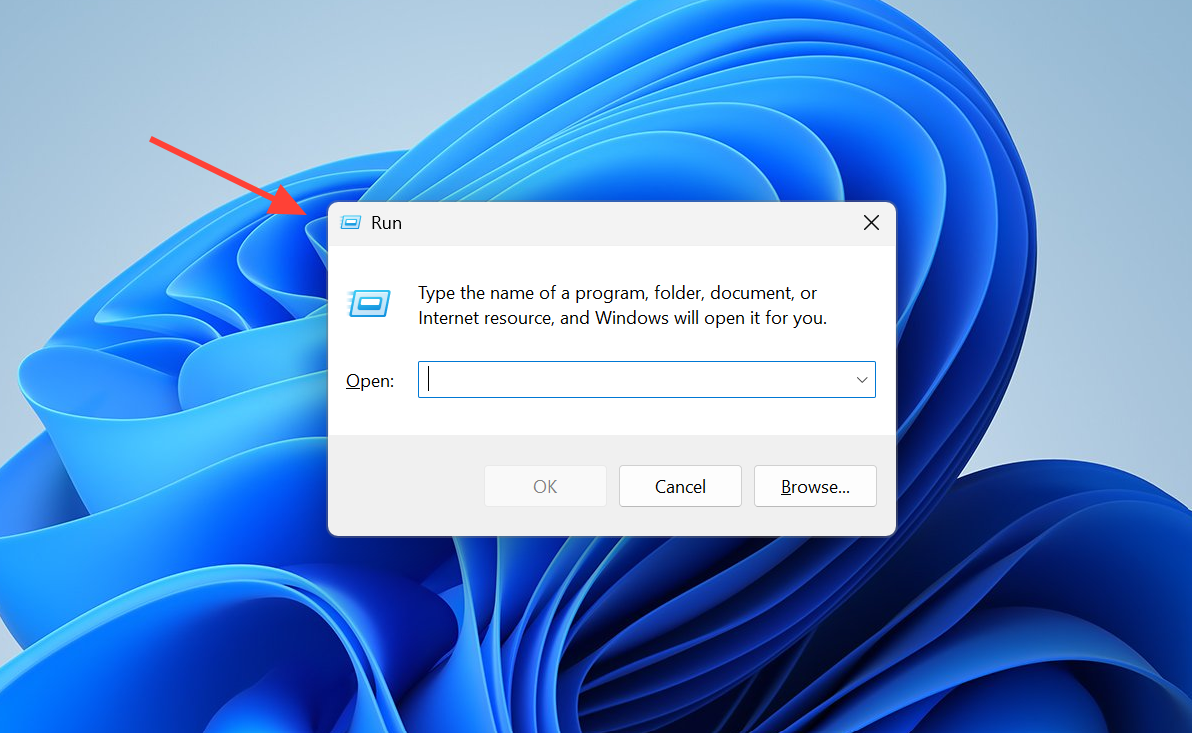
WSReset.exe and press Enter. A blank Command Prompt window opens while the cache clears, then the Store launches on its own.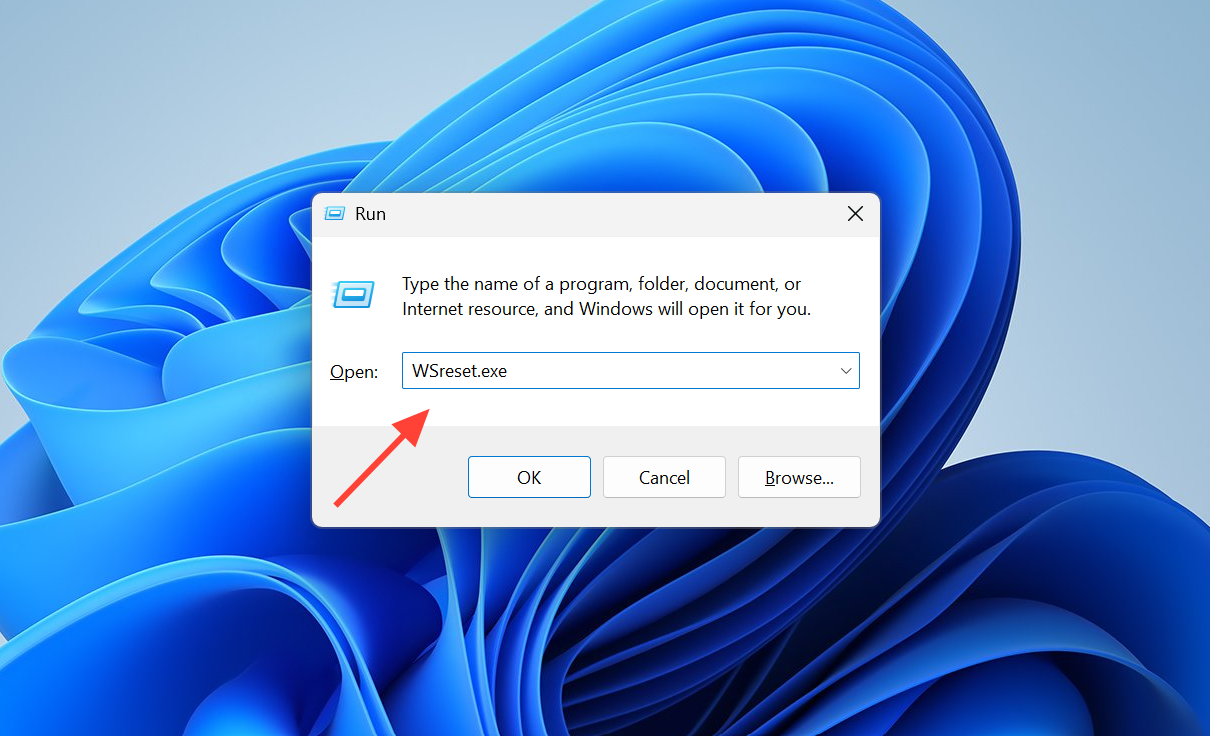
Run the Windows Store Apps troubleshooter
Because this is a Microsoft-supplied component, the built-in troubleshooter can detect and clear problems that block Store apps from installing.
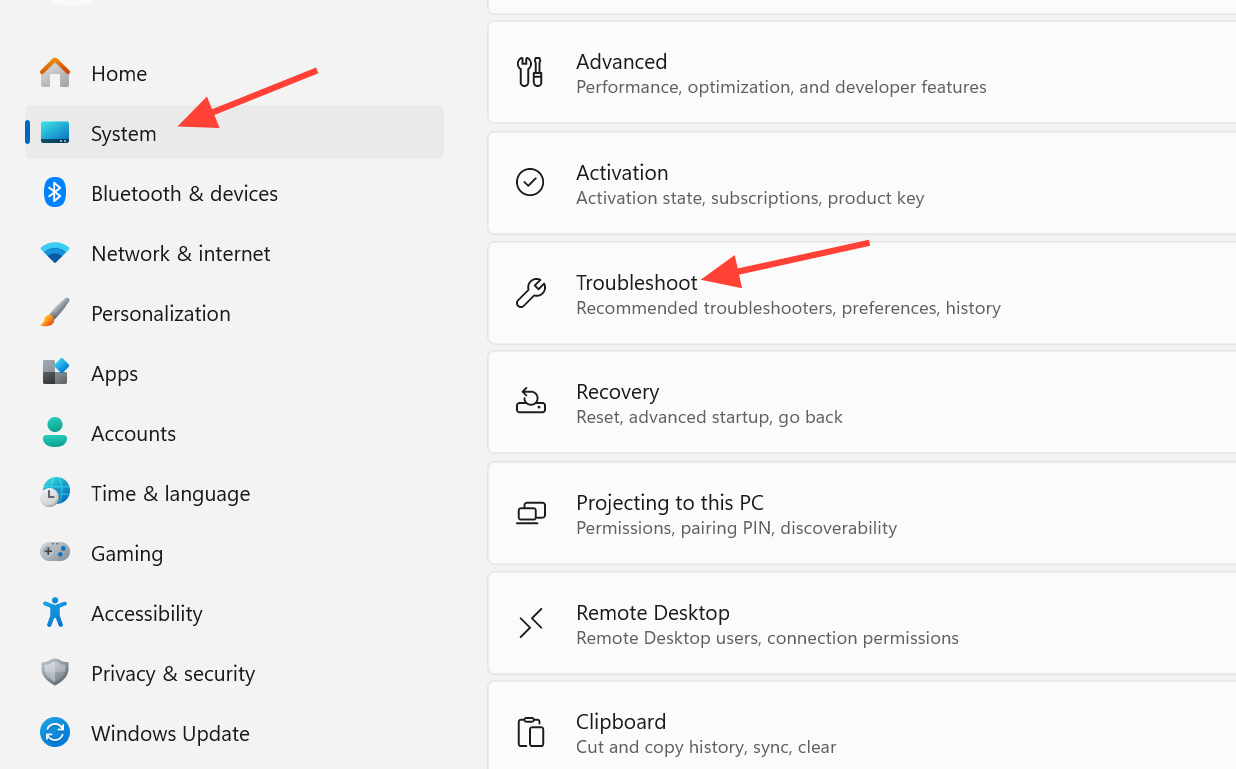
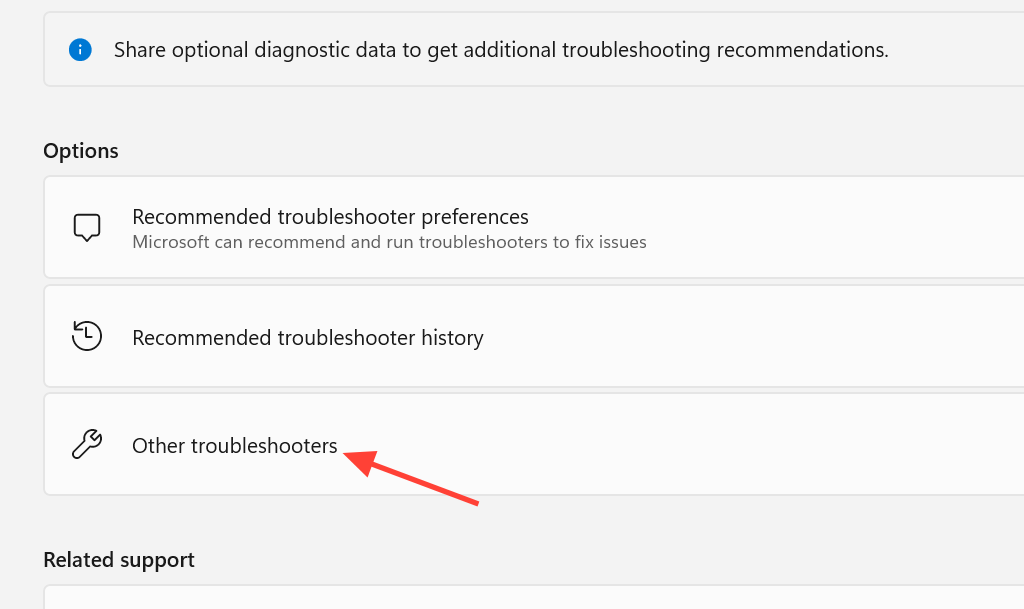
Check the Connected Devices Platform Service
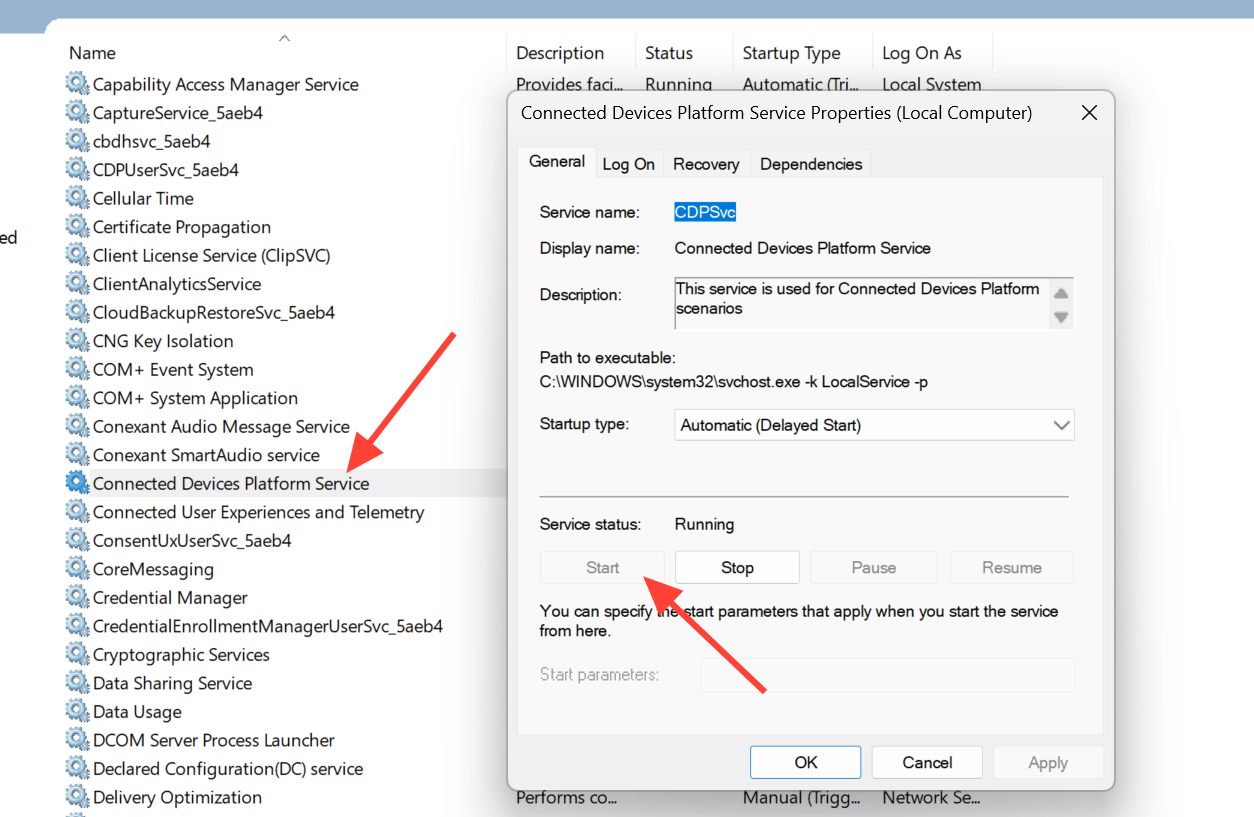
The Connected Devices Platform Service is a core part of the cross-device experience. If it is stopped or disabled, the host can fail to install or behave erratically.
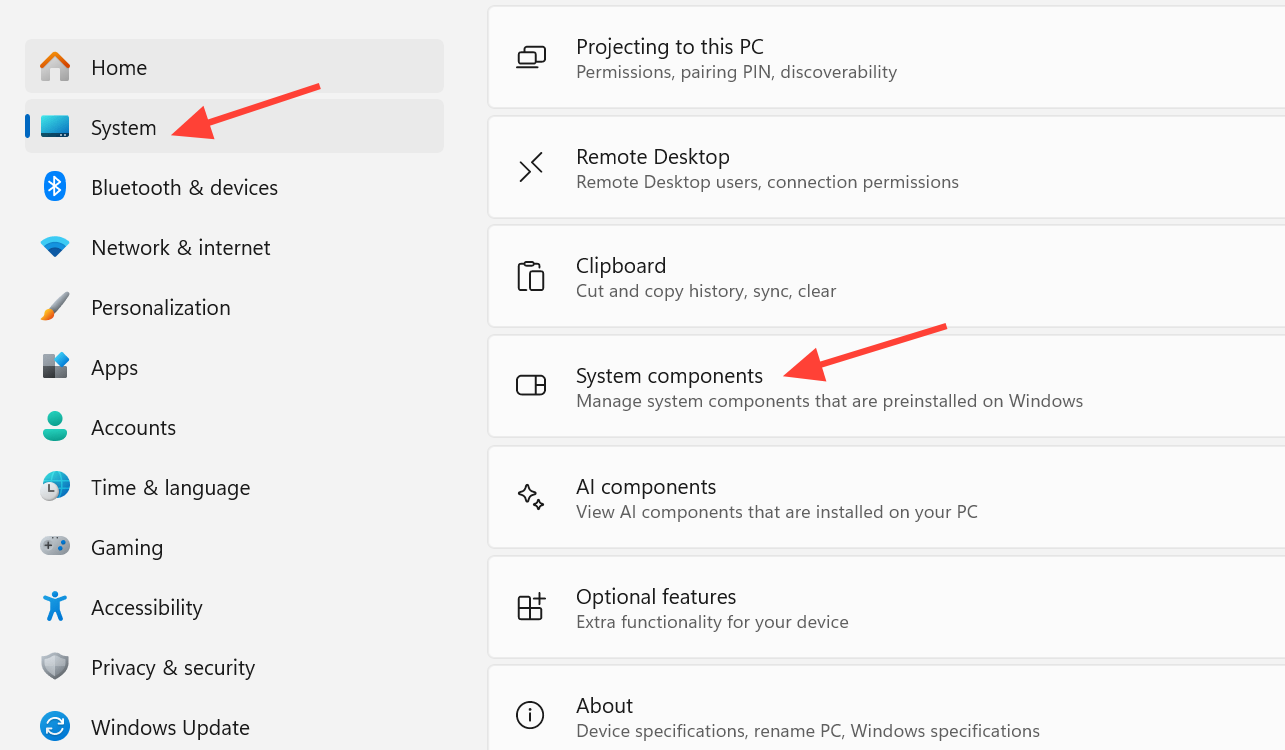
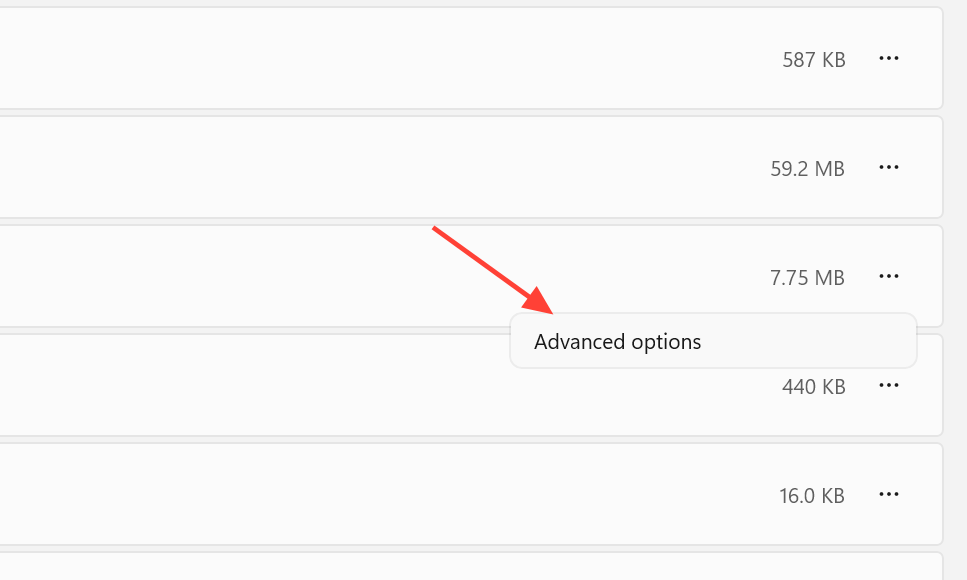
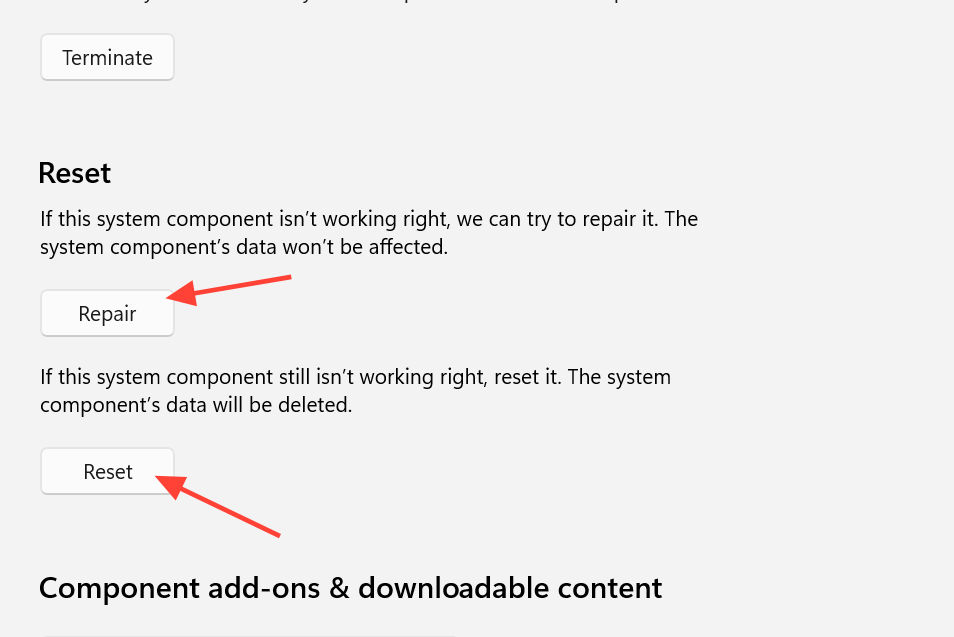
Repair or reset the component in Settings
If the app installed but keeps failing to update or won’t connect, repairing it fixes damaged files without wiping your setup. Resetting is the stronger option if repair does nothing.
Install in a clean boot state
Third-party services or startup apps sometimes interfere with the install. A clean boot loads only the essentials so nothing gets in the way.
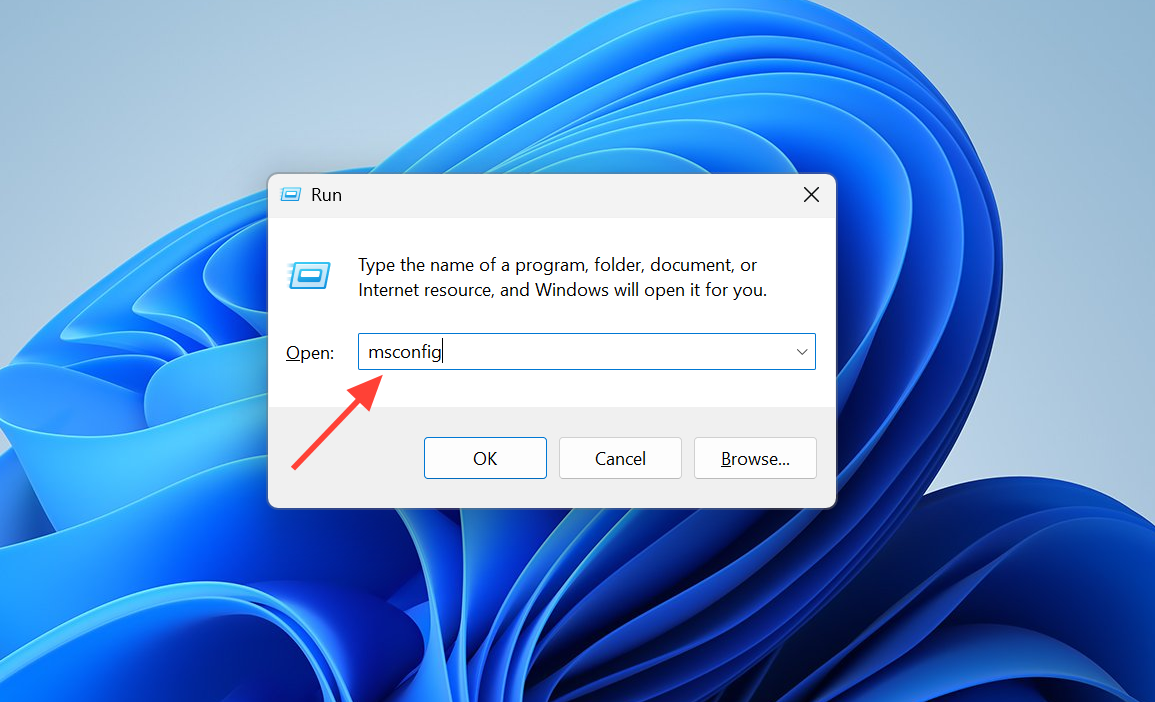
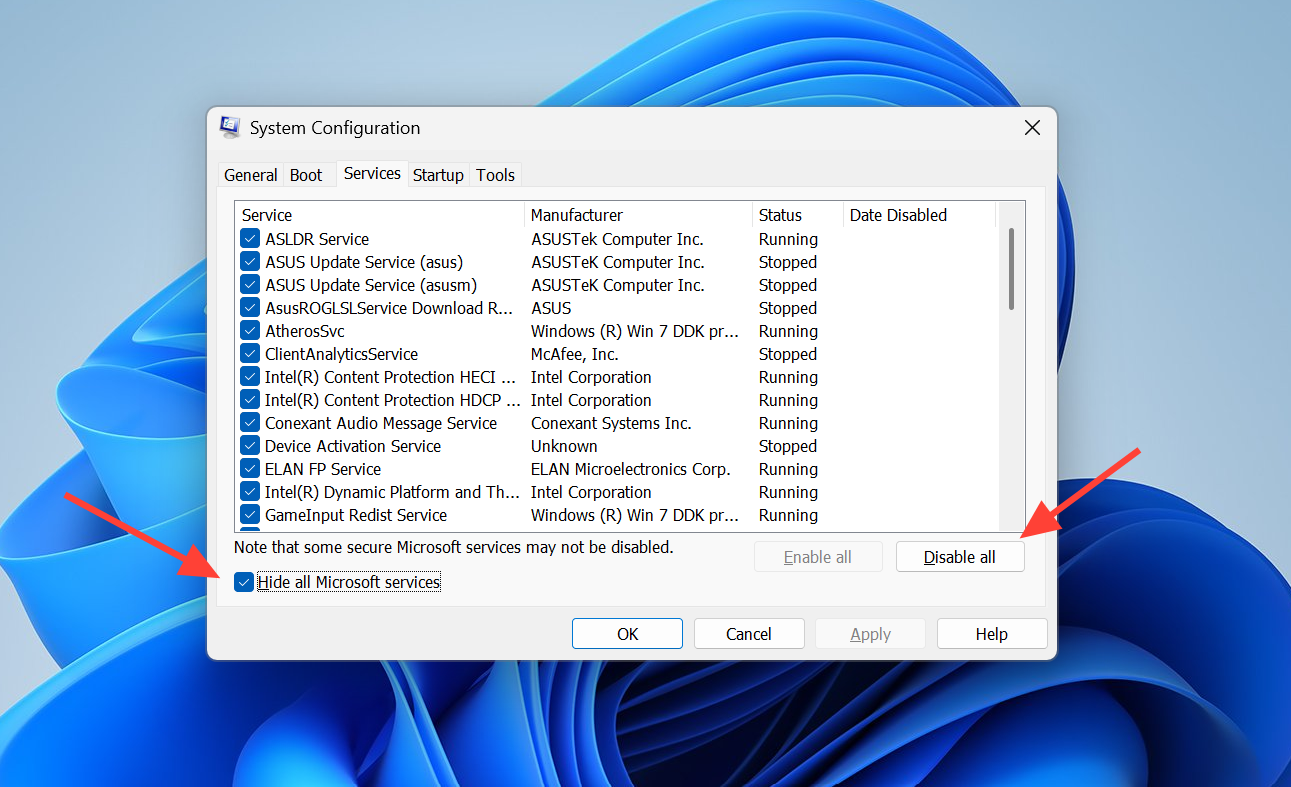
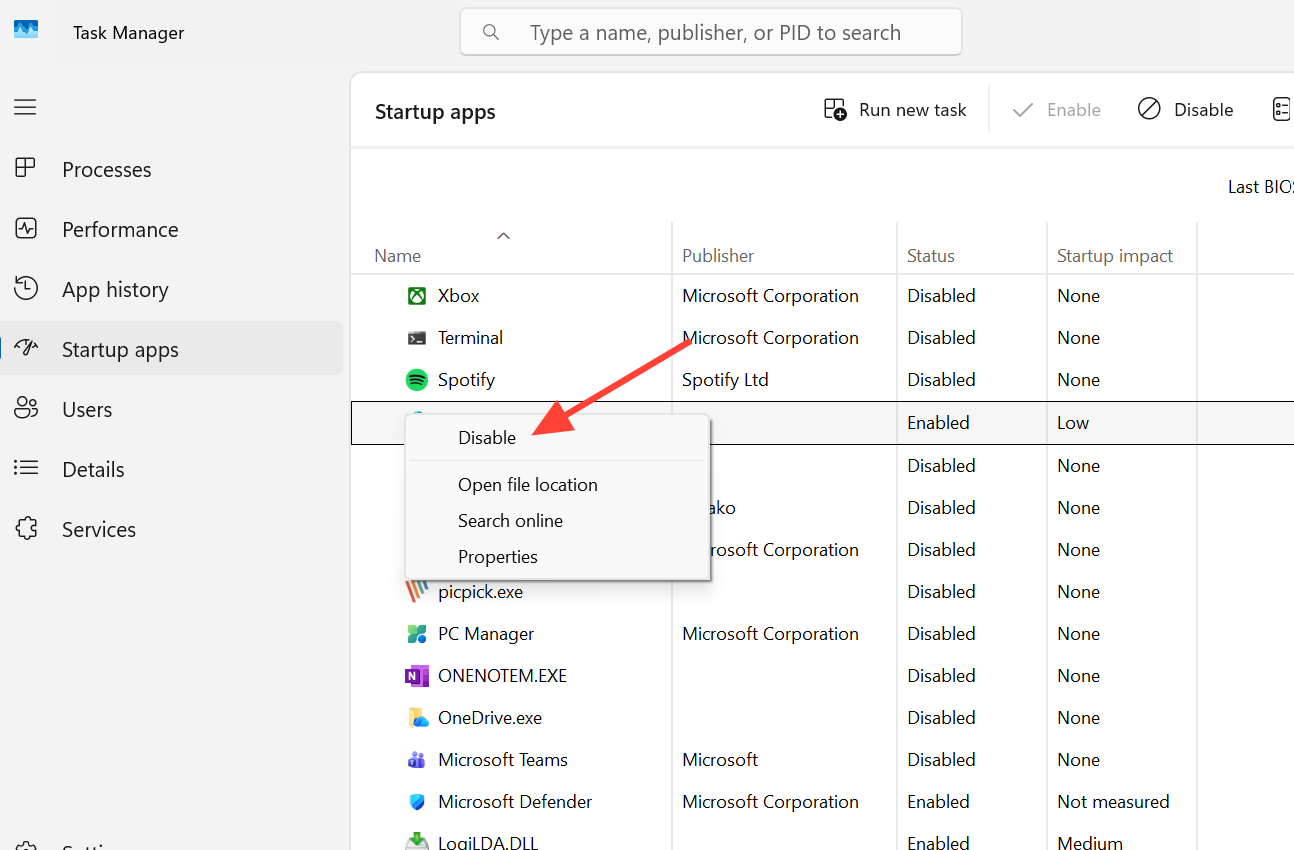
winget install 9NTXGKQ8P7N0 again. After it succeeds, reopen msconfig and re-enable your services and startup items.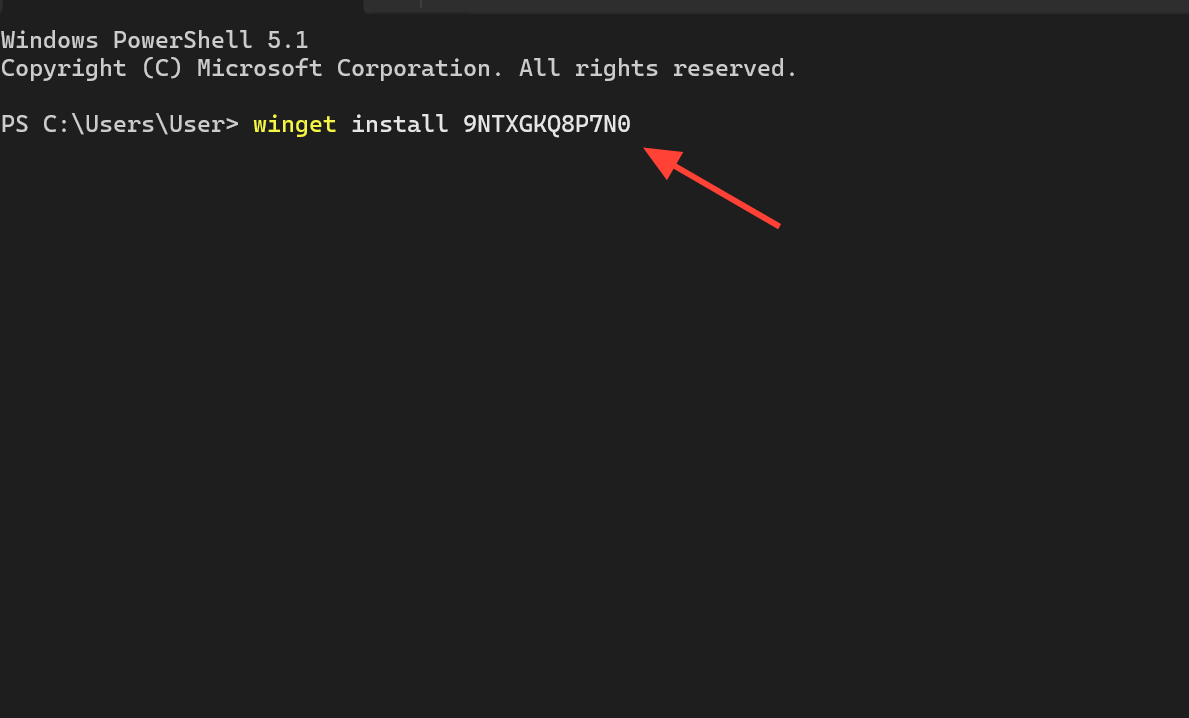
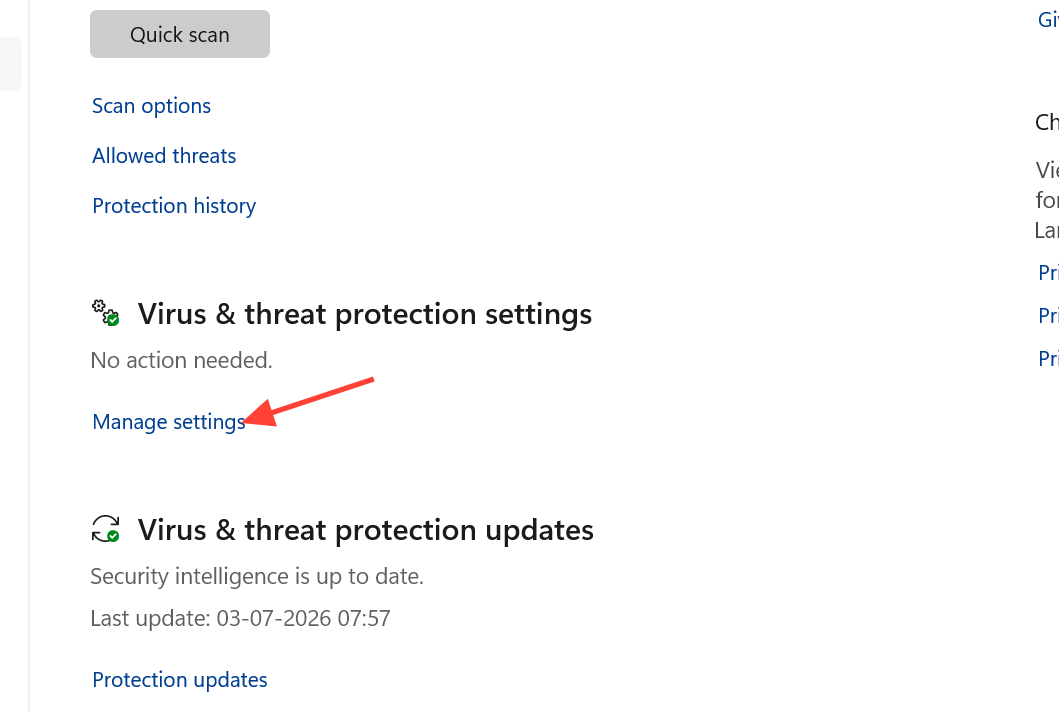
Temporarily disable antivirus during install
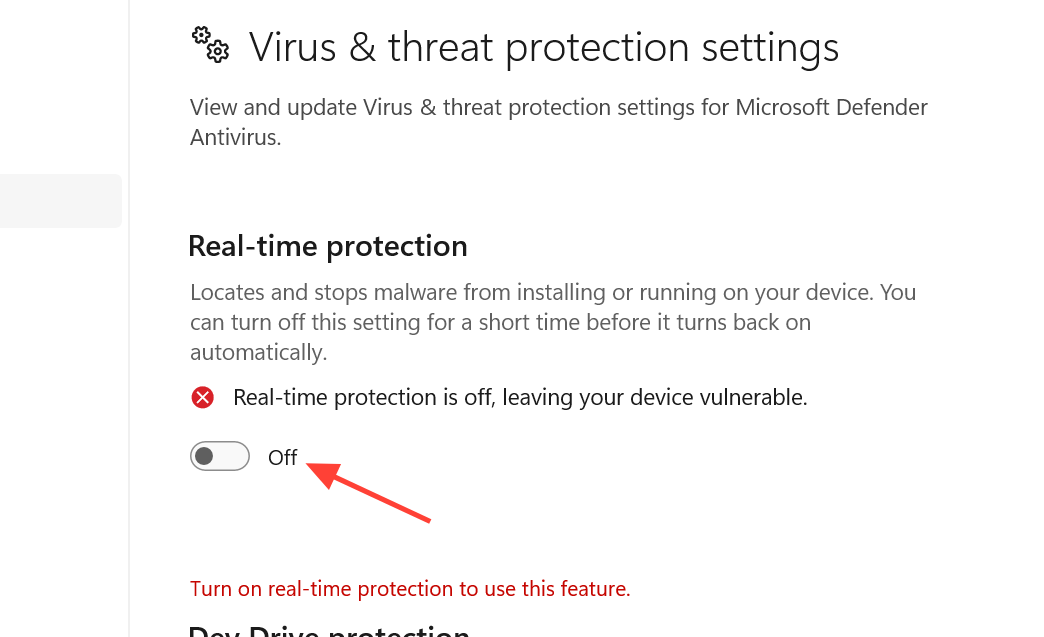
Security software, including Windows Defender, can block the host from installing or running. Turning real-time protection off briefly lets the install finish, and you should switch it back on immediately afterward.
Update Windows 11 first if nothing works
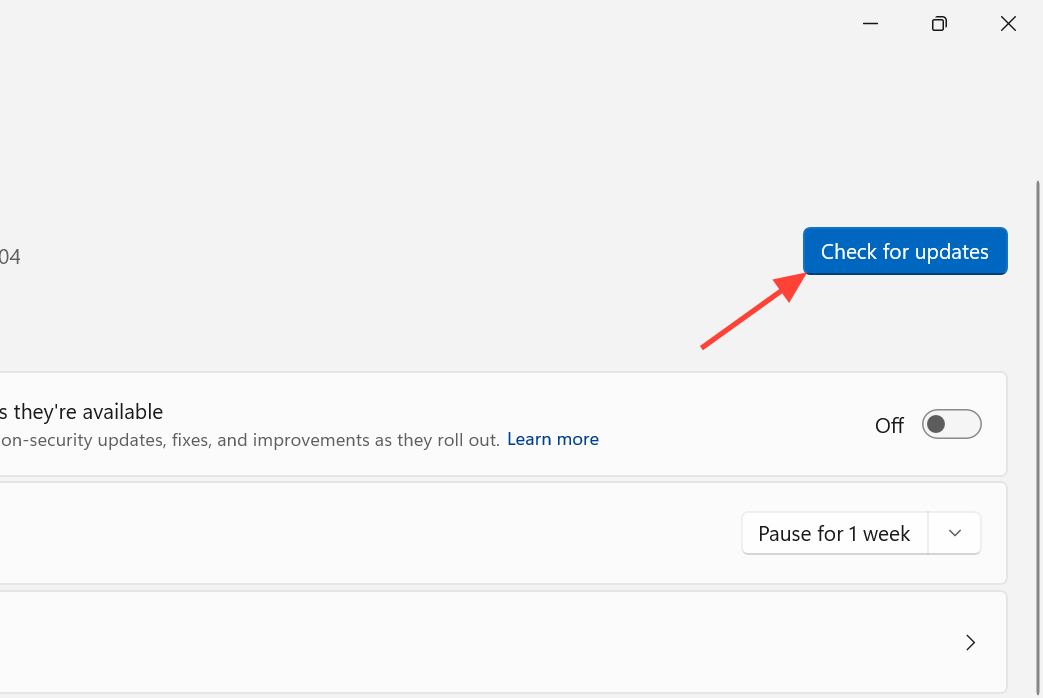
Cross Device Experience Host depends on recent Windows 11 components and Store frameworks. On an older build, it may not appear at all, fail with a generic error, or download without completing.
The winget command resolves the stuck “pending” install for most people, and the Store cache reset handles update loops. When the component is already present, but the feature still won’t run, the service check and the in-Settings repair are the two moves that matter most. Note: even after the host installs correctly, some phone features can take a moment to sync the first time you pair a device, so give the connection a few minutes before assuming it failed.



