
Persistent Windows Hello prompts can disrupt workflow, especially in environments where PINs, biometrics, or other Hello methods are unnecessary or unwanted. Windows 11 frequently nudges users to set up Windows Hello for improved security, but not every organization or user needs this feature. Disabling these prompts requires changes at the system or policy level to prevent Windows from requesting Hello setup during logon or when registering security apps like Okta Verify.
Disable Windows Hello Prompt Using Group Policy
Group Policy provides a centralized way to manage authentication settings on Windows 11 Pro, Enterprise, and Education editions. Adjusting these policies can disable PIN sign-in and other Hello options for all users on a device.
Windows + R to launch the Run dialog, typing gpedit.msc, and pressing Enter. This opens the Local Group Policy Editor.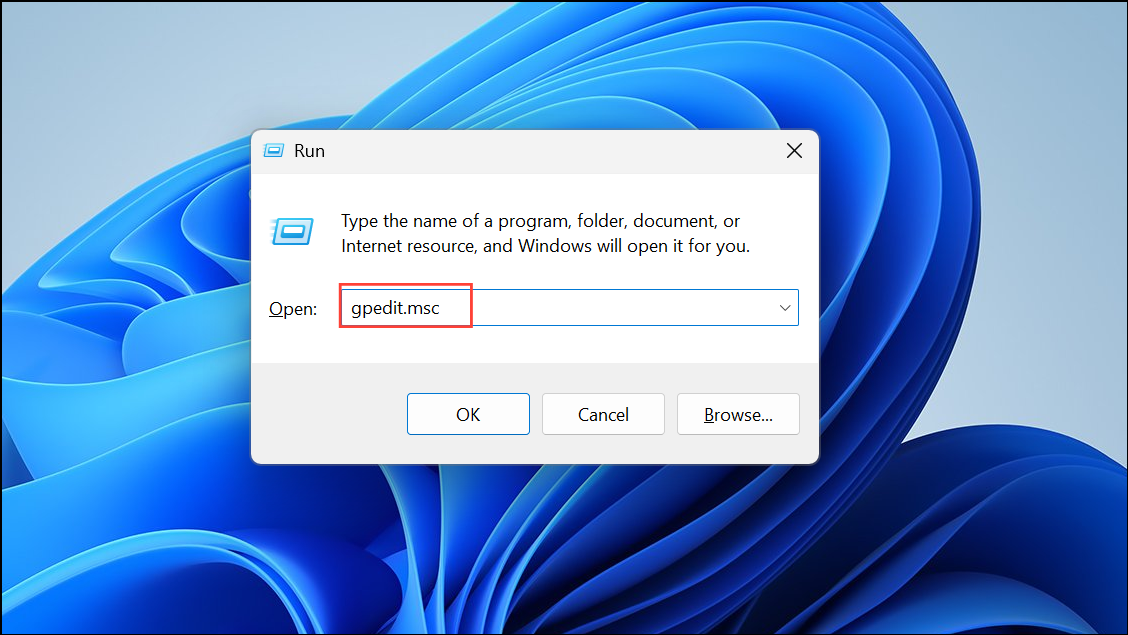
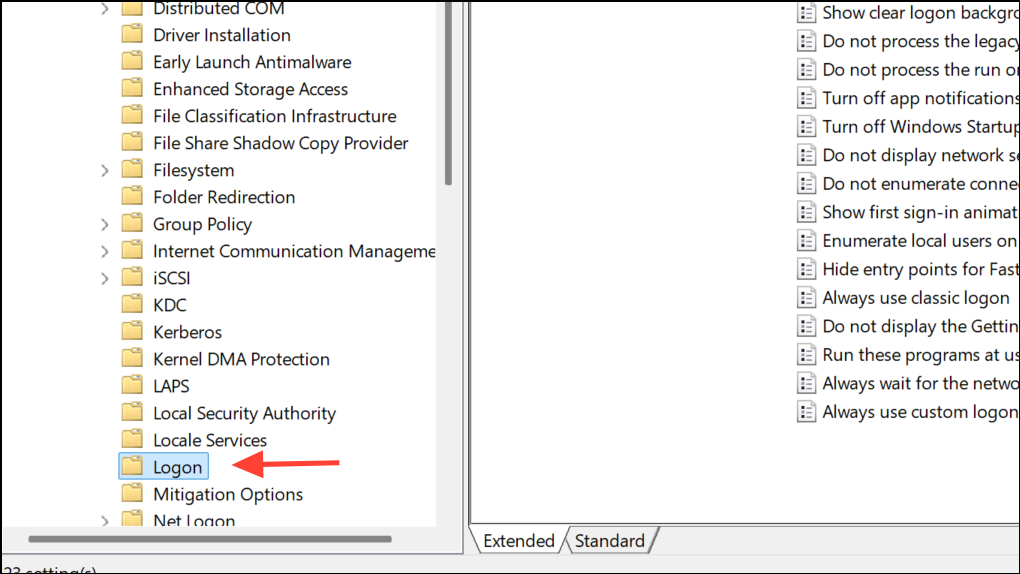
Turn on convenience PIN sign-in (or Turn on PIN sign-in depending on your Windows version) and set it to Disabled. This prevents users from adding or using a PIN for sign-in.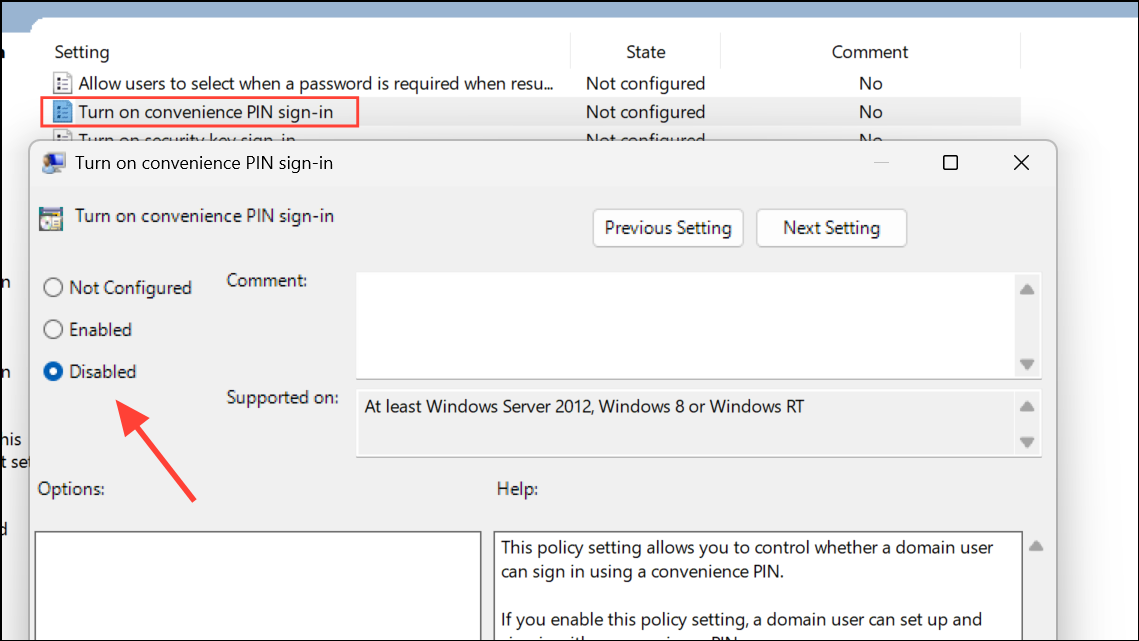
Computer Configuration > Administrative Templates > Windows Components > Biometrics.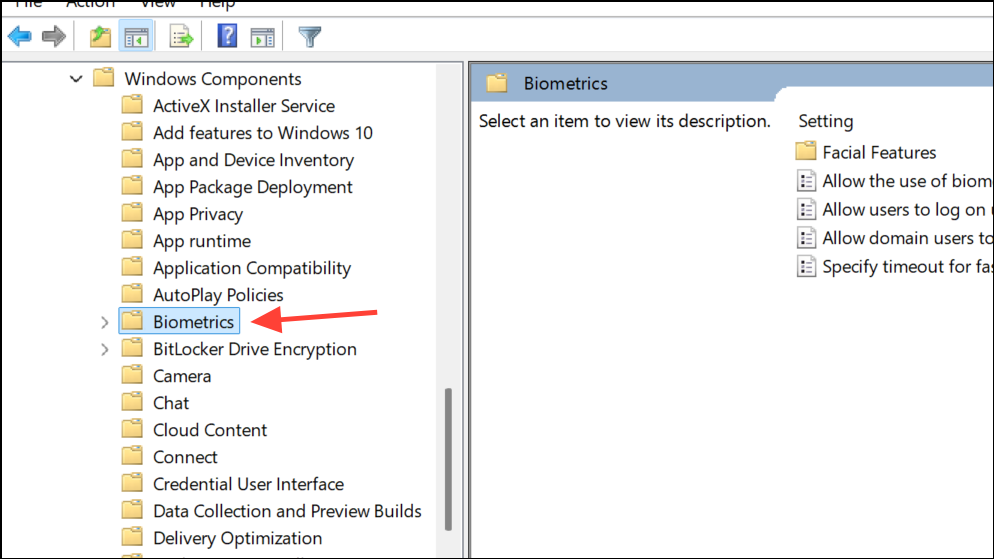
Allow the use of biometrics and set it to Disabled. This stops the system from asking users to set up fingerprint or facial recognition.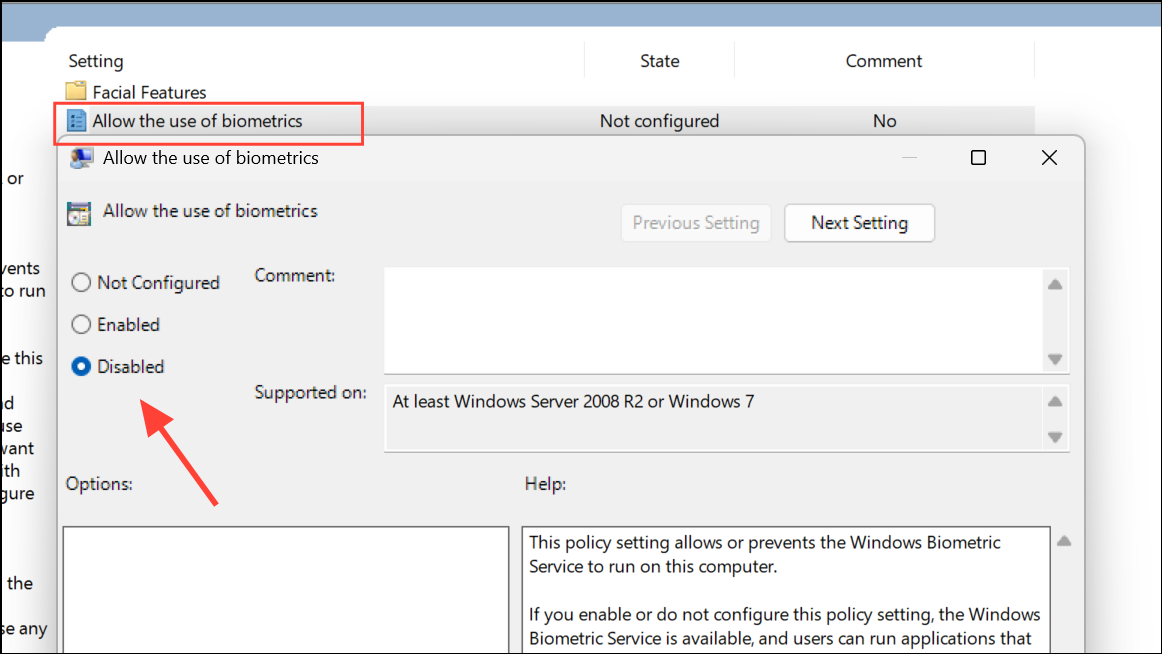
Disable Windows Hello Prompt via Registry Editor
For devices where Group Policy Editor is unavailable (such as Windows 11 Home), Registry edits can achieve similar results. Modifying registry keys can disable Windows Hello sign-in options system-wide. Editing the registry carries risk—incorrect changes can cause system instability. Always back up the registry before proceeding.
Windows + R, type regedit, and press Enter. If prompted by User Account Control, allow the Registry Editor to launch.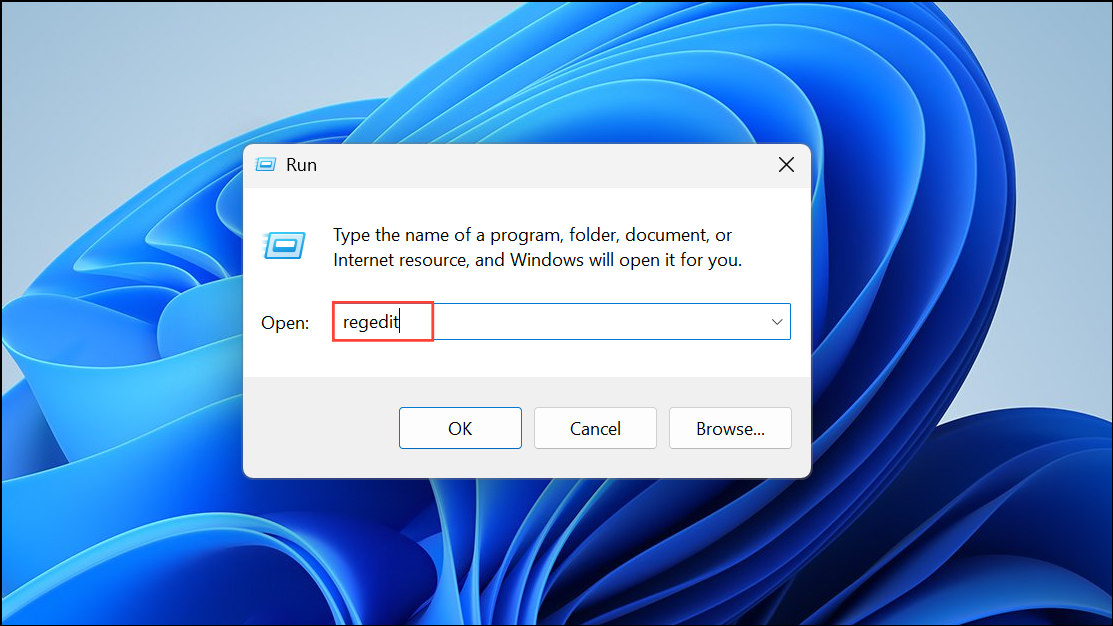
HKEY_LOCAL_MACHINE\SOFTWARE\Microsoft\PolicyManager\default\Settings\AllowSignInOptions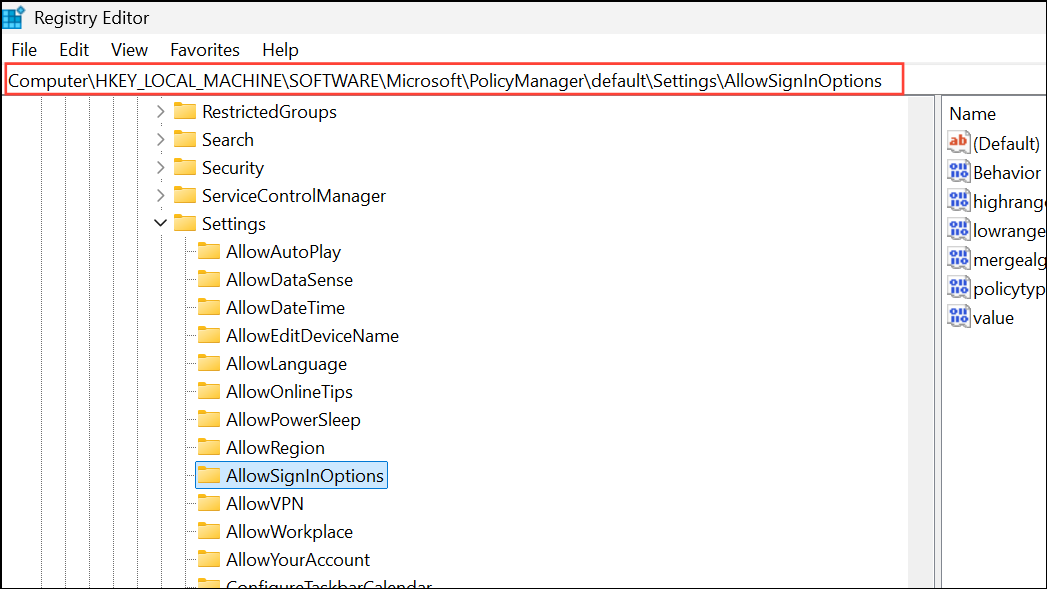
value. Double-click it and set its data to 0. This disables Windows Hello sign-in options for all accounts on the device. To re-enable, set the value back to 1.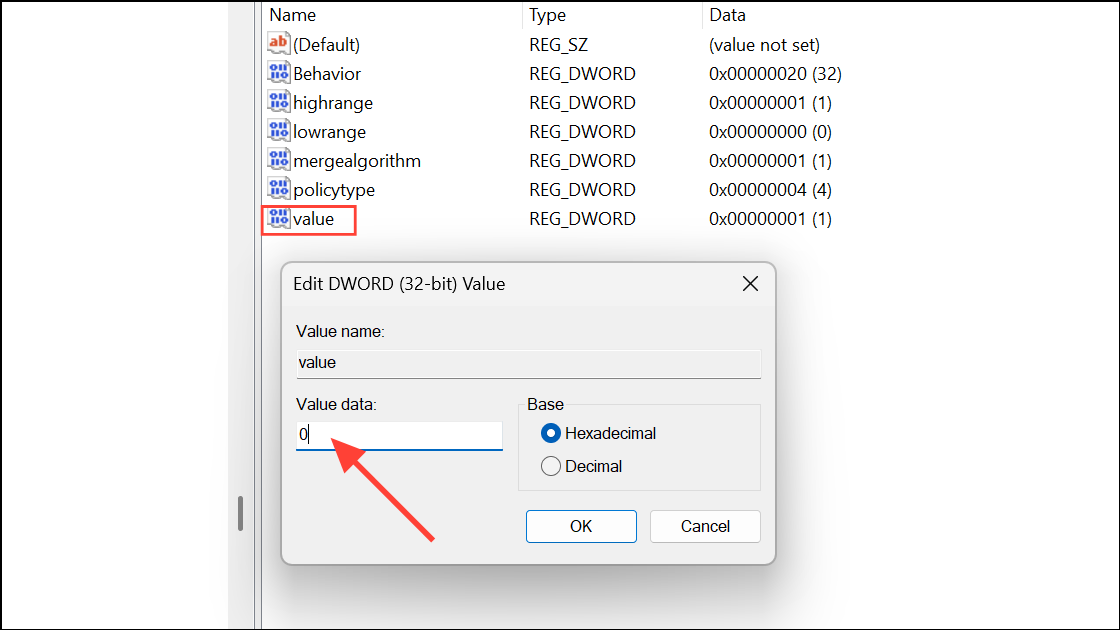
AllowSignInOptions key, you may need to create it or use your device management tool to push the change.Remove Windows Hello PIN and Disable Prompts via Account Settings
Windows 11 includes settings to remove the PIN and stop Hello sign-in prompts for individual users. This approach is suitable for personal devices or when only a few users need to opt out of Hello features.
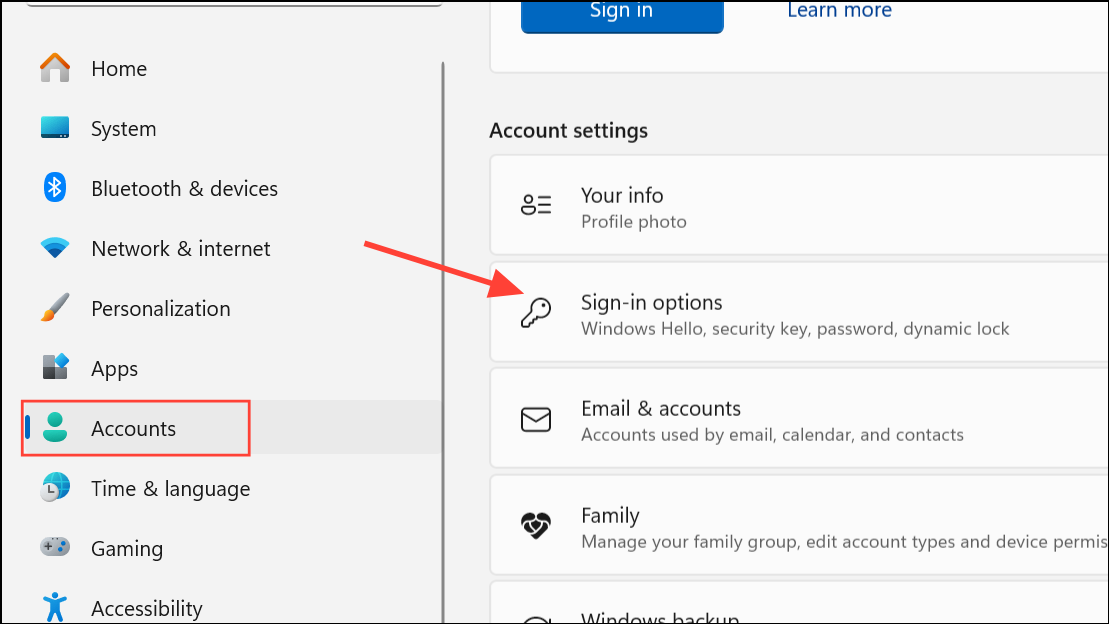
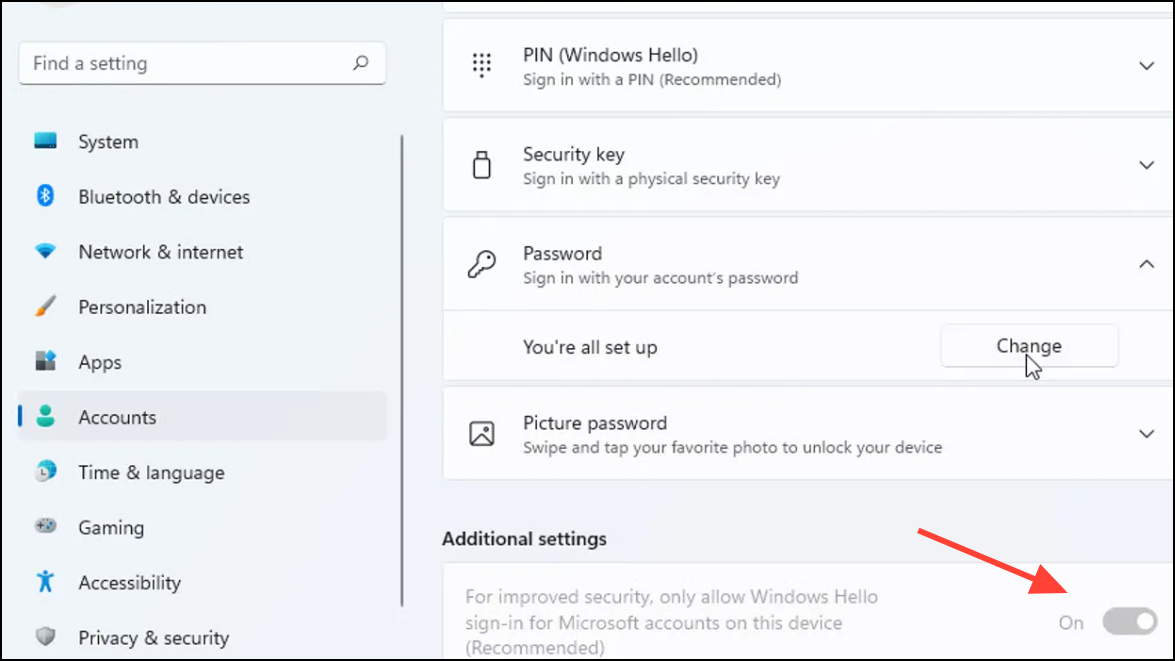
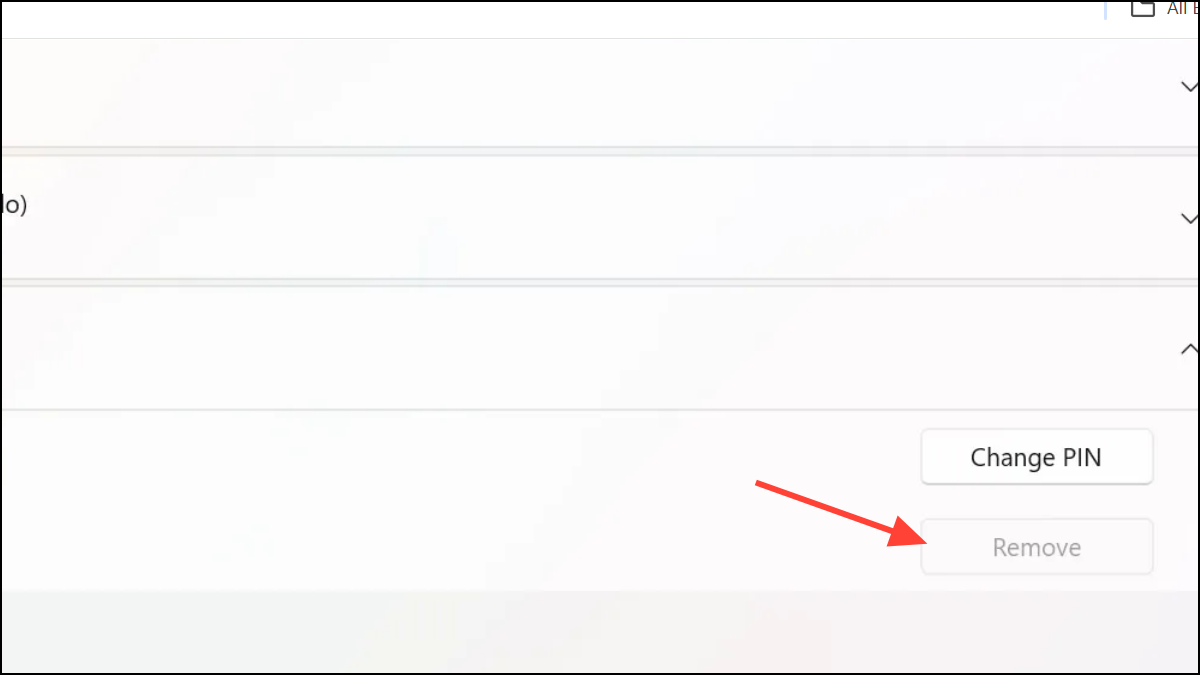
Disable Windows Hello via PowerShell and Registry for AAD-Joined Devices
In environments where devices are Azure Active Directory (AAD) joined, disabling Windows Hello can be more complex, especially without Intune or local Active Directory. Registry settings may be overridden by tenant policies, but PowerShell can help in certain cases.
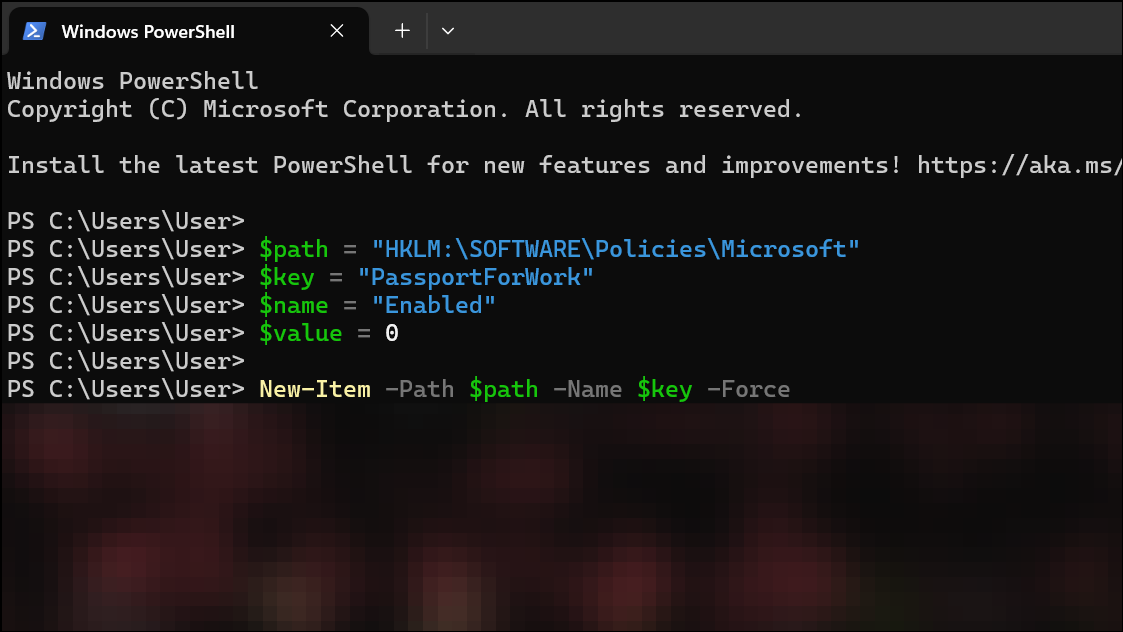
$path = "HKLM:\SOFTWARE\Policies\Microsoft"
$key = "PassportForWork"
$name = "Enabled"
$value = 0

New-Item -Path $path -Name $key -Force
New-ItemProperty -Path "$path\$key" -Name $name -Value $value -PropertyType DWORD -Force
This creates or updates the required policy key to disable Hello for Business on the local machine.
$passportFolder = "C:\Windows\ServiceProfiles\LocalService\AppData\Local\Microsoft\Ngc"
if (Test-Path -Path $passportFolder) {
    Takeown /f $passportFolder /r /d "Y"
    ICACLS $passportFolder /reset /T /C /L /Q
    Remove-Item -path $passportFolder -recurse -force
}
Disabling Windows Hello prompts on Windows 11 streamlines the sign-in process and avoids unnecessary setup requests. Choose the method that fits your environment—Group Policy for managed networks, registry tweaks for individual machines, or account settings for personal devices. Always test changes on a non-production system before rolling out organization-wide.



