Decor presets let you save a whole cluster of furniture as a single layout in Disney Dreamlight Valley, then drop that same arrangement anywhere without placing each item by hand. Scrooge McDuck introduces the feature during the Developed Decorating quest, and the process is easy to miss the first time because the option is tucked inside Furniture mode.
Quick answer: Enter Furniture mode, open the Presets tab (fourth icon in the top row, between Favorites and House), choose “Add new,” drag to highlight the items you want, then pick “Save preset” and name it.
Create and save a decor preset
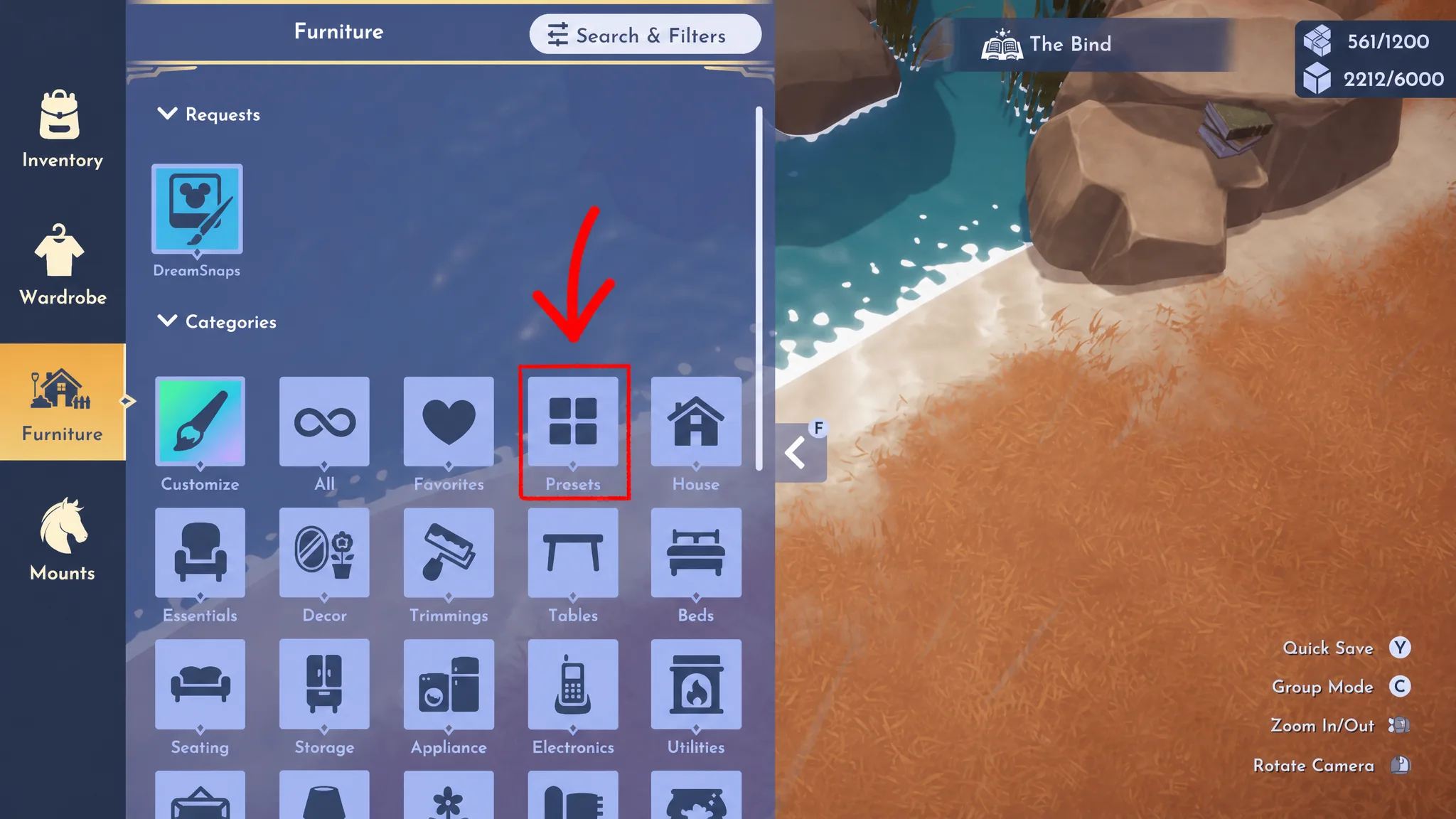
You will know it worked when the named preset appears on the Presets page alongside the developers’ premade options. If nothing seems to happen after you highlight items, it usually means the selection was cleared before you pressed the save/plus button, so re-highlight the items and confirm the name.
Reuse a preset and fill in Mirage pieces
Reusing a saved layout is the point of the whole system. Open Furniture mode again, go to the Presets tab, pick the preset you made, and place it anywhere in the world.
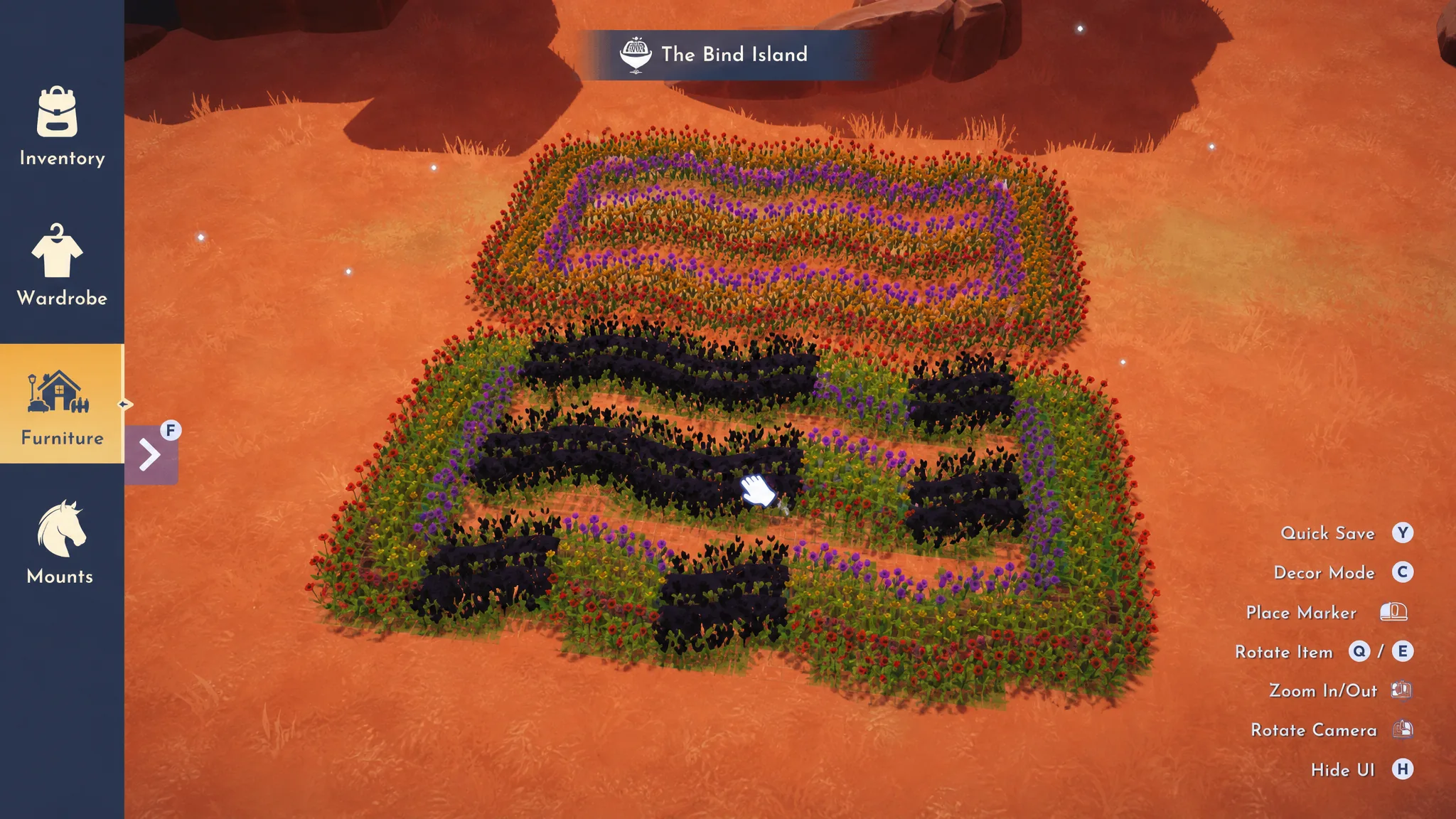
If you do not own every item in the preset, the game still lets you place it. The pieces you are short on show up blacked out as a Mirage. Walk up to any Mirage piece and spend Star Coins to buy the missing item, or the required crafting materials to make it, depending on what that piece is.
Developed Decorating quest steps
The Developed Decorating quest from Scrooge McDuck teaches the preset system as you go. Each step maps directly to an action you take with presets.
| Objective | What to do |
|---|---|
| Talk to Scrooge McDuck | Speak to him to start the quest. He explains the preset process, so don’t skip the dialogue. |
| Create a decor preset | Make and save any preset using the steps above. You can delete it later, so the contents don’t matter. |
| Re-use a decor preset | Return to the Presets tab, select the one you just saved, and place it somewhere. |
| Decorate using the Picnic Decor Preset | Open the Presets page, find the Picnic Decor Preset under the Premade section, and place it anywhere. |
| Complete the Mirage part | Walk up to a dark Mirage section on the placed preset and spend the crafting materials to build one missing piece. Only one is needed. |
After you repair one Mirage on the Picnic Decor Preset, talk to Scrooge McDuck one final time. The quest closes out, and the preset tools stay available for the rest of your playthrough.
The Premade section always holds the developers’ ready-made layouts, but anything you build yourself only appears after you highlight the items and save them. If your own designs are missing from the list, it’s because the save step was never confirmed.
Once you’re comfortable saving and re-placing layouts, presets become the fastest way to redecorate a biome or copy a favorite corner across the Valley, and any gaps you can’t yet afford simply wait as Mirages until you have the coins or materials to complete them.