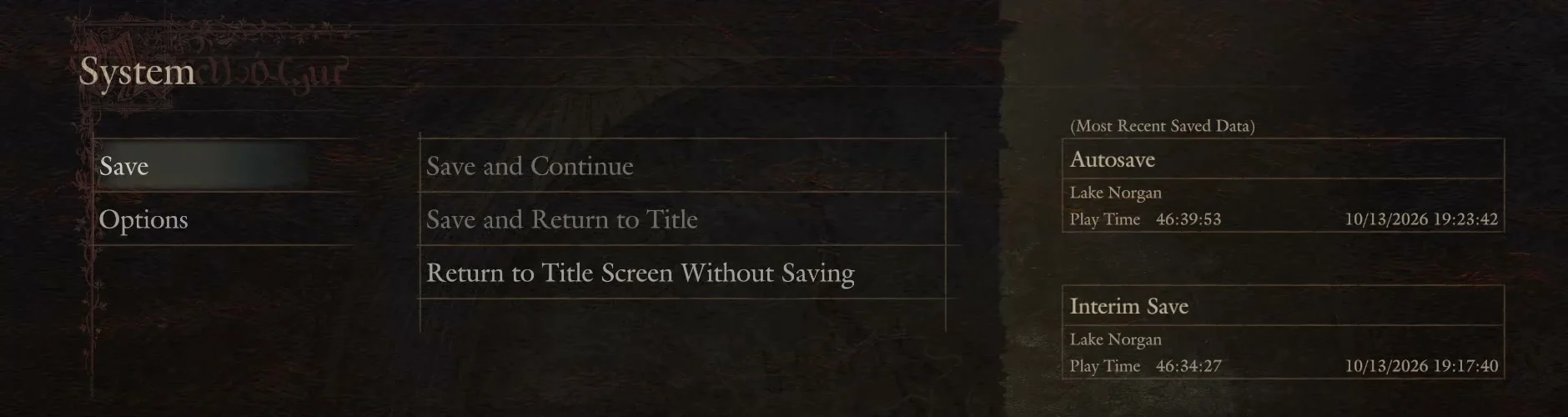
In Dragon’s Dogma 2: Dark Arisen, the manual save options can appear dimmed and unselectable while hostile creatures are close. Both “Save and Continue” and “Save and Return to Title” turn greyed out, and only “Return to Title Screen Without Saving” stays available. This happens in the middle of a fight, and also with enemies standing a short distance away before combat starts.
Quick answer: Finish the fight or get clear of nearby enemies, then open Pause Menu > “System” > “Save” and choose “Save and Continue”. Select “Yes” to overwrite the Interim save.
Where the save options live
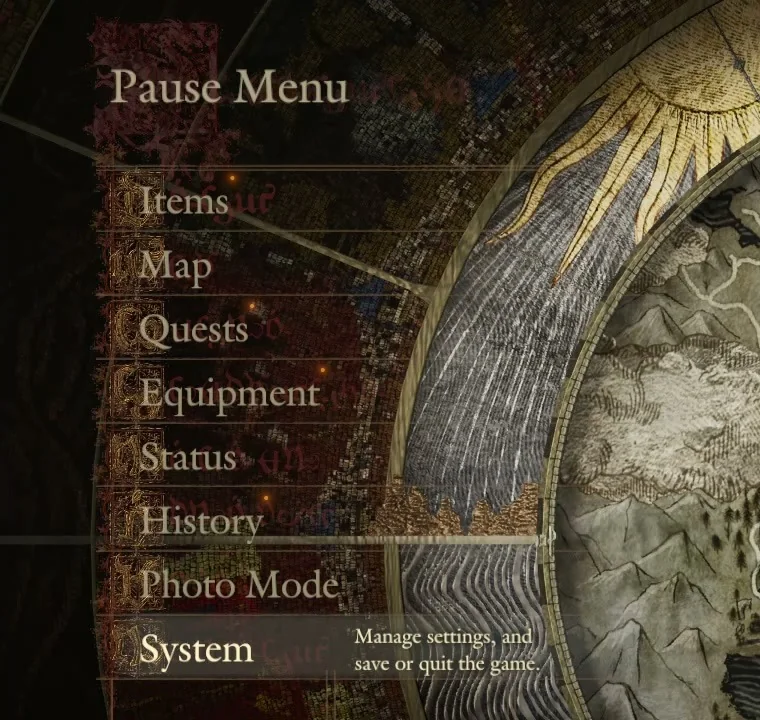
Saving sits inside the Pause Menu. Open it, then go to “System”, whose help text reads “Manage settings, and save or quit the game.” Select “Save” to reach the save list.
The list carries three rows:
- “Save and Continue”
- “Save and Return to Title”
- “Return to Title Screen Without Saving”
On the right, the screen shows your saved data as “Autosave”, “Interim Save”, and “Last Inn Rest Save”, each with its place, play time, and date. A note reads “Autosave and Interim Save data will update when your Last Inn Rest Save is updated.”
Why Save and Continue is greyed out
The common factor is hostile creatures close by. The options are dimmed, for example, during combat with a large beast at the Deserted Lakeside Estate. The same thing happens on a woodland trail in Ettam Forest, where hostile creatures are a few metres away even though combat has not started.
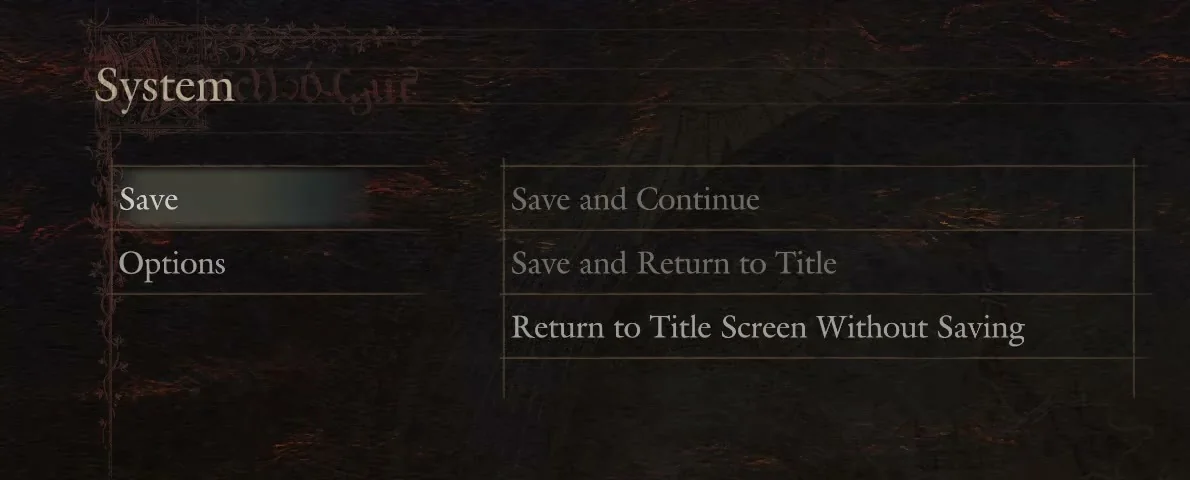
Even while the manual rows are unavailable, the Autosave the game had made earlier still appears in the list on the right.
Do not pick “Return to Title Screen Without Saving” to escape the greyed-out state. It quits without saving your current progress.
How to restore the save option
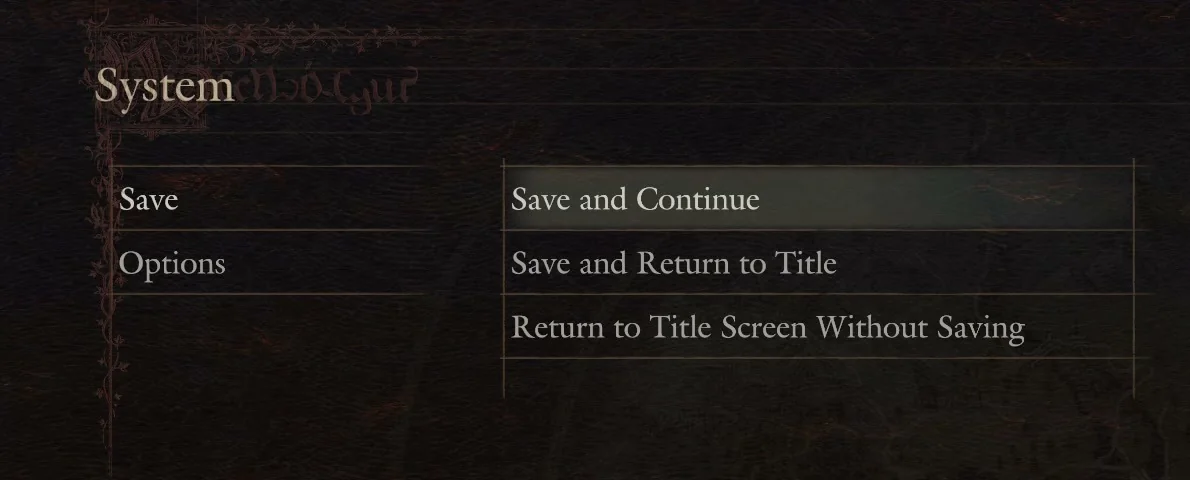
Once you confirm “Yes”, the game rewrites your Interim save, which tells you the manual save went through.