Dragon’s Dogma 2 connects to Capcom’s servers so you can hire pawns made by other players and let them hire yours. If you would rather play on your own, a single switch controls all of that network traffic, and you can flip it at any time without starting a new save.
Quick answer: Open Options, go to the Network category, and set Network Features to Off. The game describes the feature as letting you hire pawns created by other users and letting them hire yours.
What the Network Features switch controls
Network Features controls whether online connectivity is enabled. Its description is “Turn network features on/off,” and the setting offers Off and On. It controls access to pawns created by other users and whether they can view and hire your pawn.
With Network Features Off you can still use the title screen, start a new game, and open the character creator as usual.
The first-launch prompt
The game asks about this once, on the very first launch, before the title screen appears. The prompt reads: “Enable network features? This will allow you to hire pawns (player followers) created by other users. It will also allow other users to hire the pawn you create. You can change your settings at any time in the Network section of the Options menu.” The answers are Yes and No, with Yes preselected.
Choosing No lets the game continue as usual. You are not locked into that decision either way, so if you miss the prompt or change your mind, the same setting lives in the Options menu.
A different screen appears on first launch about “Data Processing for the Purpose of Analysis,” offering Accept, Decline and Privacy Policy. Selecting Decline still allows the game to run normally, and this choice is independent of the Network Features switch.
Turn Network Features off (or back on) later
On PC the menu prompts are F to confirm, Esc or the right mouse button to go back, the arrow keys to move and change a value, and R to reset the selected item. The steps below work from the title screen; inside a running game the same page sits under Pause Menu, then System, then Options.
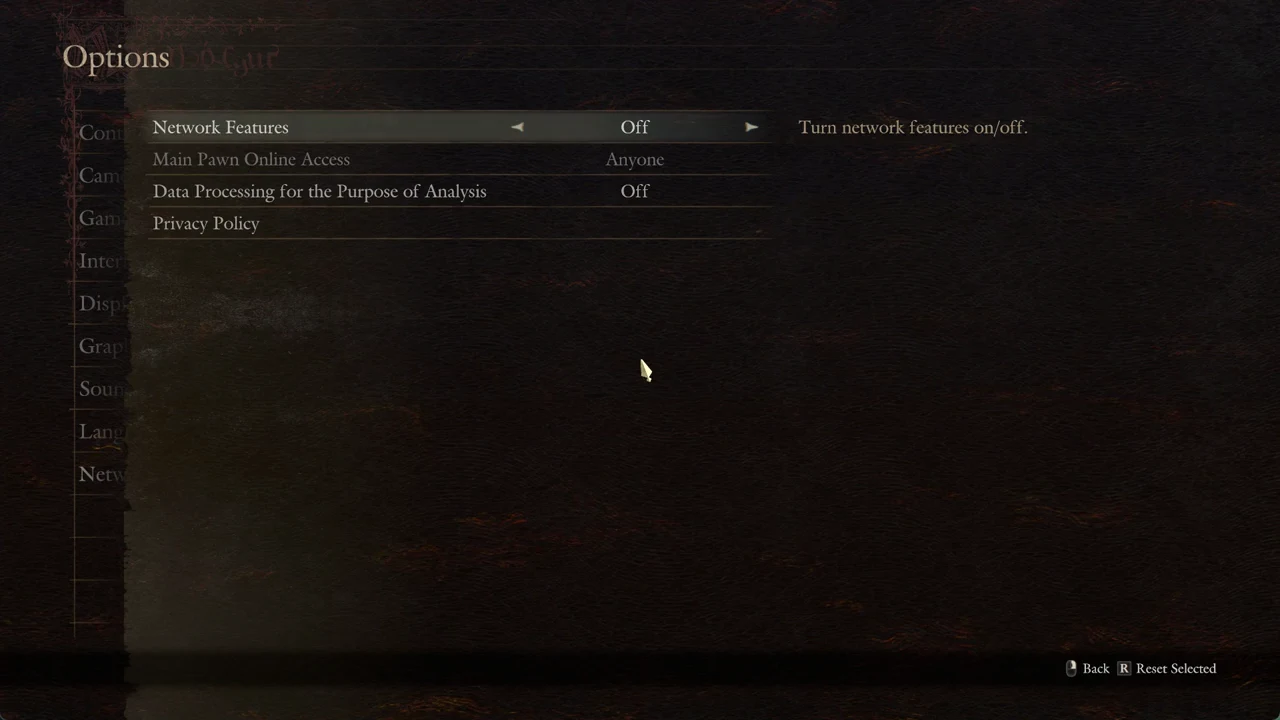
You know it worked when the Network Features row shows Off and the “Changes saved” message appears on the way out. The Main Pawn Online Access row directly below it greys out and reads Anyone, which also signals that the online side is switched off.
The other rows on the Network page
The Network page lists four rows in total. Network Features sits at the top, and the three below it cover pawn visibility, play-data sharing and the privacy policy.
| Row | Values | What it does |
|---|---|---|
| Network Features | Off / On | Turns network features on or off |
| Main Pawn Online Access | Anyone (greyed while Off) | Picks who can view and hire your main pawn |
| Data Processing for the Purpose of Analysis | Off / On | Chooses whether play data is sent |
| Privacy Policy | — | Opens the privacy policy on the web |
Main Pawn Online Access carries its own note: “This setting can only be changed from the Options menu in game.” While Network Features is Off it stays greyed out and shows Anyone, so to adjust who can hire your pawn you need an active game session and the online side switched on.
What still works with Network Features Off
With Network Features Off the title screen, a new game and the character creator all work as usual.
You can switch it back to On later from the same page.