Gaming How-To

Dragon’s Dogma 2: How to Turn On Custom Sounds From the Music & Sound Collection

Flip the Change BGM and Change Sound Effects switches in Options so the add-on replaces the game's music and effects.

Flip the Change BGM and Change Sound Effects switches in Options so the add-on replaces the game’s music and effects.

Image: CAPCOM Co., Ltd.

The Dragon’s Dogma Music & Sound Collection – Custom Sounds add-on swaps some of Dragon’s Dogma 2’s music and sound effects for ones taken from the original Dragon’s Dogma. Buying it does not change anything on its own. The replacement stays switched off until you turn on two settings inside the Sound menu.

Quick answer: Open Options > Sound, set Change BGM and Change Sound Effects to On, press Back, then answer “Save changes?” with Yes.


From the title menu, Options > Sound holds the two switches added by the Music & Sound Collection, Change BGM and Change Sound Effects; both are set from Off to On and the change is saved.

What you need before you start

After installation, the game displays a one-time notice. Once you confirm “START GAME” on the title screen, it says the collection has been added and directs you to the Sound section of Options to change its settings; select OK. You will see this message only at the first launch. It won’t appear when you open the title menu again or after restarting.

Both switches are set to Off by default, so nothing changes in the game until you turn them on yourself.


Turn on Change BGM and Change Sound Effects

You can reach these settings two ways. From the title menu, pick Options. During play, open the Pause Menu, go to System, then Options. Both routes lead to the same pages. On PC, F confirms, Esc or the right mouse button goes back, and Left and Right change a value.
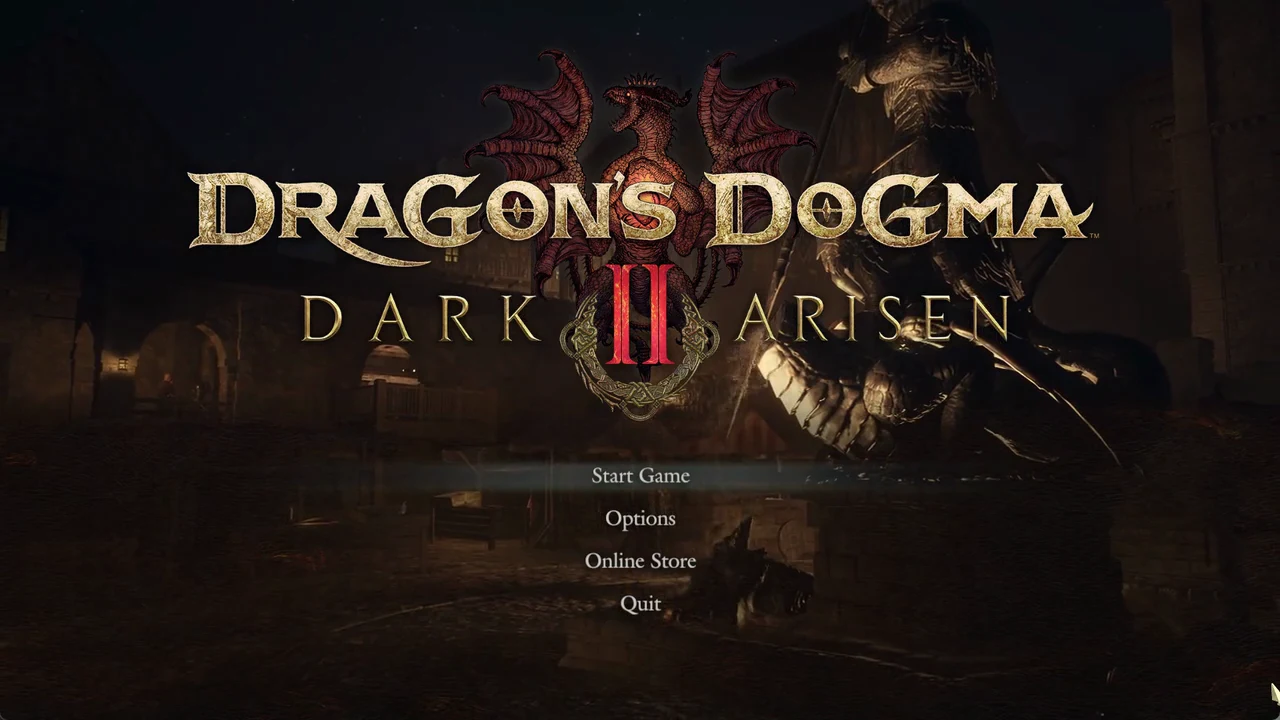
On the title menu, move the cursor down to Options and confirm.
Dragon's Dogma 2 title screen with Start Game highlighted and the Options entry below it
The title menu, where Options sits just under Start Game.
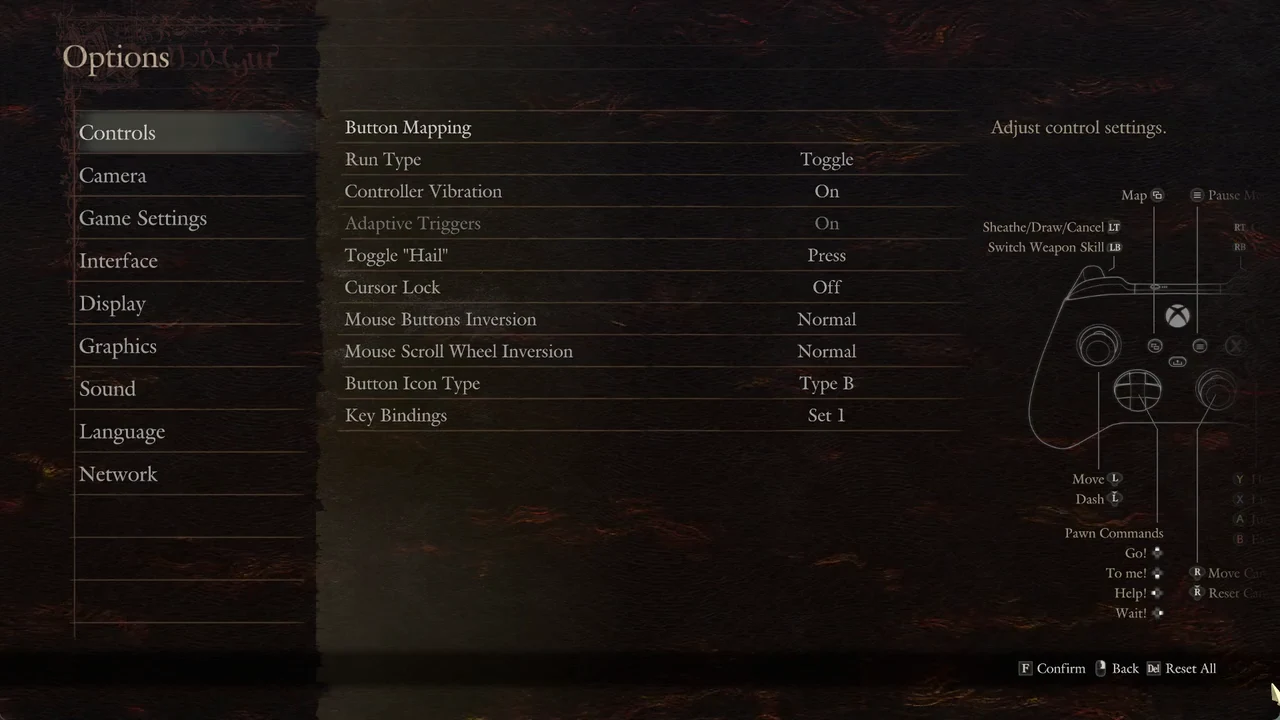
When Options opens, Controls is selected. The remaining categories follow in this order: Camera, then Game Settings and Interface, followed by Display and Graphics, then Sound, Language, and Network.
Options menu open on the Controls category showing button mapping settings
Options opens on Controls; the Sound category is further down the list.
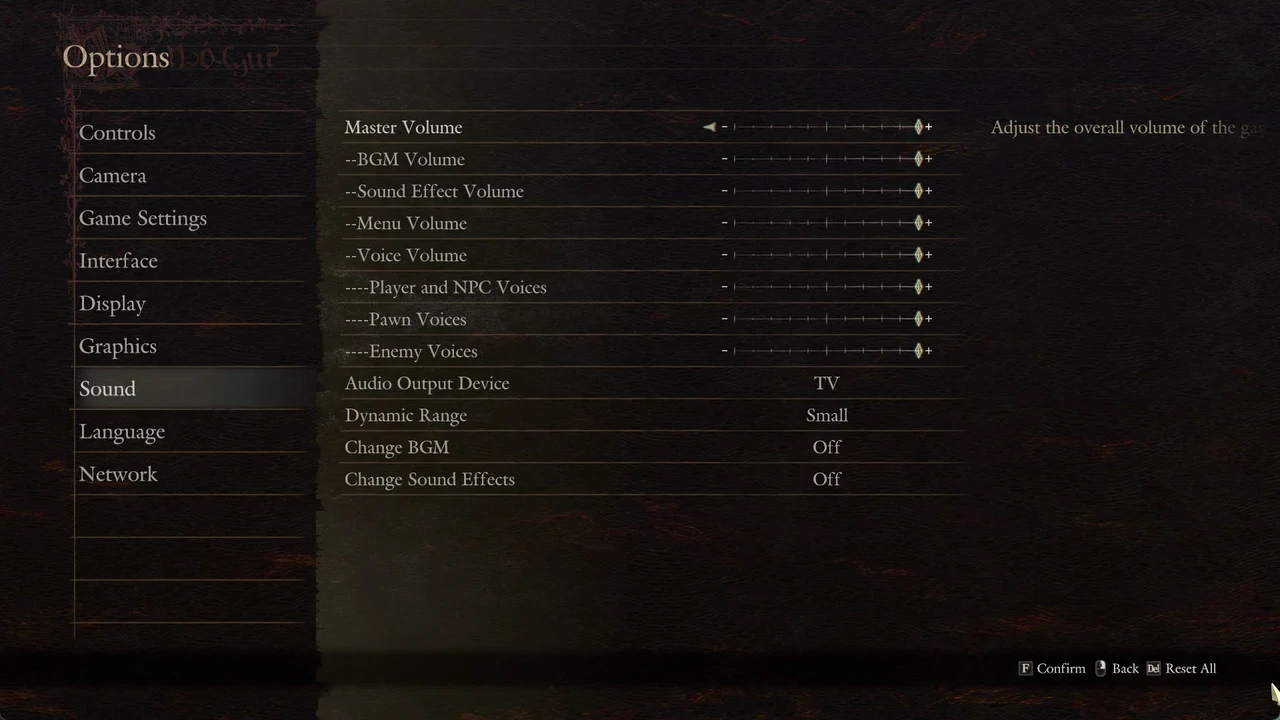
Move down the category list to Sound and confirm. The page opens on Master Volume, described as adjusting the overall volume of the game.
Sound settings page in Options with the Master Volume slider selected at the top
The Sound page starts at Master Volume; scroll to the bottom for the two switches.
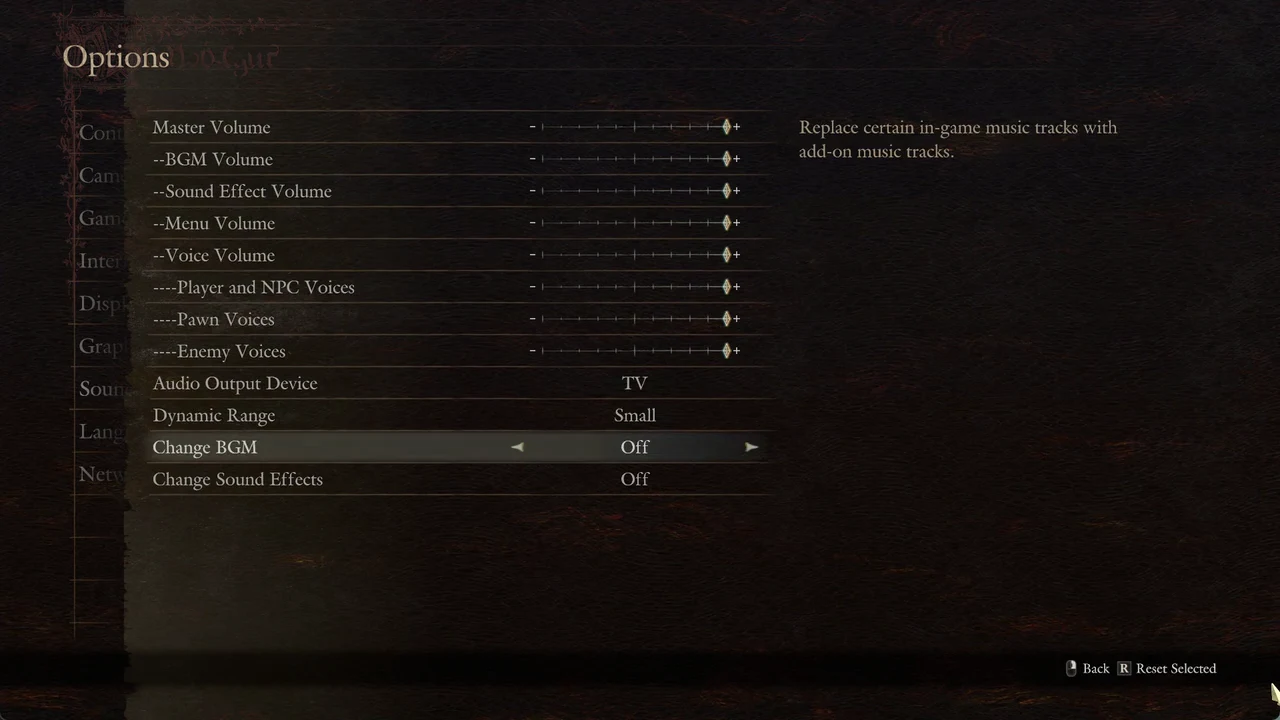
Change BGM is the eleventh row. Press Right to change its value from Off to On. The description explains that add-on music takes the place of certain tracks heard in-game.
Change BGM setting highlighted and set to Off near the bottom of the Sound menu
Change BGM, shown here set to Off. Press Right to switch it On.
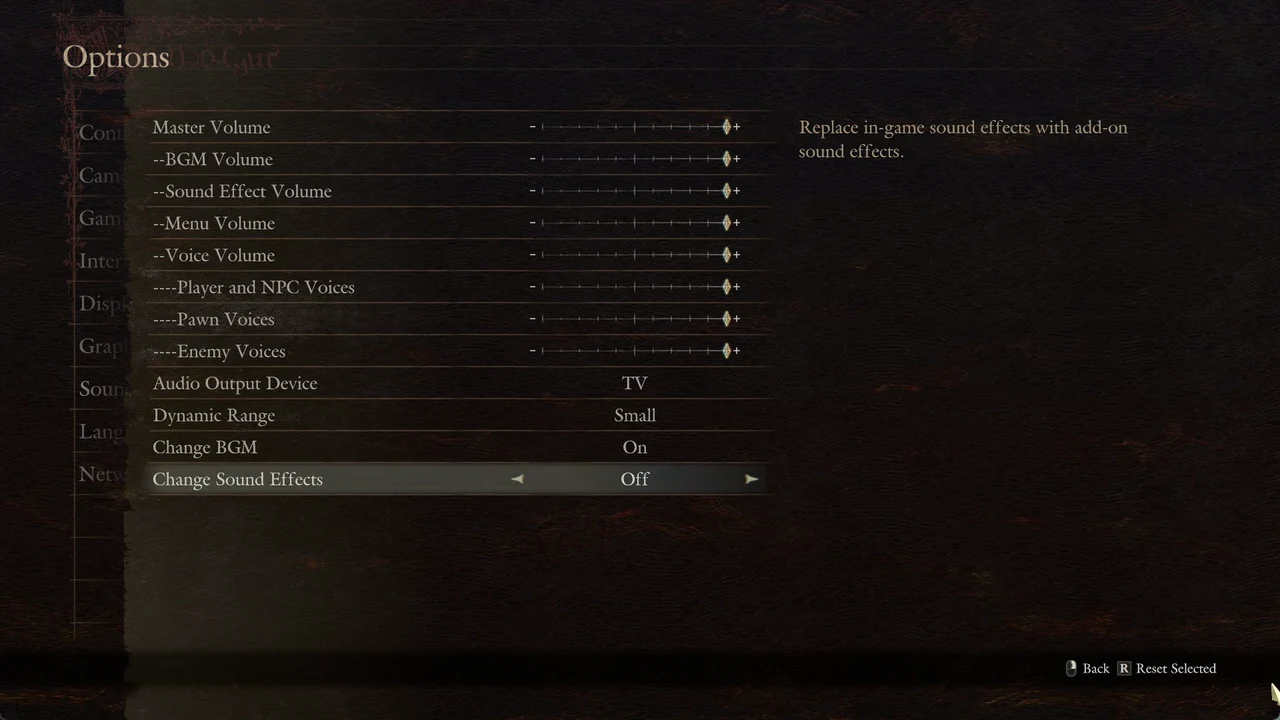
Go down one row to Change Sound Effects, then press Right to turn it On. This setting substitutes add-on sound effects for the game’s effects.
Change Sound Effects setting highlighted and set to Off, the last row of the Sound menu
Change Sound Effects, the final row. Press Right to turn it On.
Press Back twice (out of the Sound page, then out of the category list). At the “Save changes?” prompt, select Yes, then choose OK to acknowledge “Changes saved.” You’ll arrive back at the title menu with the updated audio settings active.

The two switches work on their own. You can leave one On and the other Off if you only want the replacement music or only the replacement effects.


How to confirm the change saved

You know it worked when the “Changes saved.” message appears and you accept it with OK. Reopening Options > Sound shows Change BGM and Change Sound Effects both reading On.


Switch back to the original audio

To restore the game’s usual music and effects, open Options > Sound and switch both rows to Off, using Left or Right to toggle each one. Press Back, select Yes at the “Save changes?” prompt, and choose OK.


What the add-on actually replaces

The wording in the menu is deliberate. Change BGM replaces “certain” in-game music tracks, not every piece of music. The game does not list which songs or which effects get swapped, and the menu gives no track names.