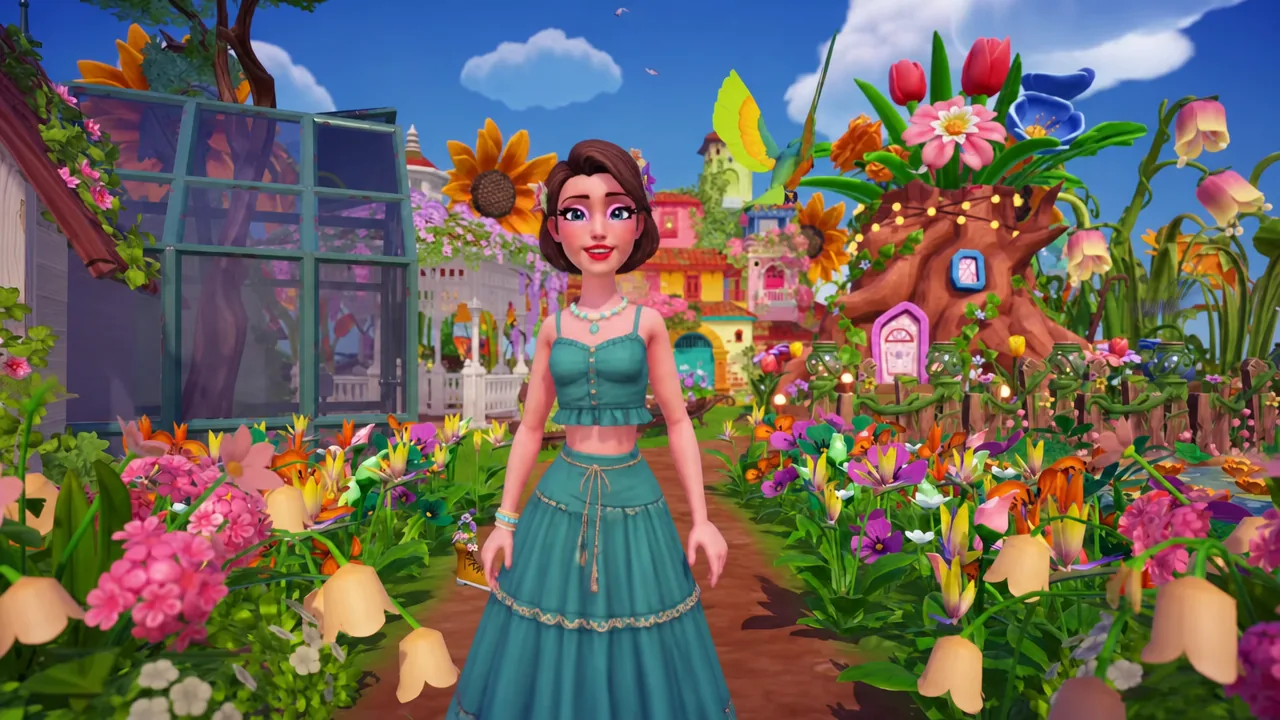
DreamSnaps runs on a strict weekly clock in Disney Dreamlight Valley, and everything about the mode — the theme, the voting pool, the reward mail — hangs off a single moment each week. Miss it and you lose a submission slot; understand it and you can plan a decor build days in advance.
Quick answer: DreamSnaps resets every Wednesday at 1:00 PM UTC (9:00 AM EST / 6:00 AM PST). At that moment a new challenge theme goes live, voting opens on the previous week’s photos, and rewards for the challenge before that land in your in-game mailbox.
DreamSnaps reset time and the weekly Valley schedule
The game converts UTC to your local time automatically, so you do not need to do the math on console. What matters is that three things happen at once on Wednesday: submissions for the outgoing theme lock, the new theme appears in the Event tab, and the previous week’s entries enter the voting pool.
| Reset | Time |
|---|---|
| DreamSnaps challenge and voting | Wednesdays, 1:00 PM UTC |
| Premium Shop | Wednesdays, 1:00 PM UTC |
| Weekly Quests | Mondays, 5:00 AM local time |
| Scrooge’s Store, Goofy’s and Kristoff’s stalls | Daily, 8:00 AM UTC |
| Blue and green chests, critter feeding | Daily, 12:00 AM local time |
| Daily quests, Night Thorns, favorite things | Daily, 5:00 AM local time |
DreamSnaps itself is gated behind Vanellope. You need Merlin’s level 5 quest finished, then a conversation with Scrooge, then a trip to the Dream Castle. Her tutorial quest, Faith, Trust, and Pixel Dust, unlocks the mode and the in-game DreamSnaps guide under the Settings tab.
Active challenge: Routine’s Return requirements
Challenge 164, Routine’s Return, runs from September 2 to September 9, 2026. The prompt asks for a vibrant scene about the end of summer and the return to routine — a workplace moment like Mike and Sulley, a school scene like Pinocchio, or a home setup for whatever comes next. It is a decor challenge, so furniture tags are what count.
| Tag | Count needed |
|---|---|
| Professional | x2 |
| Tables | x1 |
| Simple | x3 |
| Familiar | x2 |
You can pull the full prompt up from the Event tab, in the expandable section under the active Star Path, or from inside Photo Mode once you have taken a shot. The requirement counter only shows mandatory totals, and it only appears in the moment right before you submit.
How item detection works in decor challenges
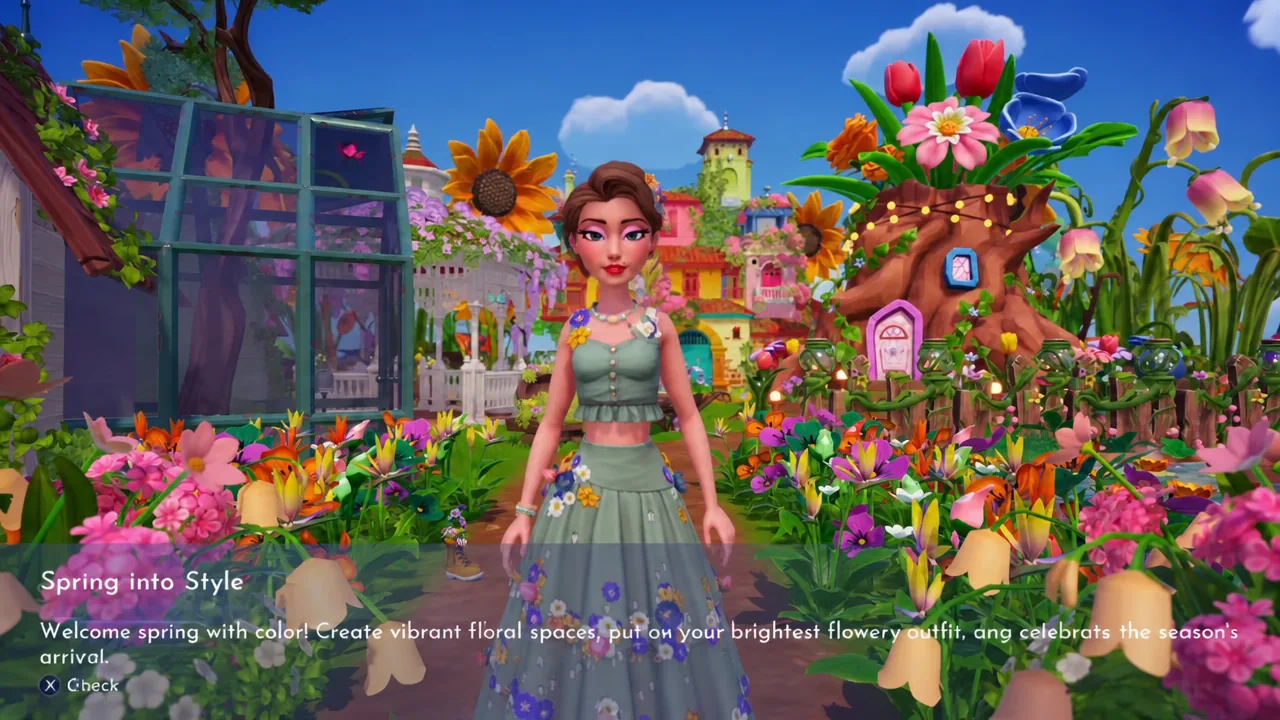
The camera counts unique furniture inside an angled cone of view, and that cone can stretch across biome borders. Duplicates do not help — two identical chairs count as one item, so variety beats quantity. Items also do not need to be visible to register. A small piece tucked behind a larger one still counts, as long as the whole item sits inside the detection range.
Changing the image format between square, portrait, and landscape does not change what the game counts. That means you can frame tightly for looks while still hitting tag totals with pieces parked just outside the visible edge.
For layout, big buildings and gazebos do the heavy lifting in the background, fencing defines the midground, and small props in the corners frame the shot. Landscaping items such as large flowering trees are useful for filling gaps behind the main scene.
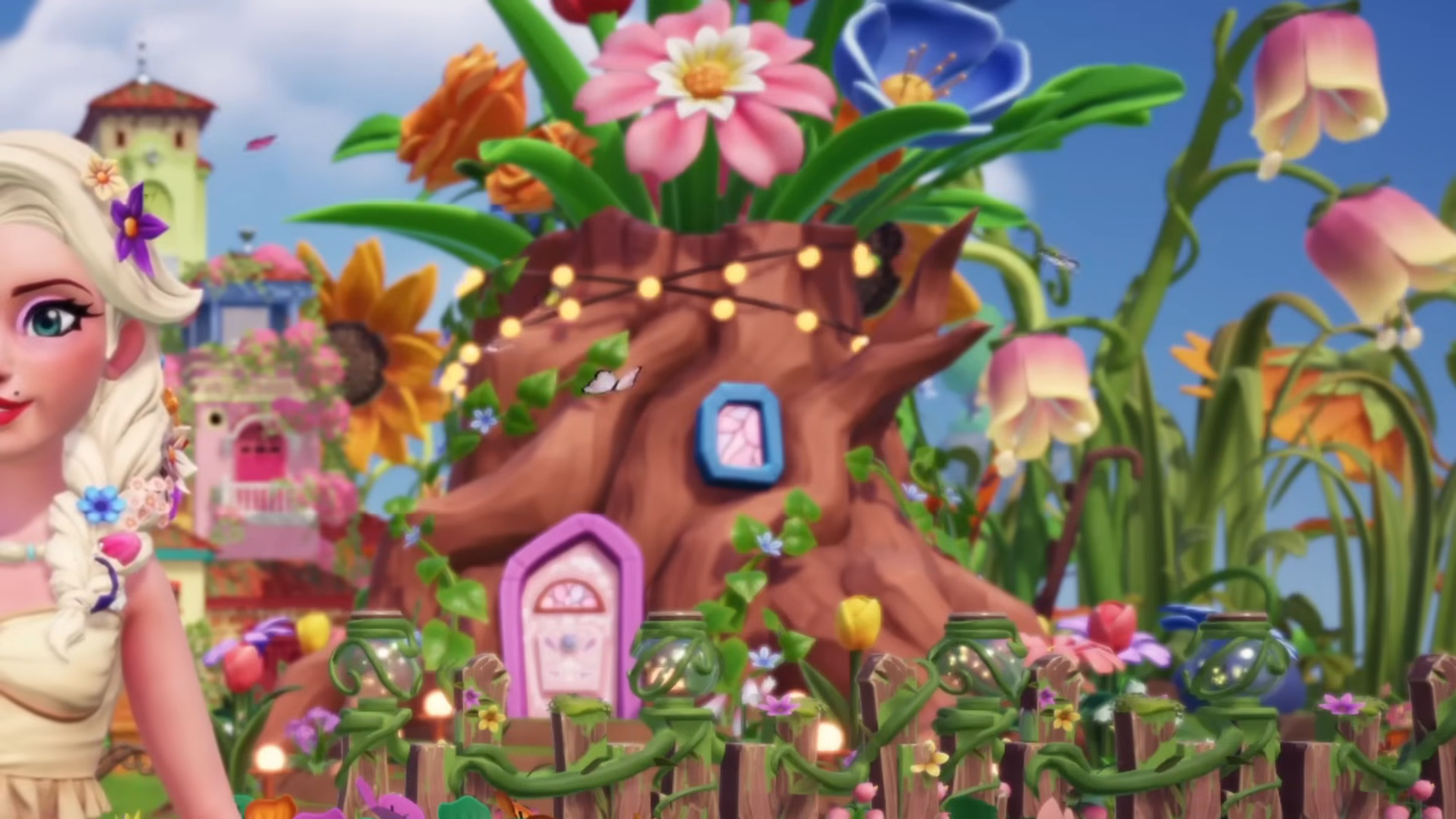
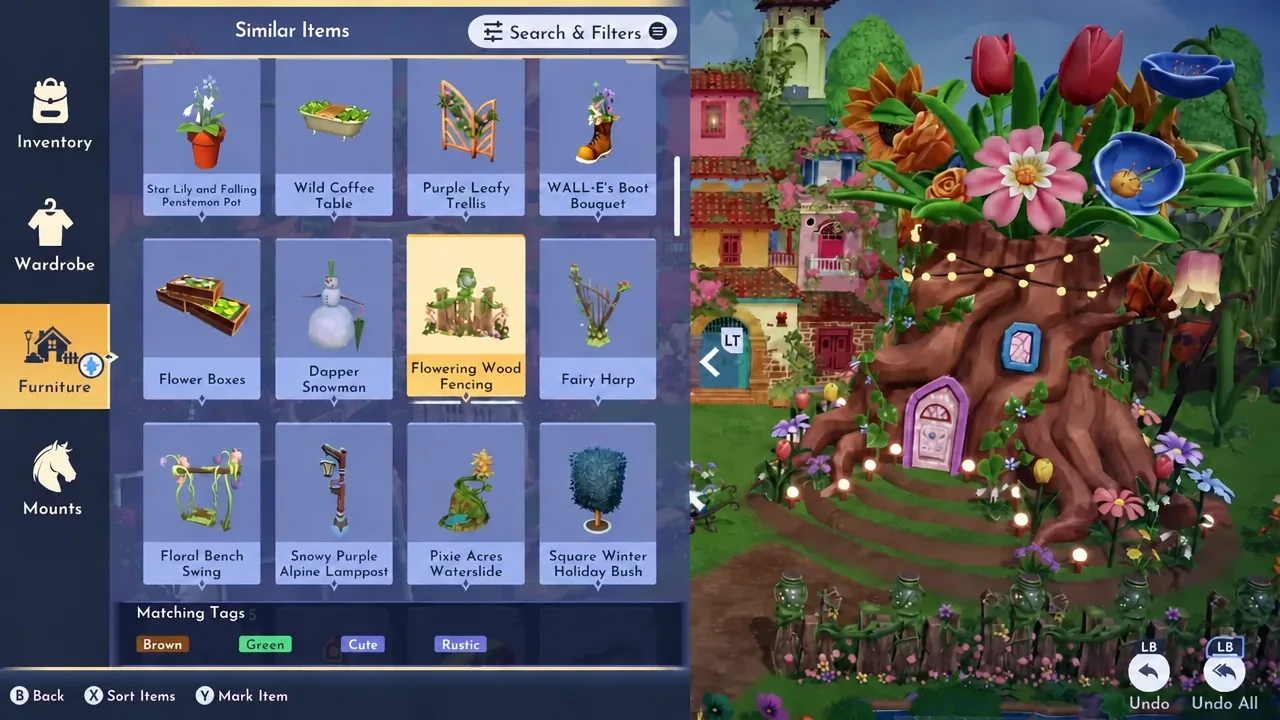
Craftable fencing is worth keeping in your inventory year round because it closes off a scene cleanly and adds tagged items at the same time. The Similar Items menu is the fastest way to swap between fence variants while you build.
Outfit challenge detection
On outfit weeks the rules flip. Everything your avatar is wearing counts, even if it is cropped out of frame or hidden under another layer — shoes under a long dress still register. Some slots stack, like necklaces and scarves, so loading up on accessories raises your tag count. A costume or dress overrides tops, skirts, and shorts. Hair color does not count toward color tags, and clothing on mannequins is ignored entirely.
The DreamSnaps filter behaves differently from normal filters
The toggle at the top of the Wardrobe or Furniture menu is not the same as selecting trait filters by hand. Normal filters use AND logic, so picking Simple and Playful only shows items that are both. The DreamSnaps toggle uses OR logic and shows anything matching at least one required trait. It works only on items you already own; it does not apply inside Scrooge’s catalog, where you have to use the standard filters while shopping.
Submitting a photo and confirming it went through
Touch of Magic items are the most common reason a photo is rejected. Any custom clothing or furniture in the shot blocks submission even when it is completely hidden — a custom-painted tank top under a coat is enough to fail the check. Clear them out of the frame before you shoot.
Voting rewards and the weekly Moonstone cap
Voting opens on the Event tab through the Vote Now button. The game shows you two photos at a time with no usernames, QR codes, or identifying marks, and there is no way to search for a specific entry. Each pair you judge pays 5 Moonstones, up to 50 per week across 10 sets. On Arcade Edition the payout is 50 Star Coins per vote, capped at 500. You can keep voting past the cap, but the currency stops.
If a pair clearly ignores the theme, you can skip it. Skips are limited to 10 per day during the voting week.
DreamSnaps rewards, ranking tiers, and the claim window
Results arrive by in-game mail a full week after your submission closes, once the voting period ends. Score combines how well your photo matched the mandatory and suggested tags with the rank you earned from other players’ votes. Everyone who submits gets at least 300 Moonstones plus a reward chest containing three random clothing or furniture pieces, depending on the challenge type.
| Rank percentile | Moonstones |
|---|---|
| Baseline (participation) | 300 |
| Top 70% | 600 |
| Top 55% | 900 |
| Top 40% | 1,200 |
| Top 20% | 1,500 |
| Top 12.5% | 2,500 |
| Top 7.5% | 4,000 |
| 5th place | 5,500 |
| 4th place | 7,000 |
| 3rd place | 8,500 |
| 2nd place | 10,000 |
| 1st place | 12,000 |
PlayStation players are ranked in a separate pool from everyone else, though the same percentile thresholds apply. There is no public leaderboard on any platform.
Pixel Dust is calculated from your submission score with a simple formula, and it feeds the reward track.
Pixel Dust = Ceiling(Score) + 100| Pixel Dust level | Reward |
|---|---|
| 2 | DreamSnaps Loafers |
| 3 | Design Motif (paintbrush) |
| 4 | DreamSnaps Pants |
| 5 | 2,000 Moonstones |
| 6 | Design Motif (splatter) |
| 7 | DreamSnaps Long Sleeve Shirt |
| 8 | Design Motif (DreamSnaps icon) |
| 9 | 4,000 Moonstones |
| 10 | DreamSnaps Trophy |
The claim window is the part that catches people out. You have to log in within seven days after the voting period ends to collect from your Mailbox. Miss that stretch entirely and the rewards and results for that challenge are gone, with no way to recover them. If you do log in on the first day of the redemption window and nothing shows up after a few hours, file a ticket through Gameloft’s support contact form.
Practically, the rhythm is worth internalizing: build and submit early in the week so a crash or a Touch of Magic mistake does not cost you the slot, spend ten minutes voting for the guaranteed 50 Moonstones, then check the mailbox the following Wednesday. Routine’s Return closes at the reset on September 9, and whatever photo is sitting in your submission slot at 1:00 PM UTC is the one that goes to the community.