

Adding a BitLocker pre-boot PIN stops unauthorized access to your device before Windows loads, even if someone has physical possession of the machine. Devices already encrypted with TPM-only authentication rely solely on the Trusted Platform Module, which means users aren’t prompted for a PIN at startup. Switching to PIN protection requires making configuration changes without decrypting and re-encrypting the drive. The process can be completed using Windows’ built-in tools and Group Policy settings.
Enable BitLocker Pre-Boot PIN Using Group Policy and Manage-bde
Windows + R, typing gpedit.msc, and pressing Enter. This tool allows you to adjust security settings that control BitLocker behavior.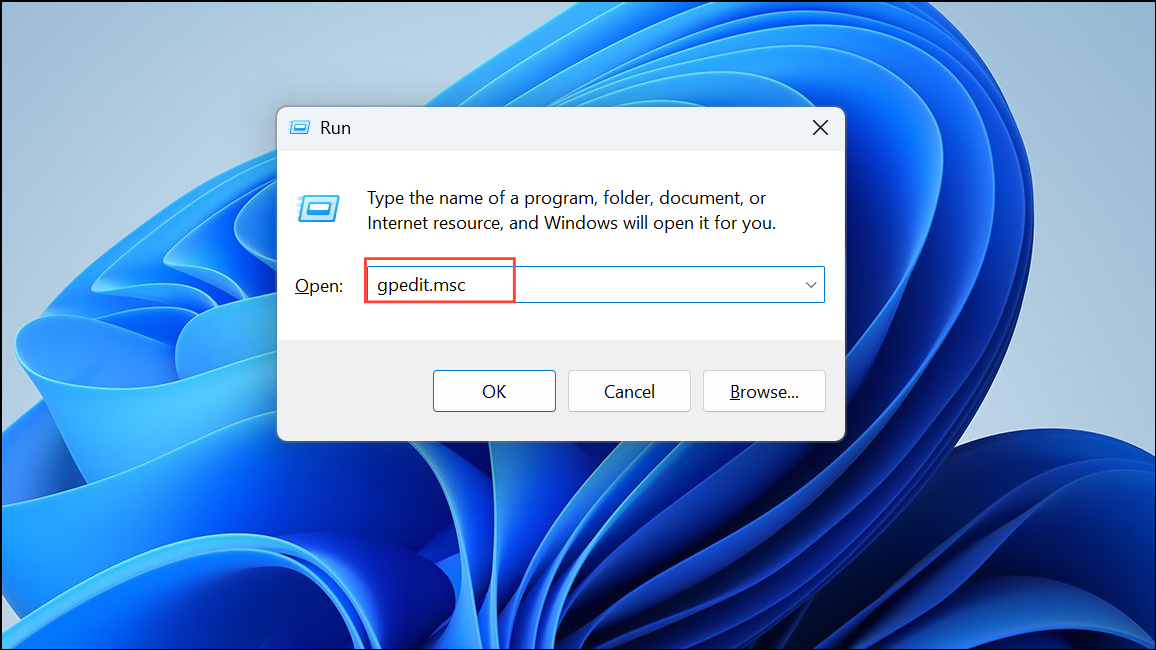
Computer Configuration > Administrative Templates > Windows Components > BitLocker Drive Encryption > Operating System Drives. Here, you’ll find policies that control how BitLocker interacts with the TPM and PIN.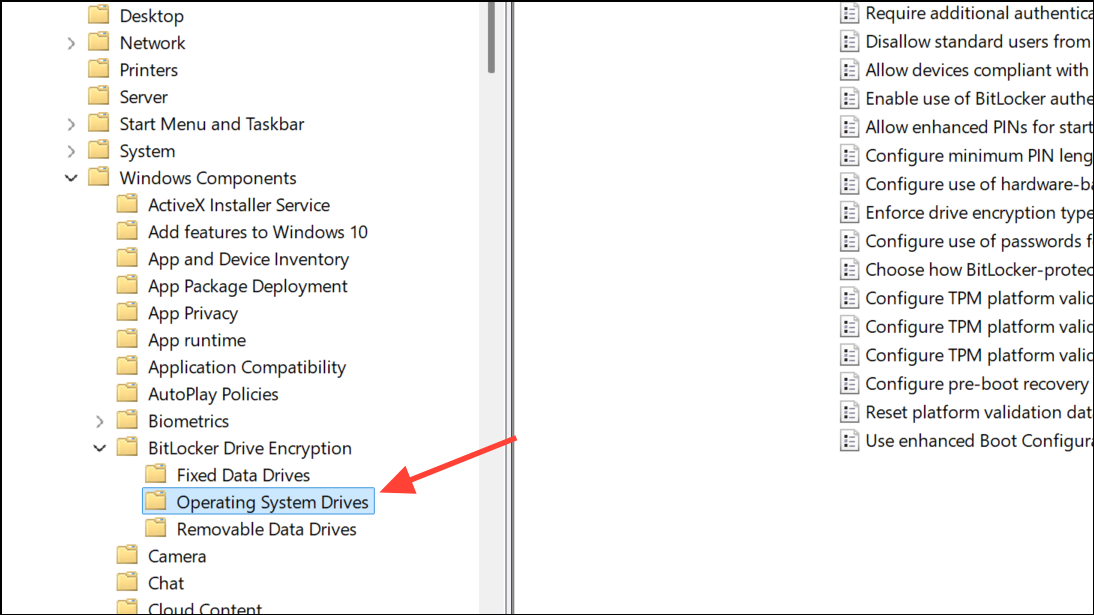
Require additional authentication at startup. Set this policy to Enabled. In the options, ensure Allow BitLocker without a compatible TPM is either unchecked or set to Do not allow. Make sure Configure TPM startup PIN is set to Require startup PIN with TPM or Allow startup PIN with TPM. This change tells Windows to prompt for a PIN at boot in addition to using the TPM.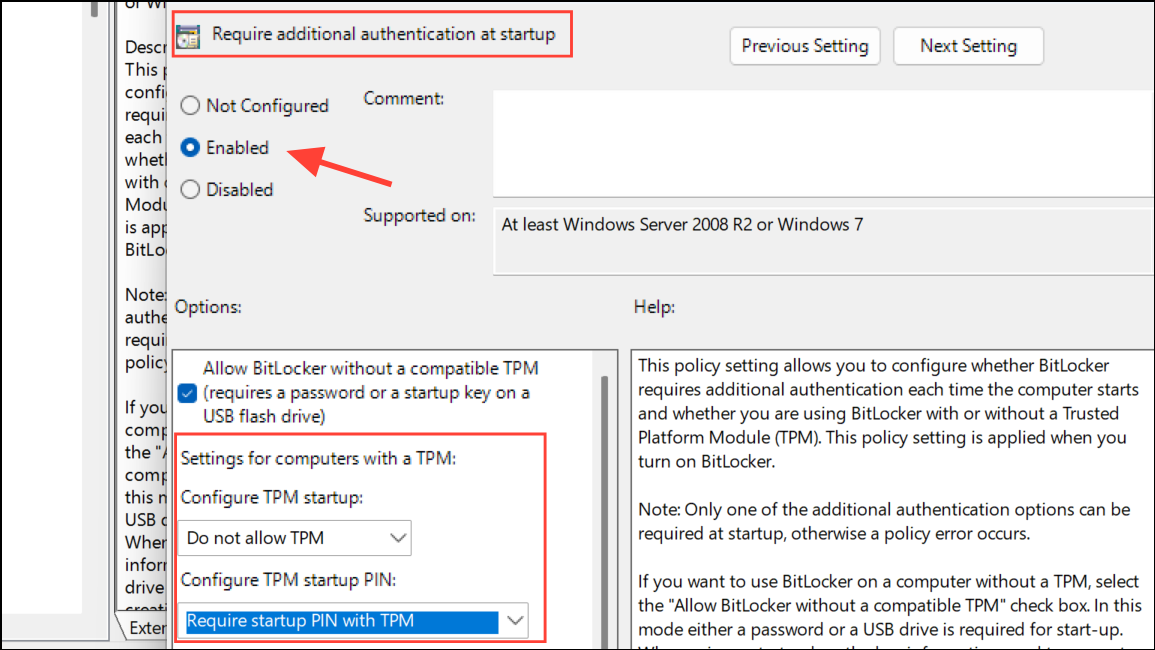
Run as administrator). Enter the following command to add a pre-boot PIN without decrypting the drive:manage-bde -protectors -add c: -TPMAndPINThis command modifies the BitLocker protector for your system drive (usually c:) to require both the TPM and a user-supplied PIN at startup. You’ll be prompted to enter and confirm your new PIN.
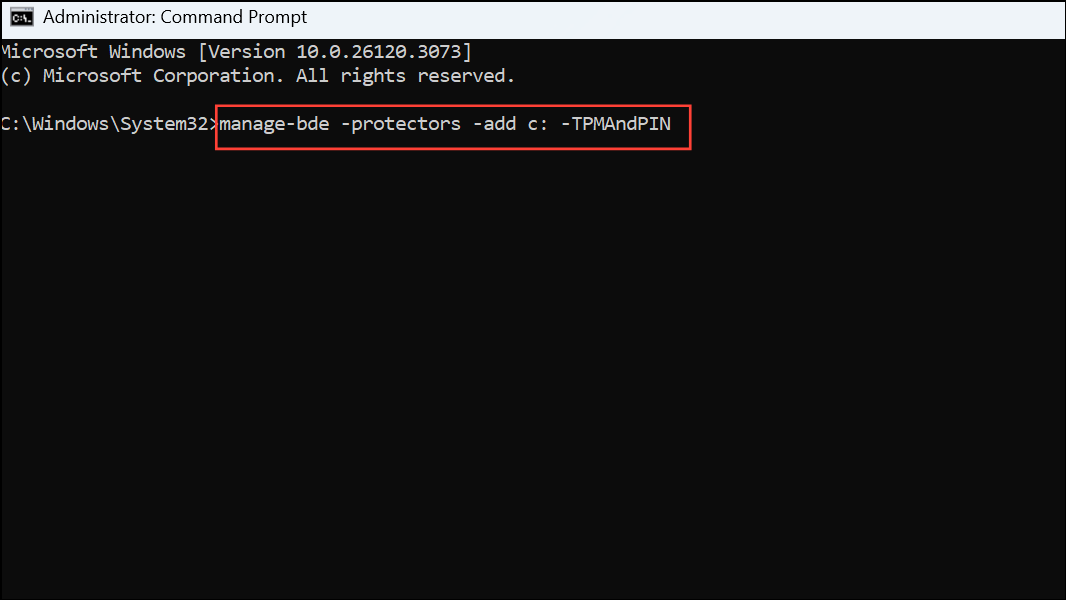
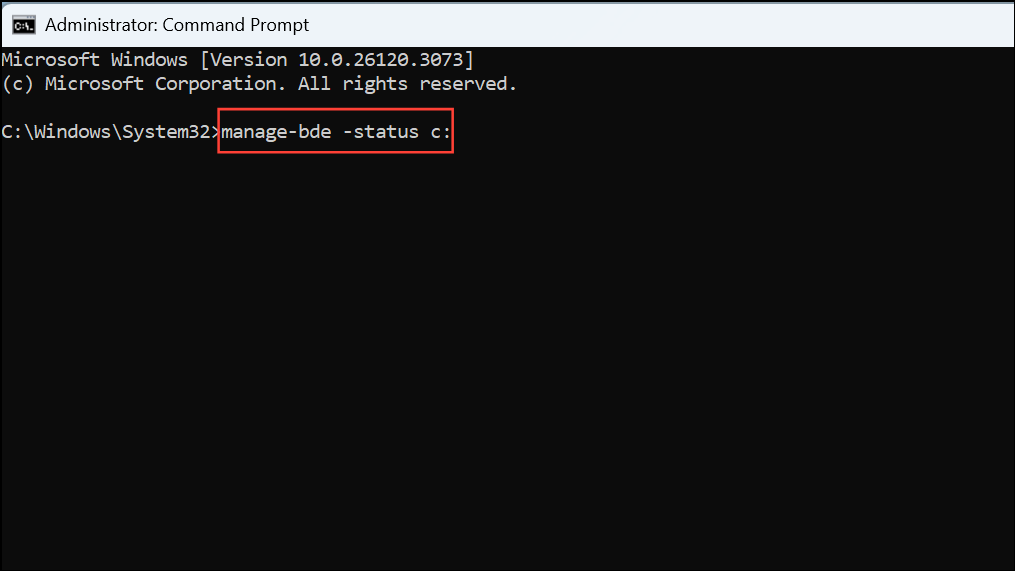
manage-bde -status c:Look for Key Protectors in the output. It should now list TPM And PIN as an active protector.
gpupdate /force if needed).Switching to a pre-boot PIN does not require decrypting and re-encrypting your BitLocker drive, making the process efficient and minimizing downtime. Always record your PIN securely, as losing it may require recovery key entry or additional administrative intervention.
Enable BitLocker Pre-Boot PIN Using BitLocker Management Console (Alternative Method)
BitLocker in the Start menu and selecting Manage BitLocker.Change how drive is unlocked at startup or a similar option. If you only see options to add a password or smart card, Group Policy may need to be adjusted as described in the previous method.This graphical method is more accessible for users who prefer not to use the command line, but may be limited by your organization’s policies or Windows edition.
Adding a BitLocker pre-boot PIN to a TPM-only encrypted device improves defense against unauthorized access and helps meet advanced security requirements. Always store your PIN securely and review your recovery options in case you ever lose access.





