

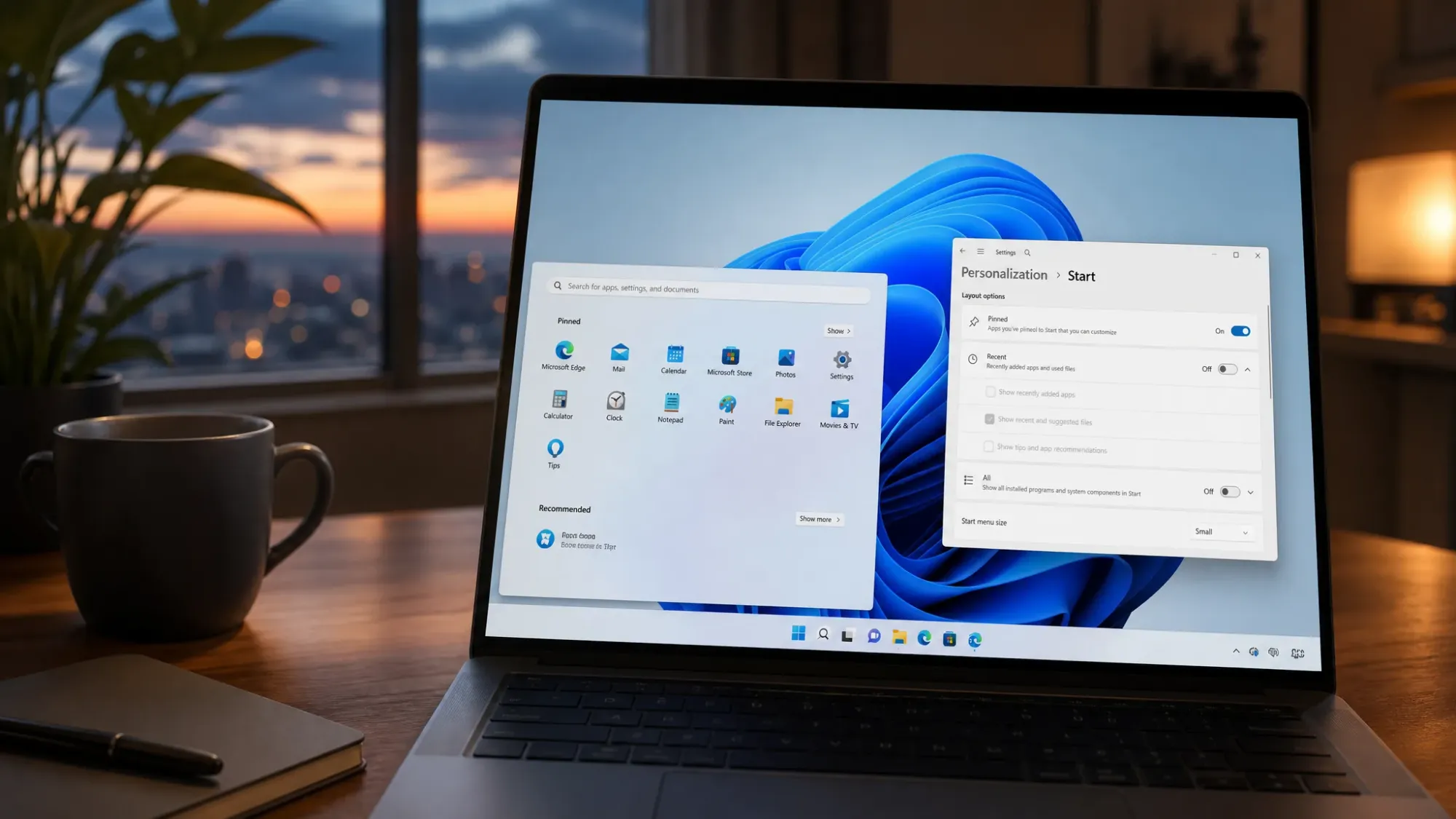
Microsoft is testing a redesigned Start menu on Windows 11 that finally lets you control its size and decide which sections show up. The new design adds three layouts, renames the “Recommended” area to “Recent,” and lets you hide your account name and profile picture. It is meant to arrive enabled by default on Insider Preview build 26300.8553 in the Experimental Channel, but it is not switching on automatically yet. Until it does, you can force it on with ViveTool.
What the new Start menu changes
The update is part of Microsoft’s Windows K2 effort to refine Windows 11. It gives you direct control over how much content Start displays and which parts of it you actually see, addressing a long-running complaint that the menu offered very little layout flexibility.
| Setting | What it does |
|---|---|
| Small / Large / Automatic | Sets the overall size of the Start menu, with Automatic adapting to the display. |
| “Recent” section | Replaces the old “Recommended” label across Start and the Settings app. |
| Show or hide sections | Independently turn the Pinned, Recent, and All sections on or off. |
| Hide account details | Removes the account name and profile picture from the menu. |
| Redesigned Settings page | New controls for menu layout and content under Personalization > Start. |
Before you enable the new Start menu
These features are hidden behind feature flags, so you need a machine running a recent Windows 11 Insider Preview build, ideally in the Experimental Channel. ViveTool flips the flags that Microsoft has not yet turned on for everyone.
One caveat to keep in mind. The flag IDs change often, and once Microsoft permanently bakes a feature into Windows the old IDs stop working. Enabling the code does not guarantee the new menu will appear on your specific build. Because this touches experimental behavior, it is best suited to people who are already comfortable testing Insider builds.
Enable the resizable Start menu with ViveTool
ViveTool-vx.x.x.zip file from the official ViveTool releases page. Save it somewhere easy to reach.cd c:\folder\path\ViveTool-v0.x.xvivetool /enable /id:61754985,61225604,61596616,61596617,61596618,61596619Confirm it worked
After the restart, open Settings > Personalization > Start. You know the change applied when the page shows the new size choices and toggles for showing or hiding the Pinned, Recent, and All sections. From there you can pick Small, Large, or Automatic and remove your account name and picture from the menu.
If the new options do not show up, the most common reason is that your build does not yet carry the feature, or Microsoft has already changed the flag IDs. In that case the command runs without error but nothing visibly changes.
How to undo the change
To roll the menu back to its current default, repeat the same procedure but swap the enable command for the disable version below, then restart.
vivetool /disable /id:61754985,61225604,61596616,61596617,61596618,61596619Microsoft is rolling these controls out gradually through the Insider Program, and the design is expected to become the standard Start menu experience on Windows 11 over time. No official date for the broad release has been confirmed, so enabling it early through ViveTool remains the only way to try it ahead of that wider rollout.



