

Windows 11 requires Trusted Platform Module (TPM) version 2.0 and Secure Boot to be enabled on your system to ensure hardware-based security and system integrity. Activating these features involves accessing your computer’s BIOS or UEFI settings and adjusting specific configurations. This process strengthens your system’s defense against unauthorized access and malware by securing the boot process and protecting cryptographic keys.
Checking TPM 2.0 and Secure Boot Status
Before enabling TPM 2.0 or Secure Boot, verify whether your system supports and currently has these features enabled.
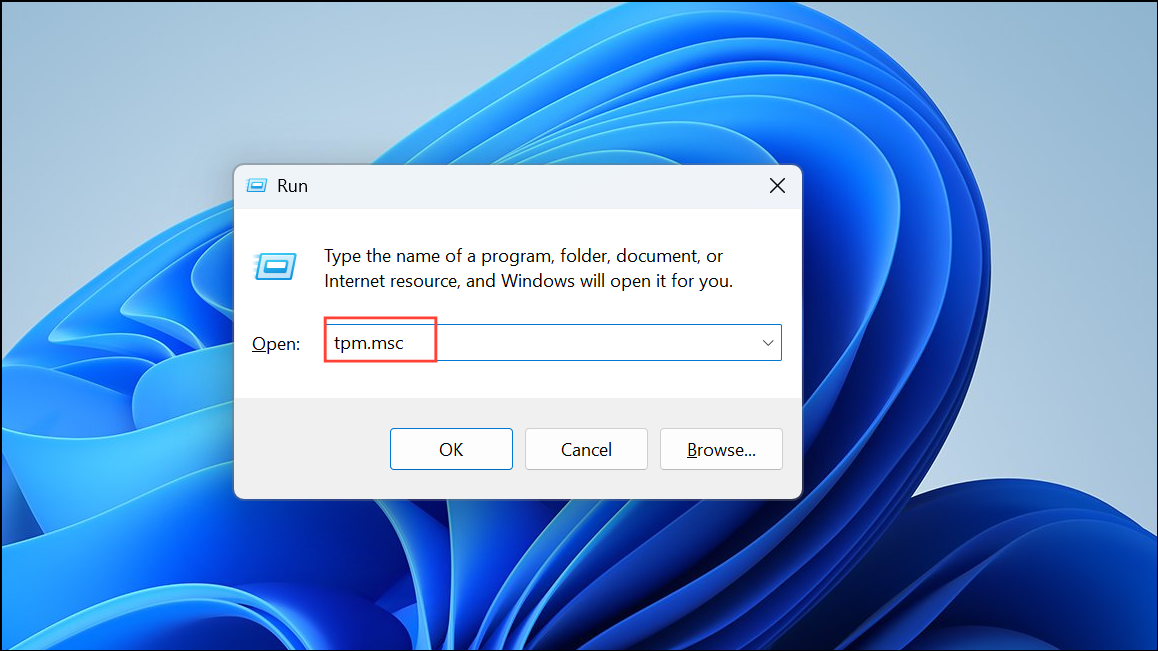
Check TPM 2.0 Status: Open the Run dialog by pressing Windows + R. Type tpm.msc and press Enter to launch the TPM Management Console. If TPM is present, the console will display its status and the specification version under “TPM Manufacturer Information.” Look for version 2.0 to meet Windows 11 requirements. If TPM is not found, it might be disabled in BIOS or your system may lack the module.
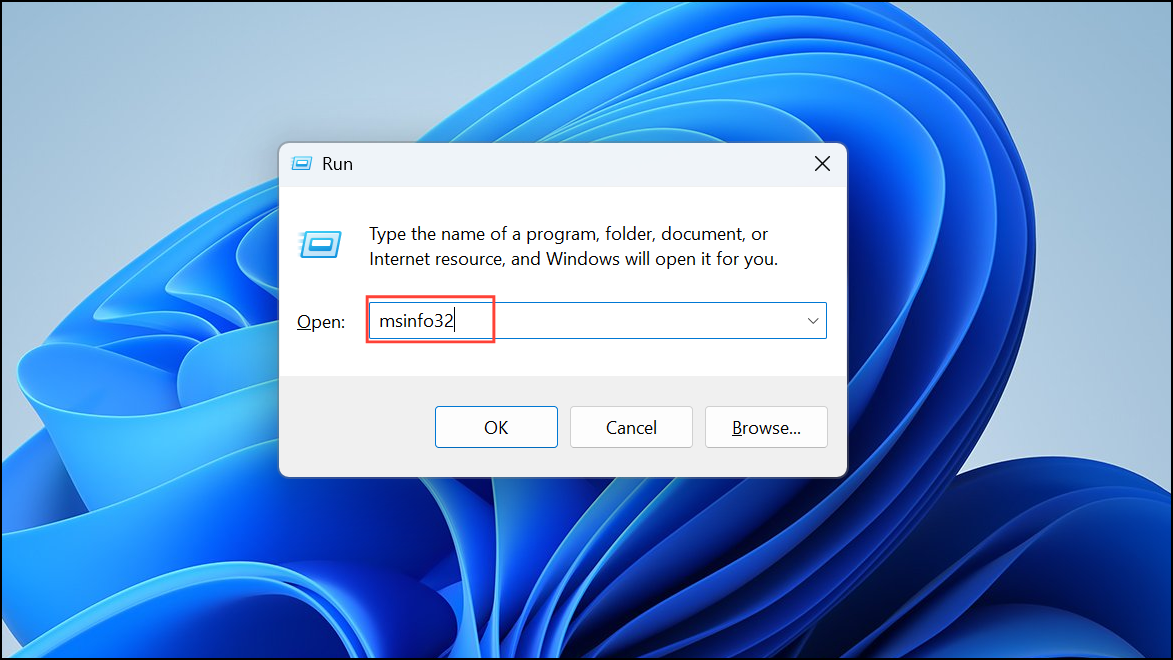
Check Secure Boot Status: Open the Run dialog (Windows + R) and enter msinfo32 to open System Information. On the right pane, locate “Secure Boot State.” It will indicate “On” if Secure Boot is enabled or “Off” if disabled.
Enabling TPM 2.0 in BIOS/UEFI
Enabling TPM 2.0 typically requires modifying firmware settings. The exact steps vary by manufacturer and motherboard model, but the general process is as follows.
Delete, F2, F10, or Esc. The correct key is often displayed briefly on the screen during startup.F10 and confirming the save. Your computer will restart.Enabling Secure Boot in BIOS/UEFI
Secure Boot complements TPM 2.0 by validating the integrity of the boot process. Enabling it ensures only trusted software loads during startup.
msinfo32) and checking the “Secure Boot State.”Troubleshooting Common Issues
If TPM 2.0 or Secure Boot does not appear available or cannot be enabled, consider the following:
- Ensure your BIOS/UEFI firmware is updated to the latest version provided by your motherboard or system manufacturer. Firmware updates often add or improve support for TPM and Secure Boot.
- Some systems may require physically installing a TPM module on the motherboard if only hardware TPM is supported and not firmware TPM.
- Be cautious when clearing or resetting TPM in BIOS, as this can erase stored cryptographic keys and data.
- If Secure Boot cannot be enabled, confirm that CSM or Legacy Boot is disabled and that your operating system supports Secure Boot.
- Consult your motherboard or PC manufacturer’s documentation for specific instructions related to your hardware model.
Backing up important data before modifying BIOS settings is recommended to prevent data loss in case of unexpected issues.
Enabling TPM 2.0 and Secure Boot unlocks your system’s compatibility with Windows 11 and establishes a stronger security foundation. With these features activated, your system will validate boot integrity and protect sensitive information, helping to defend against unauthorized access and malware.



