Every face you paint in Facecard: Makeup Showdown can be stored and reused through the Lookbook. The Lookbook is the game’s save system for makeup. It copies whatever is on the mannequin head at that moment into a named slot, and you can load that slot back onto a clean face whenever you want.
Quick answer: Paint your look, press LOOKBOOK in the bottom-right bar, type a name, and hit SAVE NEW. To reuse it, open LOOKBOOK, pick the slot, press LOAD, then tap SURE? to confirm.
How to save a look in the Lookbook
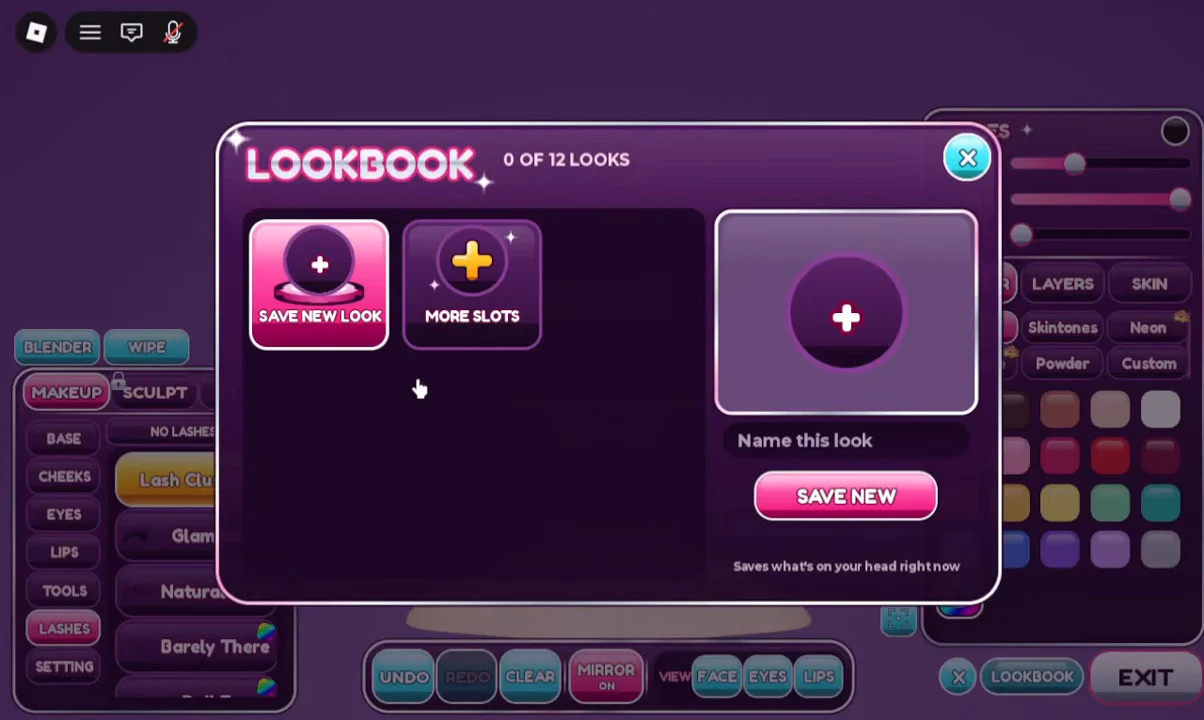
The Lookbook only saves what is already applied, so the face has to be done before you open it. The SAVE NEW button describes its own job on screen: “Saves what’s on your head right now.”
How to tell the save worked
- The “+ Saved” confirmation appears after you press SAVE NEW.
- The counter goes up by one, for example from 0 OF 12 LOOKS to 1 OF 12 LOOKS.
- A new slot appears with your chosen name, the save date, and the head type, such as Classic head.
How to load a saved look onto the head
Loading a slot puts the stored look back on the mannequin. If you want to confirm a save before you rely on it, exit the Lookbook first and press CLEAR at the bottom of the screen. That wipes the applied makeup, so you start the test from a bare face.
The confirmation exists because loading overwrites the current face. If you have unsaved work on the head, save it to its own slot before you tap SURE?.
You can confirm the load worked by checking the mannequin itself. Every element from the slot should be back in place. In the Doll Eye test, the lashes reappear on the cleared head.
Lookbook controls and slot limit
| Control | Where | What it does |
|---|---|---|
| LOOKBOOK | Bottom-right menu bar | Opens the save slots |
| SAVE NEW | Lookbook window | Saves the current head to a new slot |
| LOAD | Selected slot | Starts applying the saved look |
| SURE? | Replaces LOAD after first tap | Confirms and overwrites the face |
| CLEAR | Bottom of the editor | Removes applied makeup |
The Lookbook starts with 12 slots, and the counter at the top always shows how many are in use. The window also has a MORE SLOTS button, plus UPDATE, OPEN and SUBMIT options on saved entries. For keeping a finished face and bringing it back later, SAVE NEW and LOAD are the two buttons you need.