
Receiving the “Windows can’t stop your device because a program is still using it” message when trying to eject a USB or external drive in Windows 11 interrupts file transfers and puts your data at risk. This persistent error can occur even when no open files or obvious applications are using the drive, and in some cases, the Safely Remove option is missing entirely. Addressing this issue requires identifying hidden processes, disabling certain Windows features, and updating system settings to ensure safe removal without data loss or drive corruption.
Identify and Terminate Processes Using the Drive
Windows key, typing resmon.exe, and pressing Enter. This tool displays real-time system resource usage, including which processes have file handles open on your USB or external drive.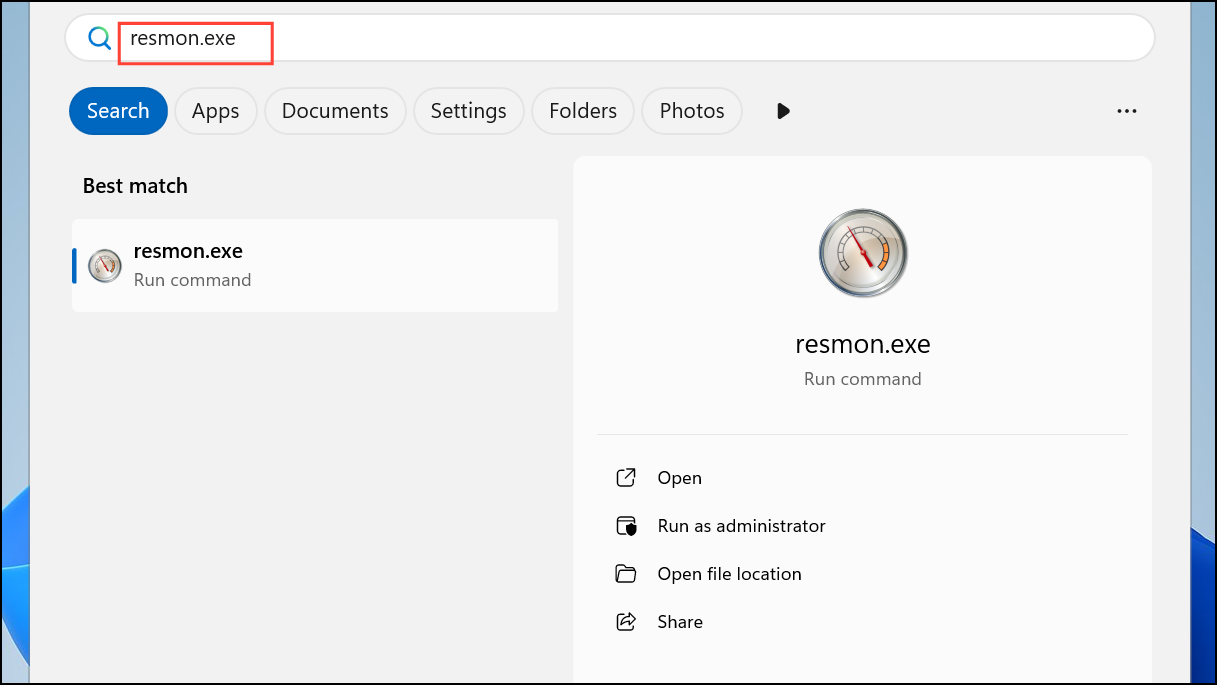
D:\). Resource Monitor will list any processes currently accessing files or folders on the drive.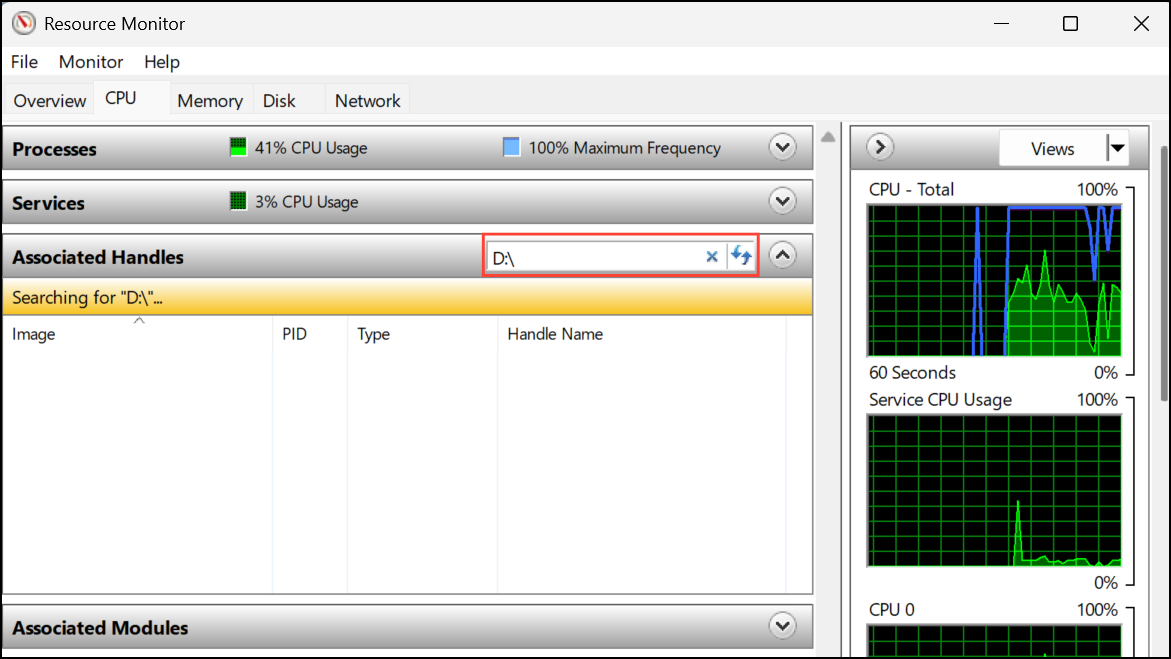
Ctrl + Shift + Esc), locate the identified processes, right-click, and select ‘End Task’ to close them. This action releases the drive so it can be safely ejected.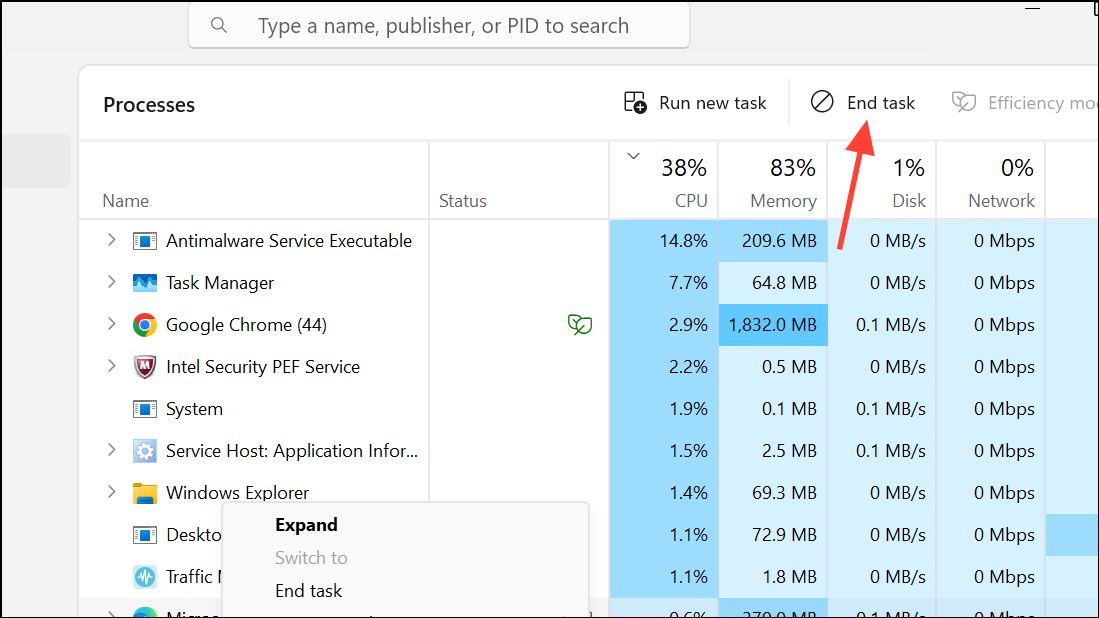
Use PowerToys File Locksmith or Sysinternals Utilities
For a more user-friendly approach, Microsoft PowerToys includes File Locksmith, which identifies and terminates processes locking files or drives.
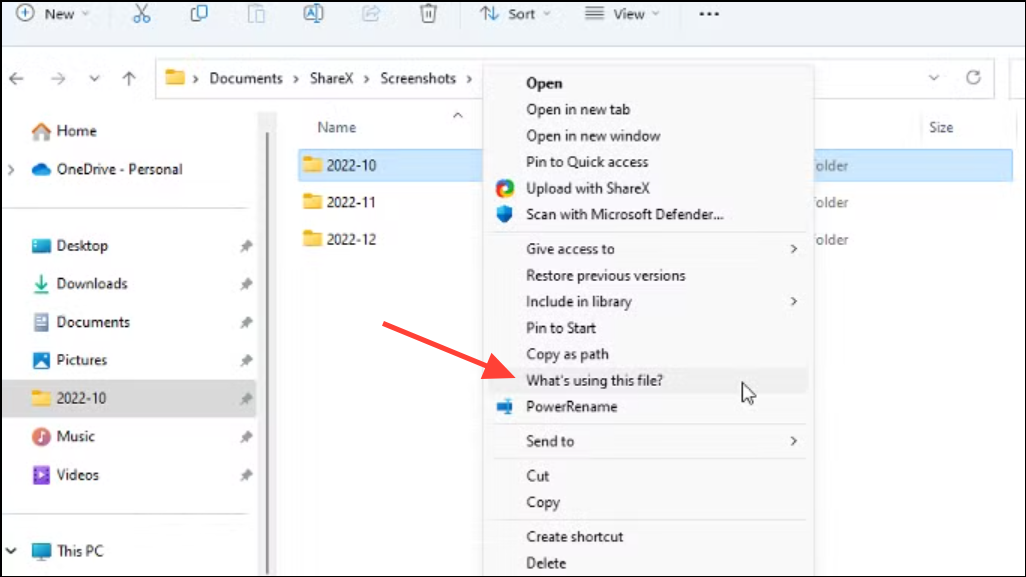
Alternatively, you can use Sysinternals Process Explorer. Launch the tool, press Ctrl + F, enter the drive letter or path, and close any listed handles.
Disable Windows Search Indexing and Recycle Bin on the Drive
Windows Search Indexer and the Recycle Bin can keep external drives locked, especially after major updates or when drives are used for backup or media libraries.
Update USB and Chipset Drivers
Outdated or incompatible USB drivers can prevent safe device removal, especially after Windows updates.
Windows + X and choosing ‘Device Manager.’ Expand ‘Disk drives’ and ‘Universal Serial Bus controllers.’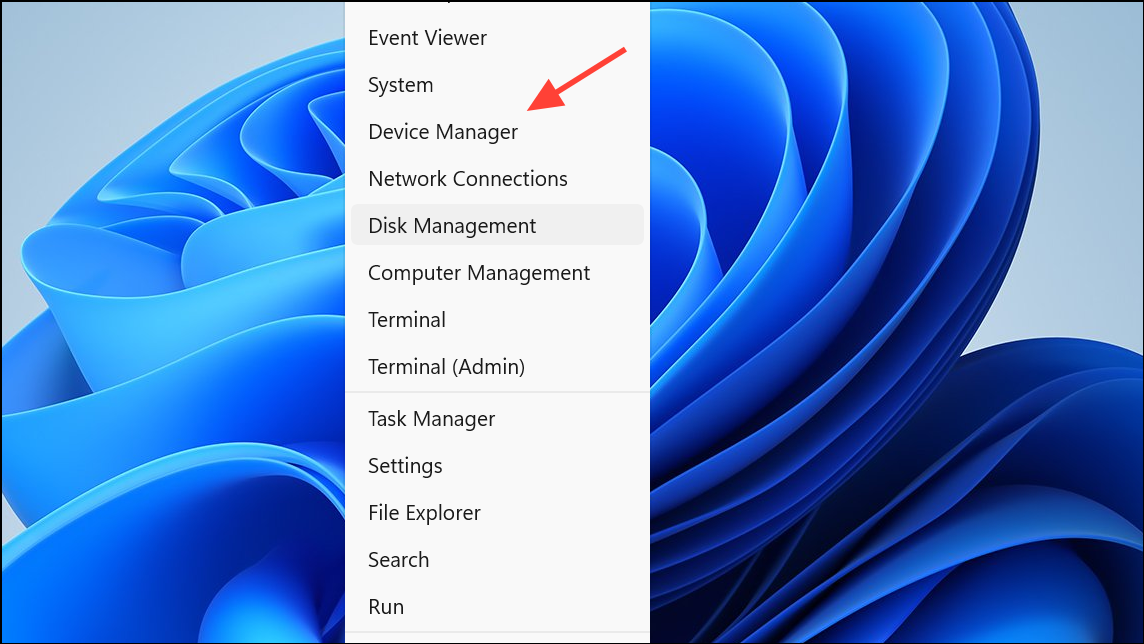
Set Drive Policy to Quick Removal
Windows 11 supports ‘Quick Removal’ mode, which minimizes the risk of data loss when unplugging USB devices without ejecting. This policy is usually enabled by default, but it’s worth confirming.
Take the Drive Offline in Disk Management
When standard ejection fails, Disk Management can be used to safely take the drive offline, disconnecting it from Windows without risking corruption.
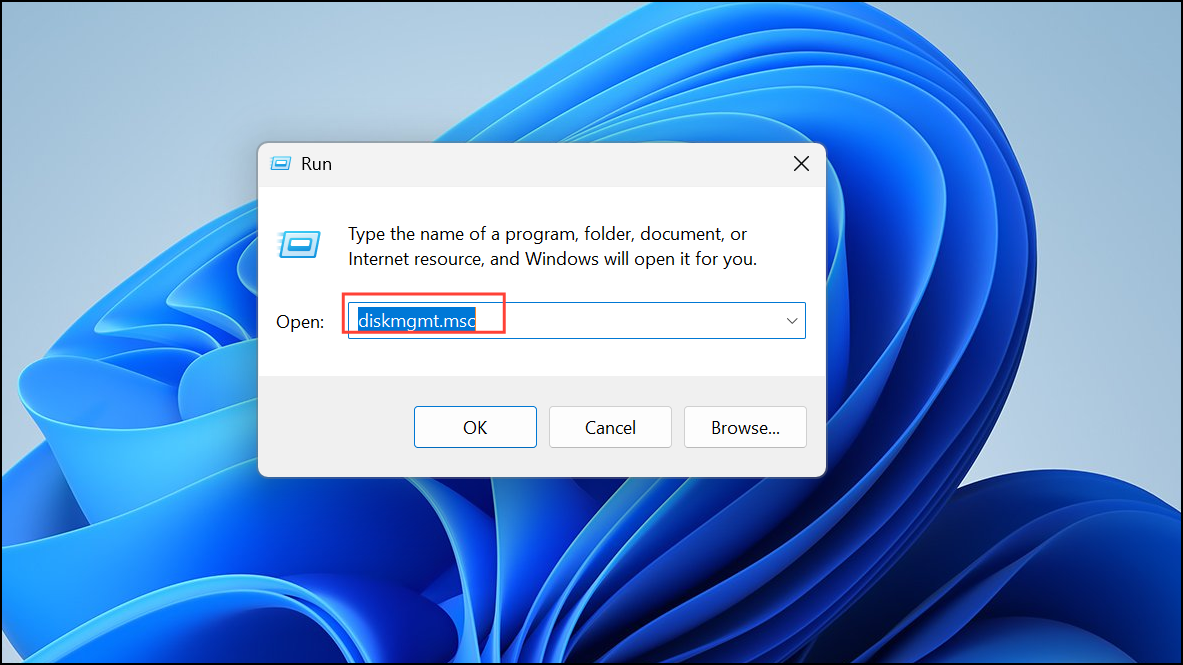
Temporarily Disable Antivirus or Backup Software
Antivirus programs and backup utilities often scan or monitor external drives, preventing ejection. Temporarily disable real-time protection or scheduled scans for your external drive in your antivirus settings, or close any backup software that might be running in the background.
Restart Windows or Shut Down as a Last Resort
If all else fails, restarting or shutting down your PC will close all processes and release the drive. After shutdown, you can safely unplug the device. While not ideal for frequent use, this method avoids data corruption when standard ejection fails.
Resolving the “can’t eject USB or external drive” error on Windows 11 involves a mix of process management, system setting adjustments, and driver updates. Applying these targeted steps restores safe removal and protects your data from accidental loss or corruption.



