

The CRITICAL_PROCESS_DIED error triggers a Blue Screen of Death (BSOD) that abruptly halts Windows 11 operations, particularly affecting systems after the April 2025 cumulative update. This error indicates that a vital system process has unexpectedly stopped, leading to system instability and boot failures. Addressing this issue requires careful troubleshooting and, in some cases, system recovery steps to restore normal operation.
Install the Latest Windows Updates and Patches
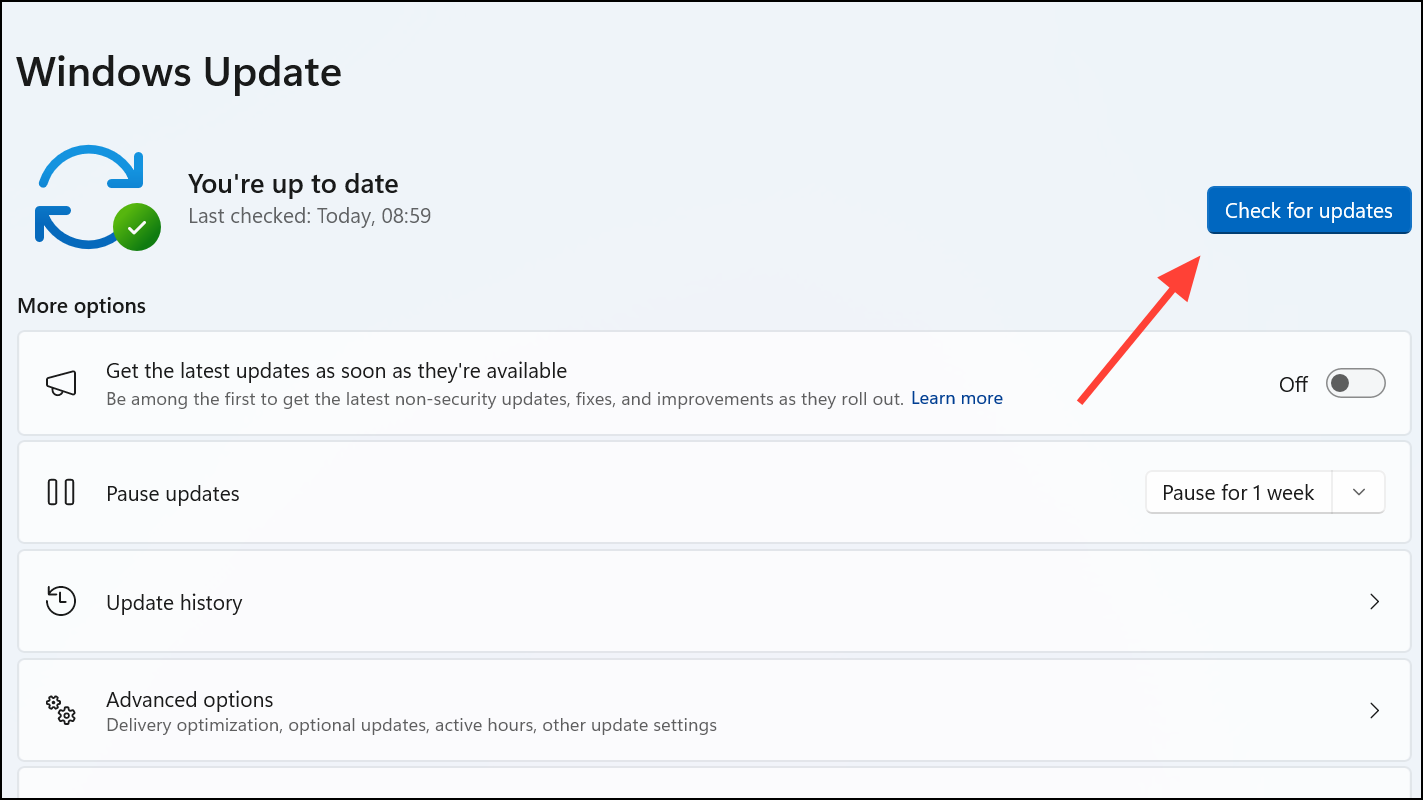
Microsoft released a server-side fix addressing the BSOD caused by the April 8, 2025 update, particularly affecting devices running preview or release builds. Staying current with updates ensures you receive these critical fixes.
Uninstall Problematic Updates via Recovery Mode
If your PC cannot boot normally due to the BSOD, use Windows Recovery Environment (WinRE) to remove the faulty update.
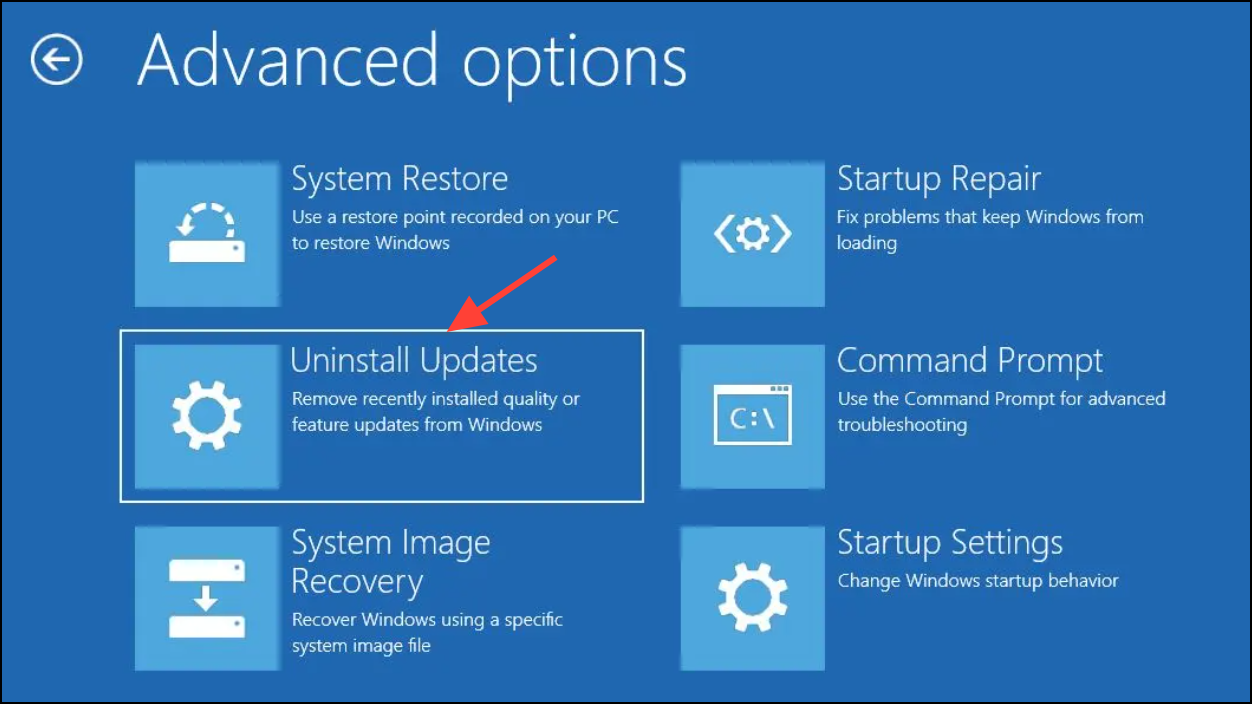
Uninstalling the problematic update can restore system stability, especially when the update introduced incompatibilities or corrupted system files.
Perform a Clean Installation of Windows 11
If recovery options fail, a clean installation resets your system to a fresh state, eliminating corrupted files or conflicting drivers causing the error.
A clean install removes all software conflicts and corrupted files, providing a stable baseline for your system.
Use System File Checker and DISM to Repair Corrupted Files
Corrupted system files often cause critical process failures. The System File Checker (SFC) and Deployment Image Servicing and Management (DISM) tools help repair these issues.
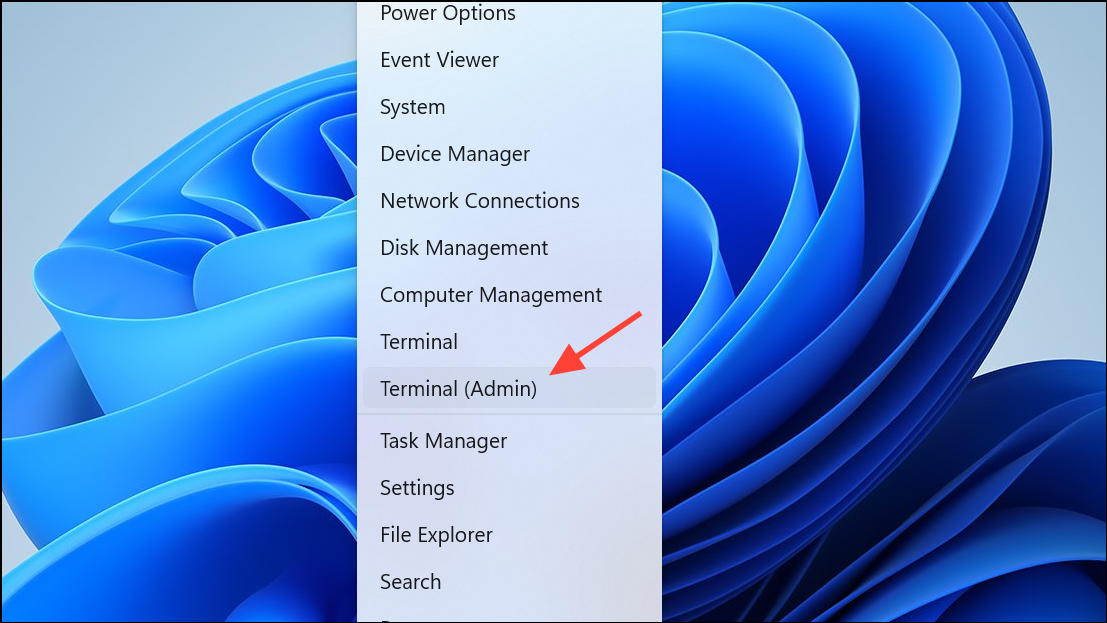
DISM /Online /Cleanup-Image /CheckHealth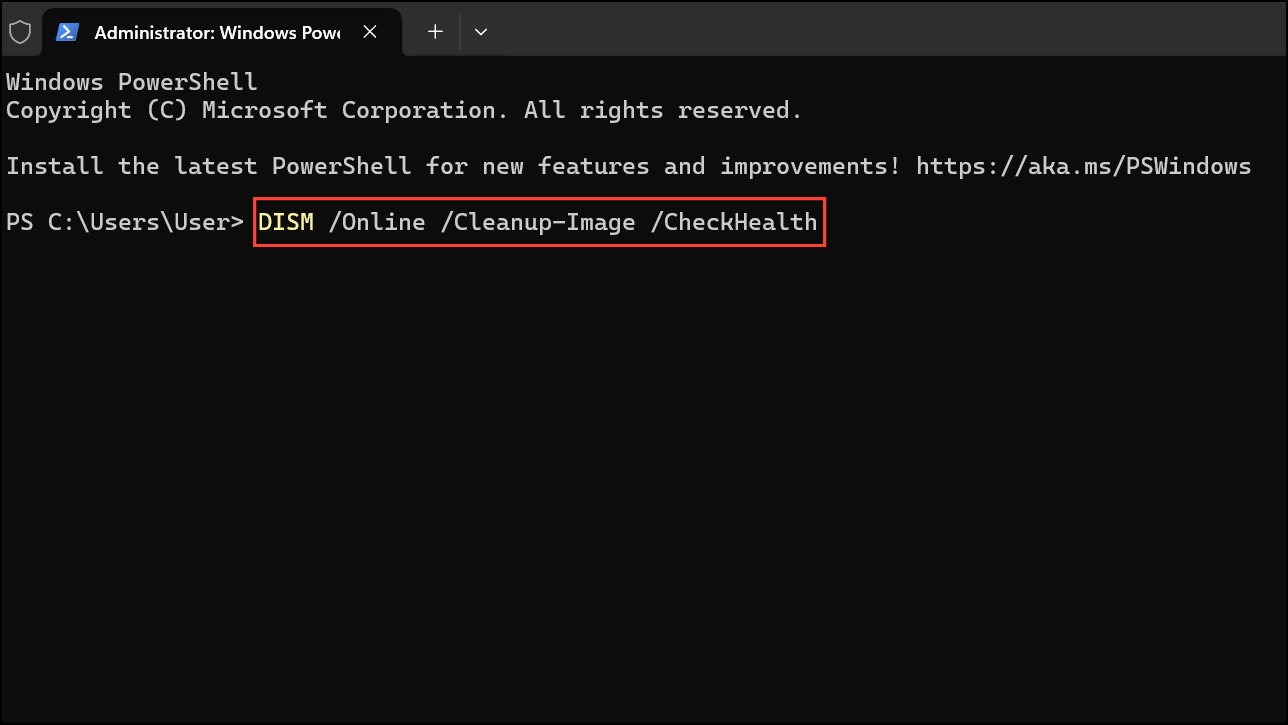
DISM /Online /Cleanup-Image /RestoreHealth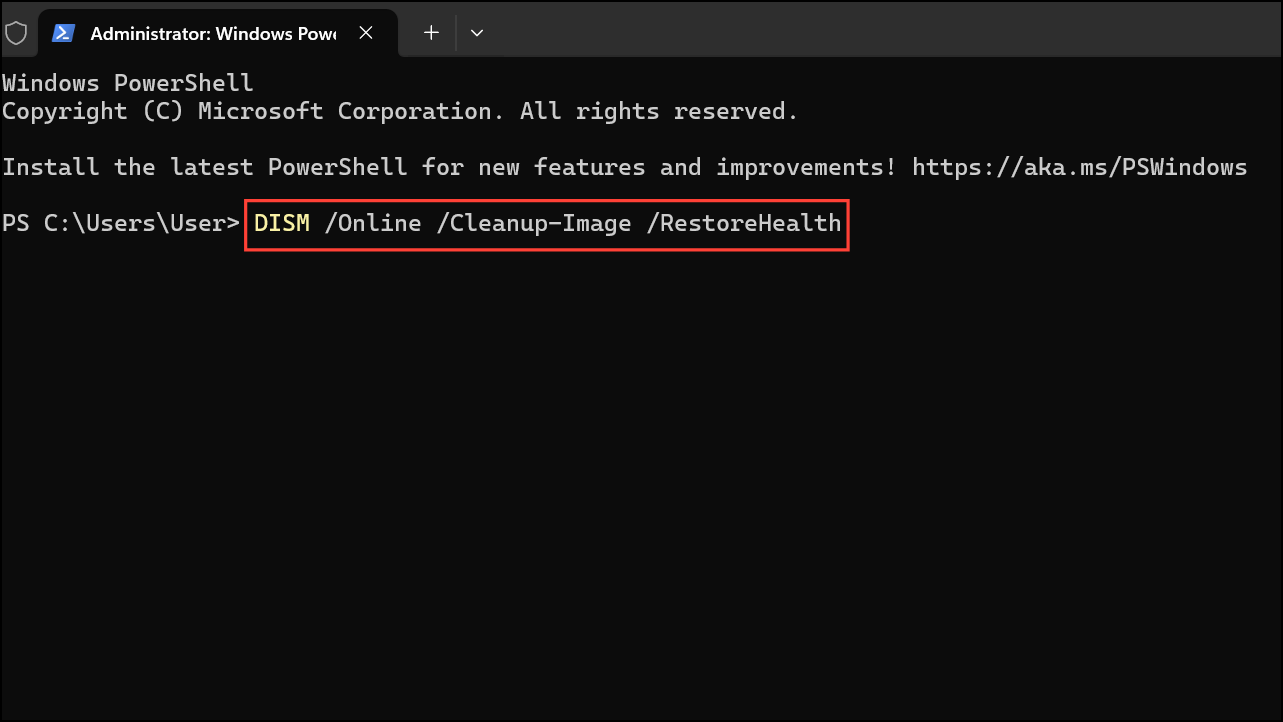
SFC /SCANNOW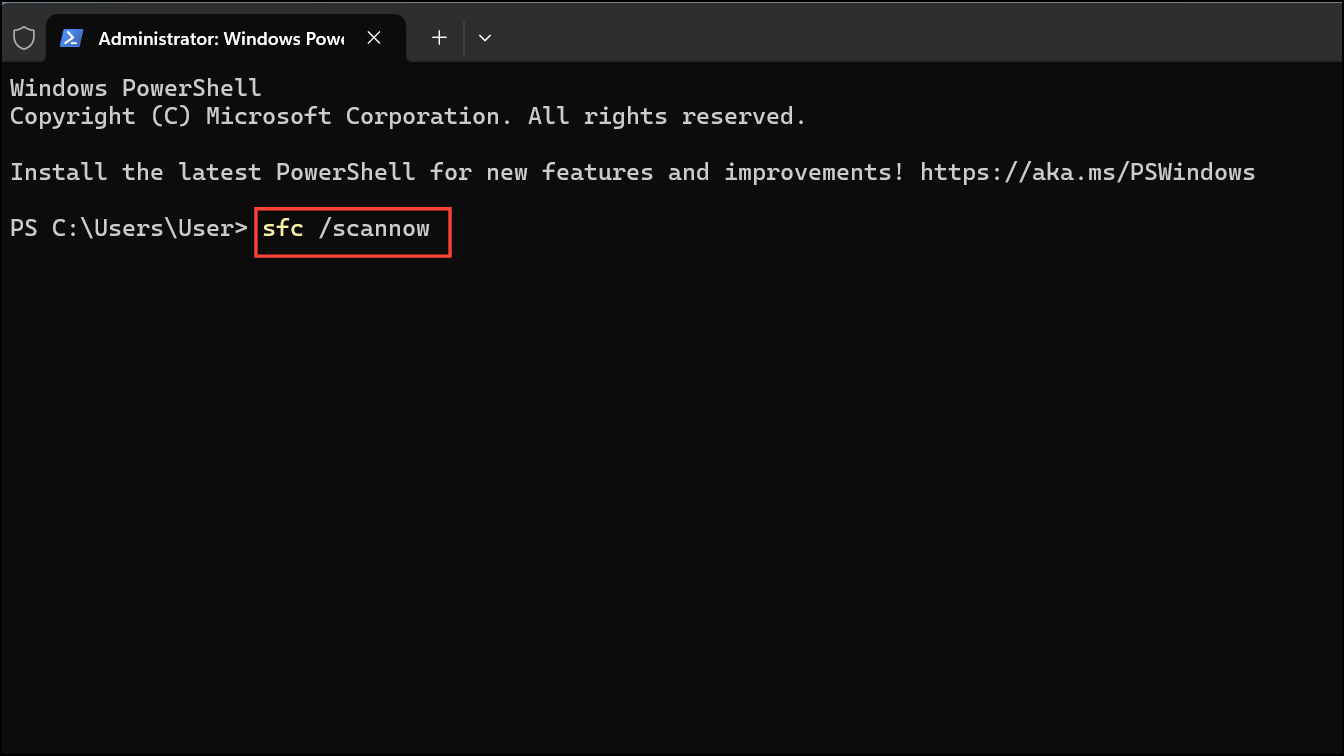
These commands repair corrupted or missing system files that could cause the CRITICAL_PROCESS_DIED error, improving system stability without requiring a full reinstall.
Boot into Safe Mode and Perform a Clean Boot
Booting into Safe Mode limits Windows to essential drivers and services, which can help isolate problematic software or drivers causing the error.
Shift while clicking Restart from the login screen.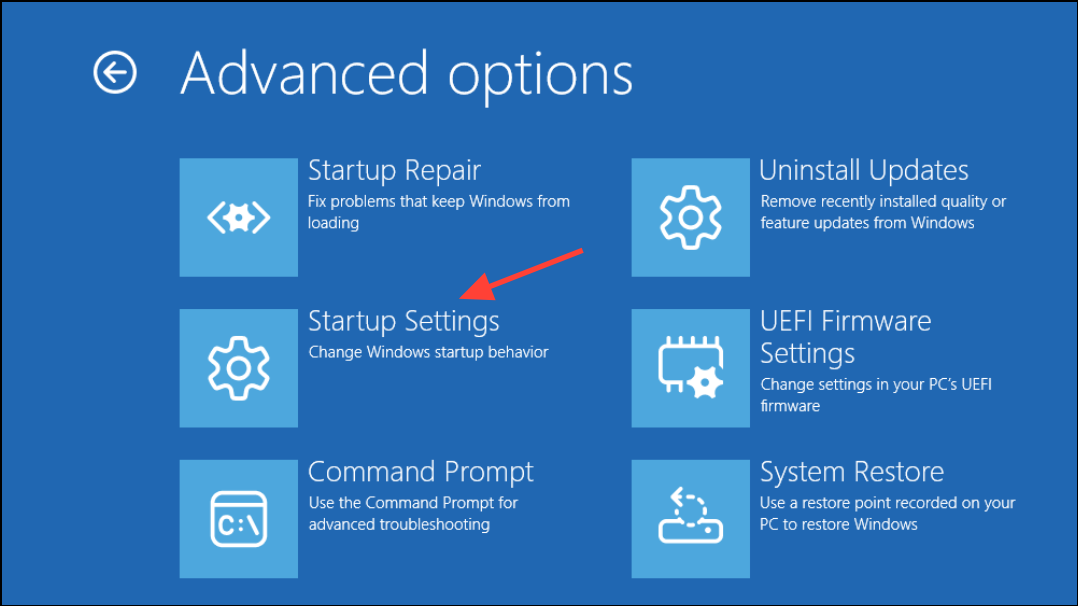
msconfig in the Start menu and pressing Enter.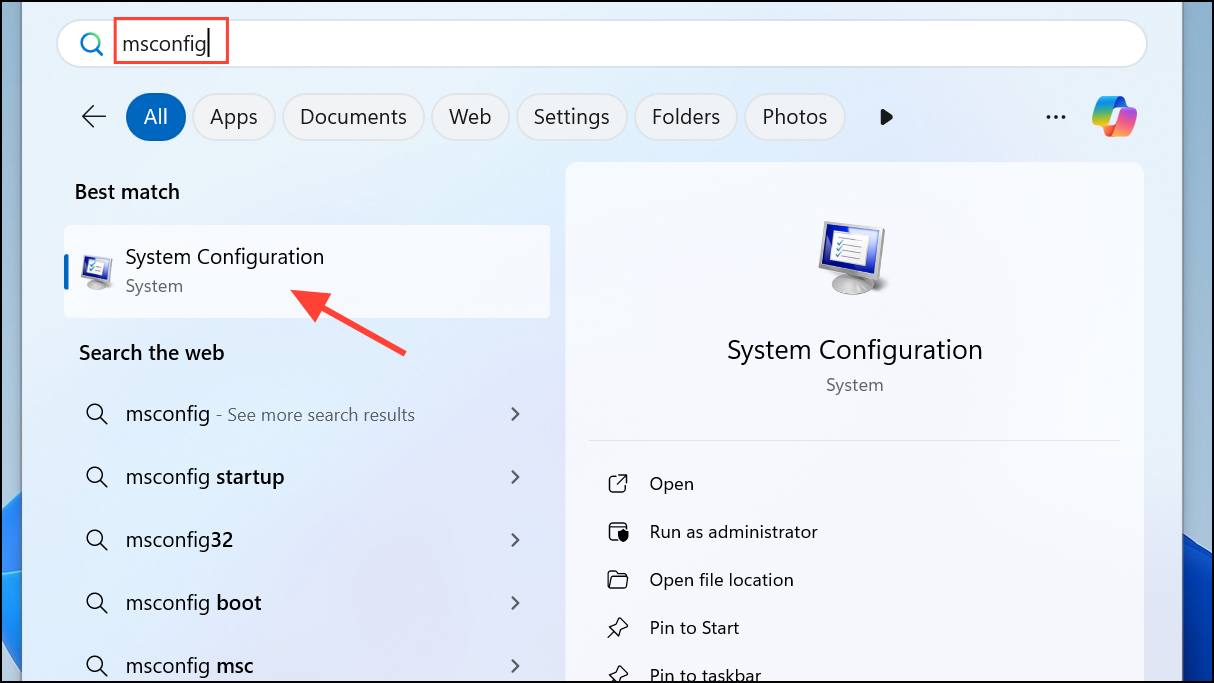
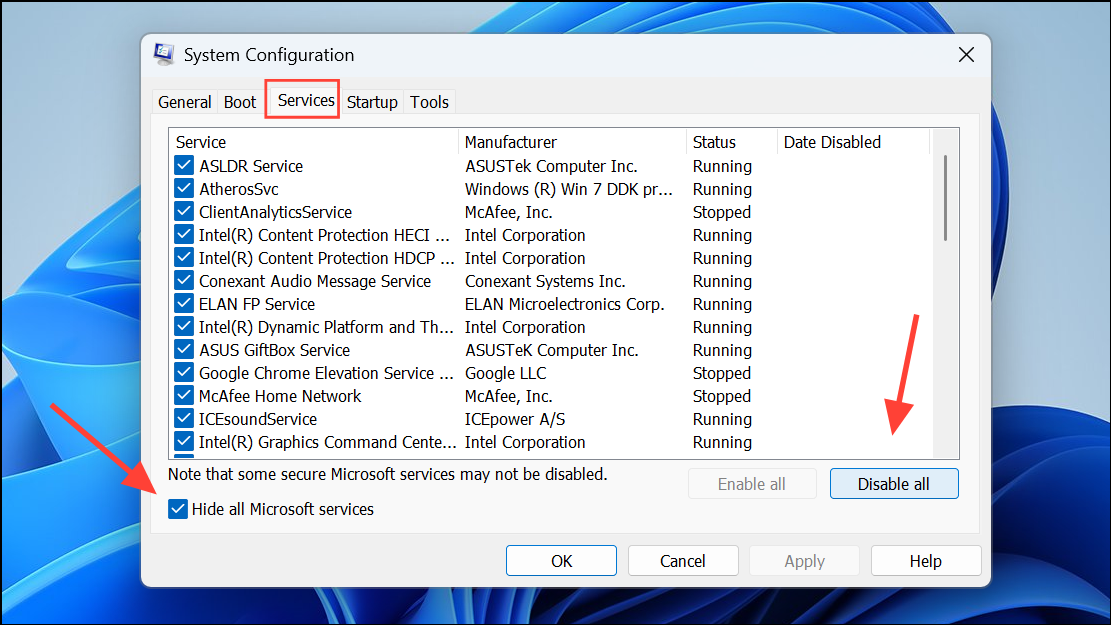
Check and Roll Back Device Drivers
Incompatible or faulty device drivers can abruptly stop critical processes. Rolling back or updating drivers can resolve these conflicts.
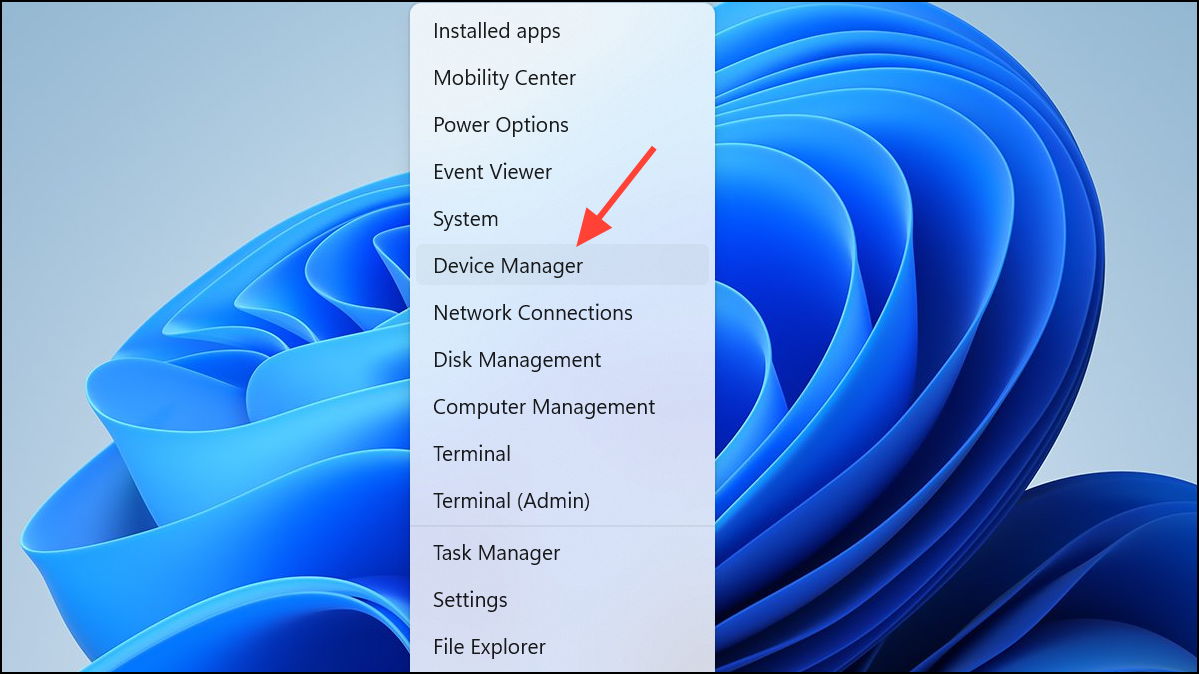
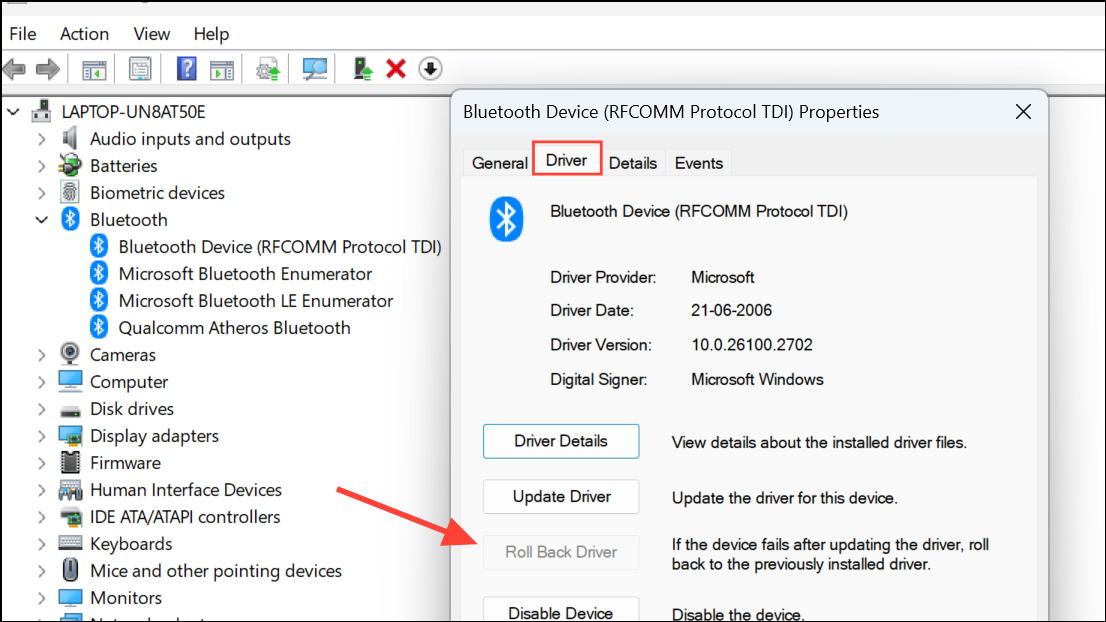
Driver conflicts often trigger CRITICAL_PROCESS_DIED errors; managing drivers ensures hardware functions correctly without interrupting system processes.
Run Disk Check to Repair Hard Drive Errors
Hard drive issues can cause system processes to fail unexpectedly. Running a disk check scans and repairs file system errors.
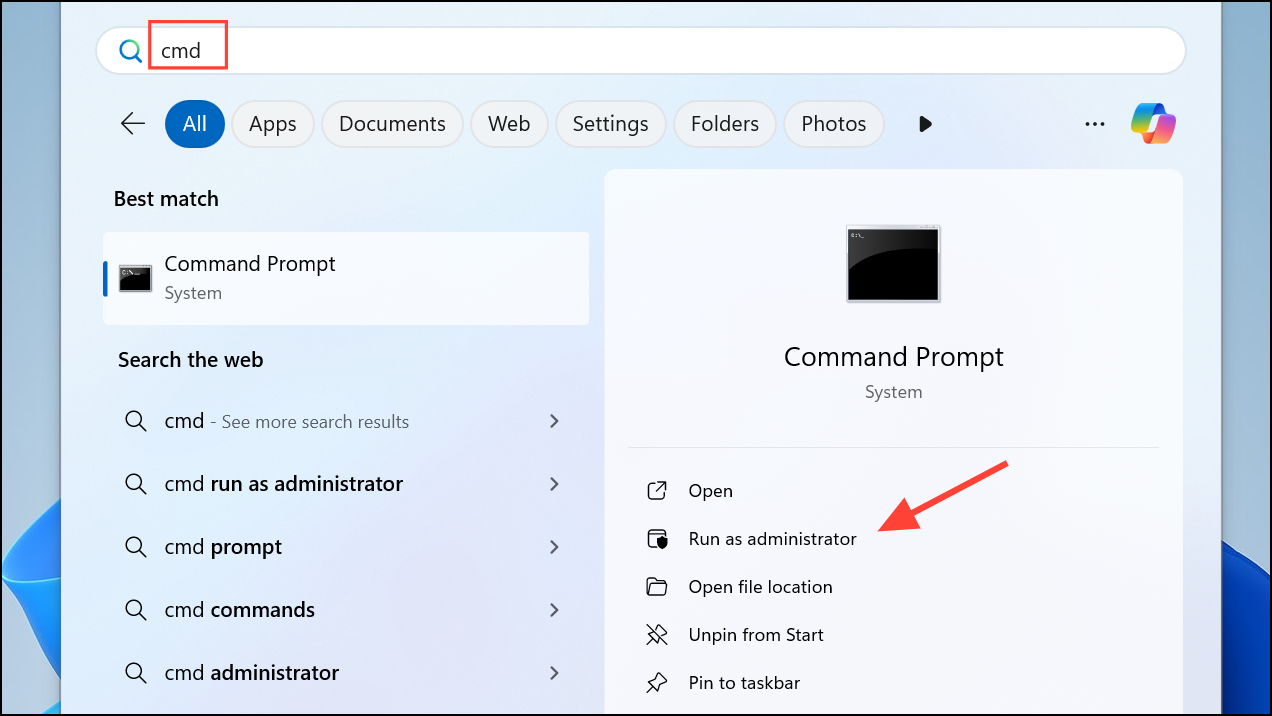
chkdsk /f /r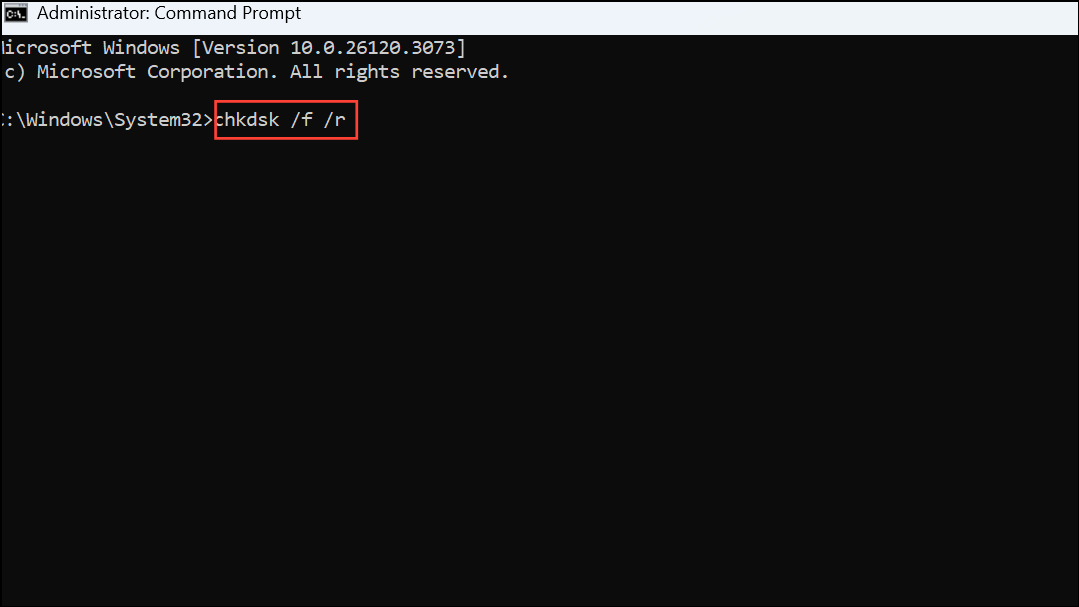
Repairing disk errors can prevent critical system processes from failing due to corrupted files or bad sectors.
Applying these methods systematically will help restore Windows 11 stability after the April 2025 update triggered the CRITICAL_PROCESS_DIED error. Always ensure your data is backed up before performing advanced recovery actions or clean installations to avoid data loss.



