
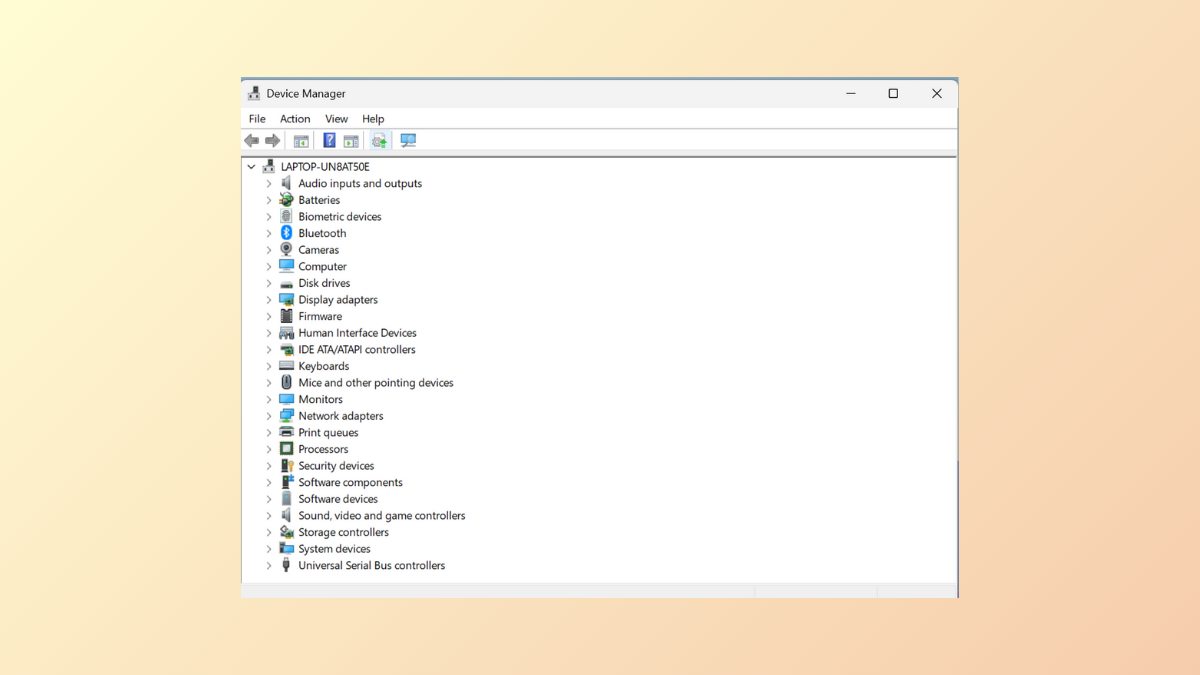
Device Manager failures—such as crashing, freezing, or refusing to open—prevent users from managing hardware and drivers on Windows 11. This issue can stem from system file corruption, problematic updates, software conflicts, or even user profile corruption. Addressing these root causes restores Device Manager functionality and ensures you can update, disable, or troubleshoot hardware devices without interruption.
Run Device Manager with Administrative Privileges
Windows may block Device Manager due to insufficient permissions or administrative restrictions. Launching Device Manager as an administrator bypasses these limitations and often resolves access problems.
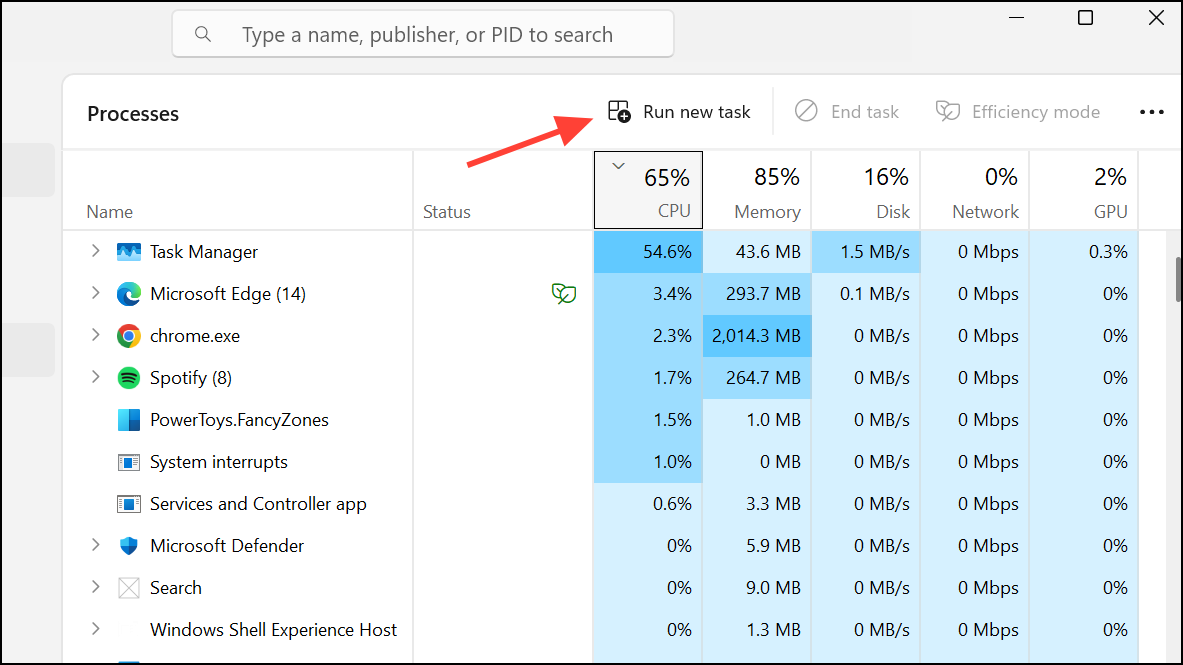
devmgmt.msc. Check the box labeled Create this task with administrative privileges and click OK. If Device Manager opens successfully, you’ve resolved the permissions issue.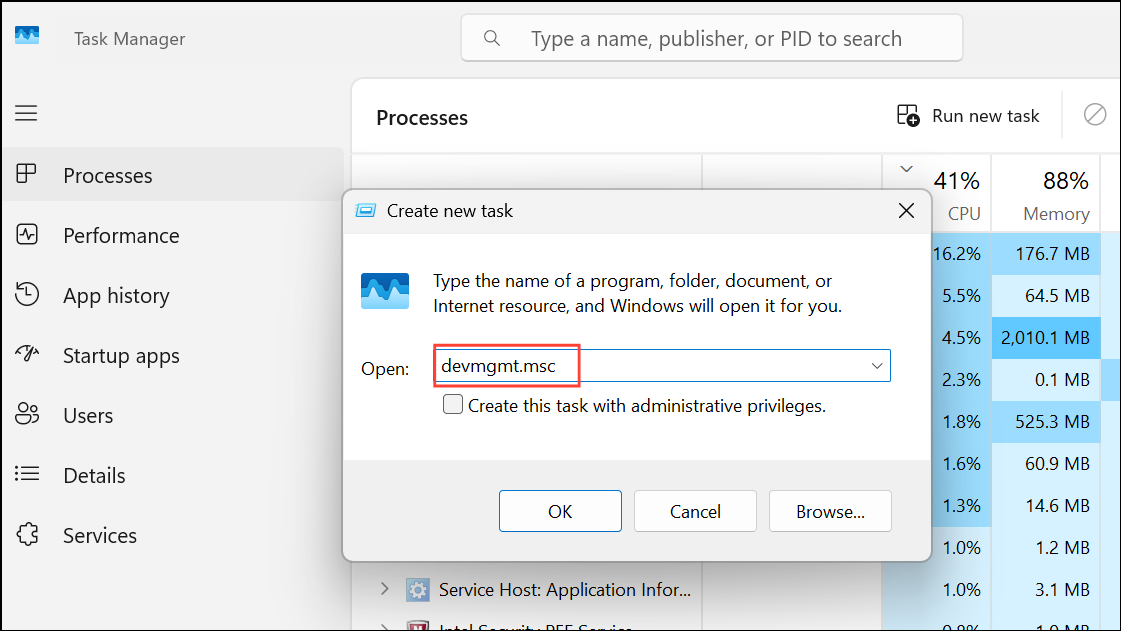
Try Alternative Methods to Open Device Manager
If the standard method fails, use these alternative approaches to access Device Manager. This helps determine whether the issue is with the shortcut, system path, or deeper system problems.
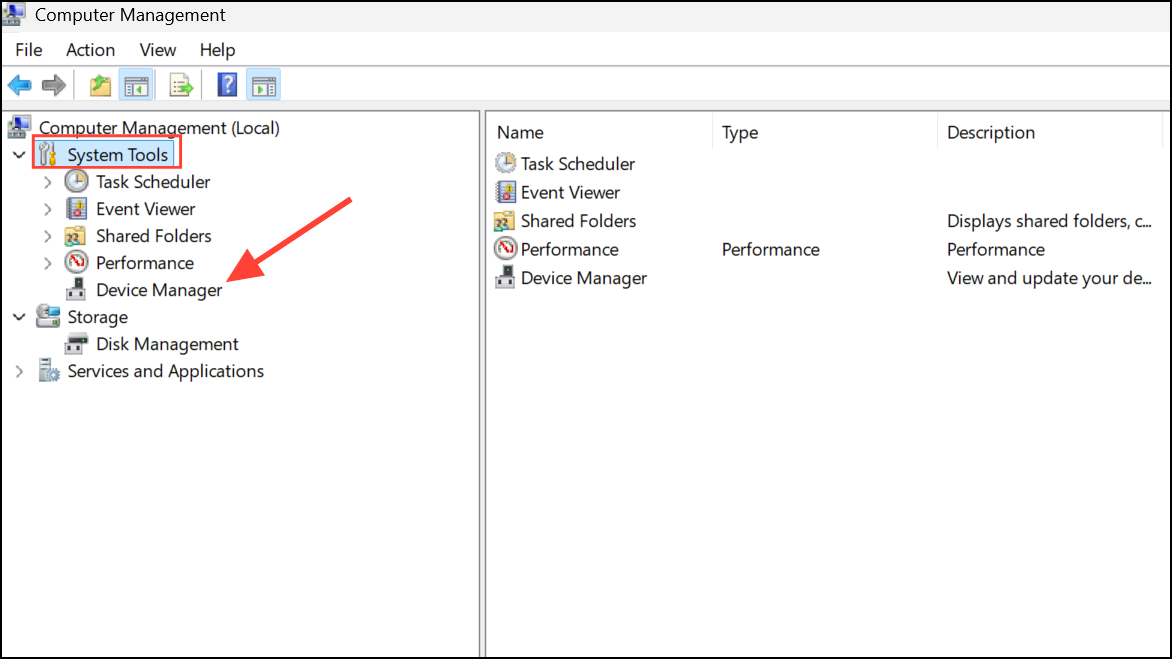
- Computer Management: Press
Win + Xand select Computer Management. Expand System Tools in the left pane and click Device Manager.
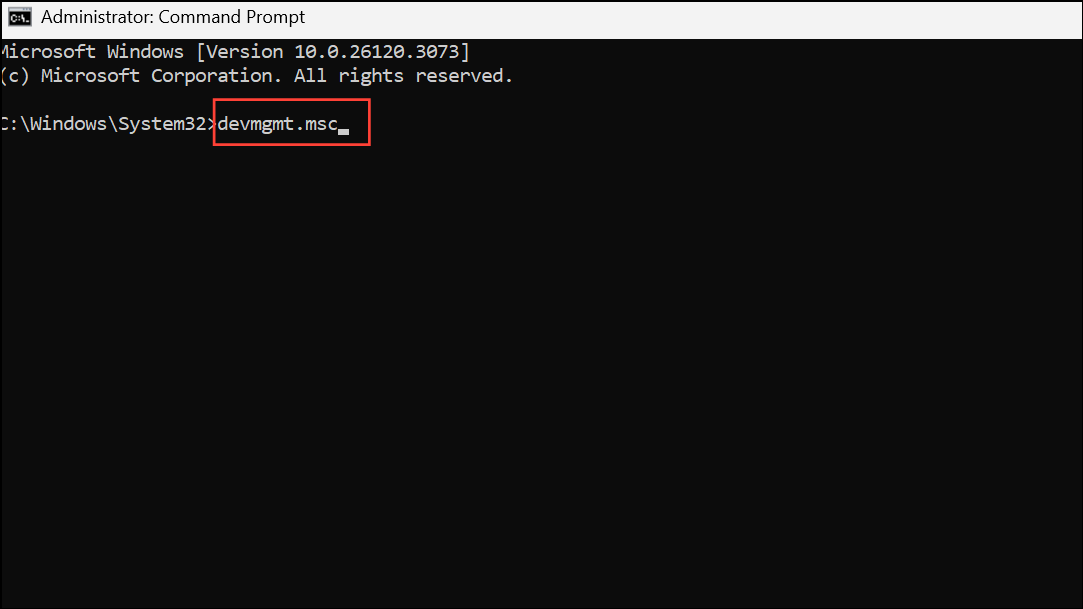
- Command Prompt or PowerShell: Open Command Prompt or Windows PowerShell as administrator. Type
devmgmt.mscand pressEnter.
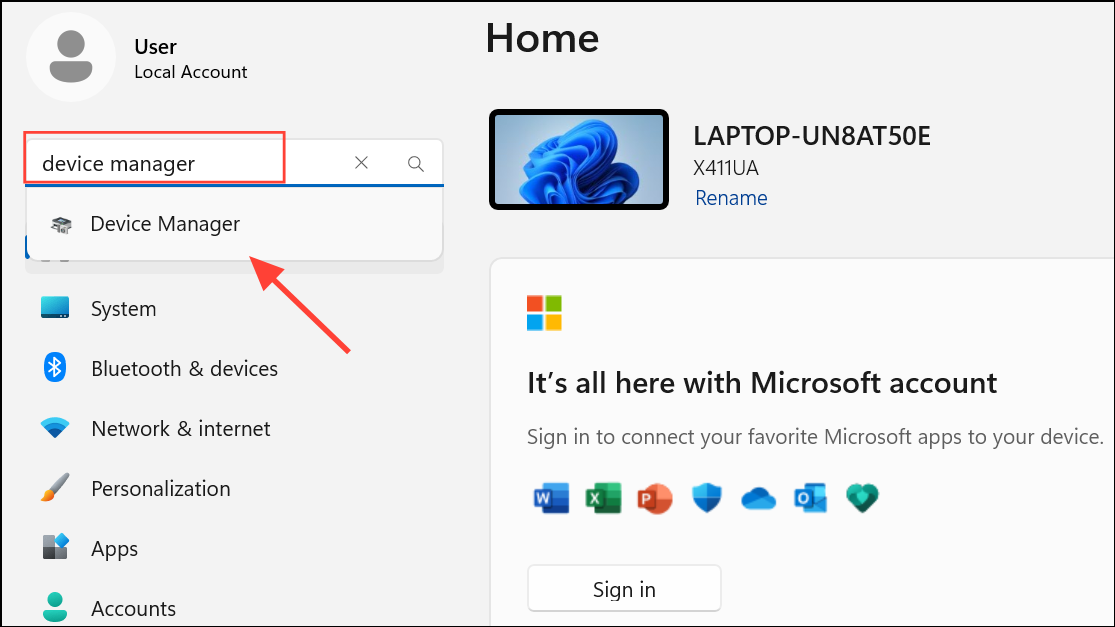
- Windows Settings: Open the Settings app (
Win + I), type Device Manager in the search bar, and select the result.
These methods can reveal whether the issue lies with a specific shortcut or is system-wide.
Check for Windows Updates and Uninstall Problematic Updates
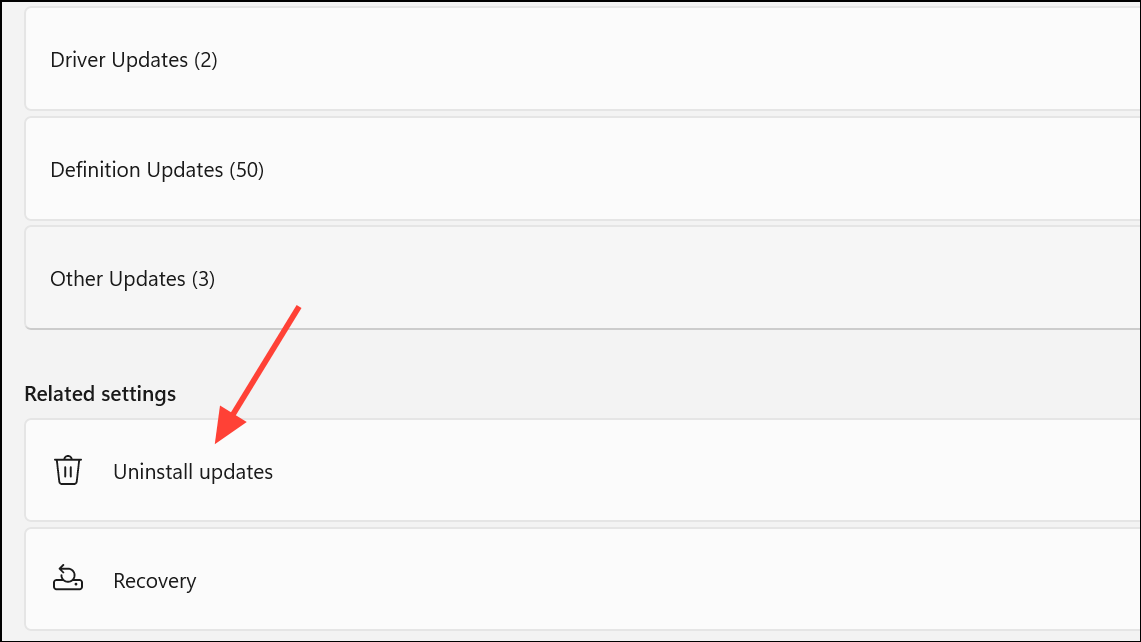
Operating system bugs or recent updates can disrupt Device Manager. Updating Windows can fix known issues, while rolling back recent updates may resolve new problems introduced by patches.
Win + I. Go to Windows Update and click Check for updates. Download and install any available updates.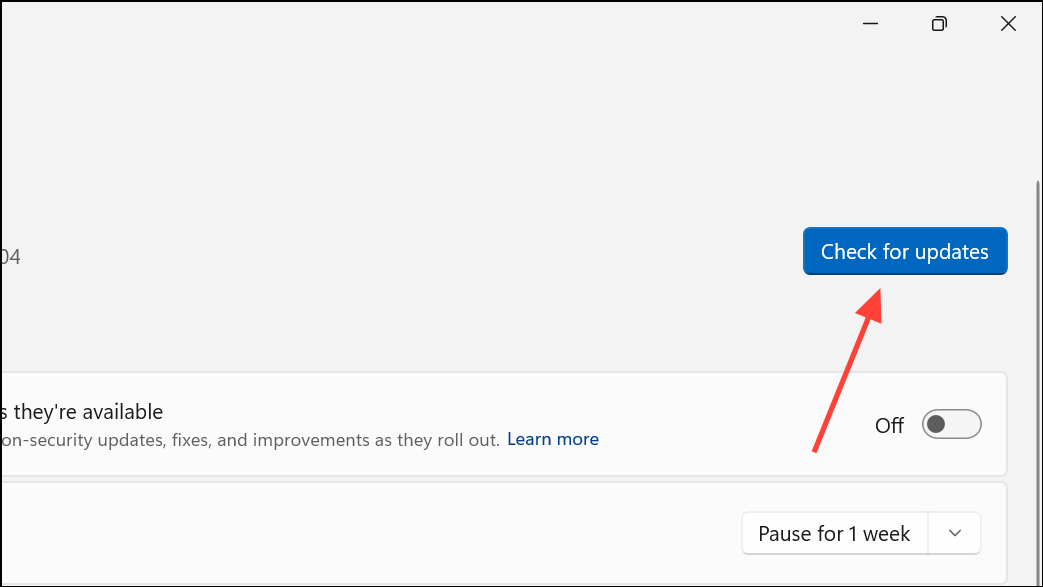
Repair System Files with SFC and DISM
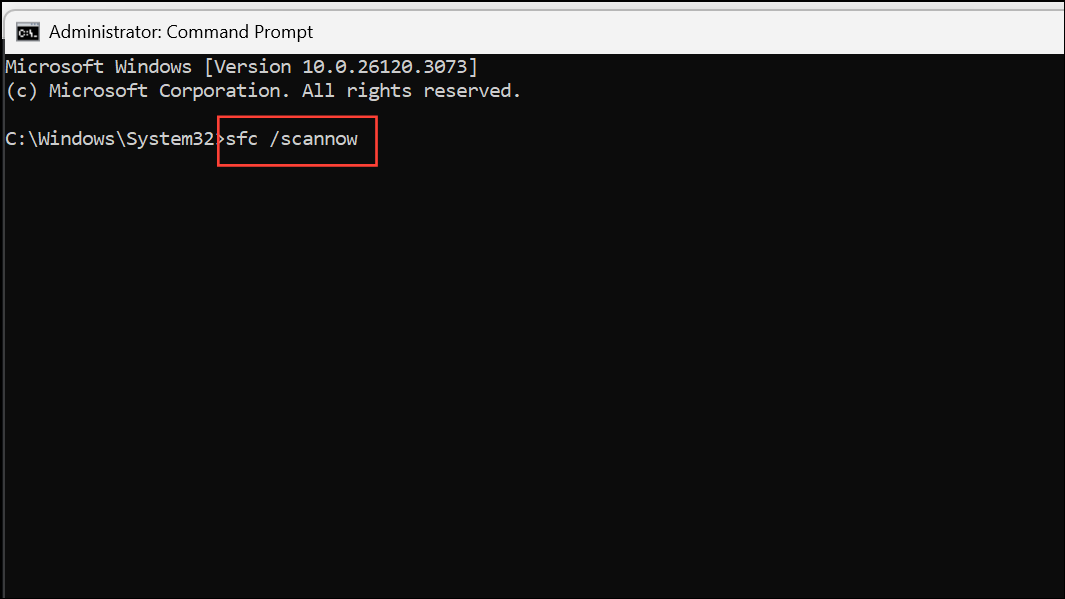
Corrupted or missing system files commonly cause Device Manager to malfunction. System File Checker (SFC) and Deployment Image Servicing and Management (DISM) are built-in tools for detecting and repairing such issues.
sfc /scannowand press Enter. Wait for the scan and repair process to finish.
DISM /Online /Cleanup-Image /CheckHealth
DISM /Online /Cleanup-Image /ScanHealth
DISM /Online /Cleanup-Image /RestoreHealth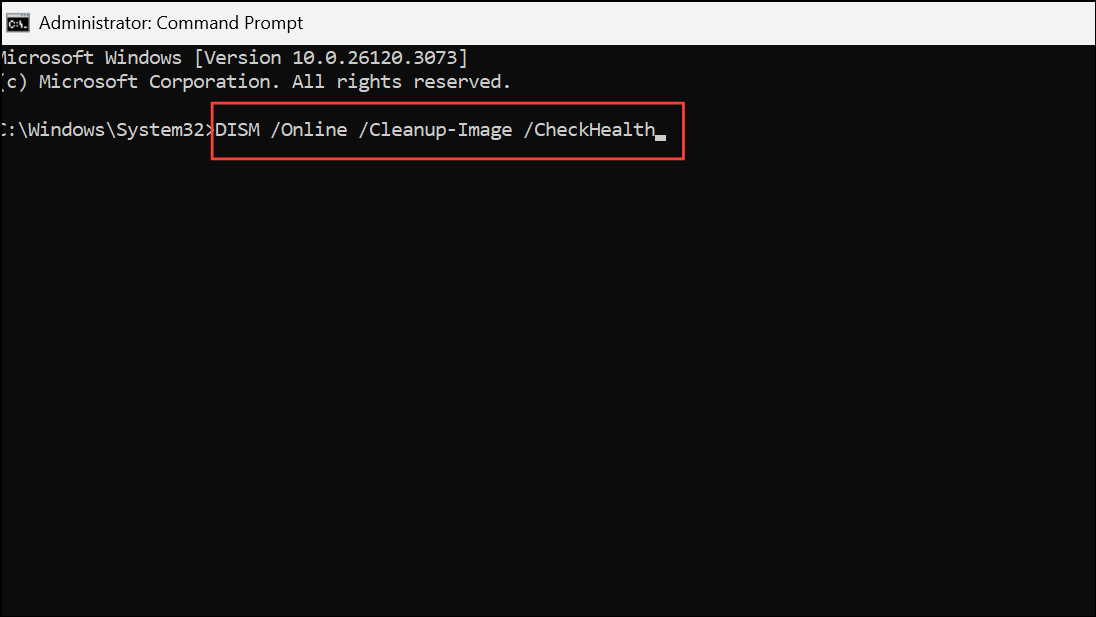
After the scans complete, restart your computer and attempt to open Device Manager again.
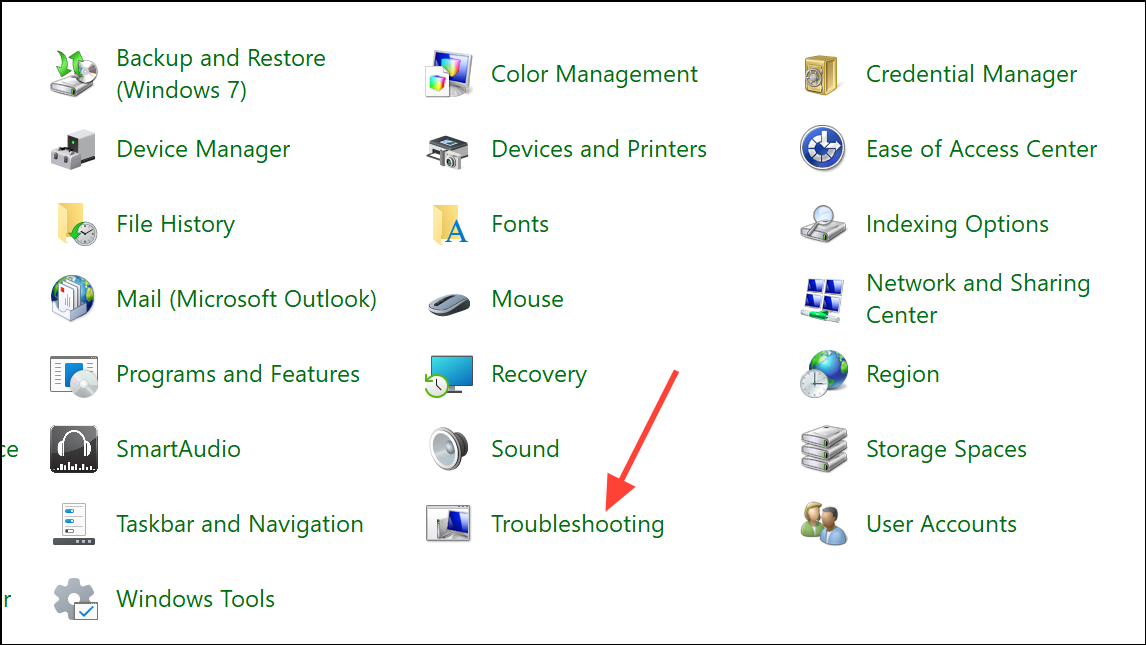
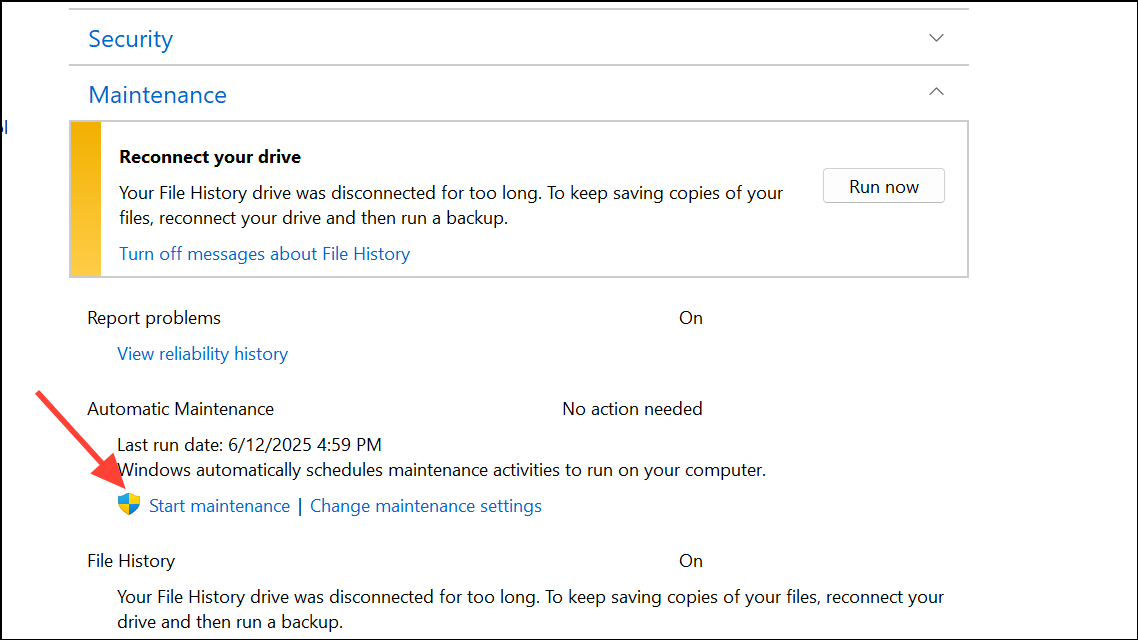
Run System Maintenance Troubleshooter
System Maintenance Troubleshooter detects and resolves common issues with system shortcuts, file paths, and configuration errors that can prevent Device Manager from opening.
Check for Hard Drive Errors
Bad sectors or file system errors on your drive can interfere with Device Manager and other system utilities. Running a disk check can identify and repair these problems.
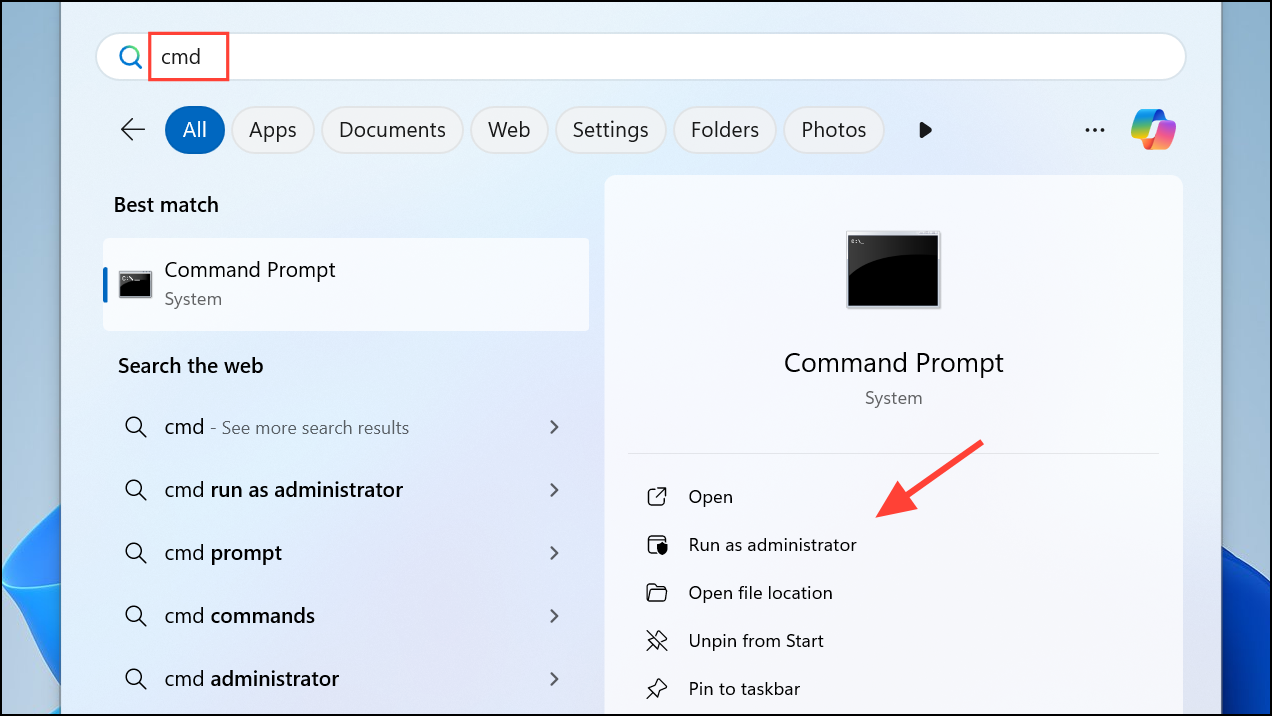
chkdsk C: /f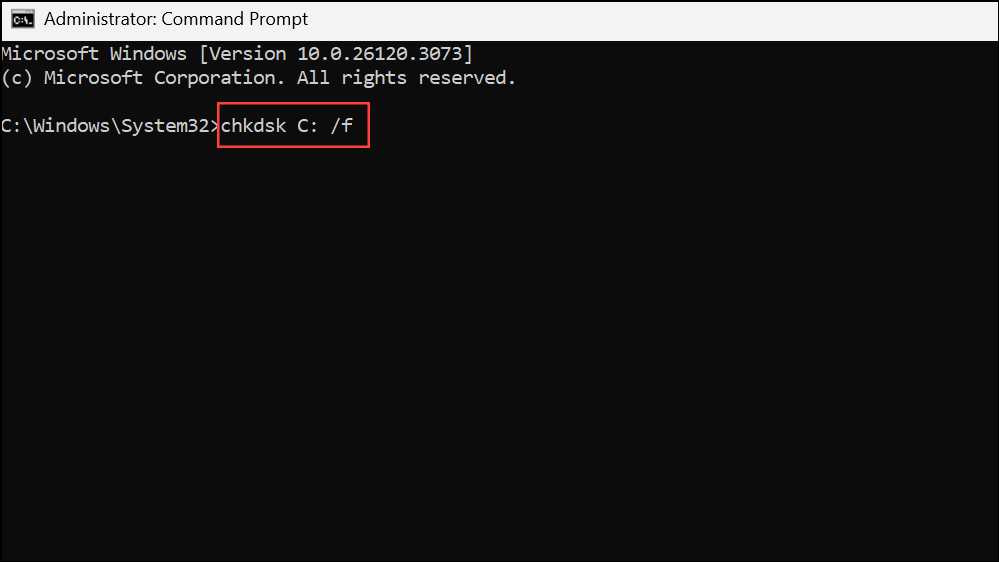
If prompted to schedule the scan at next restart, type Y and reboot your PC. After the disk check completes, test Device Manager again.
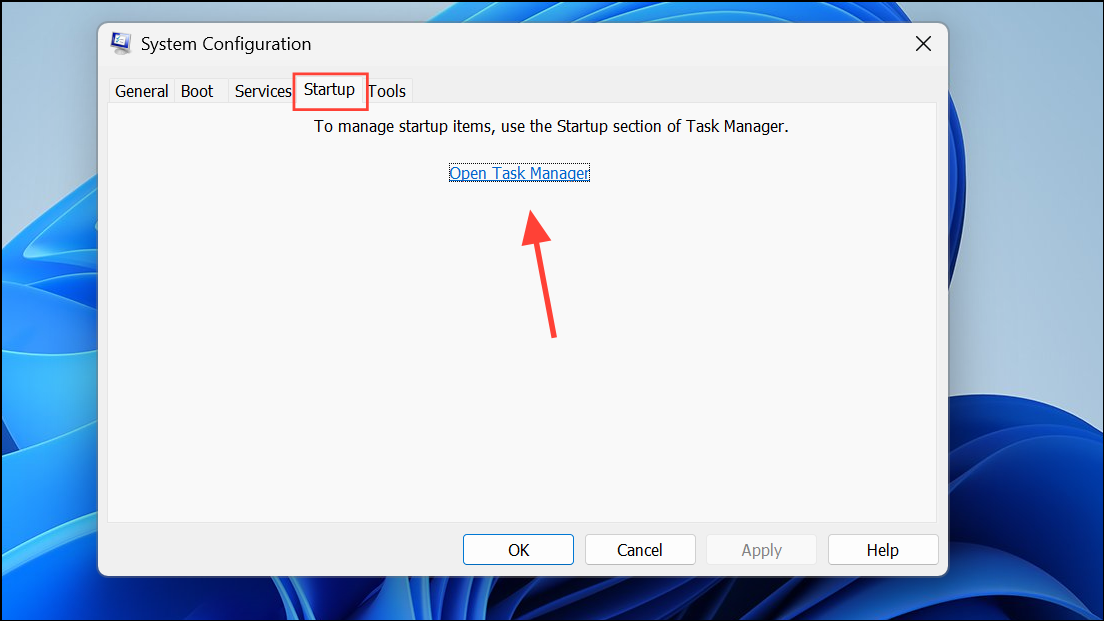
Perform a Clean Boot to Identify Software Conflicts
Third-party applications or services may interfere with Device Manager. Performing a clean boot loads Windows with only essential services and drivers, helping you isolate the cause.
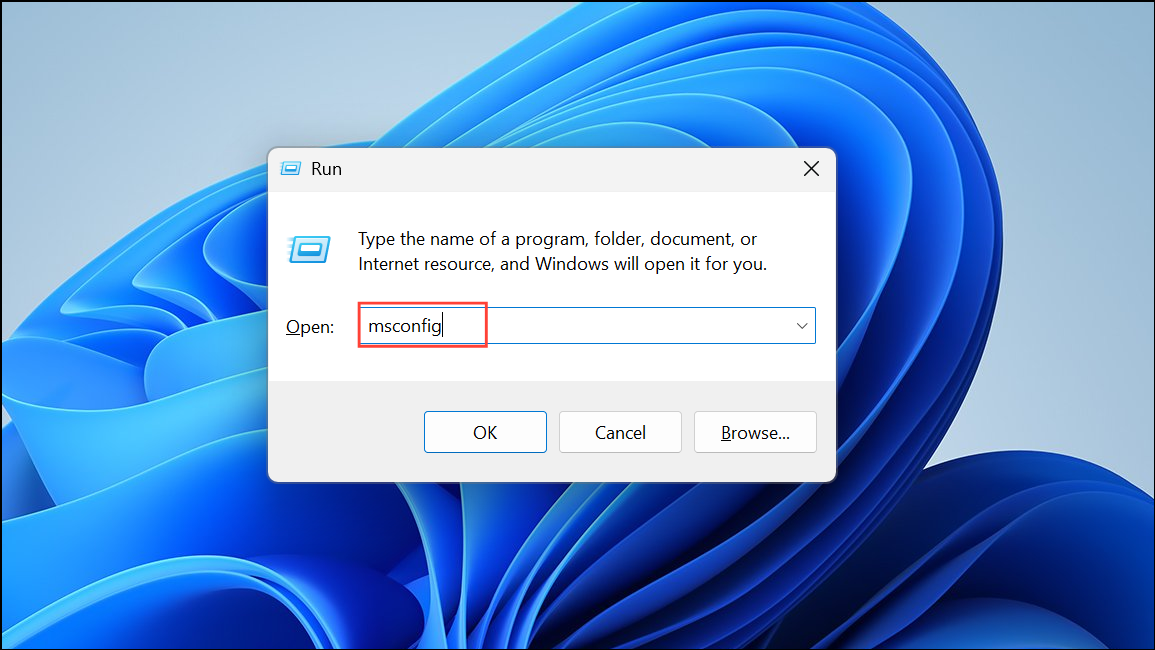
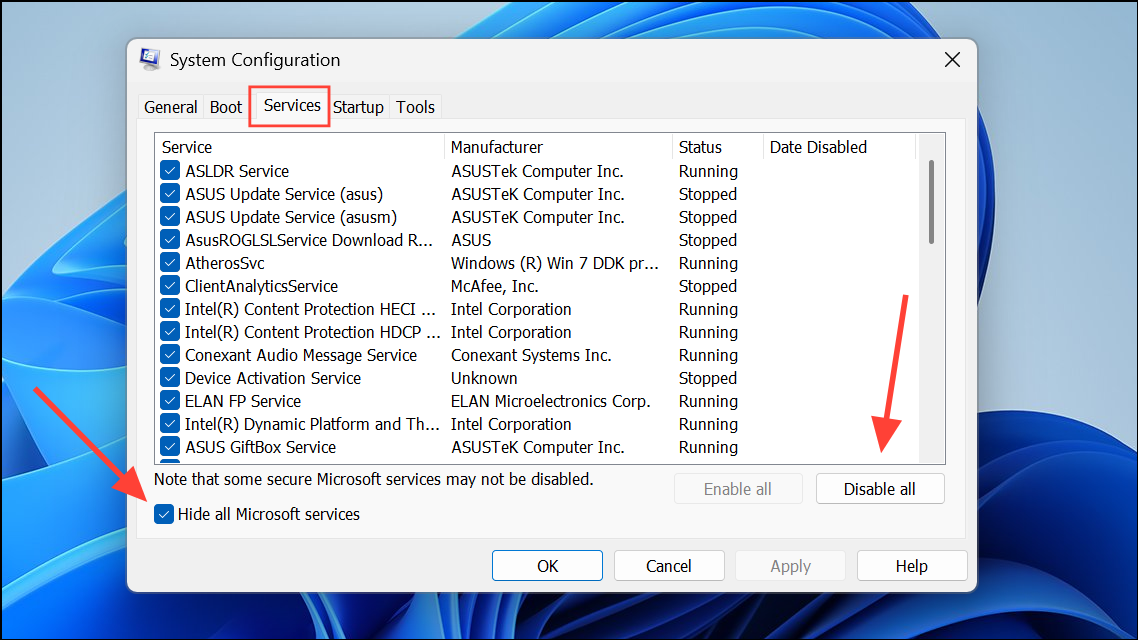
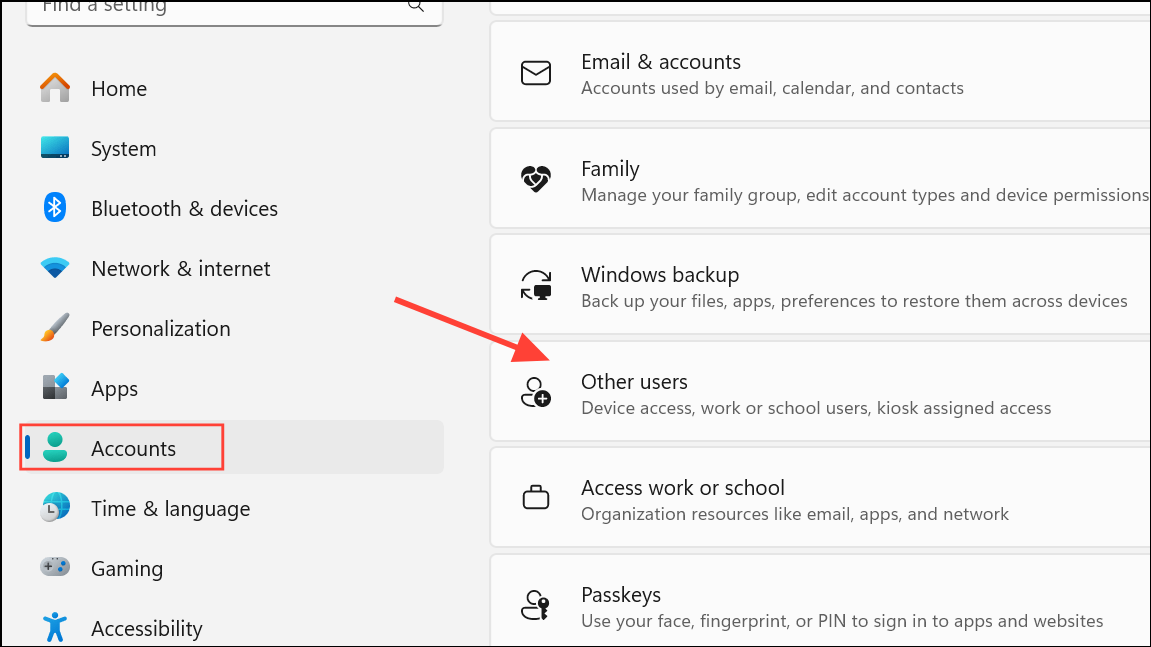
Create a New User Profile
User profile corruption can prevent Device Manager from launching. Creating a new profile helps determine if the problem is user-specific.

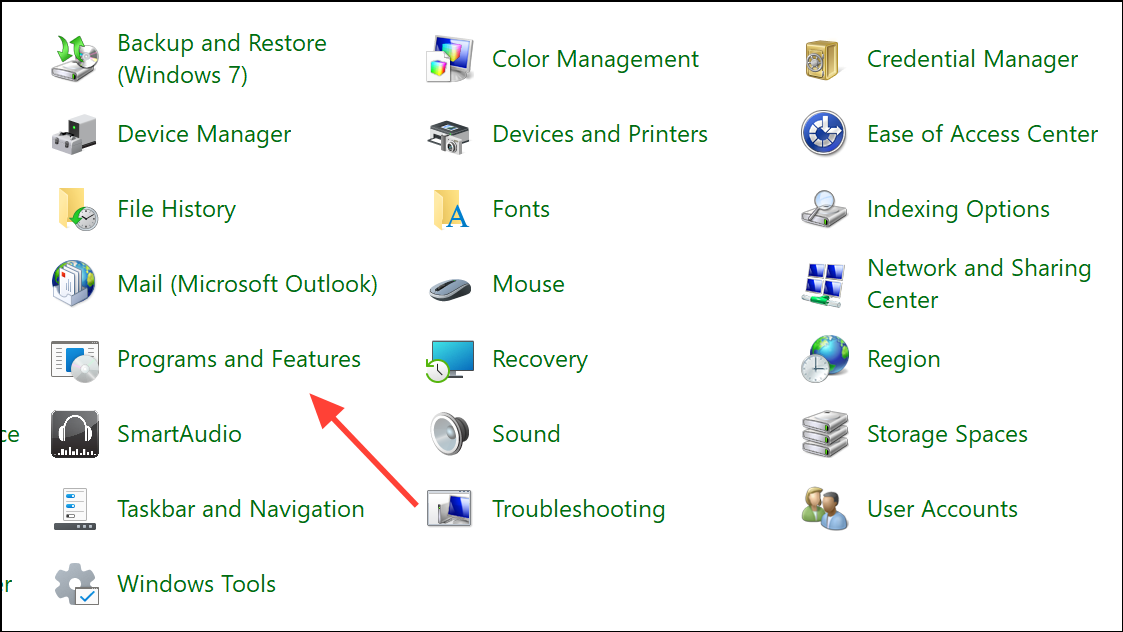
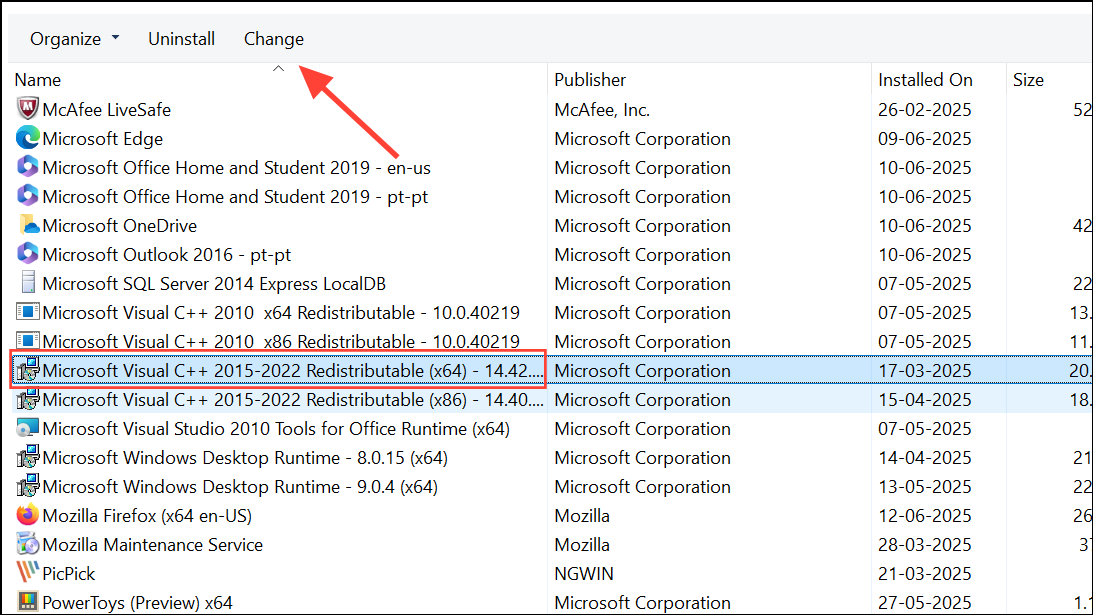
Repair Microsoft Visual C++ Redistributables
Device Manager and other system tools rely on Microsoft Visual C++ libraries. Corruption in these components can cause failures.
Restore Your System or Reset Windows
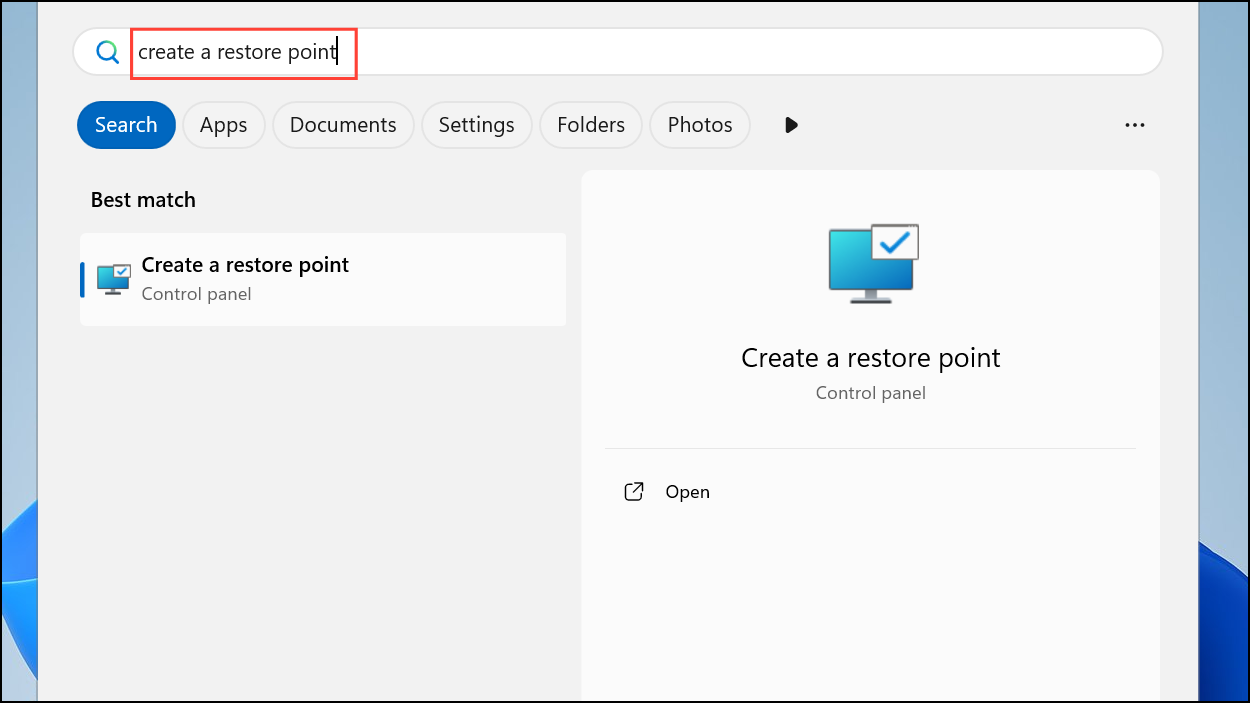
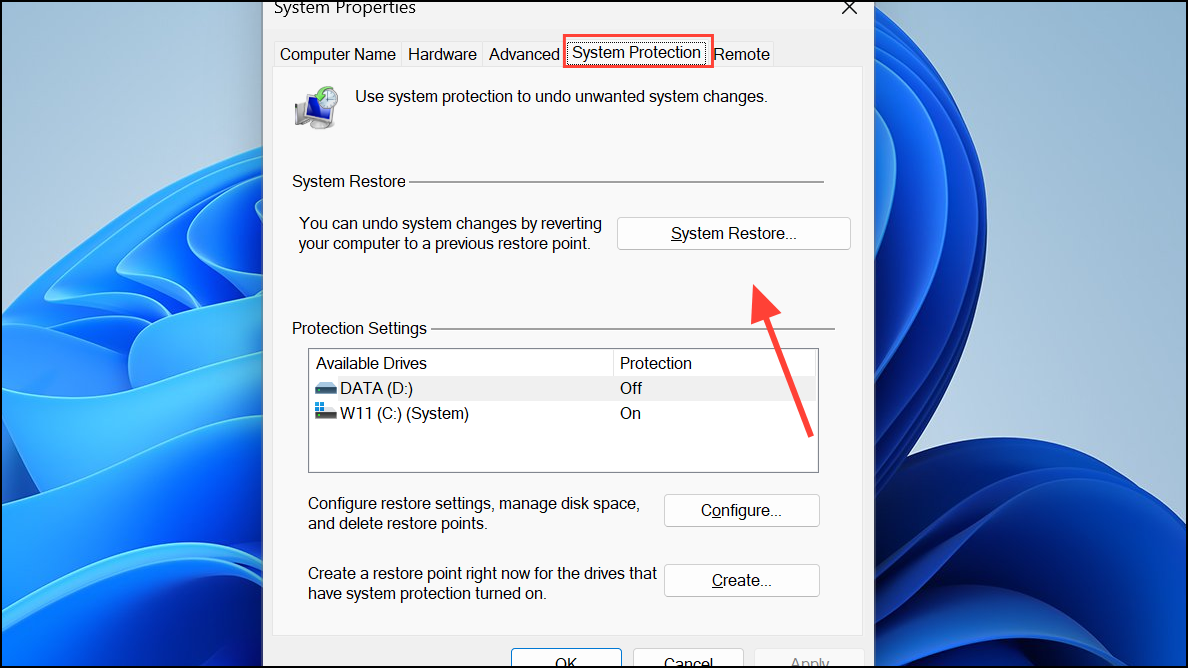
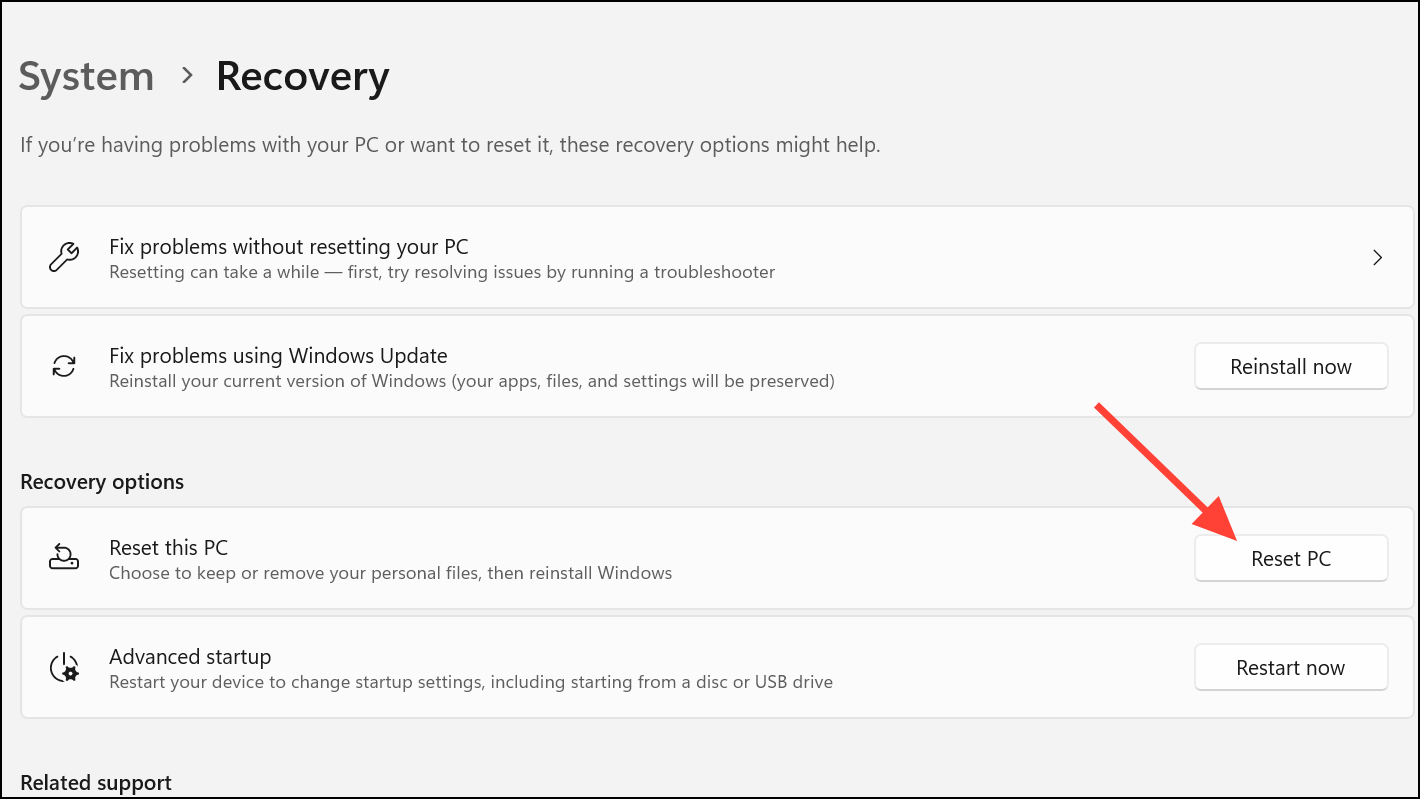
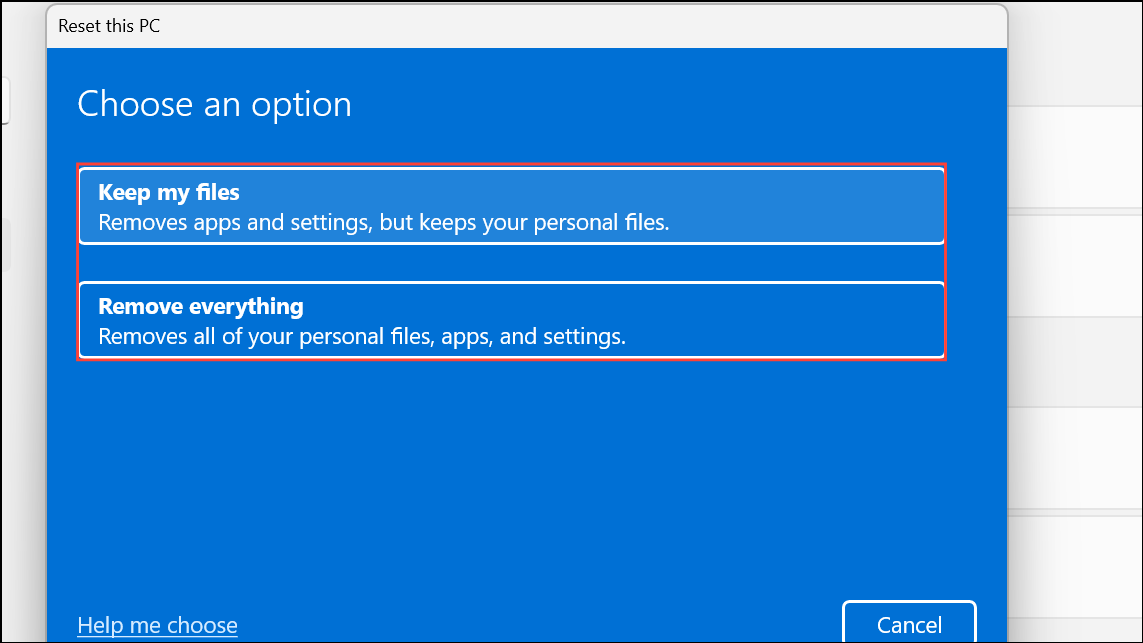
If all other fixes fail, use System Restore or reset your PC to revert system changes that may have caused Device Manager to stop working.
System Restore:
Reset This PC:
Restoring Device Manager access on Windows 11 typically involves addressing system file issues, software conflicts, or profile corruption. Consistent system maintenance and timely updates help prevent these issues from recurring.



