
The SECURE_KERNEL_ERROR with the stop code 0x18B indicates a critical failure in the secure kernel component of Windows 11, which is responsible for maintaining system security during sensitive operations. This error often leads to a Blue Screen of Death (BSOD), disrupting system stability and workflow. Recent Windows 11 updates, particularly versions 24H2, including KB5055523 and KB5053656, have triggered this error for many users.
Microsoft has acknowledged the issue and deployed an automatic Known Issue Rollback (KIR) to revert problematic changes causing the BSOD. Below are detailed steps to apply this fix, along with additional troubleshooting methods to resolve or mitigate the error on both personal and enterprise devices.
Apply the Automatic Known Issue Rollback (KIR) Fix
Microsoft’s KIR feature automatically reverses non-security updates that introduce critical problems like the SECURE_KERNEL_ERROR. This fix is pushed to most personal and unmanaged devices without user intervention but requires the device to be online and restarted to take effect promptly.
Settings > Windows Update and click Check for updates. Repeat this process several times, rebooting your PC after each check, to accelerate the rollout of the fix.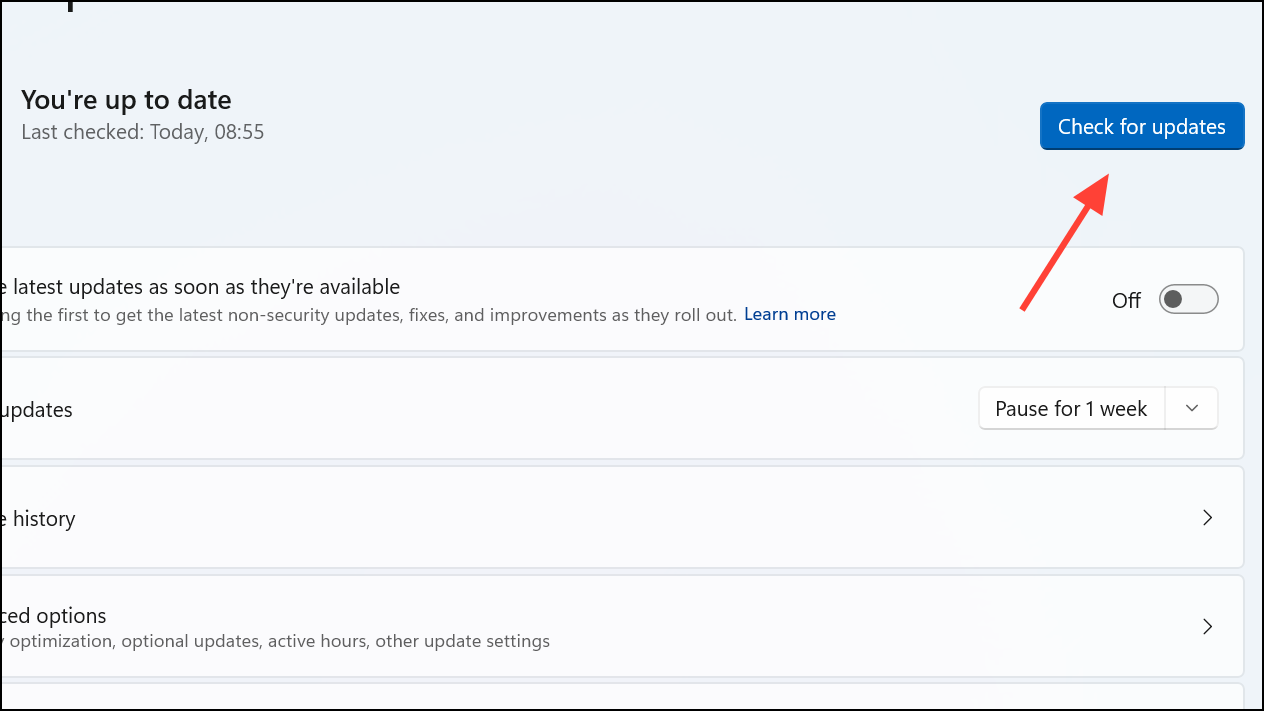
Deploy the Fix in Enterprise or Managed Environments
In corporate or managed environments where devices are controlled via Group Policy, IT administrators must manually deploy the Known Issue Rollback to affected machines.
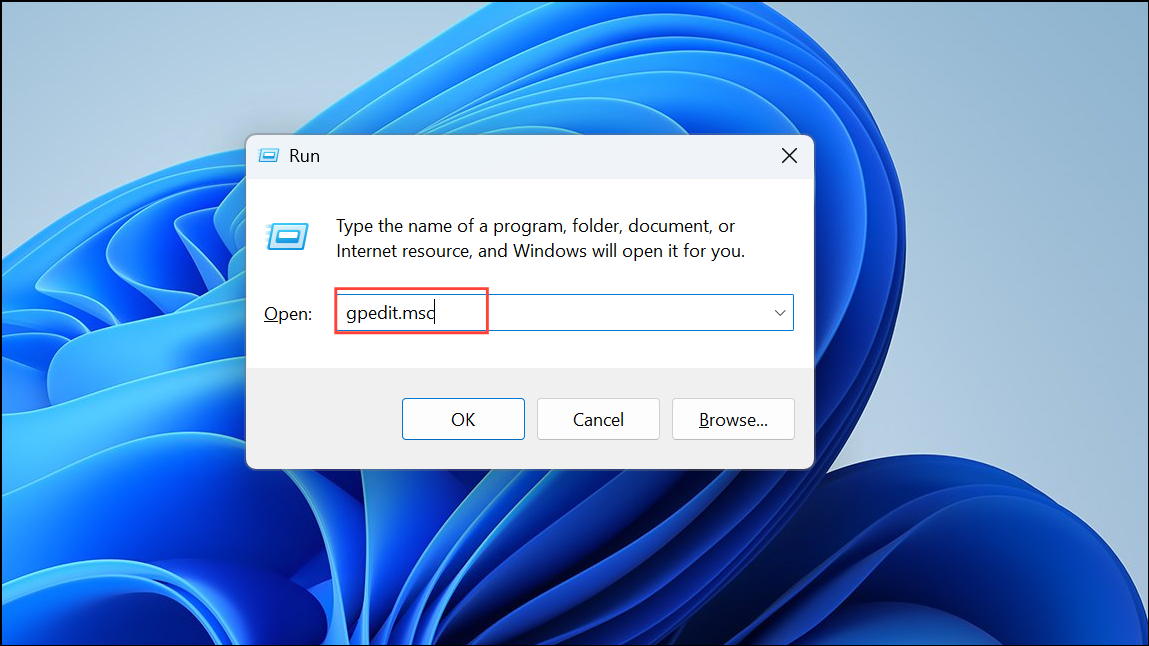
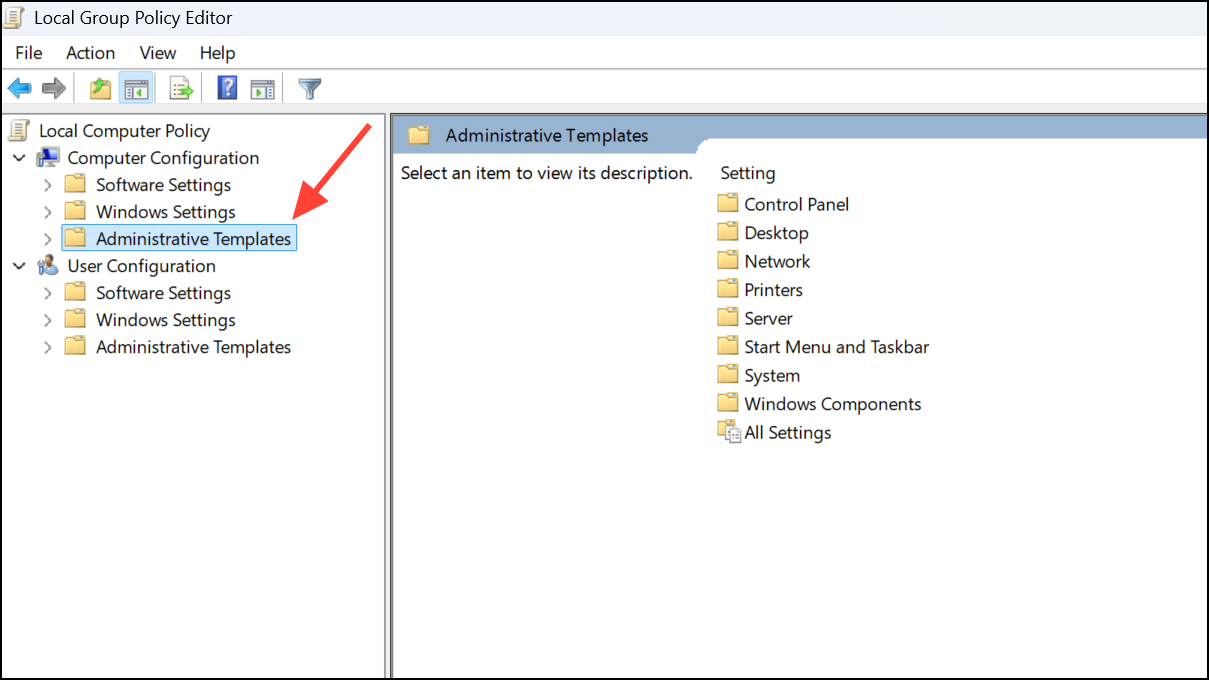
Update Device Drivers
Outdated or incompatible device drivers can exacerbate kernel errors. Ensuring all drivers are up to date can reduce the risk of BSODs.
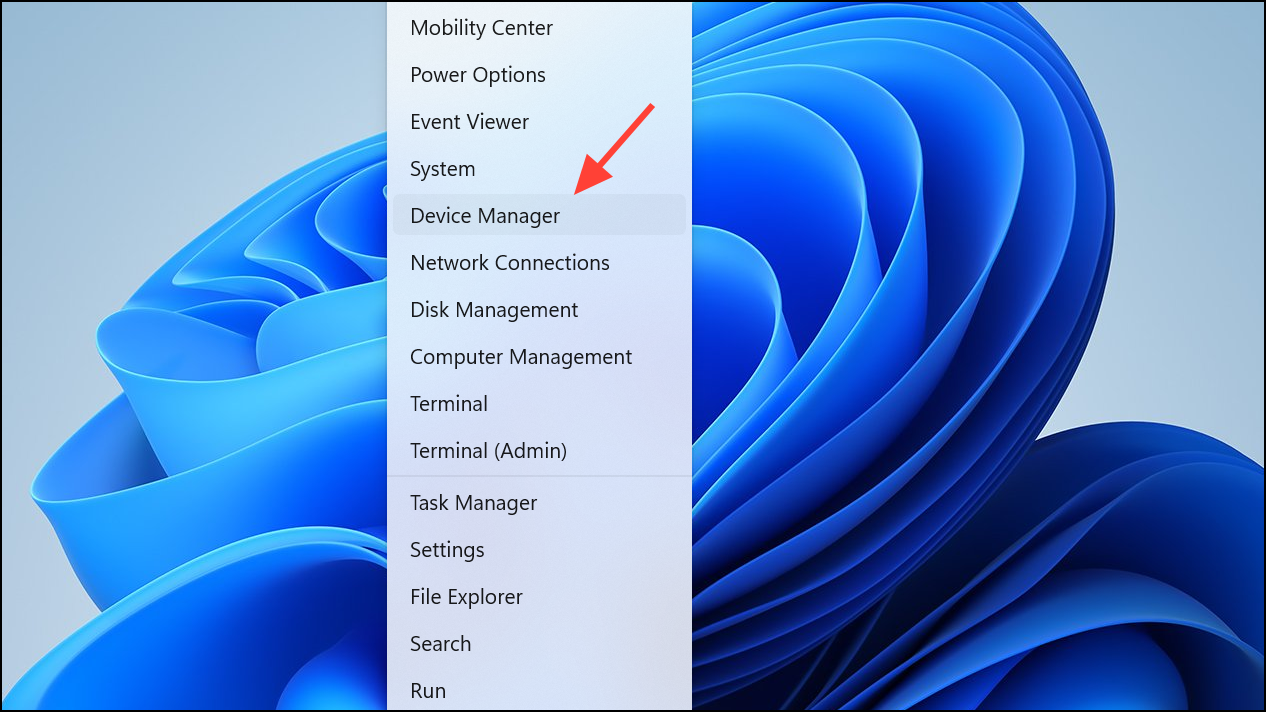
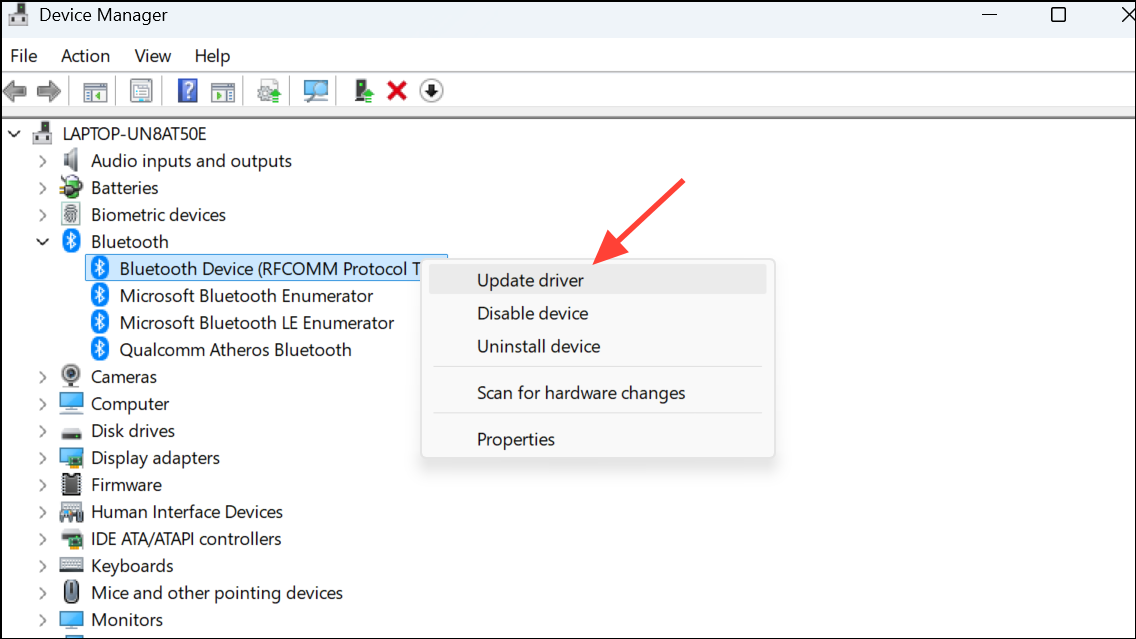
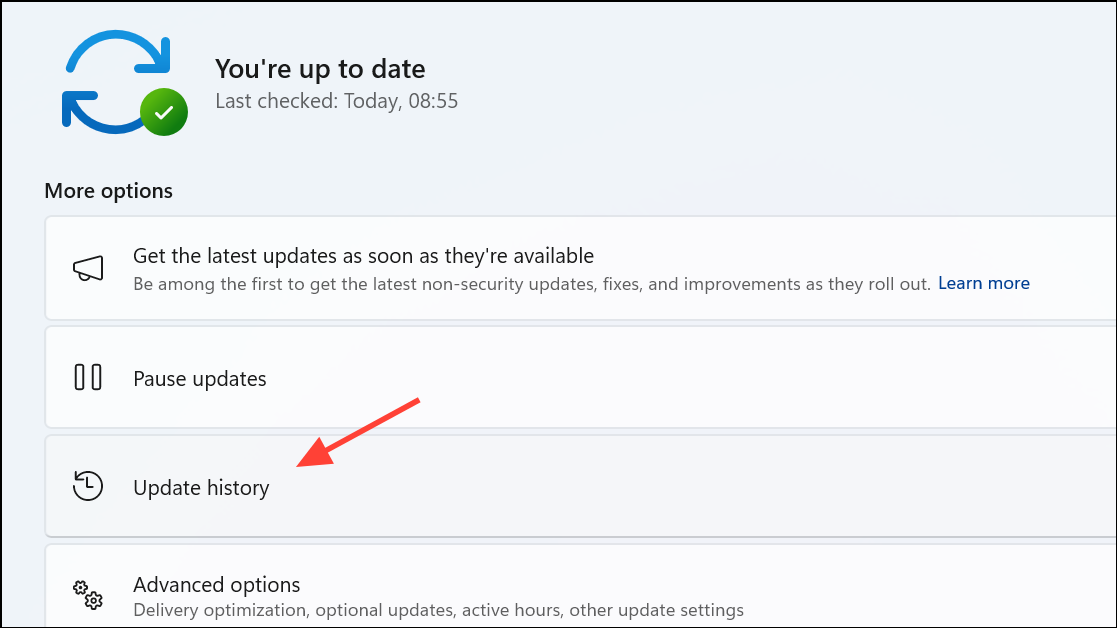
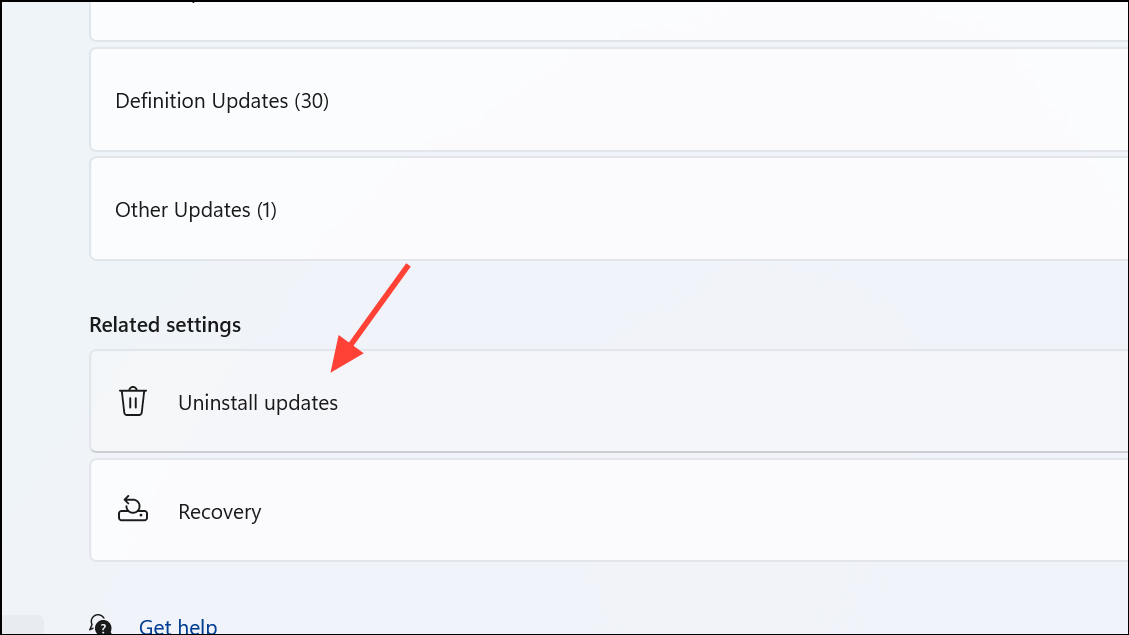
Uninstall Problematic Updates Manually
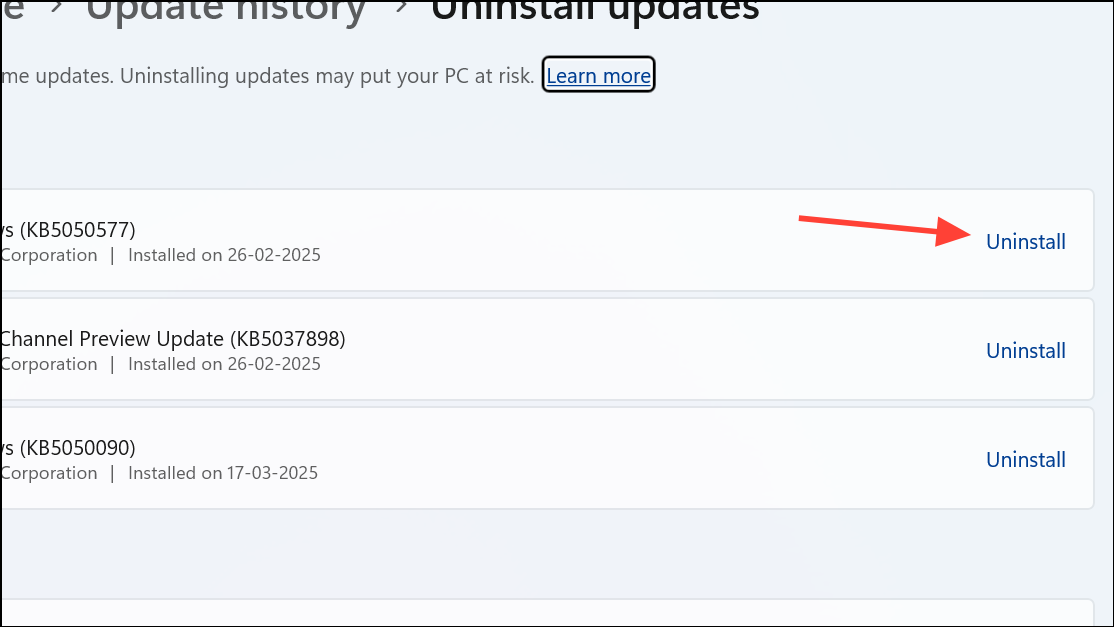
If the BSOD started after installing a specific update and the automatic rollback is not yet applied, uninstalling the update may provide temporary relief.
Check for Firmware Updates
Hardware manufacturers sometimes release firmware updates to fix compatibility issues with Windows updates.
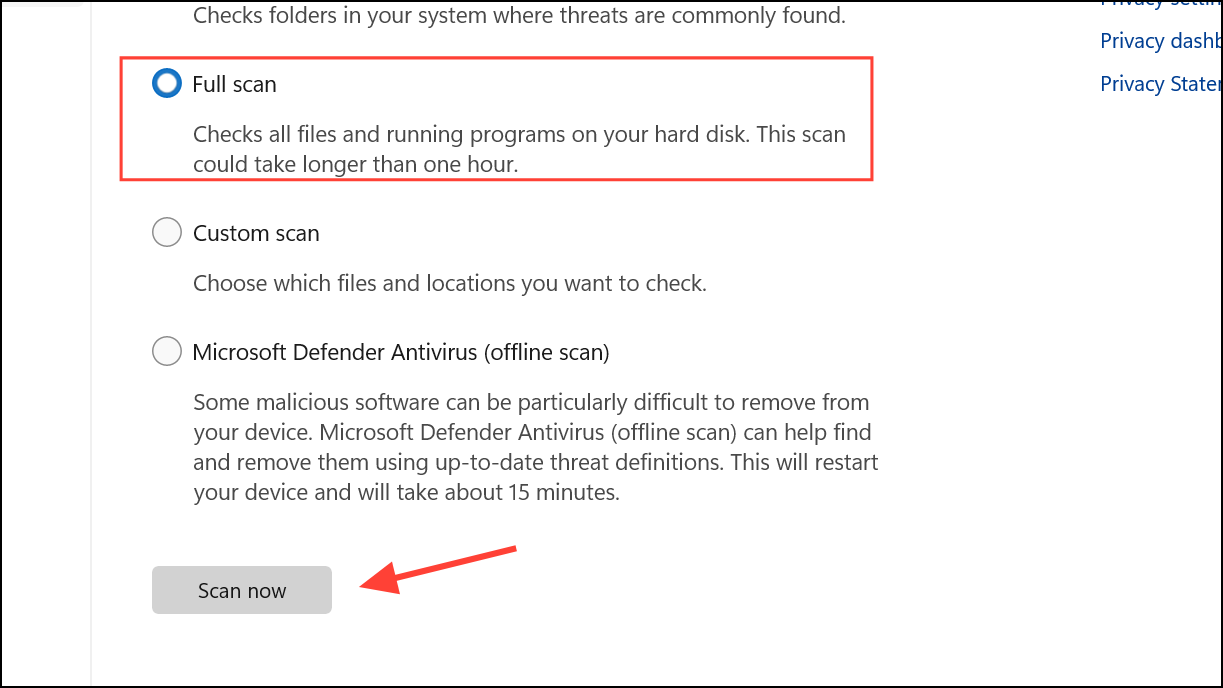
Run System File and Malware Scans
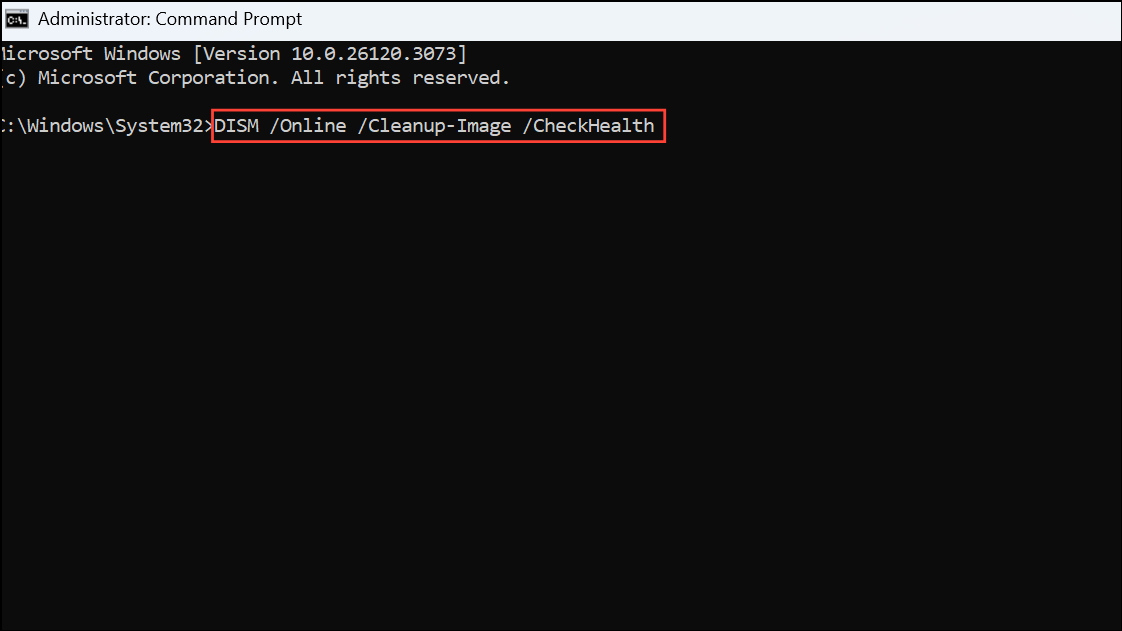
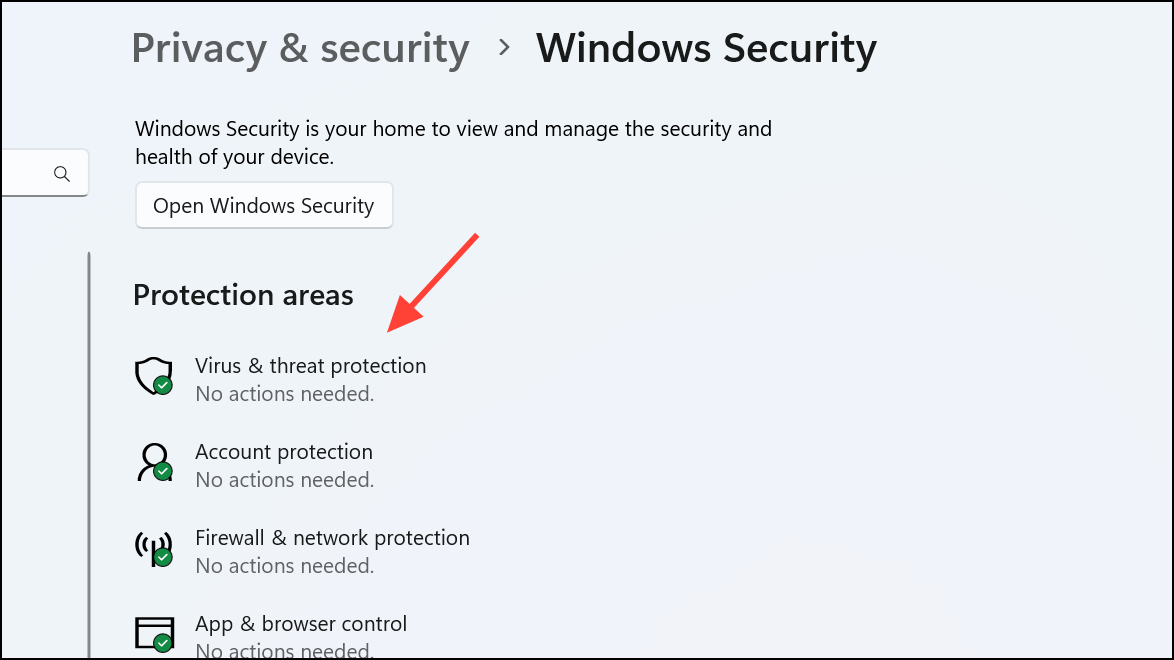
Corrupted system files or malware infections can cause kernel errors. Running system integrity checks and malware scans helps identify and fix such issues.
Windows + S, typing Cmd, right-clicking it, and selecting Run as administrator.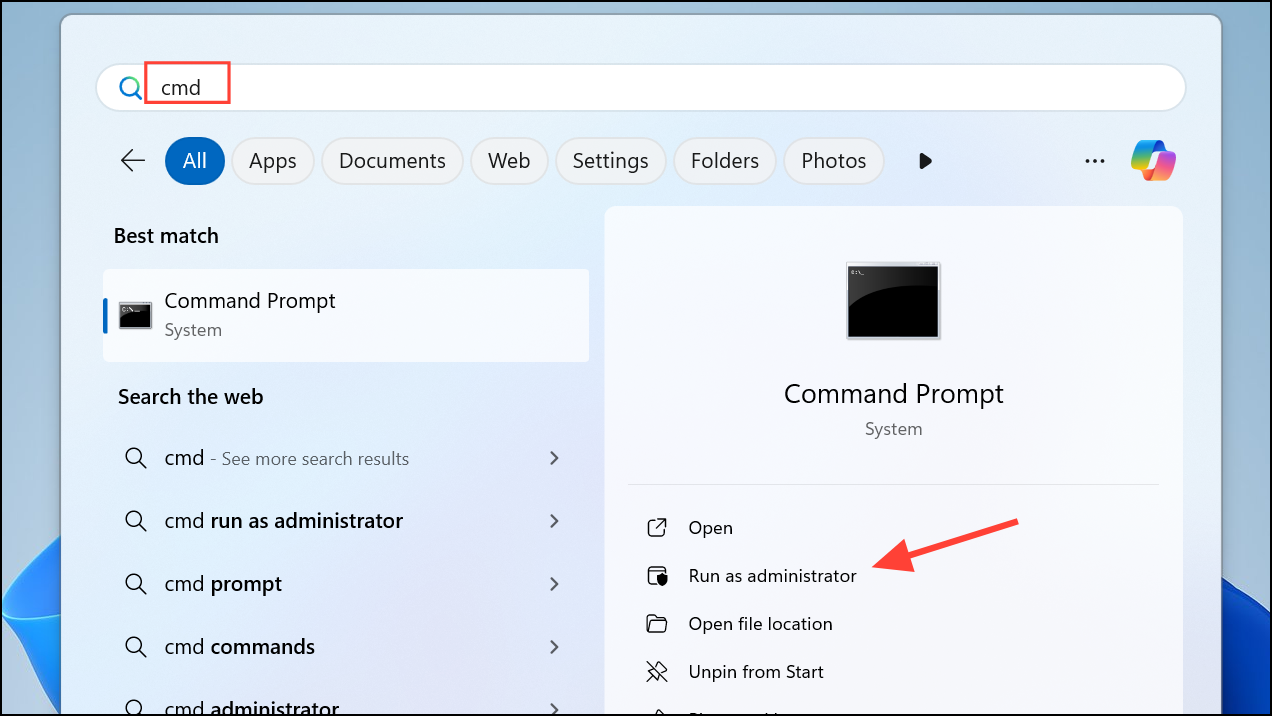
DISM /Online /Cleanup-Image /CheckHealth
DISM /Online /Cleanup-Image /ScanHealth
DISM /Online /Cleanup-Image /RestoreHealth
sfc /scannow
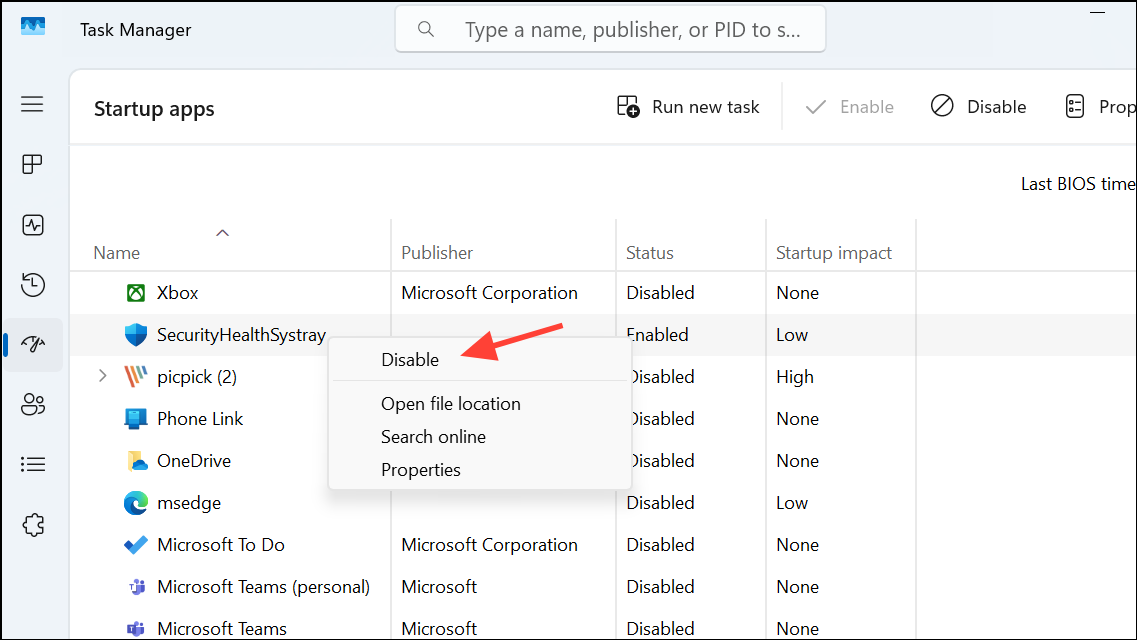
Perform a Clean Boot
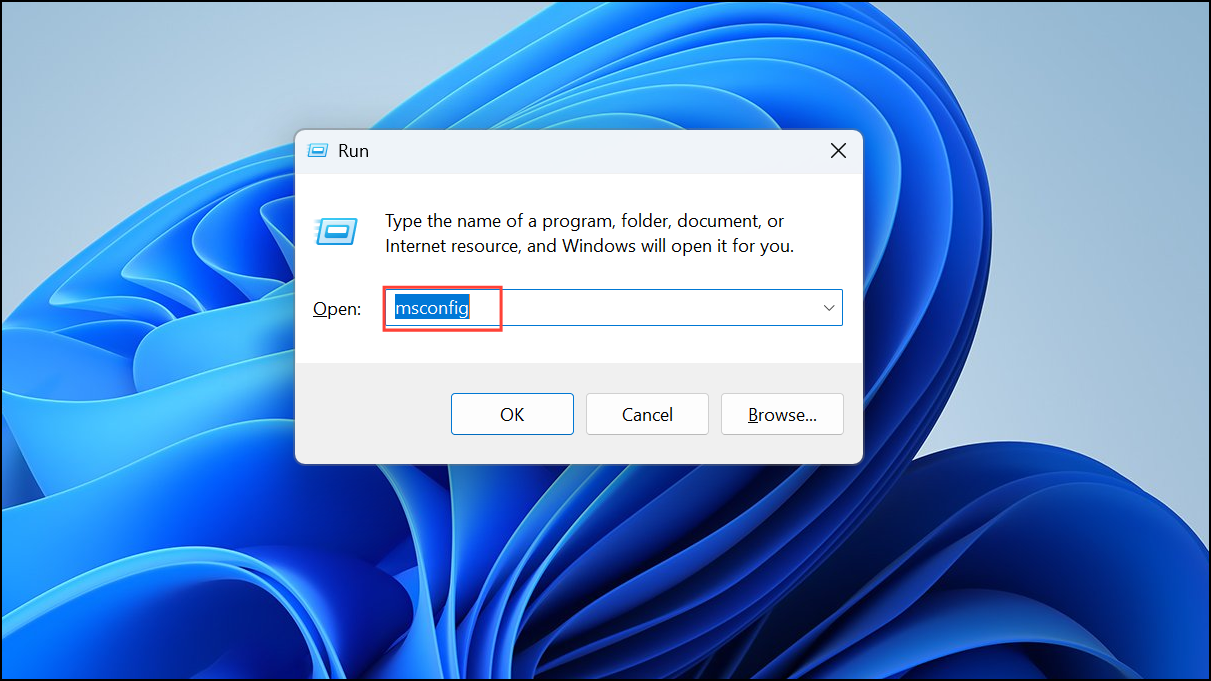
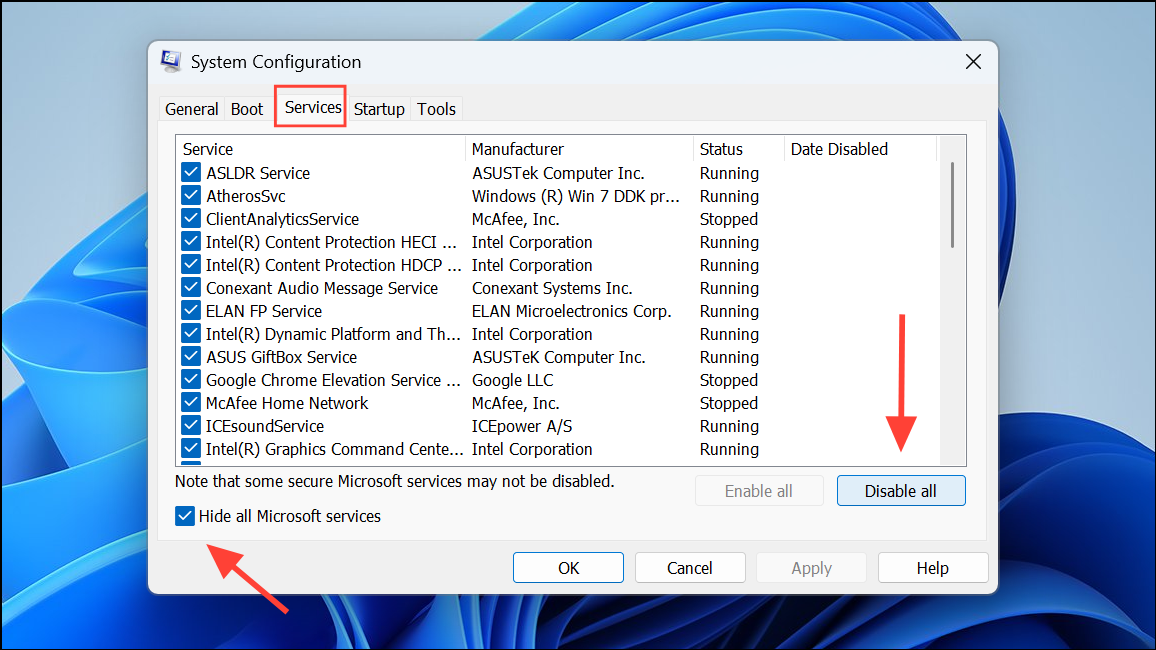
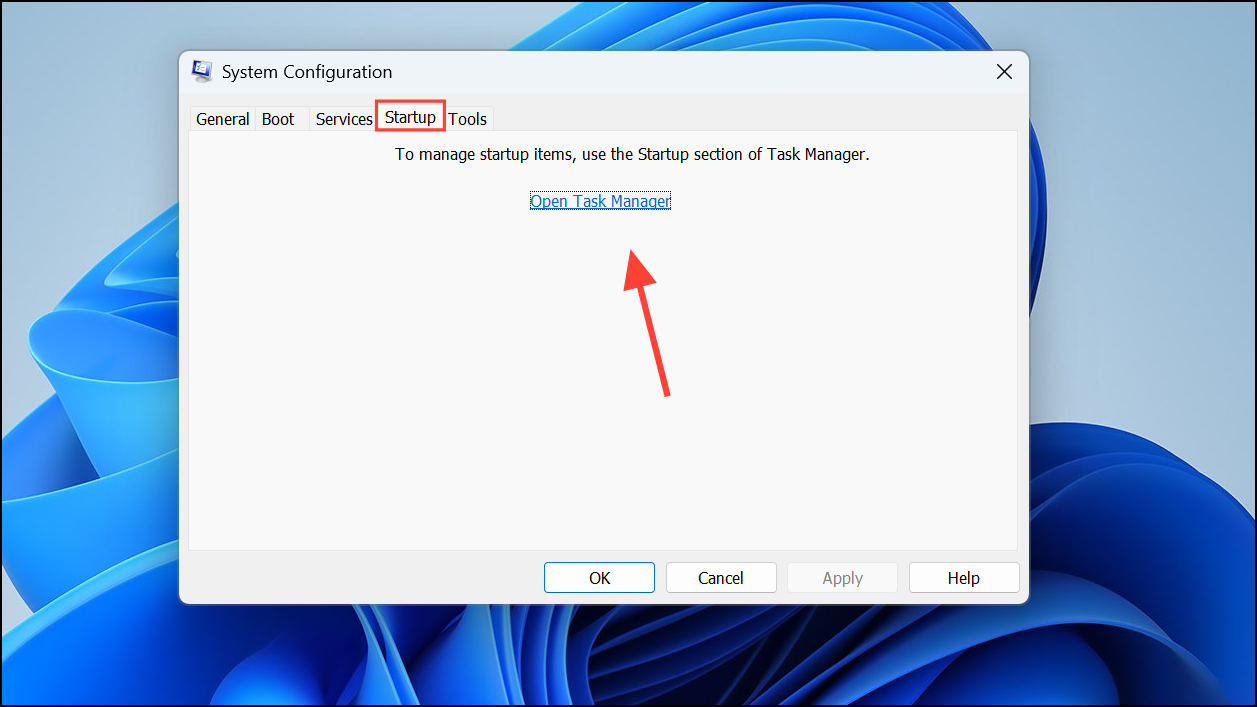
Conflicting third-party applications or services can trigger the SECURE_KERNEL_ERROR. A clean boot disables non-essential software to isolate the cause.
Perform an In-Place Upgrade
If all else fails, repairing Windows 11 through an in-place upgrade reinstalls system files without deleting personal data or installed applications, which can resolve deep system issues causing the BSOD.
Applying Microsoft’s Known Issue Rollback is the most straightforward solution to fix the 0x18B SECURE_KERNEL_ERROR caused by recent Windows 11 updates. Complementing this with driver updates, system scans, and, if necessary, an in-place upgrade ensures your system regains stability and resumes normal operation.



