
The ERROR_PNP_RESTART_ENUMERATION (636) message signals that Windows 11 detected a device removal or disconnection, requiring the system to restart hardware enumeration. This issue often surfaces when connecting or disconnecting peripherals like cameras, microphones, or USB drives, and typically points to driver conflicts, hardware issues, or corrupted system files. Addressing the root cause not only restores device functionality but also prevents recurring interruptions during daily tasks.
Update or Reinstall Device Drivers
Device Manager from the menu that appears. Device Manager provides a comprehensive overview of all hardware connected to your computer and flags problematic drivers with a warning icon.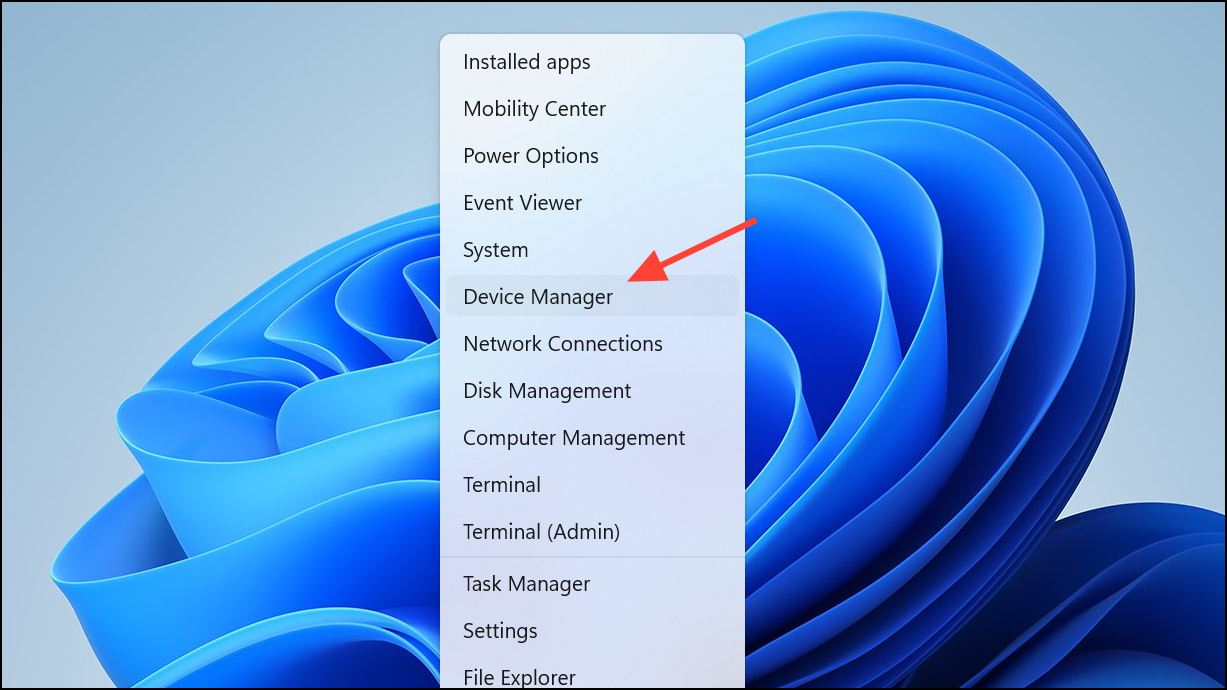
Update driver. In the dialog that appears, choose Search automatically for drivers. Windows will attempt to find and install the latest compatible driver.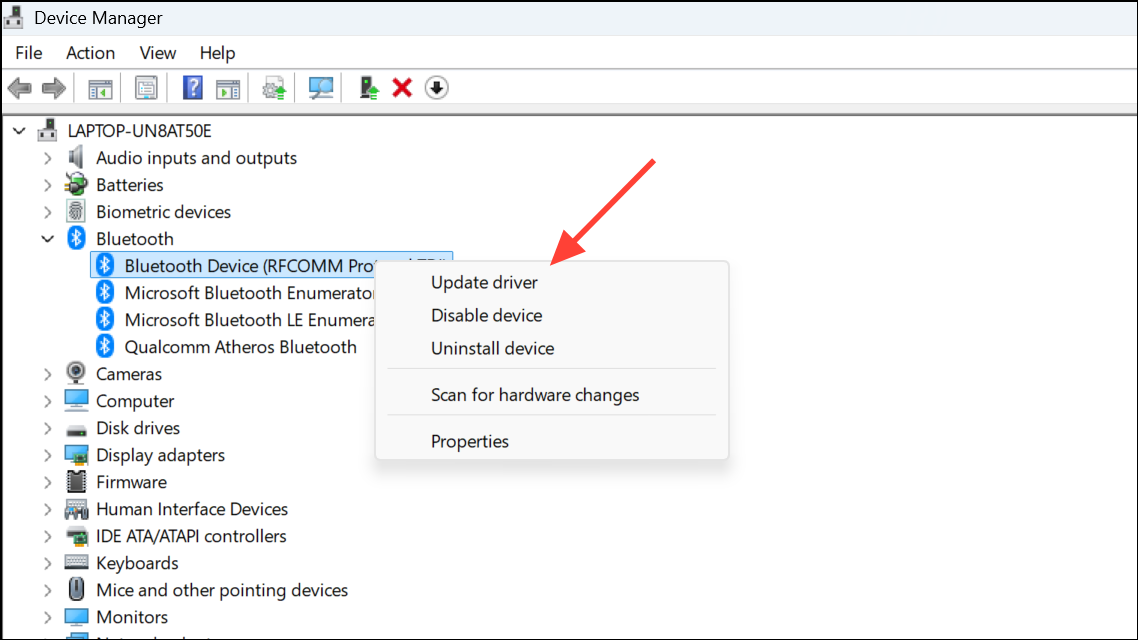
Uninstall device. After uninstalling, restart your PC. Windows will automatically reinstall the device with default drivers, which often resolves persistent conflicts.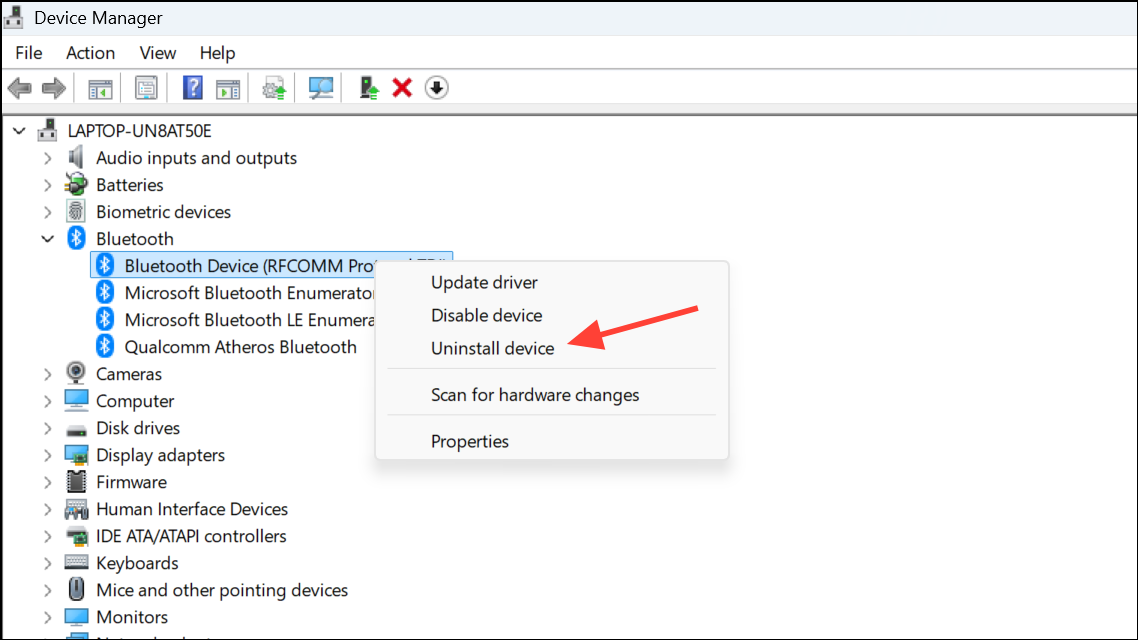
Troubleshoot Hardware Connections
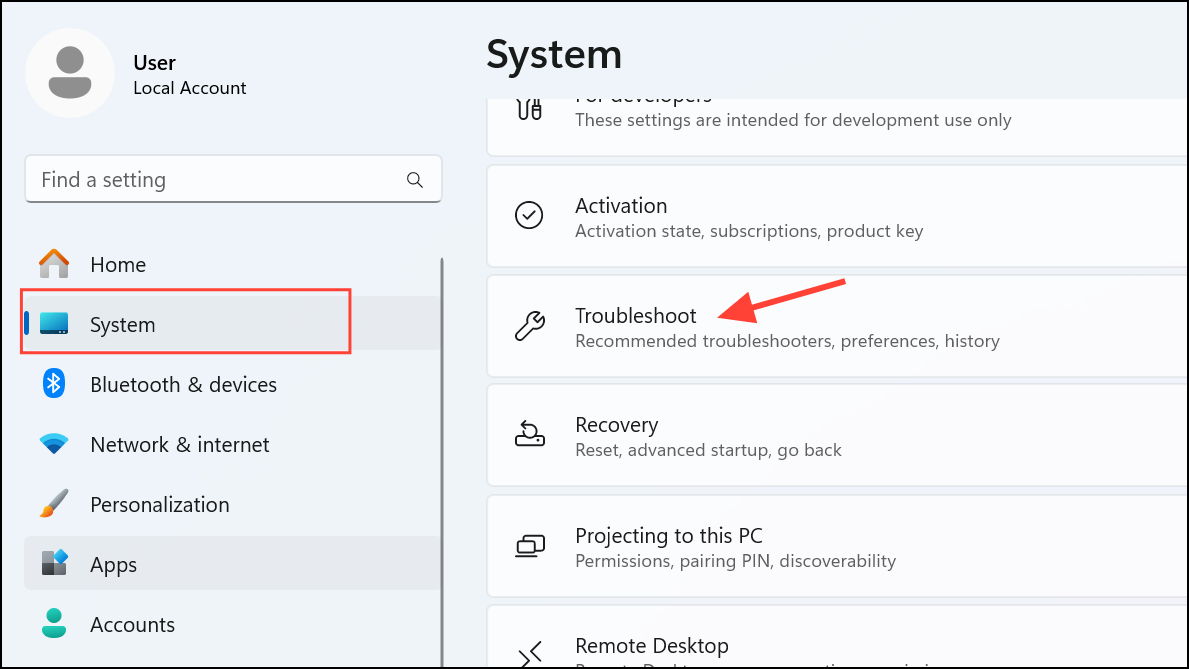
Other troubleshooters. Here, you’ll find dedicated troubleshooters for common hardware categories such as Bluetooth, Camera, and Audio.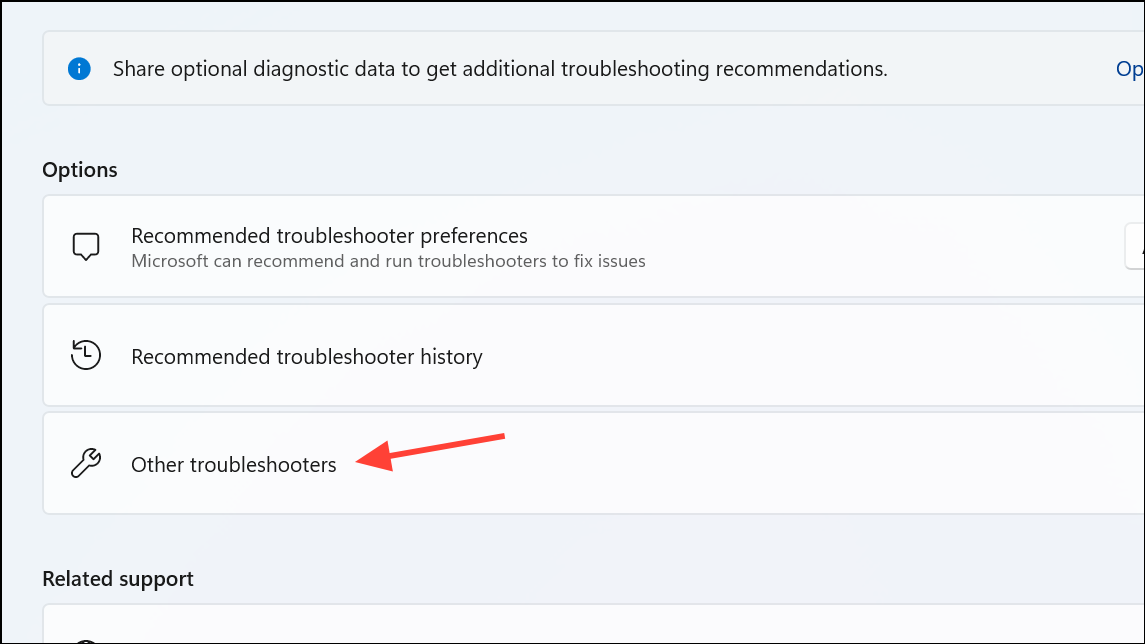
Run next to the troubleshooter that matches your problematic device. Follow the on-screen instructions to allow Windows to detect and resolve hardware conflicts or configuration errors.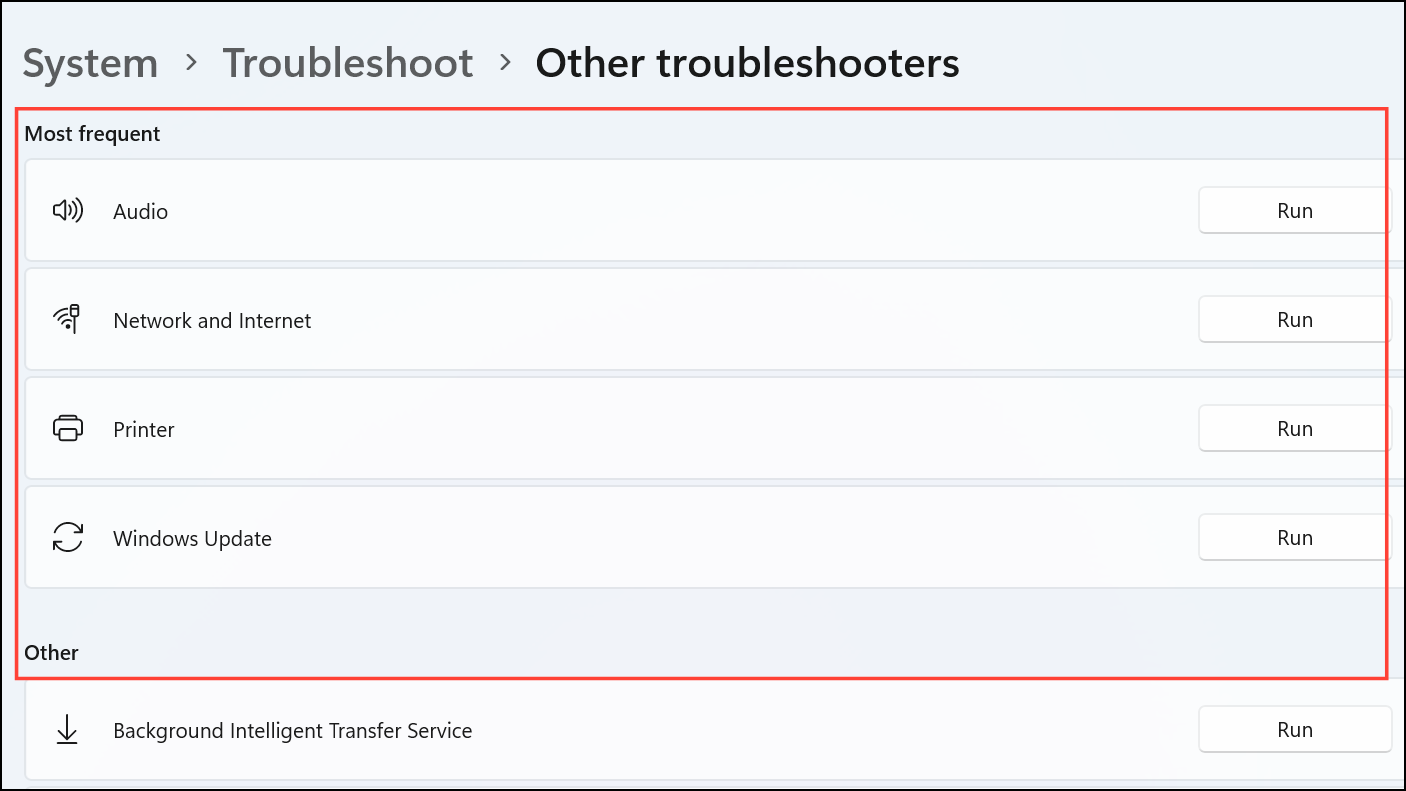
Scan and Repair System File Corruption
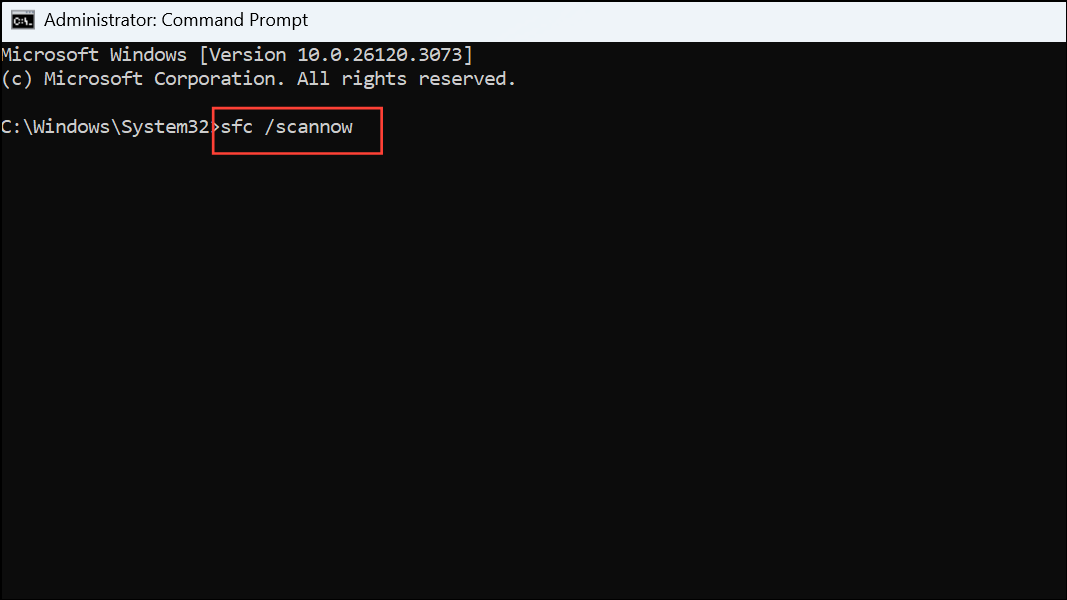
Windows key, type cmd, right-click Command Prompt, and choose Run as administrator. This step is necessary to grant the tool permission to repair protected system files.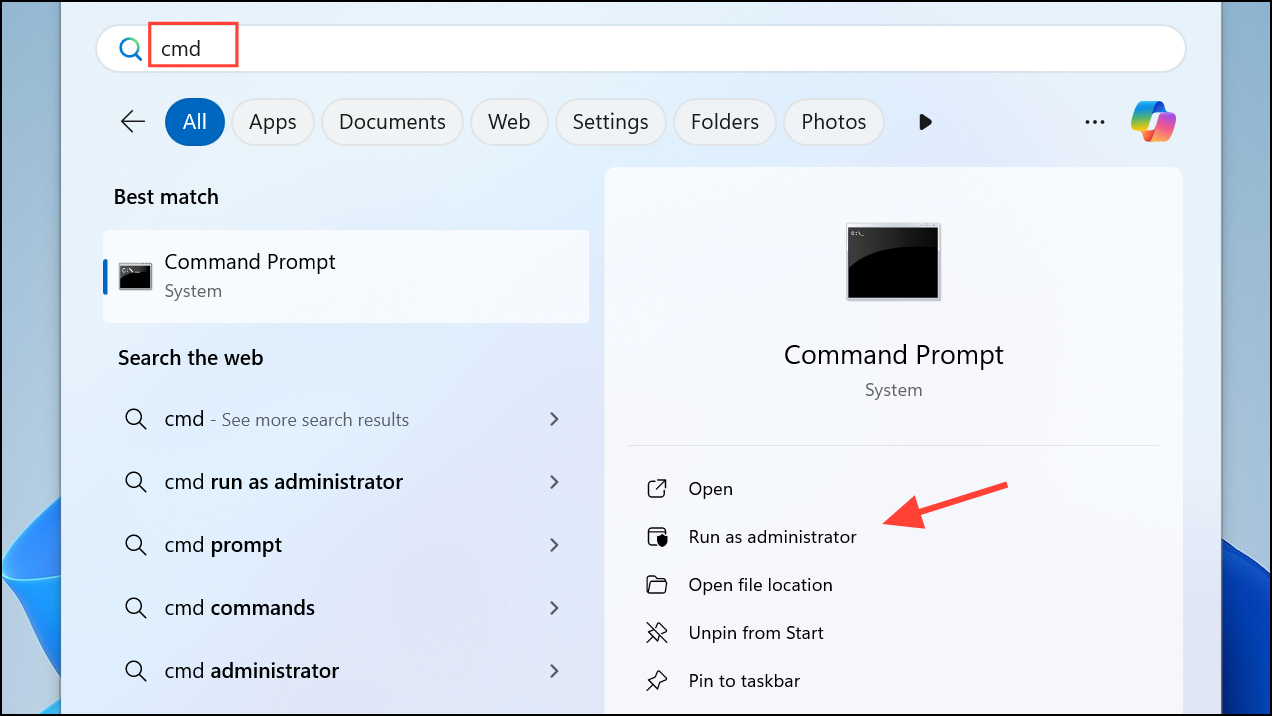
sfc /scannowThis command scans all protected system files and replaces corrupted files with a cached copy. The scan may take several minutes, depending on your system’s speed and file integrity.
Restore Windows to a Previous State
If you set up a restore point earlier, before the problem started, you can use it to revert your PC to when the problem did not exist.
Windows key, type Control Panel, and open it. Go to Recovery, then select Open System Restore.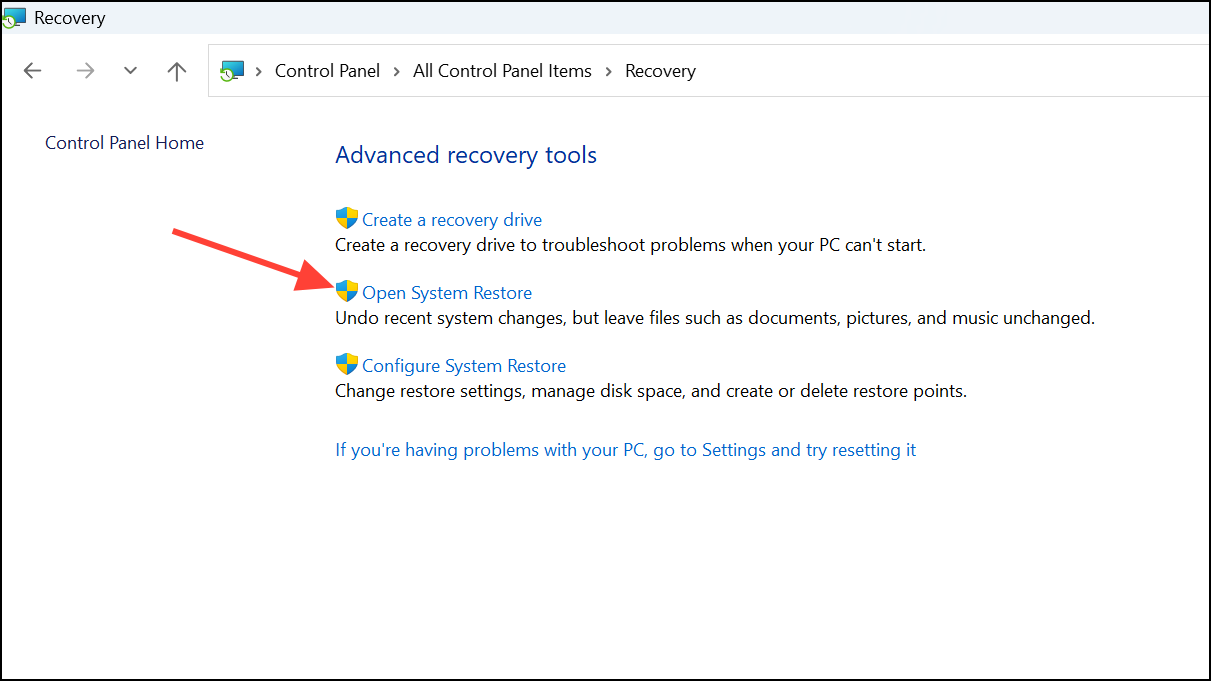
Next.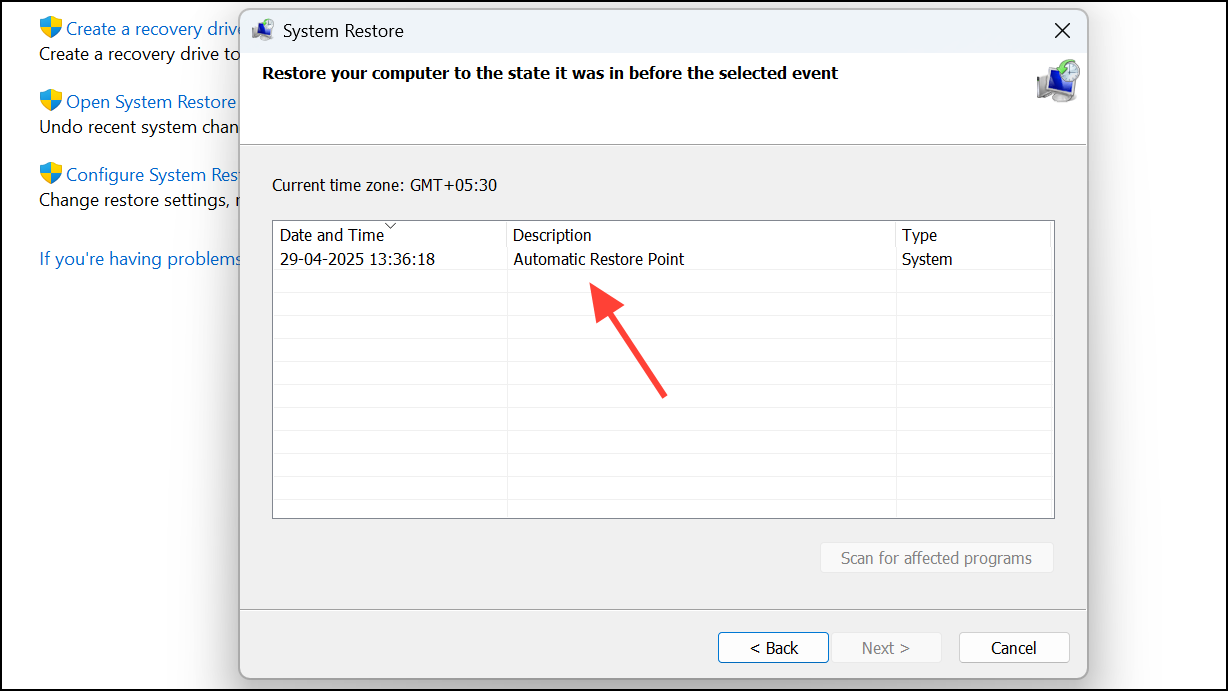
Advanced Troubleshooting (Optional)
If the previous methods do not resolve the issue, consider these advanced steps:
- Check your BIOS settings to ensure hardware configuration matches your system’s requirements. Incorrect SATA or USB settings can interfere with device enumeration.
- Disable Fast Startup via
Control Panel > Power Options > System Settings, then uncheckTurn on fast startup. This can help if device initialization is inconsistent during boot. - Use specialized driver update tools or third-party repair software if you suspect deeply rooted driver conflicts.
Regularly updating drivers and keeping system files intact prevents most device enumeration errors. If the error persists after these steps, consider seeking help from Microsoft support or a trusted technician for further diagnosis.



