

Ethernet connectivity on Windows 11 can abruptly stop functioning after system updates, hardware changes, or network misconfigurations, leaving users with unreliable or no wired internet access. This issue disrupts everything from file transfers to online gaming, and often persists even after basic troubleshooting. Below are detailed steps and proven fixes, prioritized by effectiveness, to restore a stable Ethernet connection on Windows 11.
Update or Reinstall Ethernet Adapter Drivers
Outdated or incompatible network drivers frequently cause Ethernet failures, especially after Windows updates. Installing the latest compatible drivers directly from your hardware or motherboard manufacturer’s website often resolves persistent connection drops, “No Internet” errors, or adapters not being detected.
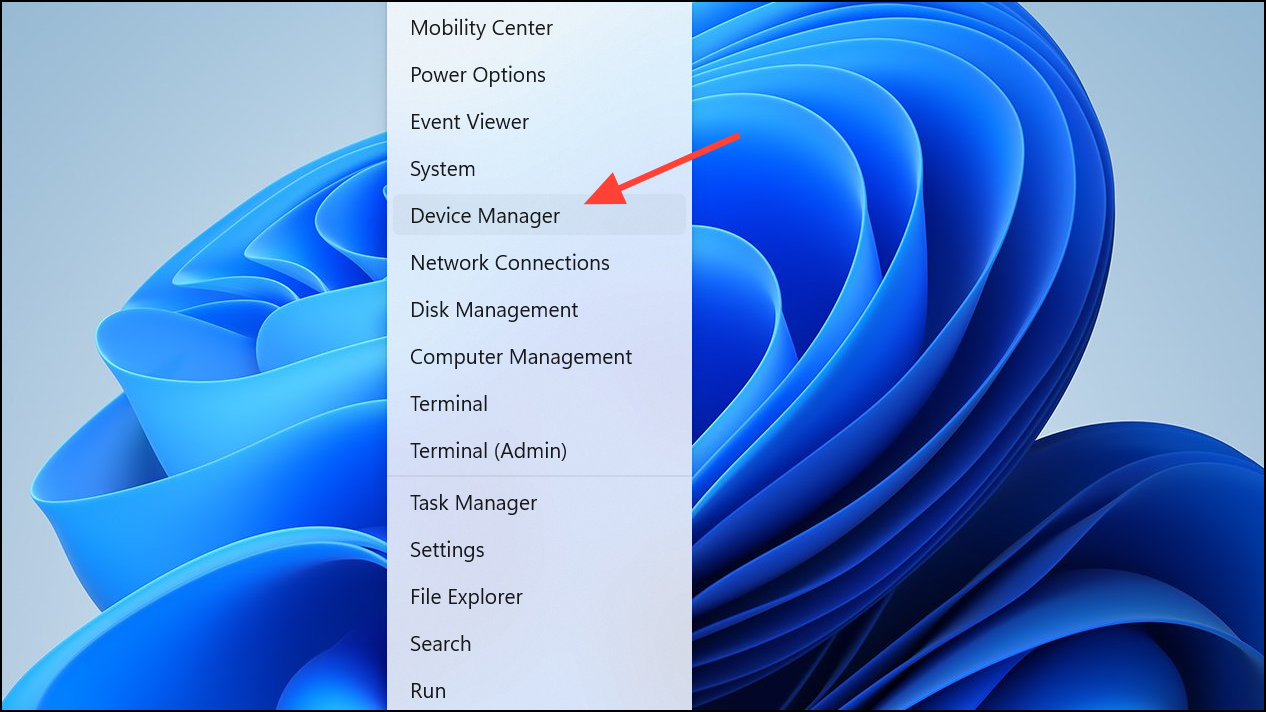
Network adapters and note the name of your Ethernet device (e.g., Realtek PCIe GbE Family Controller).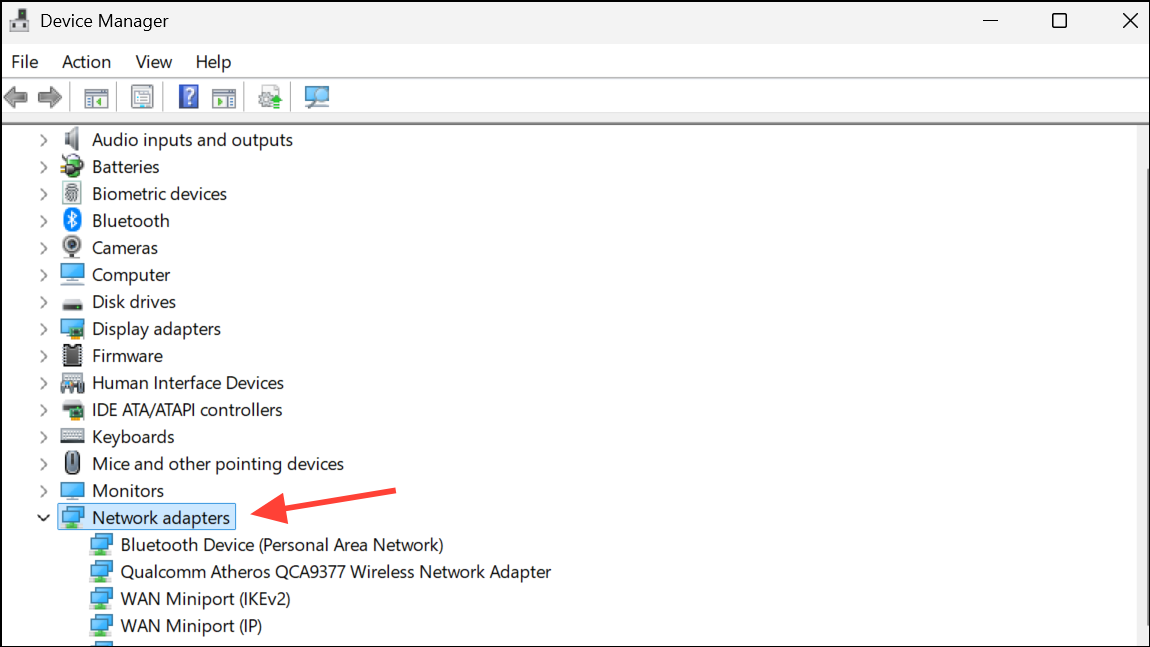
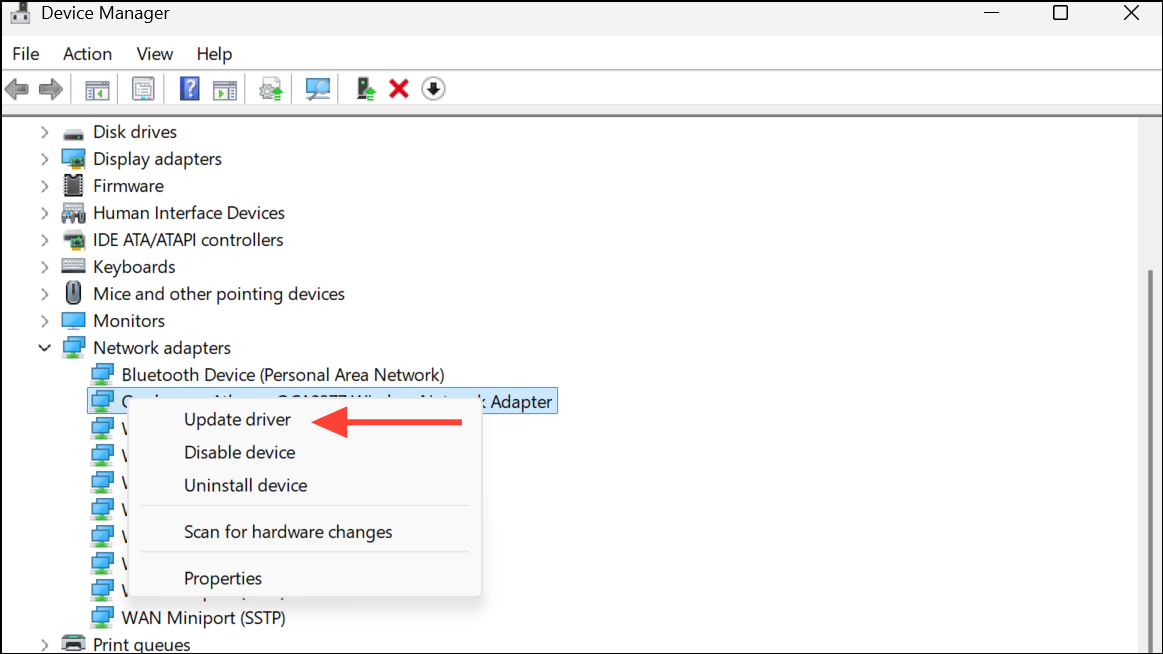
Browse my computer for drivers and point to the downloaded file. If the latest driver is already installed or updating does not help, right-click the adapter and select Uninstall device. Restart your PC; Windows will attempt to reinstall the driver automatically. If not, manually install the driver you downloaded.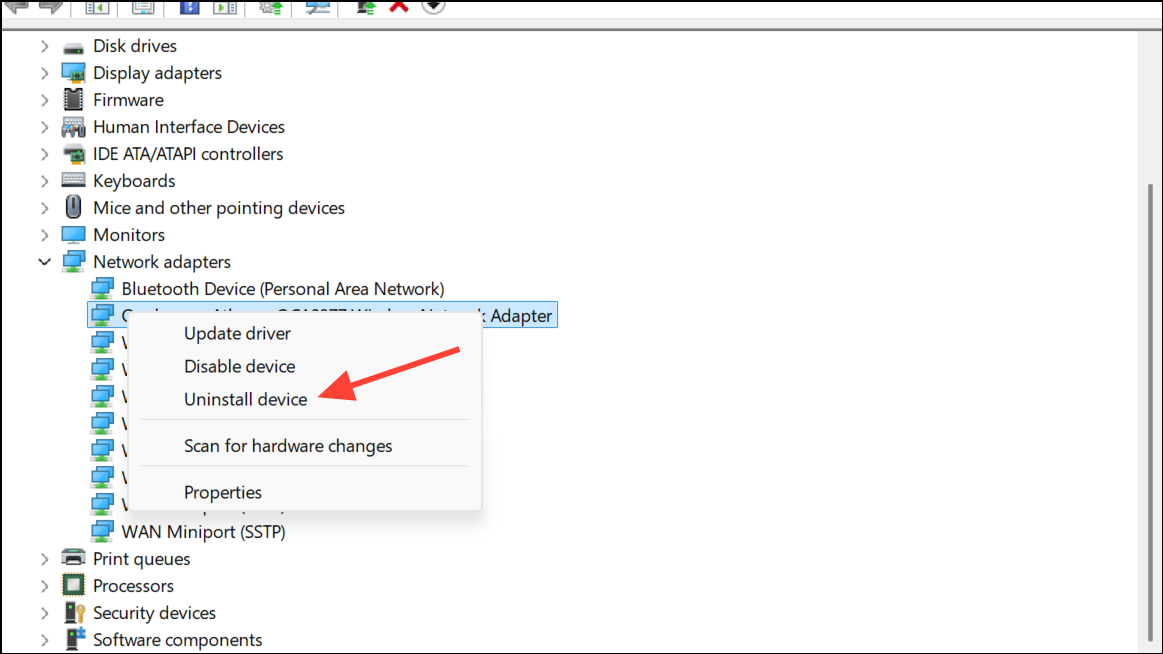
Run the Network Troubleshooter and Network Reset
Windows 11 includes built-in troubleshooting tools that can automatically diagnose and fix common network issues, reset network stacks, and restore default settings.
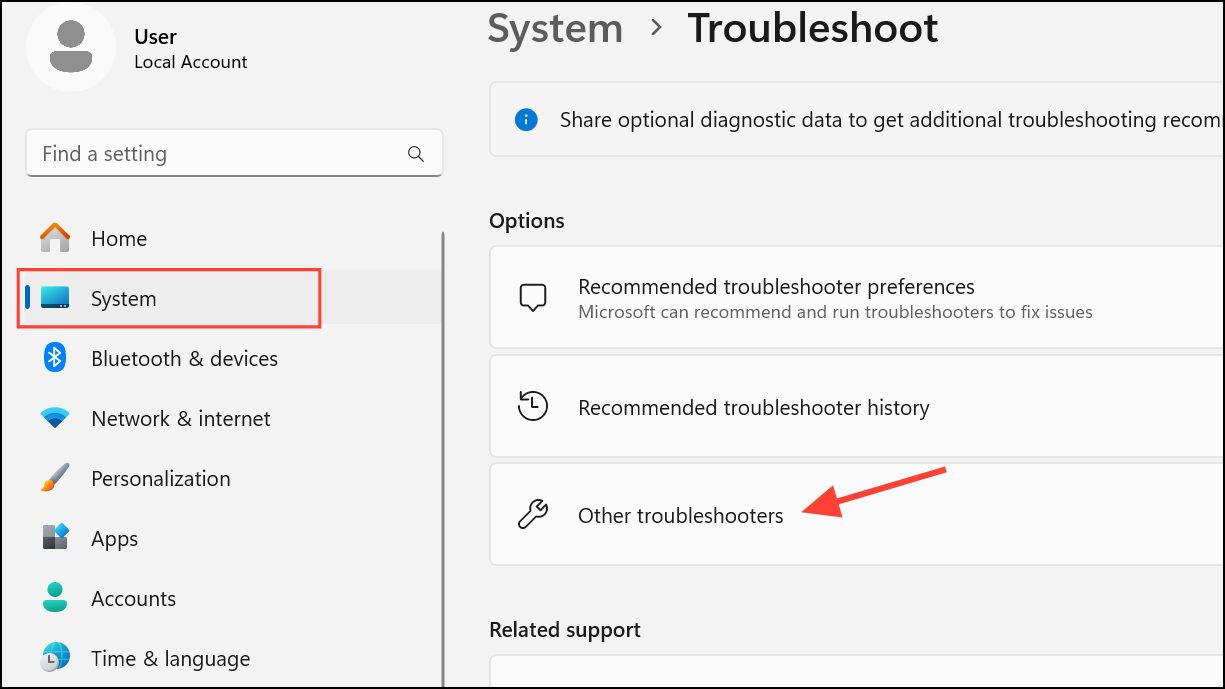
Run next to Network and Internet and follow the prompts. The troubleshooter attempts to identify and fix issues such as invalid IP configurations or gateway errors.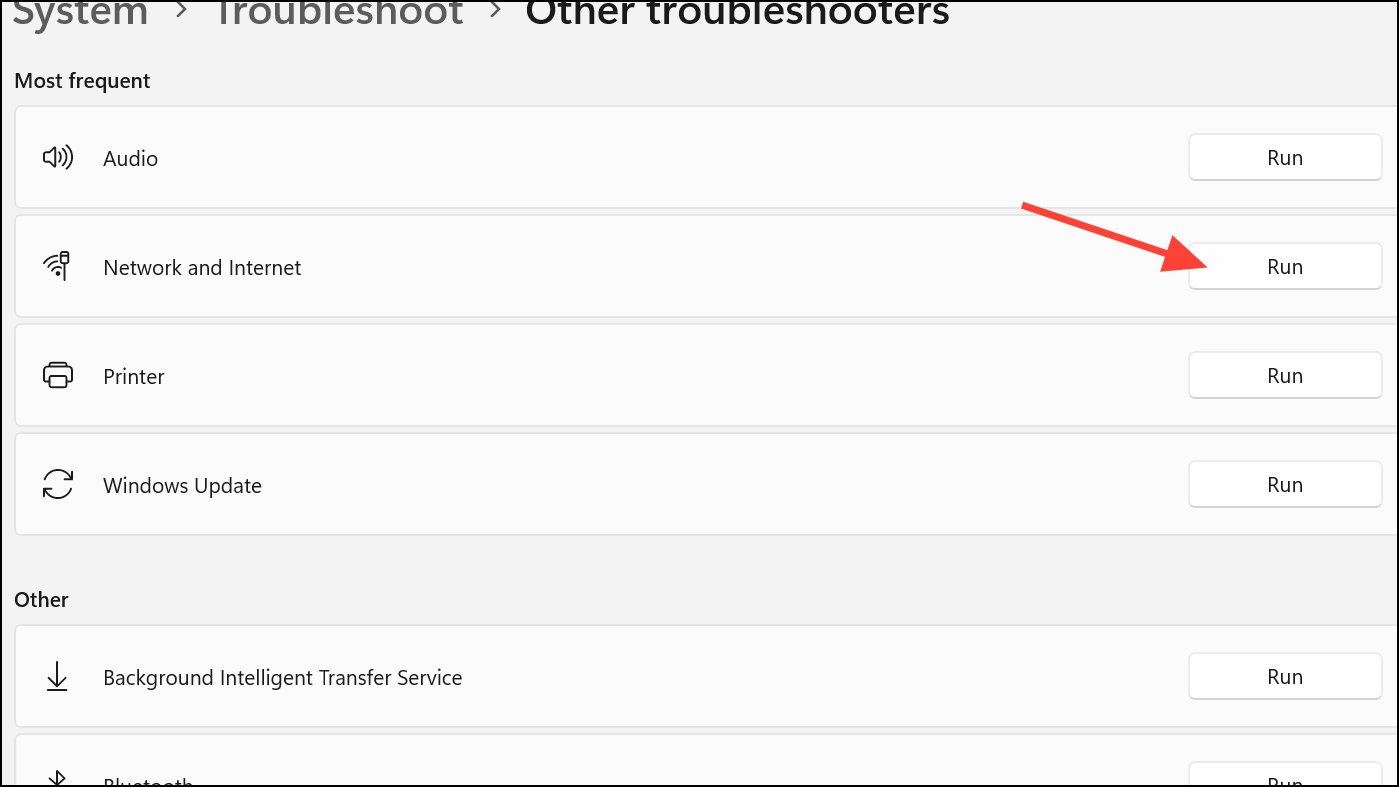
Settings > Network & internet > Advanced network settings,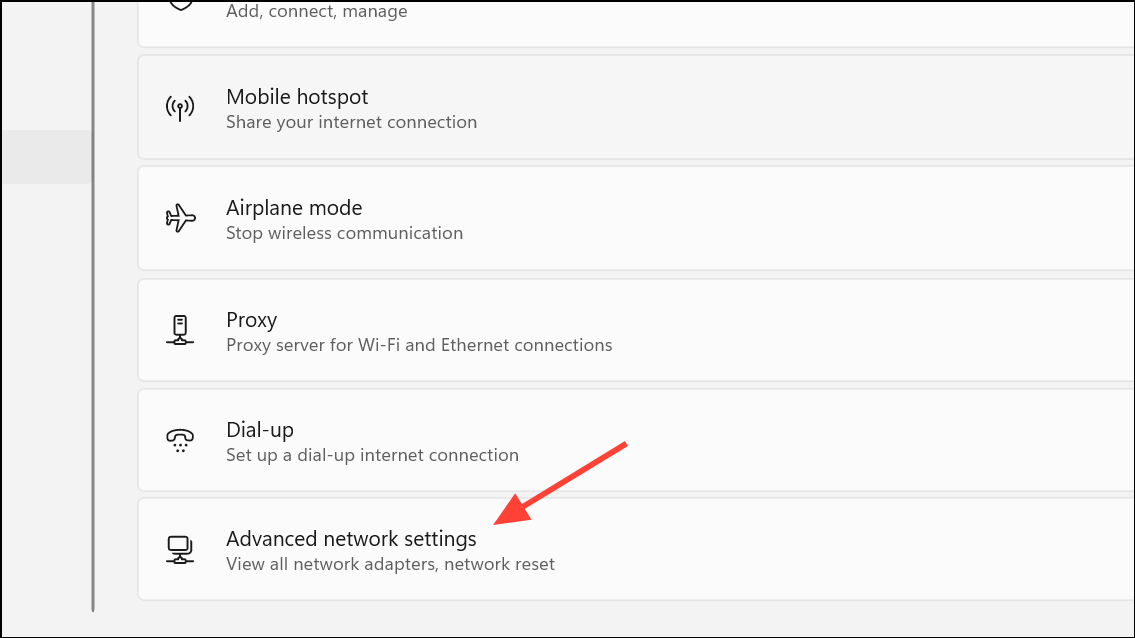
Network reset and confirm. This removes all network adapters and resets related settings. After your PC restarts, reconfigure any VPN or custom network software as needed.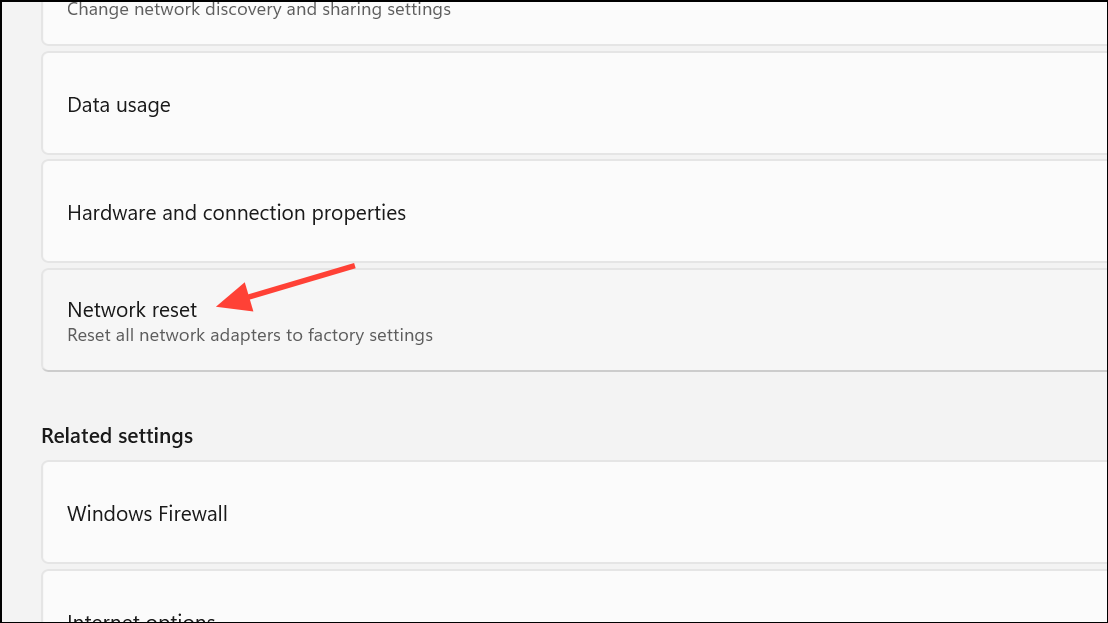
These steps often resolve issues caused by corrupted network settings or conflicting configurations after updates.
Check Physical Connections and Hardware
Loose cables, faulty ports, or damaged Ethernet cables can cause intermittent or no connectivity, even if Wi-Fi functions normally.
Verifying hardware eliminates wasted time on software troubleshooting when the root cause is a physical failure.
Configure Network Adapter Settings
Power management and advanced adapter options can disrupt Ethernet connectivity by disabling the adapter to save power or misconfiguring VLAN and priority settings.
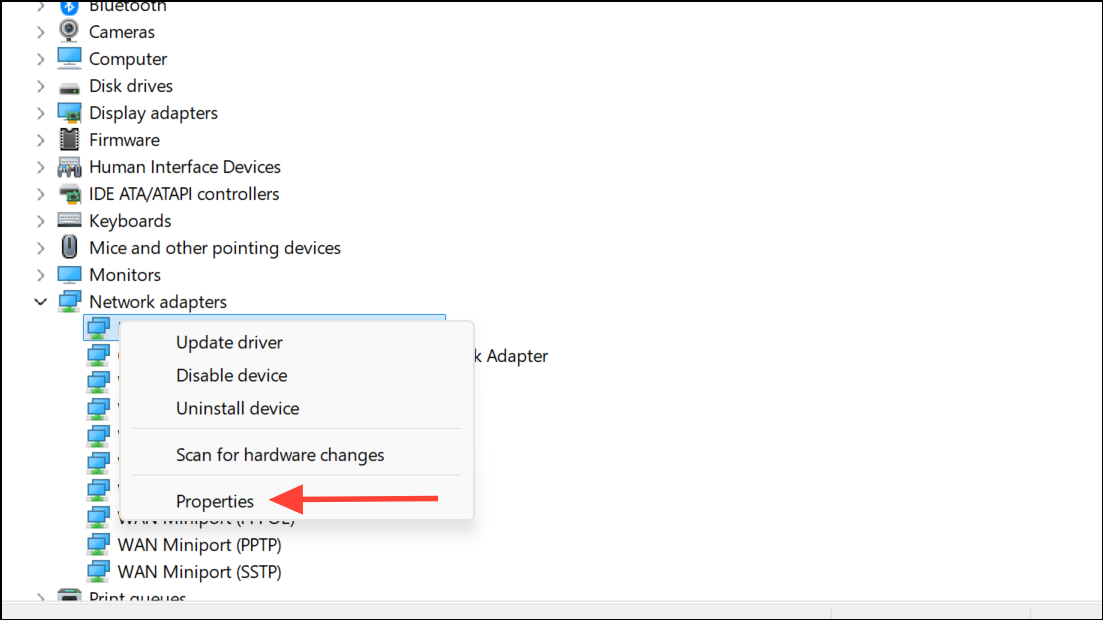
Device Manager, under your Ethernet adapter’s Advanced tab, locate Priority & VLAN and set VLAN Enabled if available. This can resolve issues where the adapter fails to maintain a stable link.Disabling power-saving features and correcting advanced options prevents the adapter from disconnecting unexpectedly.
Reset TCP/IP Stack and DNS Settings via Command Prompt
Corrupted TCP/IP or DNS settings can prevent your PC from obtaining a valid network address or connecting to the internet, even when hardware and drivers are functioning.
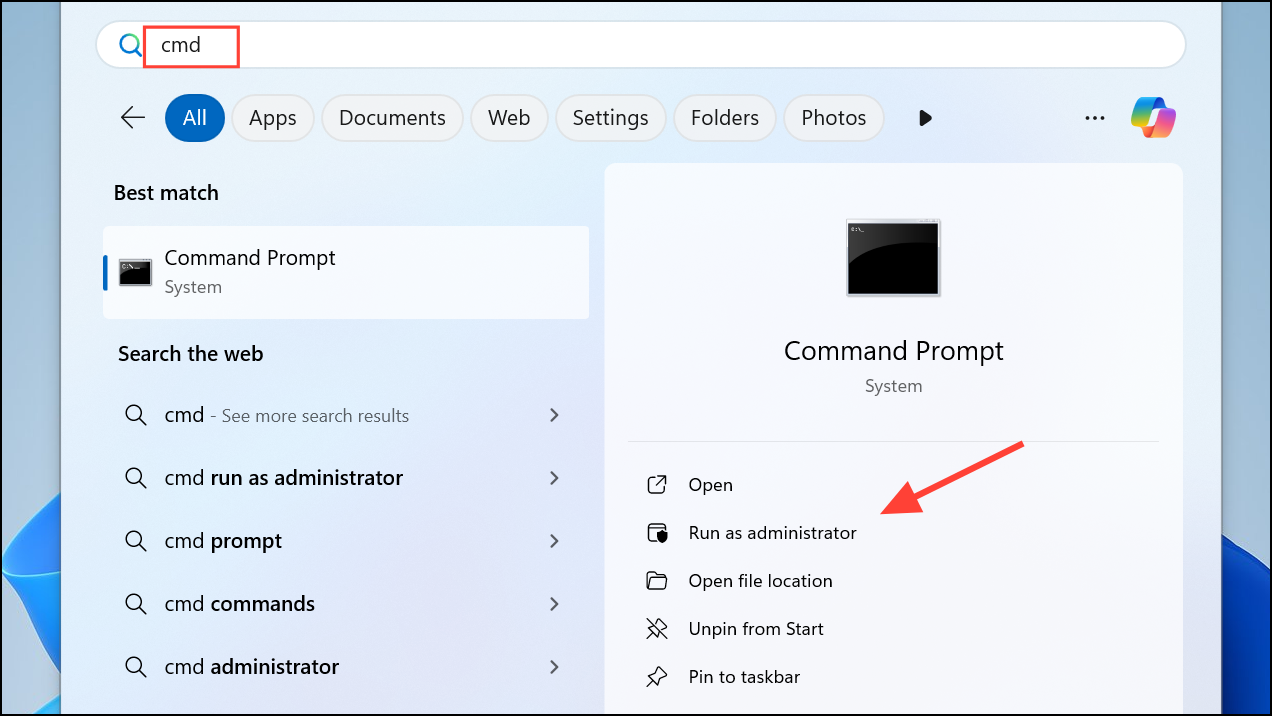
netsh winsock reset
netsh int ip reset
ipconfig /release
ipconfig /renew
ipconfig /flushdns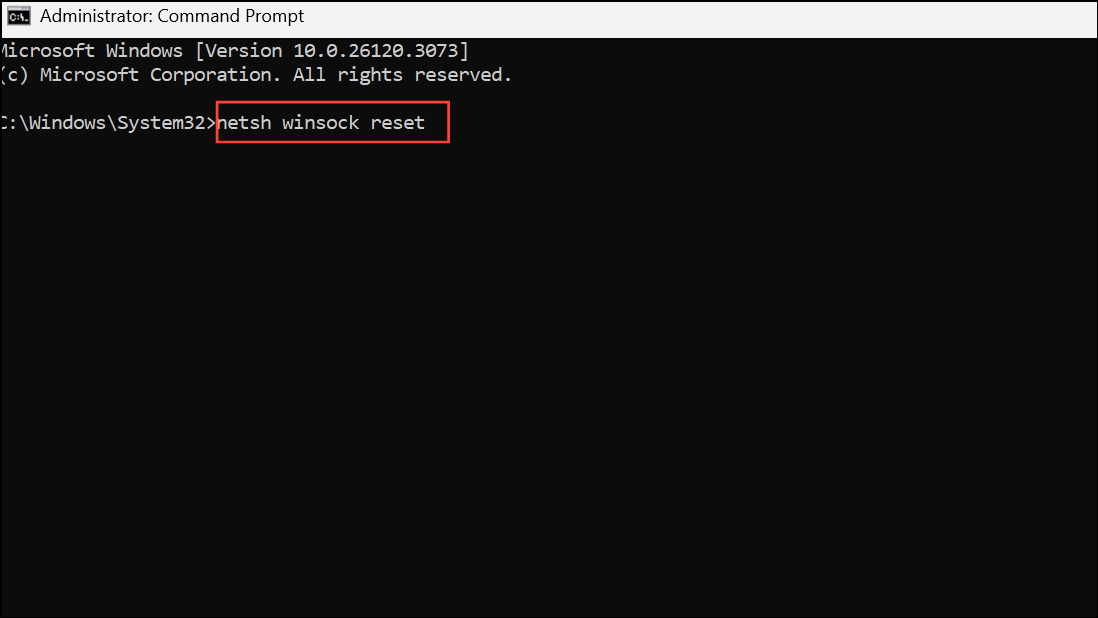
These commands reset network protocols, release and renew your IP address, and clear DNS cache. Restart your PC and check for connectivity.
Disable Proxy Server and Check Network Configuration
Incorrect proxy settings or static IP assignments can block Ethernet access or cause DNS failures.
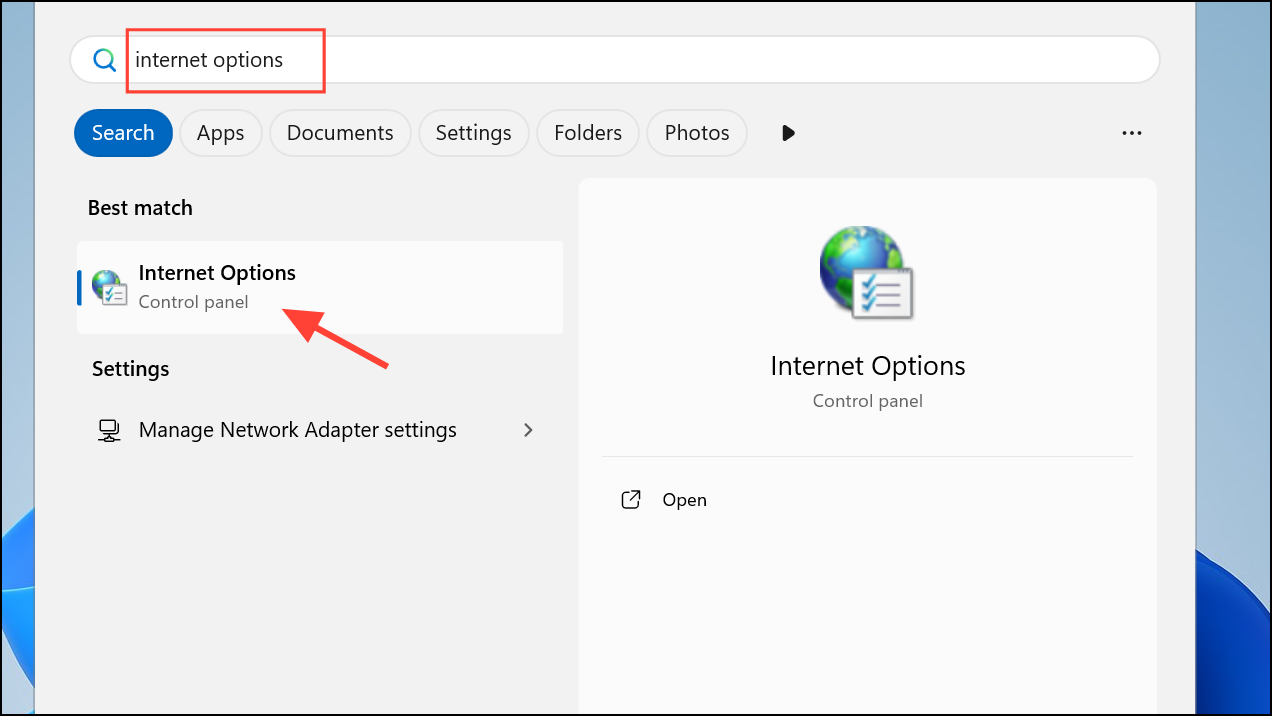
Connections tab, click LAN Settings, and ensure Use a Proxy Server for your LAN is unchecked unless your network specifically requires it.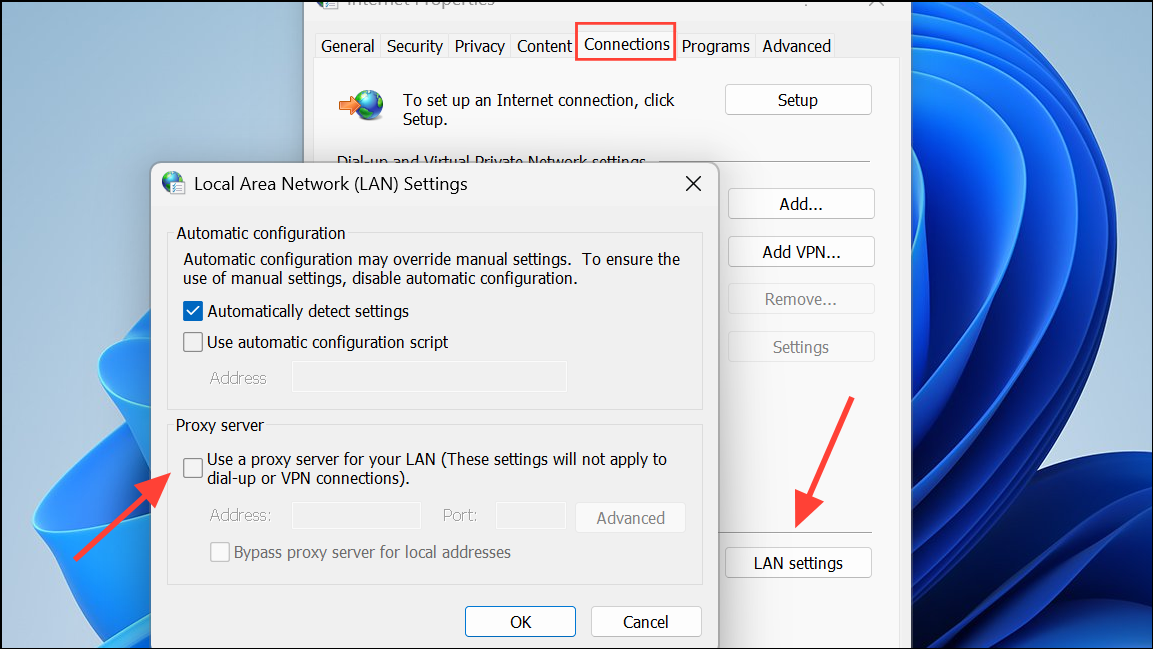
Settings > Network & internet > Ethernet, select your network and ensure IP assignment and DNS assignment are set to Automatic (DHCP) unless you have specific static values from your network administrator. Incorrect manual settings can prevent your PC from joining the network or resolving addresses.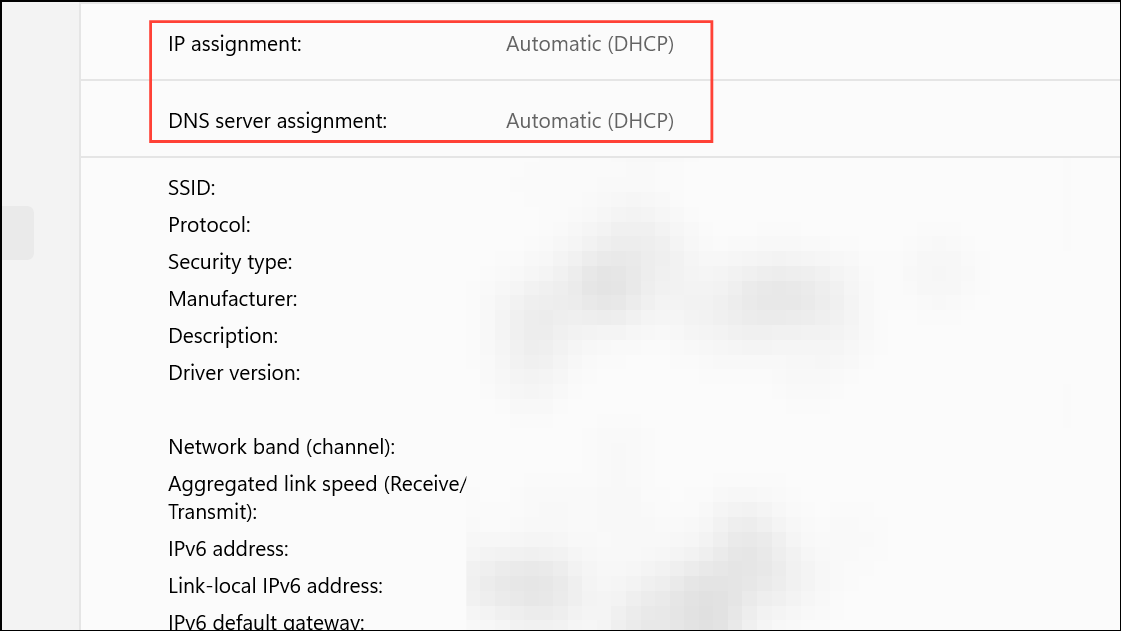
Roll Back or Uninstall Recent Windows Updates
Major Windows 11 updates occasionally introduce compatibility problems for network adapters, especially with certain Realtek or Intel chipsets. If your Ethernet stopped working immediately after a Windows update, reverting to a previous build or uninstalling the problematic update often restores connectivity.
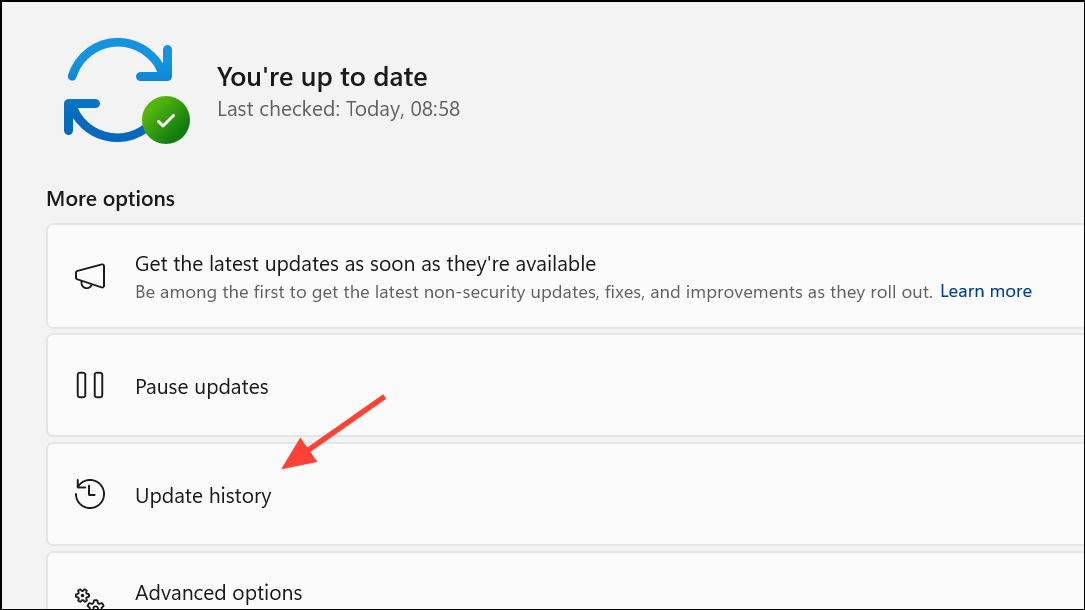
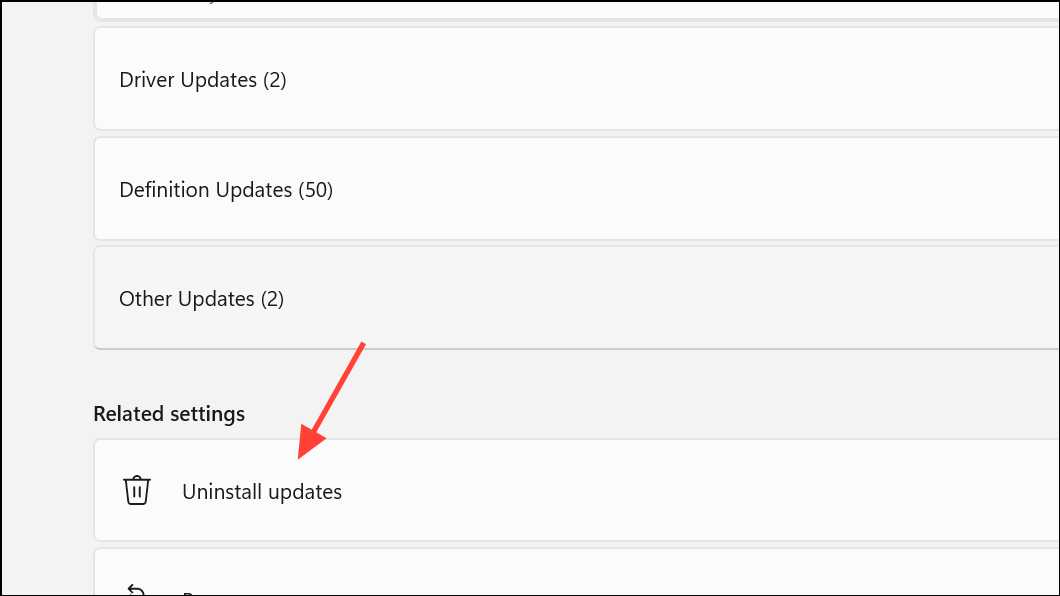
Restore Windows Using System Restore Point
If all else fails and you suspect a recent change caused the issue, using a system restore point can quickly revert your PC to a working state without affecting personal files.
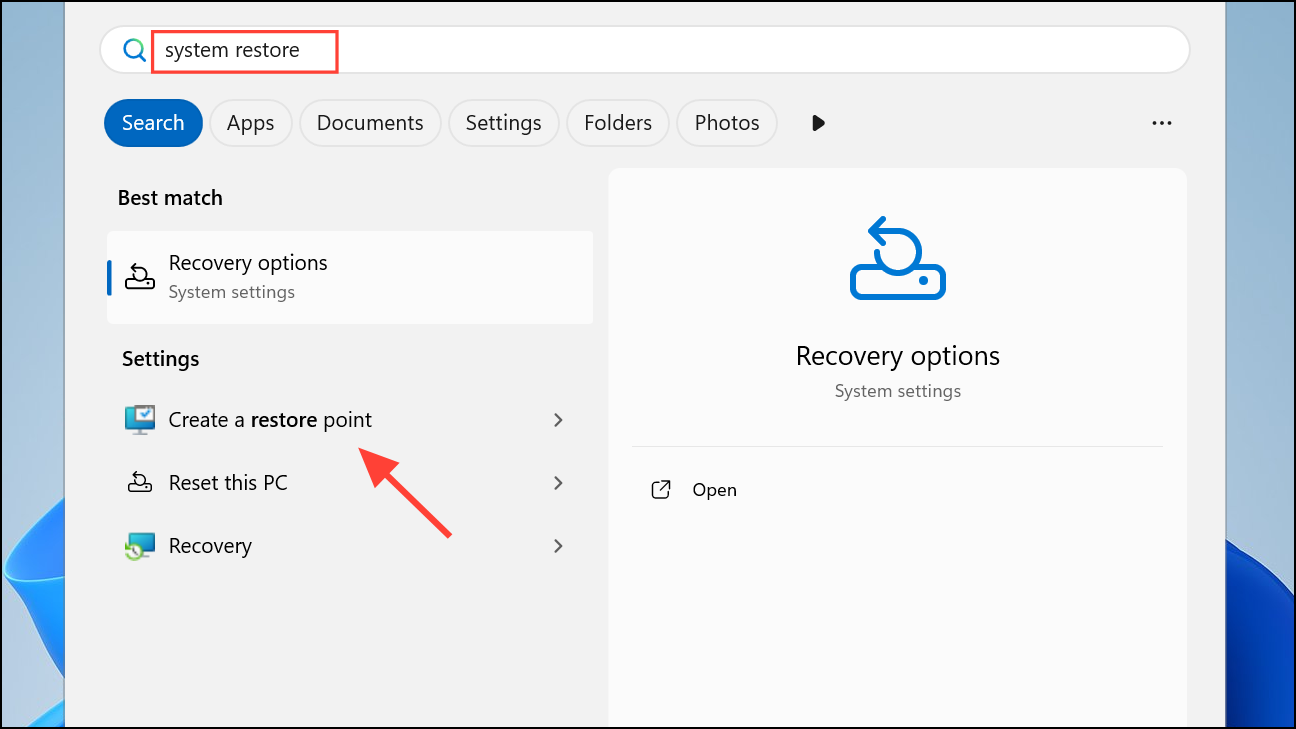
System Restore and follow the prompts to select a restore point from before the Ethernet issue began.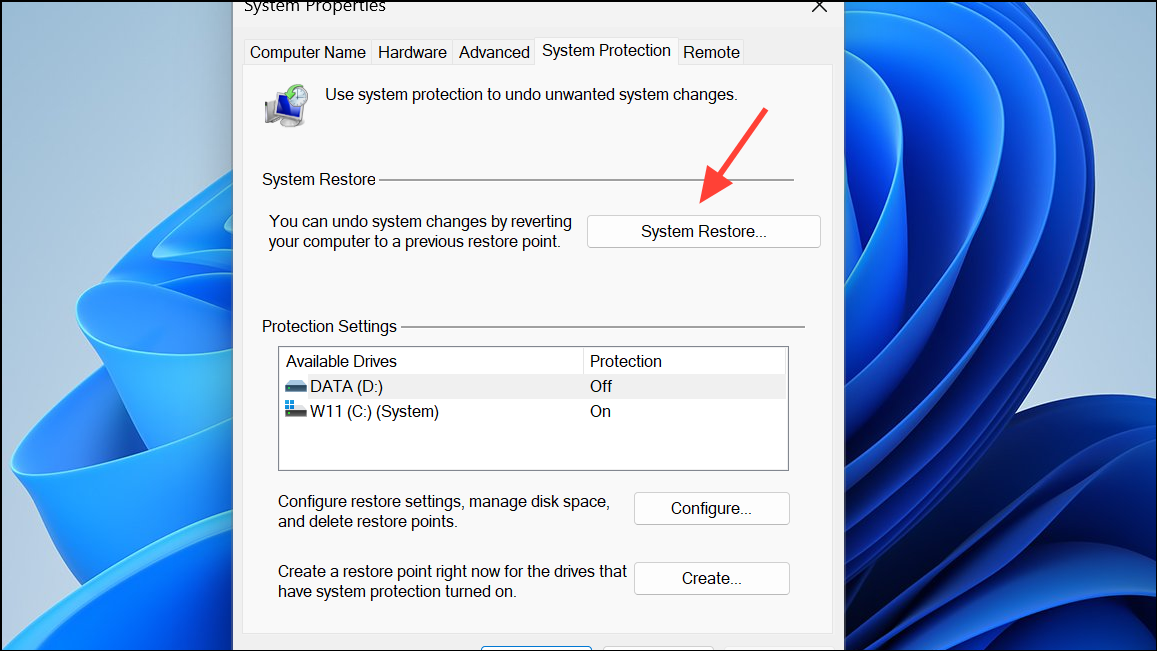
Persistent Ethernet problems on Windows 11 can usually be solved by updating drivers, resetting network settings, and verifying hardware. If the issue started after an update, rolling back or restoring your system often brings back reliable wired connectivity.



