
Unexpected keyboard language changes disrupt typing accuracy and workflow in Windows 11, especially for users who regularly work in multiple languages or switch between applications. The issue often stems from system settings, keyboard shortcuts, or configuration mismatches between Windows and individual apps like Microsoft Word. Addressing these factors can stabilize your input language and prevent unwanted automatic switches.
Remove Unwanted Keyboard Layouts and Languages
Unnecessary keyboard layouts or languages in your Windows 11 settings often trigger automatic switching. Removing unused layouts and languages ensures that Windows only cycles through the options you actively use, reducing the likelihood of unintended changes.
Windows + I. In the left sidebar, select Time & Language, then choose Language & Region on the right.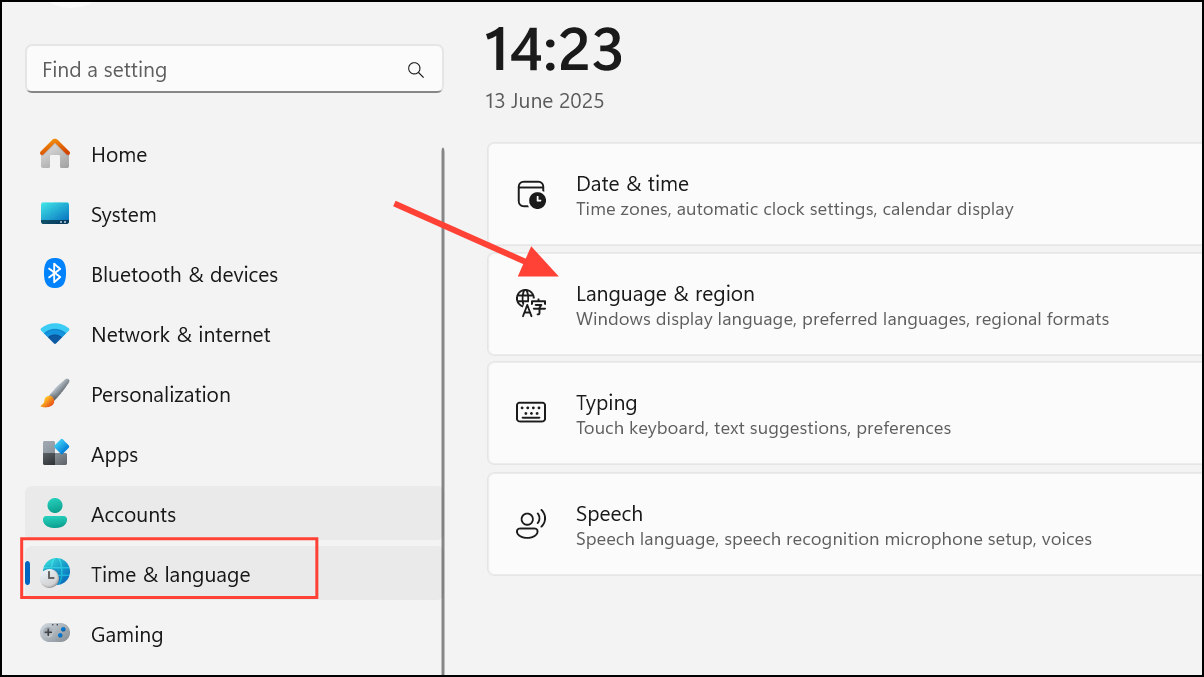
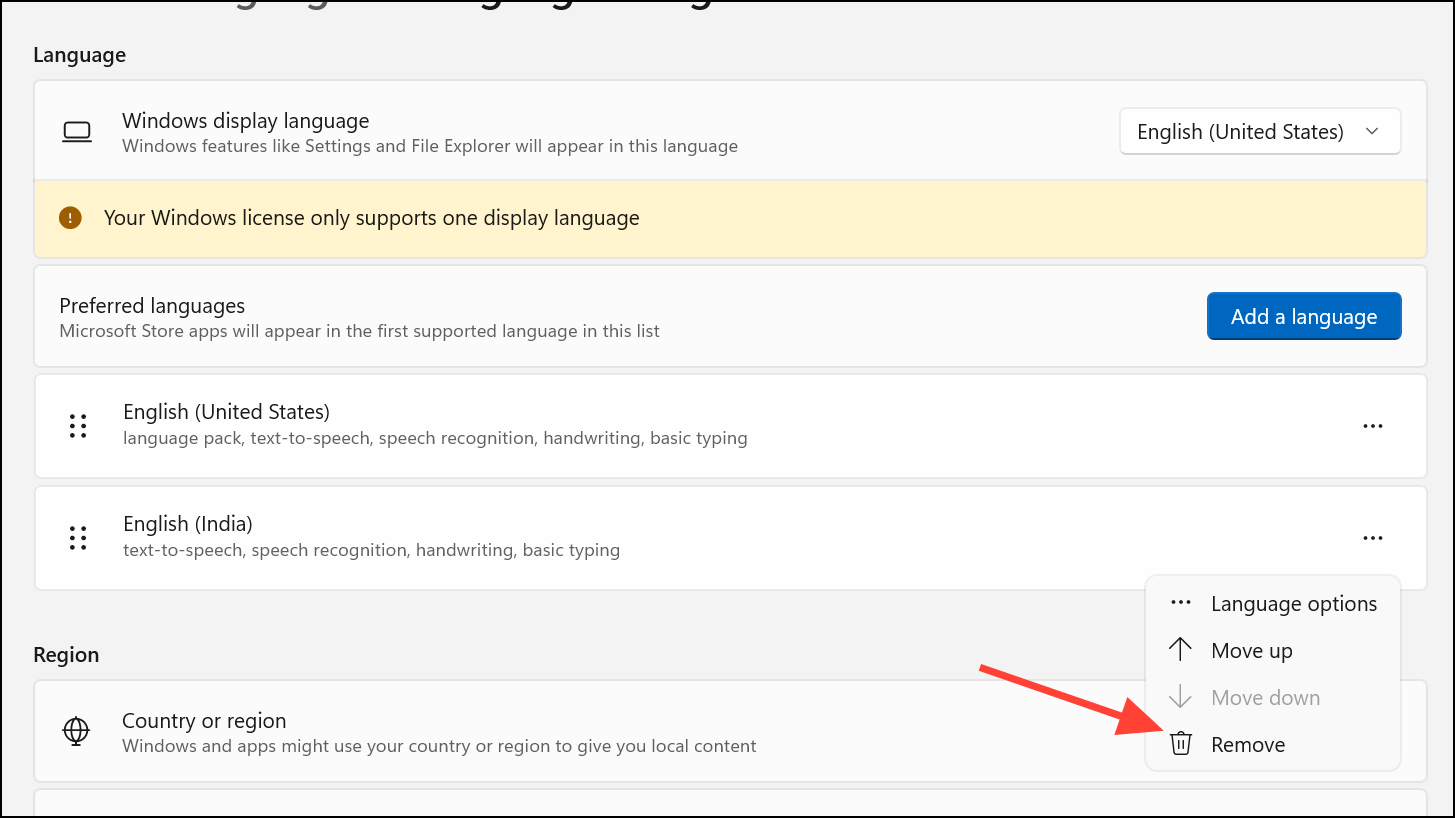
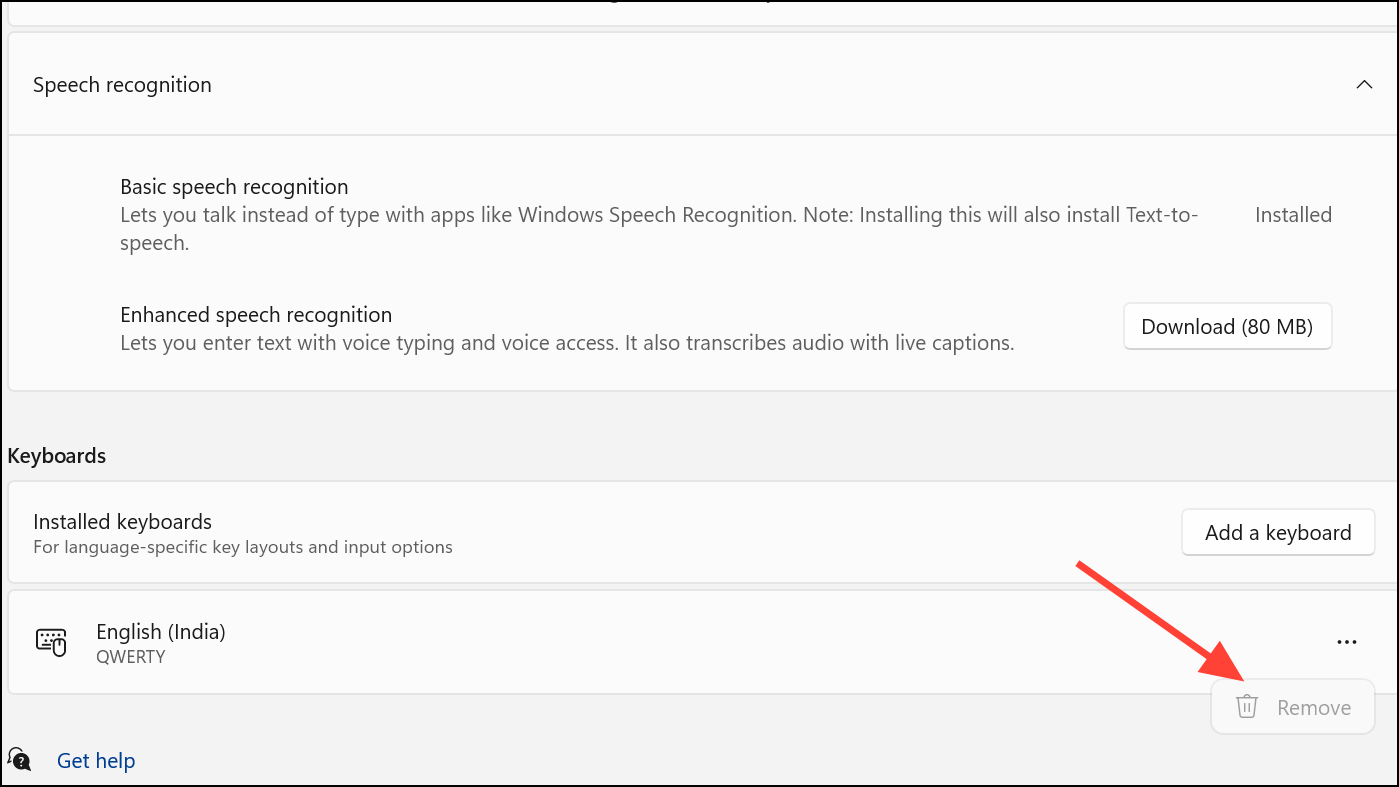
By limiting your system to just the languages and layouts you use, you prevent Windows from switching to unused configurations.
Disable Keyboard Shortcuts That Trigger Language Switching
Windows 11 includes built-in keyboard shortcuts, such as Alt + Shift or Windows + Space, that allow users to switch input languages quickly. Accidentally pressing these shortcuts can cause the keyboard language to change without warning. Disabling or customizing these shortcuts minimizes accidental switches.
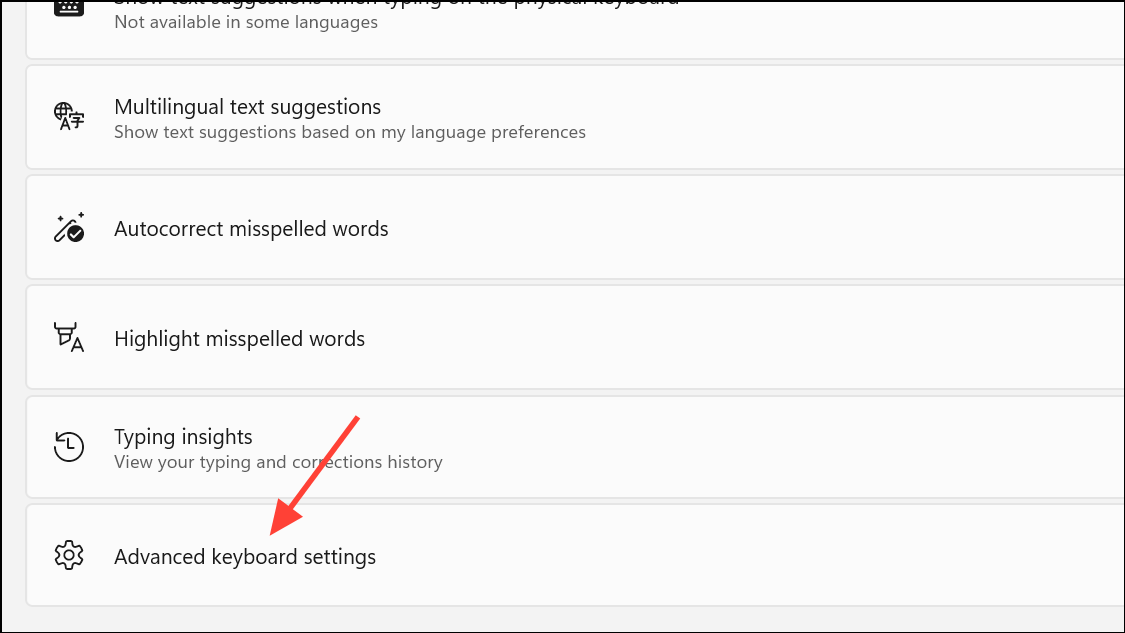
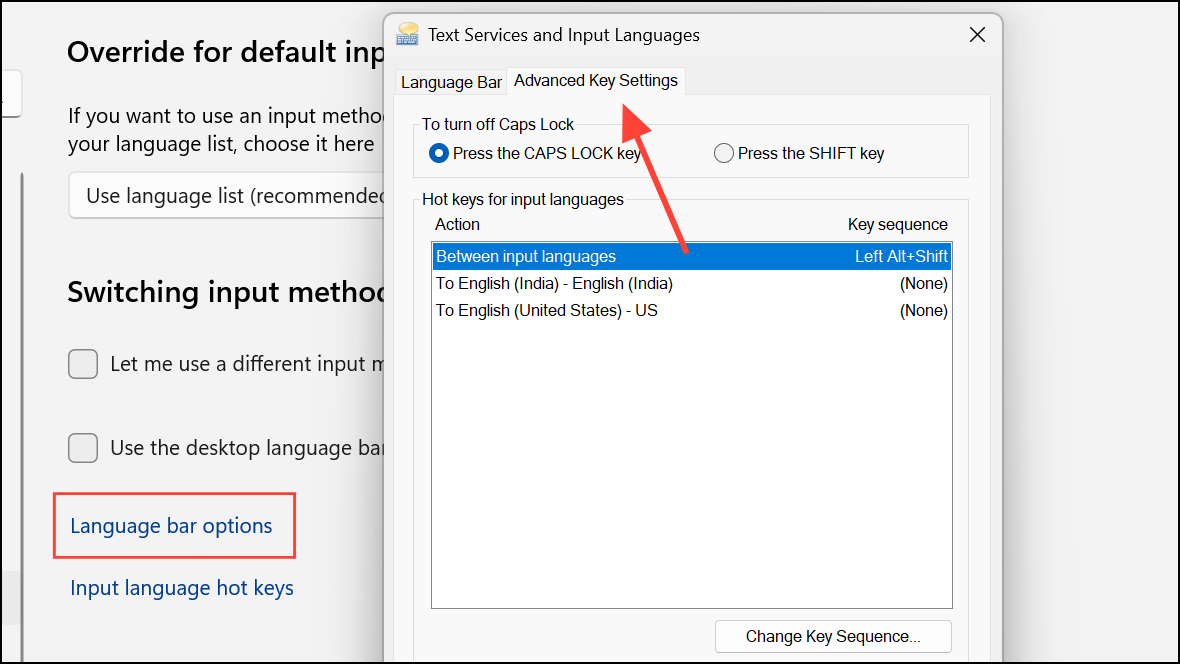
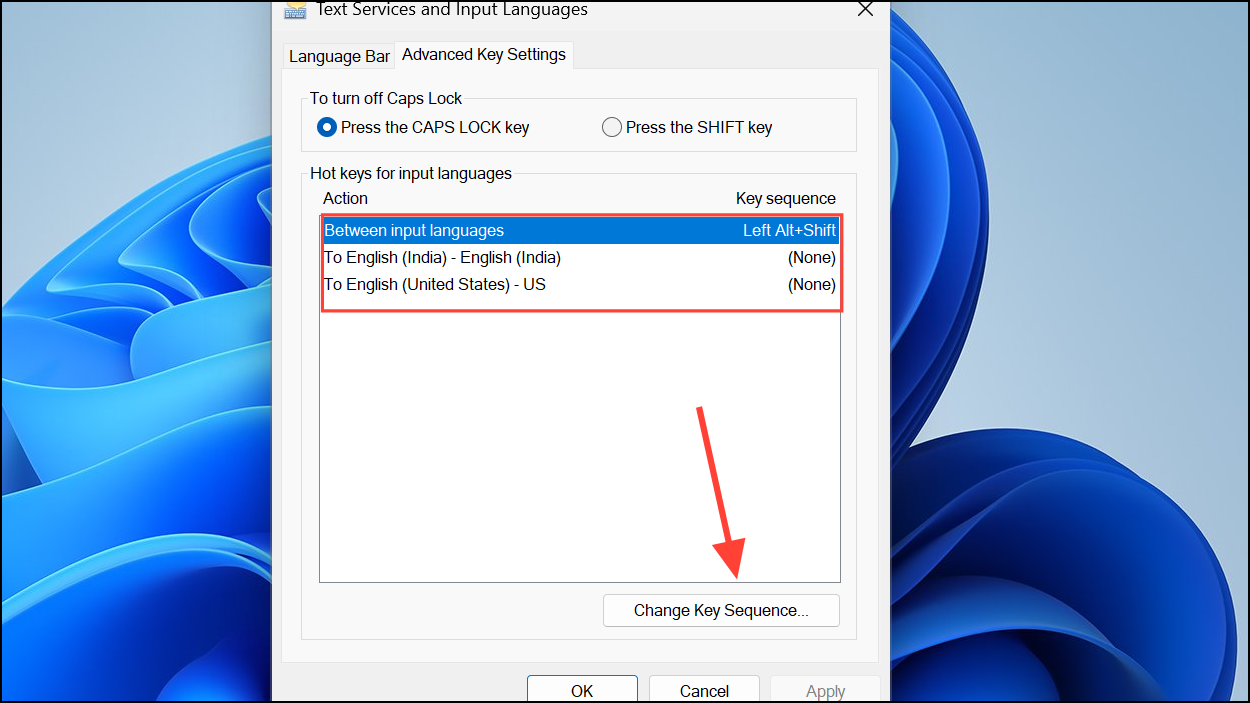
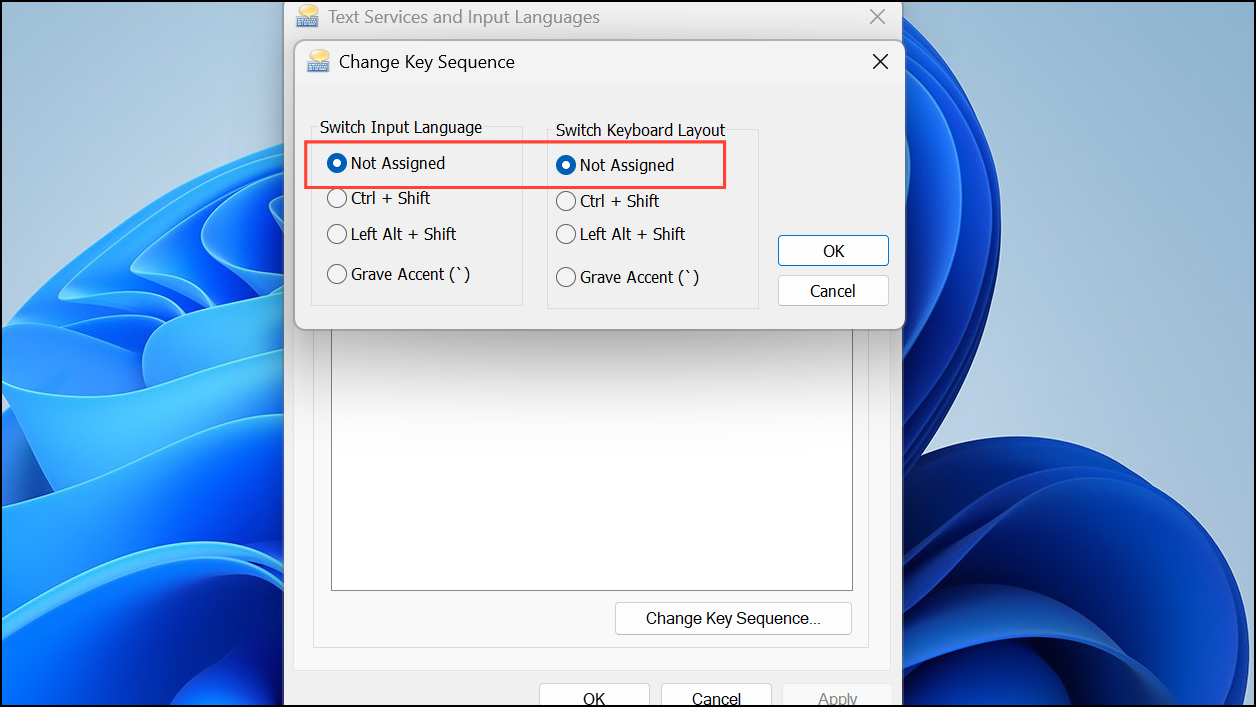
This adjustment prevents accidental keyboard language changes caused by shortcut key presses.
Turn Off Automatic Keyboard Layout Switching for Apps
Windows 11 can automatically switch keyboard layouts based on the language detected in each app window. Turning off this feature forces Windows to use your preferred input method system-wide, reducing unwanted changes when moving between programs.
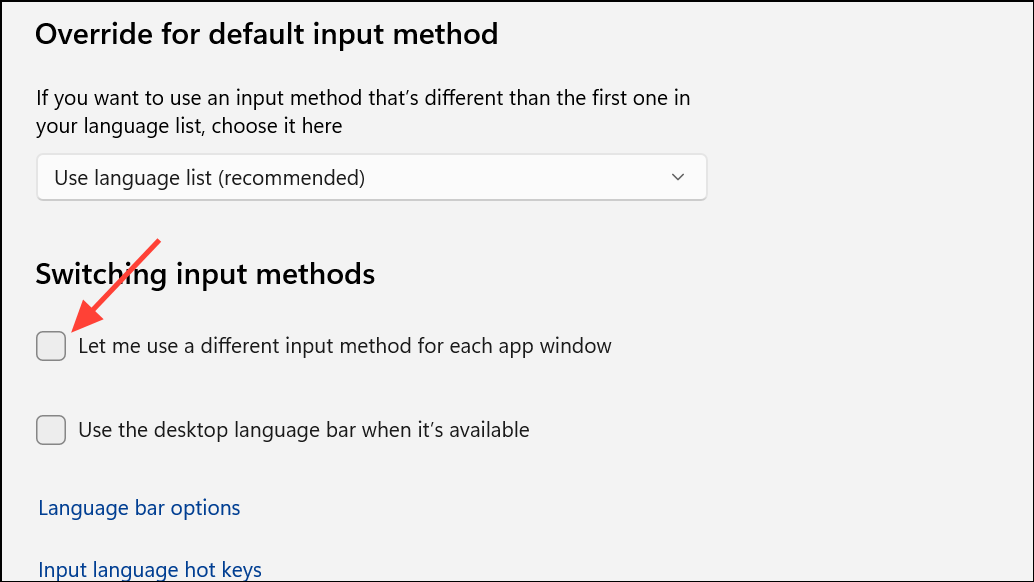
This ensures Windows applies your chosen input method consistently across all applications, rather than switching based on app context.
Adjust Language Preferences in Microsoft Office Applications
Office applications like Word or Excel can override Windows language settings and add keyboard layouts for proofing or spell-checking. Removing unwanted languages from Office prevents these apps from introducing new keyboard layouts that Windows may then adopt system-wide.
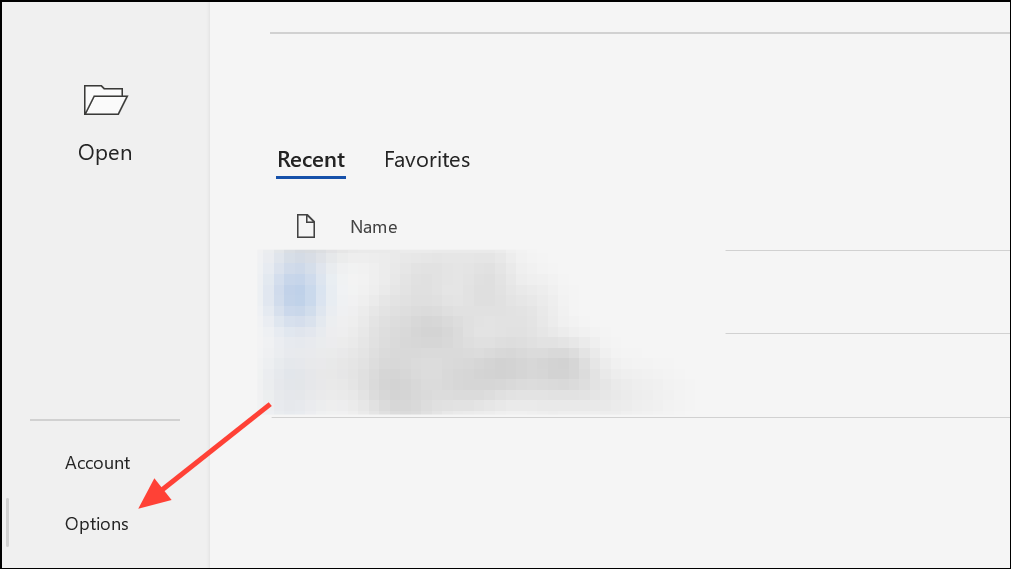
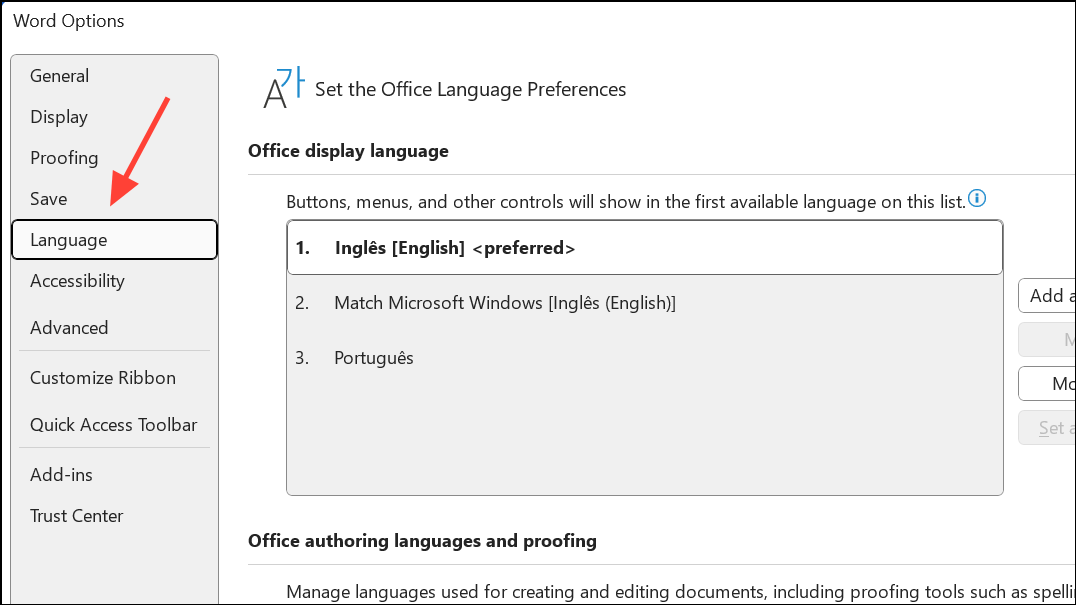
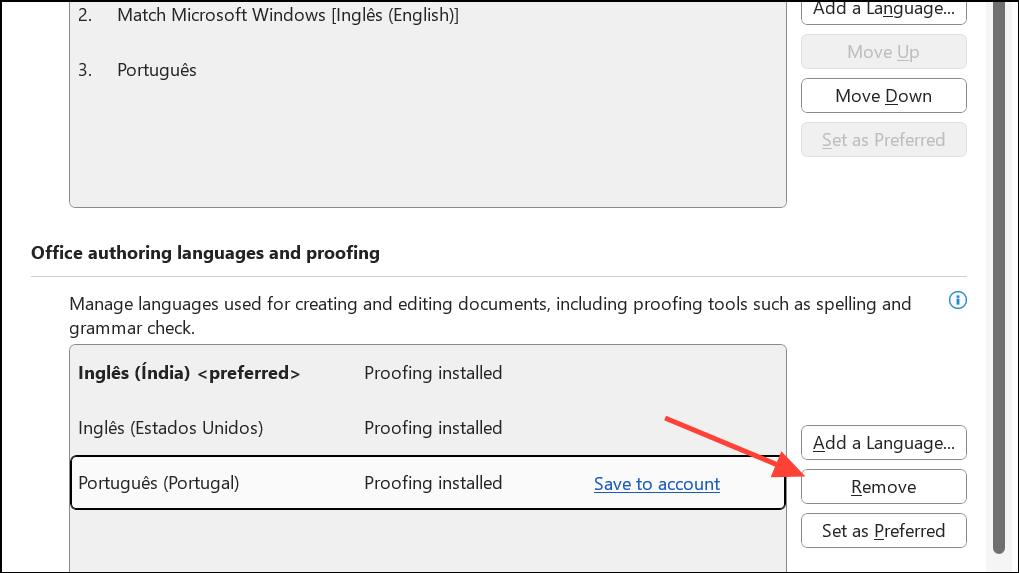
This step stops Office from introducing additional keyboard layouts and aligns application behavior with your Windows preferences.
Update Keyboard Drivers
Outdated or incompatible keyboard drivers can interfere with input language settings, causing erratic behavior. Ensuring your drivers are current improves system stability and reduces the risk of unexpected language switching.
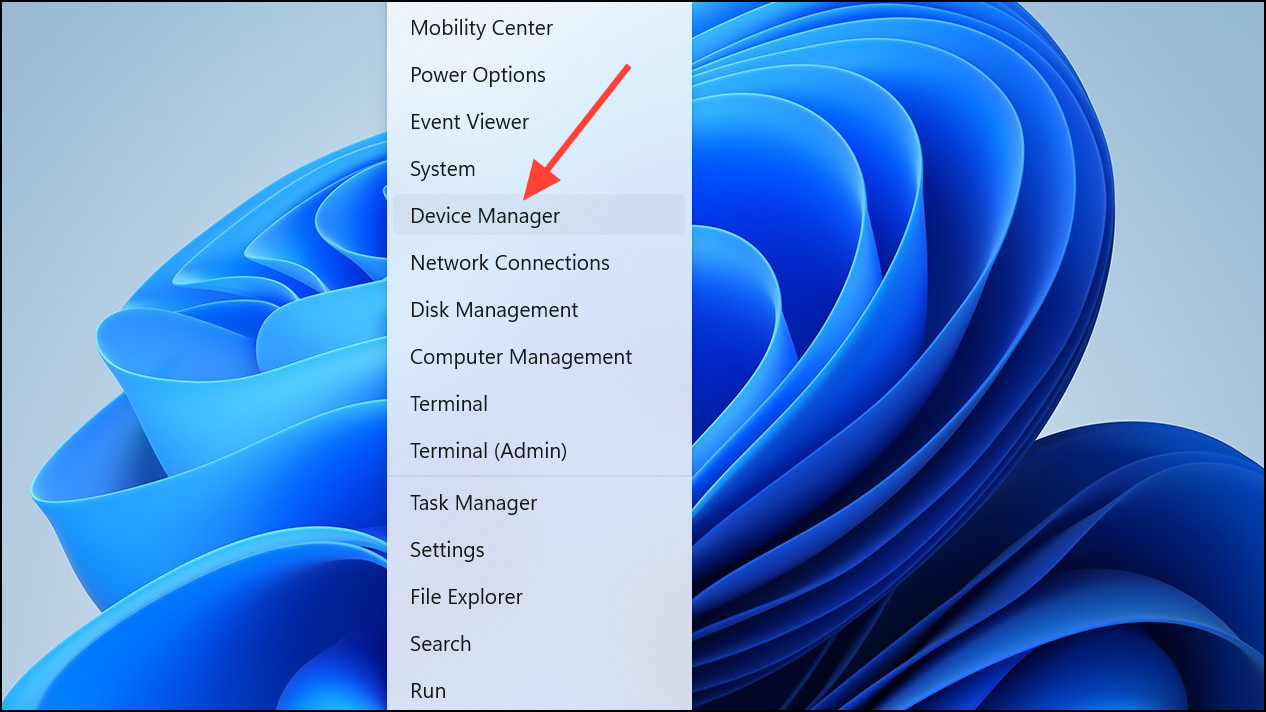
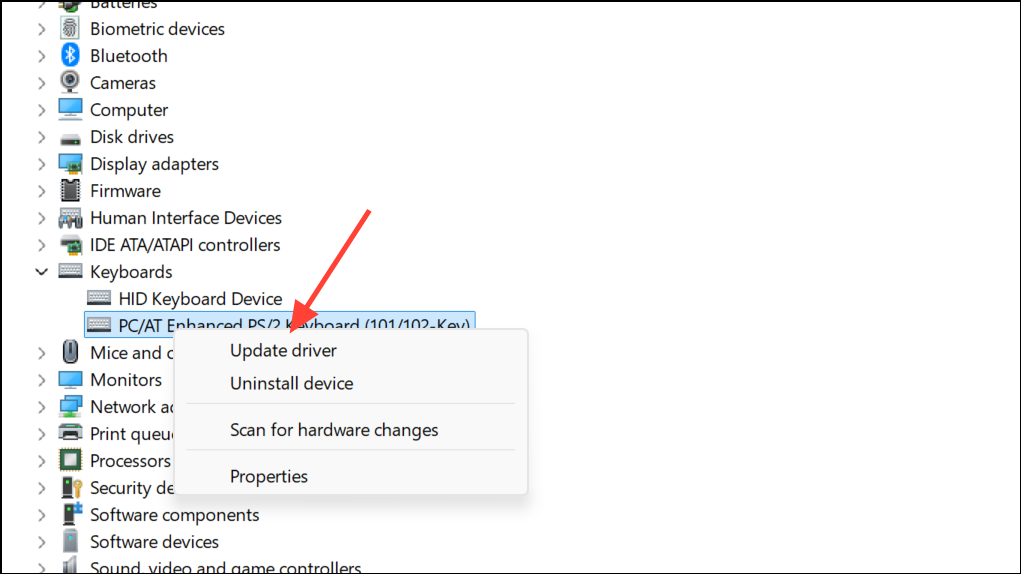
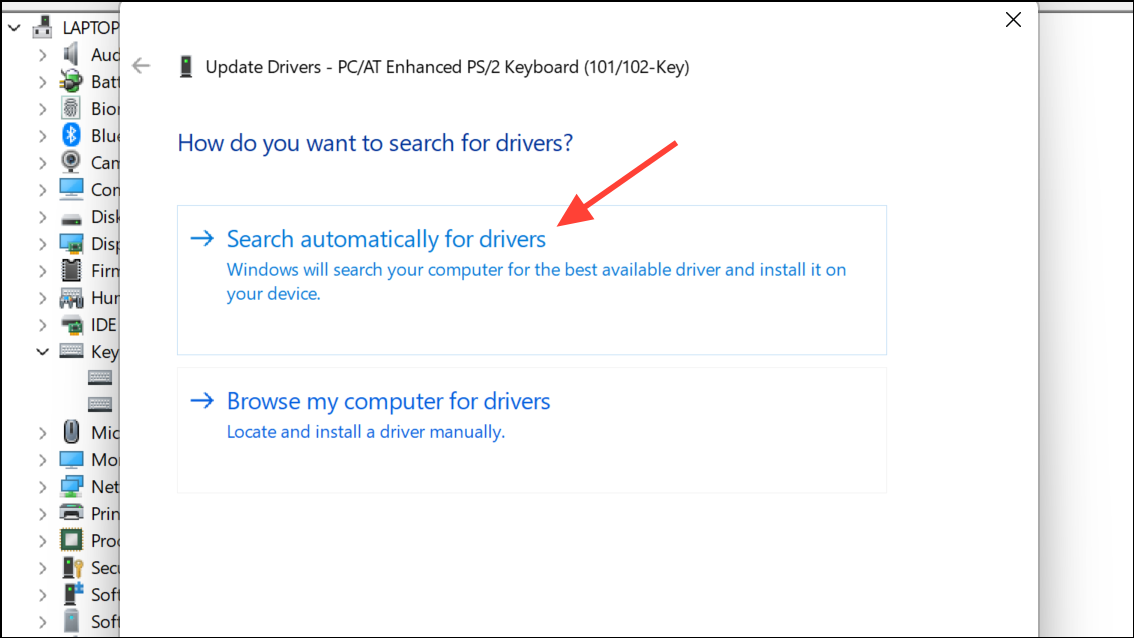
Restart your computer after updating drivers to ensure changes take effect.
Modify Registry Settings to Prevent Automatic Layout Addition
In rare cases, Windows may continue to add keyboard layouts automatically due to registry configurations. Modifying the registry can stop this behavior, but proceed with caution and back up your registry beforehand.
Windows + R to open the Run dialog. Type regedit and press Enter to launch the Registry Editor.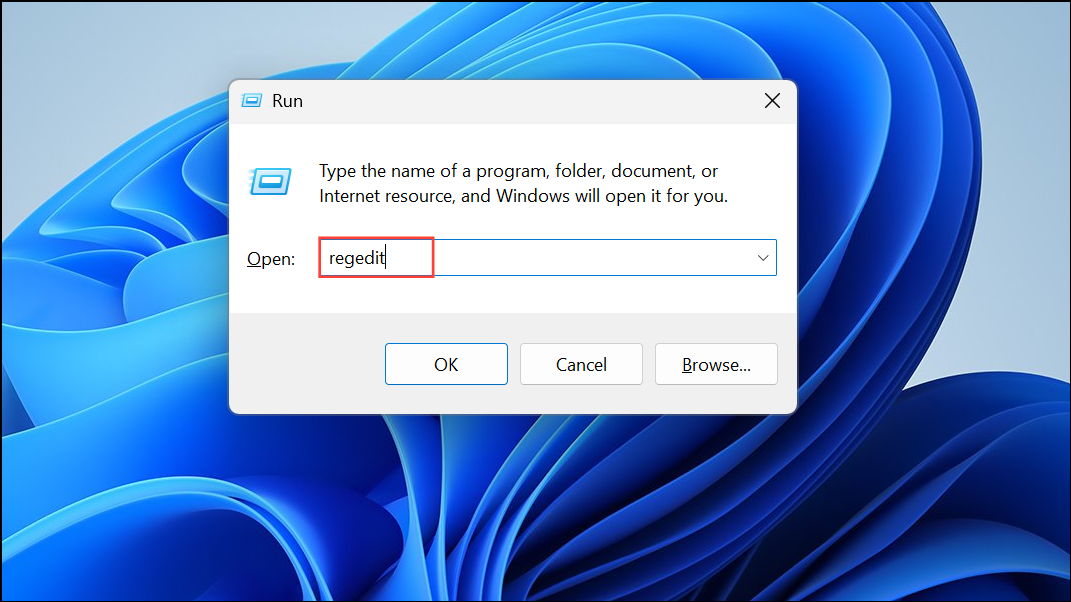
Computer\HKEY_LOCAL_MACHINE\SYSTEM\CurrentControlSet\Control\Keyboard Layout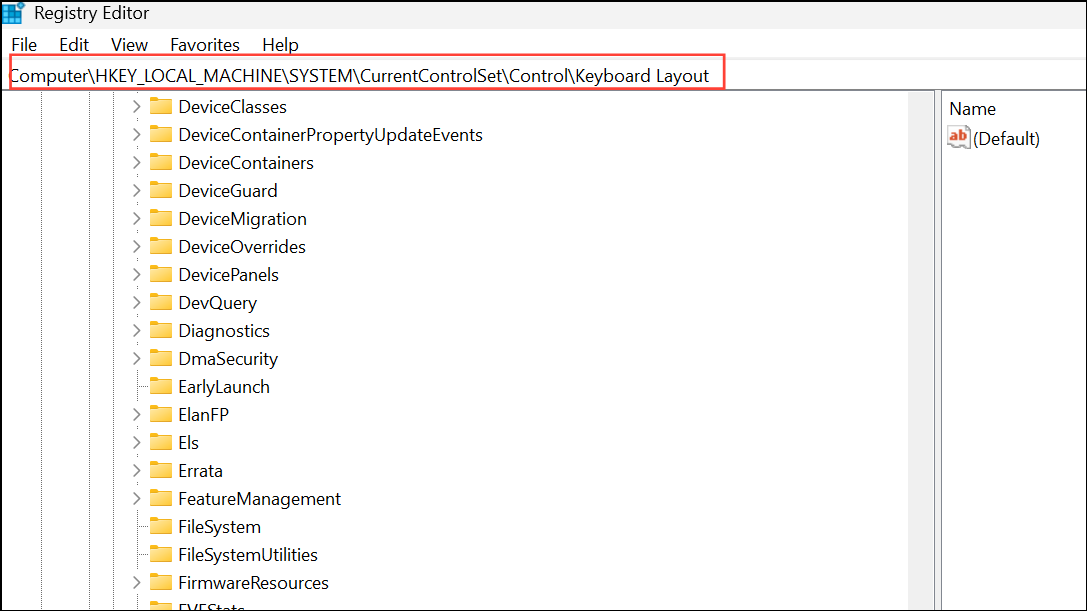
IgnoreRemoteKeyboardLayout.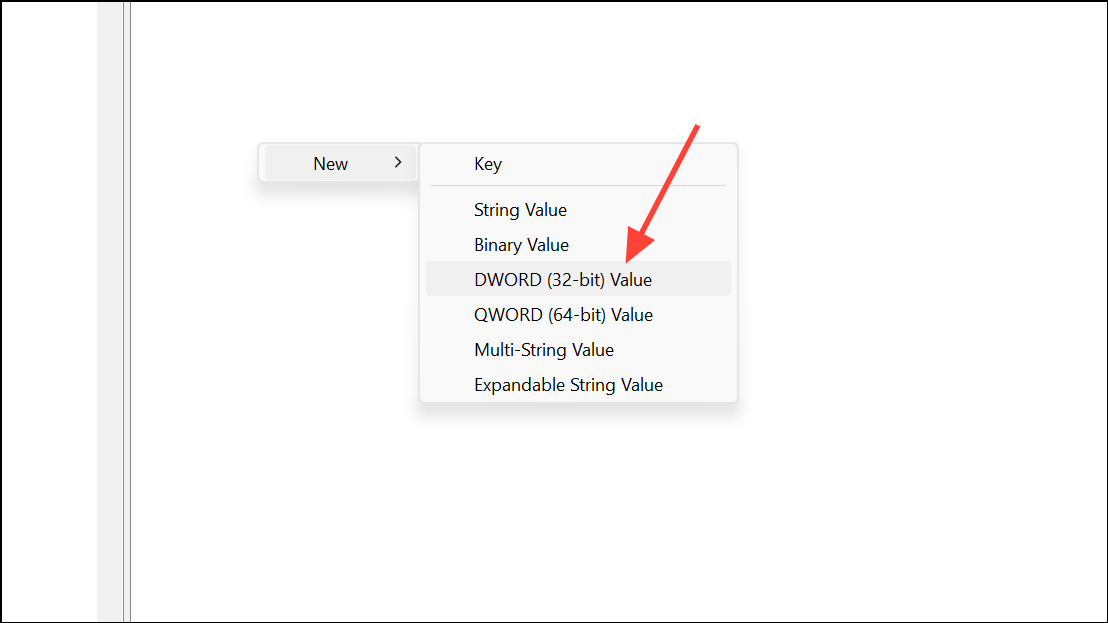
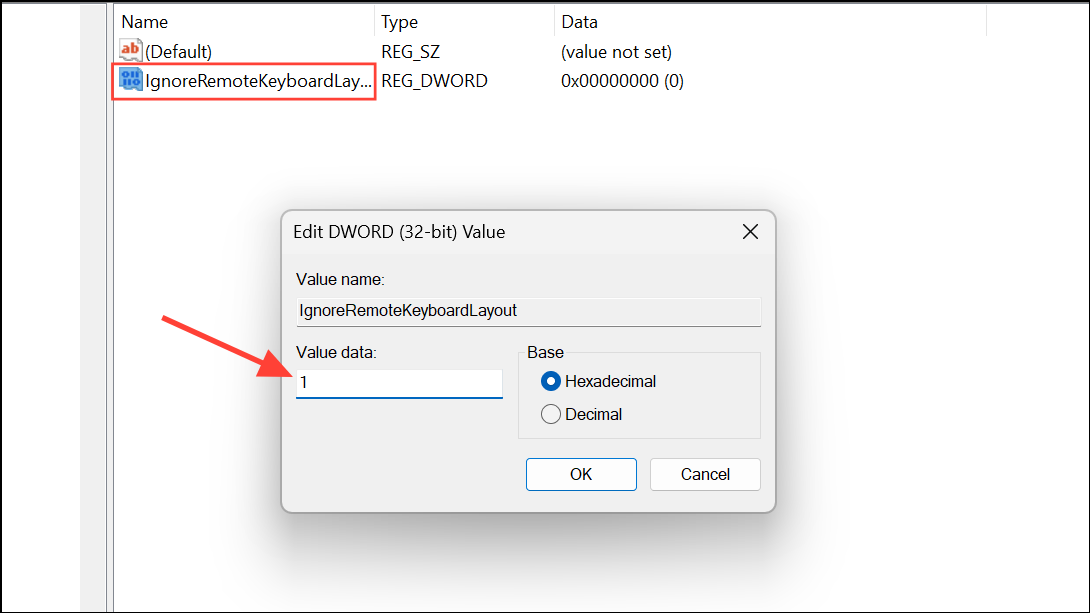
This registry edit tells Windows to ignore remote keyboard layouts, reducing automatic additions.
Run the Keyboard Troubleshooter
Windows 11 includes a built-in troubleshooter that can detect and fix common keyboard-related issues, including incorrect language settings or registry errors.
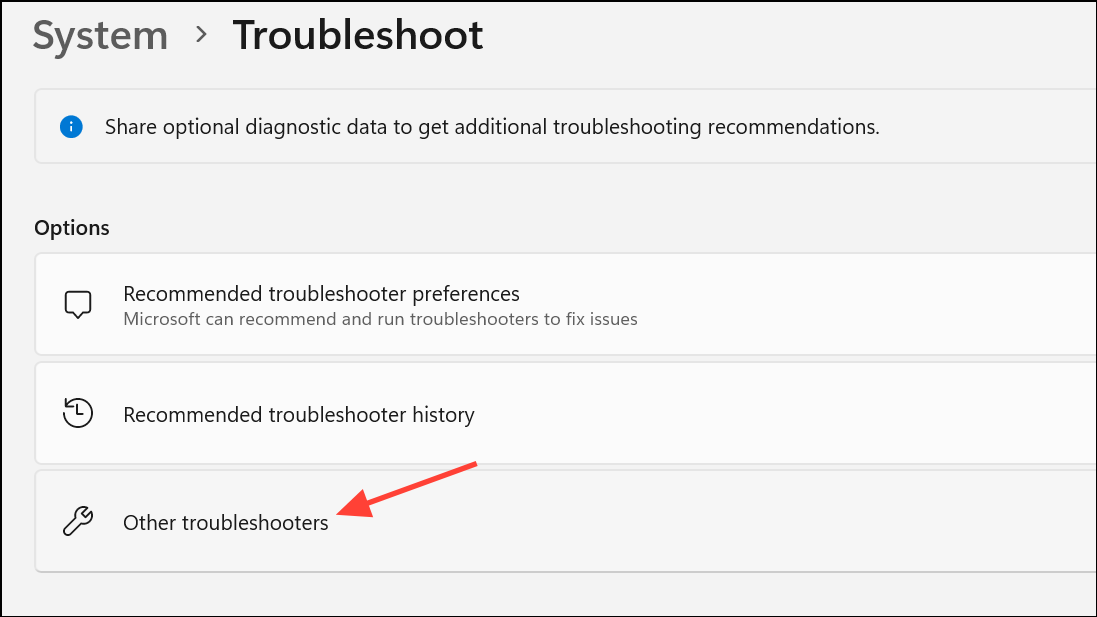
The troubleshooter will attempt to identify and resolve issues that may be causing the keyboard language to switch unexpectedly.
Optimizing these settings and removing unnecessary layouts stabilizes your keyboard input, so you can type without unexpected language changes interrupting your work. If the problem persists after following these steps, consider checking for recent Windows updates or seeking additional help from Microsoft support.



