

An erratic mouse cursor that moves or clicks on its own in Windows 11 is most often caused by a hardware or driver conflict from one of your input devices. The issue could stem from a sensitive laptop touchpad, a malfunctioning touchscreen, a faulty external mouse, or even a connected gaming controller. The first step is to identify which device is sending the phantom inputs.
Identify and Isolate the Faulty Device
The most effective way to solve a phantom cursor is to determine which piece of hardware is causing the problem. This process involves disconnecting devices one by one to see if the behavior stops.
First, if you have any external devices connected, such as a USB or wireless mouse, a drawing tablet, or a gaming controller, unplug all of them. If the cursor stops moving erratically, plug the devices back in one at a time until the problem reappears. The last device you connected is the source of the issue. You can then proceed to troubleshoot that specific device by cleaning its sensor, trying it on a different surface, or updating its drivers.
If the cursor continues to move on its own after all external devices are disconnected, the problem likely lies with your laptop’s built-in touchpad or touchscreen.
Disable the Touchpad or Touchscreen
Many users find that a sensitive or faulty touchpad is the primary cause of random cursor movement. Disabling it is a quick way to confirm this and resolve the issue if you primarily use an external mouse.
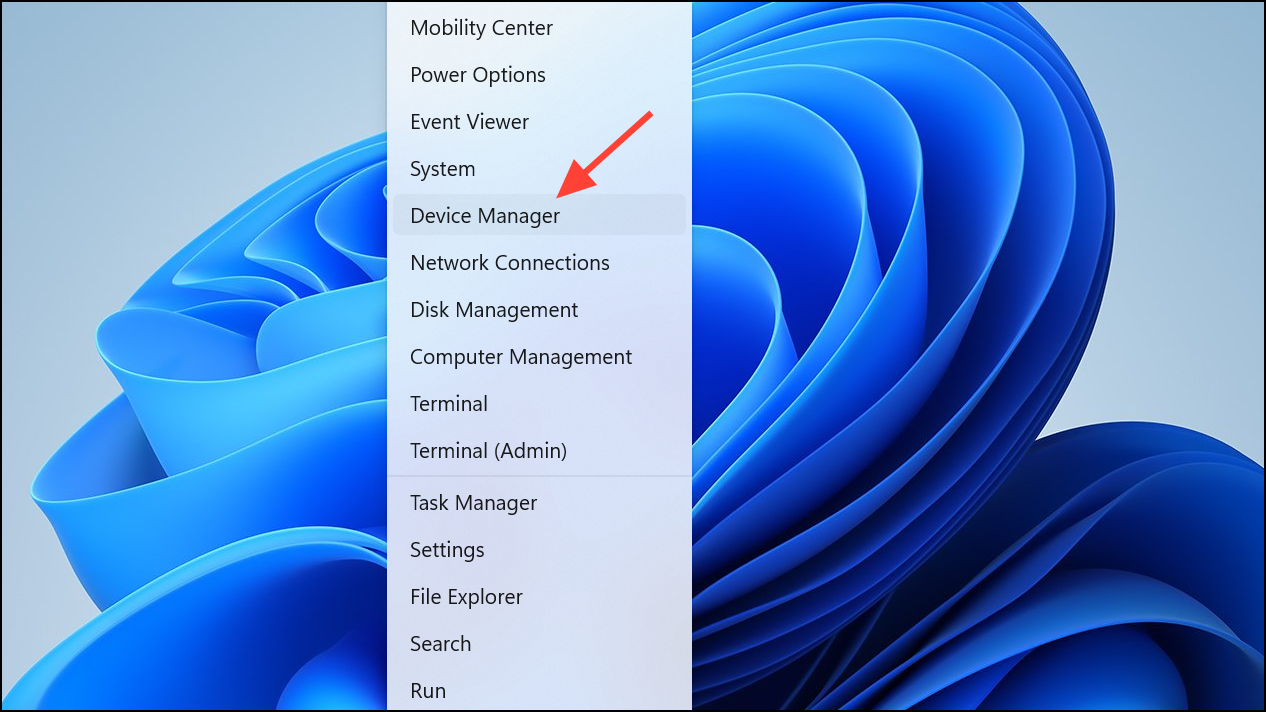
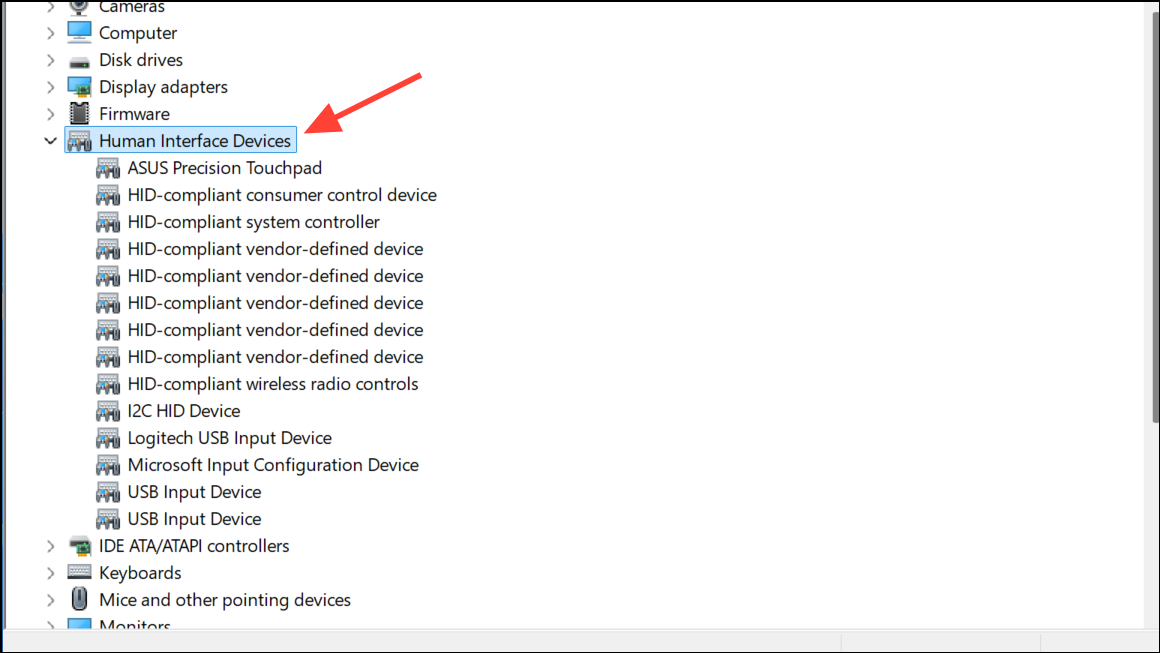
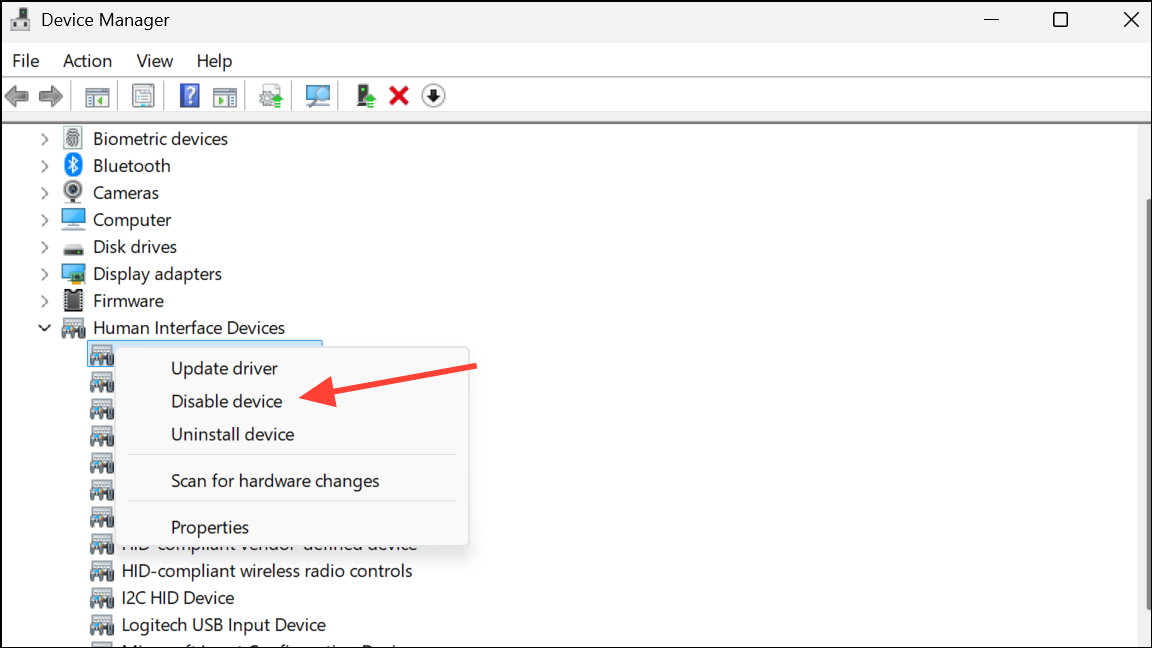
Reinstall Device Drivers
If disabling a device resolves the issue but you want to restore its functionality, or if the problem is intermittent, reinstalling its driver or adjusting system settings may provide a more permanent fix.
A corrupted driver can send faulty signals to the operating system. Reinstalling it forces Windows to load a fresh copy.
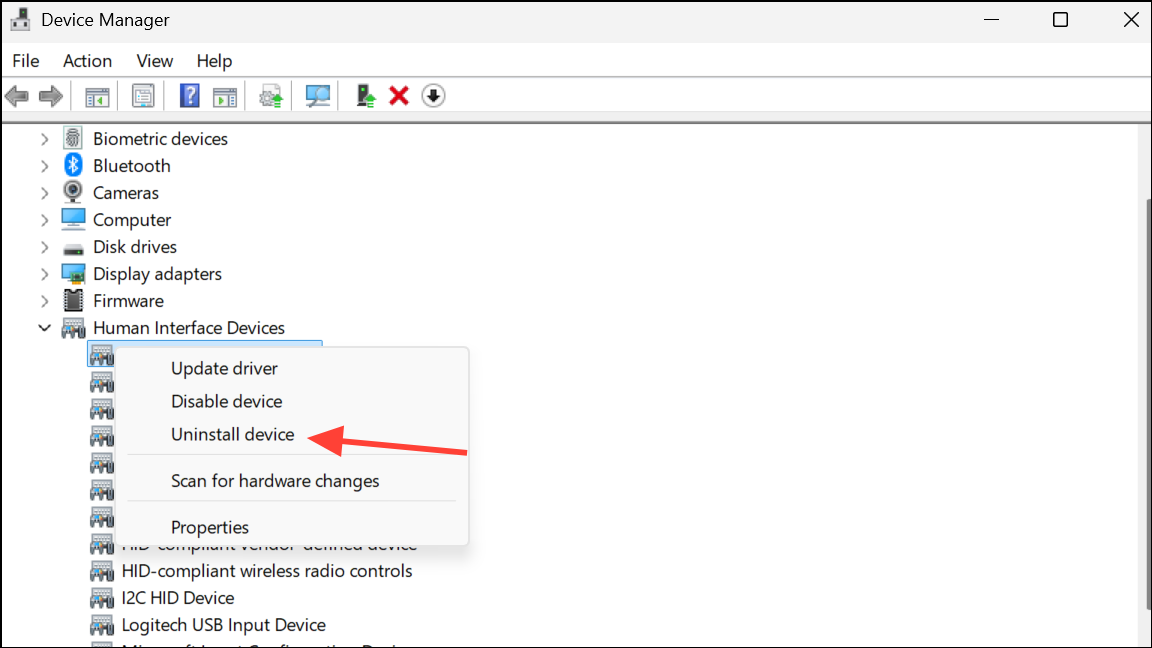
Adjust Mouse Settings
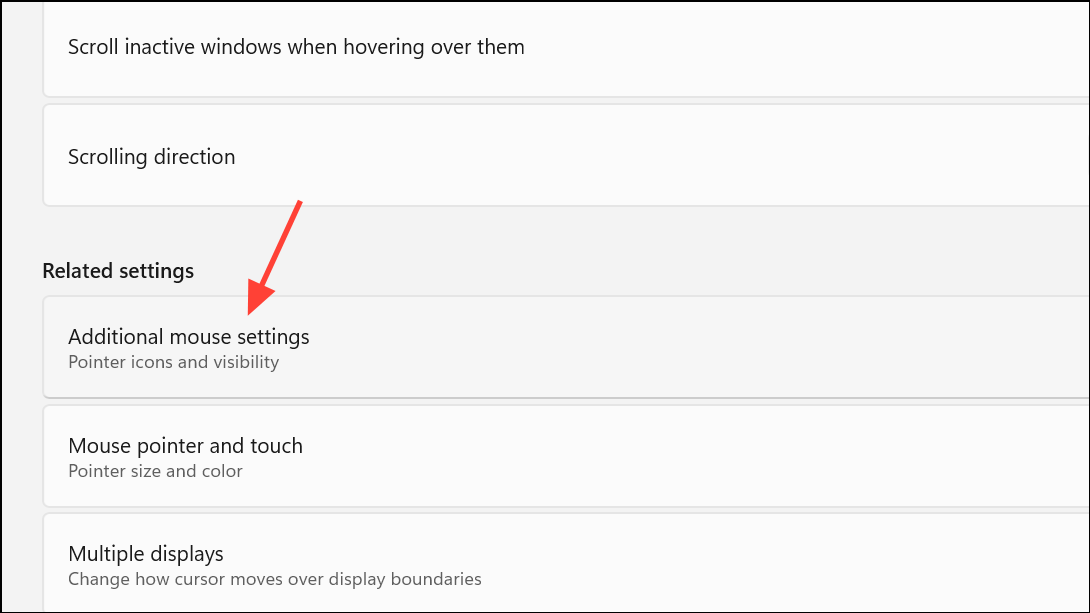
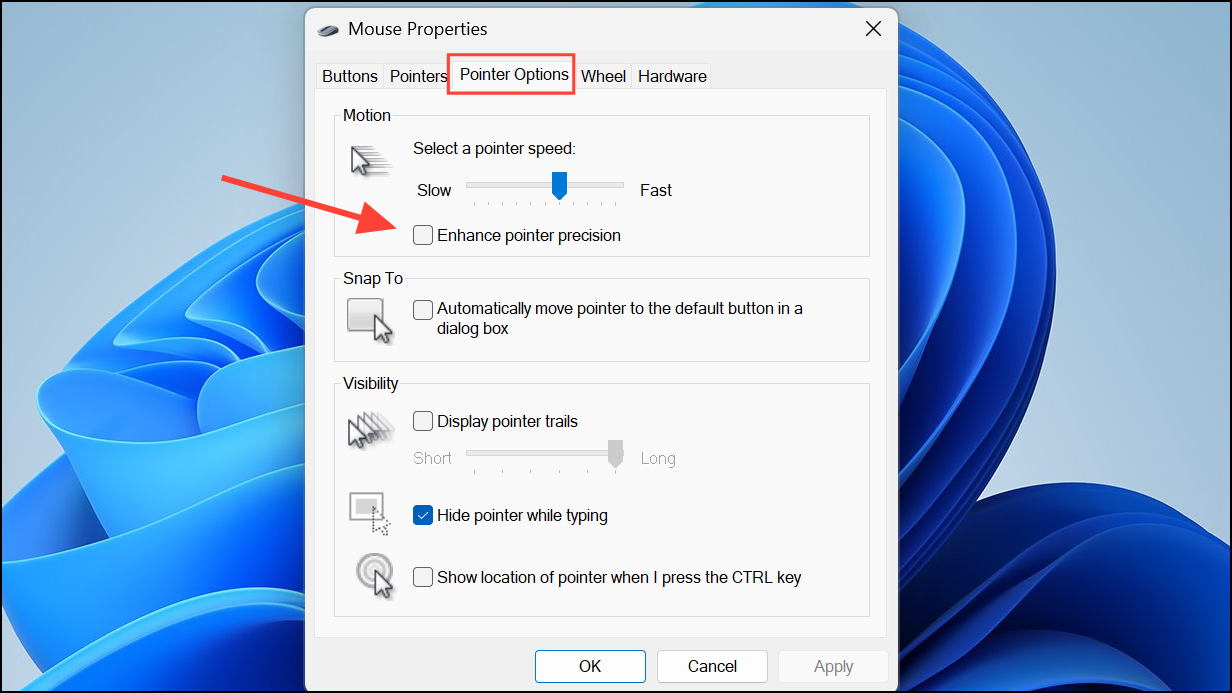
Certain Windows pointer settings can sometimes contribute to erratic behavior, particularly the “Enhance pointer precision” feature.
Windows key + I. Navigate to Bluetooth & devices and select Mouse.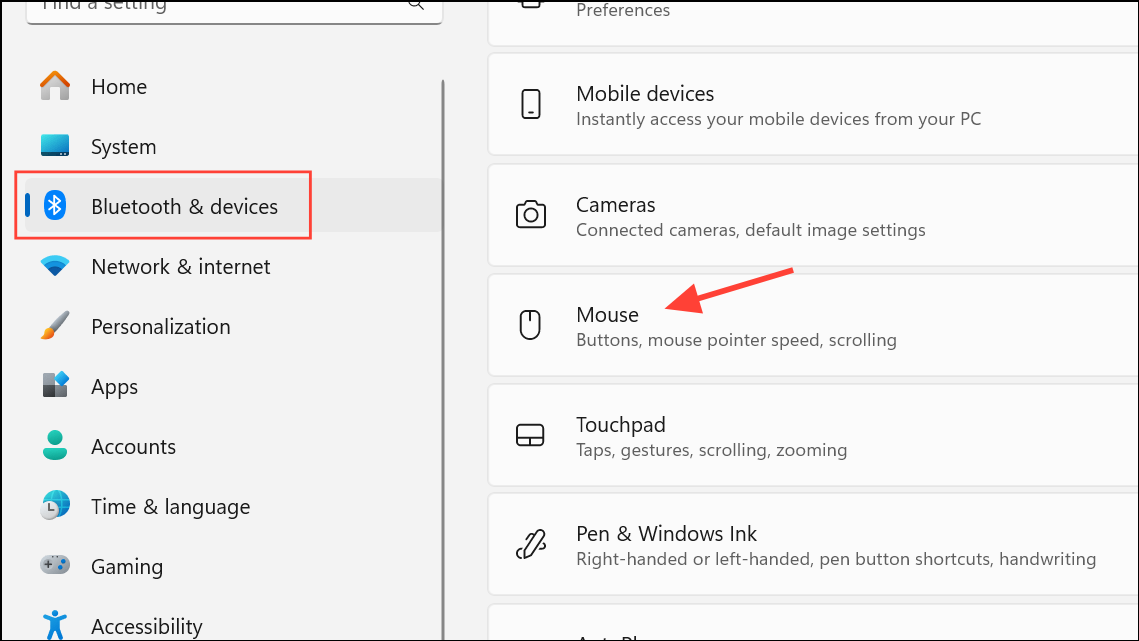
Scan for Malware And Viruses
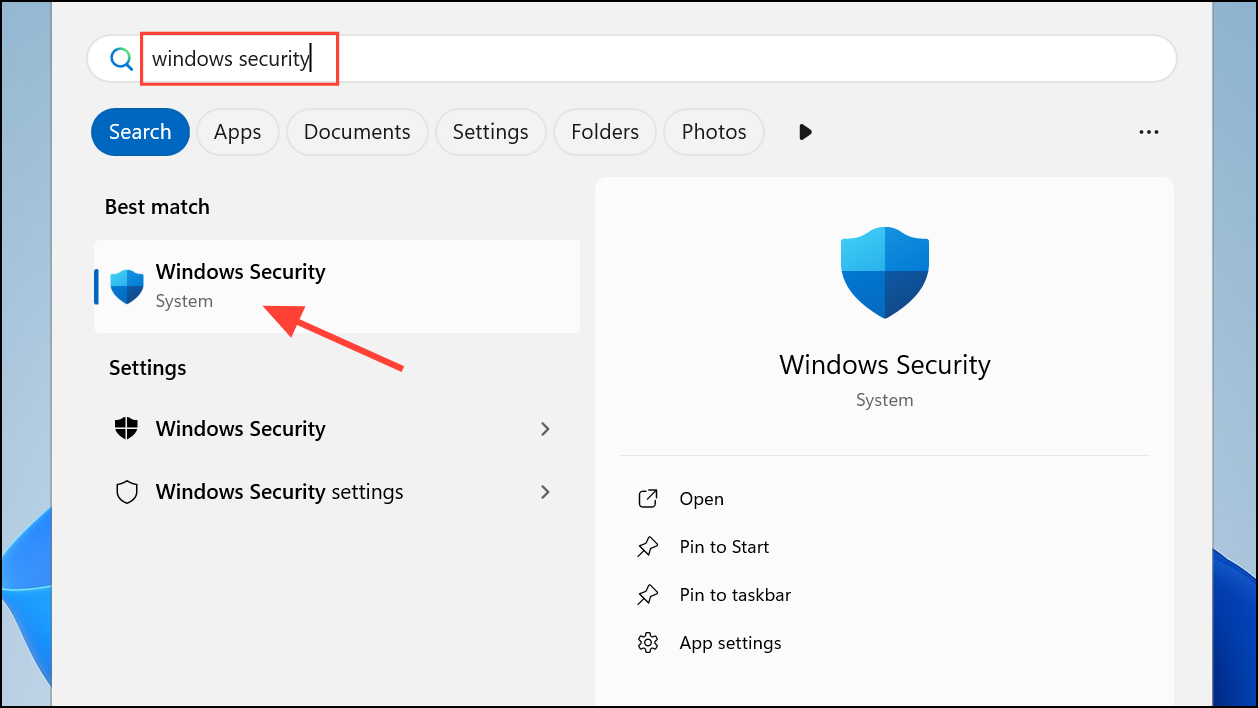
While less common, software issues like malware or conflicting background applications can also cause your cursor to move unexpectedly. Malicious software can give a remote user control over your system, including the mouse cursor. A thorough security scan is a crucial troubleshooting step.
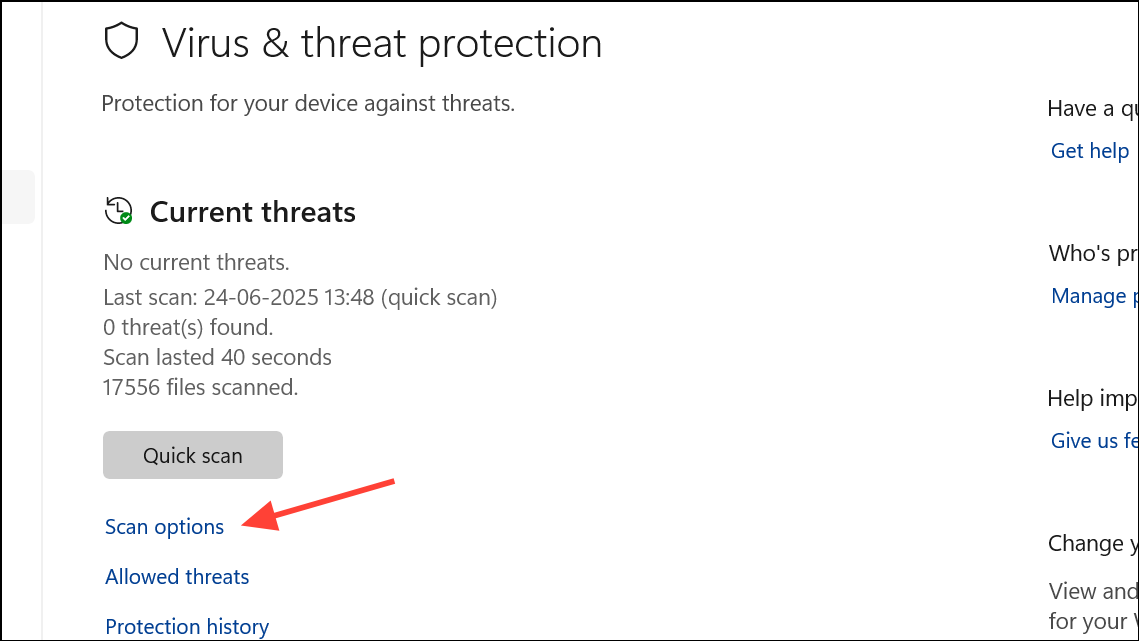
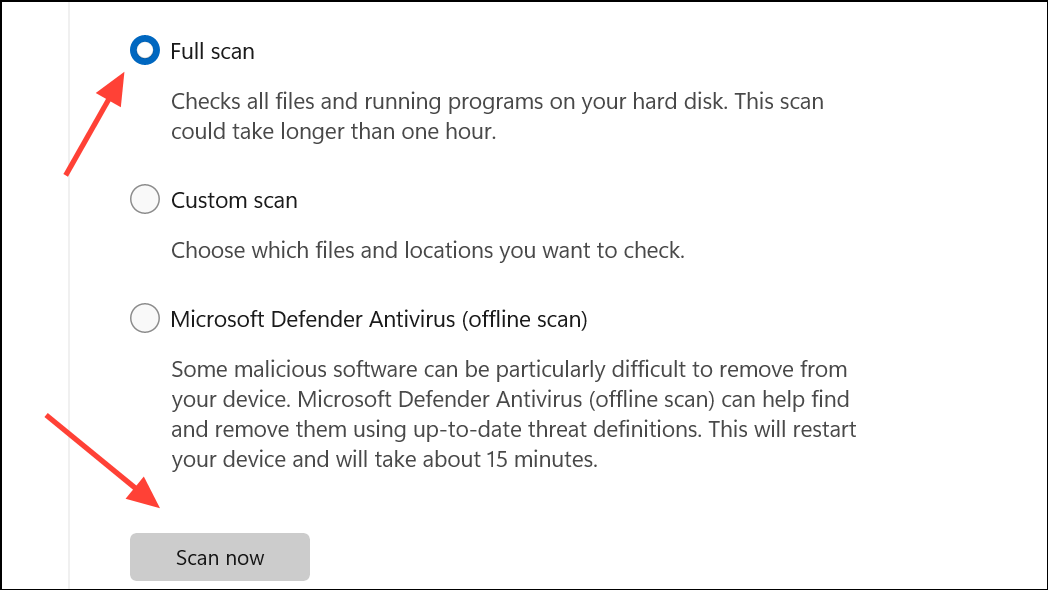
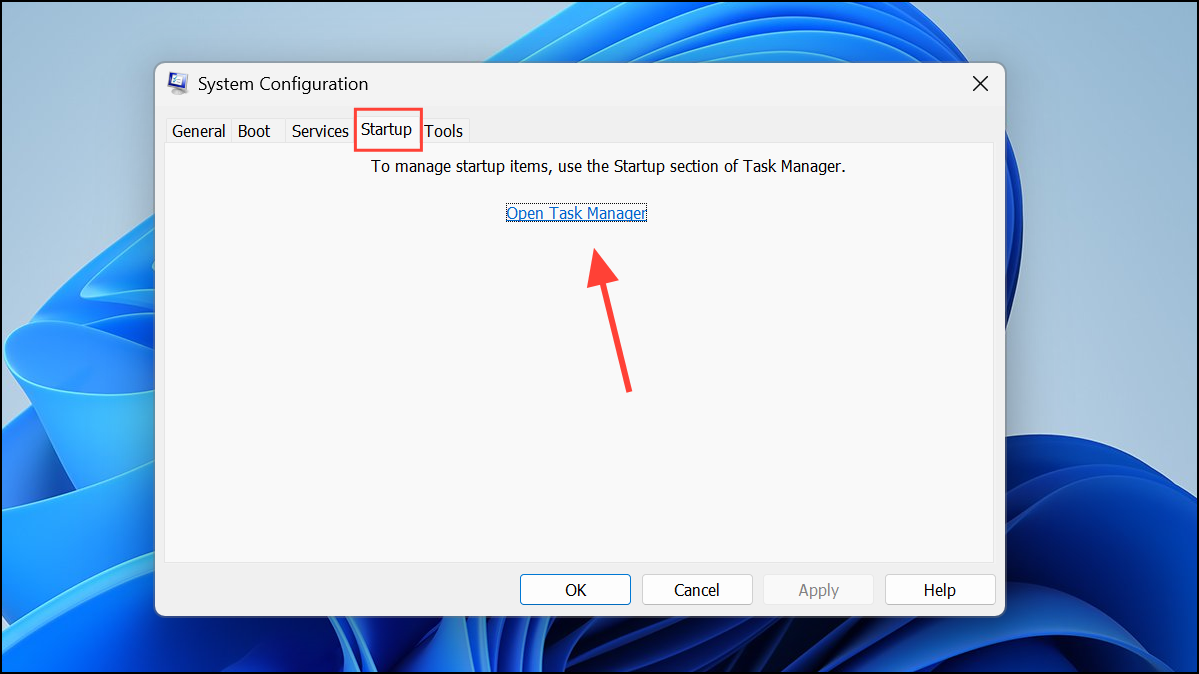
Perform a Clean Boot
A clean boot starts Windows with a minimal set of drivers and startup programs. This helps you determine if a background application is interfering with your mouse.
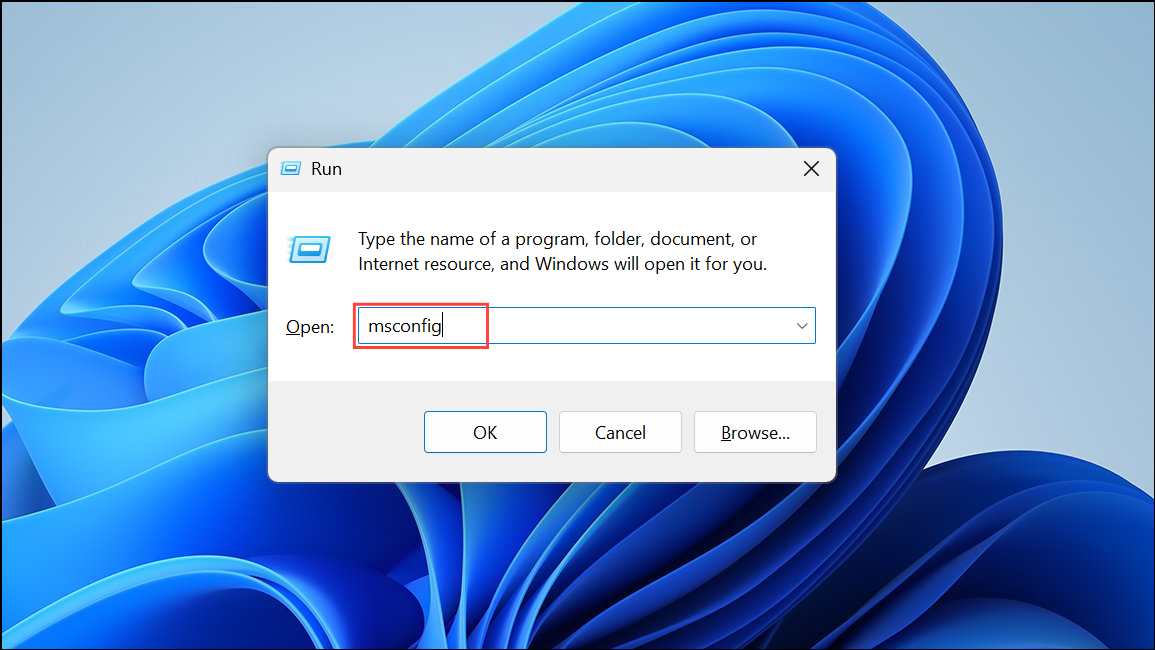
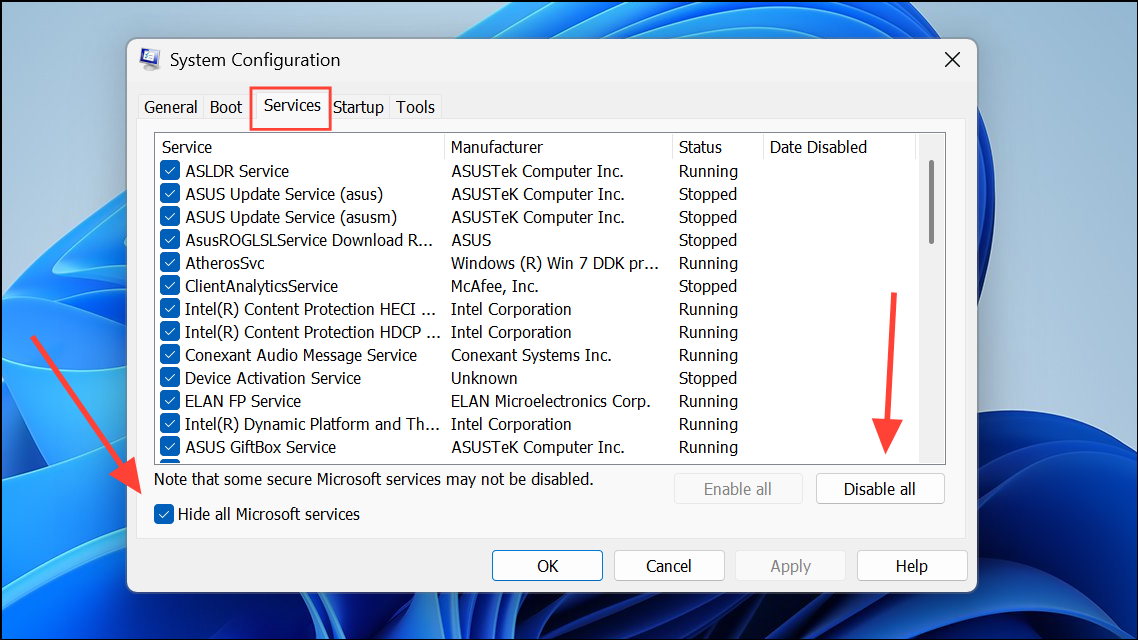
Inspect for Physical Issues
If software solutions fail, the cause may be a physical problem with your laptop’s hardware.
One potential cause is a swelling laptop battery, which is often located directly beneath the touchpad. As the battery expands, it can exert pressure on the underside of the touchpad, causing it to register phantom clicks and movements. If you notice your laptop’s case is bulging or does not sit flat on a surface, turn it off immediately and have it serviced by a professional. A swelling battery is a serious fire hazard.
Additionally, ensure your touchpad surface is clean. Oil, dirt, and debris can sometimes interfere with its ability to track movement properly. Use a soft, lint-free cloth lightly dampened with isopropyl alcohol to gently wipe the surface.
By working through these methods, from isolating hardware to checking for software conflicts, you can effectively diagnose and fix the cause of your cursor moving on its own.



