
Network connectivity failures after a blue screen (BSOD) on Windows 11 frequently disrupt both Wi-Fi and Ethernet access, leaving users unable to browse the web or connect to online services even though other devices on the same network work normally. This issue often results from corrupted network drivers, system file damage, or disabled network services triggered by the crash. Addressing these root causes can restore reliable internet access and prevent repeated disruptions.
Reinstall Network Drivers
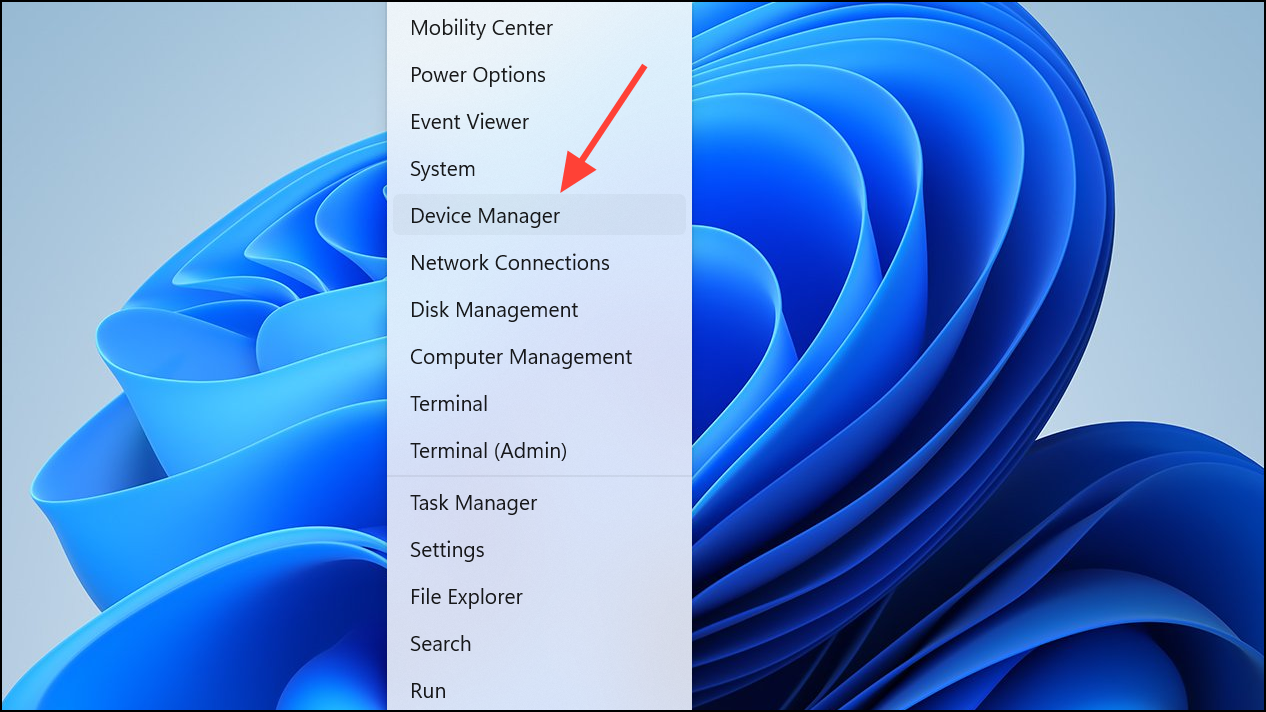
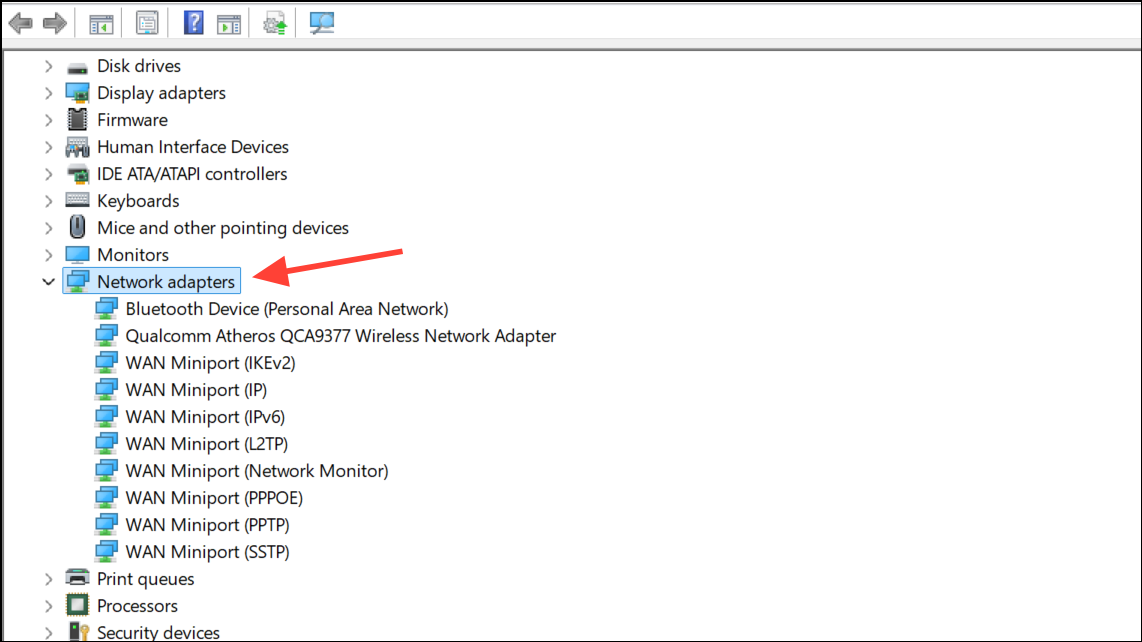
Uninstall device. Check the box for Attempt to remove the driver for this device if available, then confirm the uninstallation.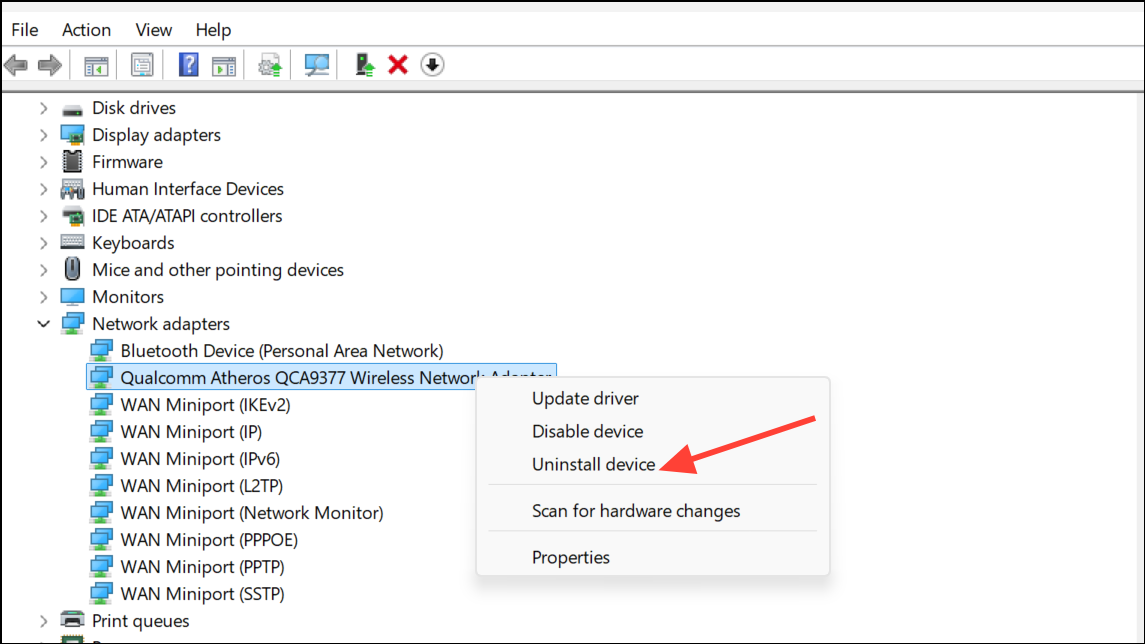
Reset Network Settings
Settings with Windows + I. Navigate to Network & Internet and select Advanced network settings.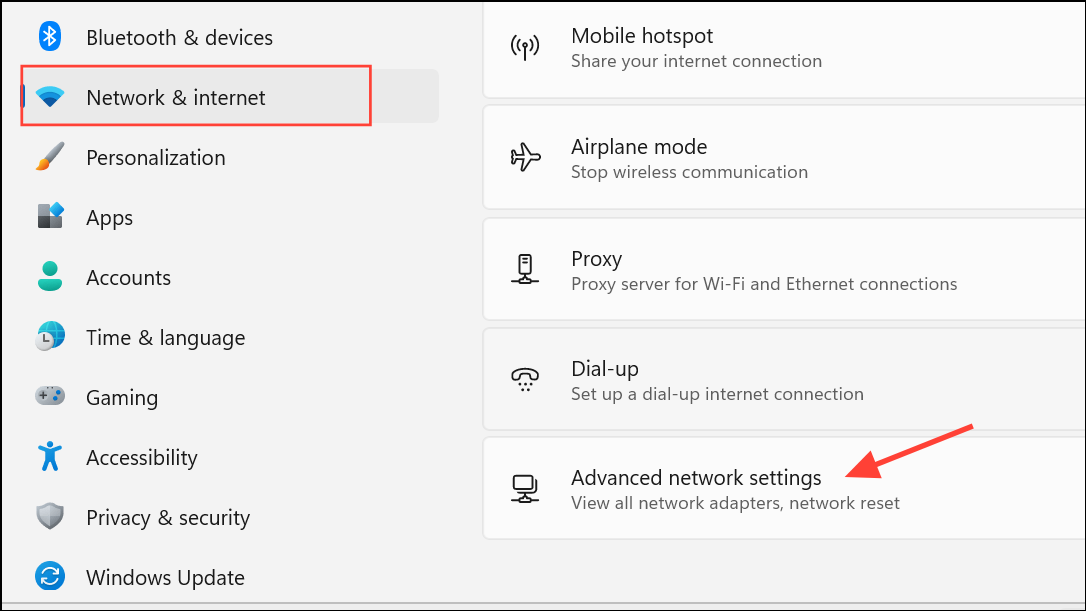
Network reset. Confirm the reset when prompted. This action removes and reinstalls all network adapters and sets networking components back to their original state.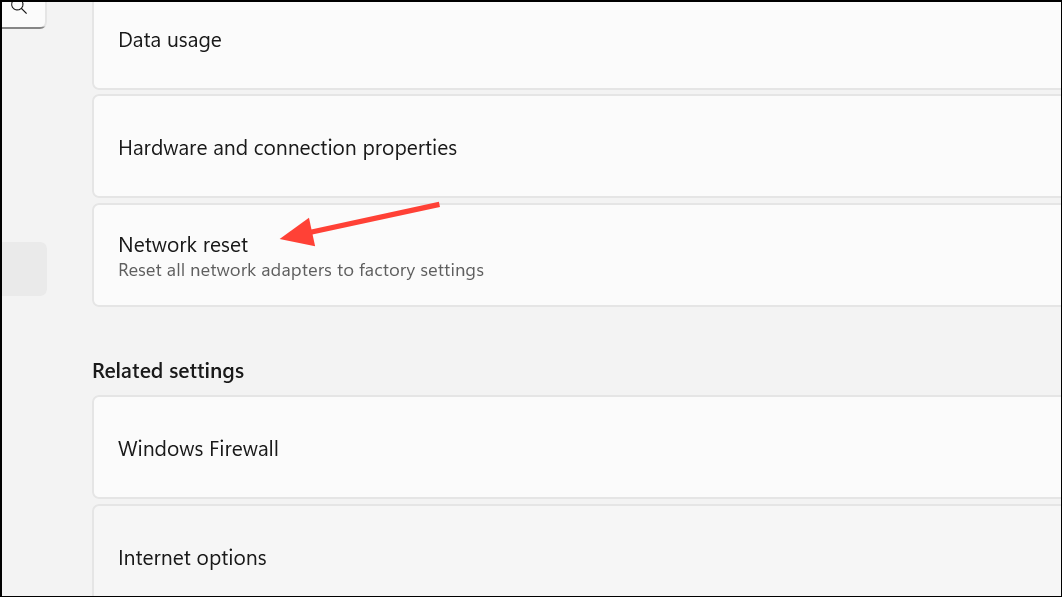
Repair Corrupted System Files
System file corruption from a crash can prevent network services from starting or functioning correctly.
Command Prompt as administrator by searching for cmd, right-clicking the result, and selecting Run as administrator.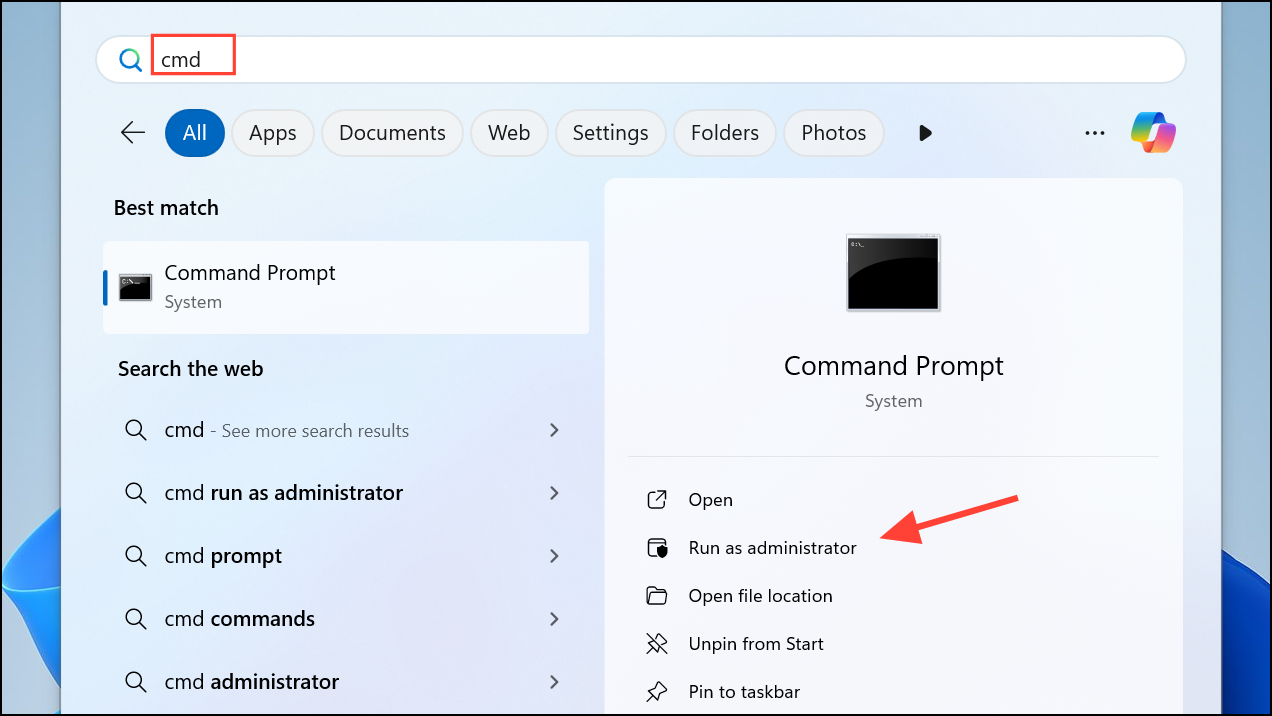
DISM /Online /Cleanup-Image /RestoreHealth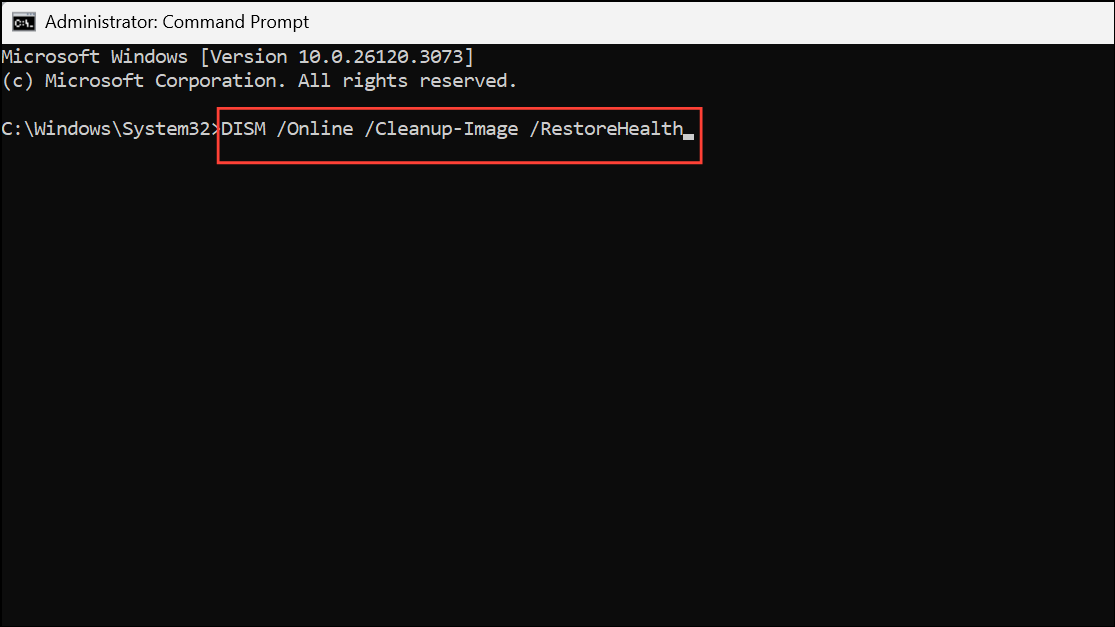
sfc /scannow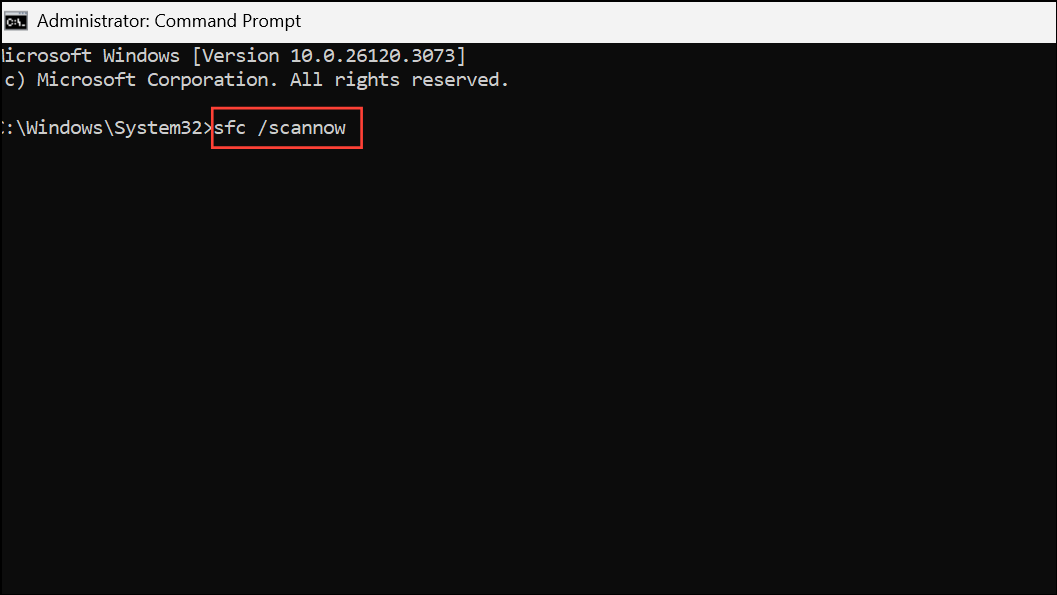
Restart and Restore Network Services
Network troubleshooting tools may fail if essential Windows services, such as the Diagnostic Policy Service, are not running.
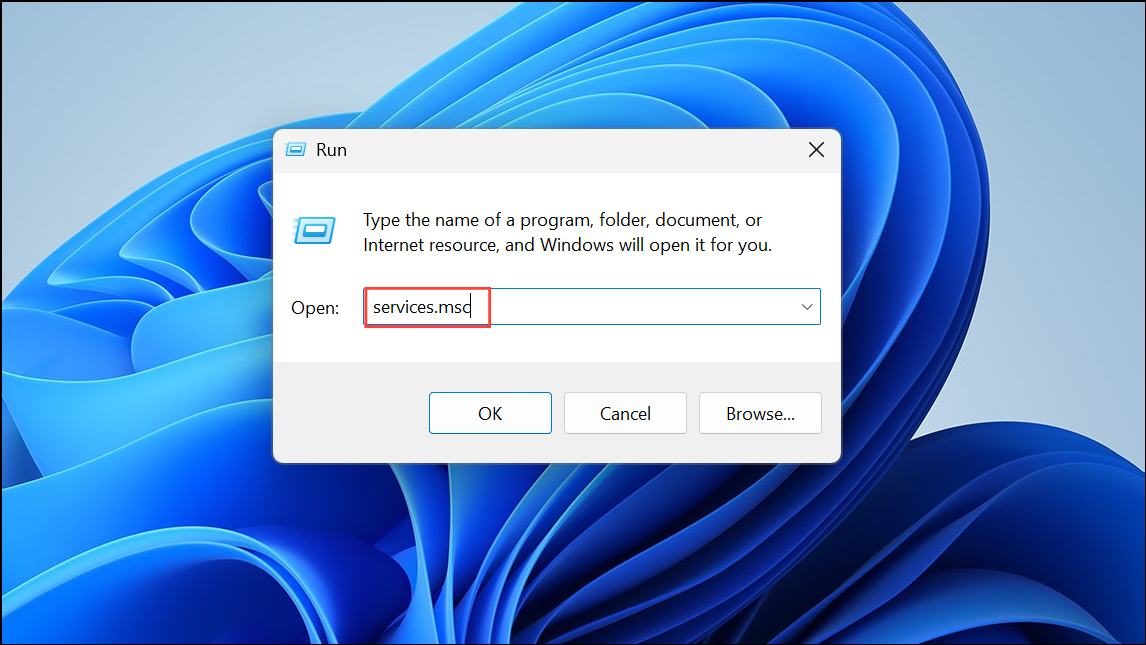
Diagnostic Policy Service. Right-click it and select Start if it is not running. Set the startup type to Automatic to ensure it starts with Windows.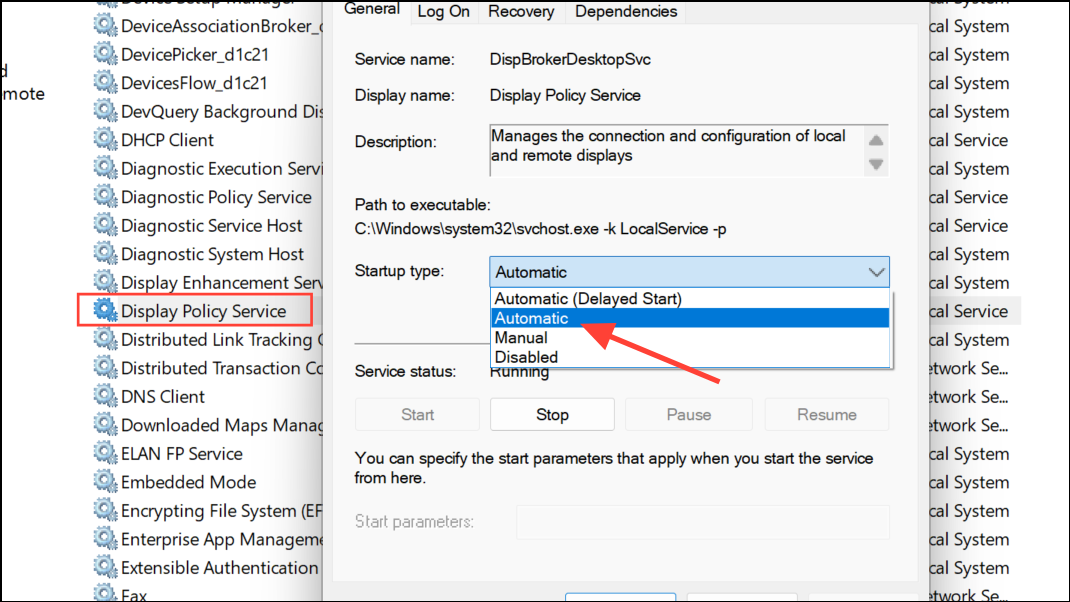
DHCP Client, Network Connections, and Network List Service.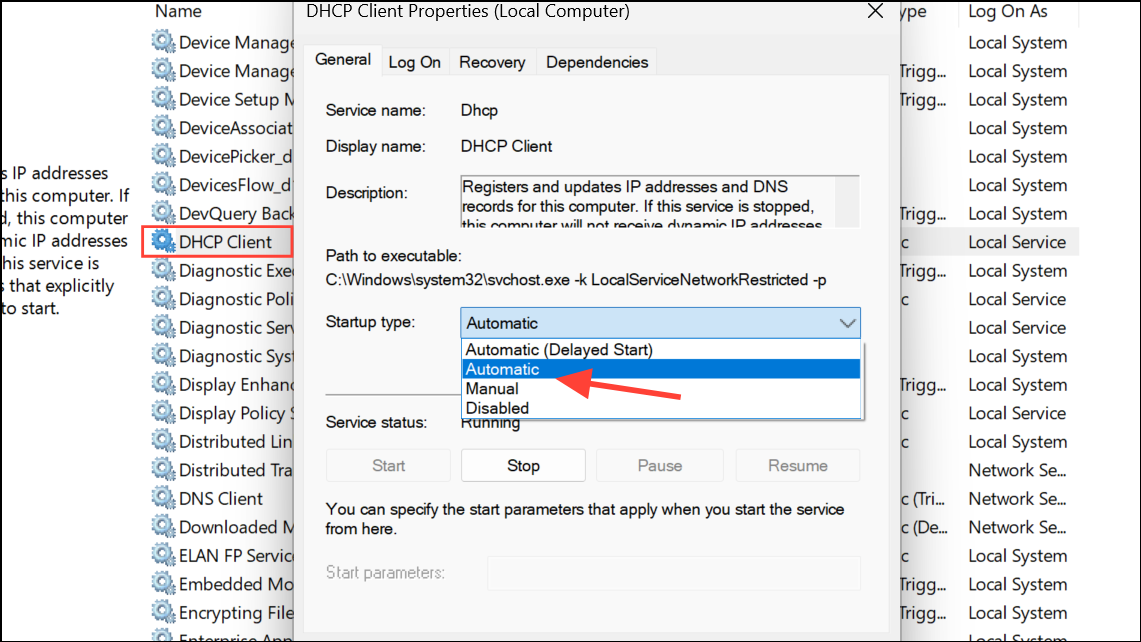
Restore System to a Previous State
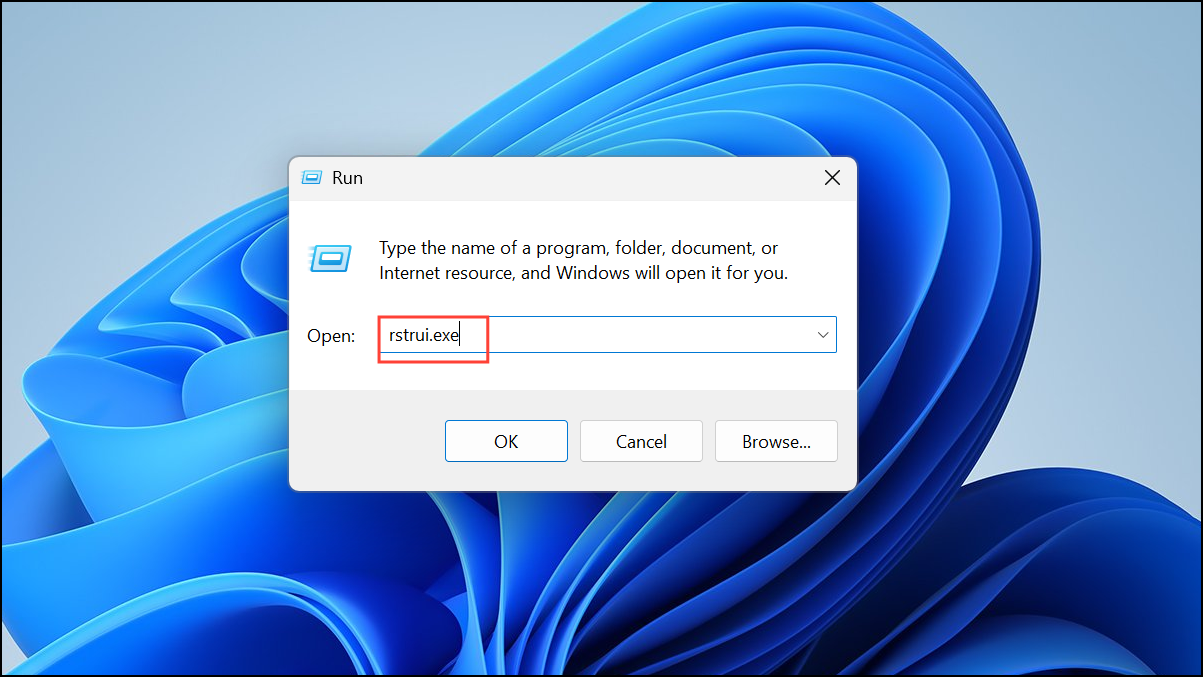
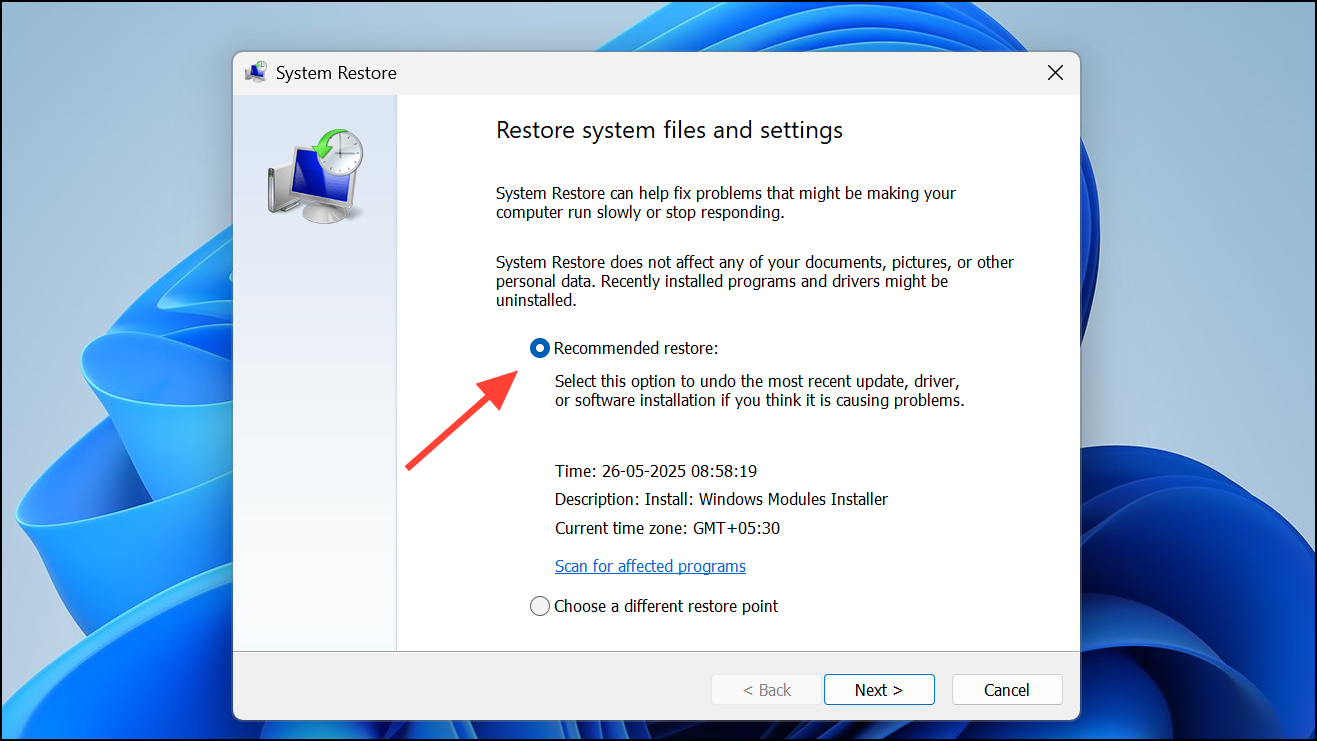
When driver reinstalls and repairs do not resolve the problem, reverting Windows to an earlier restore point can undo changes made during or after the blue screen event.
Update BIOS and Chipset Drivers
Outdated BIOS or chipset drivers can cause persistent hardware communication failures after a crash, especially with integrated network adapters.
Replace or Bypass the Network Adapter
When built-in network adapters repeatedly fail after all software fixes, hardware faults may be to blame. Swapping to a USB Wi-Fi dongle or PCIe network card can quickly test if the original adapter is defective.
Perform a Windows Repair Install or Reset
If all other solutions fail and the system remains unable to connect to the internet, a repair install (in-place upgrade) or full system reset can resolve deep-rooted corruption.
Repair your computer or select Keep my files during a reset to preserve personal data while reinstalling system files.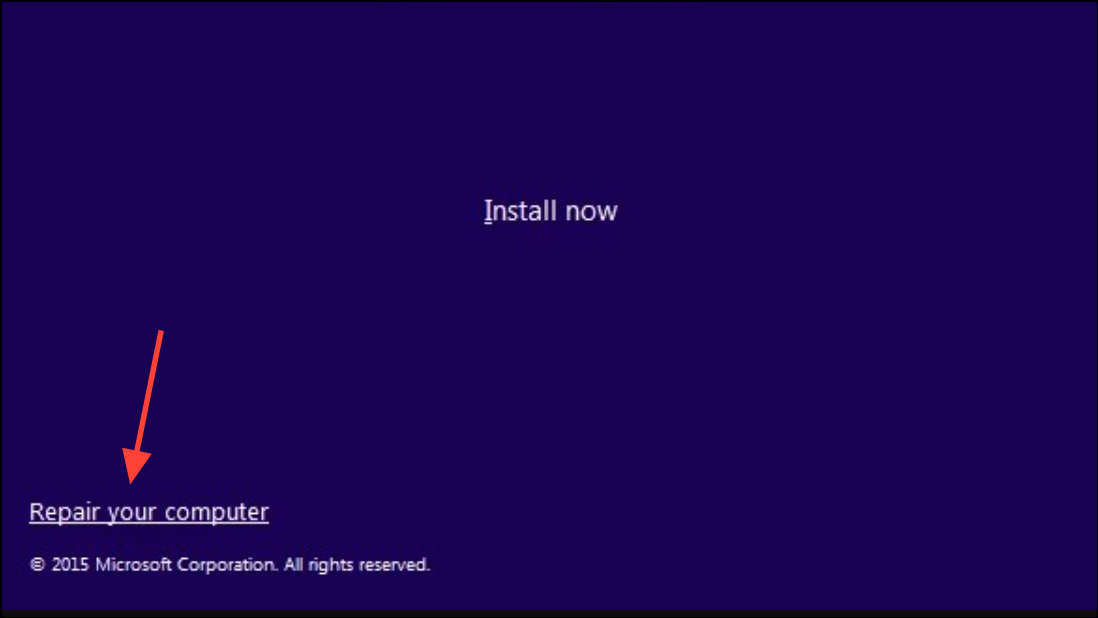
Restoring network connectivity after a blue screen on Windows 11 requires a methodical approach, addressing drivers, system files, and hardware. Regular system backups and keeping drivers up to date can reduce the risk of future disruptions.



