

“No Such Interface Supported” errors in Windows 11 often prevent users from opening files or launching applications, especially after system updates. This error typically points to broken application components, missing or corrupted DLL files, or issues with system files. As a result, users may find themselves unable to open images, videos, 3D models, or even basic text files with their default or preferred programs. Addressing this problem promptly restores normal file access and prevents workflow disruptions.
Repair or Reset the Affected Application
Repairing or resetting the problematic application is an effective way to resolve the error, particularly when the issue is isolated to a specific app like Photos, Paint 3D, or a media player.
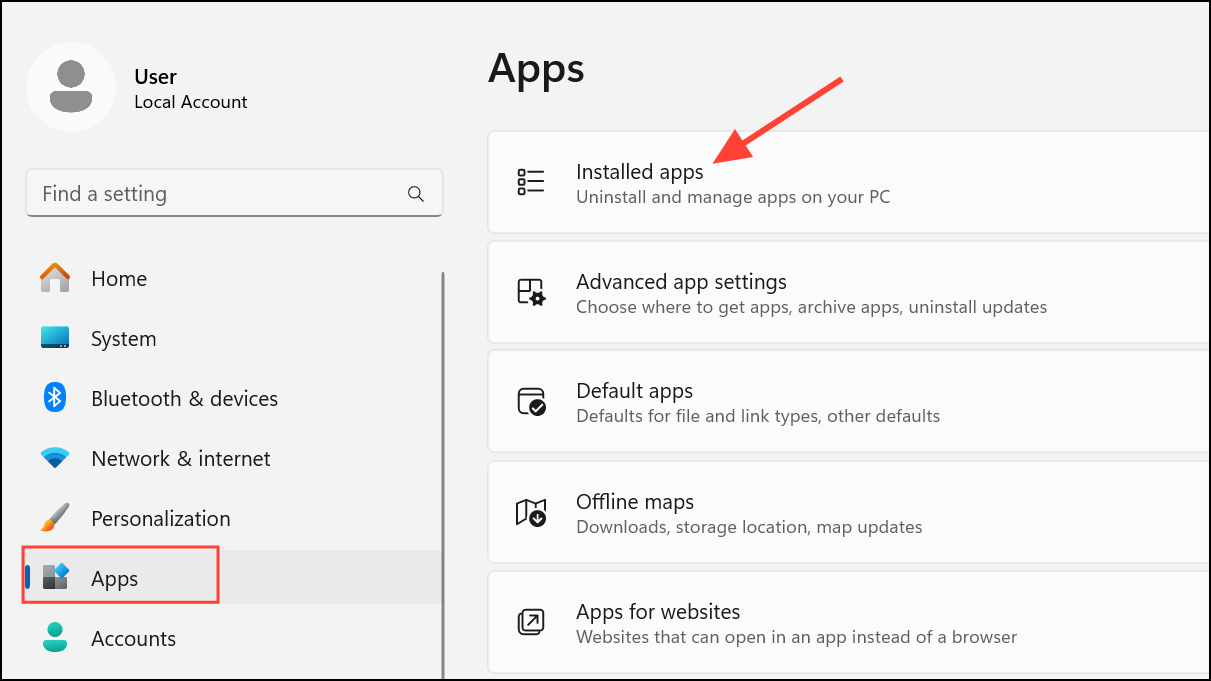
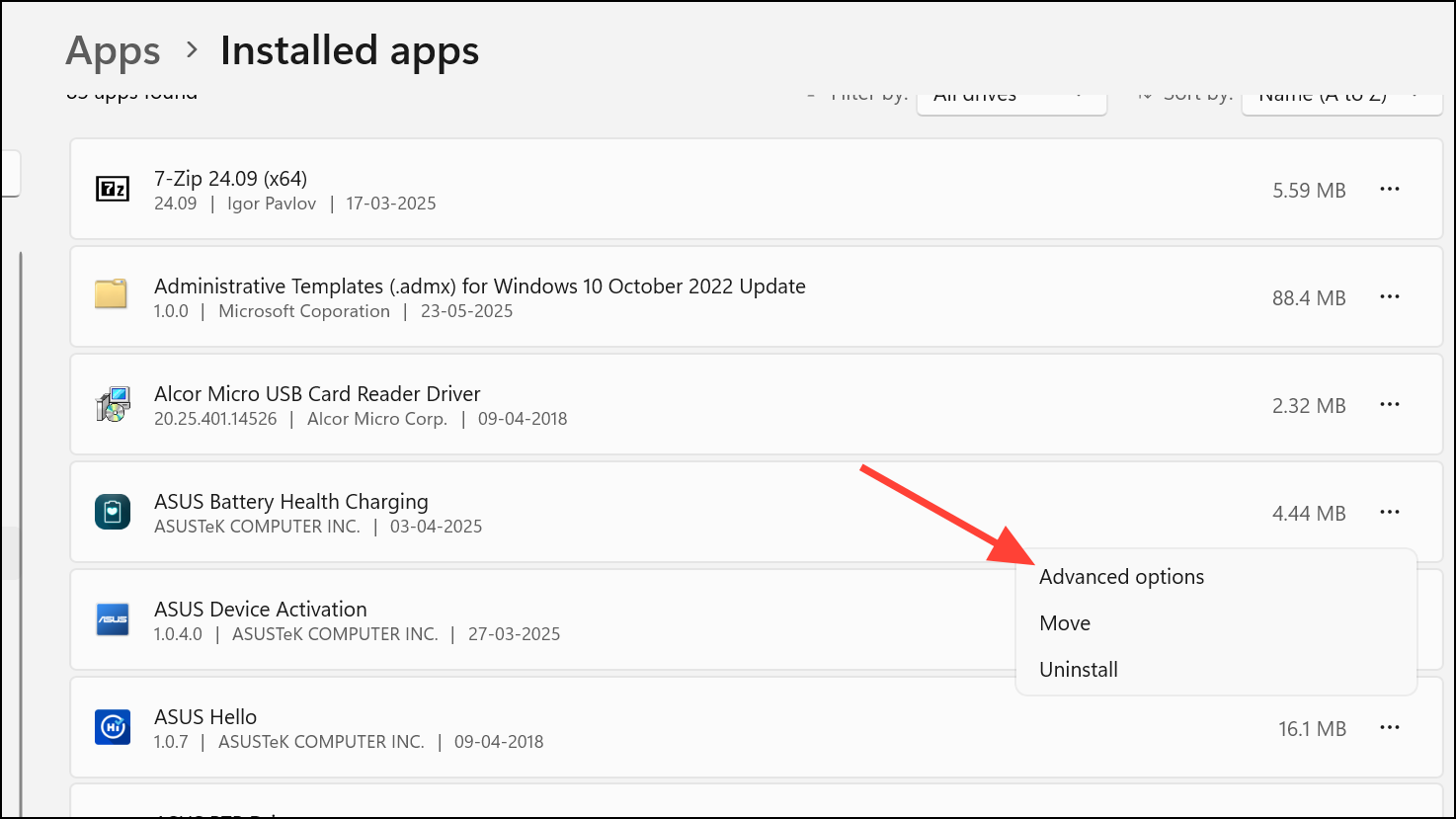
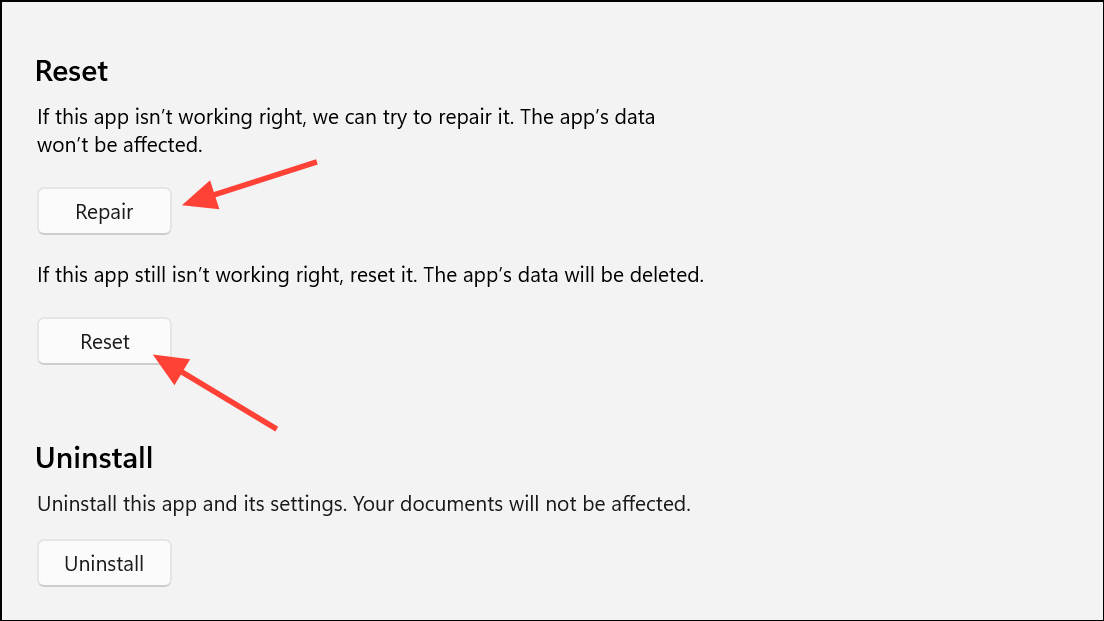
This process is especially useful for Microsoft Store apps like Photos or Paint 3D. For third-party apps, you may see a Modify button instead—use it to repair the program.
Reinstall the Problematic Application
If repairing the app does not resolve the issue, reinstalling it can address deeper corruption or missing components.
Windows + R to open the Run dialog, type appwiz.cpl, and press Enter. This opens the Programs and Features control panel.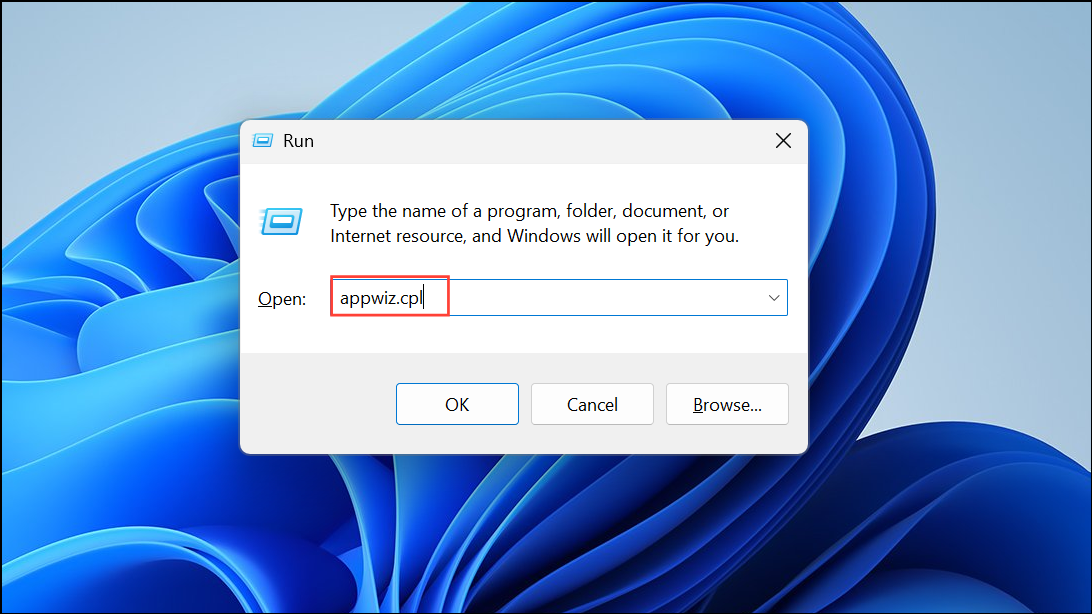
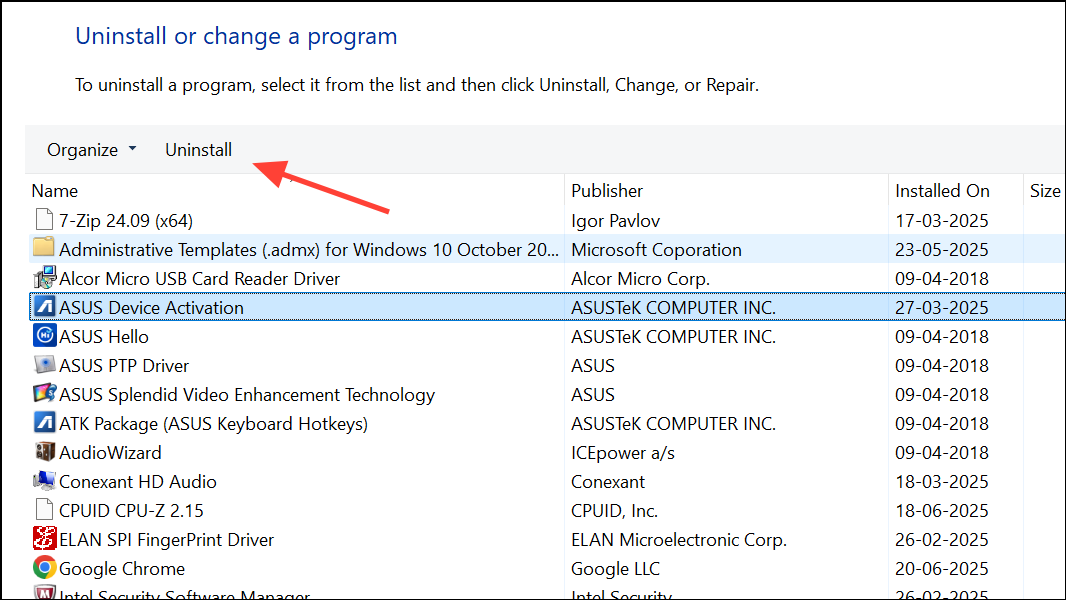
Re-register DLL Files
Corrupted or unregistered DLL files, such as actxprxy.dll, can prevent Windows components and applications from accessing necessary interfaces. Re-registering these DLLs can restore normal functionality.
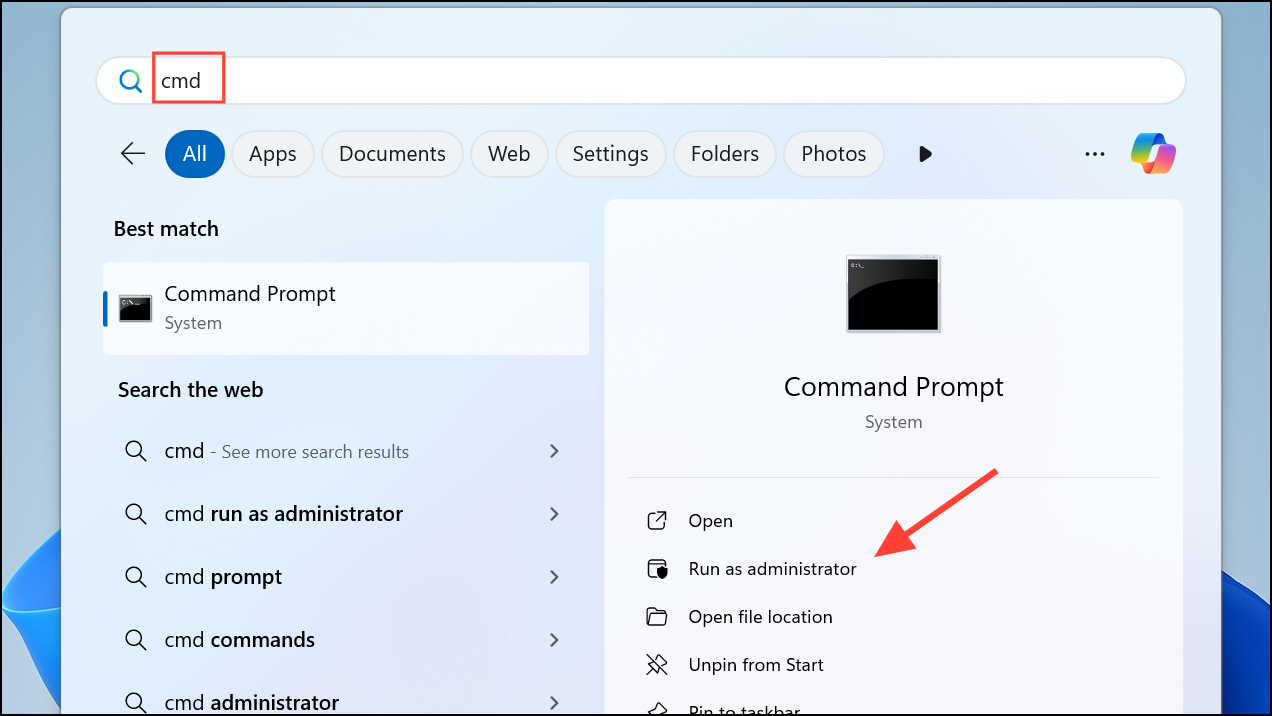
regsvr32 c:\windows\system32\actxprxy.dll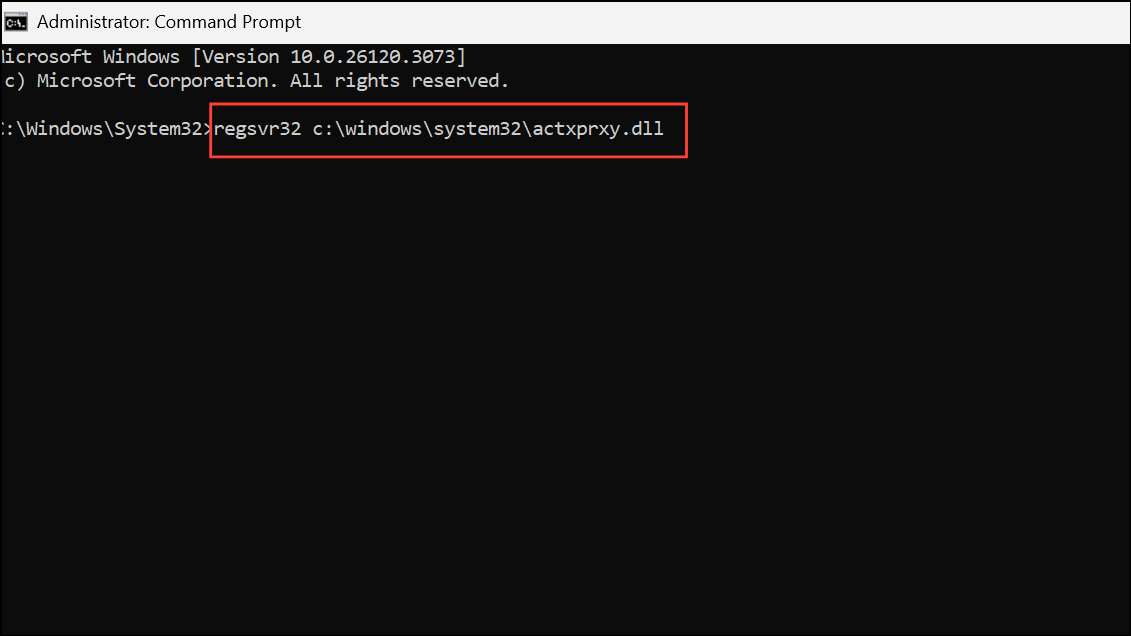
FOR /R C:\ %G IN (*.dll) DO "%systemroot%\system32\regsvr32.exe" /s "%G"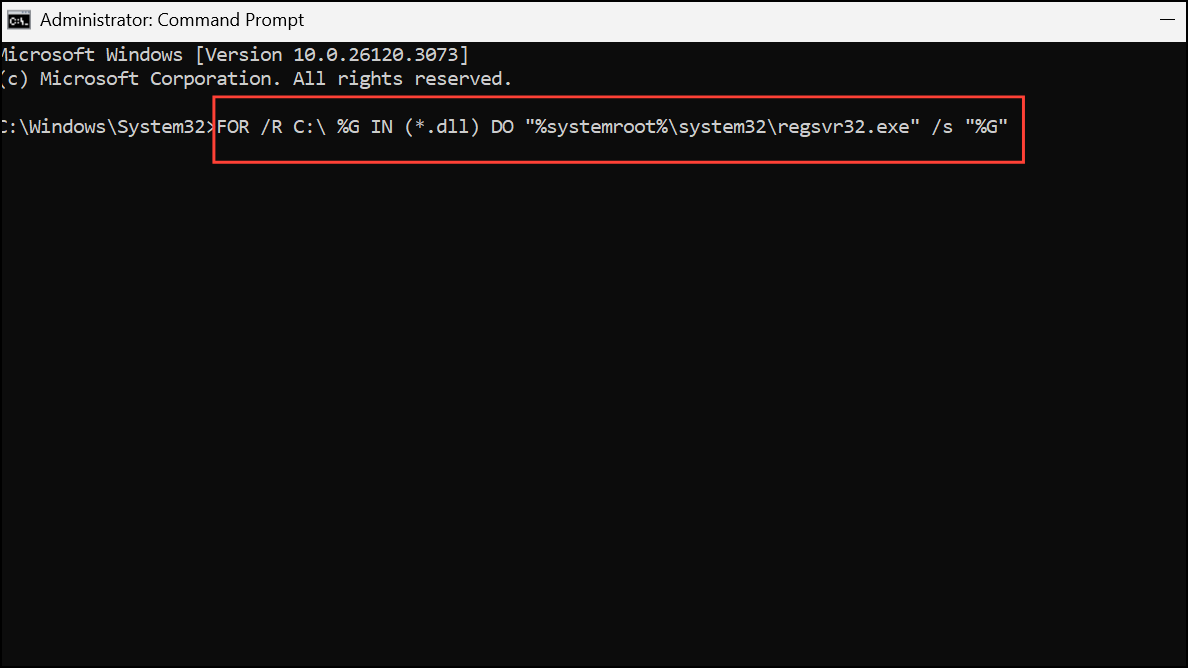
Run System File Checker (SFC) and Check Disk (CHKDSK)
System file corruption can trigger interface errors across multiple applications. Running SFC and CHKDSK scans helps identify and repair corrupted system files and disk errors.
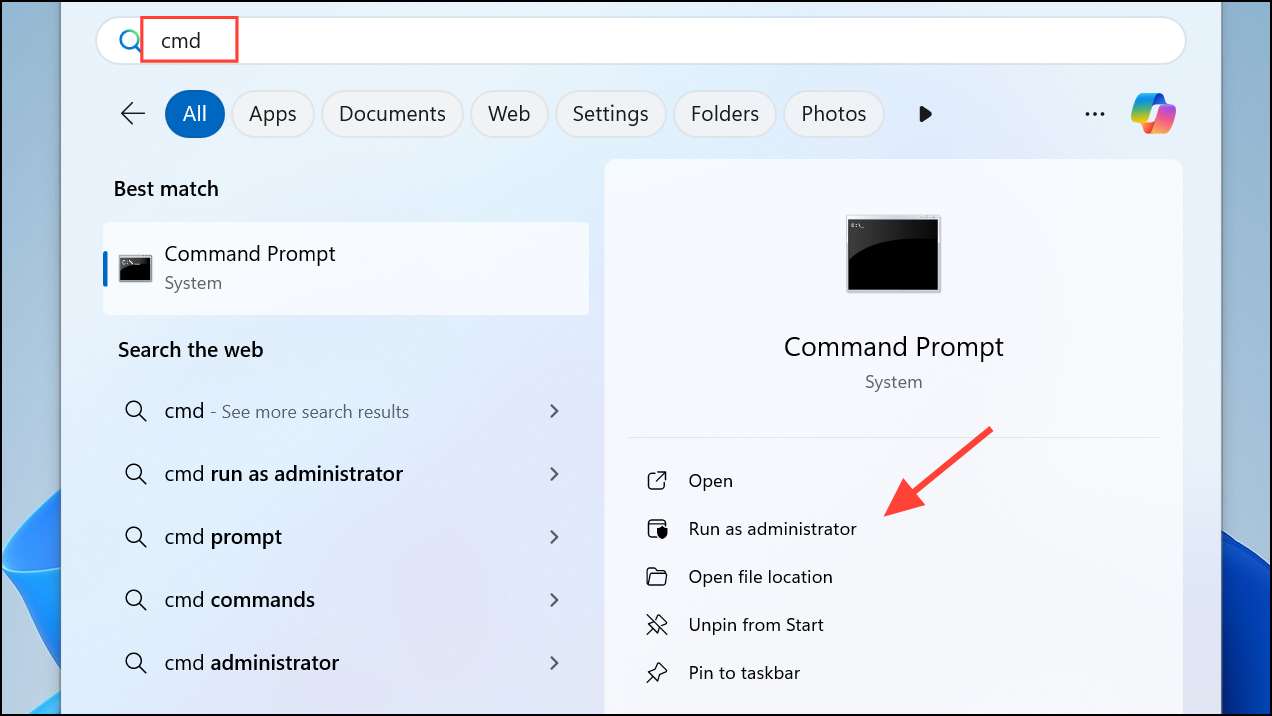
sfc /scannow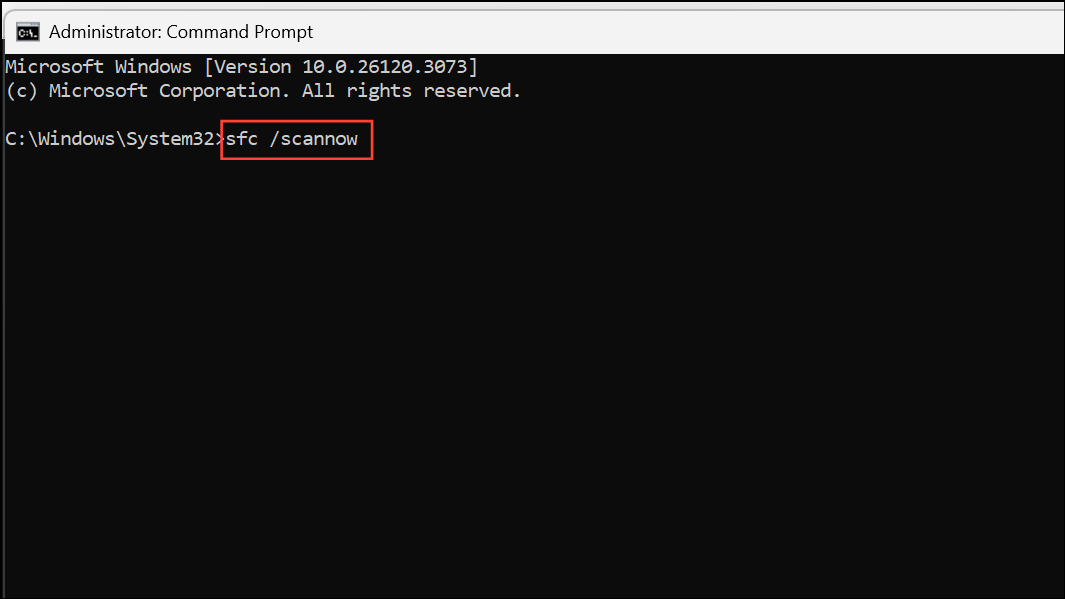
C: with the appropriate drive letter if needed):chkdsk C: /r /v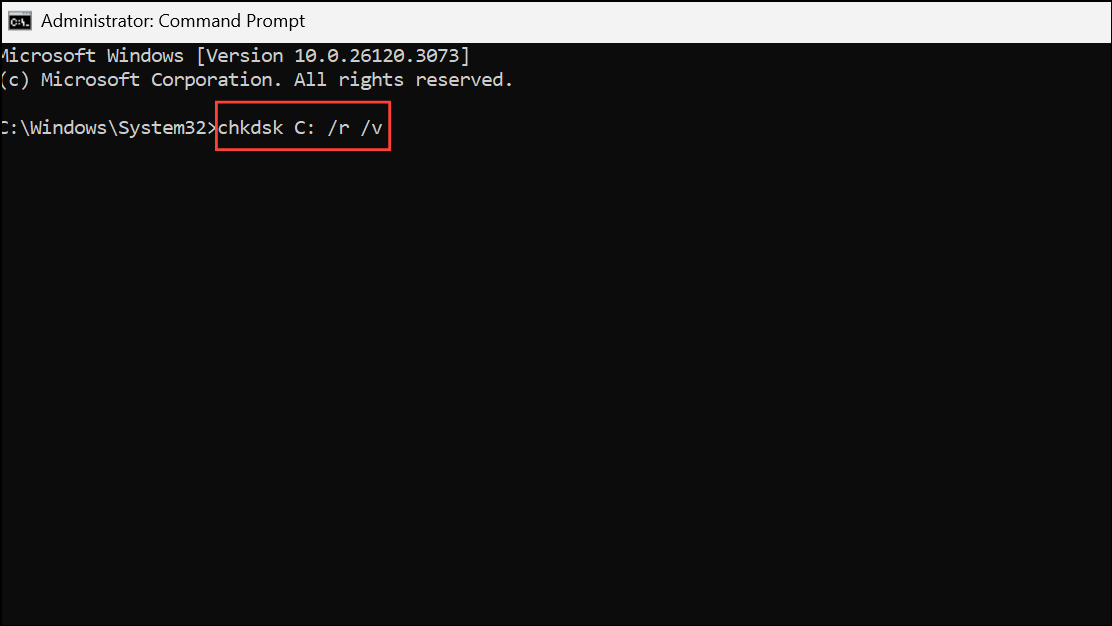
Open Files from the Desktop or Directly in the Application
Some users report that moving the affected file to the desktop or opening it directly from within the target application bypasses the error. This workaround is useful when the error appears only when opening files from File Explorer but not from within the app itself.
This approach is a temporary solution for isolated cases and may not resolve underlying system issues.
Update or Restore File Associations
Incorrect or corrupted file associations can cause interface errors when opening files. Restoring default associations or updating them to the correct app can fix the issue.
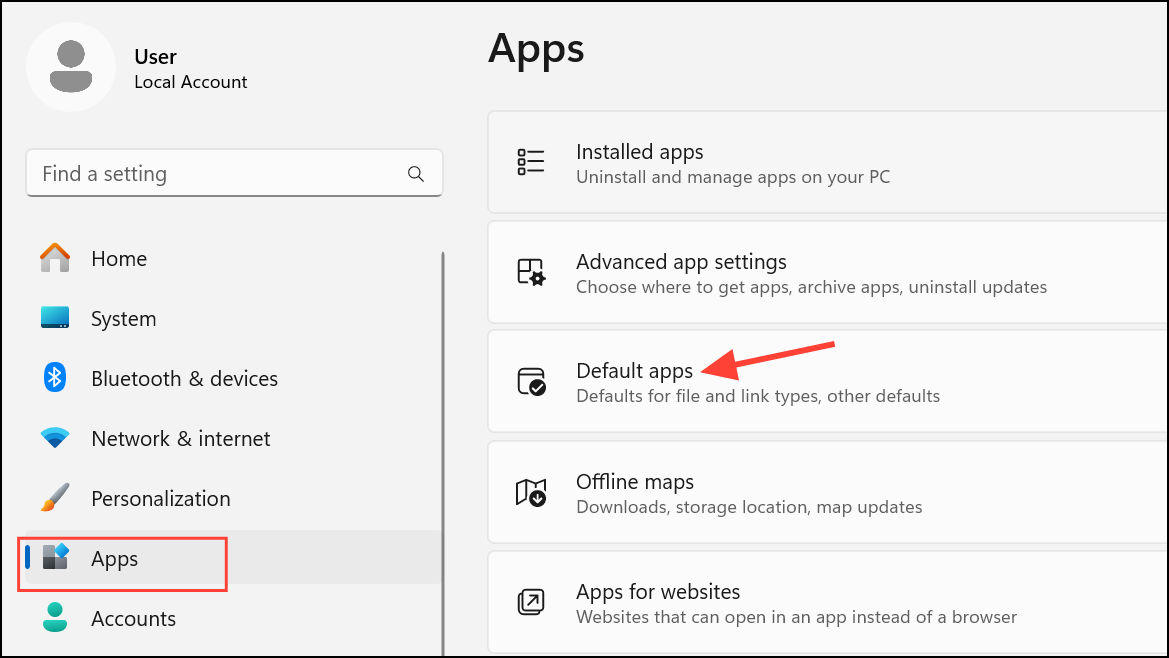
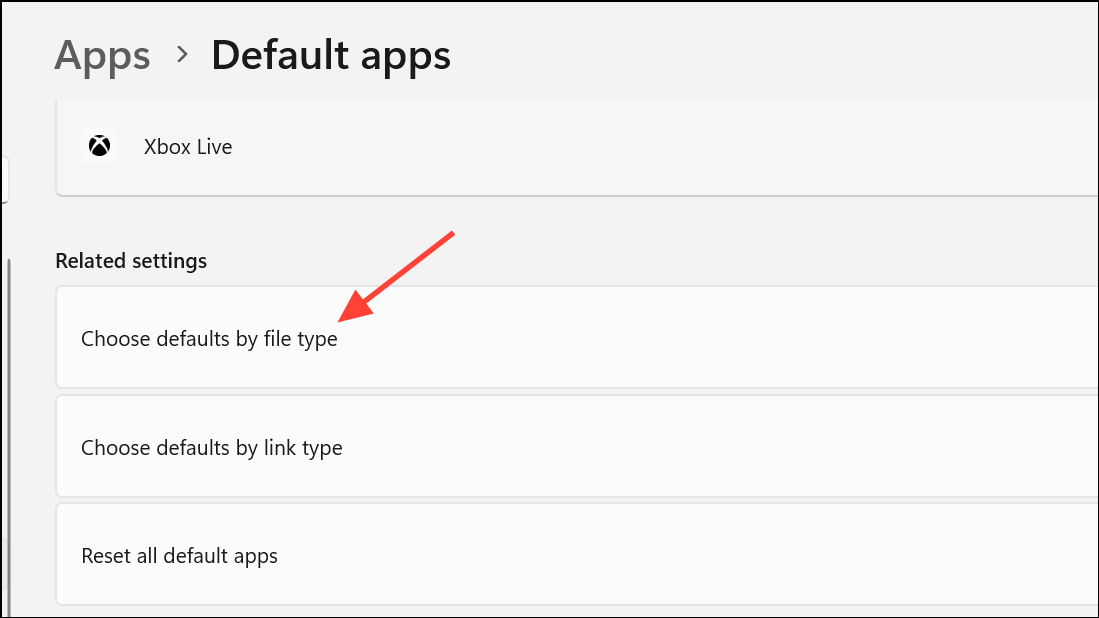
Alternatively, you can restore default file associations using a registry file provided by reputable sources or by resetting all default apps in the same menu.
Additional Tips and Workarounds
- Update Windows to the latest version to receive bug fixes that may address the error.
- Scan your system for malware, as infections can corrupt system files and application interfaces.
- If the error started after a recent update, consider rolling back the update or using System Restore to revert to a previous state.
- For persistent issues with a specific app, uninstalling and reinstalling the app from the Microsoft Store often resolves hidden corruption.
Resolving the “No Such Interface Supported” error in Windows 11 typically involves repairing or reinstalling affected apps, re-registering DLL files, and scanning for system file issues. Addressing these areas restores smooth file and application access, keeping your workflow uninterrupted.



