

Pressing the keyboard or mouse after your Windows 11 PC enters sleep mode should bring the system back to life. When this fails and only the power button works—or worse, even the power button doesn’t respond—routine tasks become frustrating and productivity drops. This issue often relates to USB device power management, BIOS/UEFI settings, or driver conflicts, especially after hardware changes or system updates. Below are proven solutions to restore normal wake functionality.
Enable USB Wake in BIOS/UEFI Settings
Del or F2 immediately after powering on, but the exact key may vary by motherboard manufacturer. If you’re unsure, consult your motherboard manual or look for an on-screen prompt during startup.Enabling USB wake in BIOS/UEFI resolves the majority of sleep/wake issues, especially after BIOS updates, motherboard swaps, or hardware changes. Many users report this setting is disabled by default after firmware updates or when new motherboards are installed.
Adjust Windows Power Management for USB Devices
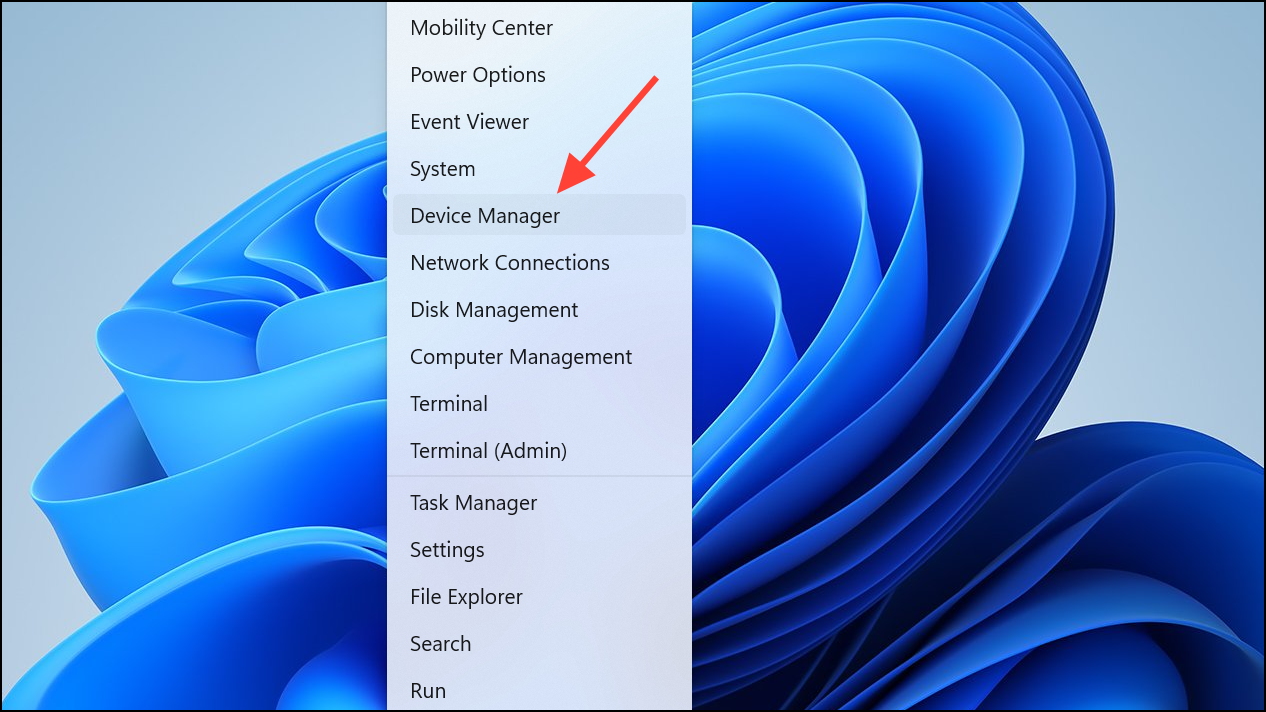
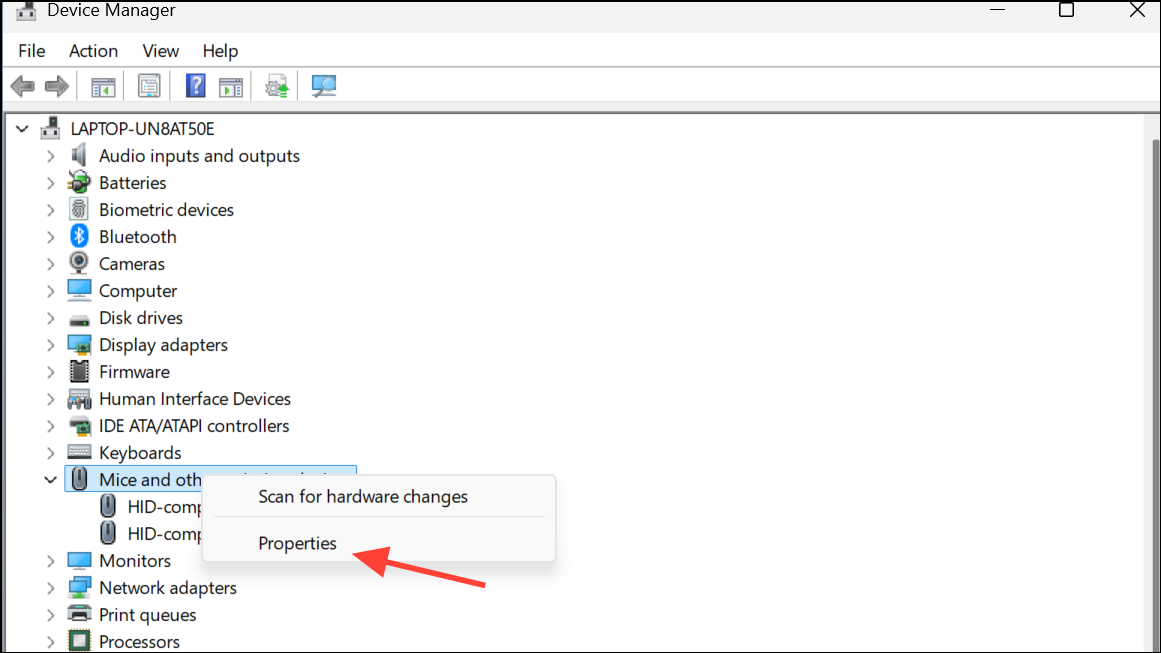
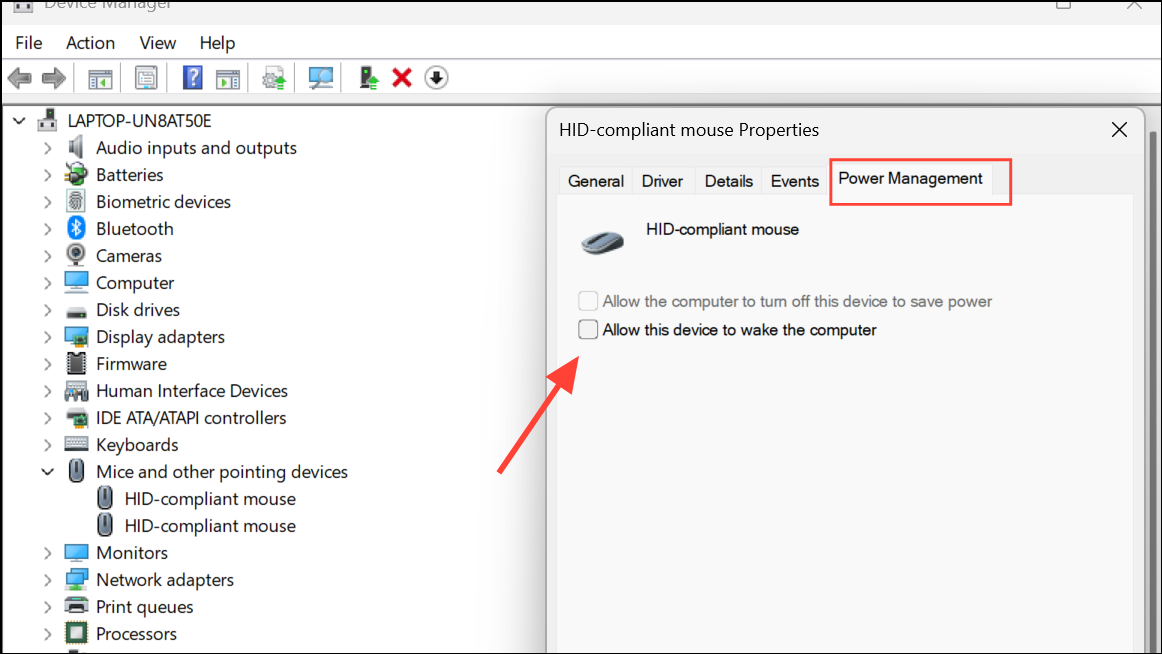
Setting these options allows Windows to recognize keyboard and mouse input as valid wake triggers. If the setting is greyed out or unavailable, double-check BIOS/UEFI as described above—BIOS settings override Windows options.
Disable USB Selective Suspend and Hybrid Sleep
Win + R to open the Run dialog, type powercfg.cpl, and press Enter. This opens the classic Power Options window.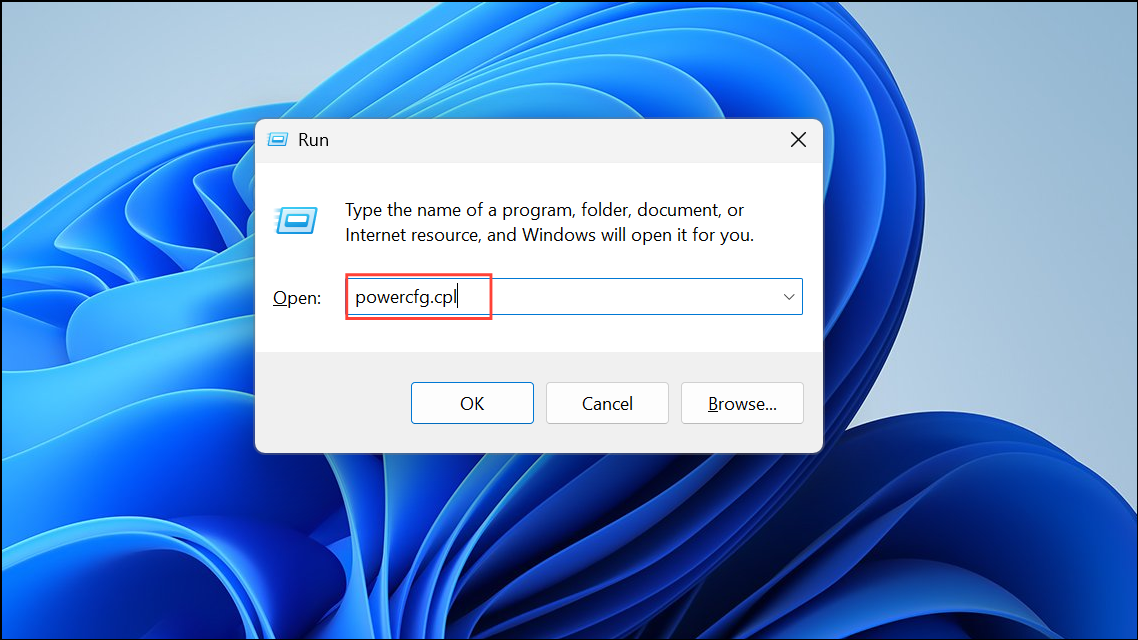
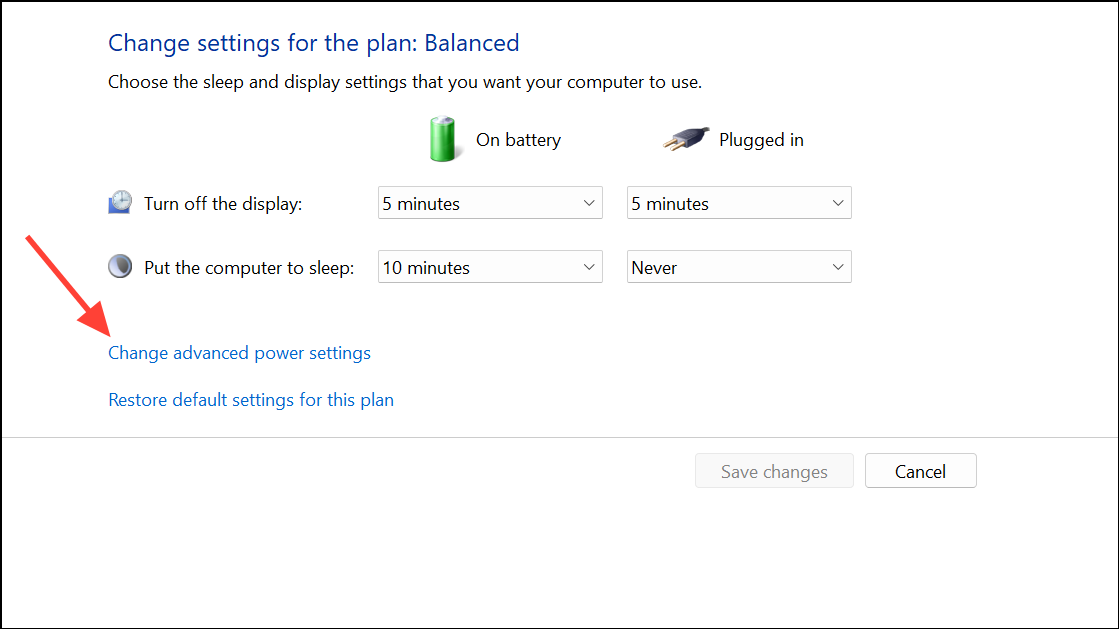
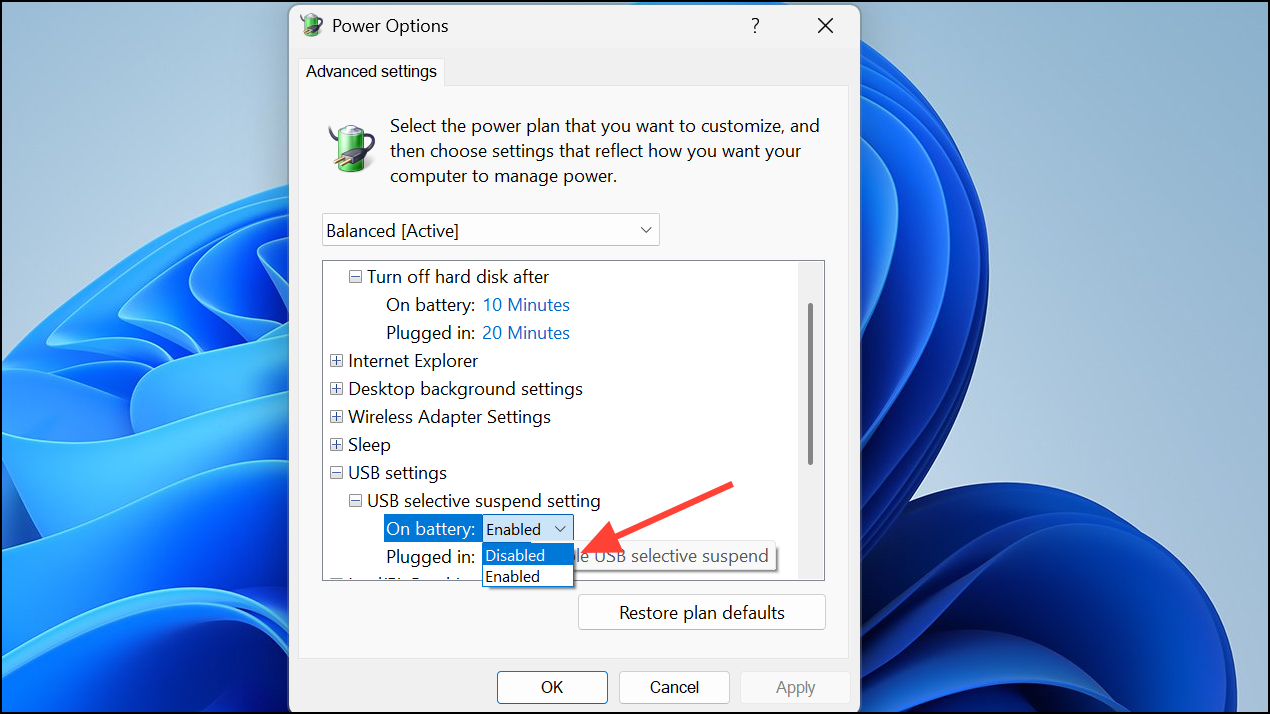
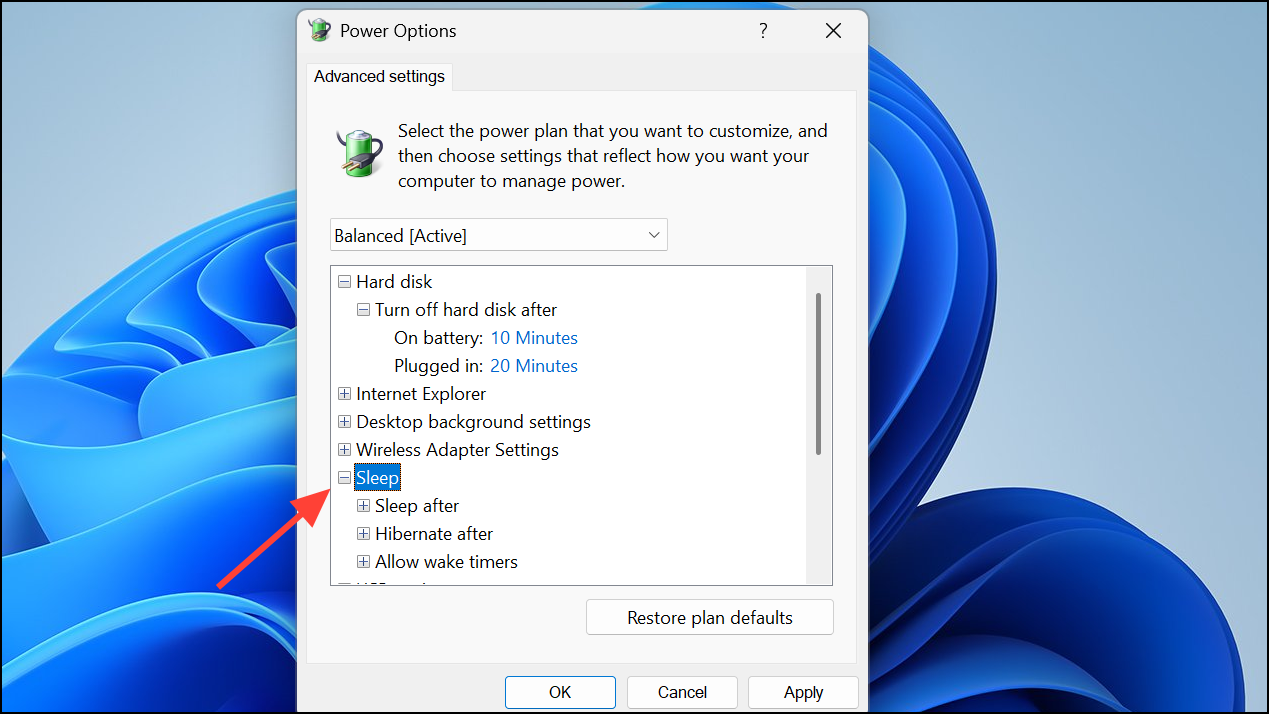
Disabling USB selective suspend prevents Windows from turning off power to USB ports during sleep, which can otherwise block wake signals from your keyboard or mouse.
Update BIOS, Windows, and Device Drivers

Outdated or incompatible firmware and drivers are common causes of sleep/wake issues, especially after major updates or hardware upgrades.
Disconnect External Devices and Troubleshoot USB Hubs
Faulty or incompatible USB devices and hubs often interfere with sleep/wake signals. Identifying the problematic device allows you to update its driver, replace it, or connect it differently (e.g., directly to the motherboard instead of through a hub).
Reset BIOS/UEFI to Default Settings
Resetting the BIOS/UEFI can resolve issues caused by incorrect or corrupted configuration, especially after firmware updates or hardware changes.
Run Windows Power Troubleshooter and Diagnostics
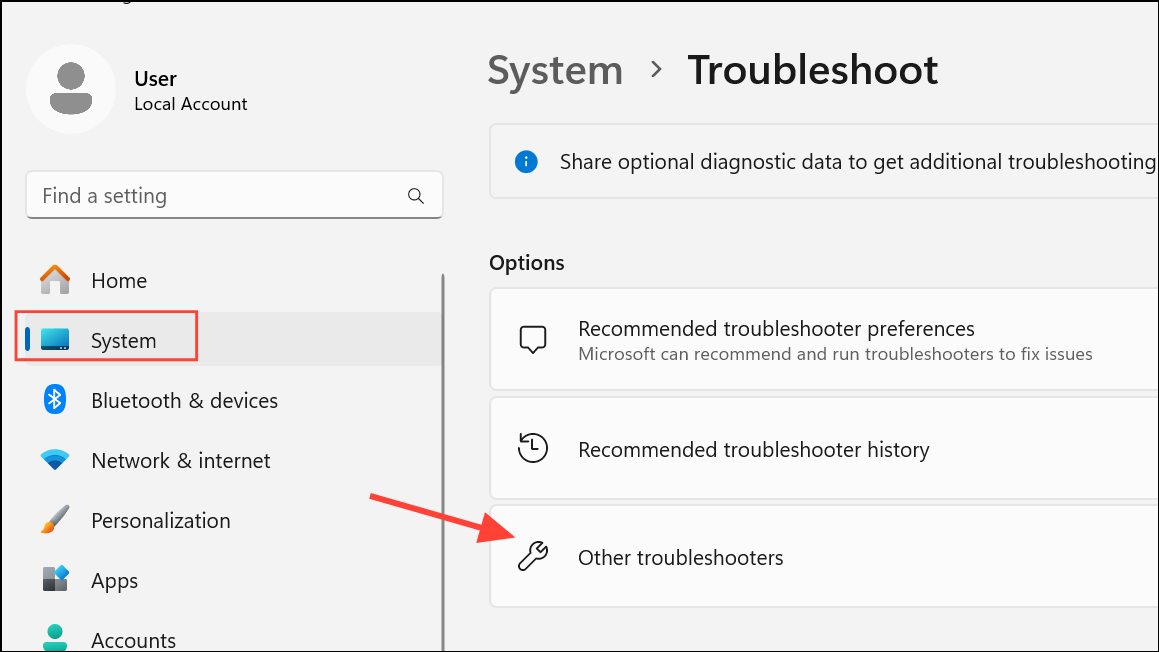
msdt.exe -id PowerDiagnostic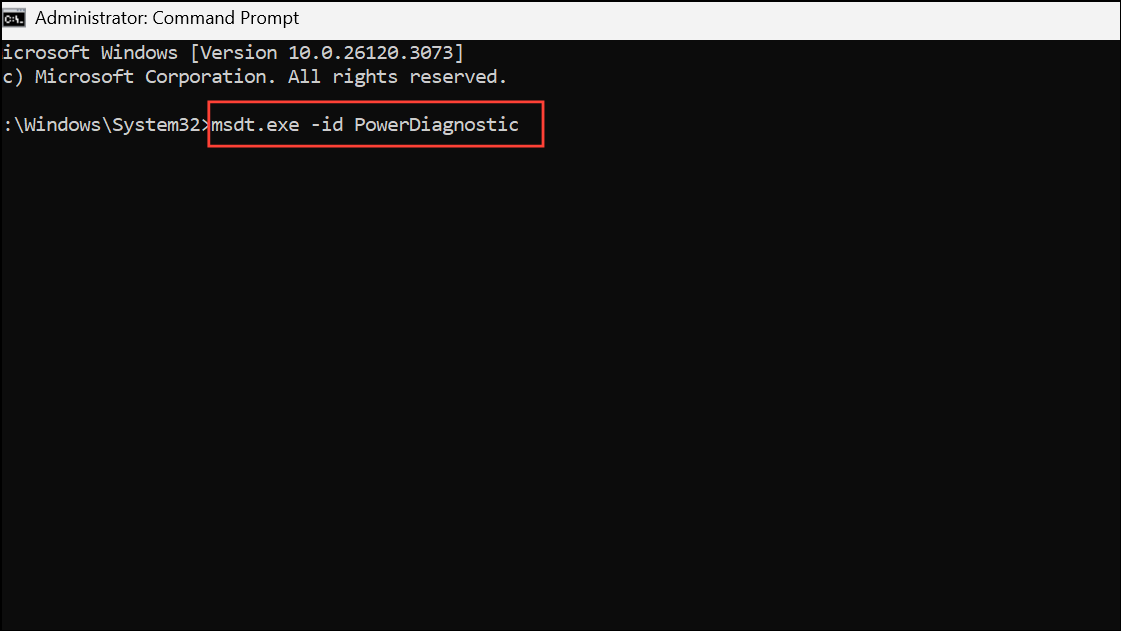
This command launches the Power troubleshooter directly.
Additional Tips and Maintenance
- If your device enters hibernation after sleep, only the power button can wake it. Adjust hibernation settings using
powercfg.exe /hibernate offin an administrator Command Prompt to disable hibernation temporarily. - Check for settings in your monitor’s menu (such as “USB Standby Mode”) if your monitor acts as a USB hub. Some monitors cut USB power during sleep, blocking wake signals.
- On some motherboards, “ERP” mode in BIOS disables USB power during sleep for energy savings. Disable ERP if you want USB wake functionality.
- If issues started after a hardware change (such as swapping power supplies or motherboards), double-check all internal connections, especially to the motherboard and USB headers.
- If all else fails, a clean Windows installation or system reset may resolve persistent, unexplained sleep/wake failures.
Resolving sleep and wake issues in Windows 11 often comes down to BIOS/UEFI settings and USB power management. Applying these steps restores normal wake functionality, letting you get back to work without unnecessary interruptions.



