

The Process1 Initialization Failed blue screen error on Windows 11 interrupts normal startup, forcing the system into a crash loop before user credentials appear. This stop code, often labeled as PROCESS1_INITIALIZATION_FAILED or 0x0000006B, points to critical failures during the Windows boot sequence. Most commonly, this is triggered by corrupted or missing system files, disk errors, or issues with the Bootcat.cache file, but can also result from hardware failures or incomplete updates. Immediate action restores system access and prevents data loss.
Use Startup Repair to Restore Boot Functionality
Windows 11 includes a built-in Startup Repair tool that automatically diagnoses and resolves many boot-related errors, including those causing the Process1 Initialization Failed BSOD. This method directly addresses the most common causes by repairing essential boot files and configurations.
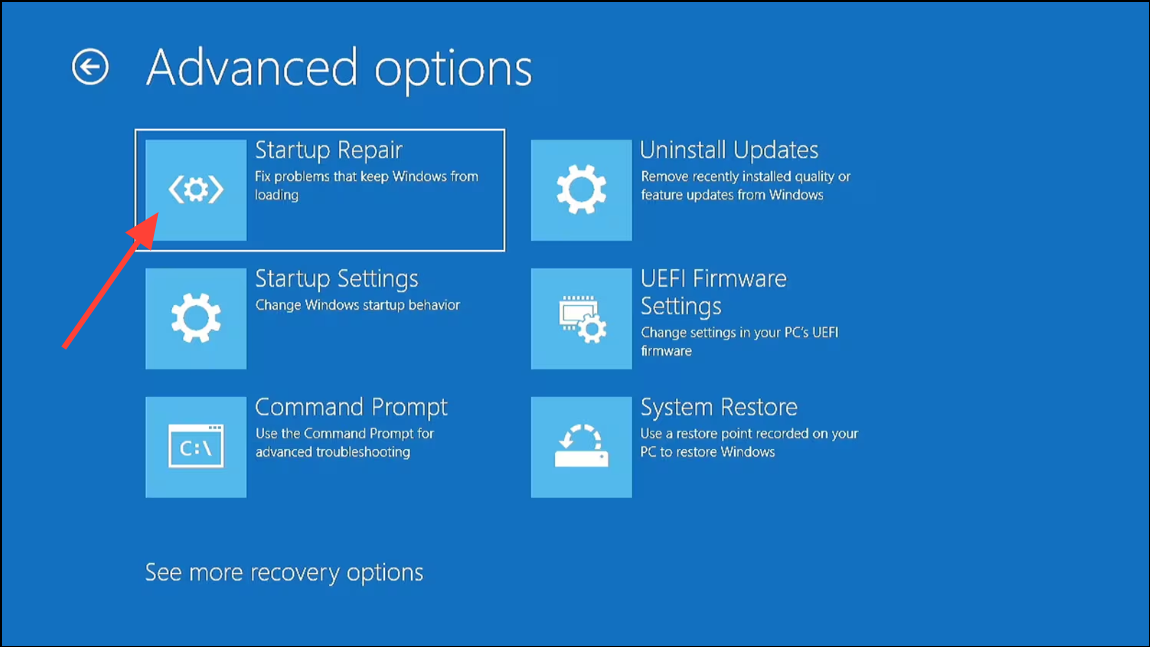
Remove or Replace the Bootcat.cache File
The Bootcat.cache file, located in %SystemRoot%\System32\CodeIntegrity, is essential for Windows startup. Corruption or size changes in this file frequently cause the Process1 Initialization Failed error. Removing this file forces Windows to regenerate it on the next boot, often resolving the issue.
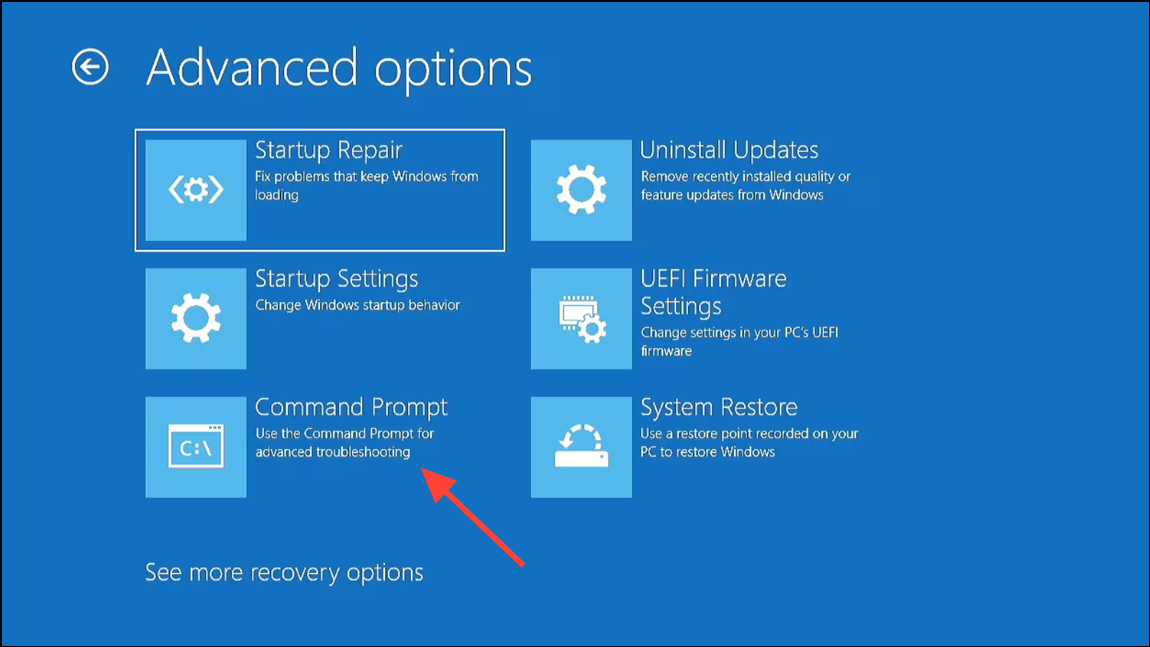
del C:\Windows\System32\CodeIntegrity\bootcat.cache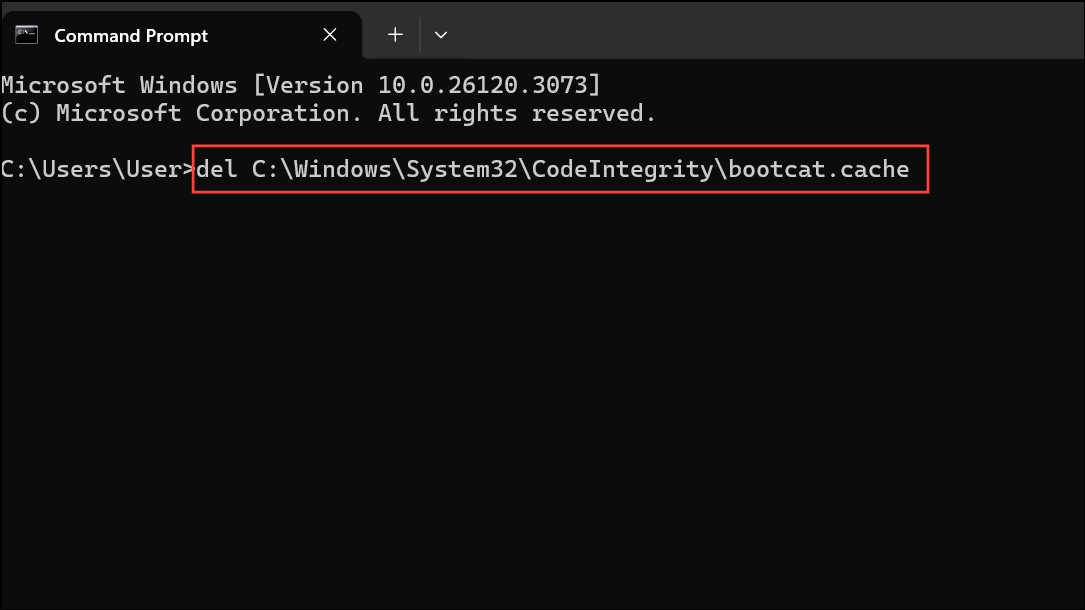
Check Disk for Errors and Repair File System
Physical or logical errors on the system drive can prevent Windows from initializing critical processes. Running a disk check with repair options identifies and fixes bad sectors or corrupted file system entries.
C: with your Windows installation drive if different):chkdsk C: /f /r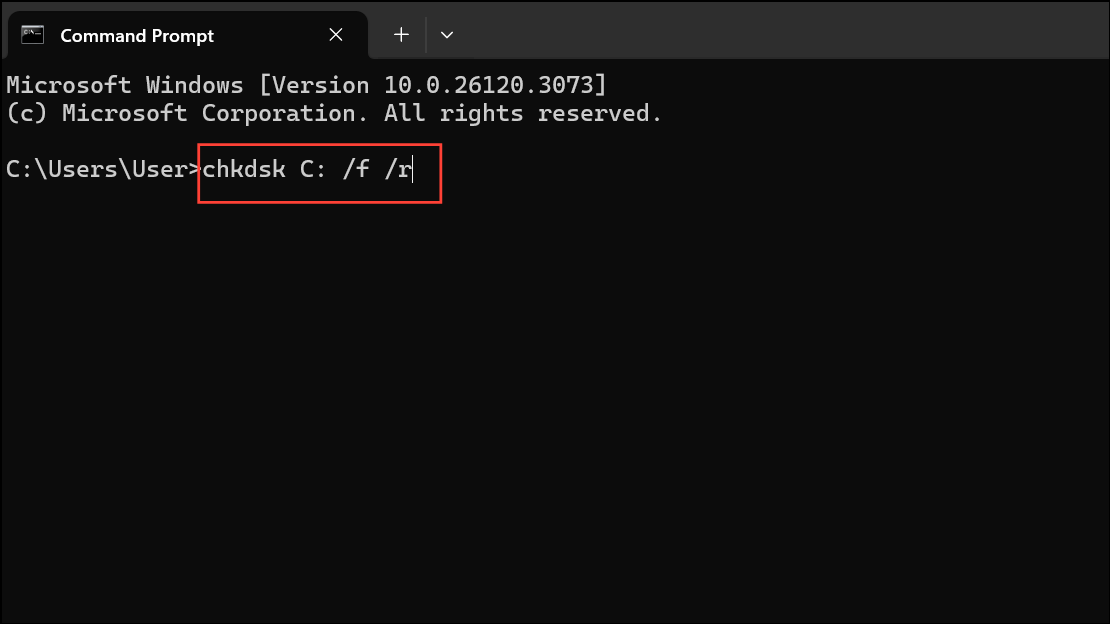
This command checks for file system errors (/f) and locates bad sectors (/r), attempting to recover readable information. Allow the scan to finish without interruption. After completion, restart your computer to see if normal boot is restored.
Repair System Files Using SFC and DISM
Corrupted or missing system files can disrupt the boot process. The System File Checker (SFC) and Deployment Imaging Service and Management Tool (DISM) utilities scan for and repair damaged Windows files.
sfc /scannow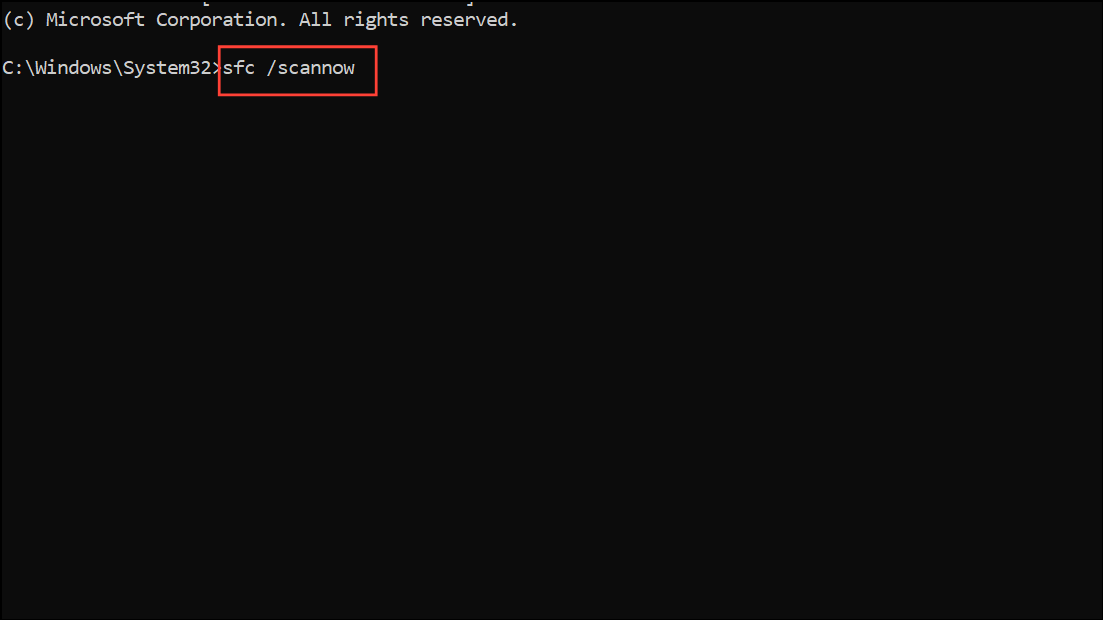
DISM /Online /Cleanup-Image /RestoreHealth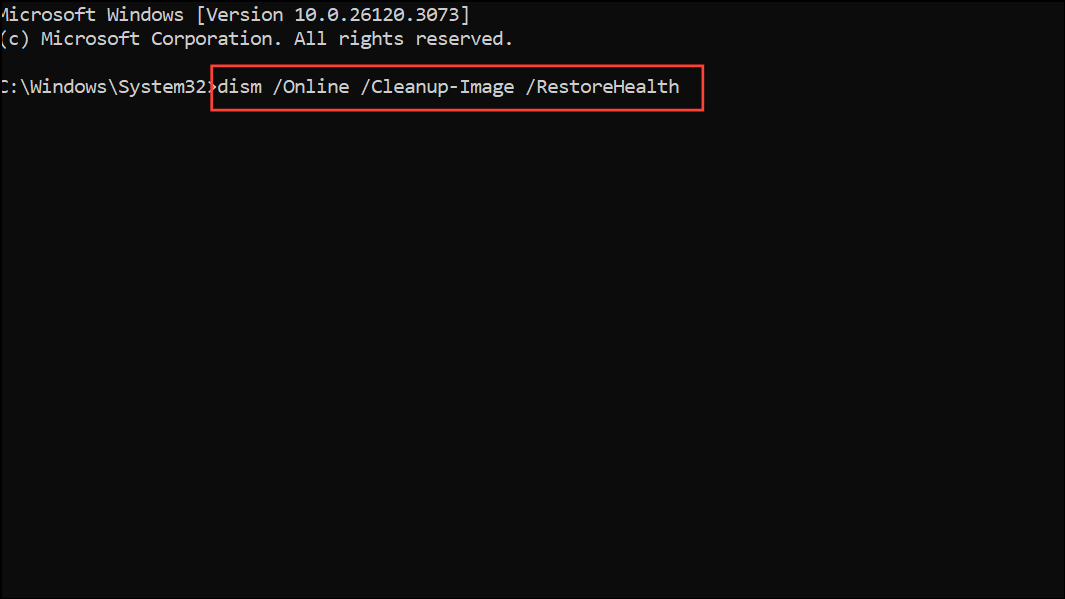
If DISM returns an error, specify a repair source with:
DISM /Online /Cleanup-Image /RestoreHealth /Source:C:\RepairSource\Windows /LimitAccess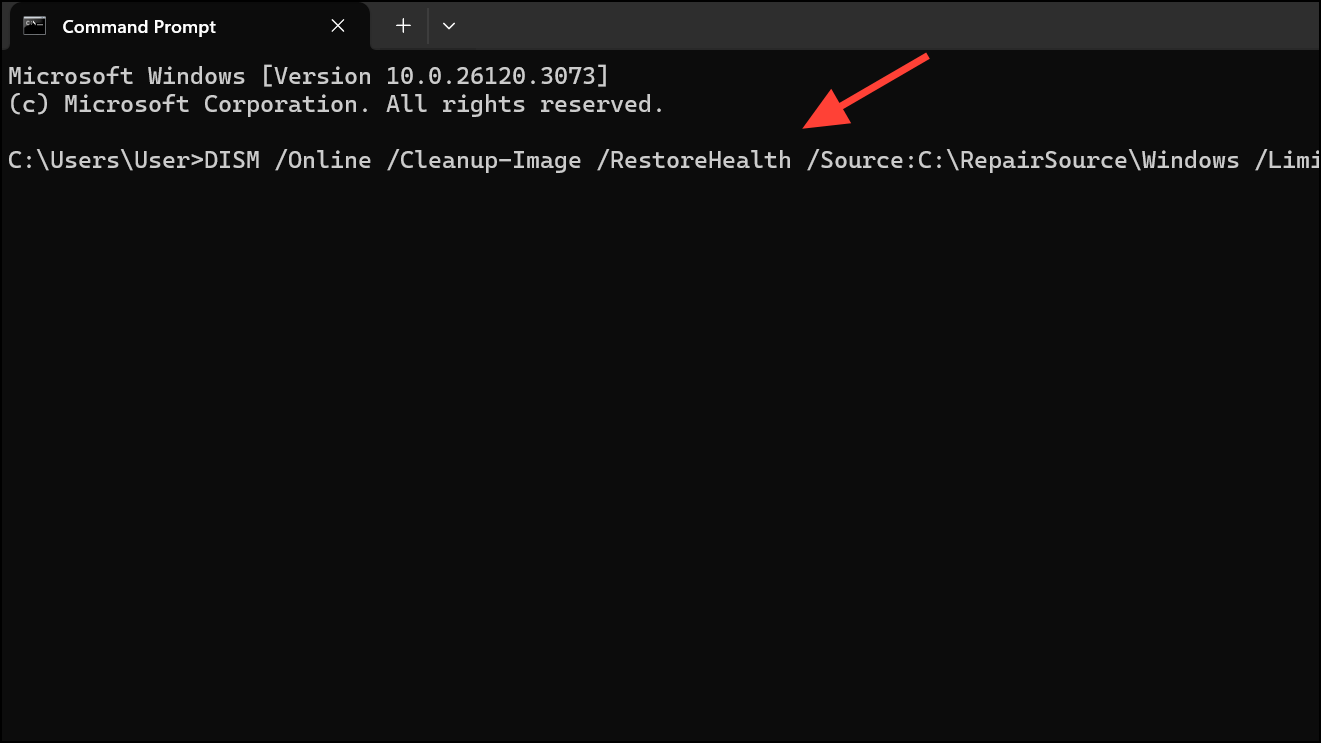
Allow both scans to finish, then restart your PC. This process replaces corrupted files with correct versions, restoring boot stability.
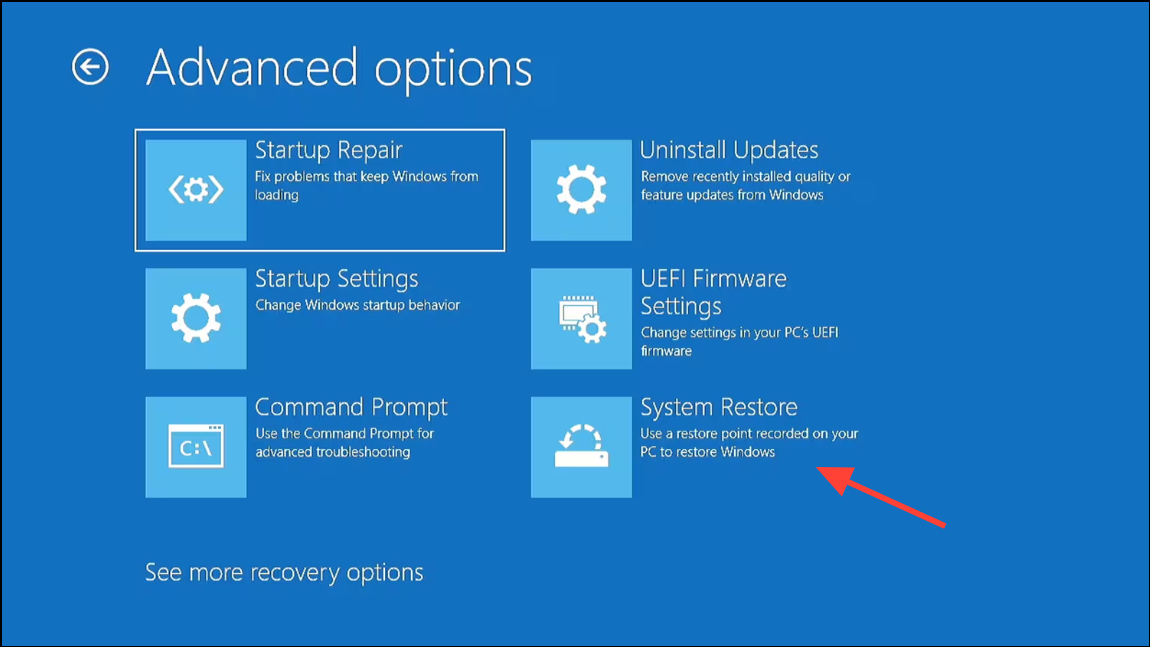
Restore Windows Using System Restore
If the error began after recent software changes, updates, or driver installations, restoring Windows to a previous working state can resolve the problem without affecting personal files.
Check and Repair Boot Configuration Data (BCD)
Corruption in the Boot Configuration Data can prevent Windows from initializing core processes. Rebuilding the BCD restores essential boot entries.
bootrec /fixmbr
bootrec /fixboot
bootrec /scanos
bootrec /rebuildbcd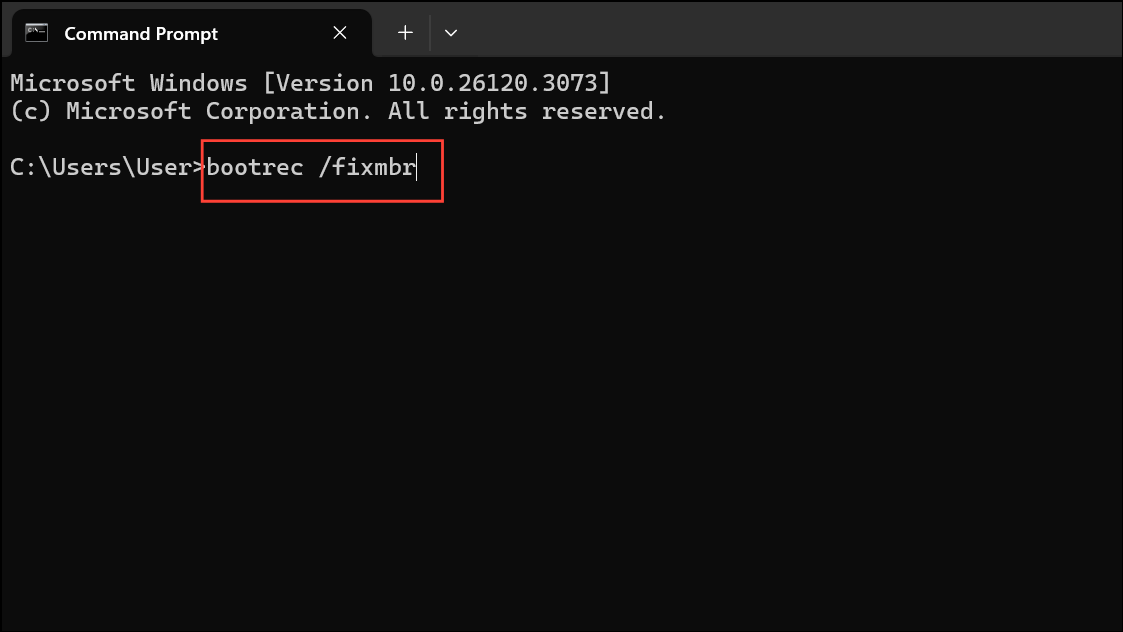
After completing these commands, close Command Prompt and restart your PC. This process reconstructs the boot records, resolving issues that block system initialization.
Perform a Fresh Windows 11 Installation
If all other methods fail, a clean installation of Windows 11 removes persistent errors caused by deep system corruption or hardware faults. This process erases all data on the system drive, so back up important files if possible.
F12, Esc, or Del during startup to access the boot menu).Additional Recovery Steps and Maintenance Tips
- Disconnect external devices (USB drives, printers, etc.) before troubleshooting. Faulty peripherals can sometimes trigger BSOD errors.
- Check Device Manager for device conflicts or outdated drivers once Windows boots successfully.
- Run Windows Memory Diagnostic from WinRE to test for RAM issues if errors persist after software repairs.
- Regularly update Windows and drivers to prevent future system file corruption.
- Maintain at least 10–15% free space on your system drive to allow Windows to create necessary files and operate efficiently.
Restoring normal startup after the Process1 Initialization Failed blue screen on Windows 11 requires targeted repairs to system files, boot records, and hardware. Following these steps streamlines recovery and gets your PC back to a usable state quickly.



