

Windows 11 relies on the Services.msc console to manage background services that keep the system running smoothly. When Services.msc fails to open, users lose the ability to control critical services—impacting updates, networking, and application stability. This problem typically surfaces as an error message, a blank console, or no response at all when attempting to launch Services.msc. Addressing this issue restores control over Windows services and prevents broader system disruptions.
Run System File Checker and DISM for Corruption Repair
cmd, right-click Command Prompt, and select Run as administrator. This step ensures you have the necessary permissions to repair system files.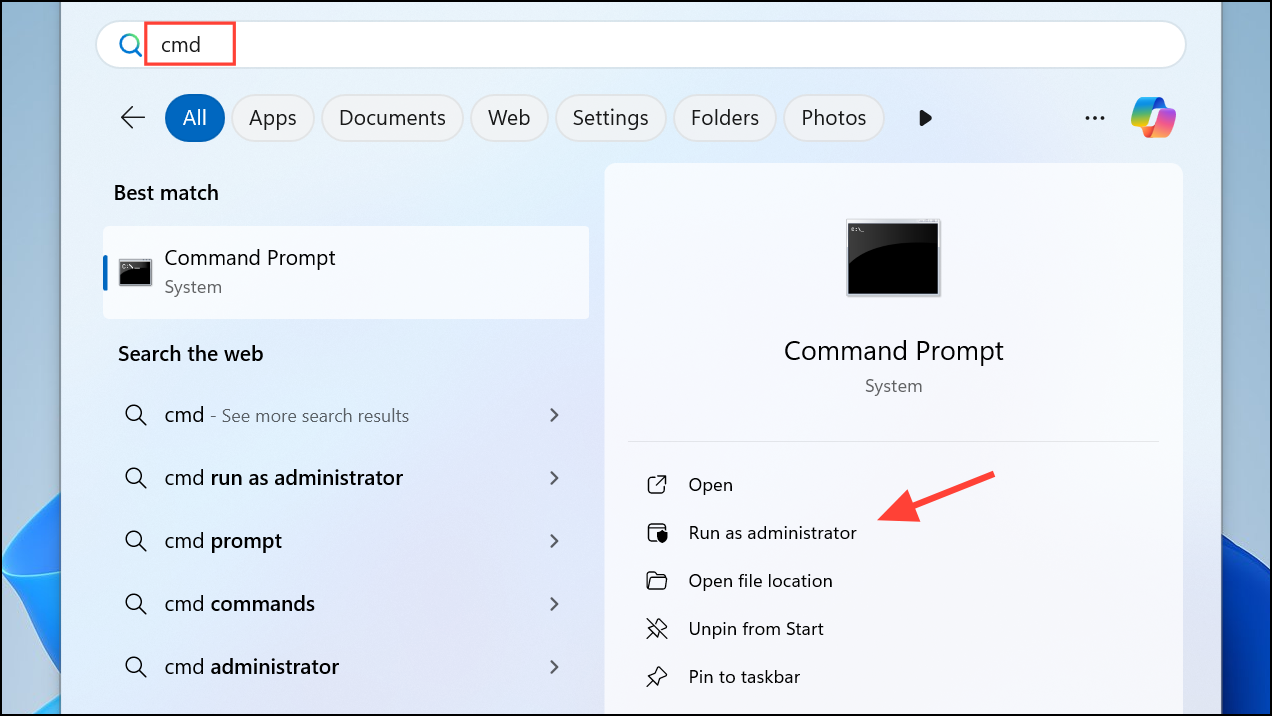
sfc /scannow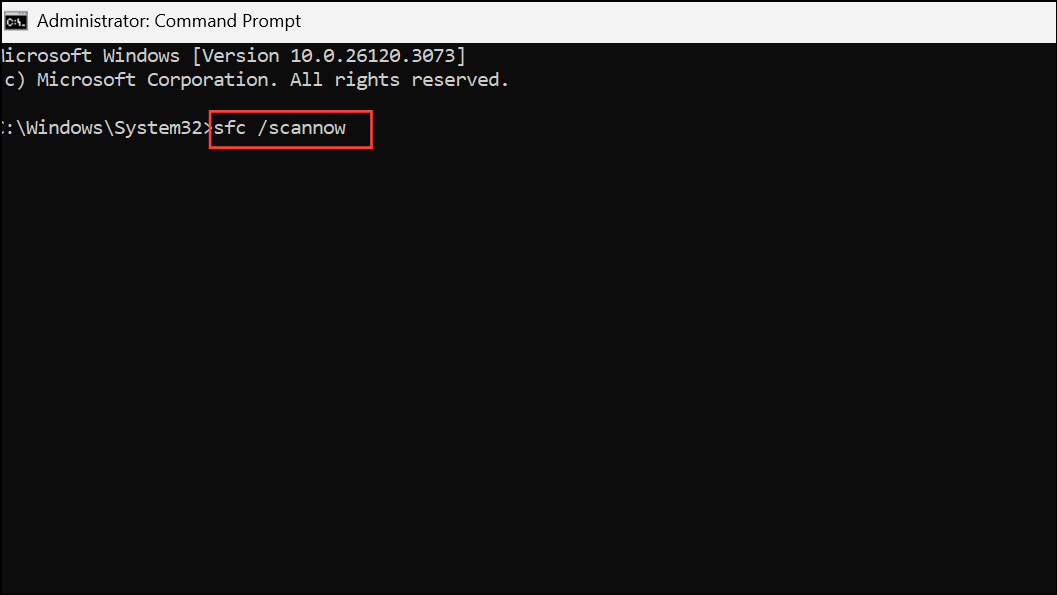
This process will check the integrity of Windows system files and attempt to fix any detected issues. Wait for the scan to finish and restart your computer to apply repairs.
DISM /Online /Cleanup-Image /RestoreHealth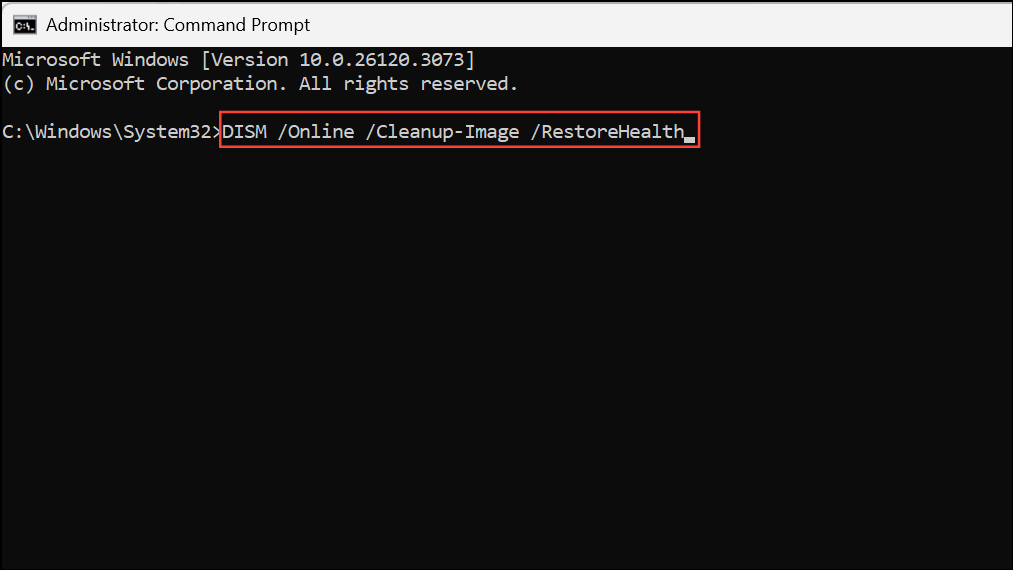
This command repairs the Windows image itself, addressing deeper corruption that SFC cannot fix. Once complete, restart your computer again and attempt to open Services.msc.
Check and Restore Services Startup Settings
Windows + R to open the Run dialog. Type services.msc and press Enter. If the console opens, locate critical services such as Windows Management Instrumentation (WMI) and Windows Modules Installer.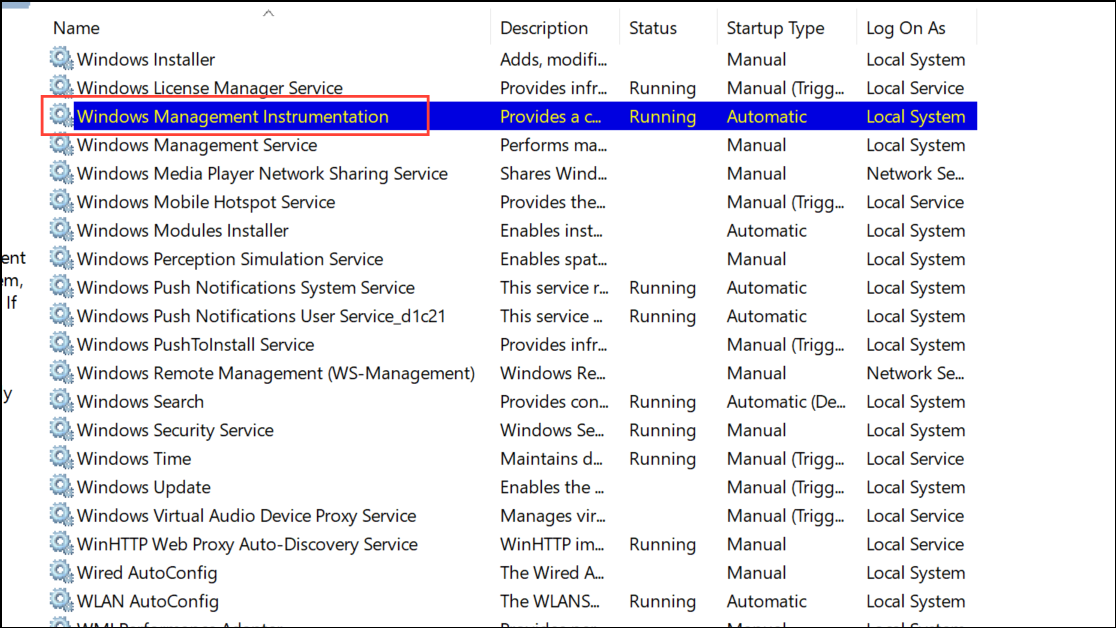
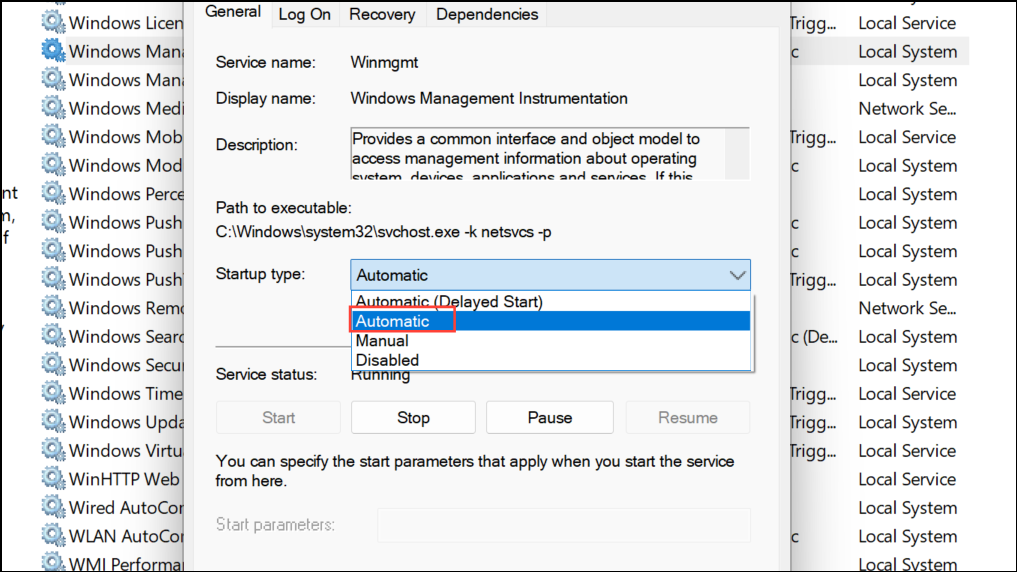
If Services.msc fails to open, proceed to the next method.
Update Windows 11
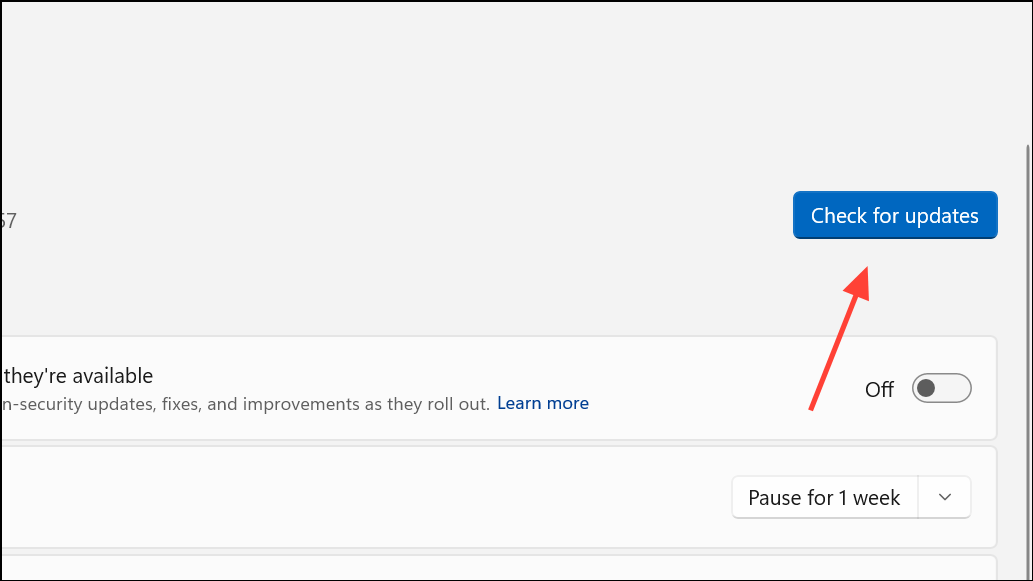
Restart your computer after updates are applied, then try launching Services.msc again.
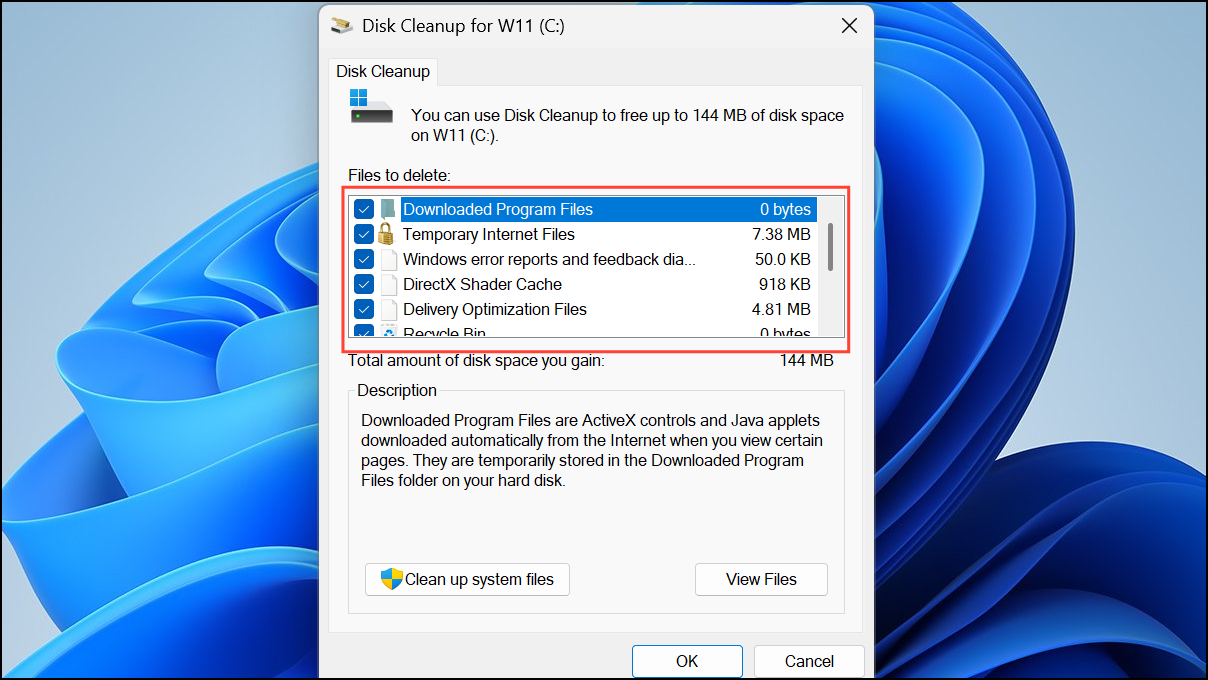
Clear Temporary Files and Run Disk Cleanup
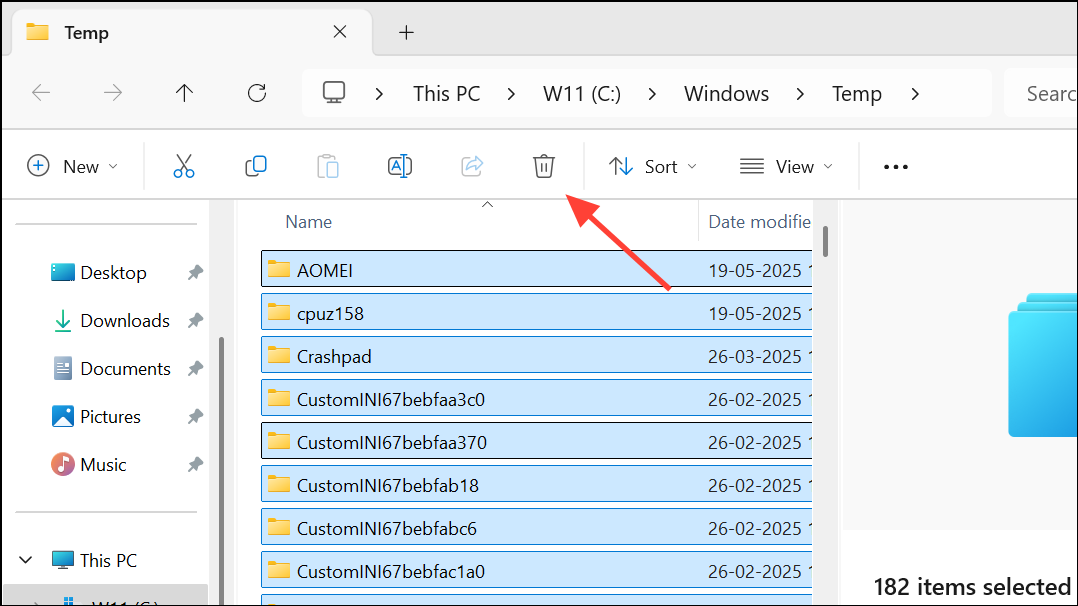
Windows + R, type %temp%, and press Enter. Delete all files in the folder to remove temporary files that may interfere with system processes.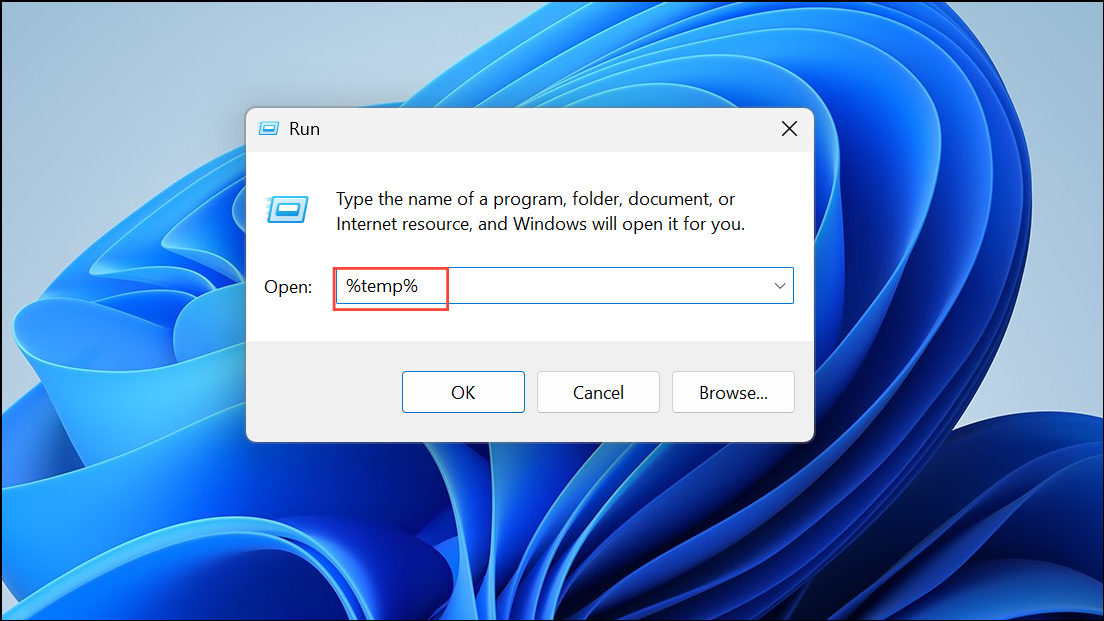
Repair Windows Registry for MMC Snap-in Errors
Corrupted registry entries may prevent Services.msc from launching. Editing the registry can be risky, so back up your system before proceeding.
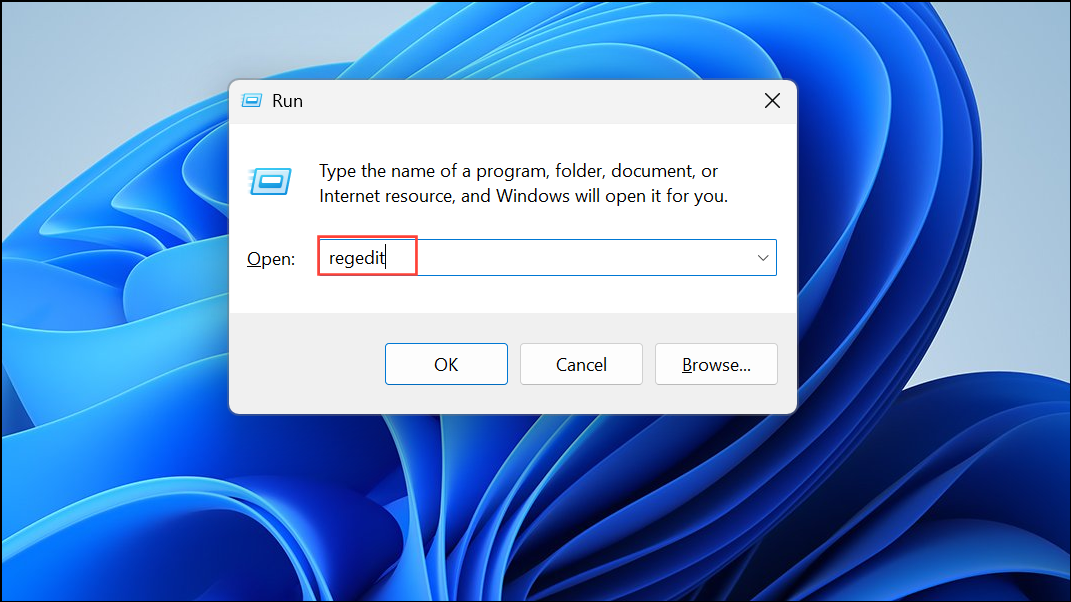
HKEY_LOCAL_MACHINE\SYSTEM\CurrentControlSet\Services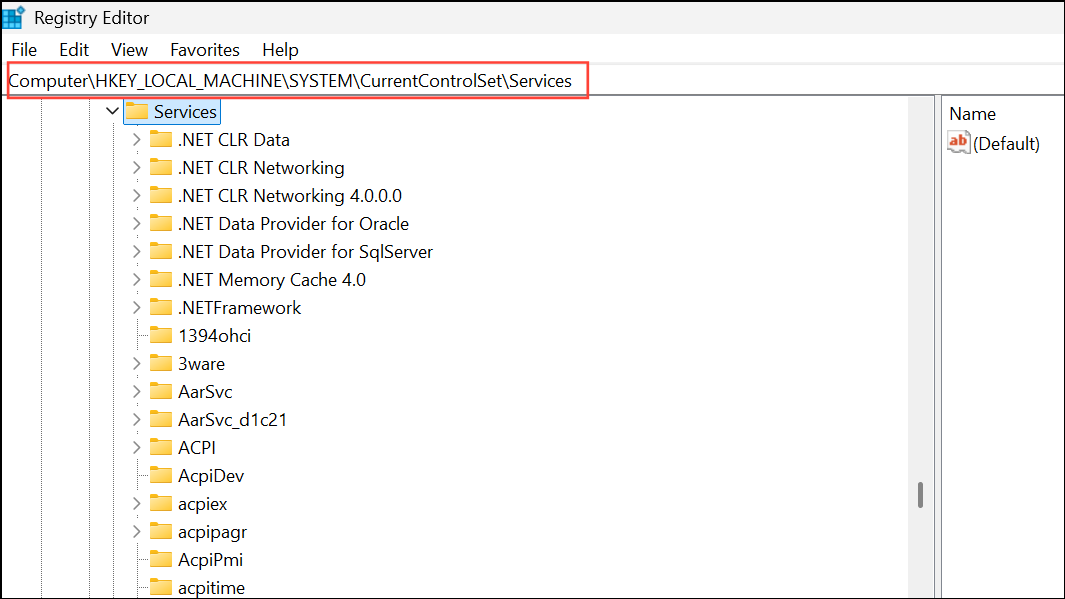
Look for entries related to Services.msc that appear corrupted or incomplete. Delete only those you are certain are problematic. Alternatively, for MMC snap-in errors, check:
HKEY_LOCAL_MACHINE\SOFTWARE\Microsoft\MMC\SnapIns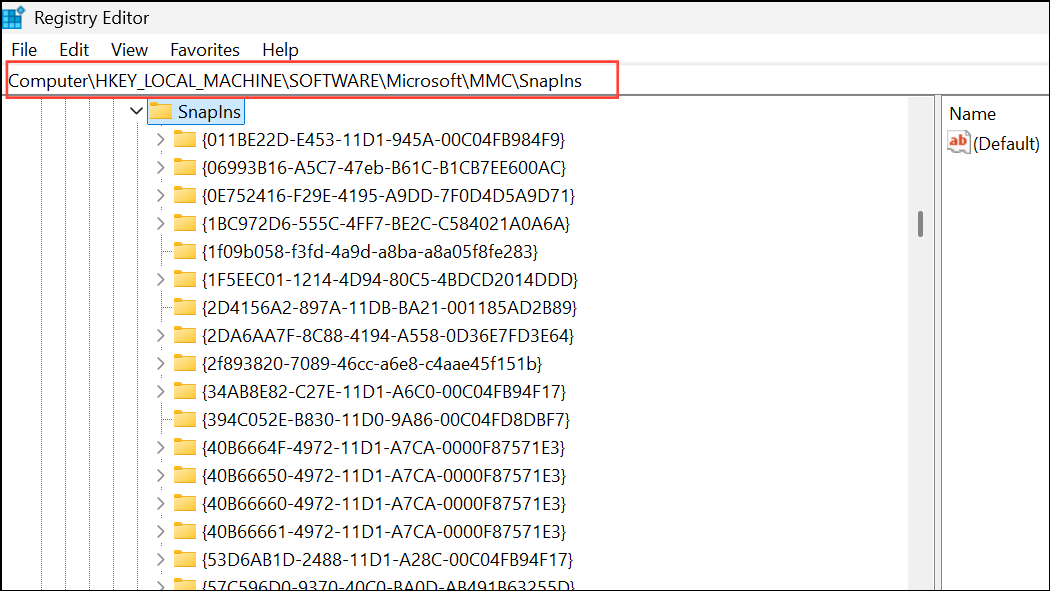
Deleting the relevant CLSID for Services.msc will prompt Windows to recreate it on reboot. Always make a registry backup before making changes.
Reset Group Policy Settings
Incorrect Group Policy settings may block access to management consoles.
gpupdate /force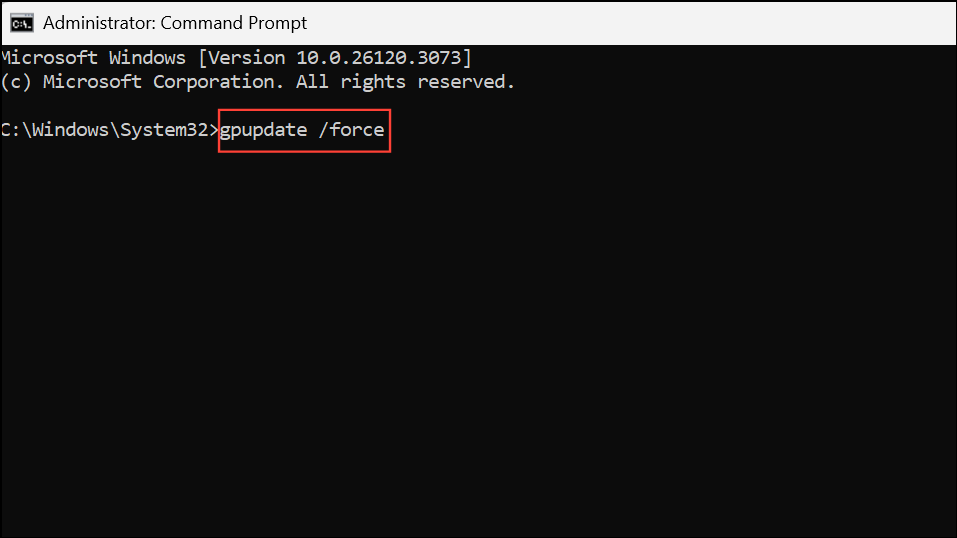
Wait for the update to finish, then restart your PC. Try opening Services.msc again.
Create a New User Account
Corrupted user profiles can block access to management tools.
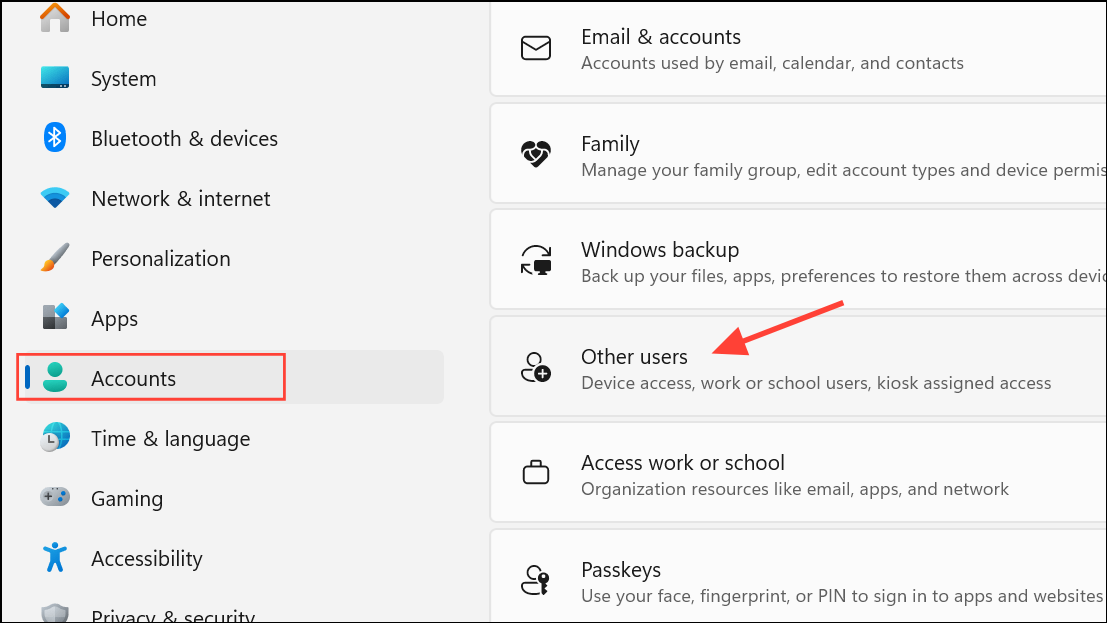
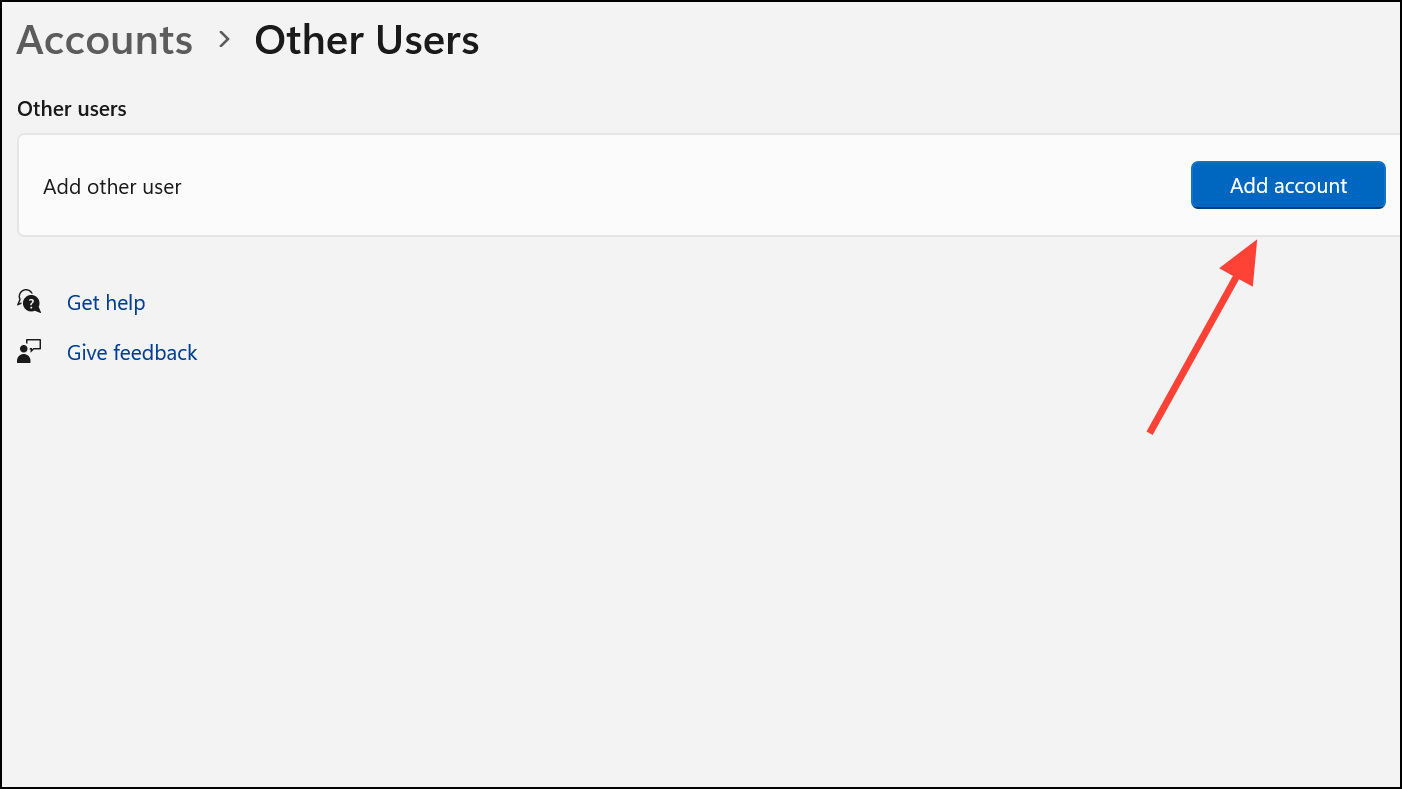
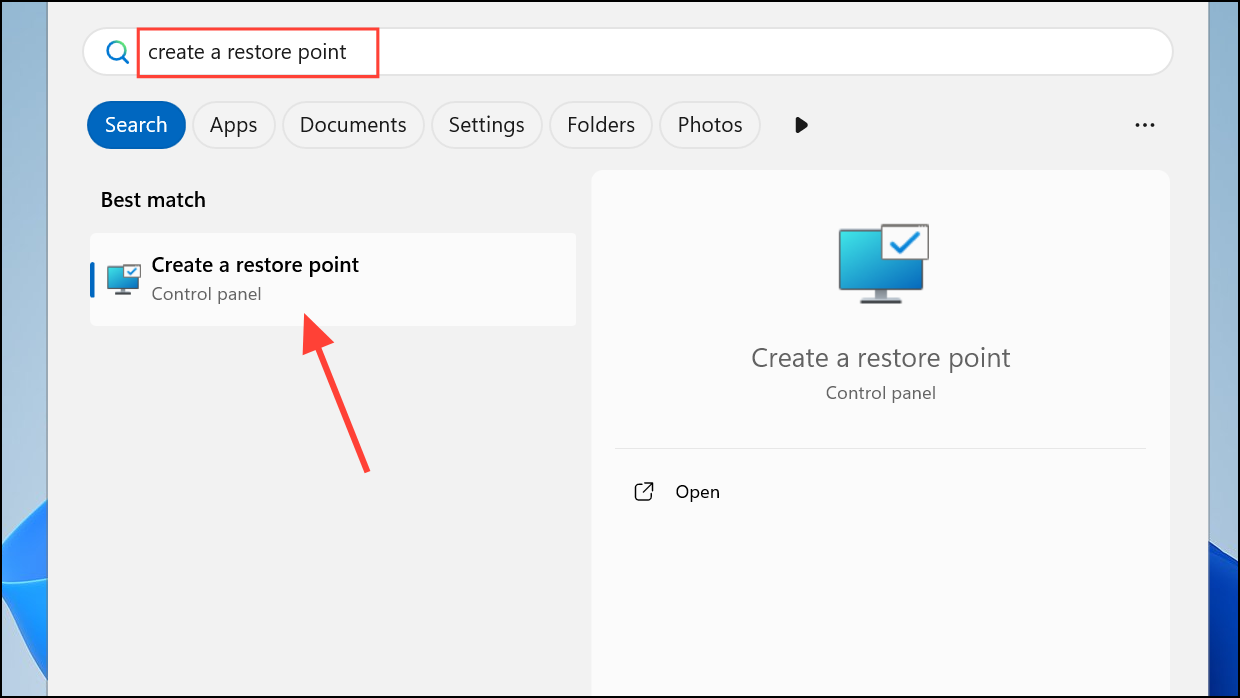
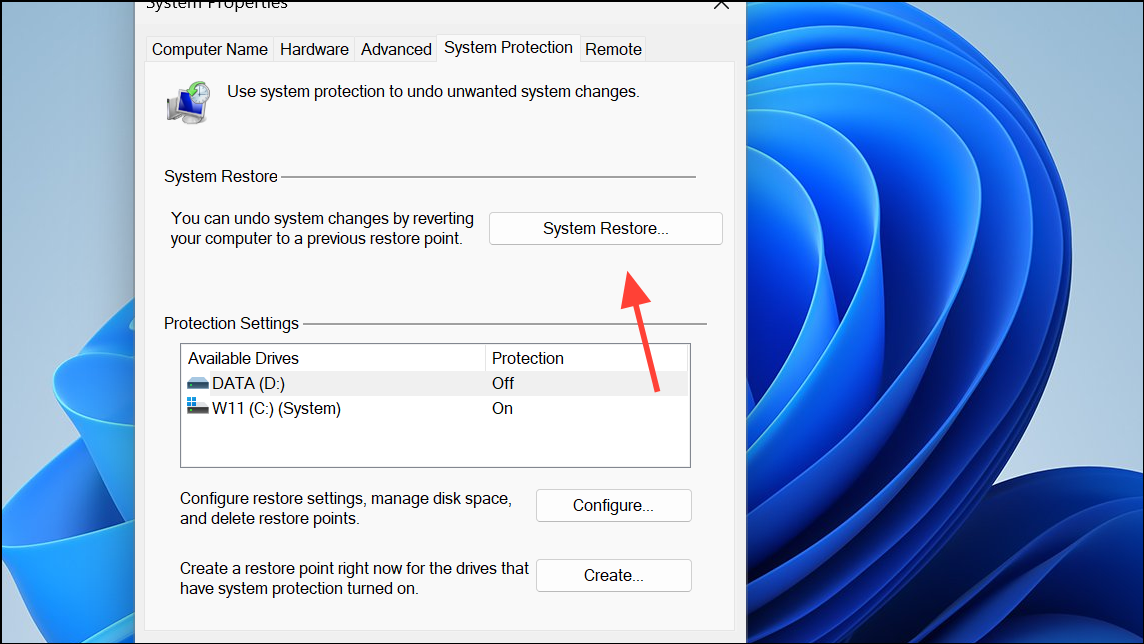
Perform a System Restore
If none of the above methods work, restoring Windows to a previous state can resolve deep-seated issues.
Regaining access to Services.msc on Windows 11 streamlines system management and prevents disruptions. If all else fails, an in-place upgrade or clean Windows installation can fully reset system management tools.



