
Long waits at the Windows 11 startup screen often signal background processes, outdated drivers, or system misconfigurations that bog down boot times. Optimizing these areas can reduce startup delays from several minutes to just seconds, letting you get to your desktop and start working faster. The following methods address the most common causes and offer step-by-step solutions to improve boot performance.
Disable Unnecessary Startup Programs
Startup programs are applications that automatically launch every time you power on your PC. Many apps set themselves to start by default, which can drag out the boot process and consume valuable system resources before you even log in.
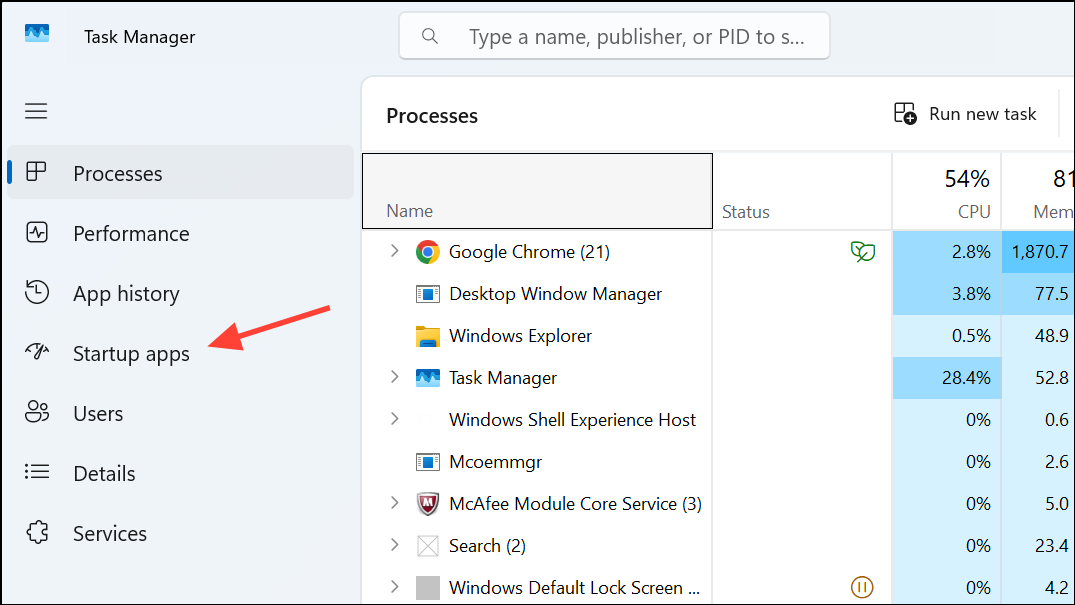
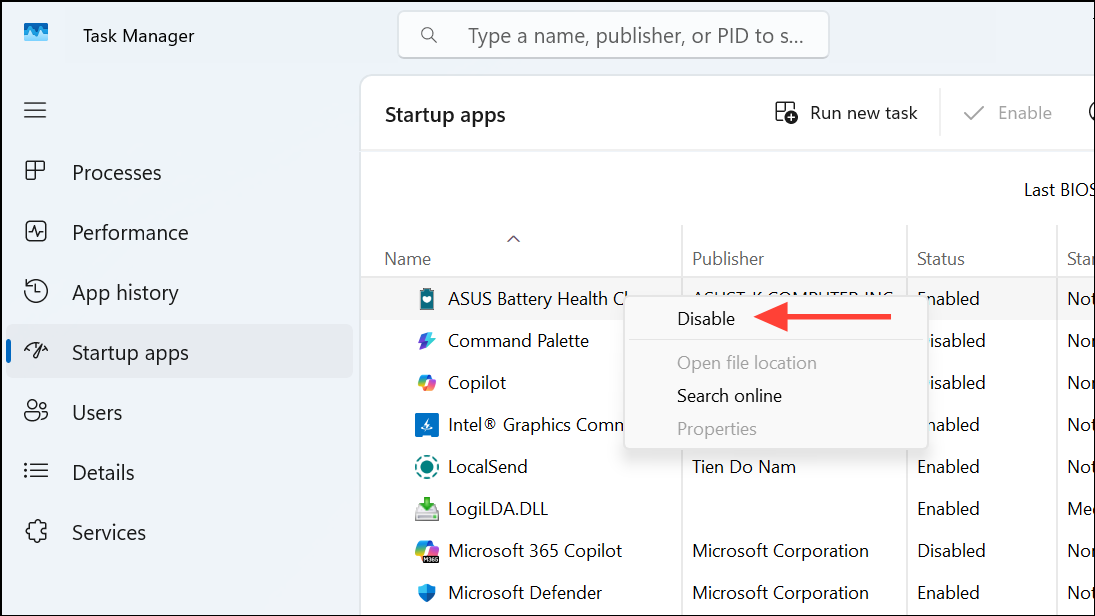
Disabling unnecessary startup apps shortens the time Windows 11 needs to load and improves overall responsiveness after sign-in.
Enable or Adjust Fast Startup
Fast Startup is a Windows feature that combines elements of shutdown and hibernation, allowing your PC to boot more quickly. However, on some systems, Fast Startup can cause issues like driver conflicts or slower boots. Adjusting this setting can resolve slow startup problems.
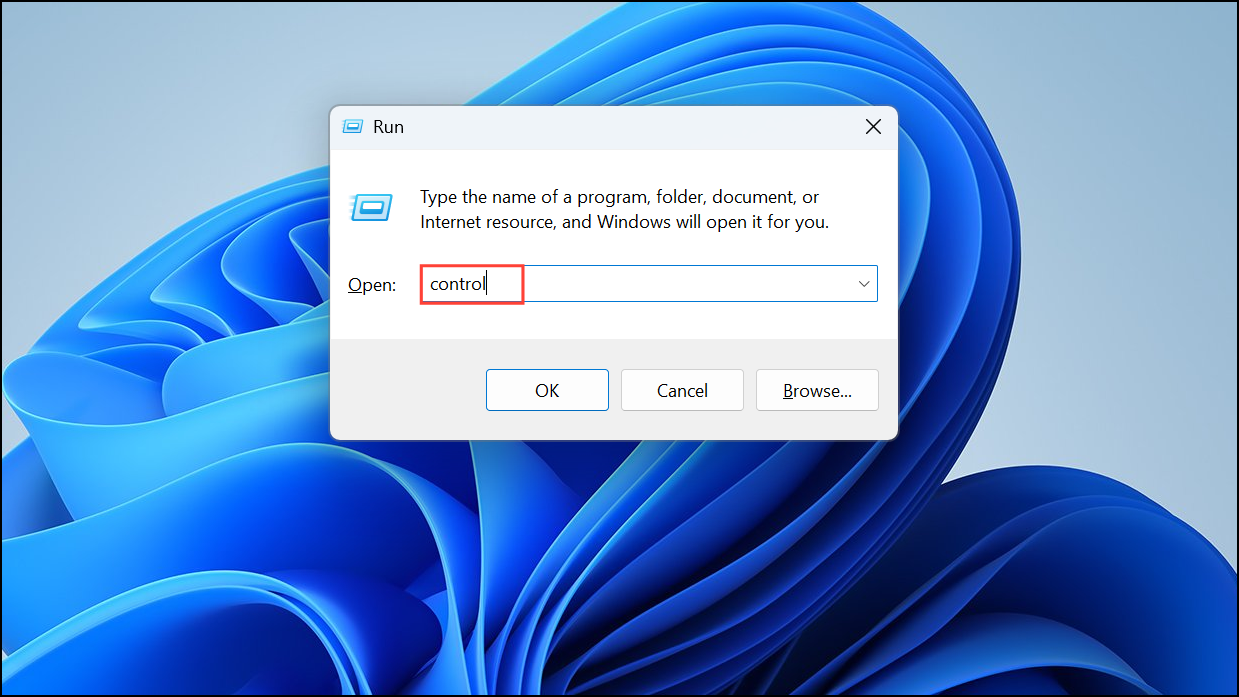
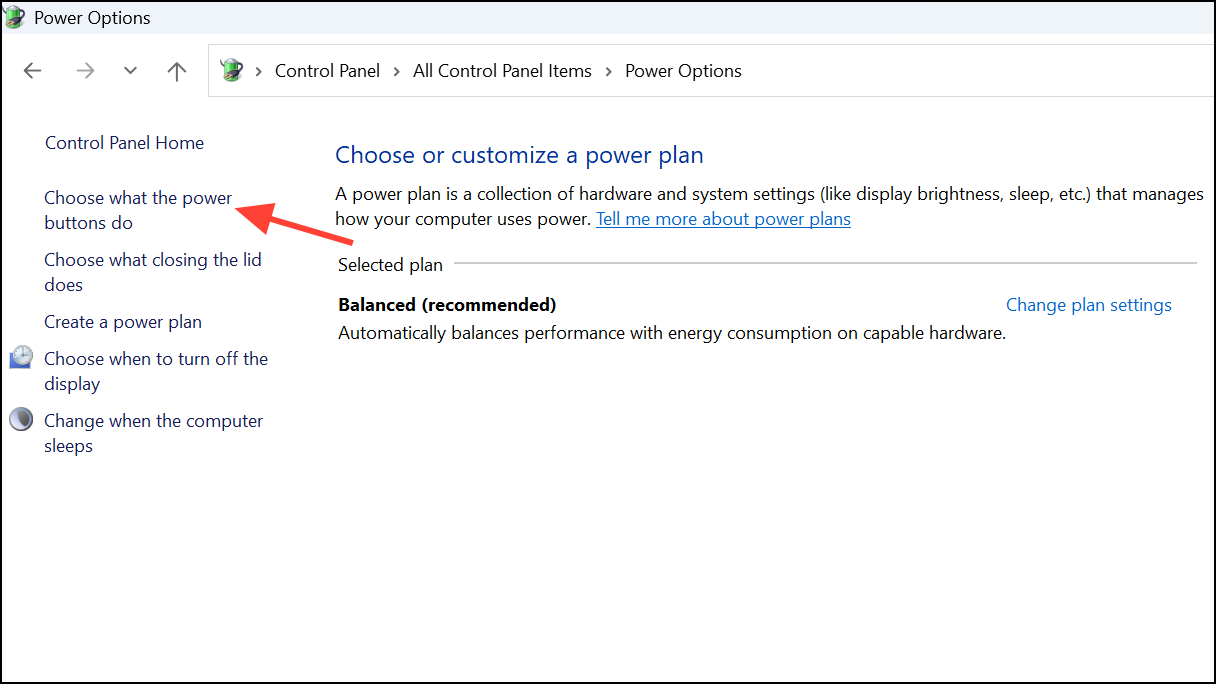
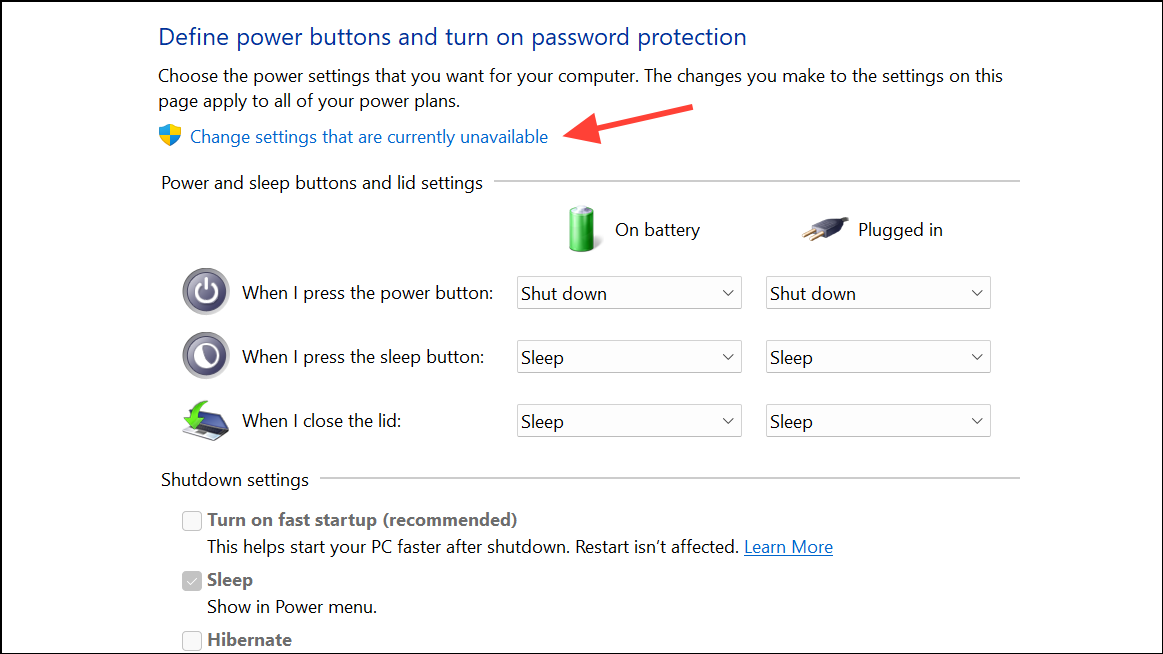
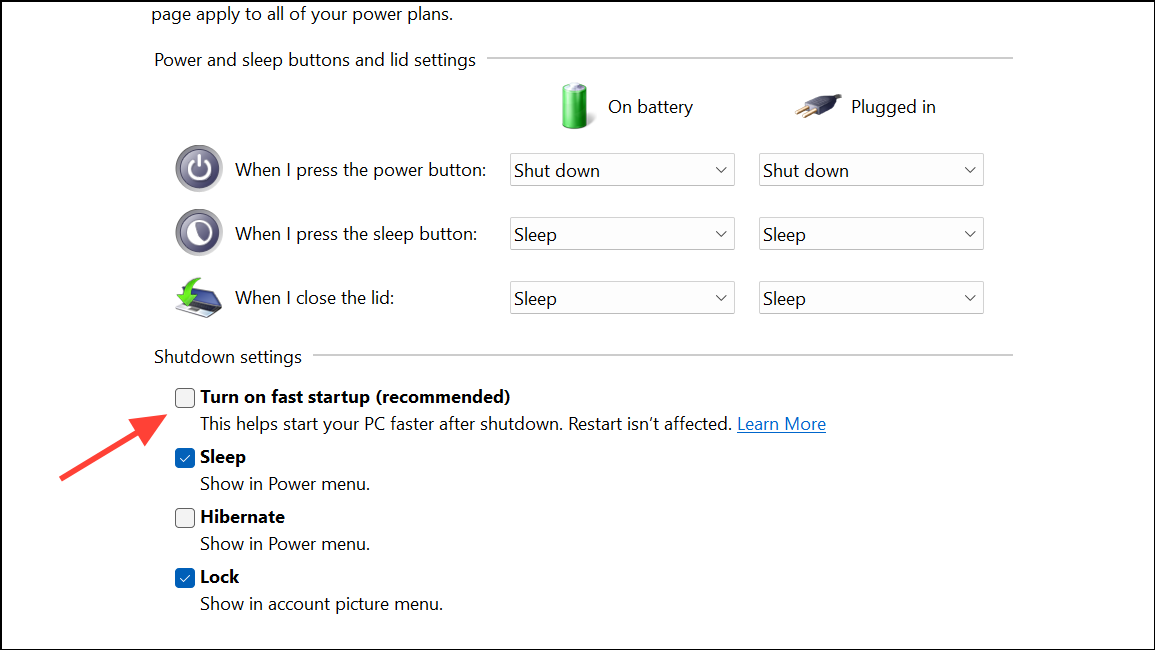
This adjustment can resolve conflicts that slow down the boot process or restore the intended speed boost on compatible systems.
Update Windows and Device Drivers
Outdated system files or drivers can introduce compatibility problems, causing Windows 11 to load slowly or even stall at startup. Updating ensures your system benefits from the latest performance optimizations and bug fixes.
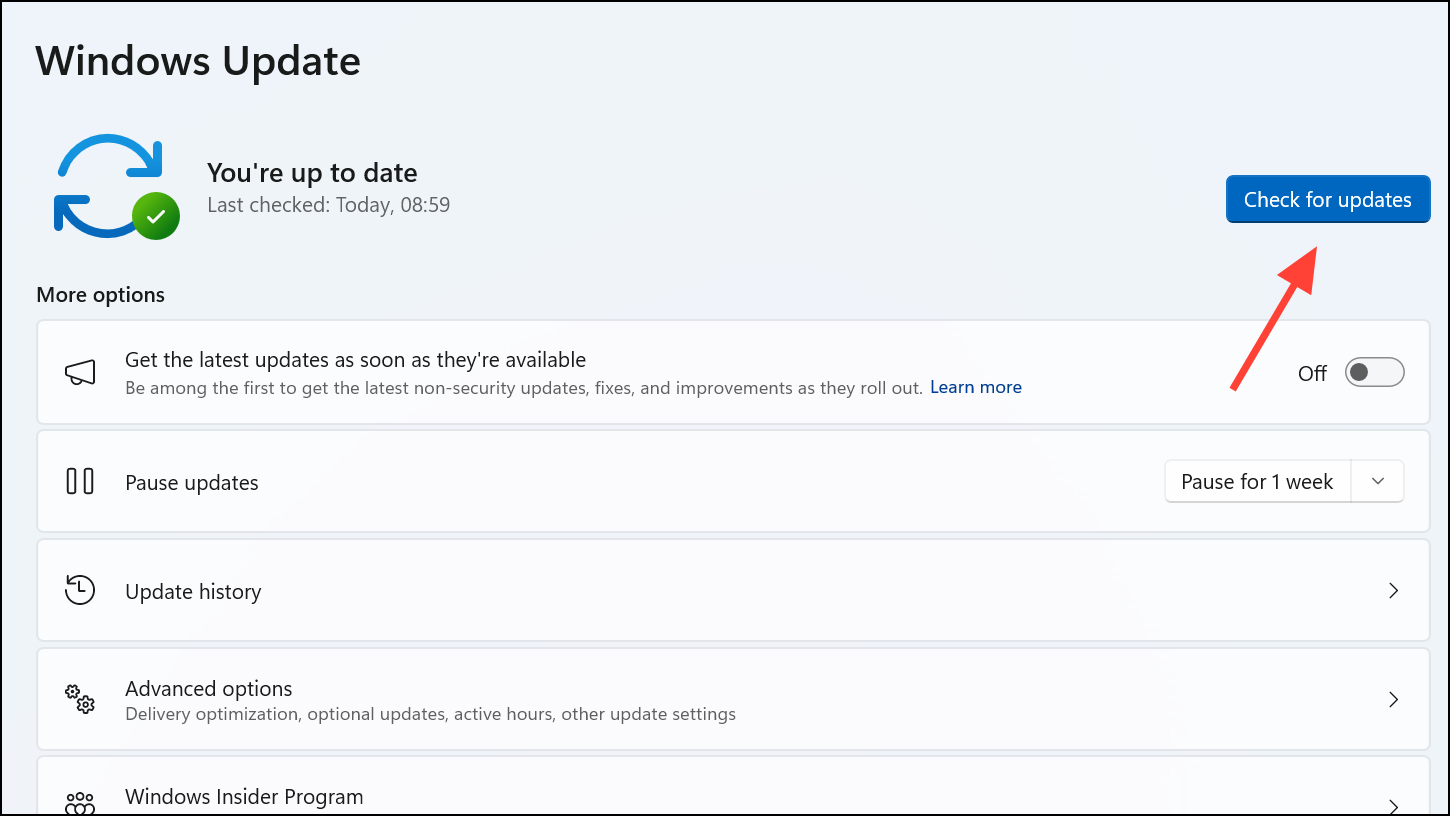
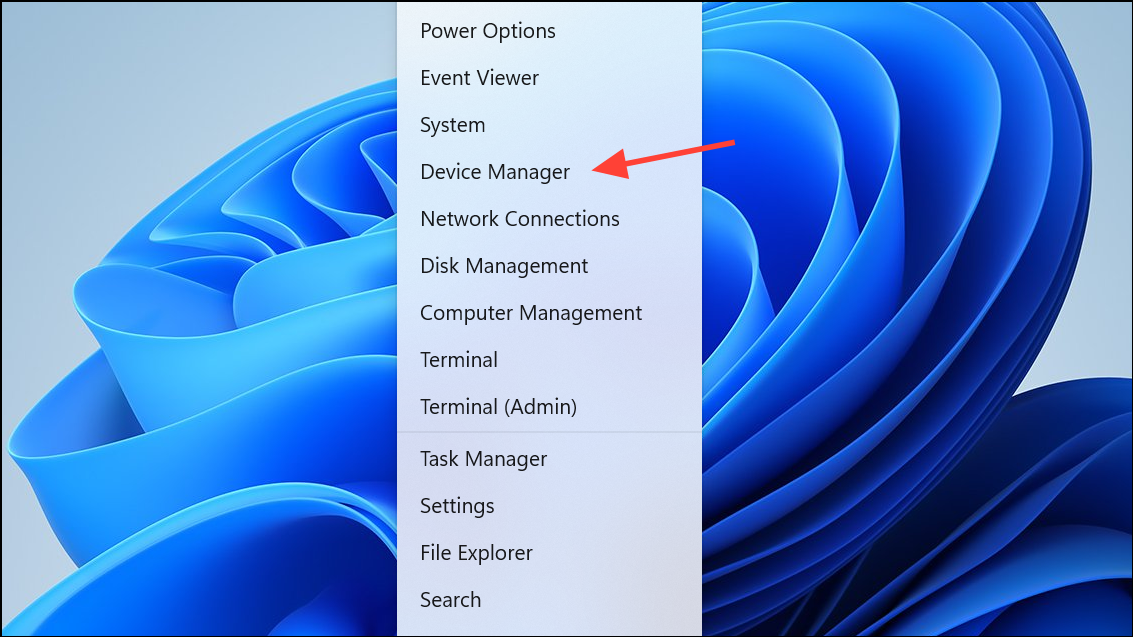
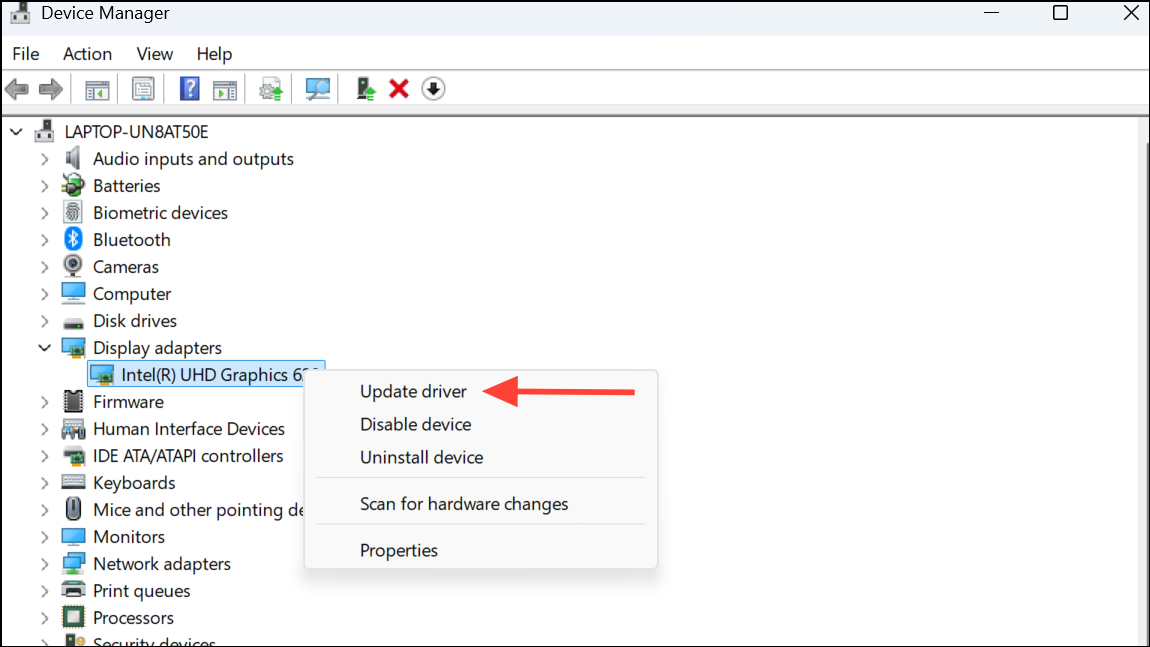
Regularly updating Windows and drivers eliminates software conflicts and improves boot reliability and speed.
Perform a Clean Boot to Identify Software Conflicts
Third-party applications and services can interfere with the normal boot sequence, causing delays or freezes. A clean boot starts Windows with only essential Microsoft services, helping you identify if a background app is responsible for the slowdown.
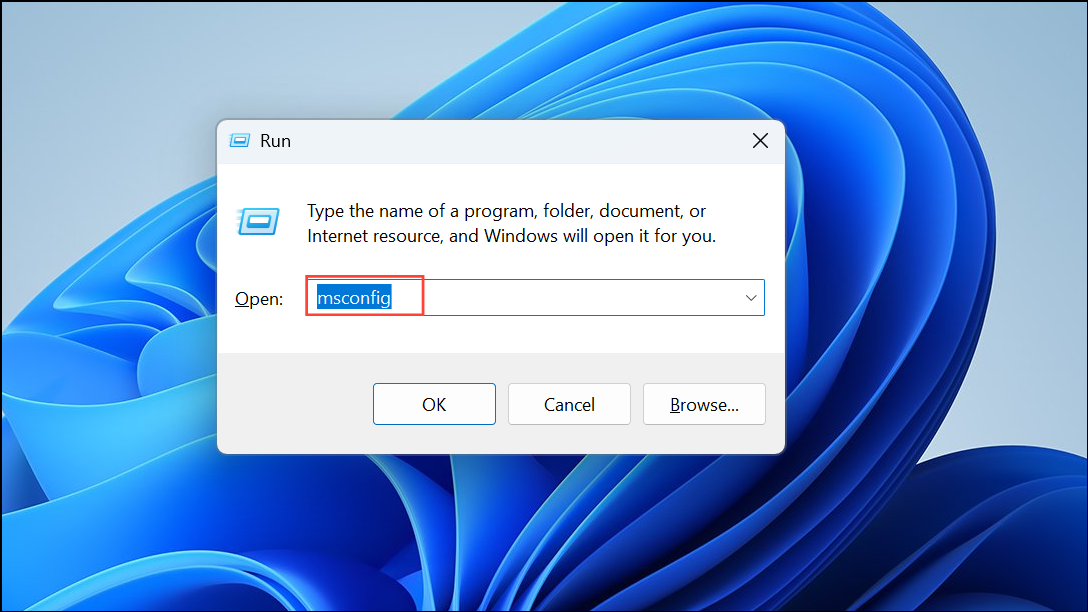
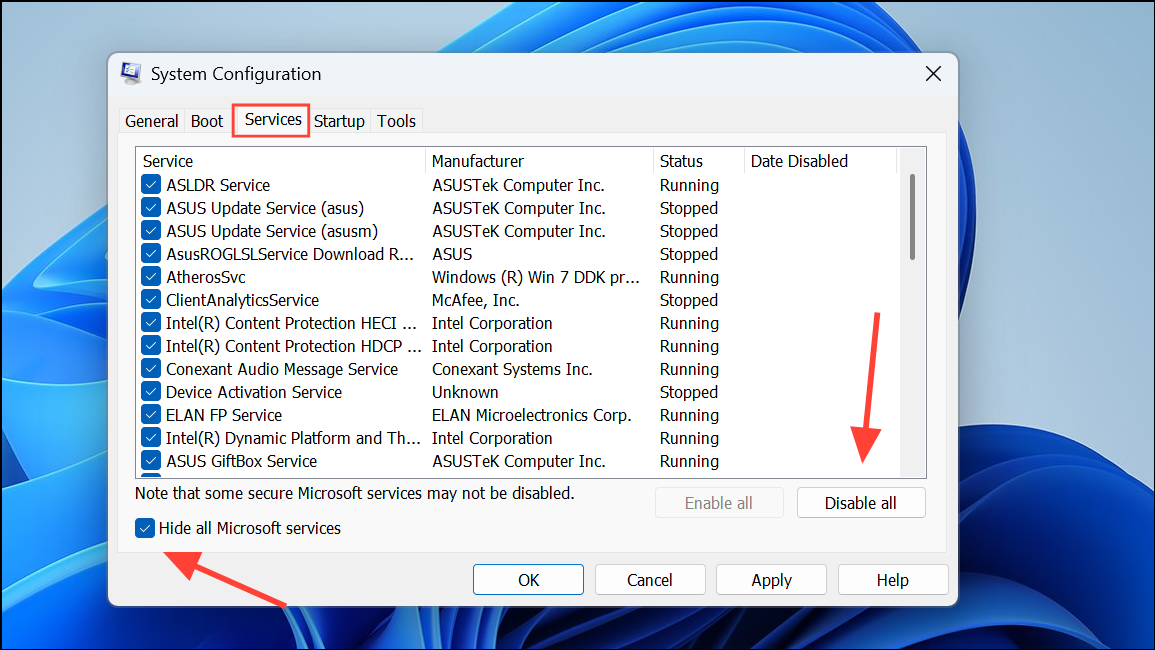
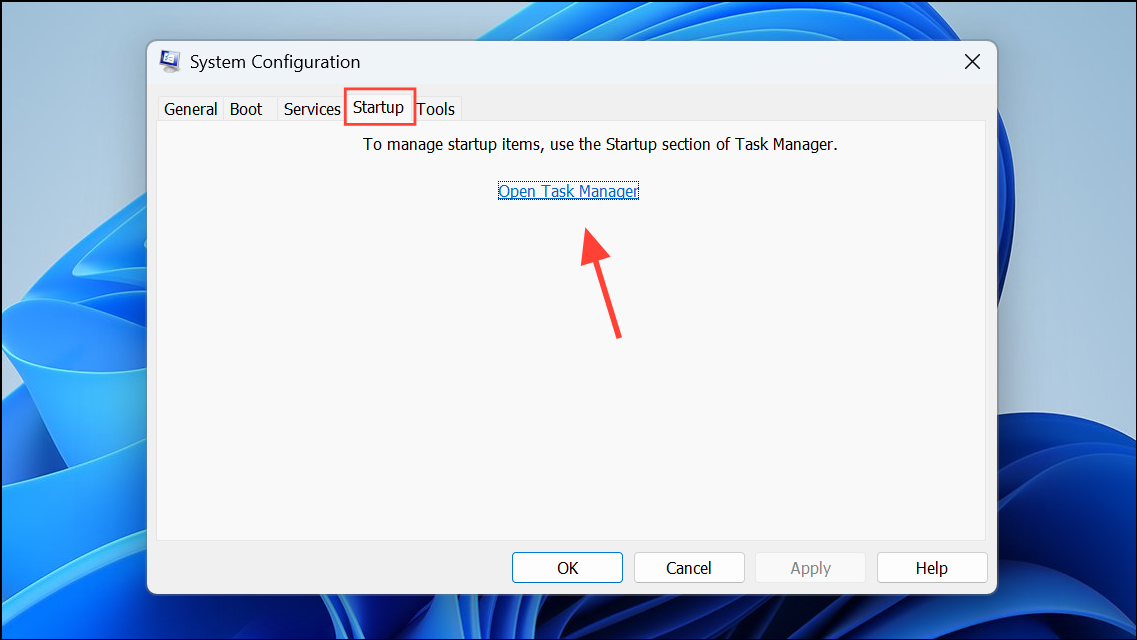
Clean boot troubleshooting is especially useful after installing new software or updates that coincide with slow startup behavior.
Run Disk Cleanup
Temporary files, cached data, and leftover system files accumulate over time, taking up storage and slowing down system processes, including boot. Disk Cleanup removes these files, freeing up space and streamlining startup routines.
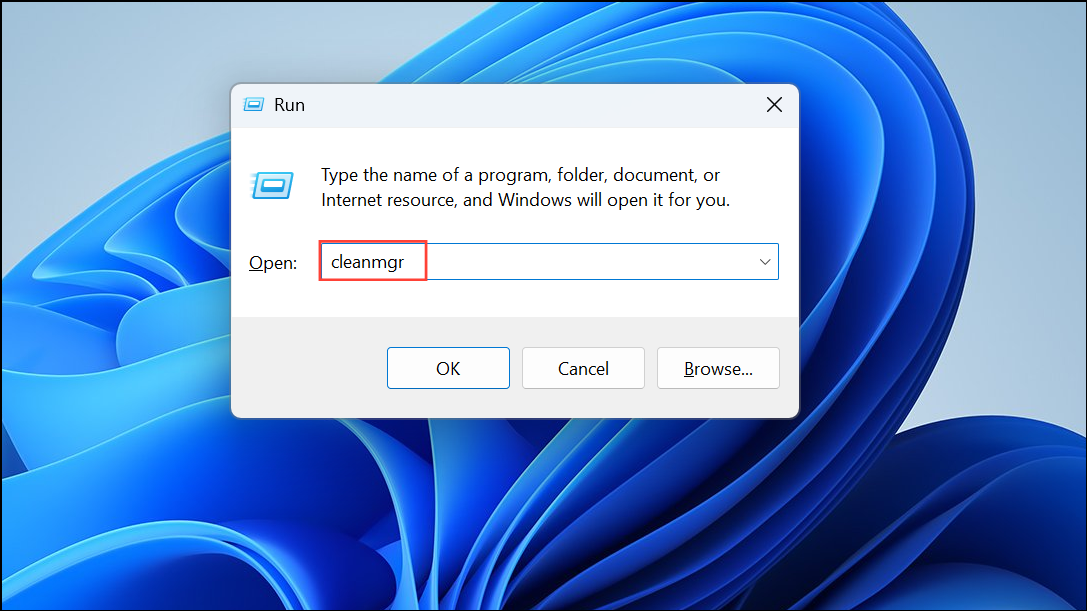
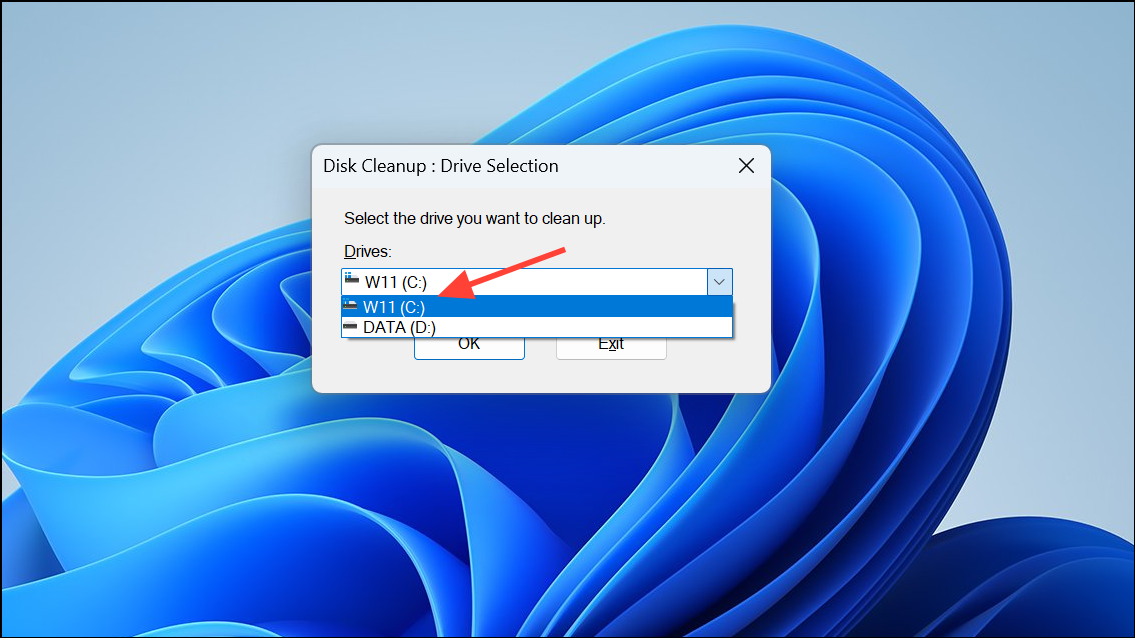
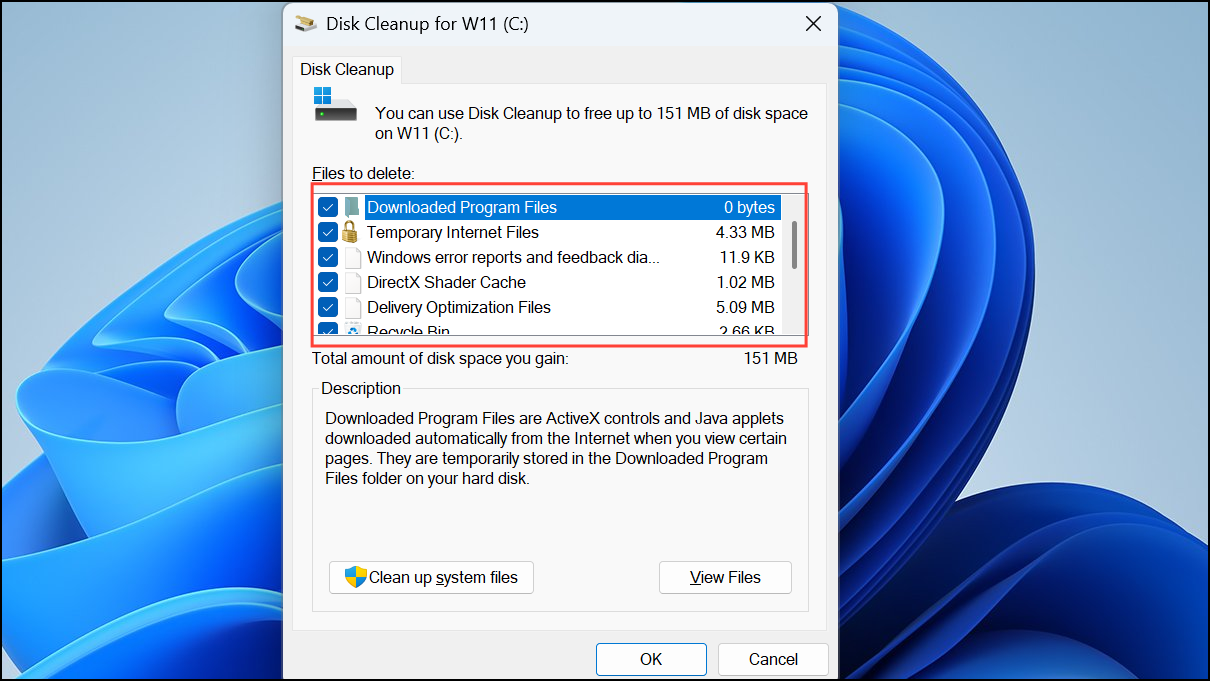
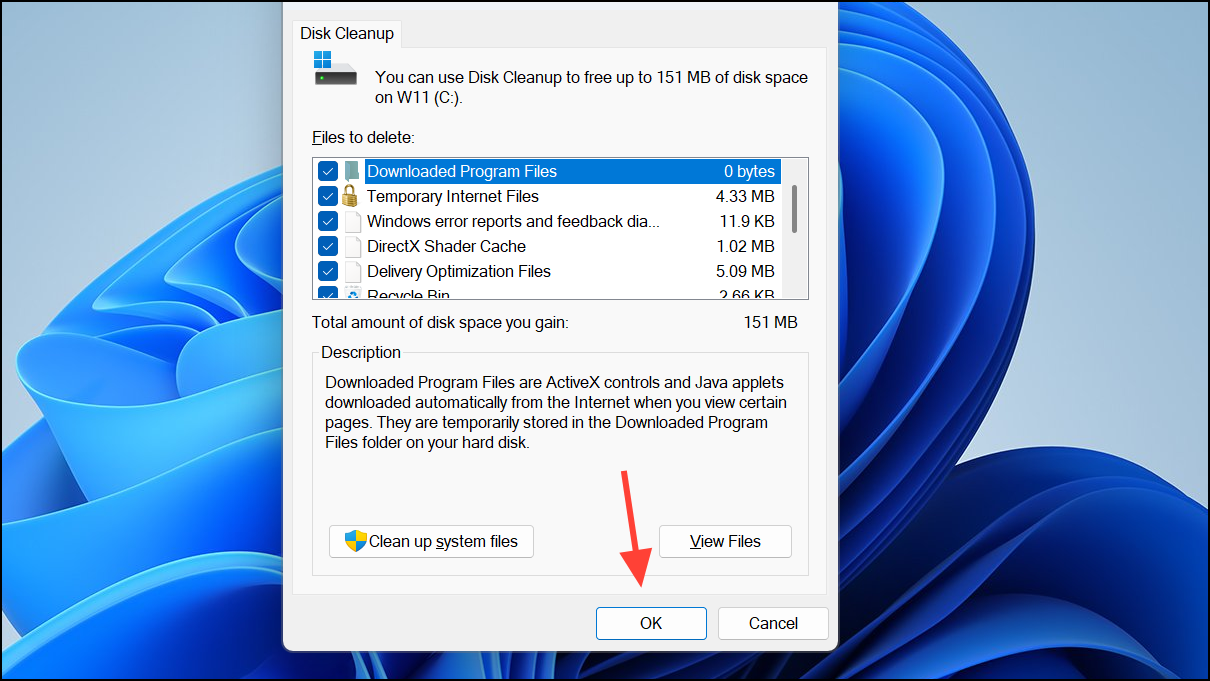
Clearing unnecessary files can reduce boot time and prevent resource bottlenecks during startup.
Defragment and Optimize Drives (HDD Only)
On traditional hard disk drives (HDDs), file fragmentation leads to longer read times, slowing down Windows startup. Defragmenting consolidates file fragments, allowing the drive to access system files more efficiently.
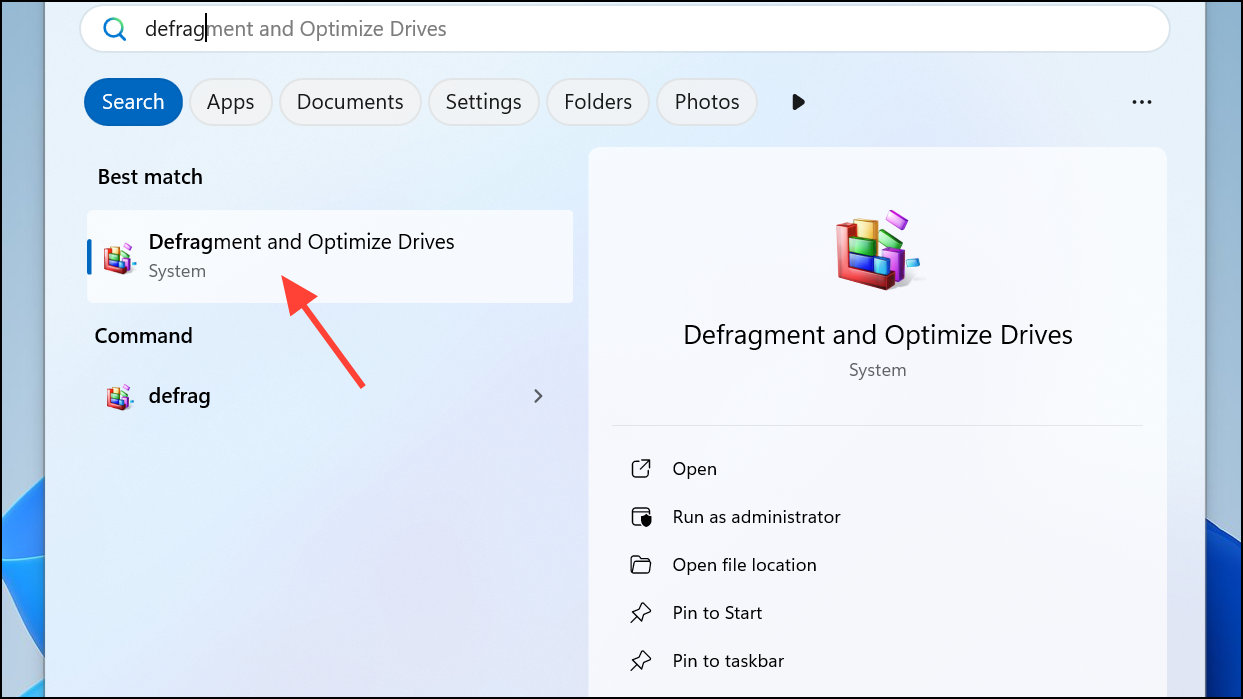
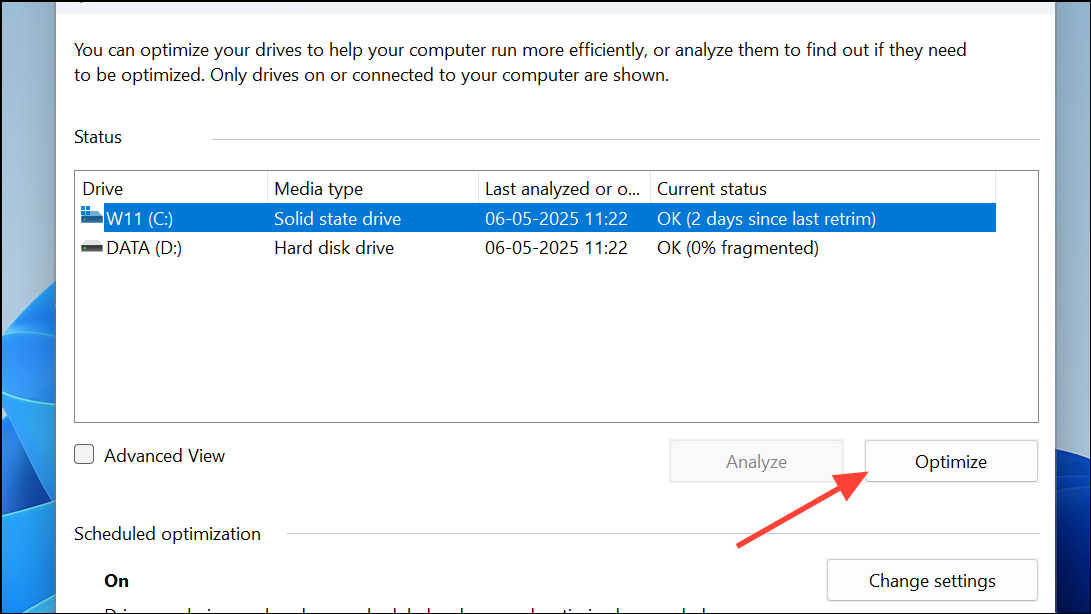
Regular optimization keeps boot-critical files accessible and maintains consistent startup performance.
Scan for Malware and Remove Threats
Viruses and malware can hijack system resources, inject malicious processes into startup, and significantly slow down boot times. Running a comprehensive scan ensures your system is free from threats that could impede startup speed.
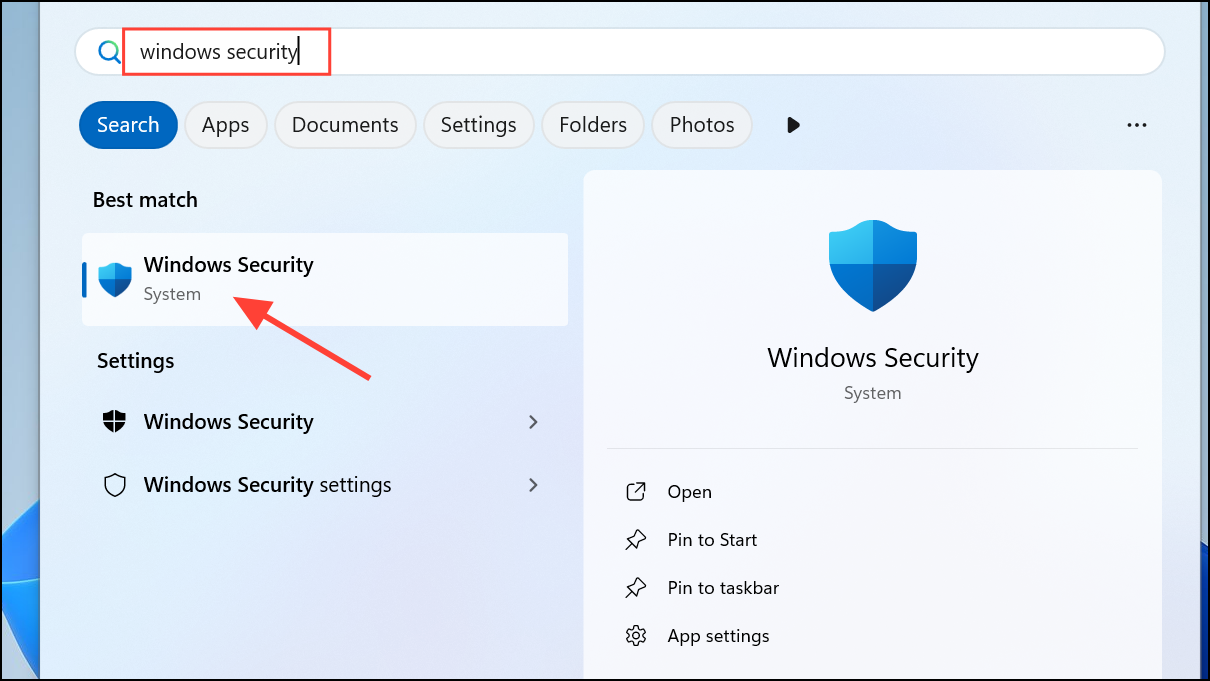
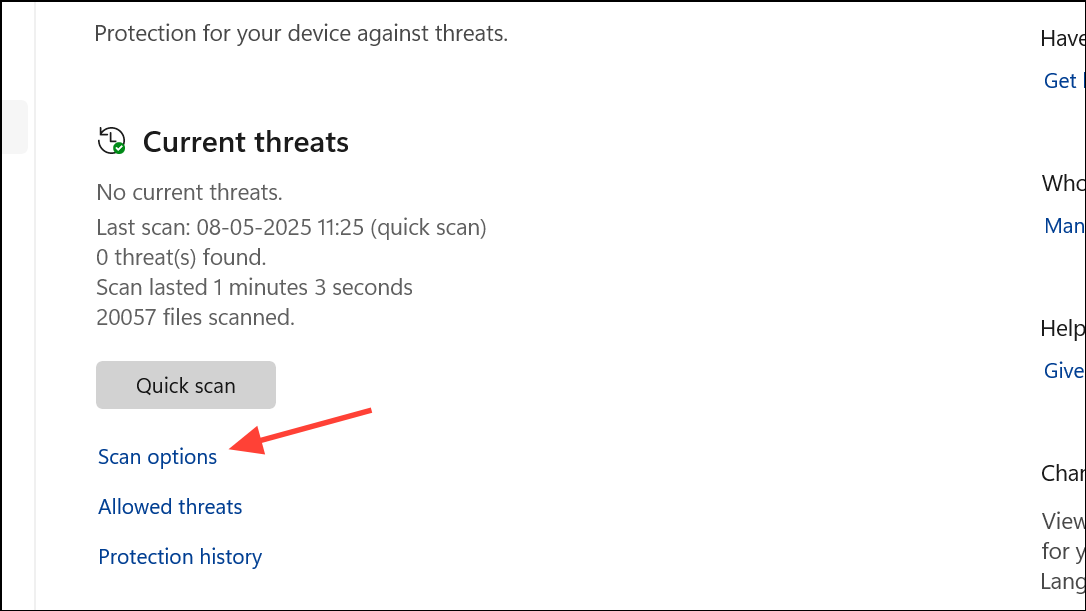
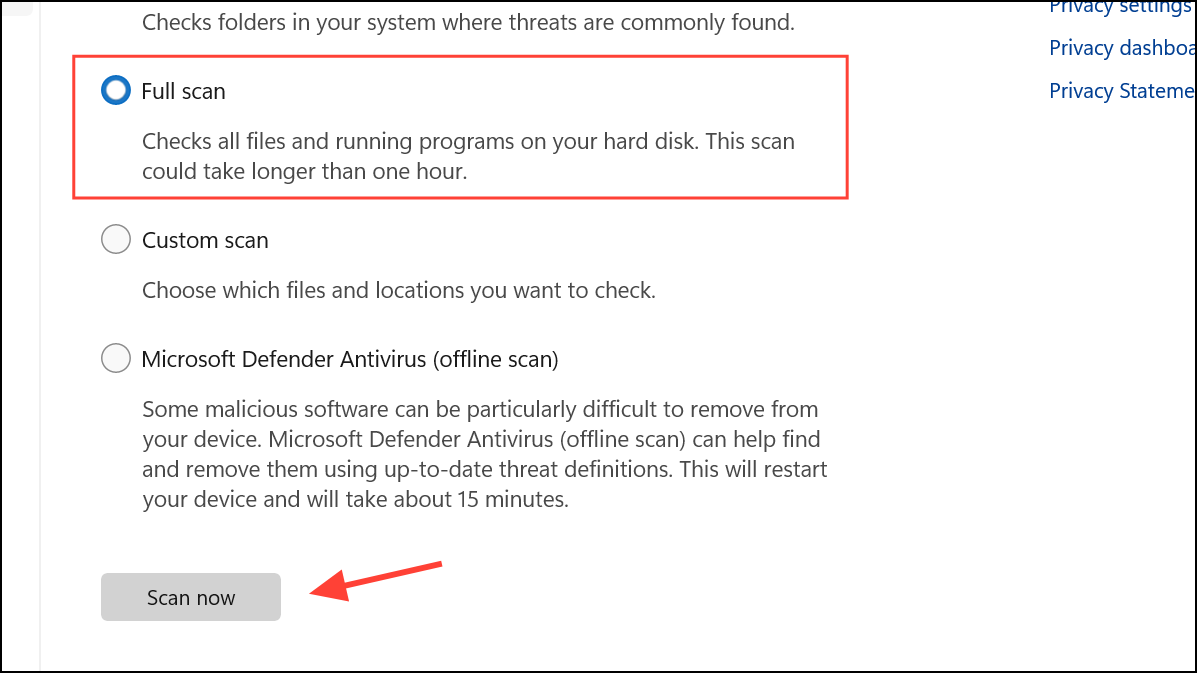
Malware removal restores normal system operation and eliminates one of the most common causes of slow boot times.
Adjust Virtual Memory Settings
Virtual memory, or the paging file, is a portion of your storage that Windows uses as extra RAM. Poorly configured virtual memory can slow down system operations, including boot. Setting a custom size based on your physical RAM can streamline memory management and reduce startup lag.
performance in the Windows Search Box and select Adjust the appearance and performance of Windows.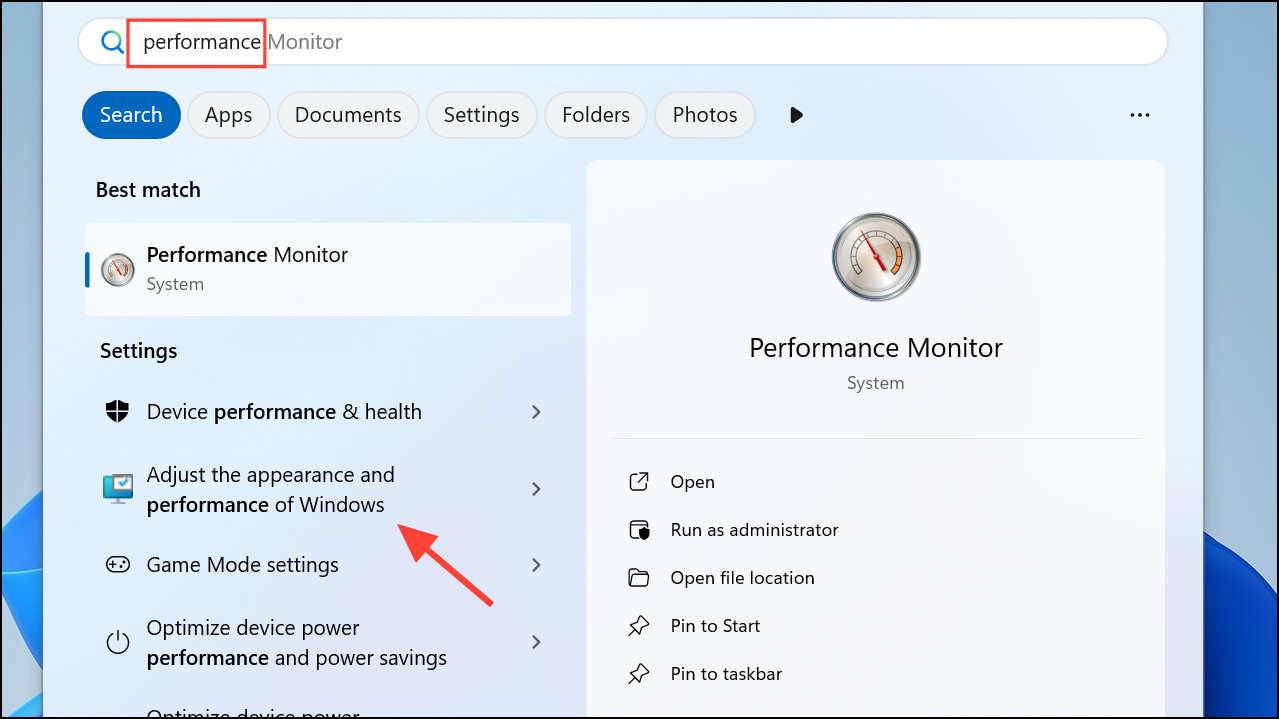
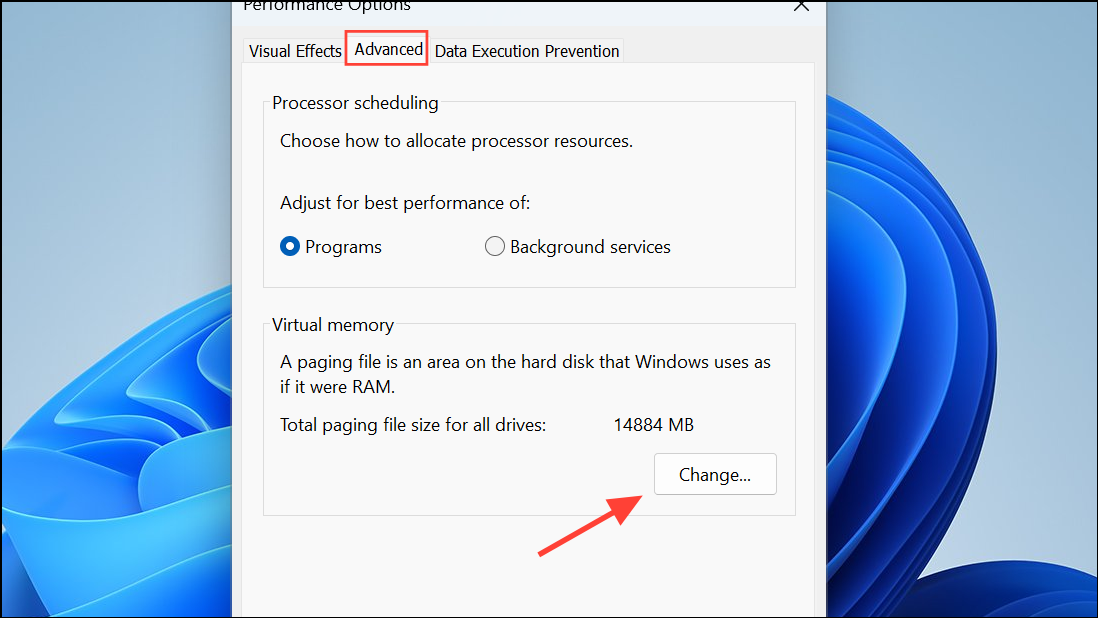
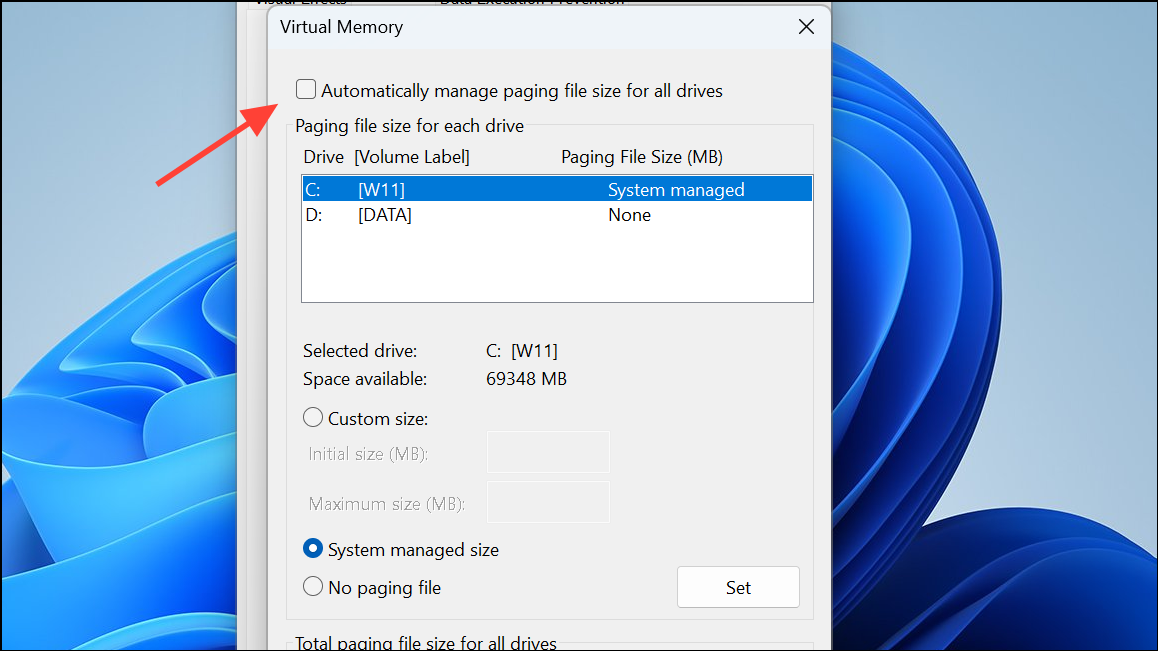
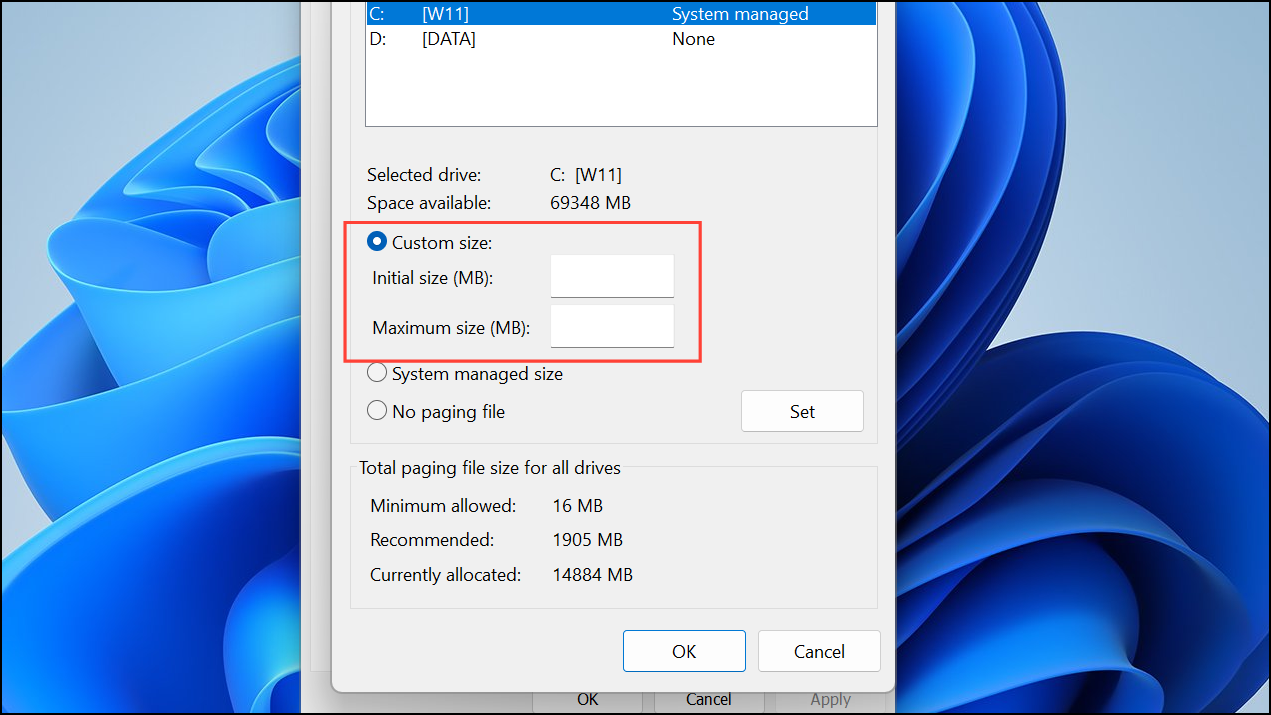
Optimal virtual memory settings prevent excessive disk swapping and improve boot speed, especially on systems with limited RAM.
Disable Visual Effects for Faster Startup
Windows 11 includes visual effects like animations and transparency that, while visually appealing, can slow down system performance—particularly on older hardware. Disabling these effects prioritizes speed over appearance and can accelerate boot and login times.
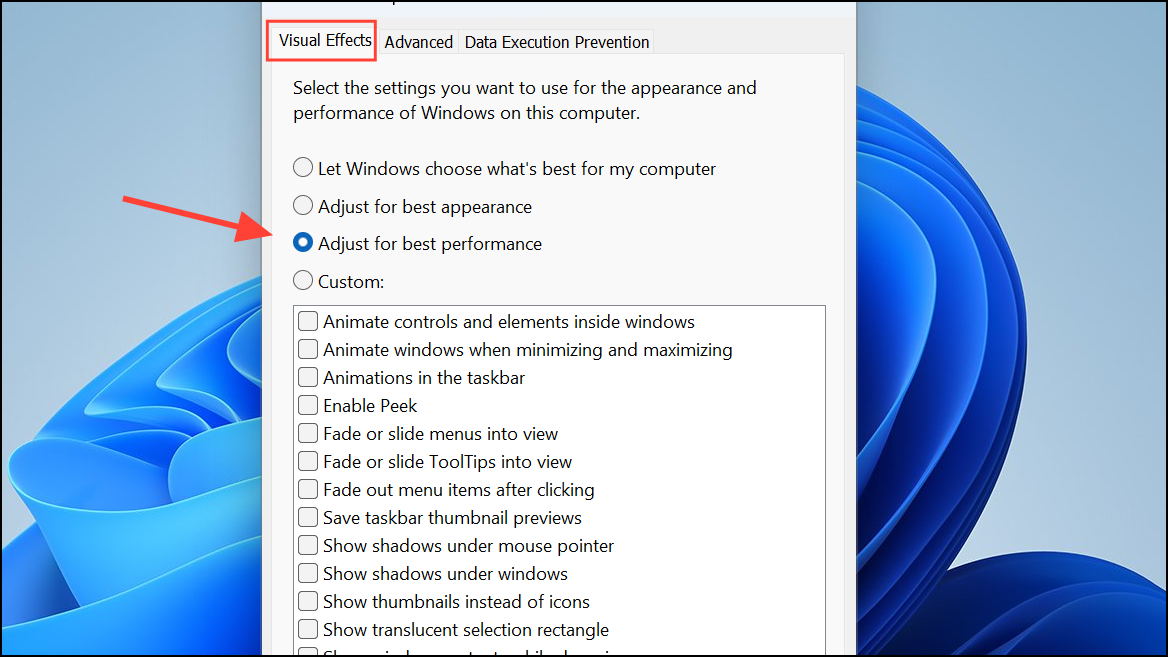
Reducing visual effects is a quick way to reclaim speed on systems struggling with startup slowness.
Upgrade to an SSD
Solid State Drives (SSDs) offer much faster read and write speeds compared to traditional hard drives. Switching your system drive from an HDD to an SSD can reduce boot times from minutes to under 20 seconds, providing the most dramatic improvement for older PCs.
Upgrading to an SSD is the most effective hardware solution for persistent slow boot times on Windows 11.
Fine-tuning startup apps, keeping drivers and Windows updated, and considering an SSD upgrade can transform slow Windows 11 boot times into a streamlined, frustration-free experience. Regular maintenance keeps your system running at top speed.



