
Fixing Hyper-V installation problems on Windows 11 typically requires either adjusting specific virtual machine settings to meet system requirements or removing conflicting virtualization software from your host computer. When attempting to install Windows 11 inside a Hyper-V virtual machine (VM), you may see an error message stating, “This PC can’t run Windows 11.” This is usually because the VM has not been configured with the necessary virtual hardware. Alternatively, you might be unable to enable the Hyper-V feature on your Windows 11 host system, with the installation failing and rolling back after a restart. The following methods address both of these distinct scenarios.
Configure Virtual Machine Settings for Windows 11 Compatibility
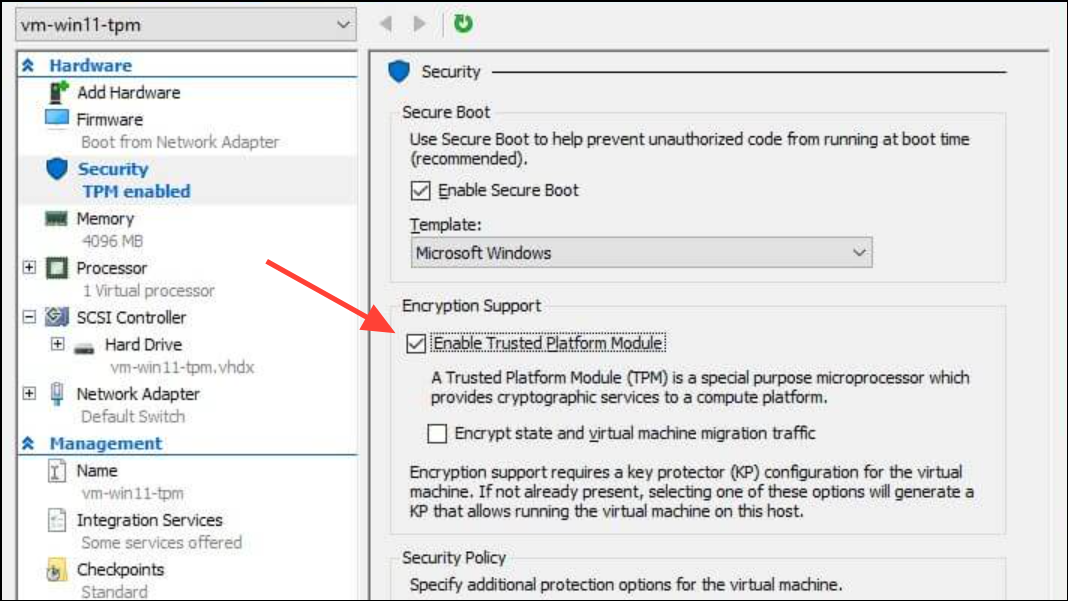
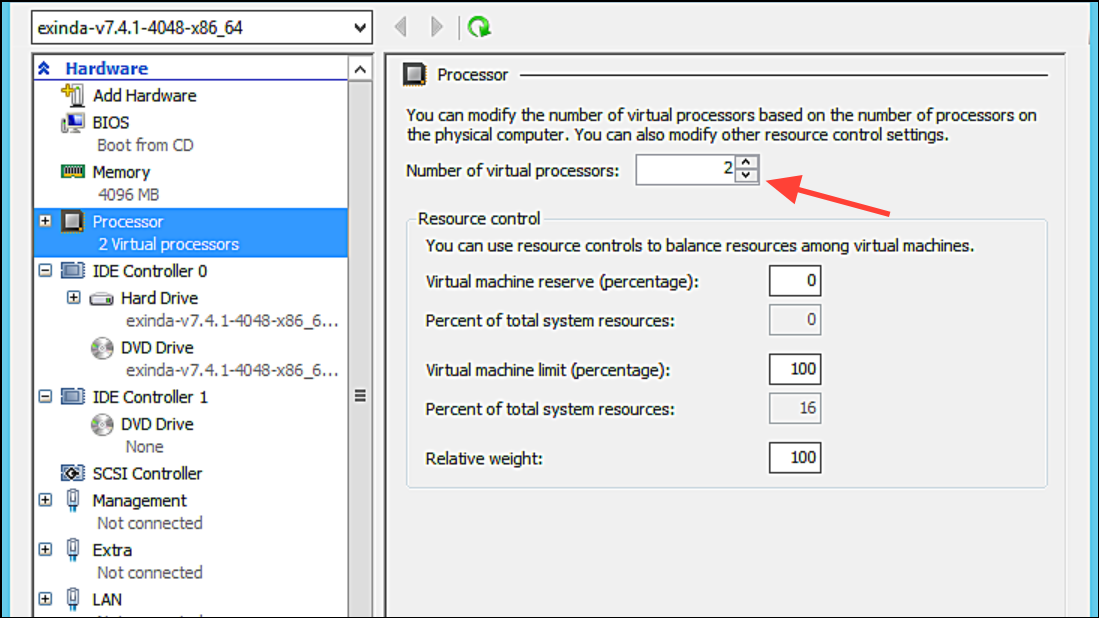
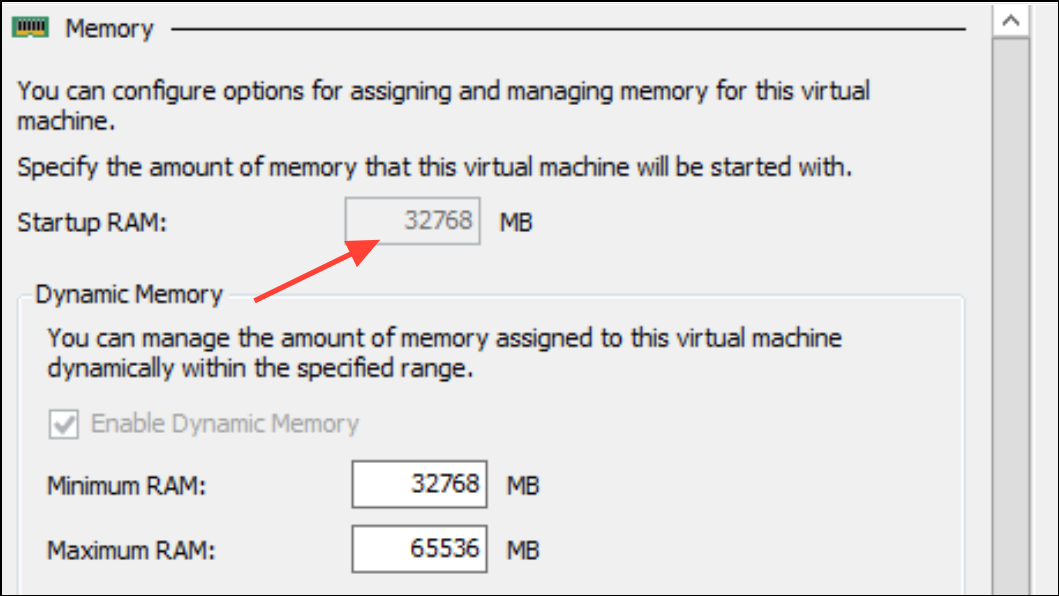
If you are trying to install Windows 11 within a Hyper-V virtual machine and receive an error about not meeting the minimum system requirements, the cause is likely the VM’s configuration. Windows 11 has stricter hardware prerequisites than its predecessors, including the need for a Trusted Platform Module (TPM), a dual-core processor, and sufficient RAM. These settings must be enabled for the virtual machine itself, not just on the host computer.
Before proceeding, ensure your virtual machine is configured as a **Generation 2** VM, as this is a prerequisite for enabling virtual TPM and Secure Boot. If your VM is Generation 1, you will need to create a new Generation 2 VM. You must also shut down the virtual machine completely before you can change its security and hardware settings.
Troubleshoot Hyper-V Feature Installation Failures
If you are unable to enable the Hyper-V feature on your Windows 11 Pro or Enterprise machine—for instance, the process fails during the restart with a message like “We couldn’t complete the features”—the problem likely lies with your host system’s configuration or files.
Hyper-V is a Type 1 hypervisor, which means it runs directly on the hardware and requires exclusive access to the system’s virtualization capabilities. If another virtualization application like VMware Workstation, VirtualBox, or certain Android emulators are installed, they can create conflicts that prevent Hyper-V from being enabled.
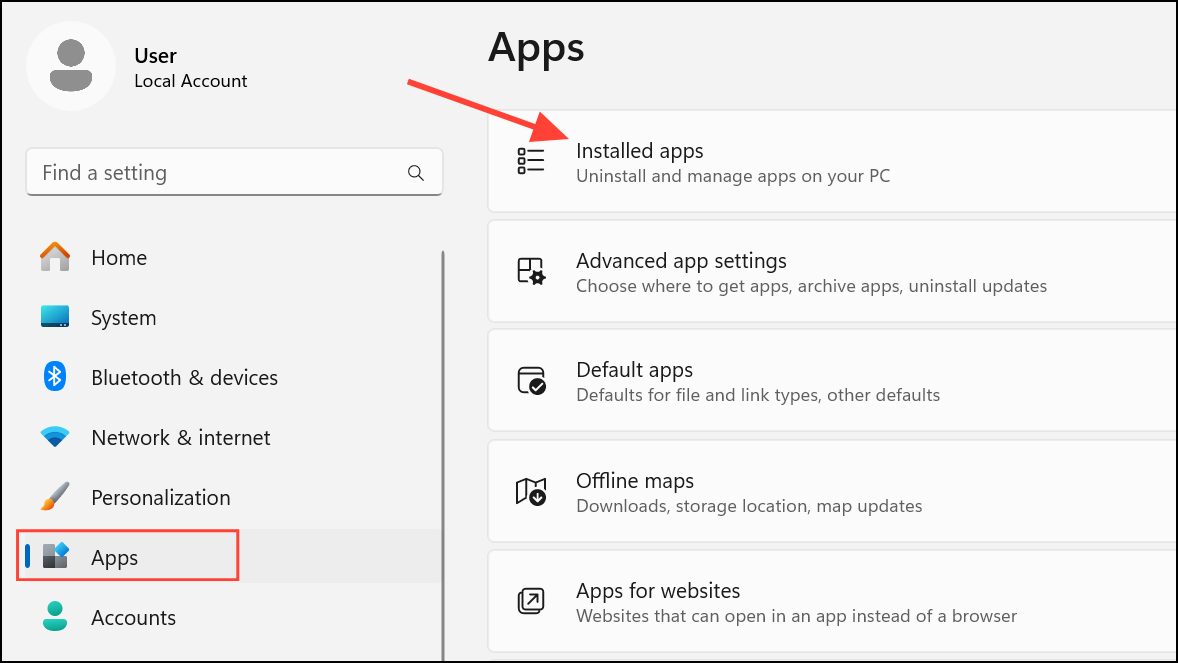
VMnetDHCP or VMSP, as these are clear indicators of leftover components from VMware or other applications.Repair Corrupted System Files
If no conflicting software is present, the installation failure may be due to corrupted Windows system files. You can use built-in command-line tools to scan for and repair these files.
PowerShell, right-click on Windows PowerShell, and select Run as administrator.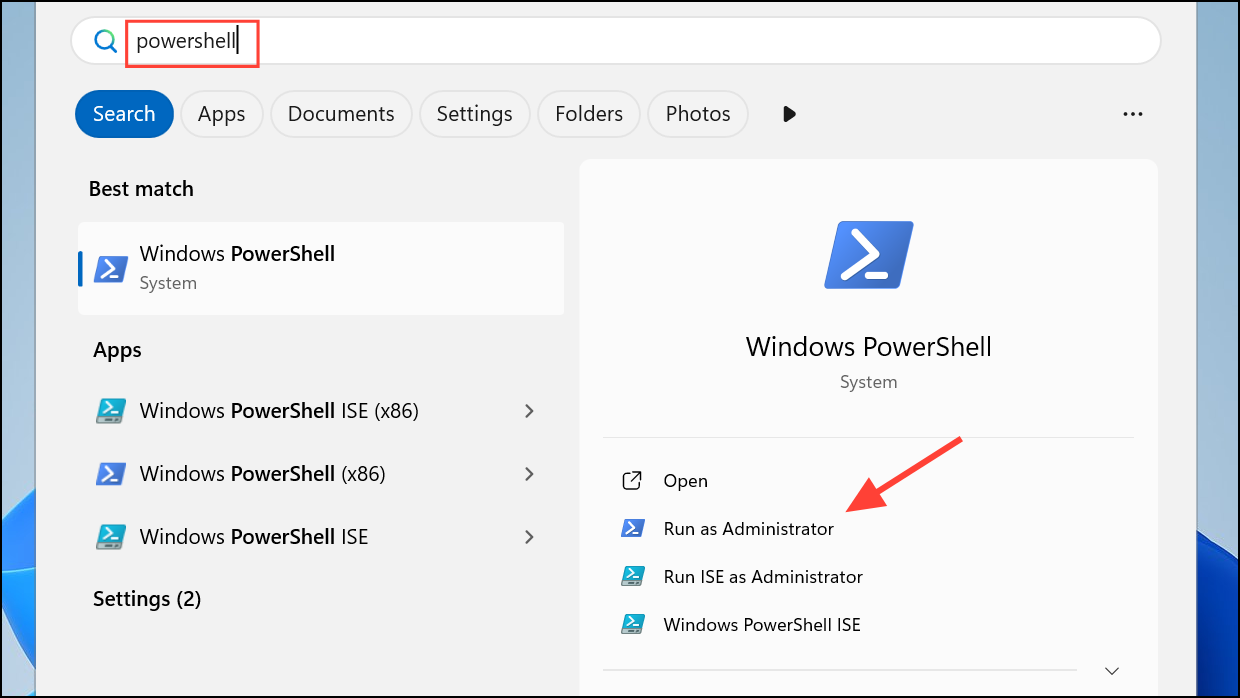
dism /online /cleanup-image /restorehealth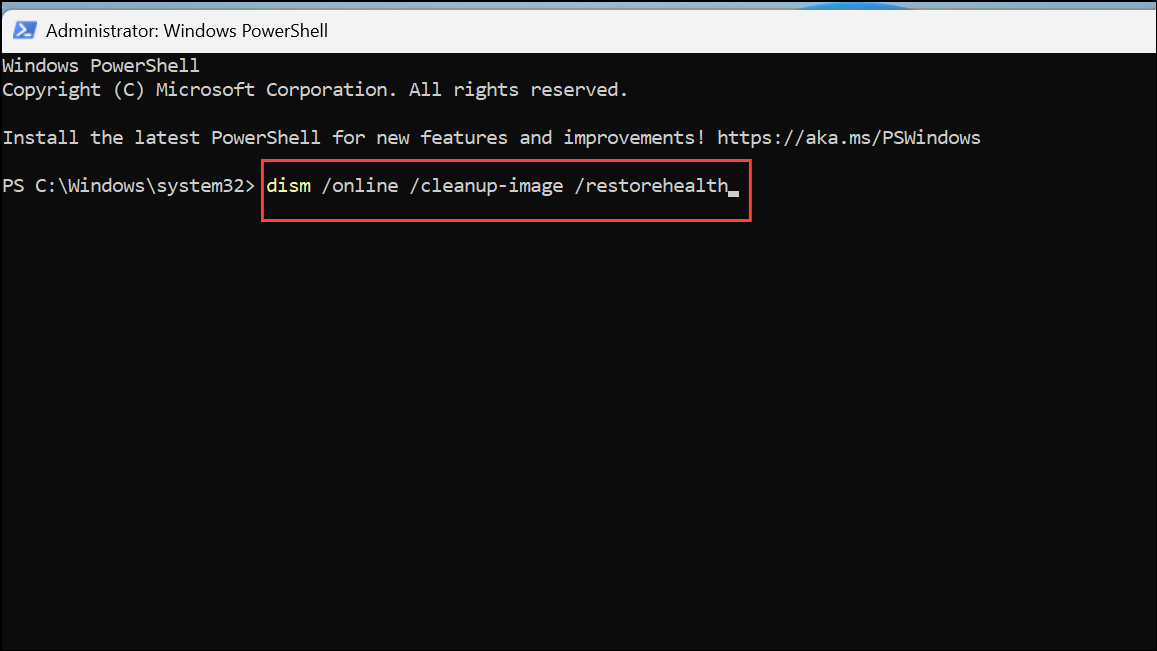
sfc /scannow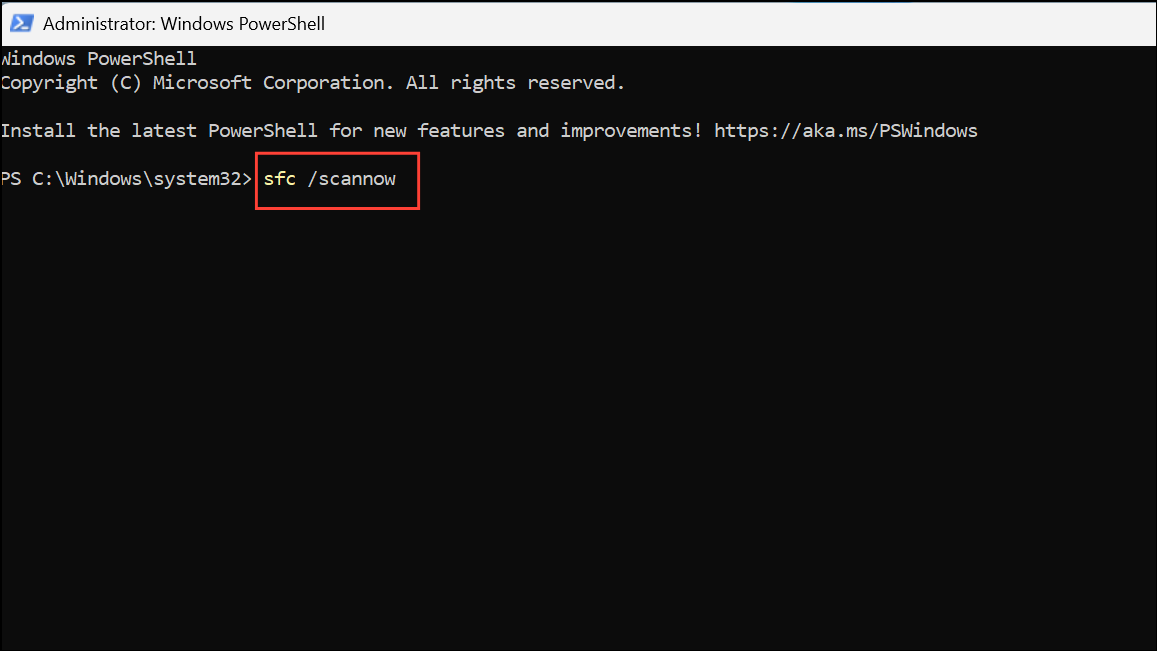
By properly configuring your VM or resolving conflicts on your host system, you should be able to get Hyper-V up and running with Windows 11.



