

Attempting to rename, move, or create a file or folder in Windows 11 can sometimes trigger the message: There is already a file with the same name as the folder name you specified. Specify a different name. This error blocks the operation, even when it appears that no duplicate exists. The underlying cause is usually a naming conflict—sometimes due to hidden files, system quirks, or legacy compatibility features. Addressing this issue involves careful investigation and targeted fixes that restore normal file management.
Reveal and Resolve Hidden Files or Folders
View tab, then select Show > Hidden items. This displays any files or folders that Windows normally keeps out of sight. Hidden items often cause conflicts because their names are not visible during standard navigation.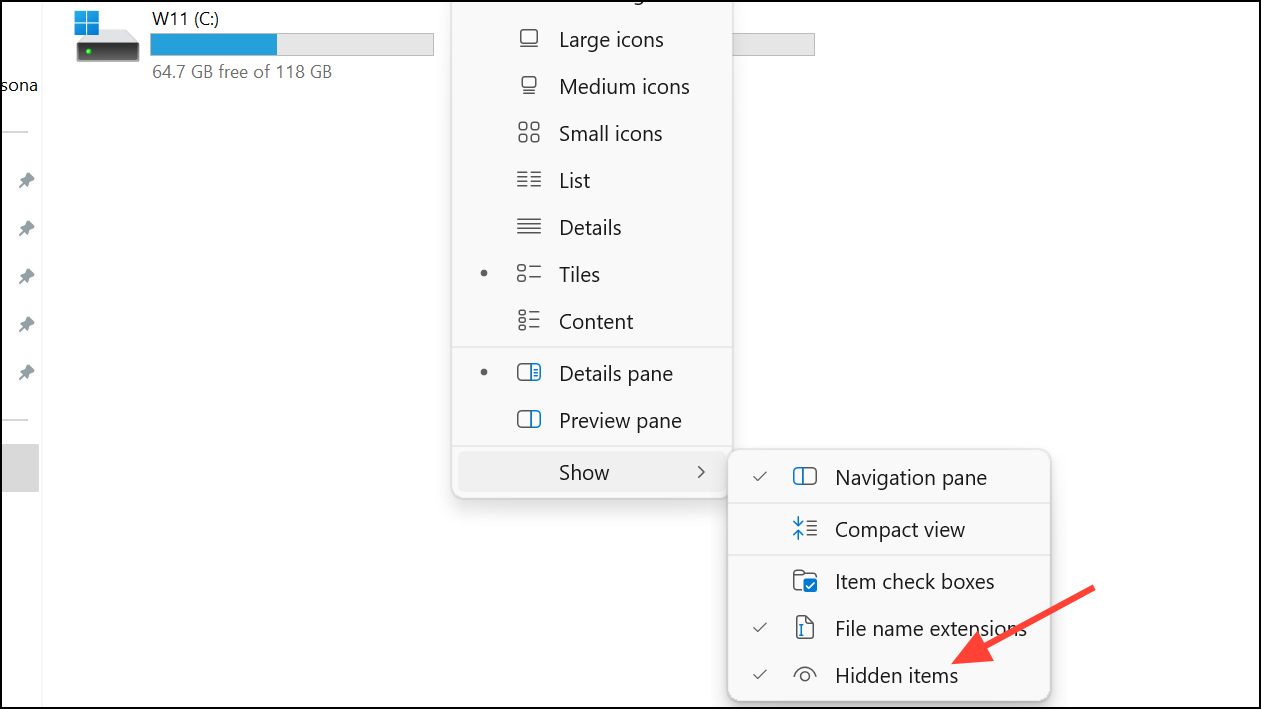
Properties, uncheck Hidden, and click Apply and OK. You can now rename, move, or delete the conflicting item as needed.Identify and Address Short File Name (8.3) Conflicts
Windows maintains legacy compatibility by generating short file names (8.3 format, such as DOCUME~1) for files and folders. These can sometimes clash with modern names, especially after disk repairs or when using removable drives.
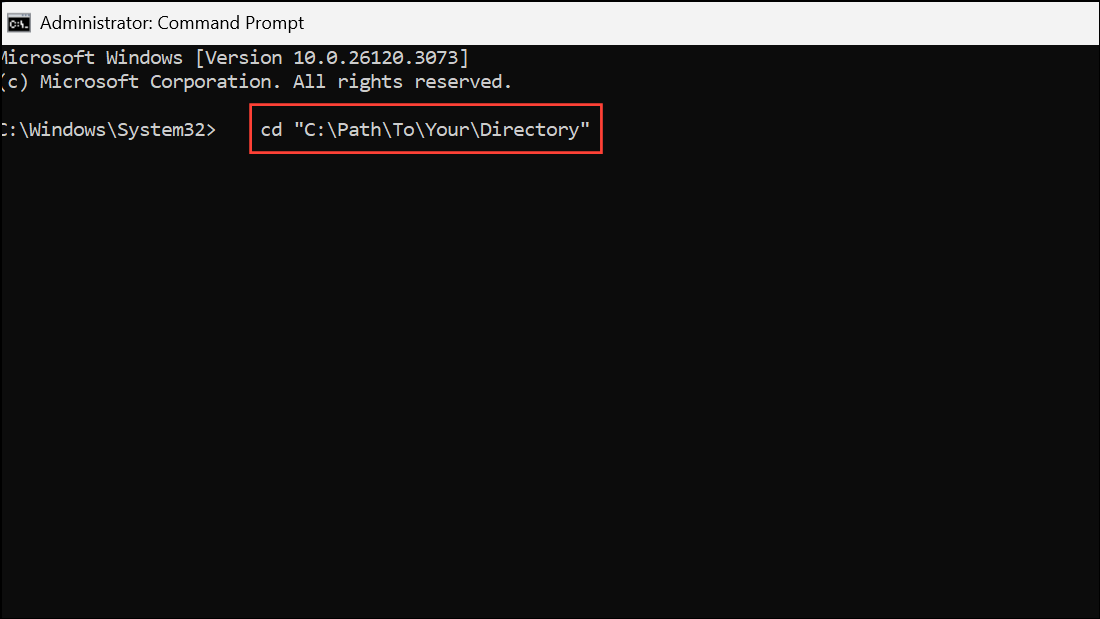
cd "C:\Path\To\Your\Directory"
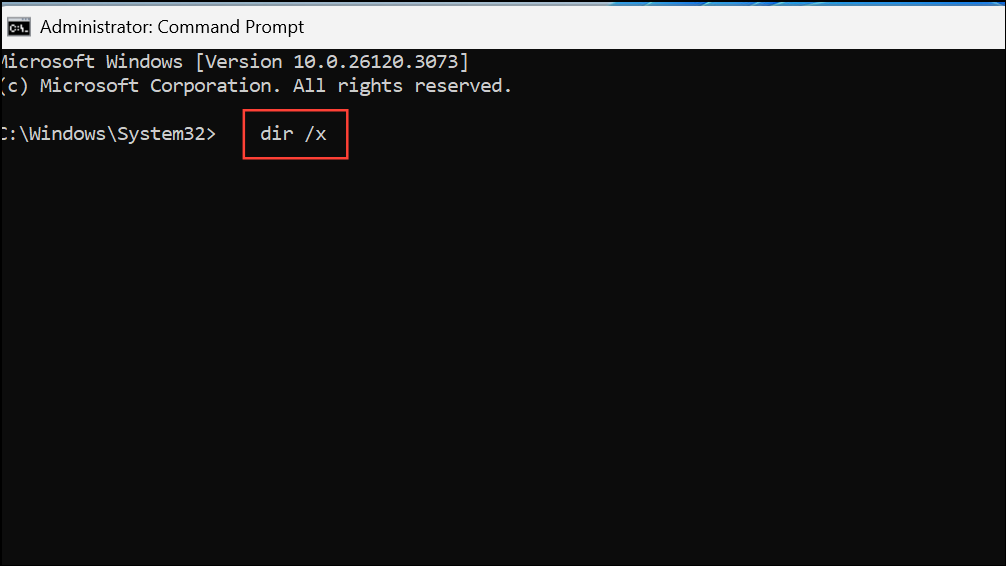
dir /x and press Enter. This command lists all files and folders along with their short (8.3) names. Look for entries where the short name matches the name you want to use.
dir /x
ren command to give the offending file or folder a new, unique name. For example:
ren DOCUME~1 old_document
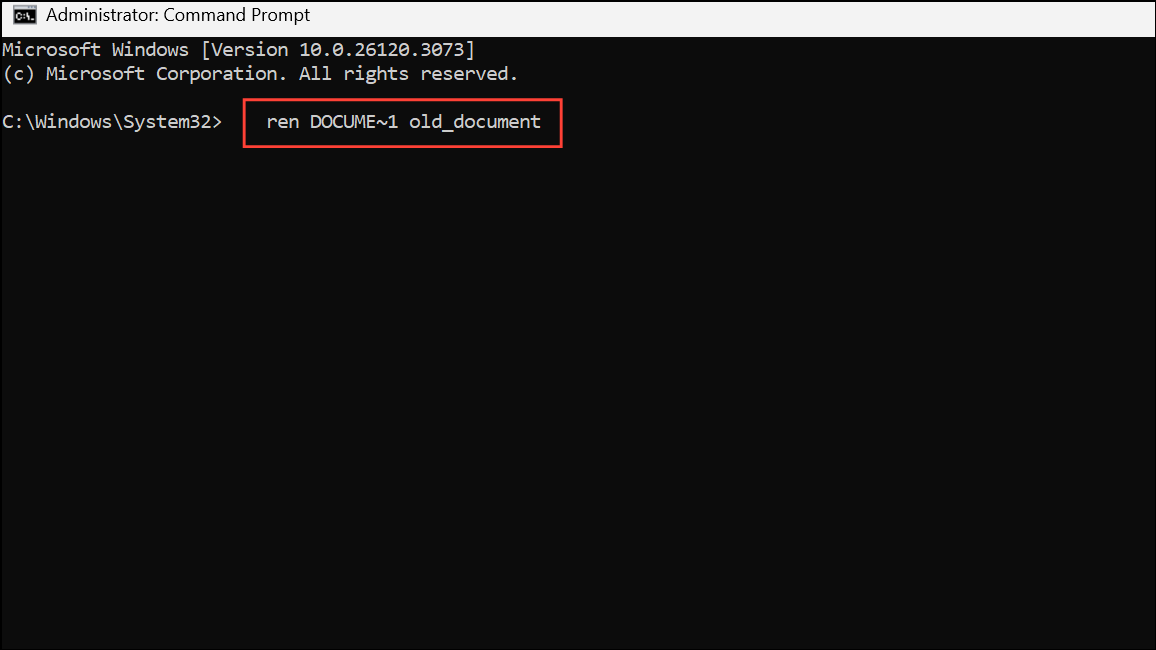
After renaming, retry your original file or folder operation.
Rename or Move Conflicting Items
When a visible file or folder with the same name exists in the directory, Windows prevents creating or renaming another item to that name. Changing the name of one of the items resolves the conflict.
Rename and enter a new, distinct name. Press Enter to confirm.Cut, navigate to a different folder, and paste it using Ctrl + V. This clears the naming conflict in the original location.End Processes Locking Files or Folders
Background applications or system processes sometimes lock a file or folder, causing Windows to misreport naming conflicts. Stopping these processes can immediately resolve the issue.
Ctrl + Shift + Esc. In the Processes tab, look for applications that might be using the target file or folder, such as editors, backup software, or sync tools.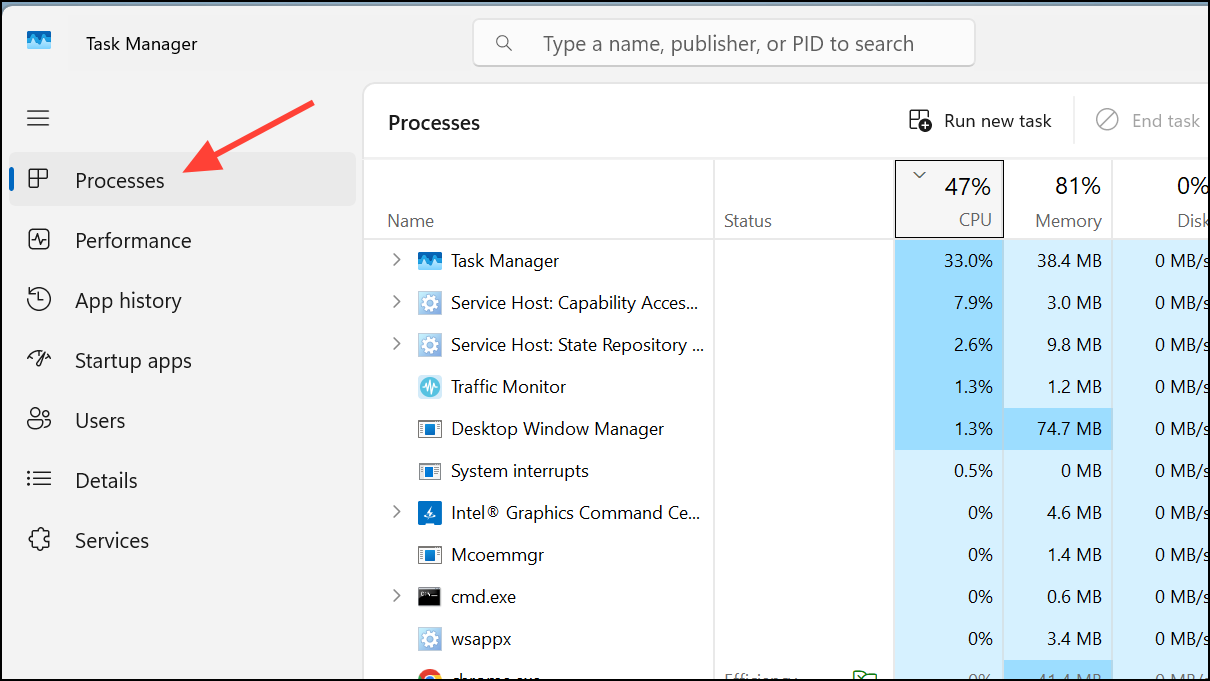
End Task. After closing these programs, retry the file or folder operation.Perform the Operation in Clean Boot State
Conflicts can persist if third-party software or services interfere with Windows Explorer. Clean Boot starts Windows with minimal drivers and startup programs, making it easier to isolate the problem.
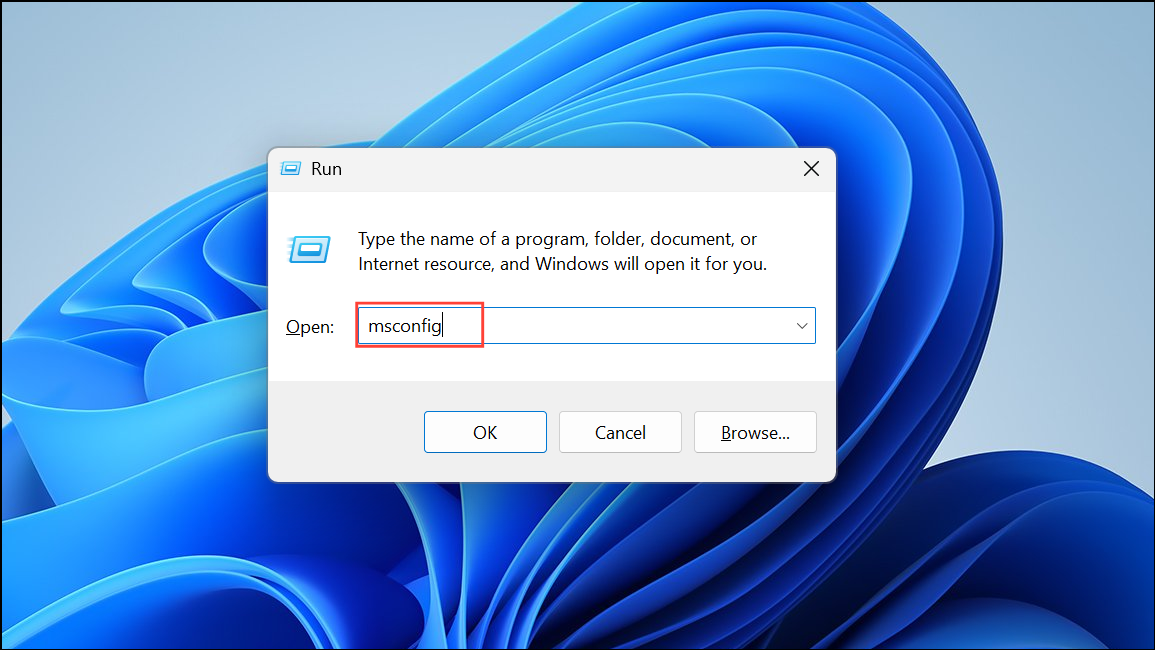
System Configuration window, go to the Services tab, check Hide all Microsoft services, then click Disable all.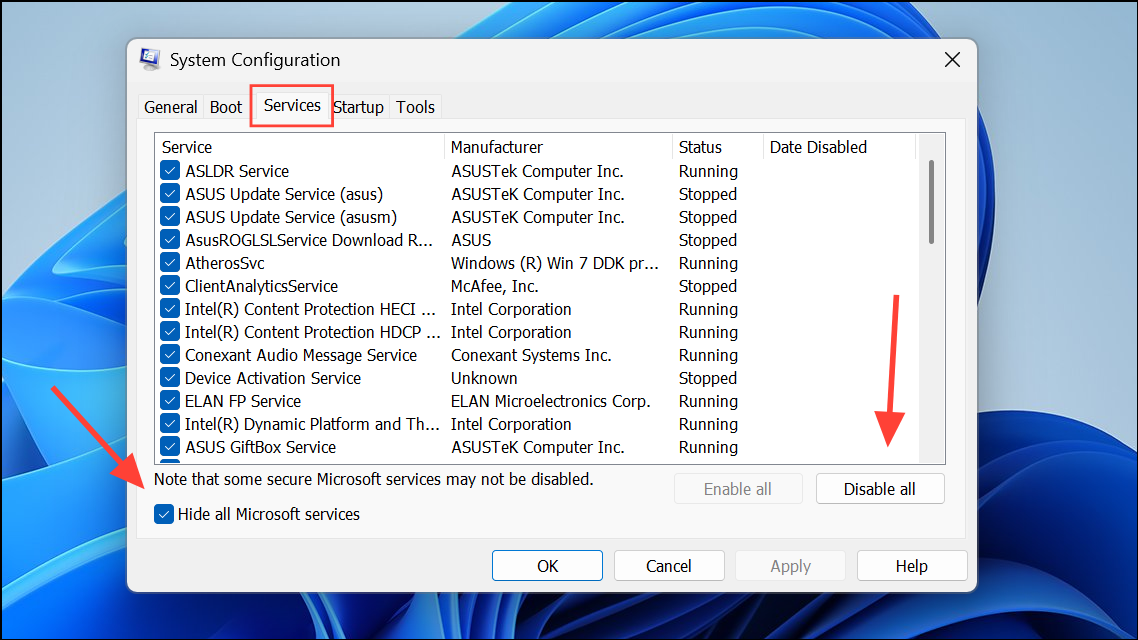
Startup tab and select Open Task Manager. In Task Manager, disable all startup items. Close Task Manager and click OK in the System Configuration window. Restart your computer.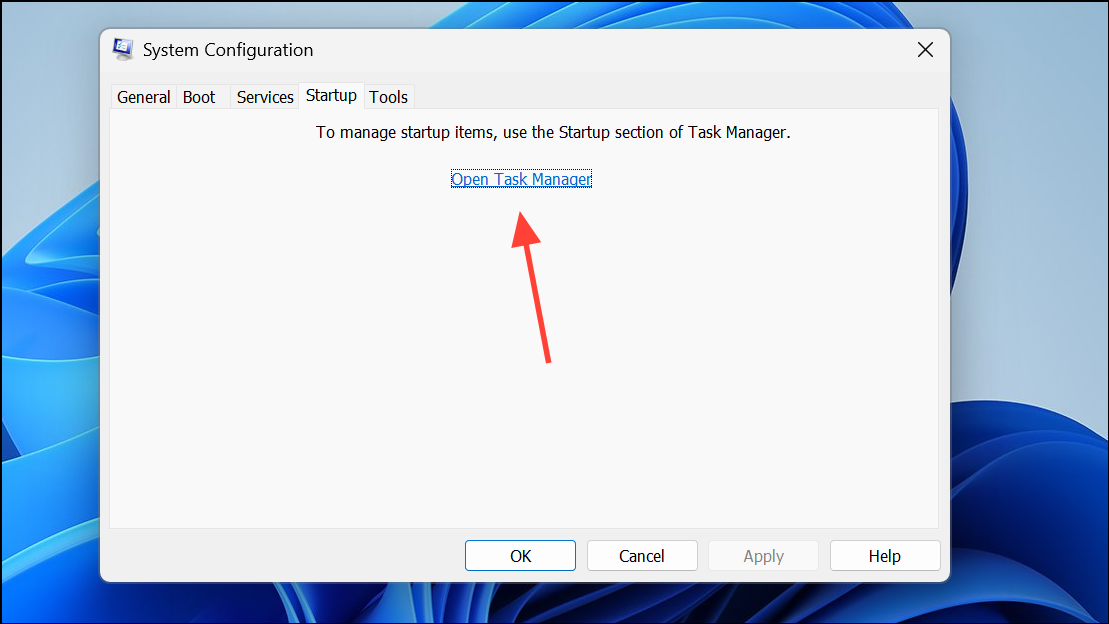
Additional Tips and Preventive Measures
- Use unique, descriptive names for files and folders to minimize future conflicts.
- Regularly review and clean up directories, deleting unnecessary or duplicate items.
- Be cautious with removable drives and after using disk repair tools, as these can create legacy or duplicate entries.
- If you frequently manage large numbers of files, consider using specialized tools like Bulk Rename Utility or Total Commander for efficient batch operations.
Resolving the “There is already a file with the same name” error in Windows 11 streamlines file management and prevents workflow interruptions. Staying vigilant about hidden files and legacy naming quirks keeps your folders organized and reduces future conflicts.



