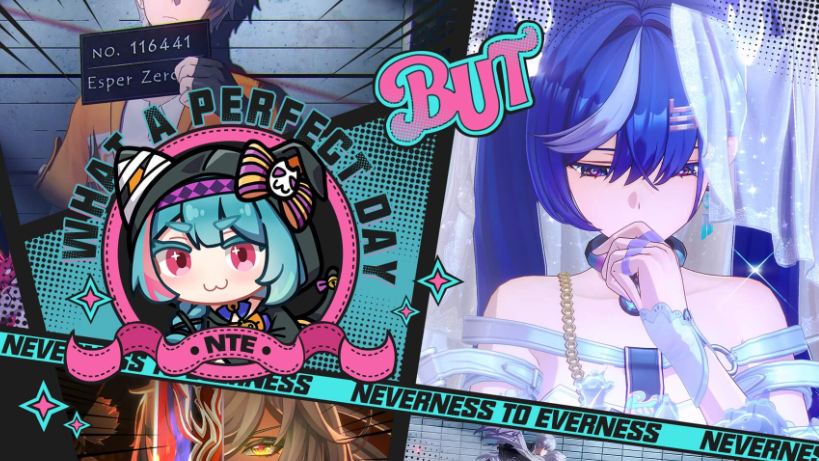
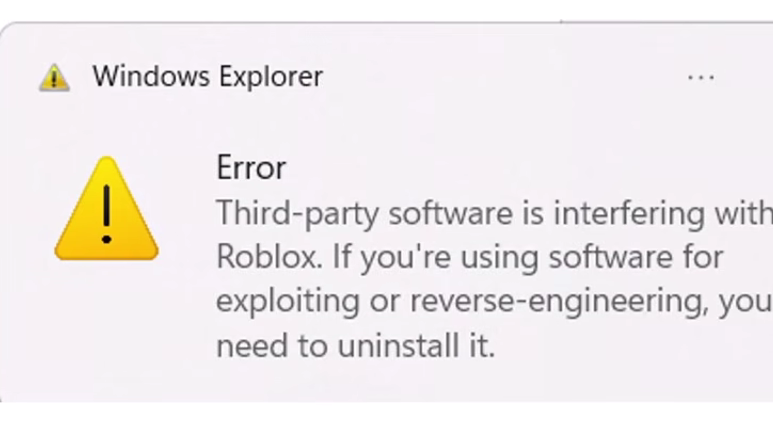
The error Third-party software is interfering with Roblox appears on Windows PCs after Neverness to Everness (NTE) is installed. The trigger is a kernel-mode anti-cheat driver shipped with NTE, registered as the service HtAntiCheatDriver. Roblox’s Hyperion anti-cheat detects that driver as an unauthorized hook and blocks the client from launching, even when NTE itself is closed.
Quick answer: Open PowerShell as administrator, run Set-ItemProperty -Path "HKLM:\SYSTEM\CurrentControlSet\Services\HtAntiCheatDriver" -Name "Start" -Value 4, restart Windows, then launch Roblox without opening NTE in the same session.
Why the error happens
NTE installs a boot-start anti-cheat driver alongside the game. Once that driver is loaded into the Windows kernel during startup, it remains resident even after NTE is closed. Roblox’s Hyperion enumerates loaded drivers at launch, sees an unrecognized kernel module, and refuses to start the session with the third-party software warning.
A simple task-kill on the NTE process does not clear the driver, because kernel drivers only unload at shutdown. That is why closing NTE, ending tasks, or even restarting NTE’s launcher will not fix the error on its own.
Two paths that work
There are two reliable approaches. The first lets you keep both games installed and switch between them. The second permanently removes NTE if you only care about playing Roblox.
| Approach | What it does | Best for |
|---|---|---|
| Toggle the HtAntiCheatDriver Start value | Stops the driver from loading at boot, then re-enables it when you want to play NTE | Players who want both Roblox and NTE on the same PC |
| Uninstall NTE and its anti-cheat | Removes the driver service entirely so Hyperion never sees it | Players who do not plan to launch NTE again |
| Launch order workaround | Open Roblox first in a fresh boot, before NTE has ever run that session | One-off Roblox sessions when the driver has not yet been triggered |
Method 1: Disable the NTE anti-cheat driver
This is the most reliable fix and does not require uninstalling anything. You change the driver’s Start value in the registry from automatic (2) or manual (3) to disabled (4), reboot, and Roblox will launch normally.
PowerShell, right-click Windows PowerShell, and choose Run as administrator. Approve the User Account Control prompt.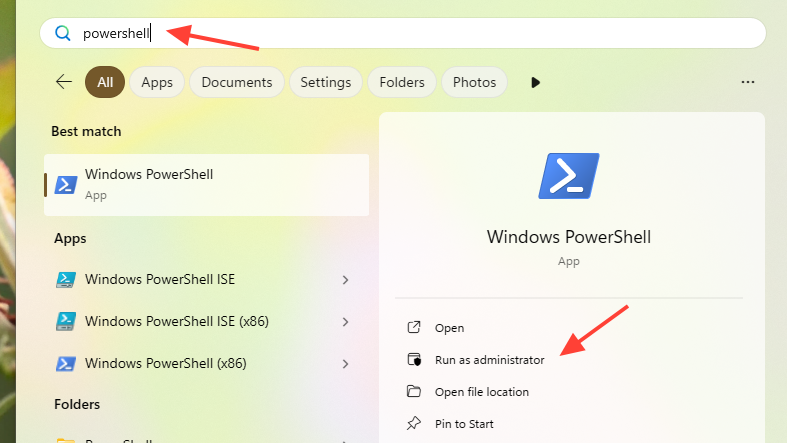
Set-ItemProperty -Path "HKLM:\SYSTEM\CurrentControlSet\Services\HtAntiCheatDriver" -Name "Start" -Value 4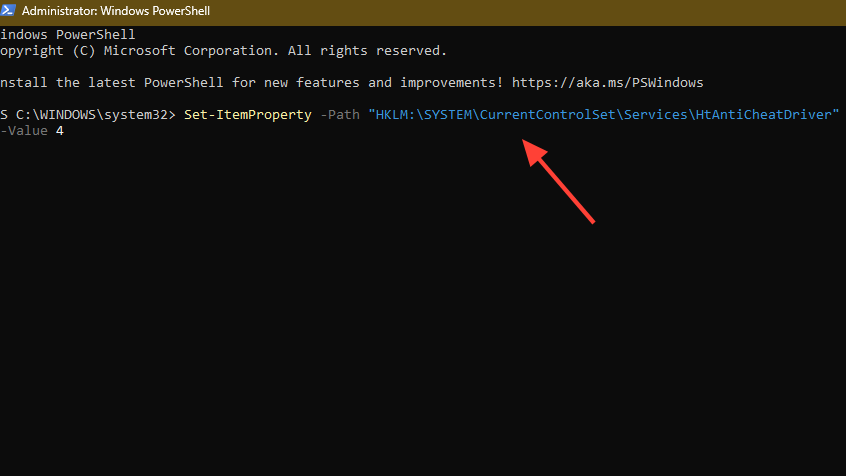
To play NTE again later, run the same PowerShell command with -Value 2 (automatic start) or -Value 3 (manual start), then restart the PC. You will need to repeat this toggle each time you switch games.
Set-ItemProperty -Path "HKLM:\SYSTEM\CurrentControlSet\Services\HtAntiCheatDriver" -Name "Start" -Value 2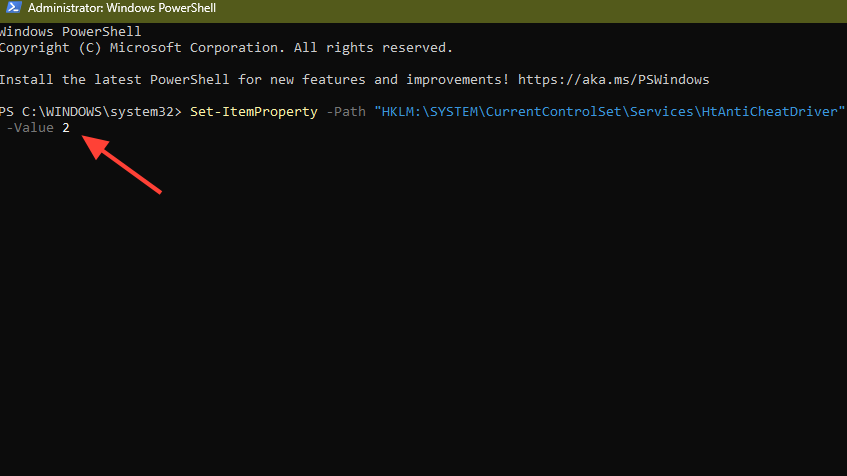
You know it worked when Roblox loads past the launcher into the game without the third-party interference popup.
Method 2: Launch Roblox before NTE in a clean session
If you have already restarted but have not yet opened NTE, the driver may not be active. In that state Roblox can launch normally, and the error only appears once NTE is started later in the same session.
This is a temporary workaround, not a permanent fix. The driver still loads as soon as NTE runs, so any later Roblox launch in the same session will fail until you reboot or use Method 1.
Method 3: Uninstall NTE and its anti-cheat completely
Use this if you do not plan to play NTE again. Be aware that the standard uninstaller does not always remove the anti-cheat driver, which is what causes the error to persist after removal.
Get-Item "HKLM:\SYSTEM\CurrentControlSet\Services\HtAntiCheatDriver"%ProgramFiles%, %ProgramData%, and %LocalAppData% related to NTE or HoYo-style anti-cheat folders left behind.
What does not fix it
Several common suggestions are circulated for this error but do not address the root cause, which is the kernel-mode anti-cheat driver. Skip these unless you have already tried Method 1.
| Action | Why it does not resolve the NTE conflict |
|---|---|
| Closing Discord, MSI Afterburner, or RivaTuner | These overlays cause unrelated Hyperion warnings, not the NTE driver flag |
| Disabling antivirus or Windows Defender | The driver loads before user-mode security software and is unaffected |
| Restarting Windows Explorer | Explorer is a user-mode process and cannot unload a boot-start driver |
| Reinstalling Roblox alone | Hyperion will still detect HtAntiCheatDriver on the next launch |
| Clean boot through msconfig | Boot-start drivers like HtAntiCheatDriver still load in a clean boot |
Notes on the Start value
The Start registry value controls when a Windows service or driver loads. Setting it to 4 disables the driver without uninstalling it, which is why this method is reversible.
| Value | Meaning | Effect on NTE driver |
|---|---|---|
| 0 | Boot | Loads with the kernel |
| 1 | System | Loads during system initialization |
| 2 | Automatic | Loads at Windows startup (default for NTE) |
| 3 | Manual | Loads only when NTE requests it |
| 4 | Disabled | Driver does not load at all |
Tip: Keep both PowerShell commands saved in a text file so you can paste them quickly when switching between Roblox and NTE. Each toggle requires a full restart to take effect.
The conflict is a compatibility problem between two kernel-level anti-cheat systems running on the same machine, not a sign that your account is flagged or that any exploit is installed. Until either Roblox or NTE updates their detection logic, manually controlling the HtAntiCheatDriver service is the cleanest way to keep both games playable on the same PC.