

Access Control Entries (ACEs) in Windows 11 manage who can access or modify files and folders. When these entries become corrupted, users may see the error message “This access control entry is corrupt. Delete it and create a new one,” especially when attempting to change permissions or ownership in Advanced Security Settings. This issue can block access, editing, or even deletion of certain files and folders, and often appears when system files are damaged, ownership is unclear, or Universal Windows Platform (UWP) apps interfere with permissions.
Close All Universal Windows Platform (UWP) Apps
Conflicting or running UWP apps—including Microsoft Store apps and pre-installed games—can prevent permission changes by locking resources in the background. Closing these apps removes interference and allows ownership or permission edits to proceed.
Ctrl + Shift + Esc. In the Processes tab, look for any Microsoft Store or UWP apps under both “Apps” and “Background processes”.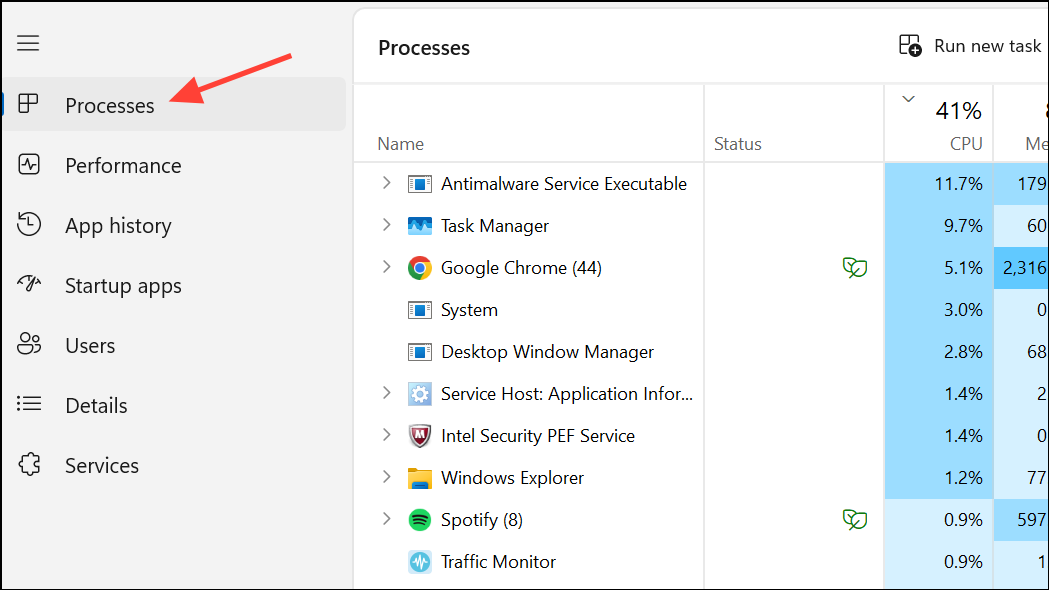
After closing these apps, try to change the permissions or ownership again. If the error persists, proceed to the next method.
Change Ownership of the Affected File or Folder
Files or folders without a clear owner often trigger this error. Assigning ownership to the “Users” group or your specific user account restores the ability to modify permissions and access the resource.
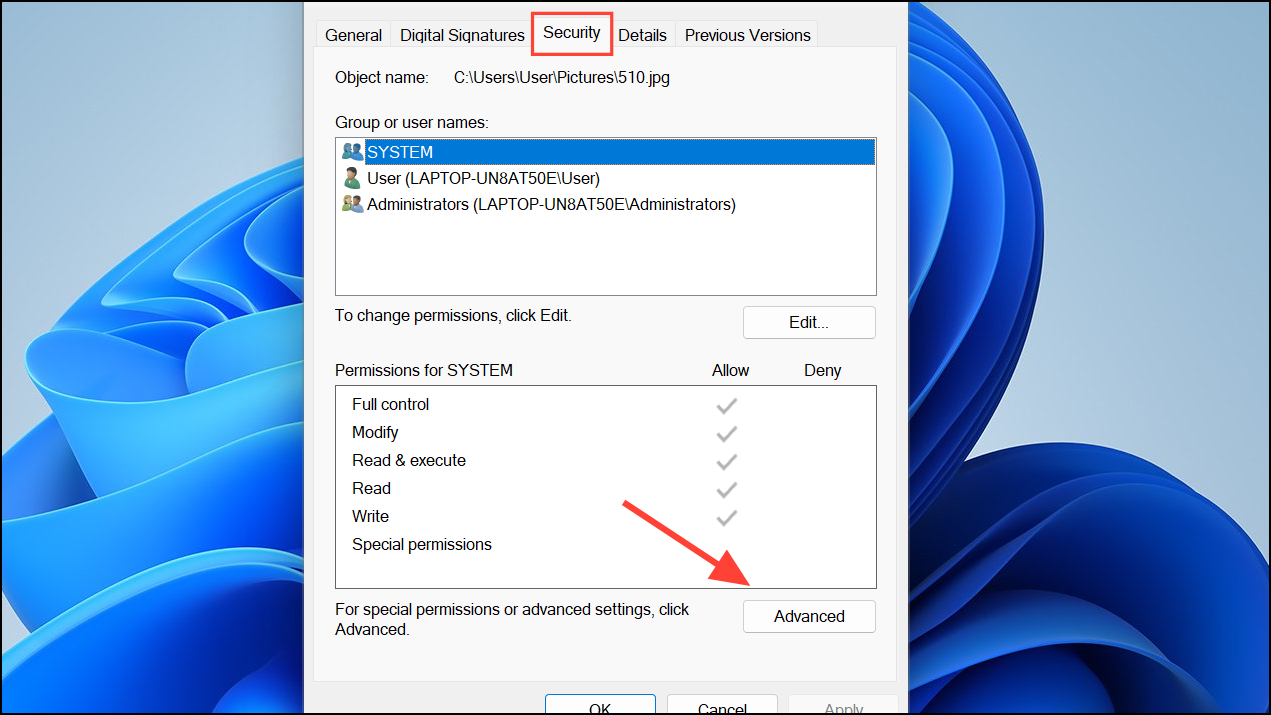
Users and click Check Names to validate. Click OK to confirm.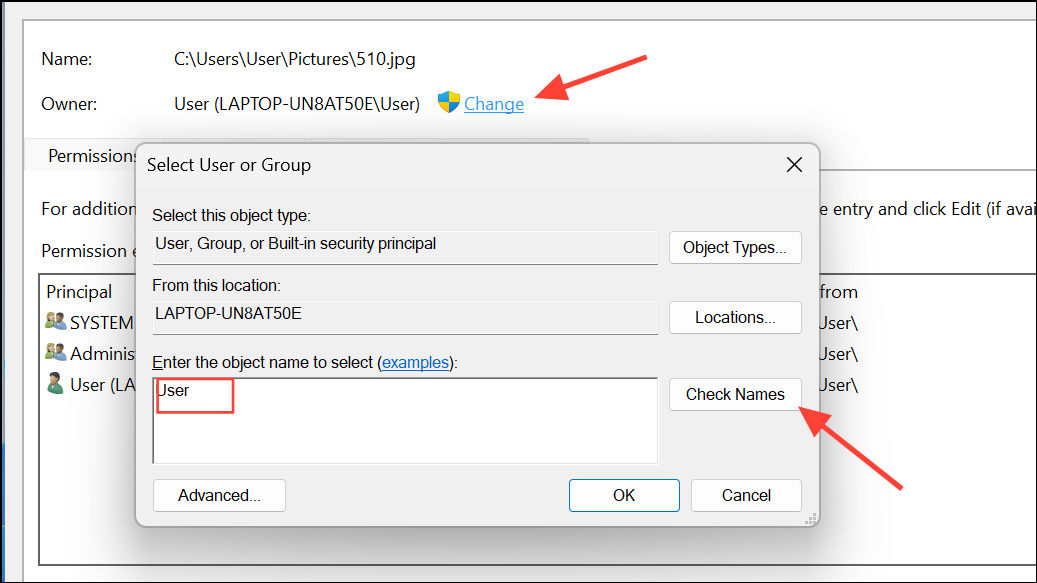
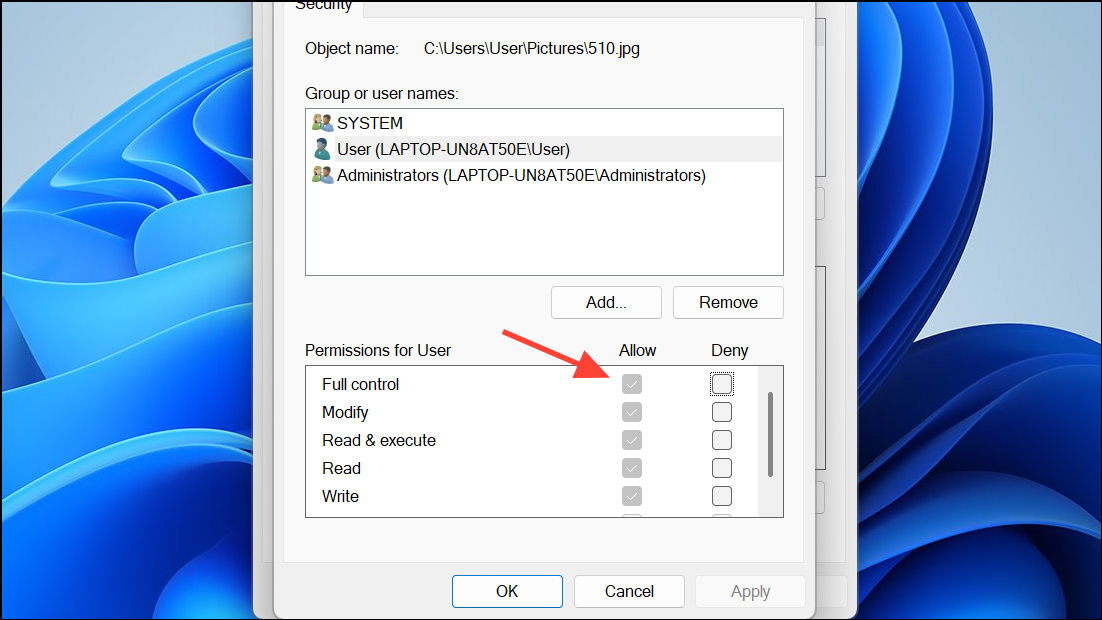
Test whether you can now access or modify the file or folder. If the issue remains, a deeper system issue may be involved.
Repair System Files Using SFC and DISM
Corrupted system files can disrupt access control and trigger this error. Windows provides built-in tools—System File Checker (SFC) and Deployment Imaging Service and Management Tool (DISM)—to repair these files.
cmd in the Start menu, right-clicking, and selecting Run as administrator.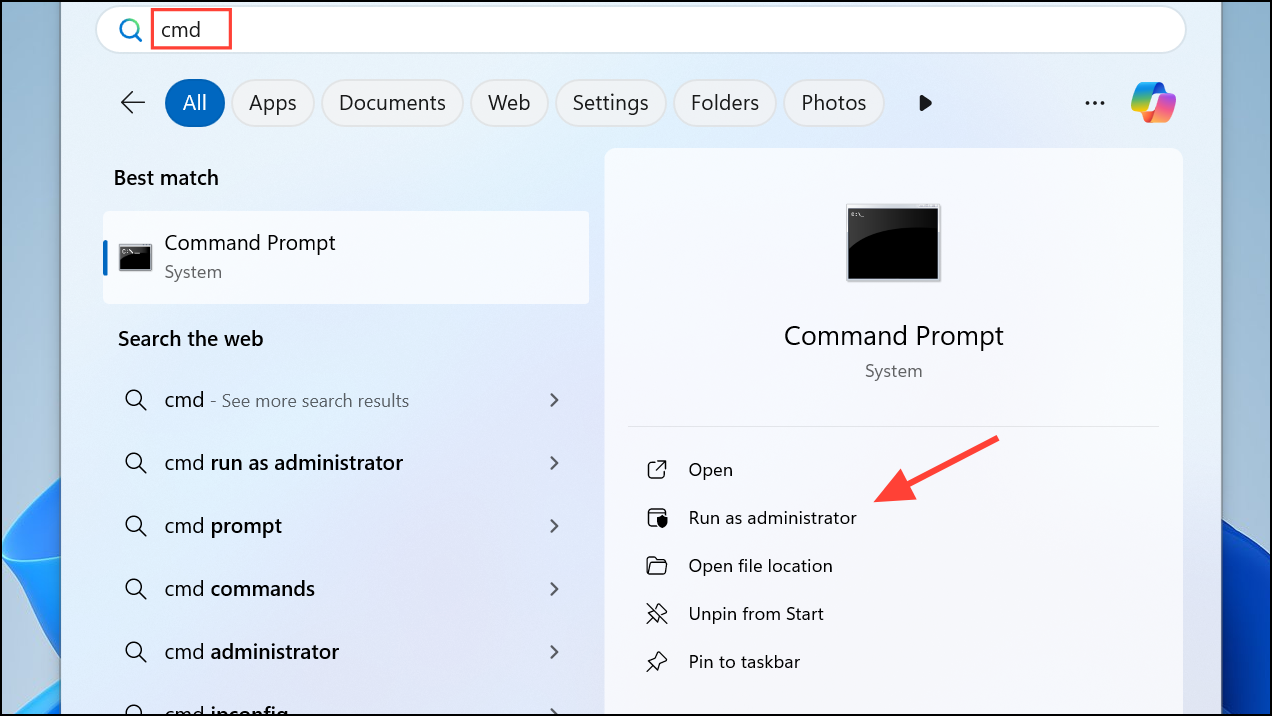
sfc /scannow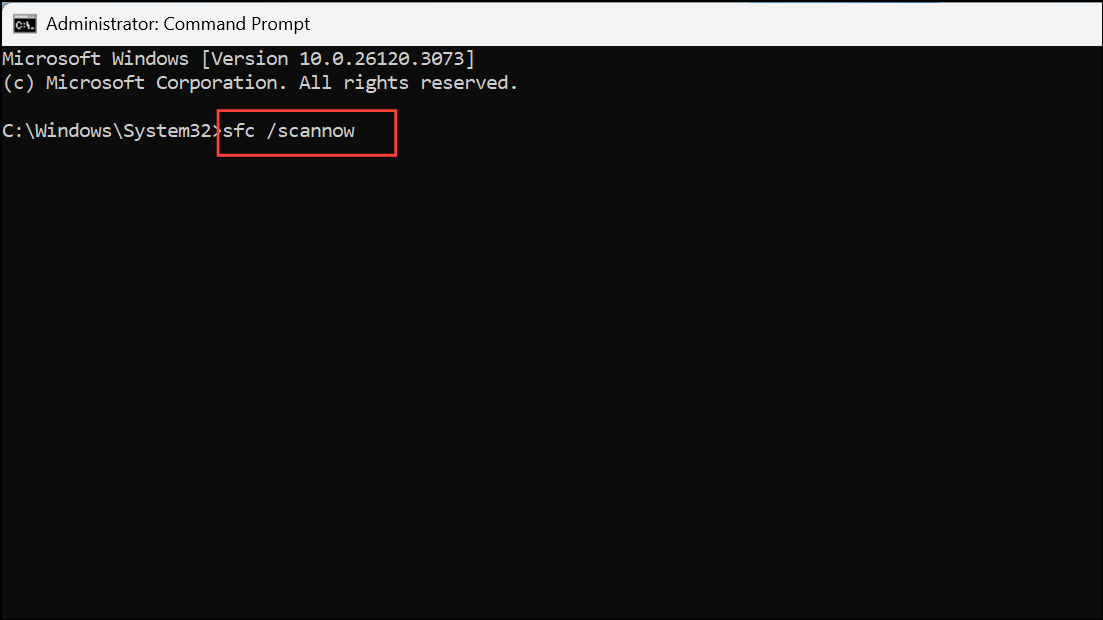
This scan checks and repairs corrupted or missing system files. Allow the process to complete fully before closing the window.
DISM /Online /Cleanup-Image /CheckHealth
DISM /Online /Cleanup-Image /ScanHealth
DISM /Online /Cleanup-Image /RestoreHealth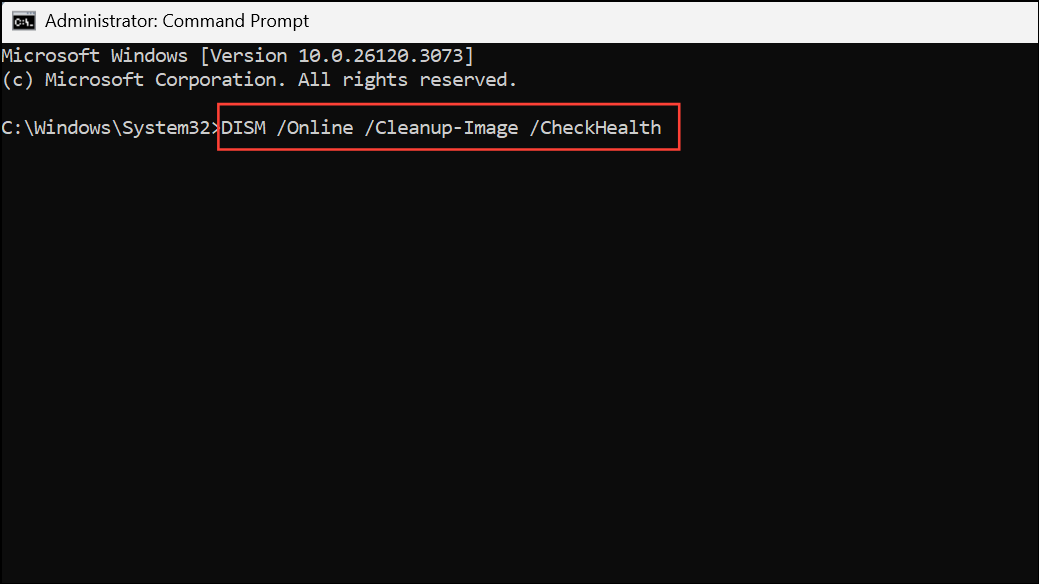
DISM uses Windows Update to replace damaged files. Ensure your internet connection is stable during this process. Once finished, restart your computer and reattempt file or folder access.
Manually Reset Permissions or Restore ACLs
If standard repairs do not work, manually resetting permissions or restoring Access Control Lists (ACLs) can resolve persistent issues. This step is more advanced and should be approached with caution, especially on system folders.
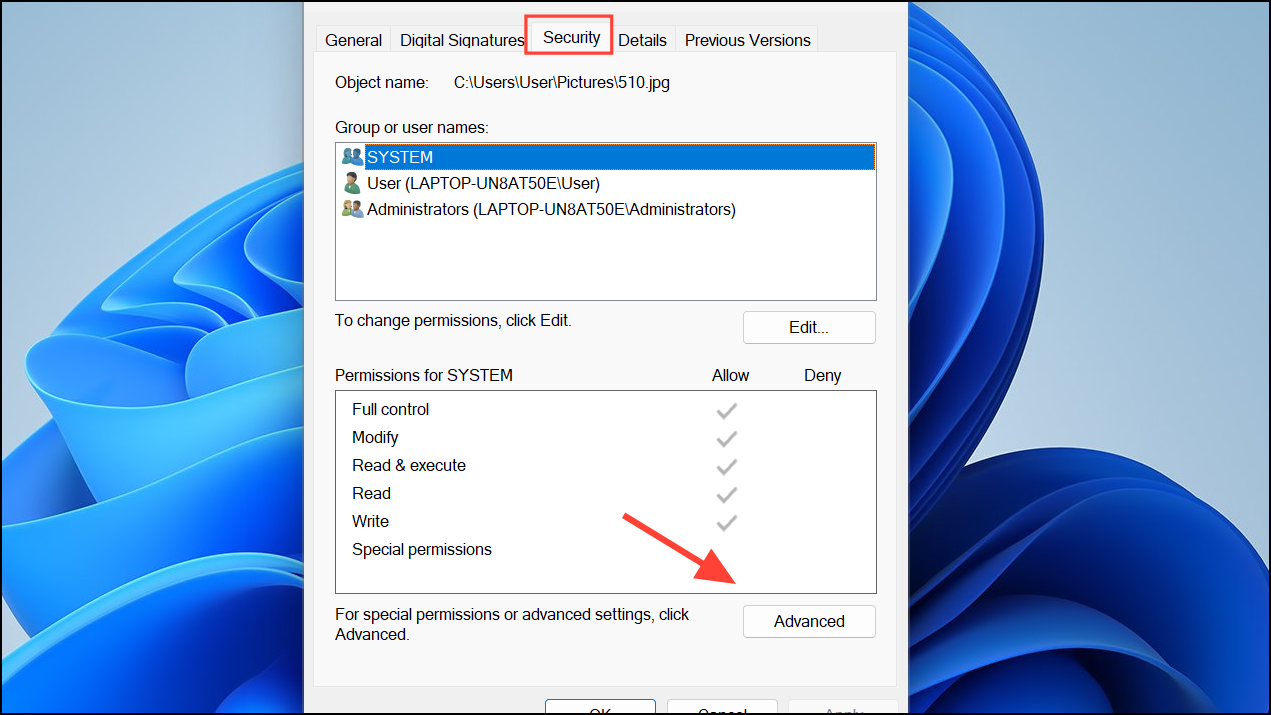
icacls. For example, to reset permissions on a folder and its contents, use:icacls "C:\Path\To\Folder" /reset /T /C /Q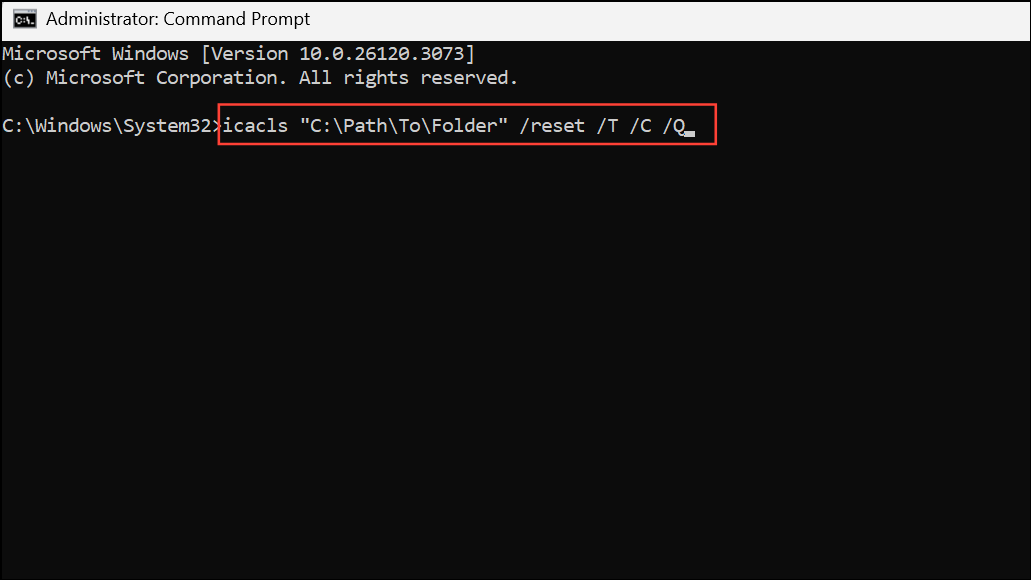
This command resets all permissions to their default state recursively. Replace C:\Path\To\Folder with the actual path.
Always back up important data before performing bulk permission resets, as it may affect access for other users or applications.
Check for Malware and Disk Errors
Malware and disk errors can corrupt access control entries. Running a full system scan with Windows Security (Defender) or a trusted antivirus program can identify and remove threats. To check for disk errors, open Command Prompt as administrator and run:
chkdsk /f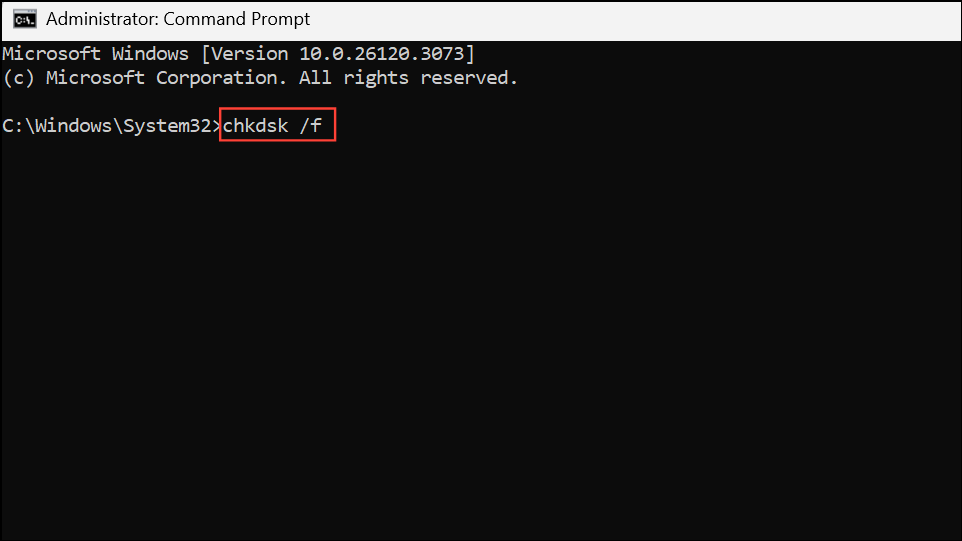
Follow the on-screen instructions to schedule a check if prompted. Address any errors found before reattempting permission changes.
Consider a Clean Boot or System Restore
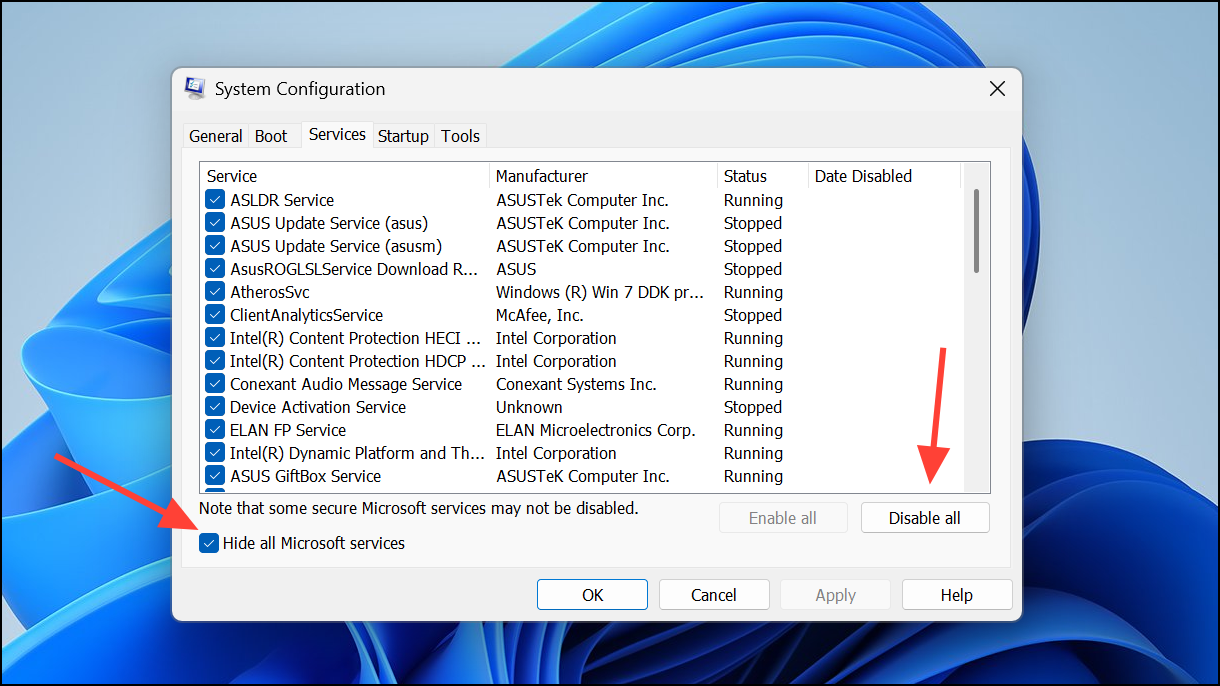
Third-party software or incomplete updates may interfere with system permissions. Performing a clean boot loads Windows with minimal drivers and startup programs, helping isolate external causes. To do this, open msconfig from the Run dialog, disable non-Microsoft services, and restart. If the error disappears, gradually re-enable services to identify the source.
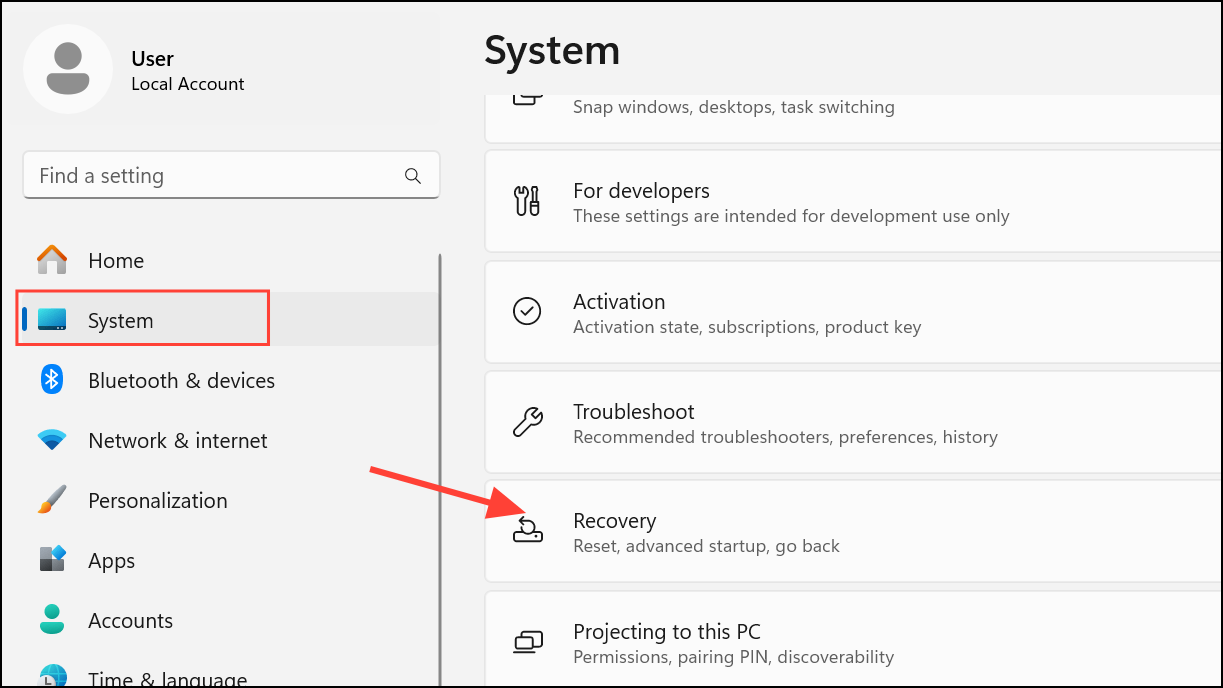
System Restore can revert your PC to a previous state with correct permissions, provided you have restore points enabled. Access System Restore via Settings > System > Recovery or through the Windows Recovery Environment.
Resolving the “Access Control Entry is Corrupt” error in Windows 11 streamlines file access and restores normal permission management. Regular system maintenance and careful permission changes help prevent future issues.



