
Visual glitches, game crashes, or sudden loss of display output often point to your video driver crashing and resetting in Windows 11. This problem disrupts gameplay, interrupts video playback, and sometimes leaves your system running but without any usable video signal. Addressing this issue requires a careful approach—starting with the most impactful fixes and working through additional troubleshooting steps as needed.
Update or Reinstall the Video Driver
Most video driver crashes in Windows 11 occur due to outdated, corrupt, or incompatible drivers. Installing the latest driver version directly from your GPU manufacturer often resolves persistent crashes and resets.
Device Manager by right-clicking the Start button and selecting Device Manager. This tool lists all hardware components and their drivers.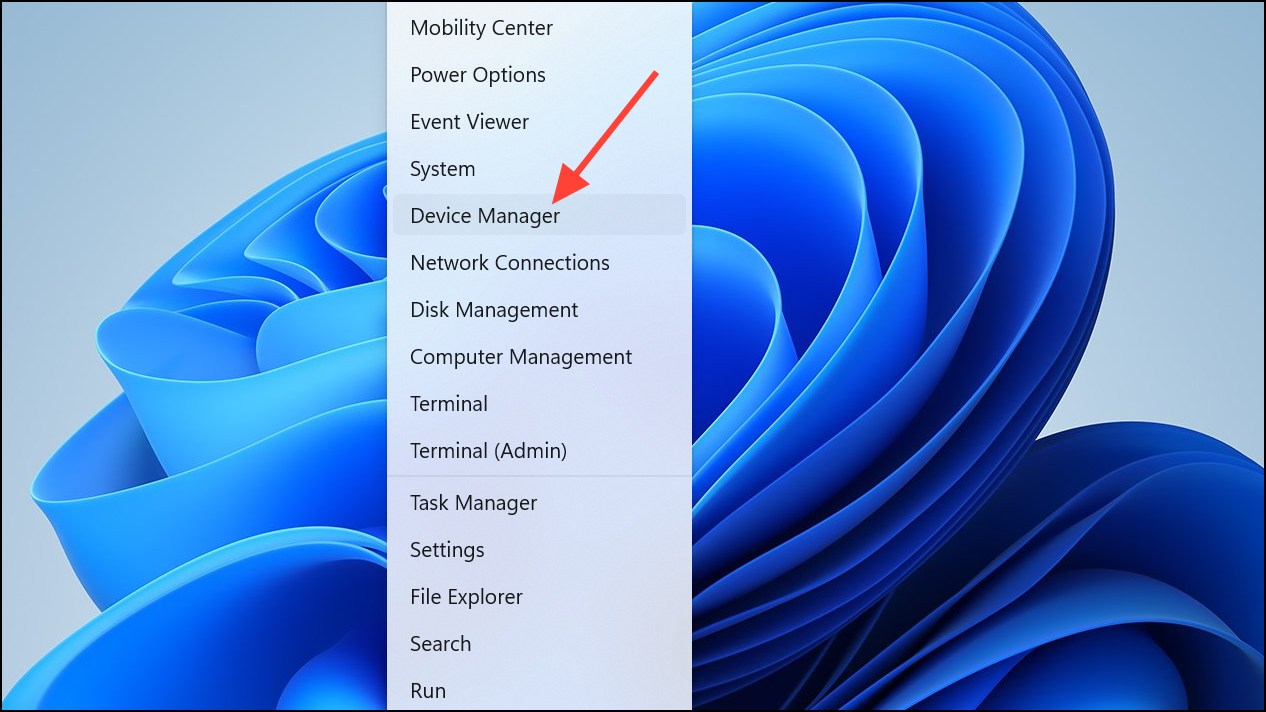
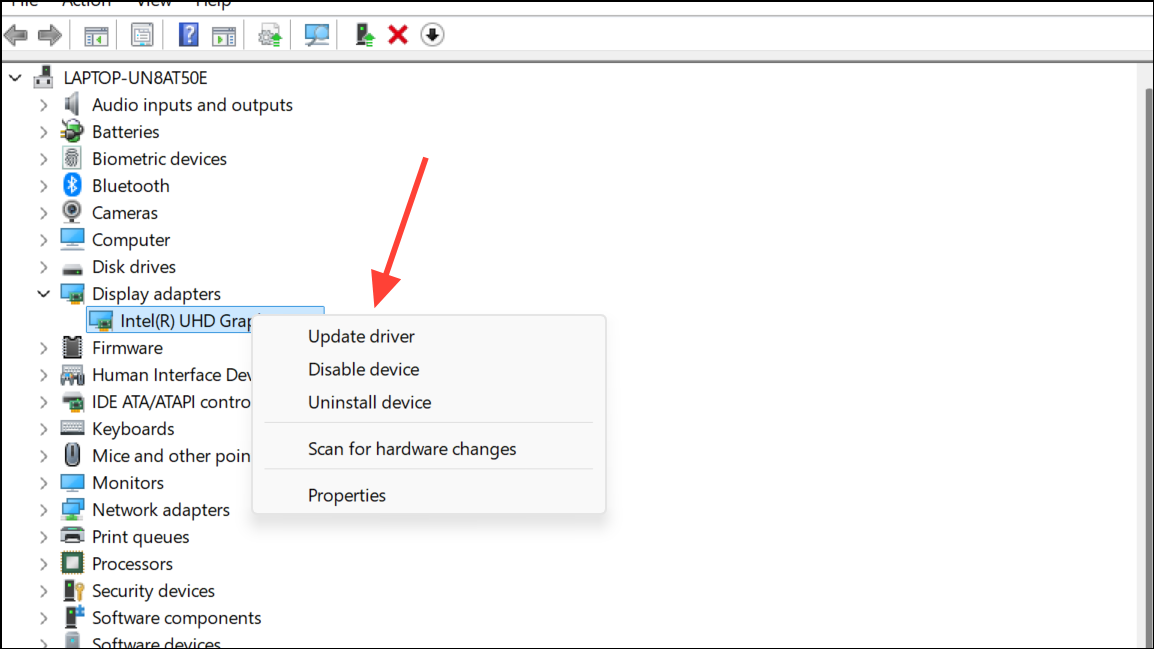
Search automatically for drivers to let Windows find and install updates. If Windows reports the best drivers are already installed, visit your GPU manufacturer’s website (NVIDIA, AMD, or Intel) to download the most recent driver package for your exact model.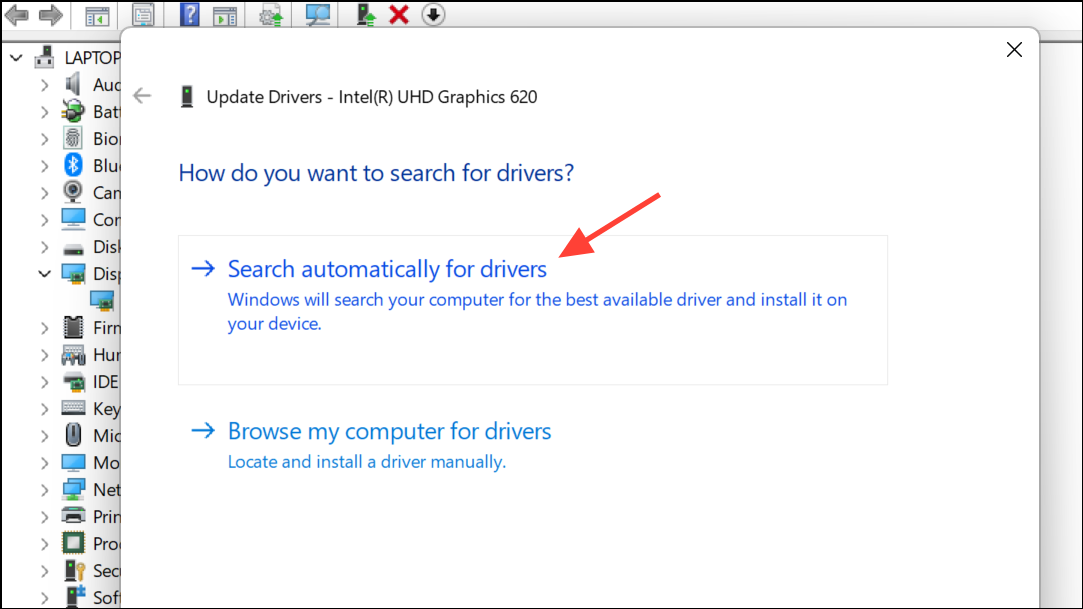
Device Manager, right-click your GPU and select Uninstall device. Confirm any prompts and restart your PC. Windows will attempt to reinstall the default driver automatically. For best results, manually install the latest driver from the manufacturer’s website after the restart.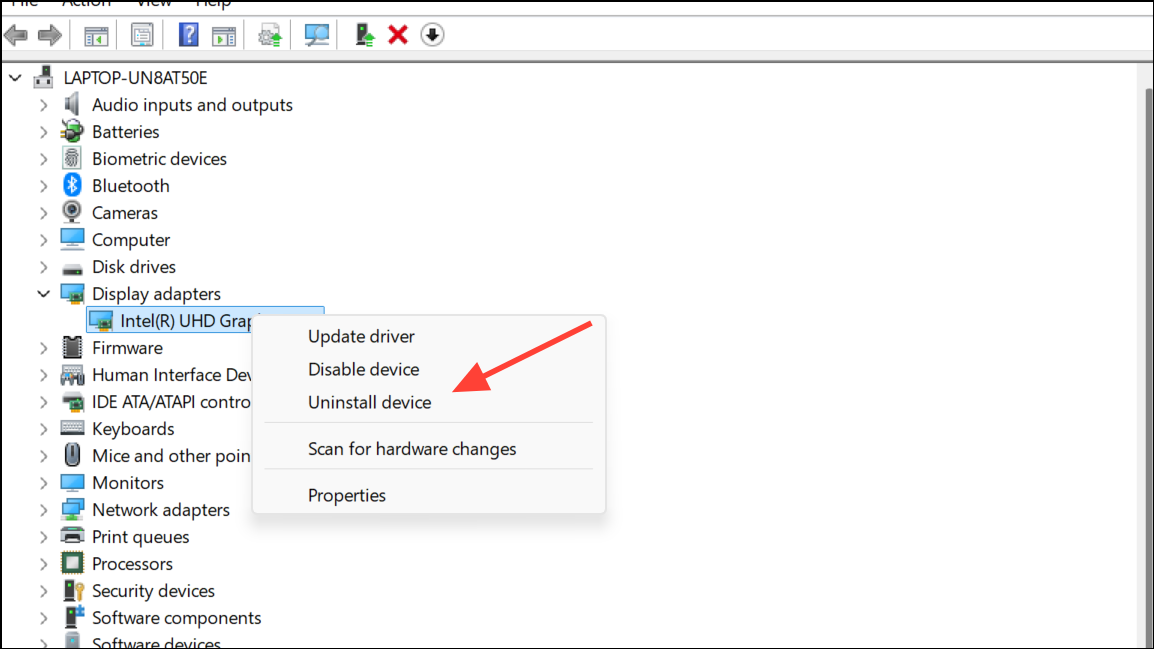
Adjust TDR Delay in the Windows Registry
Timeout Detection and Recovery (TDR) is a Windows feature that resets the graphics driver if it fails to respond within a set time. Increasing the TDR delay gives the GPU more time to recover from heavy loads, reducing the chance of abrupt driver resets.
Windows + R to open the Run dialog, then type regedit and press Enter to launch the Registry Editor. Approve any User Account Control prompts.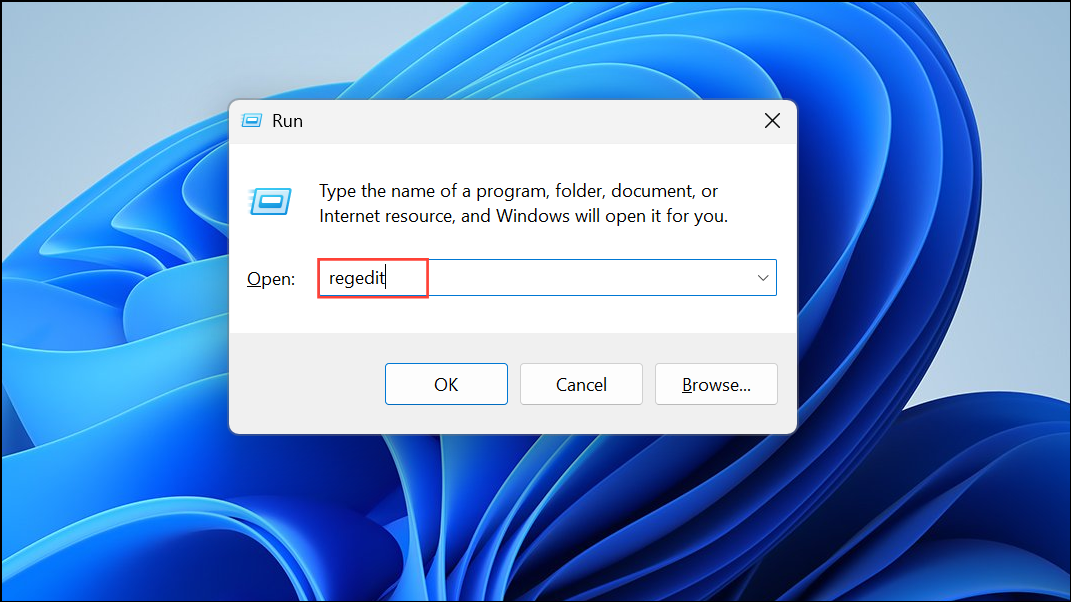
HKEY_LOCAL_MACHINE\SYSTEM\CurrentControlSet\Control\GraphicsDrivers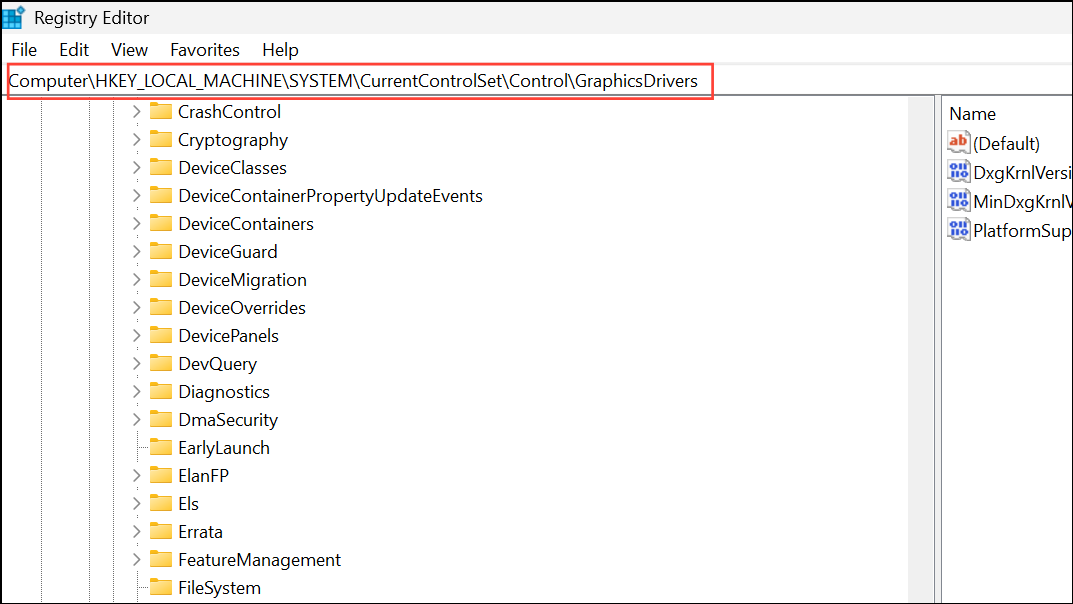
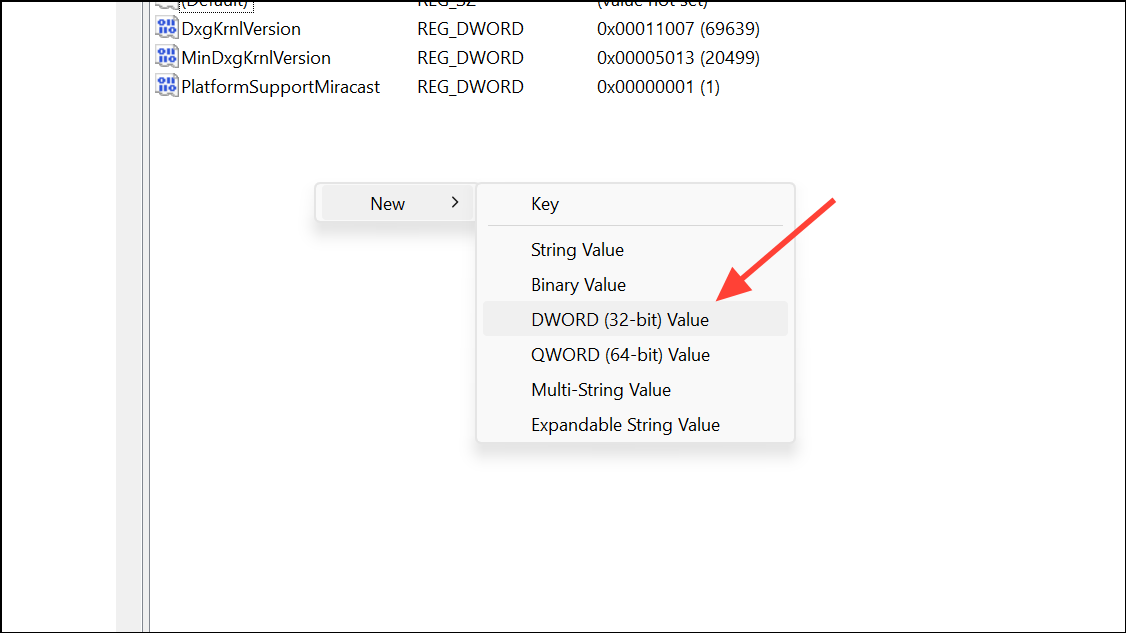
TdrDelay and set its value data to 8. This increases the timeout to 8 seconds, allowing the GPU more time to respond before Windows resets the driver.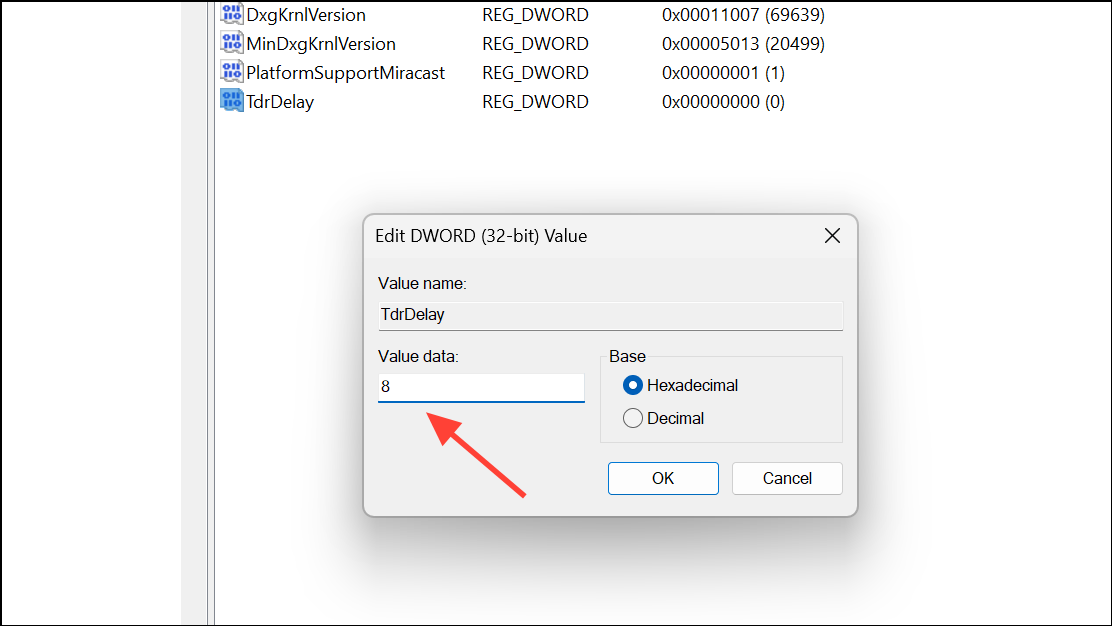
Run the Video Playback Troubleshooter
Windows 11 includes a Video Playback troubleshooter that can automatically detect and resolve certain graphics driver issues affecting video and gaming performance.
Windows + R, type control.exe /name Microsoft.Troubleshooting, and press Enter to open the Troubleshooting section in Control Panel.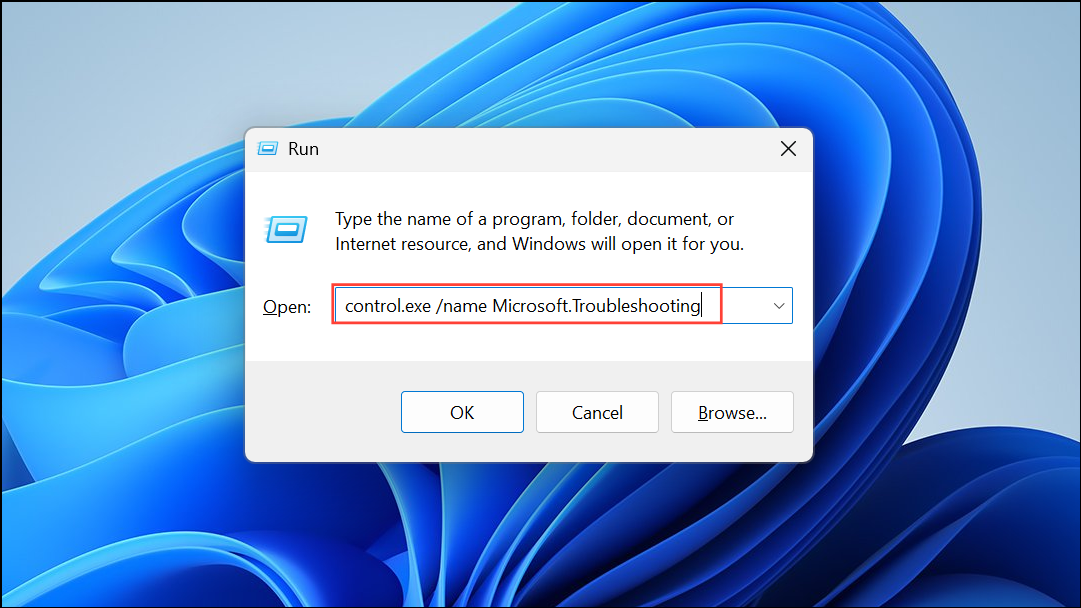
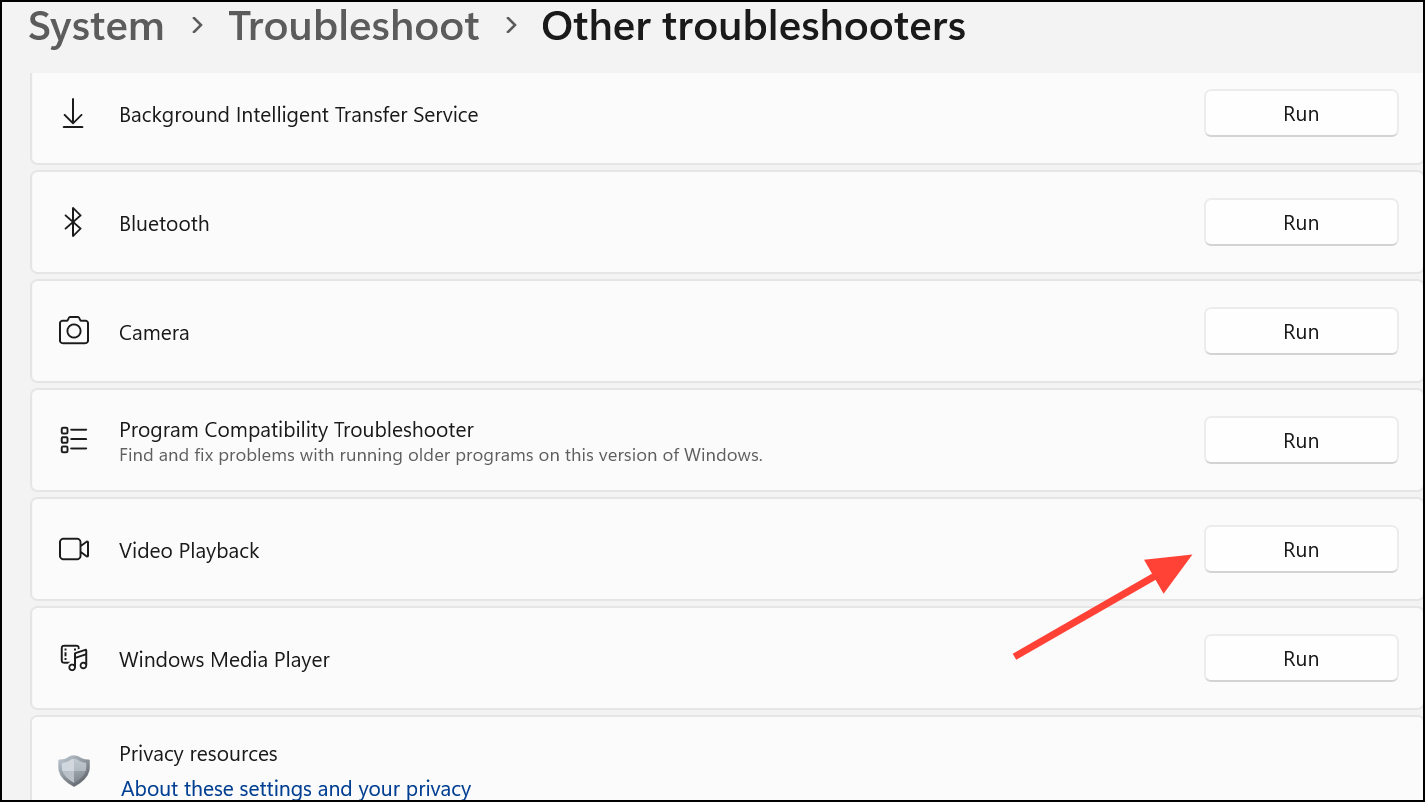
Roll Back the Video Driver
If driver crashes began after a recent update, reverting to the previous driver version can restore stability.
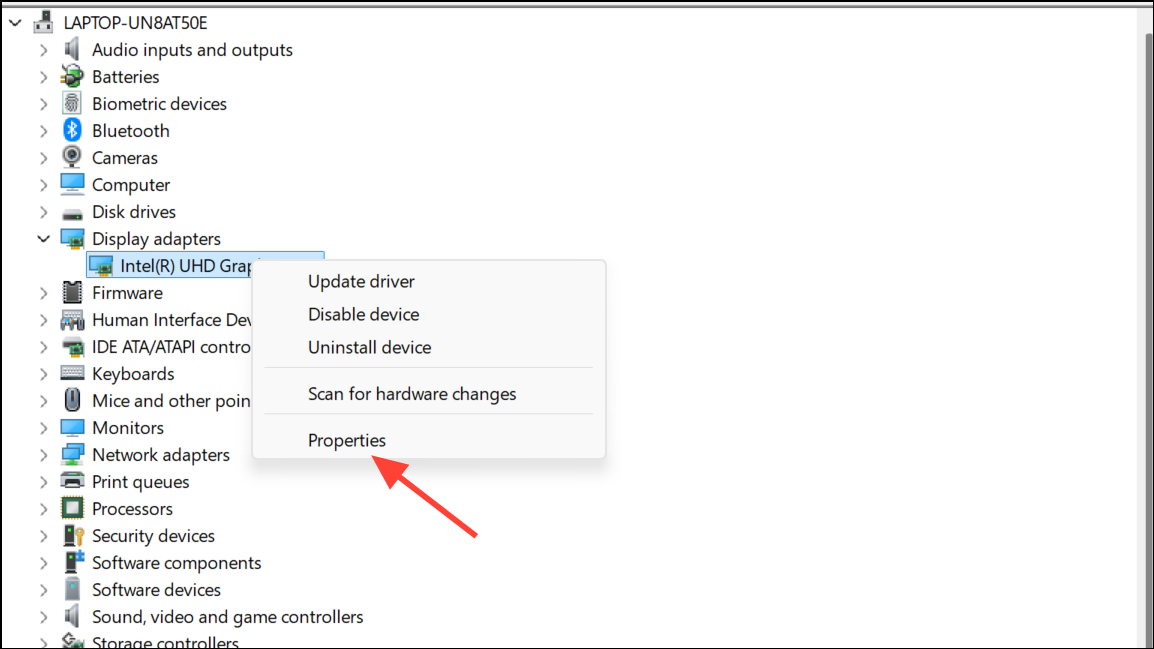
Driver tab and click Roll Back Driver if the option is available. Complete the prompts and restart your computer.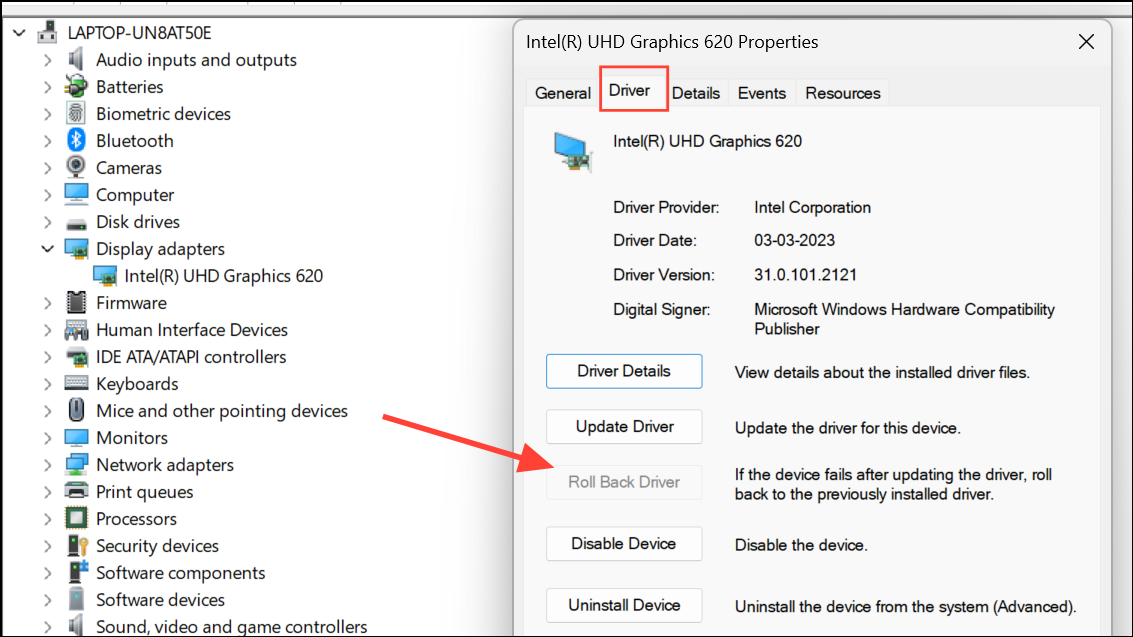
This step is especially useful if a new driver introduces bugs or incompatibilities with your hardware or specific applications.
Check for Overheating and Hardware Issues
Persistent video driver crashes can signal hardware problems such as GPU overheating, insufficient power supply, or failing memory.
Optimize Power and Display Settings
Incorrect system settings can overload the video driver or cause unnecessary resets.
High Performance in Control Panel > Hardware and Sound > Power Options. This prevents aggressive power-saving features from throttling GPU performance.Display settings. Confirm the resolution matches your monitor’s recommended value. Scroll to Advanced display settings and ensure the refresh rate is set appropriately. Lowering the refresh rate can sometimes stabilize older or less capable GPUs.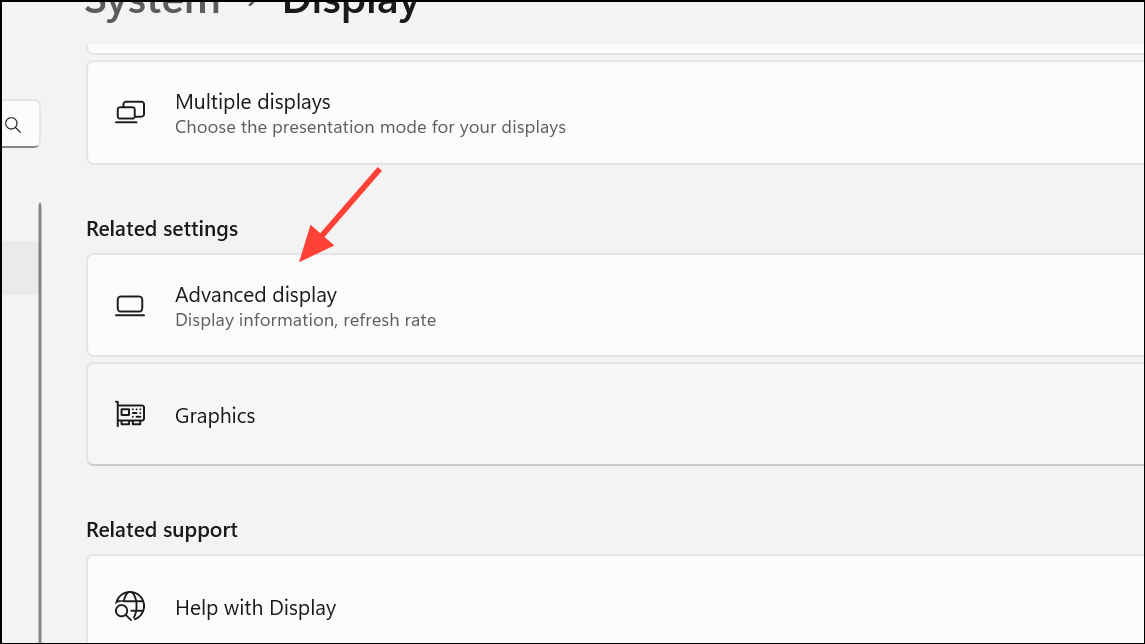
Reduce In-Game Graphics Settings
High game graphics settings can overwhelm the GPU, especially on mid-range or older hardware, increasing the risk of driver resets.
Disable Hardware Acceleration in Applications
Some applications, especially browsers or video editors, use hardware acceleration by default. If these apps trigger driver crashes, disabling hardware acceleration can improve stability.
Settings, scroll to Advanced, and turn off Use hardware acceleration when available. Restart the browser.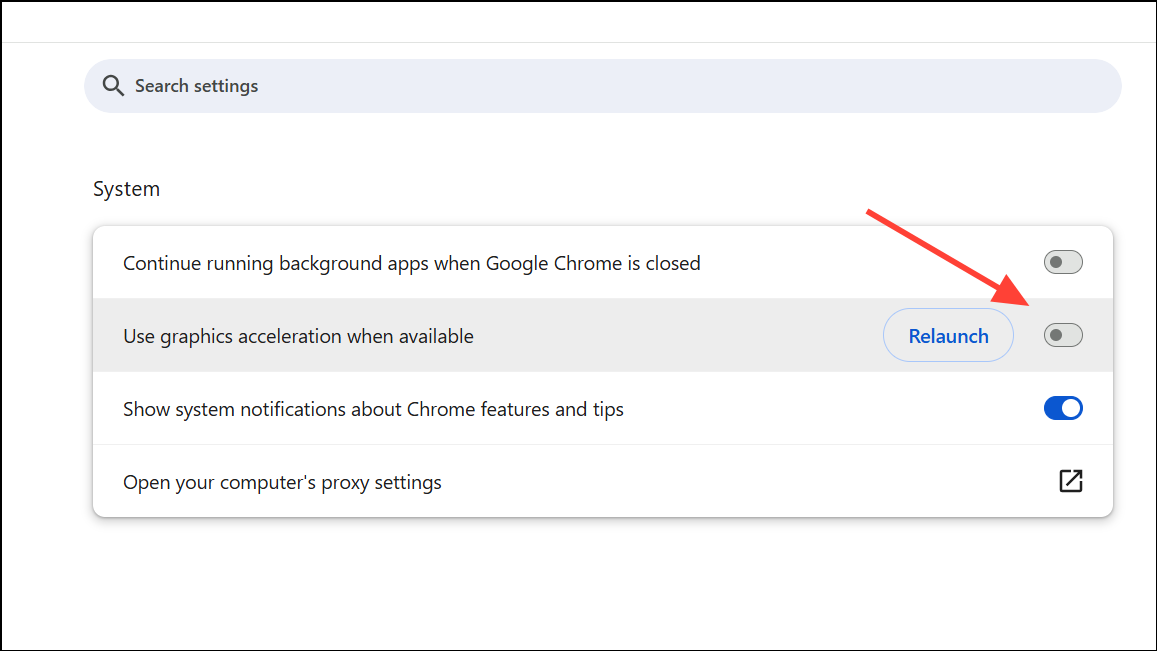
Applying these steps restores consistent video output, stops game and video crashes, and brings back stable day-to-day use on Windows 11. If none of these solutions resolve the issue, hardware failure may be the root cause—a professional diagnostic or hardware replacement could be necessary.



