

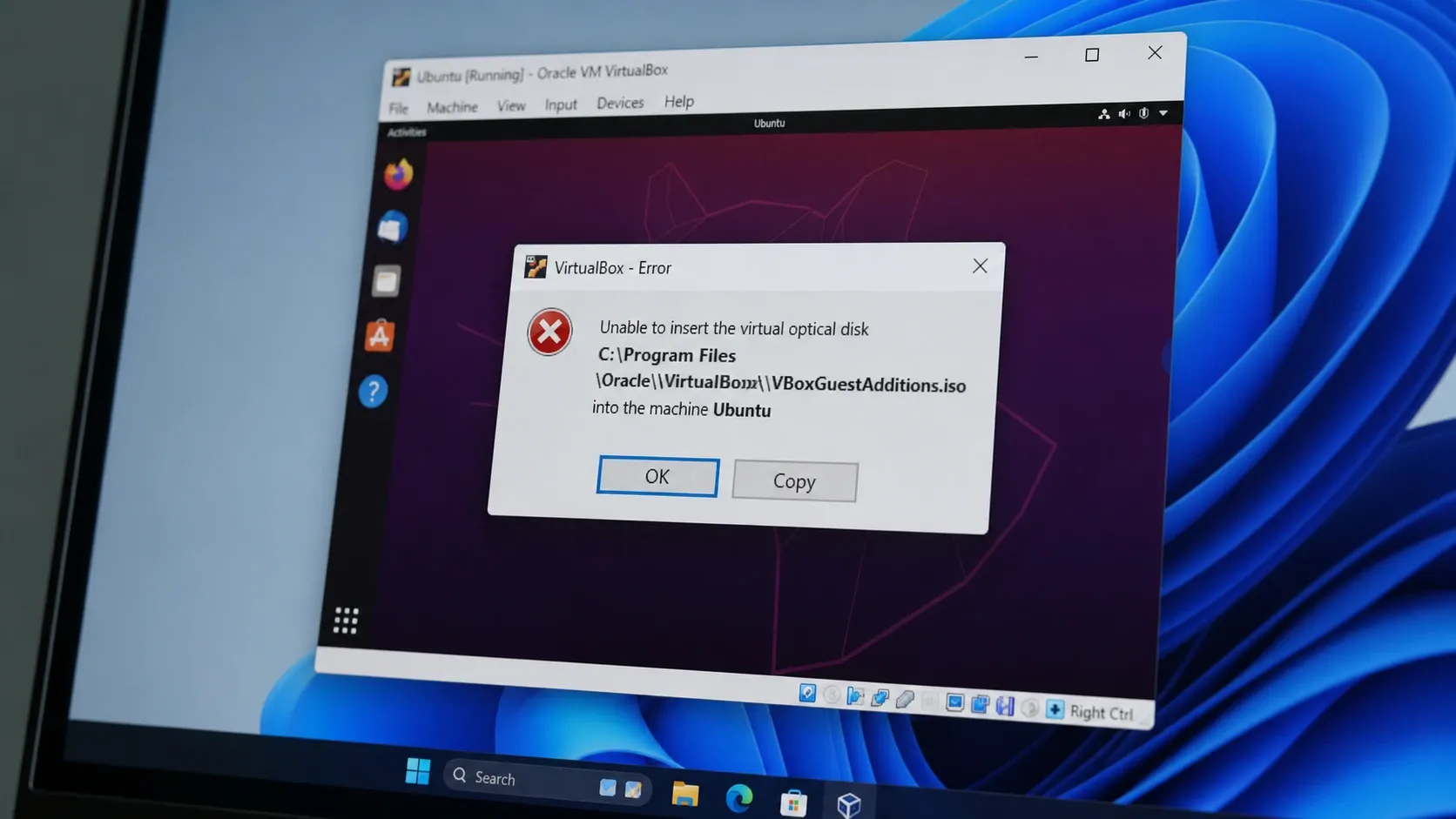
The “Unable to insert the virtual optical disk” error shows up the moment VirtualBox tries to load an ISO into a virtual machine’s CD/DVD drive but the drive already has something locked in it. The full message usually ends with VERR_PDM_MEDIA_LOCKED, and it almost always appears when you pick Insert Guest Additions CD Image while a disc is still mounted and held open by the guest operating system. It is a host-side state problem, not a damaged disc, so the fix is to release the lock and re-mount cleanly.
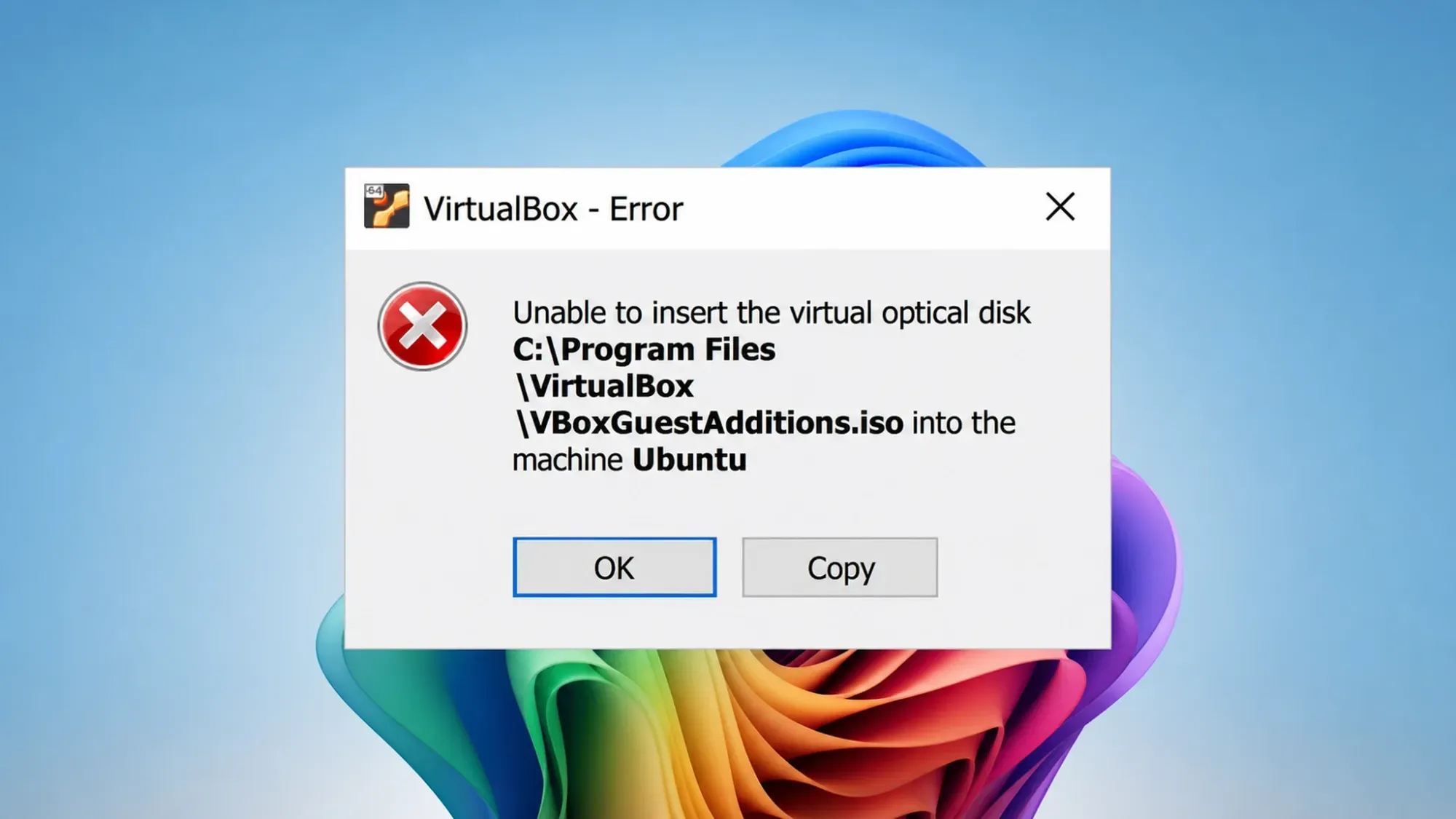
What VERR_PDM_MEDIA_LOCKED means
The error code is literal. The guest OS has locked the disc currently sitting in the virtual CD/DVD drive, so VirtualBox cannot swap in a new image on top of it. This frequently means the Guest Additions ISO is already loaded, or the same ISO is attached to another running virtual machine. The disc inside the guest is fine. The drive just will not accept a second image until the first one is released.
Because the lock lives on the host’s view of the drive, forcing the guest to “auto-mount” or clicking Force Mount inside the guest does not resolve it. You have to clear the drive first.
Method 1: Eject the locked disc from the optical drive
This is the fastest fix and works on Windows, Linux, and macOS hosts.
Method 2: Clear the disc from Virtual Media Manager
When the optical drive in Storage looks empty but the error persists, the image may still be registered globally.
VBoxGuestAdditions.iso in the optical disks list. If it is checked or attached, release it. Removing it here detaches the registration that keeps the drive locked.Method 3: The VM has no optical drive at all
A slightly different message, “machine has no optical drives,” means the VM was created without a CD/DVD device. You cannot attach an ISO as a drive. The drive is the hardware; the ISO is the removable media that goes inside it.
Mount Guest Additions manually inside a Linux guest
If you only triggered the error while trying to install Guest Additions on a Linux guest, you can skip the swap entirely and mount the disc from inside the guest. After selecting Insert Guest Additions CD Image from the Devices menu, open a terminal in the guest.
sudo mkdir -p /mnt/cdrom
sudo mount /dev/cdrom /mnt/cdrom
cd /mnt/cdrom
sudo ./VBoxLinuxAdditions.run
Mount and run Guest Additions from the guest
On some systems the optical device shows up as /dev/sr0 instead. In that case use sudo mount /dev/sr0 /mnt/cdrom. If the basic mount fails, add the loop option with sudo mount -o loop /dev/cdrom /mnt/cdrom.
When you cannot mount it at all, copy the ISO into the guest and loop-mount the file directly. The image lives on the host at the path shown below.
sudo mkdir /media/GuestAdditionsISO
sudo mount -o loop path/to/VBoxGuestAdditions.iso /media/GuestAdditionsISO
cd /media/GuestAdditionsISO
sudo ./VBoxLinuxAdditions.run
Loop-mount a copied ISO file
A read-only warning during the mount is normal and does not stop the installer from running. You know the installation worked when the script finishes building kernel modules and tells you to reboot. After restarting, the guest display resizes with the host window, which is the clearest confirmation that Guest Additions loaded.
Default ISO paths and device names by host
| Host / Guest | Path or device |
|---|---|
| Windows host ISO | C:\Program Files\Oracle\VirtualBox\VBoxGuestAdditions.iso |
| macOS host ISO | /Applications/VirtualBox.app/Contents/MacOS/VBoxGuestAdditions.iso |
| Linux guest optical device | /dev/cdrom or /dev/sr0 |
| Common mount points | /mnt/cdrom, /media/cdrom0, /media/VBOXADDITIONS_xxx |
Why the lock keeps coming back
If the error returns after a fix, only a few specific conditions are usually responsible. Work through them in order before retrying.
The other common cause is starting the VM from a saved state. A saved state preserves the locked drive, so the eject never takes effect. Boot from a full shutdown, reproduce the issue once if needed, then shut down cleanly from inside the guest and apply Method 1.
One more point worth keeping straight. The virtual machine’s CD drive is separate from the host’s physical drive and gets its own letter inside a Windows guest, often D:. If you want the guest to read a disc sitting in the host’s tray, point the VM at it through Devices → Optical Drives → Host Drive. Pointing the virtual drive at an ISO file instead of the physical disc avoids passthrough quirks entirely.
Once the drive ejects cleanly and the Guest Additions installer finishes, the lock is gone and the same ISO will mount on demand from the Devices menu without throwing the error again.



