
System restarts on Windows 11 can sometimes trigger a black screen, unresponsive hardware, or a PC that simply won’t boot—even though a full shutdown followed by power on works fine. This issue frequently appears after a Windows update, hardware upgrade, or BIOS configuration change, and can leave users stuck at a blank display with no error message. The following instructions detail the most effective solutions, progressing from targeted fixes to broader recovery options, so you can restore normal boot functionality and avoid repeated forced shutdowns.
Update BIOS to Resolve Boot Failures After Restart
Firmware bugs in modern motherboards, especially with DDR5 RAM or new CPUs, often cause Windows 11 systems to hang or fail to boot properly after a restart. Symptoms include DRAM debug LEDs staying lit, persistent black screens after restart, or the need to clear CMOS to regain BIOS access. A BIOS update directly addresses these compatibility issues and has proven to restore normal restart behavior for many users.
Del, F2, or a manufacturer-specific key during startup).Disable Fast Startup and Fast Boot Settings
Fast Startup in Windows and Fast Boot in BIOS can conflict with hardware initialization, especially after system updates or hardware changes. Disabling these features forces a full hardware reinitialization on each boot, which often resolves restart-related black screens or boot loops.
Hardware and Sound > Power Options > Choose what the power buttons do. Click “Change settings that are currently unavailable.” Uncheck “Turn on fast startup (recommended)” and save changes.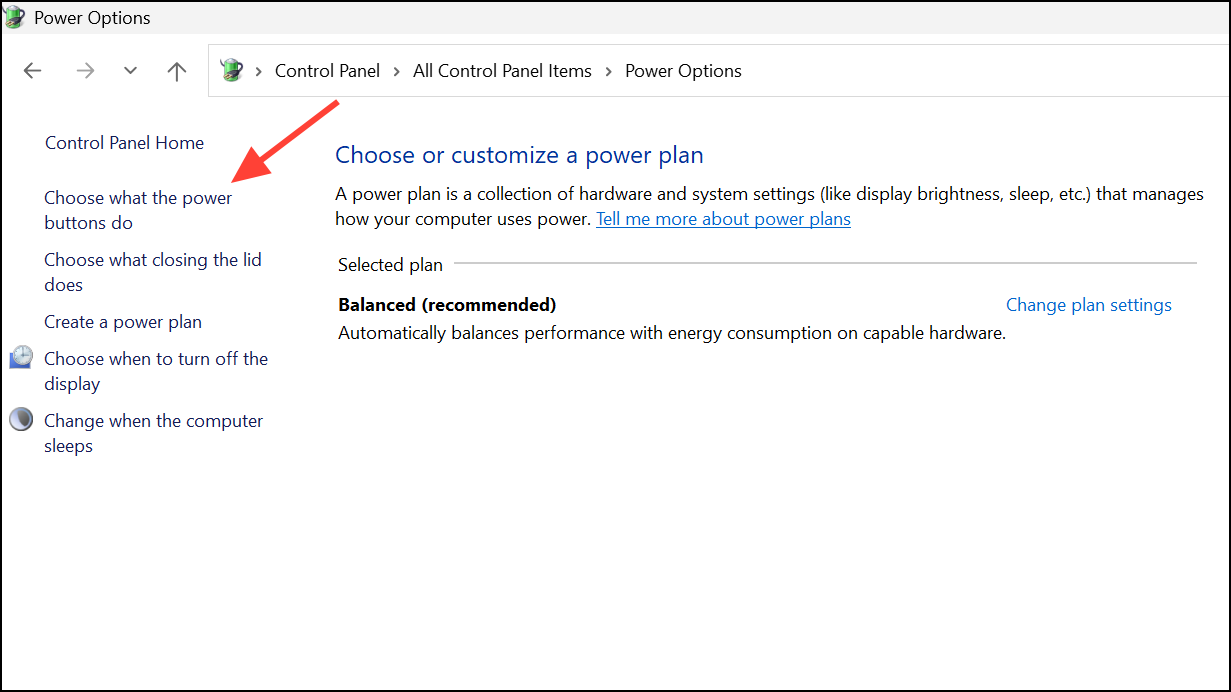
Run Startup Repair and System Restore from Windows Recovery
Corrupted boot files or problematic updates can prevent Windows 11 from initializing after a restart. The Windows Recovery Environment (WinRE) provides tools to repair startup issues or roll back recent changes without a complete reinstall.
Troubleshoot > Advanced options > Startup Repair. Allow the tool to diagnose and attempt to repair boot issues.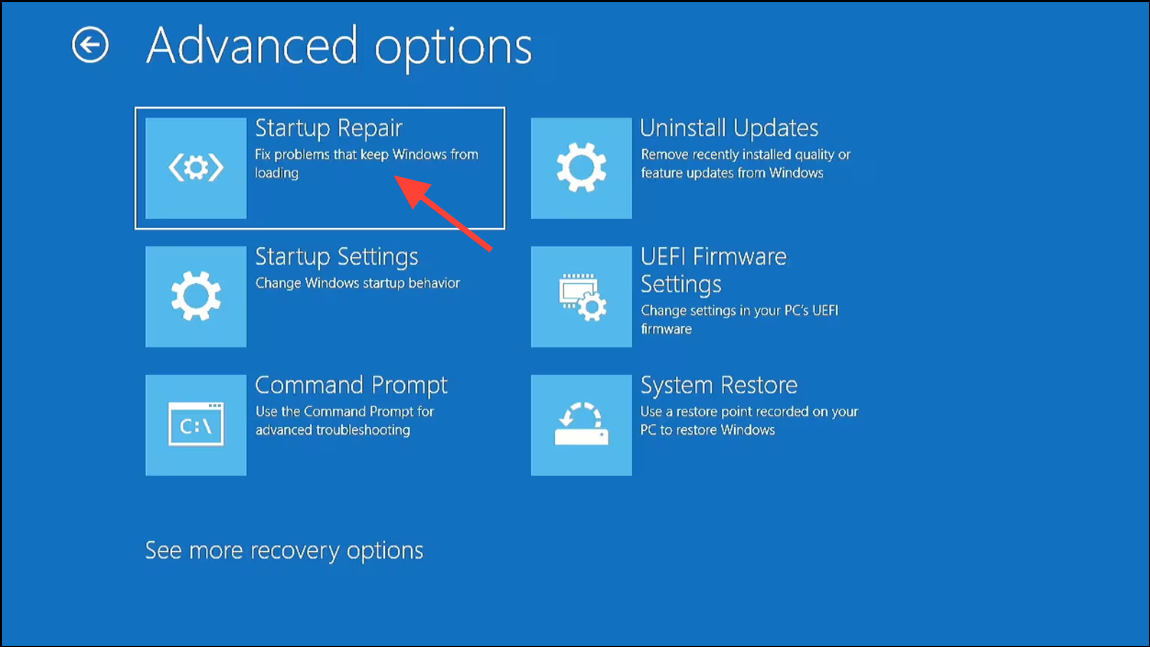
Troubleshoot > Advanced options > System Restore. Choose a restore point from before the issue began and follow prompts to restore system files and settings.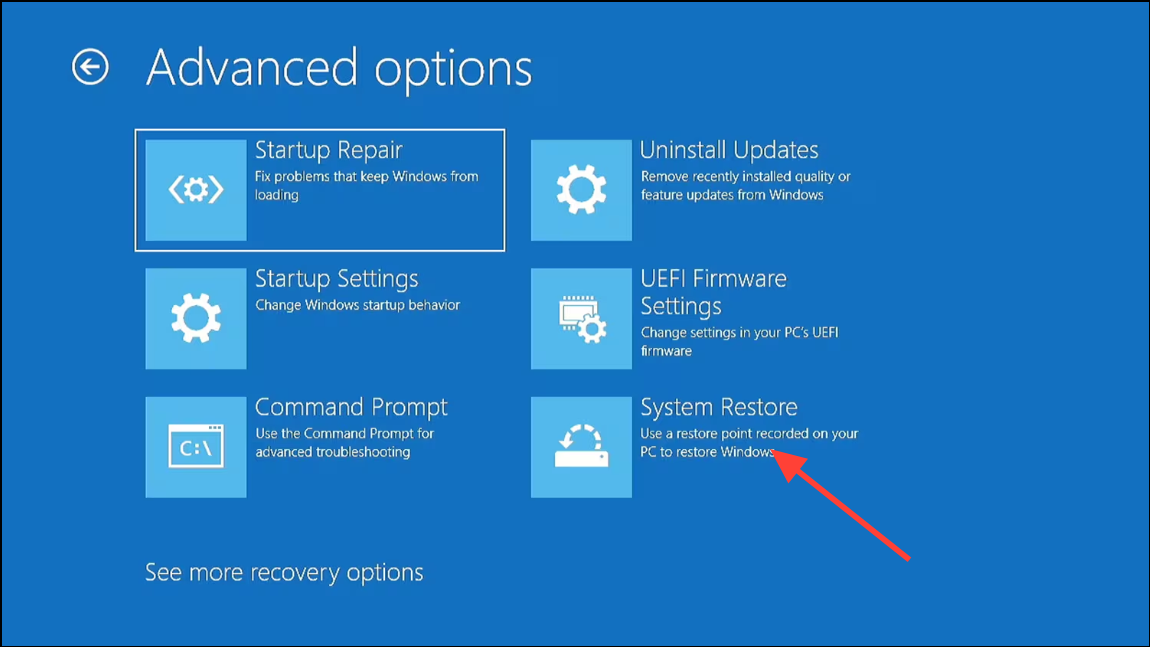
Troubleshoot > Advanced options > Uninstall Updates to remove the most recent quality or feature updates that may have triggered the boot failure.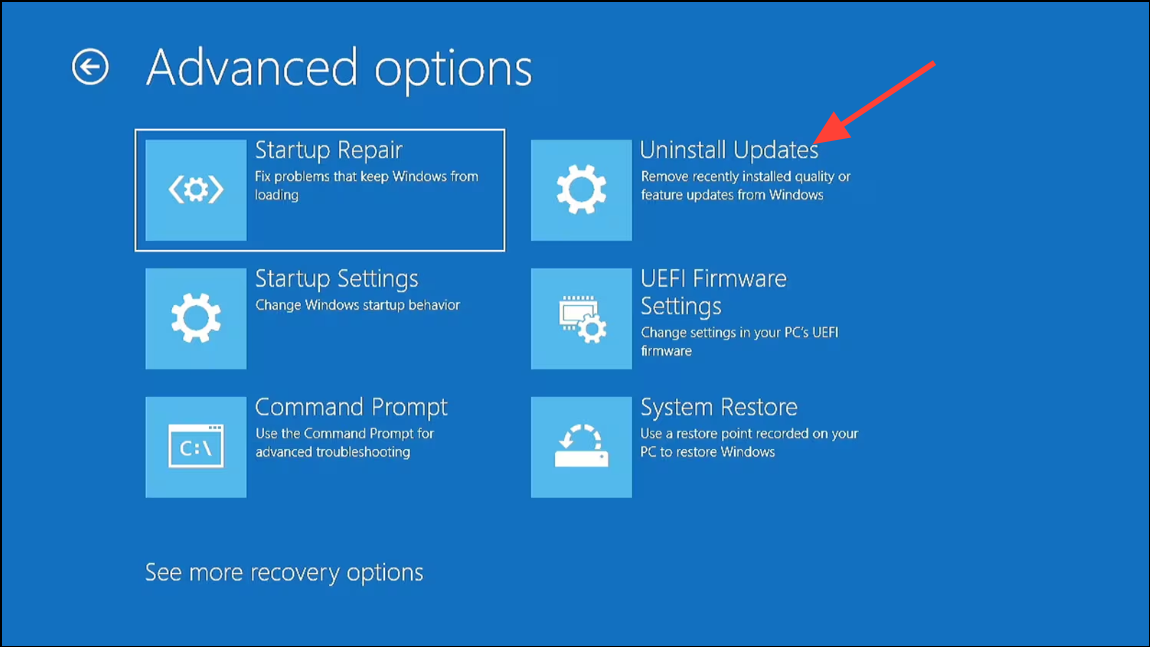
Check Hardware Connections and Memory Initialization
Physical hardware issues—such as loose RAM modules, faulty graphics cards, or storage device errors—can also prevent successful restarts. Many motherboards display debug LEDs or beep codes to indicate where the boot process fails.
Use Safe Mode and Command-Line Repairs
Safe Mode loads minimal drivers and services, which can help isolate whether a third-party driver or service is causing boot failures after restart.
Troubleshoot > Advanced options > Startup Settings, then click “Restart.” When prompted, press F5 to start Safe Mode with Networking.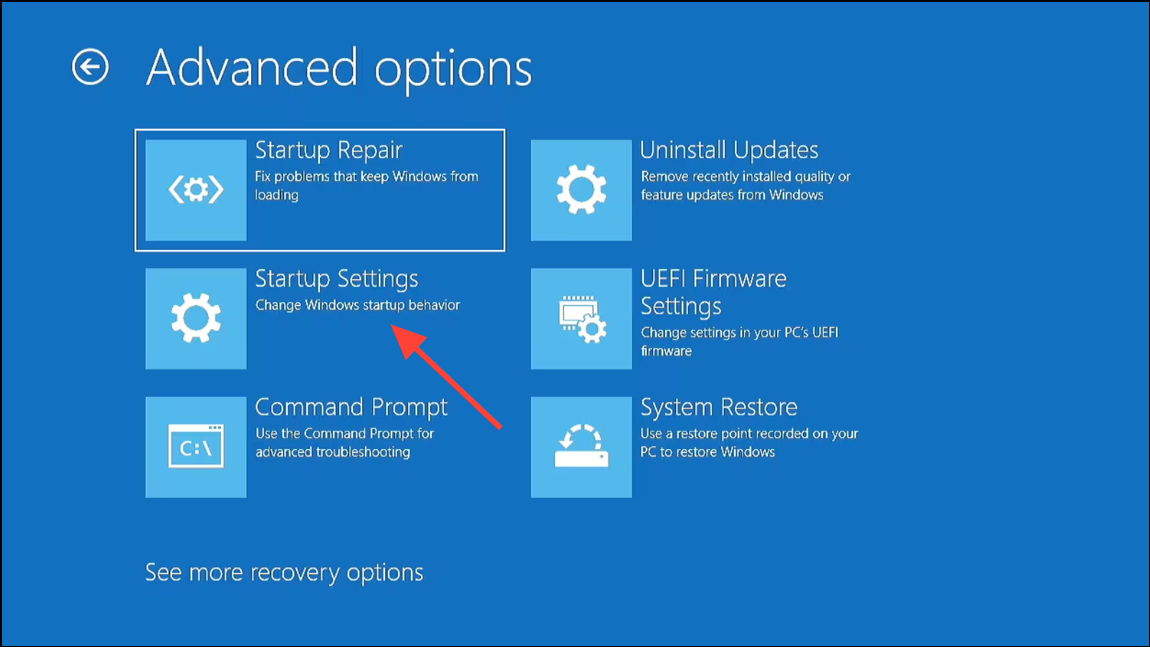
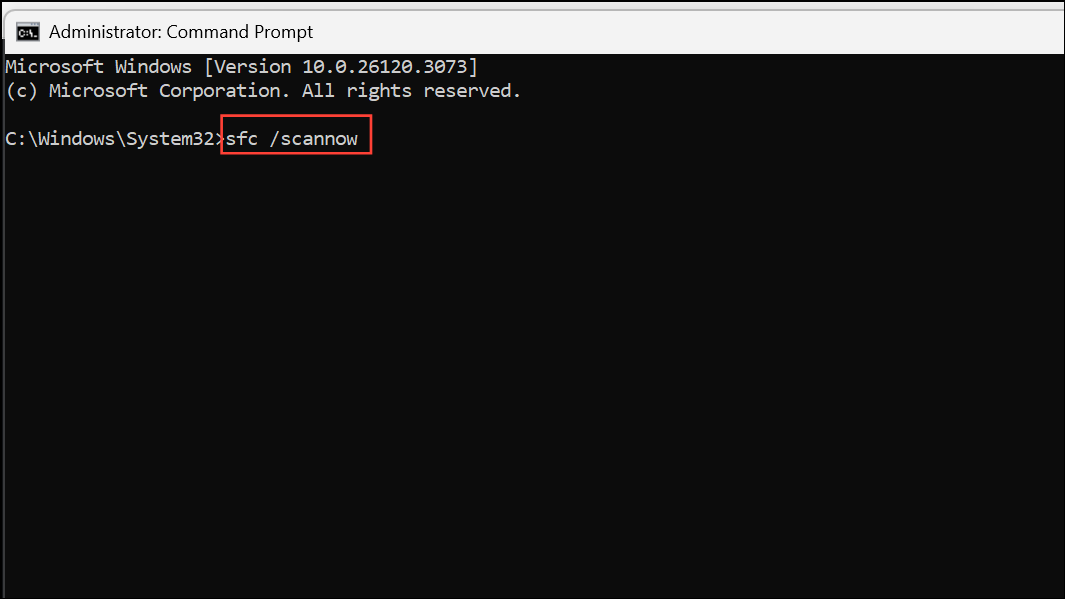
sfc /scannow
dism /online /cleanup-image /restorehealth
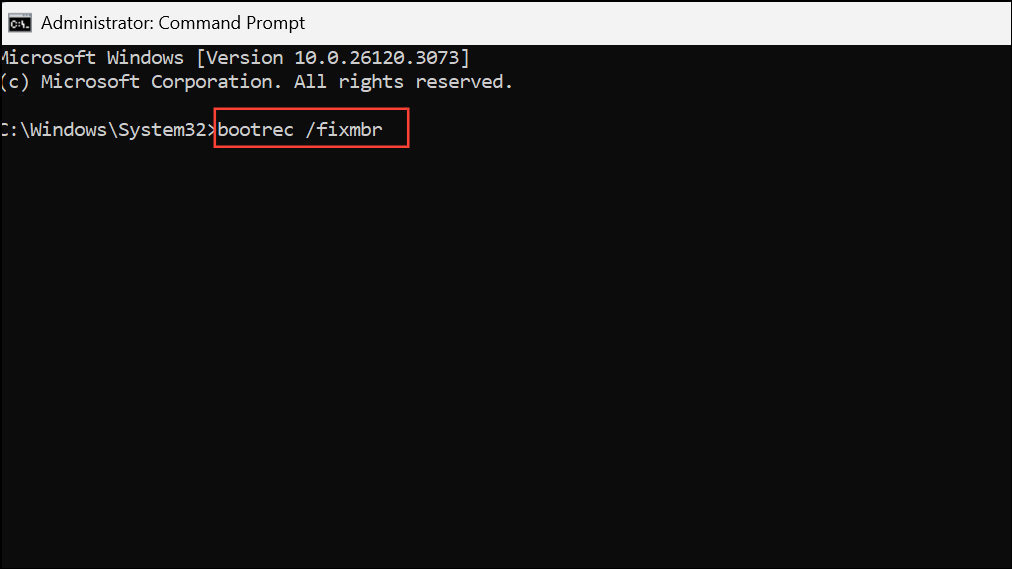
bootrec /fixmbr
bootrec /fixboot
bootrec /rebuildbcd
Restart and test normal boot behavior.
Reset or Reinstall Windows 11 as a Last Resort
If none of the above methods restore normal restart functionality, a system reset or clean installation may be required. This process reinstalls core system files and drivers, eliminating persistent software conflicts or corruption.
Troubleshoot > Reset this PC. Decide whether to keep your files or remove everything, then follow on-screen prompts to complete the reset.Always back up important data before performing a reset or fresh install, as these actions may erase files and applications.
Addressing Windows 11 restart boot failures requires a combination of firmware updates, power setting adjustments, and careful recovery steps. Keeping your BIOS current and disabling fast startup options often resolve the root cause, while WinRE tools provide a safety net for more persistent issues.



