

Repeated prompts stating “You need to sign in again” on Windows 11 often appear when the system detects an outdated or invalid work or school account still linked to the device. This loop can prevent access to organizational resources and disrupt normal use, especially after hardware changes or account transitions.
Remove Old Work or School Account Associations
Windows + I. In the sidebar, select Accounts, then choose Access work or school. This section lists any organizational accounts currently connected to your PC, such as previous employer, university, or other institution accounts.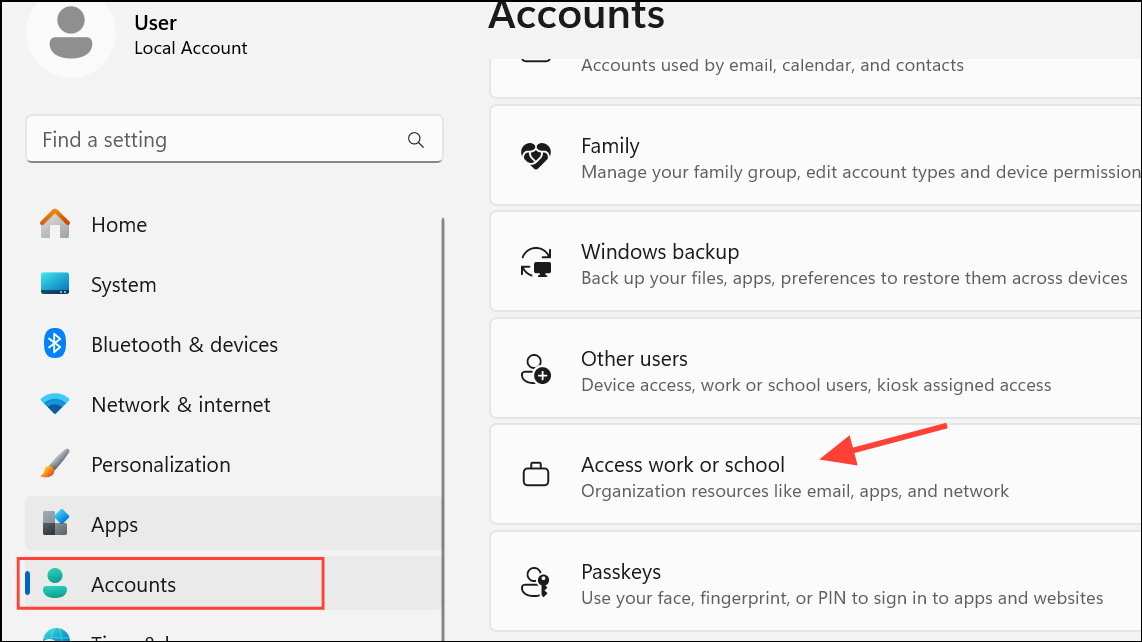
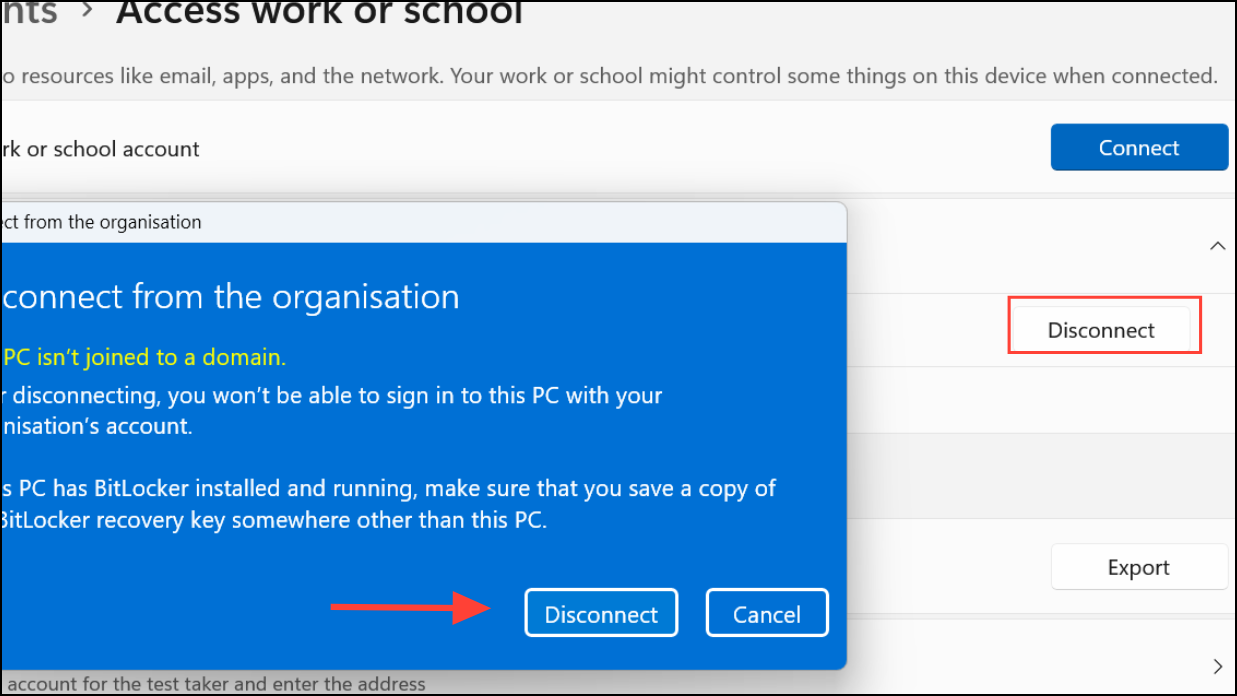
If there is no Disconnect button, or if the account cannot be removed through Settings, click Manage. This may prompt you to sign in to the account to take further action. If the account no longer exists or you cannot access it, proceed to the next method.
Reset Device Registration via Command Line
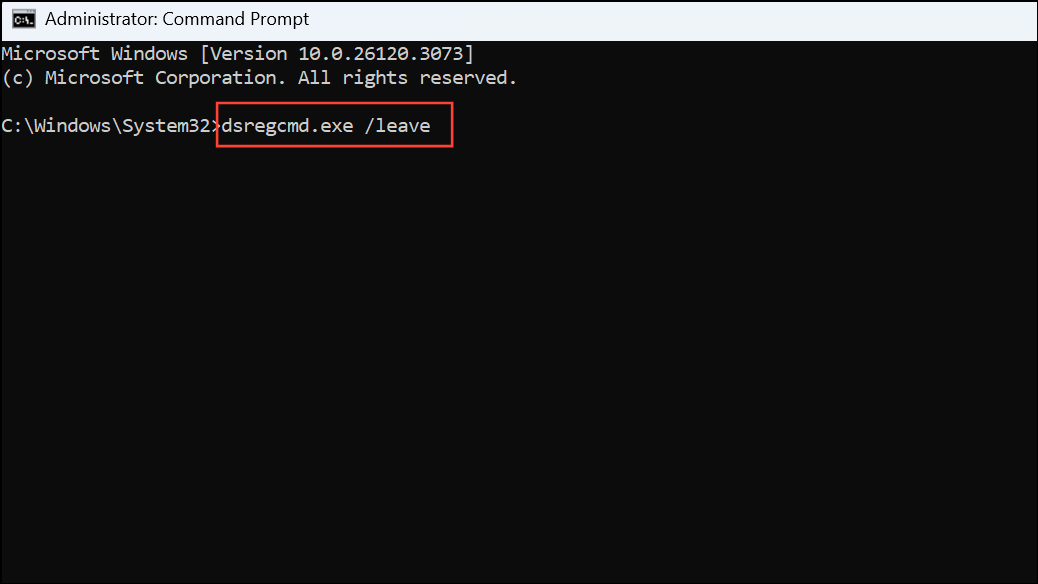
Residual Azure Active Directory (AAD) registration can cause persistent sign-in prompts. To check and reset this:
Windows + S, type cmd, right-click Command Prompt, and select Run as administrator.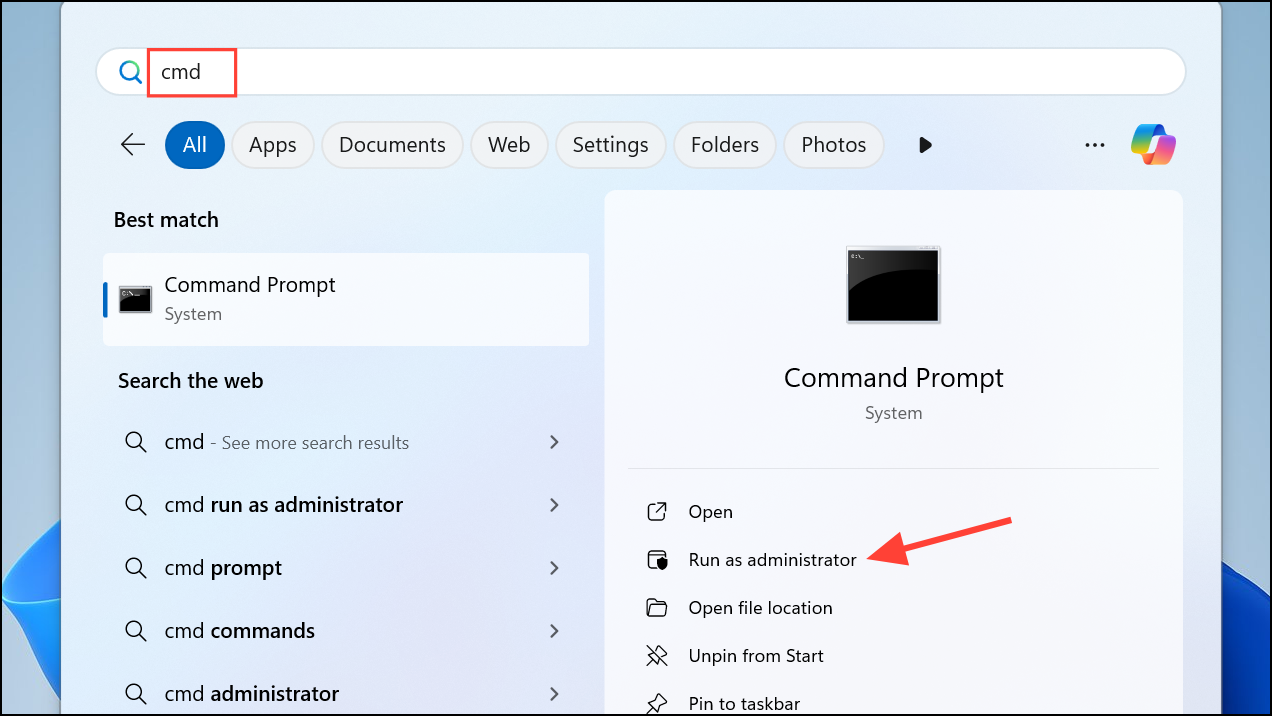
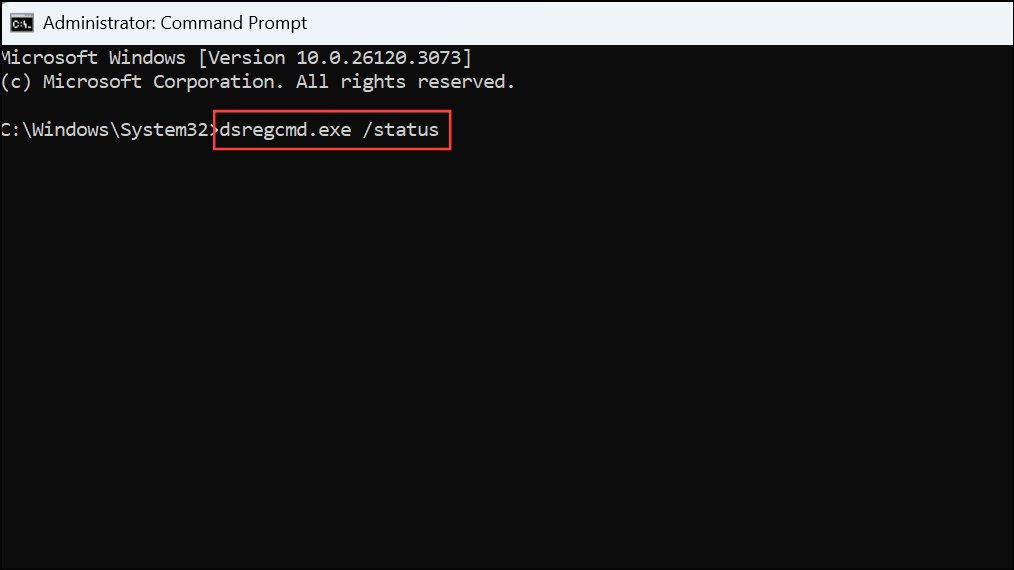
dsregcmd.exe /statusThis displays detailed information about the device’s Azure AD registration. Look for any references to organizational accounts or device join states that are still active.
dsregcmd.exe /leaveThis command unlinks the device from any Azure AD join, which can stop the sign-in loop if it was caused by a lingering organizational association.
Check Licensing and Activation Status
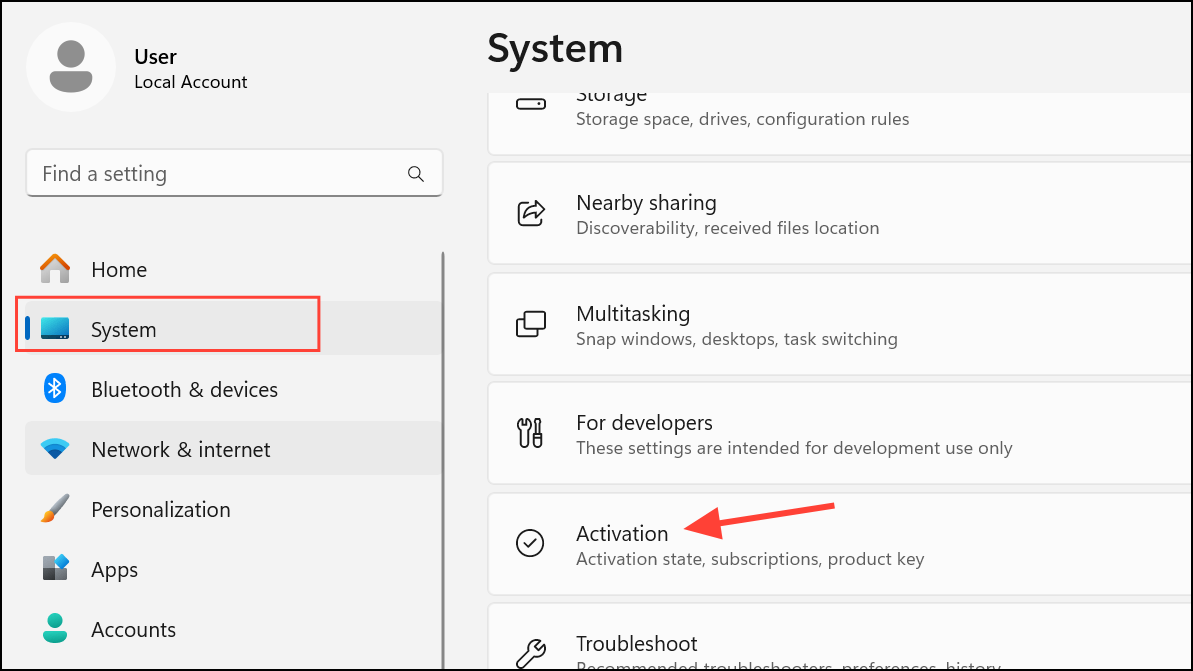
In some cases, the sign-in loop is tied to Windows activation with an organizational license. If you previously activated Windows using a product key provided by a school or employer, the system may continue to seek authentication from that organization.
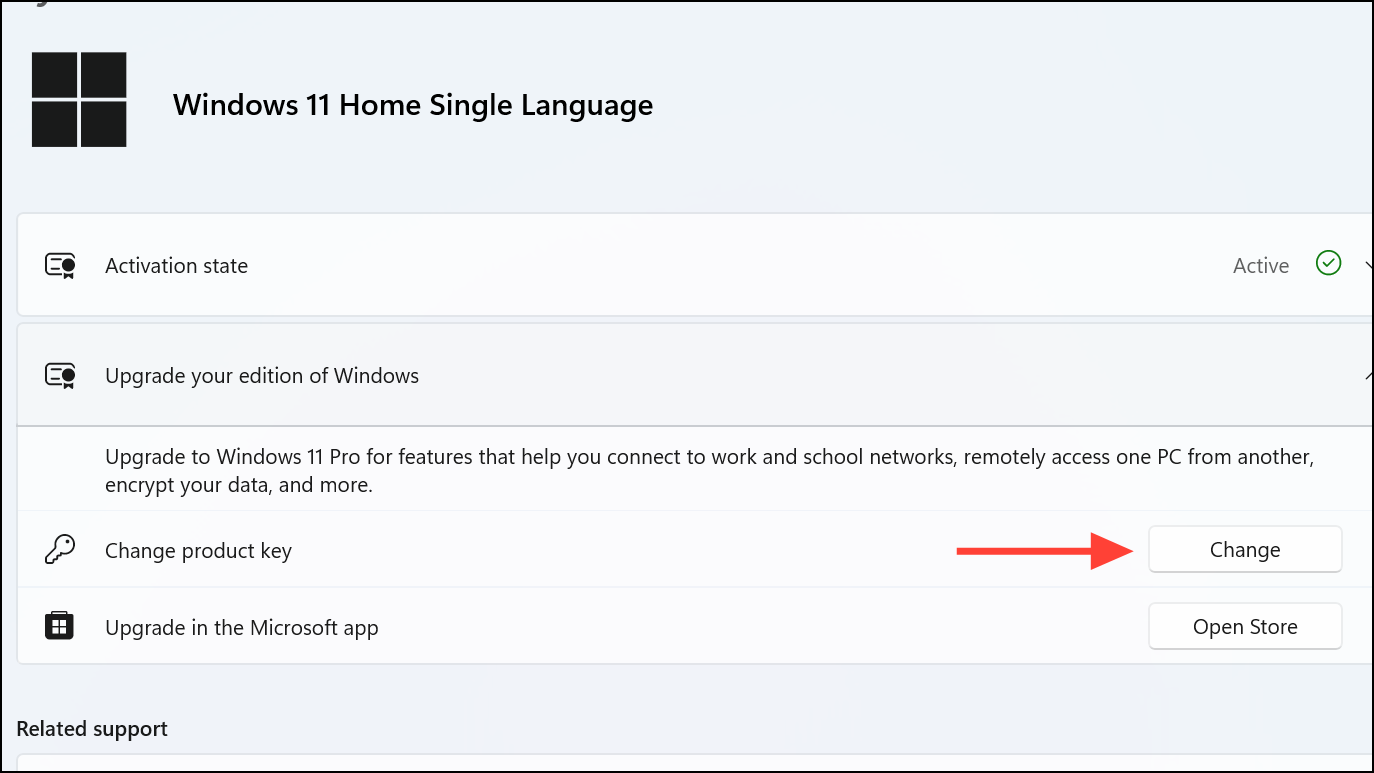
If you cannot change the product key or Windows is locked to an organization, consider reinstalling Windows Home or Pro with your own license to fully break organizational ties.
Address Hardware Changes or Account Swaps
After hardware changes, such as replacing a hard drive, Windows may prompt for re-authentication with an organization account. This happens because the device’s unique identifier changes, causing Azure AD or Microsoft 365 to see it as a new or unauthorized device.
Additional Troubleshooting Tips
- Restart your PC after making any changes to account associations or device registration to ensure settings take effect.
- If you see persistent prompts and cannot remove the account, create a new local user profile and transfer your data. This can bypass residual account links.
- For Office 365-related loops, sign out of all Office apps, remove any work or school accounts from Settings > Accounts > Email & accounts, and sign in only with your personal account.
- Keep Windows updated to receive the latest fixes for account management and authentication issues.
Breaking the “You need to sign in again” loop on Windows 11 usually requires removing outdated organizational accounts and resetting device registration. If standard methods fail, creating a new user profile or reinstalling Windows with a personal license often resolves persistent issues.



