
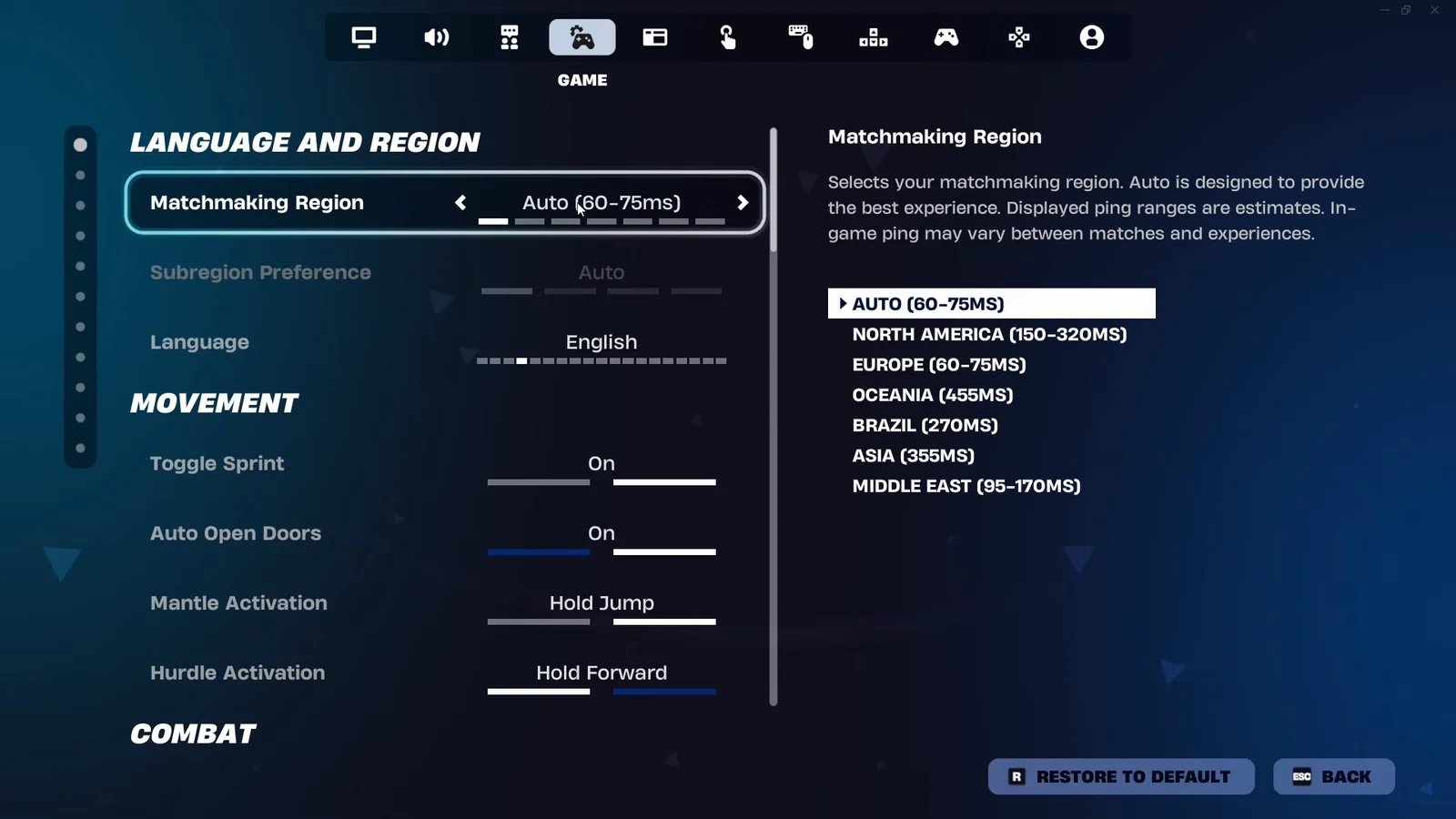
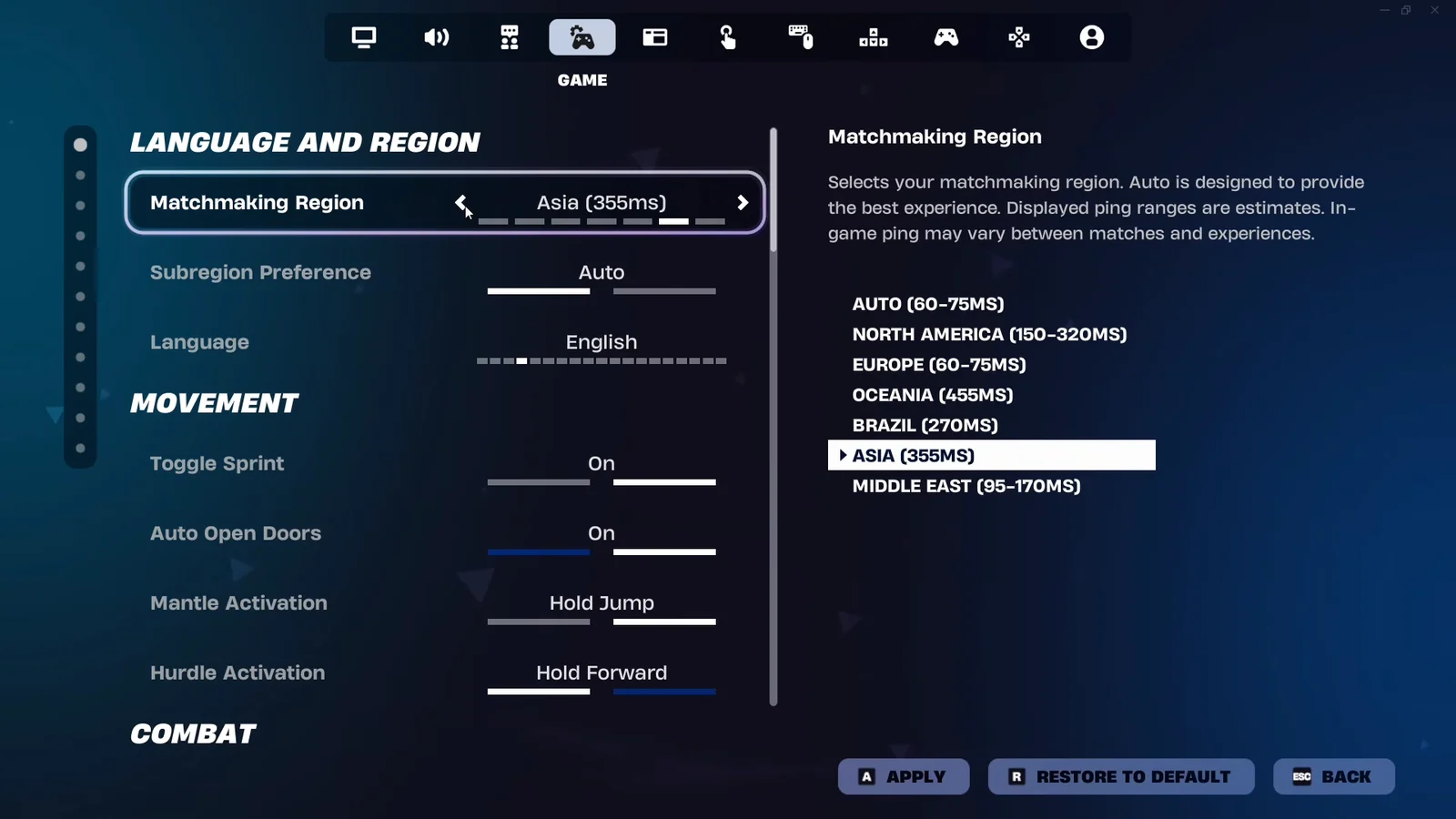
Fortnite’s matchmaking used to stop at the regional level. You picked North America, Europe, or Asia, and the game decided which data center inside that region ran your match. The Subregion Preference setting, added in the v42.20 update, hands that decision to you. If you live in Texas but keep landing on Virginia servers, or you’re in the UK and keep getting routed to Germany, you can now tell matchmaking where you’d rather play.
Quick answer: Open Settings, go to the Game tab, and in Language and Region switch Matchmaking Region off Auto. The Subregion Preference dropdown unlocks, and you pick the location with the lowest ms.
What Subregion Preference changes in matchmaking
A matchmaking region is a bucket that can hold several physical server locations. Europe covers Germany, the United Kingdom, and France. NA-Central covers Iowa, Texas, and Mexico. Without a preference set, matchmaking spreads players across those locations to balance ping, queue length, and match quality, which is why two matches in a row can feel very different on the same connection.
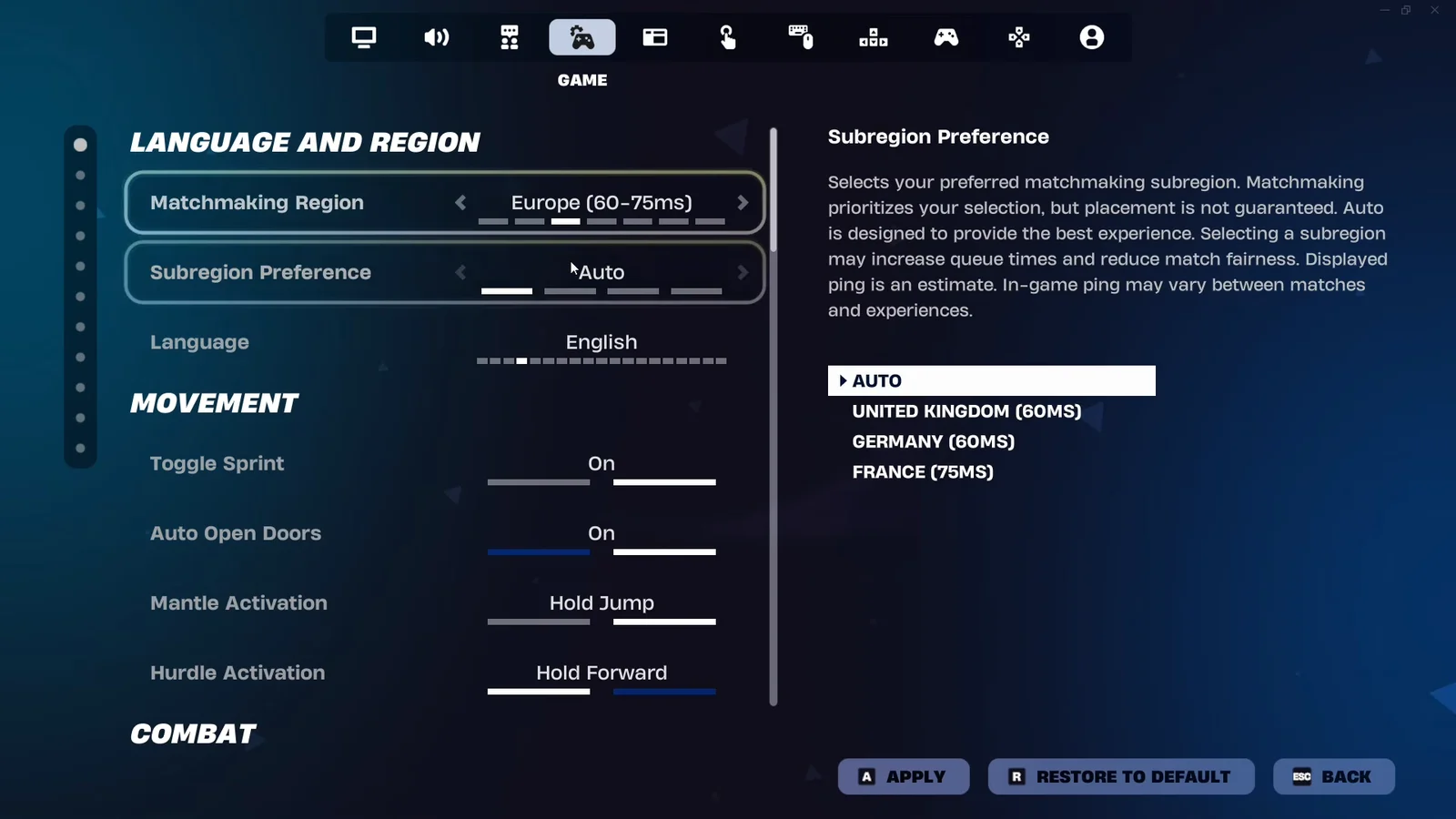
Setting a preference tells the system which of those locations to try first. Epic has been explicit that this is a priority, not a lock: your selection is weighted, but placement isn’t guaranteed, and ping improvement isn’t promised across every match and every Fortnite experience. Different experiences can even run in different data centers within the same subregion, so small ping differences between Battle Royale, Zero Build, and creator islands are normal.
How to set a subregion in Fortnite
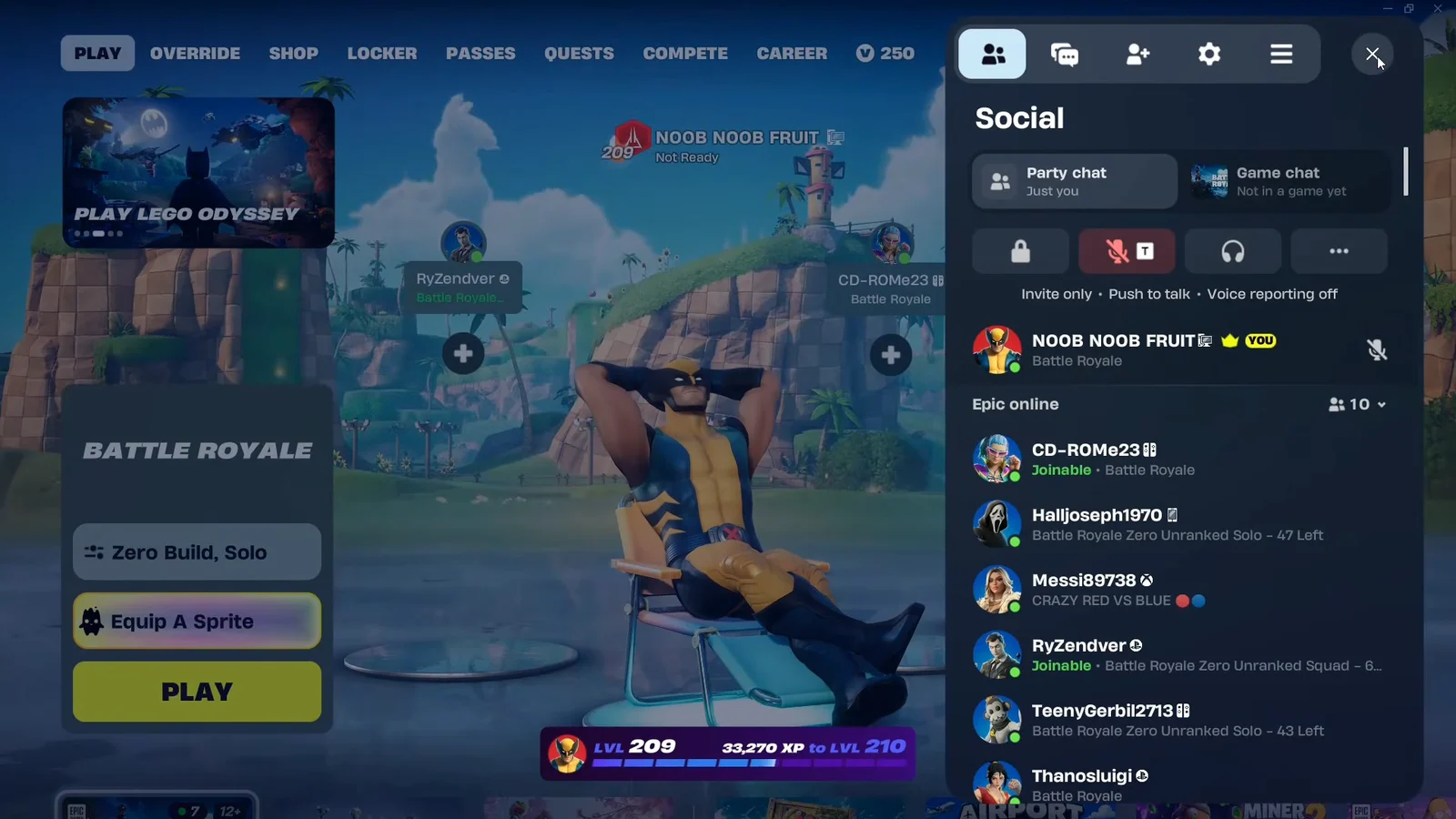
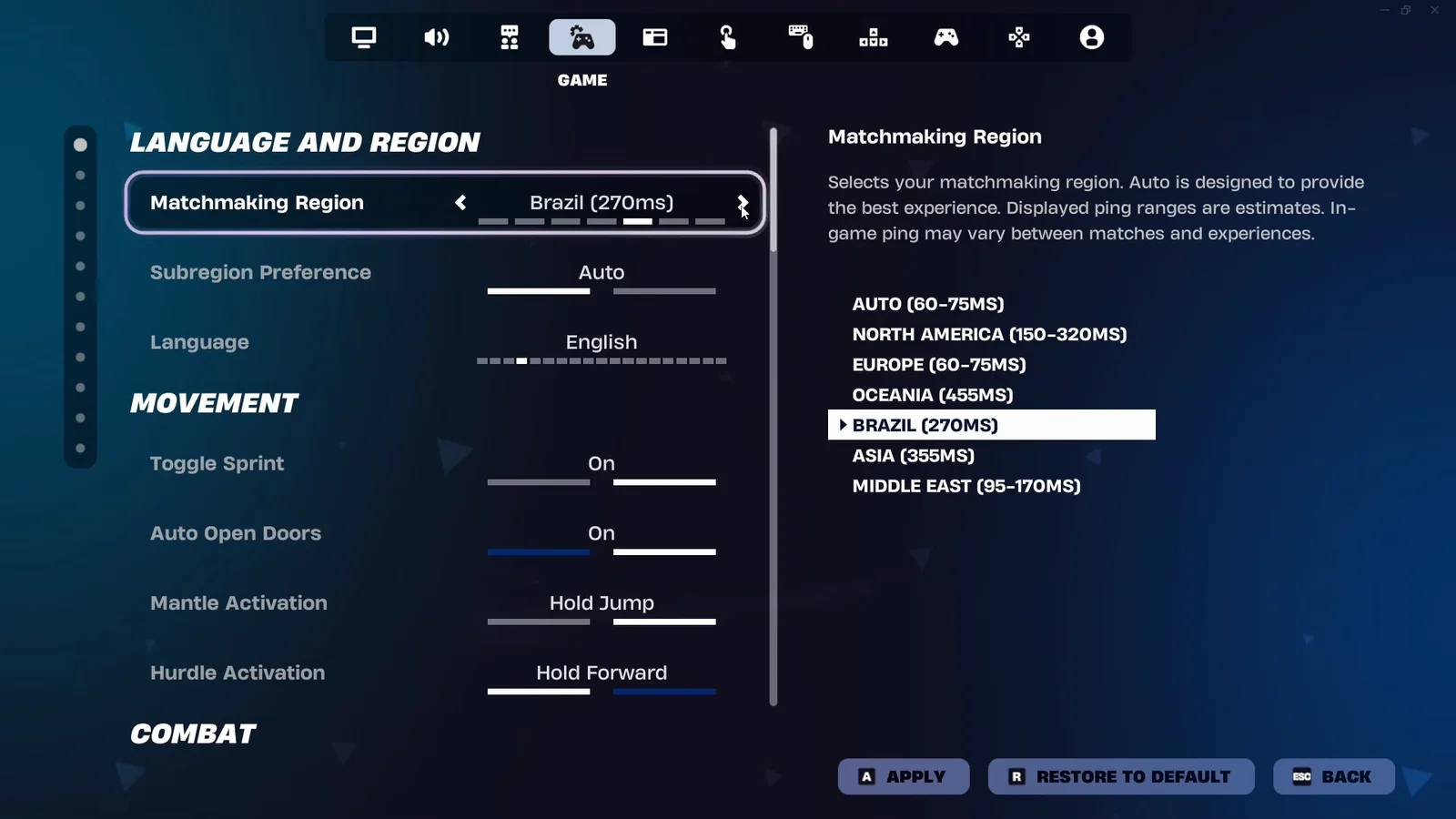
Leaving both settings on Auto is still the default behavior, and it is designed to hunt for the best available connection on its own. The manual option is worth using when Auto keeps dropping you somewhere that feels wrong.
Every Fortnite subregion by matchmaking region
| Matchmaking region | Subregion options |
|---|---|
| NA-East | Virginia, Ohio |
| NA-Central | Iowa, Texas, Mexico |
| NA-West | Northern California, Oregon |
| Europe | Germany, United Kingdom, France |
| Middle East | Bahrain, Mumbai |
| Oceania | Sydney |
| Brazil | São Paulo |
| Asia | Tokyo |
Regions with a single entry, such as Brazil, Oceania, and Asia, still show the dropdown, but there is nothing to choose beyond Auto and that one location. The setting matters most in North America, Europe, and the Middle East, where several data centers sit hundreds of miles apart and a bad draw costs you real milliseconds.
Test your ping to each subregion before you commit
The numbers in the menu are a snapshot. If you want a more reliable reading, Epic publishes a ping endpoint for every subregion data center, and you can measure them yourself from a terminal. On Windows 11, open the Start menu, type cmd, and run the test. On macOS, use Terminal.
Windows:  ping ping-va.ds.on.epicgames.com -n 50
macOS:    ping -c 50 ping-va.ds.on.epicgames.com
Swap the host for whichever location you want to check:
| Subregion | Endpoint |
|---|---|
| Virginia | ping-va.ds.on.epicgames.com |
| Ohio | ping-oh.ds.on.epicgames.com |
| Iowa | ping-ia.ds.on.epicgames.com |
| Texas | ping-tx.ds.on.epicgames.com |
| Mexico | ping-mx.ds.on.epicgames.com |
| Northern California | ping-ncal.ds.on.epicgames.com |
| Oregon | ping-or.ds.on.epicgames.com |
| Germany | ping-de.ds.on.epicgames.com |
| United Kingdom | ping-gb.ds.on.epicgames.com |
| France | ping-fr.ds.on.epicgames.com |
| Bahrain | ping-bah.ds.on.epicgames.com |
| Mumbai | ping-mum.ds.on.epicgames.com |
| Israel | ping-il.ds.on.epicgames.com |
| Sydney | ping-syd.ds.on.epicgames.com |
| São Paulo | ping-sao.ds.on.epicgames.com |
| Tokyo | ping-tok.ds.on.epicgames.com |
Three result values are important: the average shows your usual ping, packet loss must be 0%, and a sustained rate above roughly 1% causes in-game issues even with a good average. Jitter measures the spread between the minimum and maximum, so a large spread signals instability and feels worse than a slightly higher ping that stays consistent.
An inactive connection may produce an excellent result while concealing trouble. Repeat the check while someone at home is streaming or downloading, since uploads especially consume the limited upstream bandwidth available on most home connections.
The trade-offs of locking a subregion
Narrowing your pool has costs, and Epic flags them directly on the setting.
- Queue times can go up, because a single subregion has fewer players waiting than the full region.
- Match quality can drop, since skill-based matchmaking has a smaller pool to build lobbies from.
- Placement is prioritized, not guaranteed, so you will still land elsewhere in your region sometimes.
- If Fortnite is offline while Epic has matchmaking disabled, the preference has no effect until services return.
Ping is also shaped by things this setting cannot touch. Network congestion at home, how your ISP routes traffic, and which exact server a given match spins up on all move the number. If a subregion switch does not help, a wired Ethernet connection, pausing background downloads, and enabling QoS or gaming mode on your router usually do more than any in-game toggle.
How to confirm the setting is working
You know the change registered when the Subregion Preference row is no longer greyed out and shows your chosen location instead of Auto after you apply and back out of Settings. From there, queue a normal match and watch your in-game ping over several games rather than one, since the point of the setting is consistency across matches, not a single good lobby.
Compare that in-game reading with the endpoint test for the same location. If the two roughly agree, matchmaking is honoring your preference. If your in-game ping is far higher than the command-line result for that subregion, the problem is likely on the path between you and Epic rather than in the setting, and that is the point to take the endpoint you tested, the result, and the mode you were playing to your ISP.