

System-wide changes in Windows 11—such as installing applications, modifying key settings, or creating new user accounts—require administrative privileges. When your account is set as a standard user, attempting these actions results in prompts for an administrator password or outright blocks access. This can stall software installations, security updates, and even basic troubleshooting. Regaining admin access on a standard account streamlines system management and restores full control over your device.
Change Account Type to Administrator via Settings
Settings app by pressing Win + I on your keyboard. This shortcut quickly brings up the main system configuration panel.Accounts from the left-hand menu. Then click on Your info to view your current account details.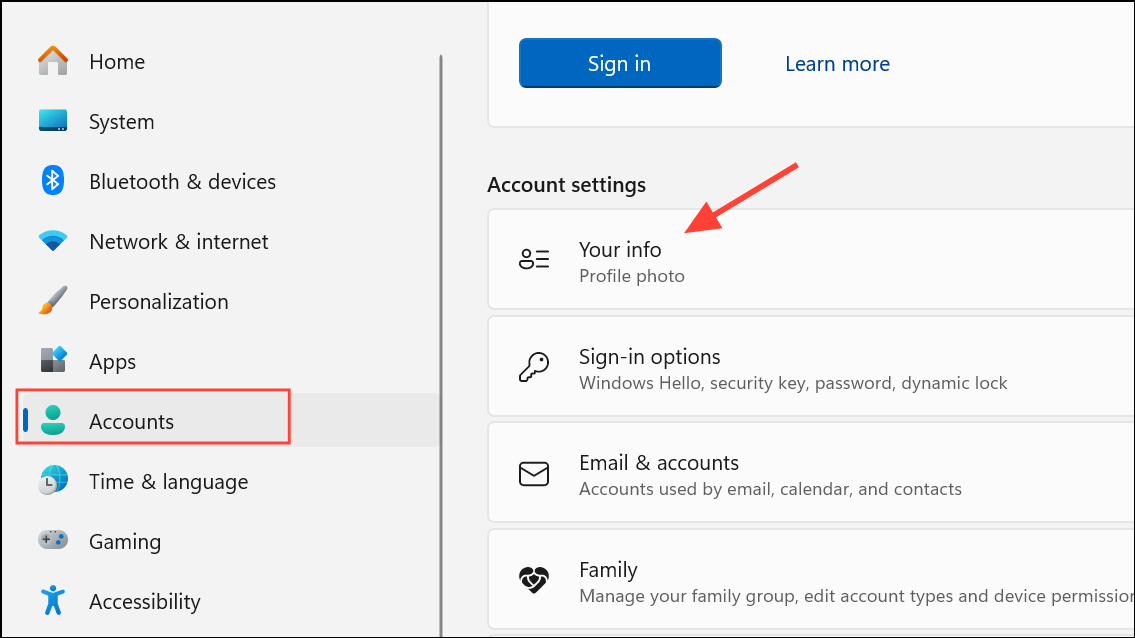
Account type section. Click on Change account type. This opens a dialog where you can switch your account between Standard and Administrator roles.Administrator. Confirm the change by following any on-screen prompts. After this, your account will have full admin privileges, allowing unrestricted access to system settings and installer permissions.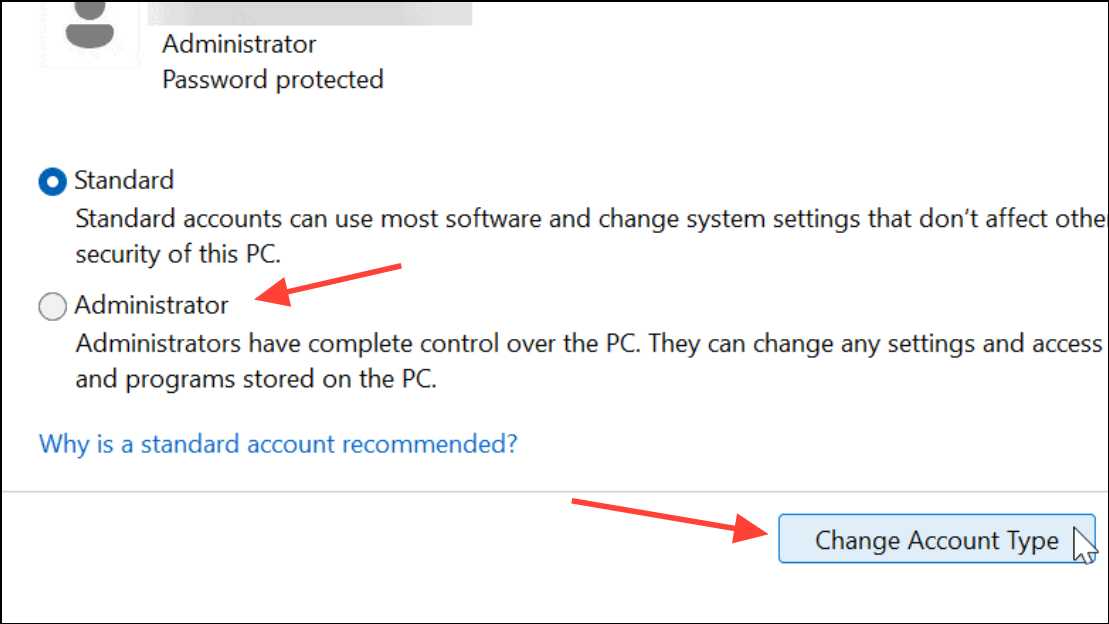
Enable the Built-in Administrator Account Using Command Prompt
Windows 11 includes a hidden administrator account with unrestricted access, which can be activated for troubleshooting or regaining control if your main admin account is inaccessible.
cmd, then right-click Command Prompt and select Run as administrator. If you see a User Account Control (UAC) prompt, approve it to continue.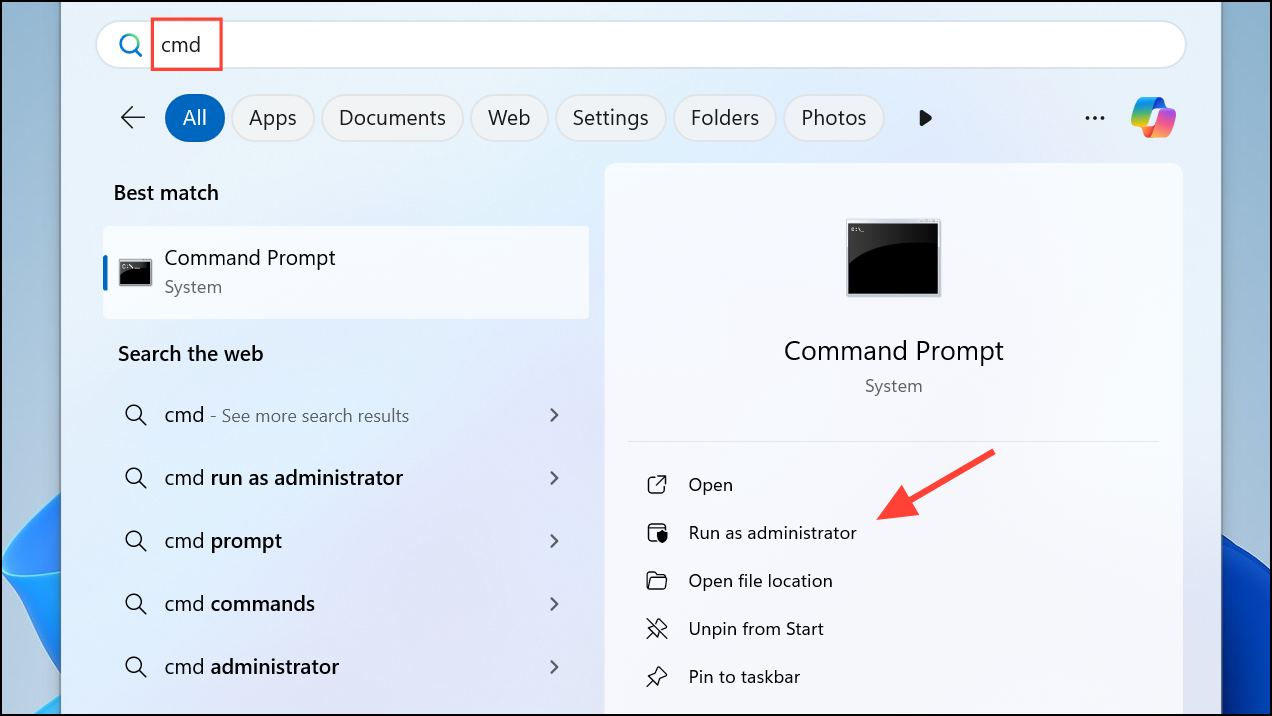
net user administrator /active:yes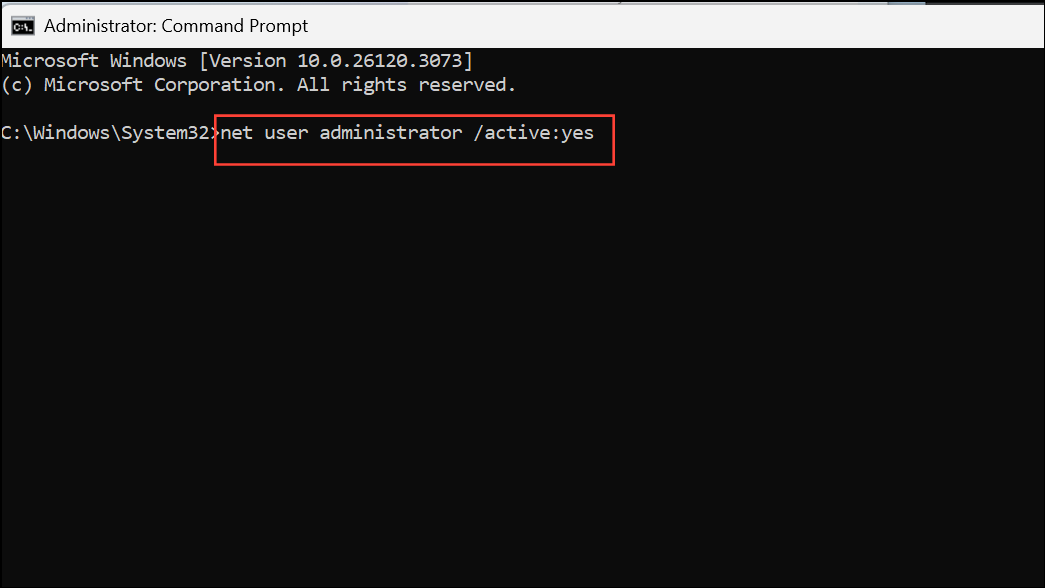
This command enables the hidden account. Log out, and you will see a new Administrator option on the login screen. Sign in with this account to perform system repairs or change other user account types.
net user administrator /active:no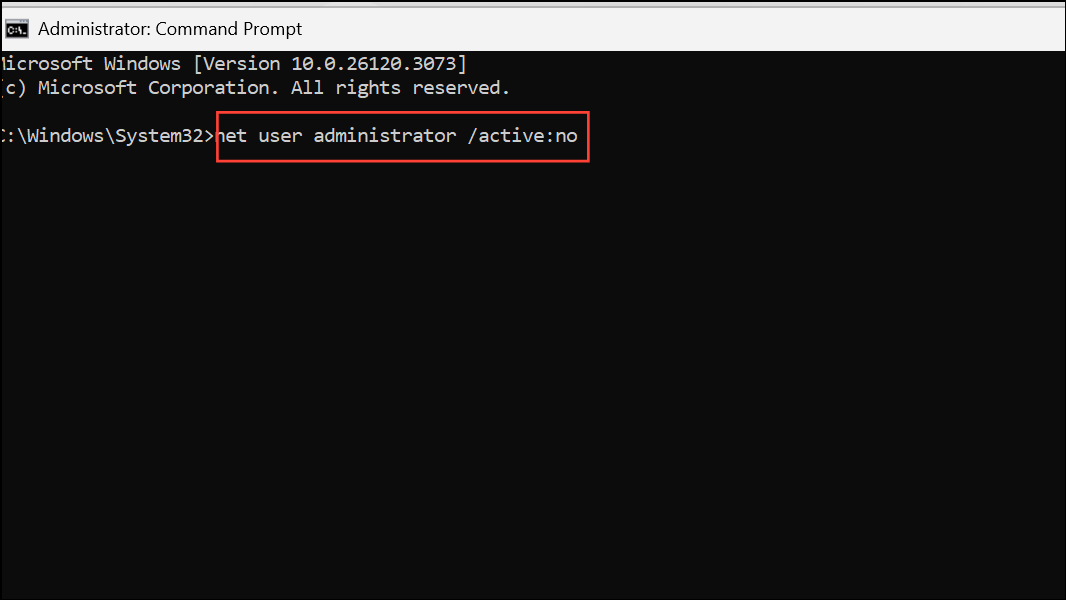
Adjust Group Policy Settings to Regain Admin Control
Occasionally, system restrictions are enforced through Group Policy, which can override local administrator permissions and block access to key settings.
Win + R to open the Run dialog. Type gpedit.msc and press Enter. This opens the Local Group Policy Editor. Note: This tool is available on Windows 11 Pro and Enterprise editions, but not on Home.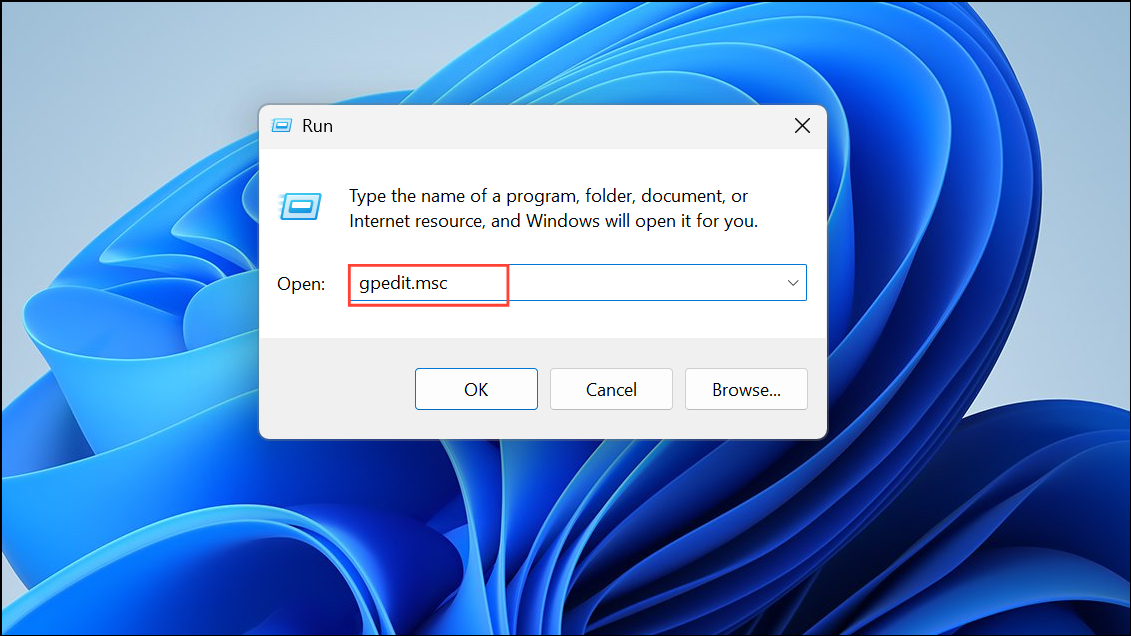
Computer Configuration > Administrative Templates > Windows Components > Location and Sensors (or the relevant section for your restriction).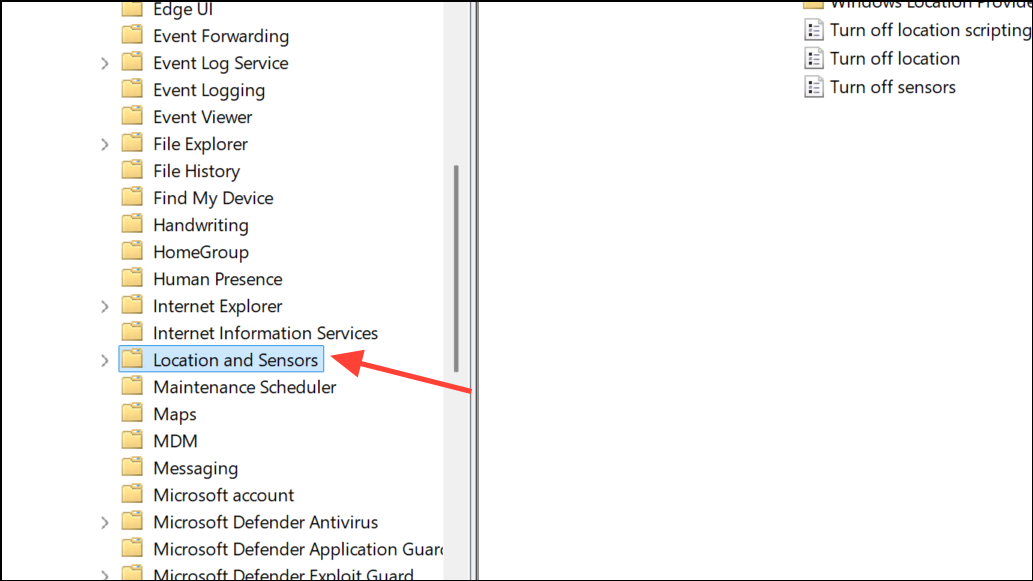
Not Configured or Disabled. This restores the default behavior and can fix greyed-out settings or blocked admin actions.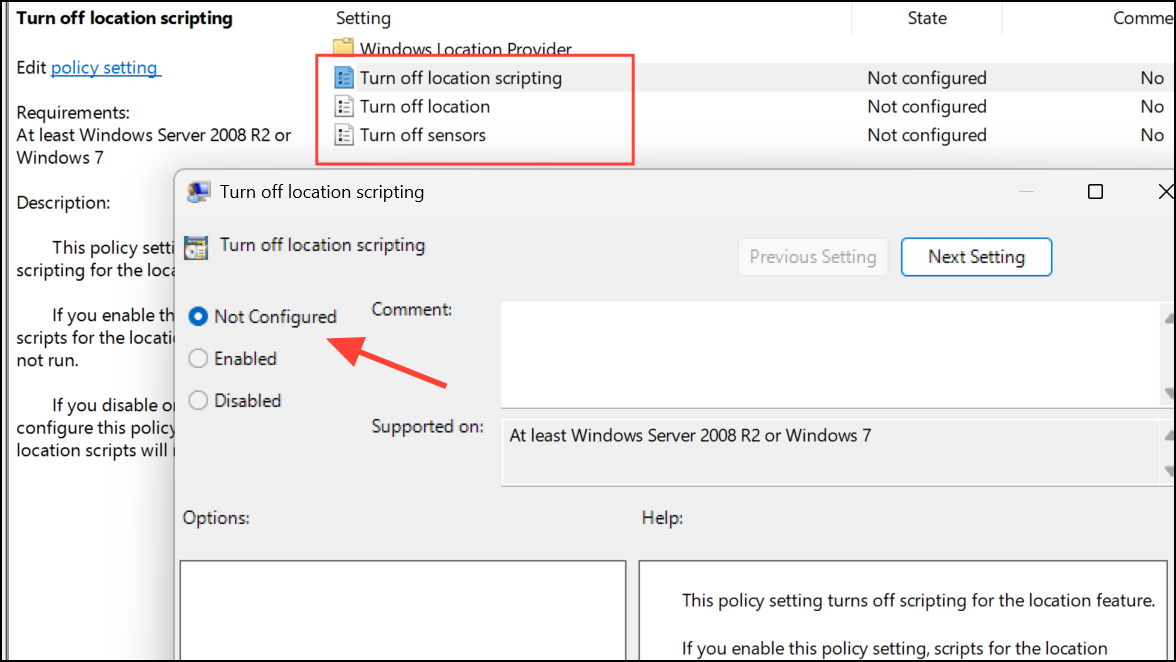
Check and Change Account Type via Control Panel
Older versions of Windows and some system configurations still allow account management through Control Panel.
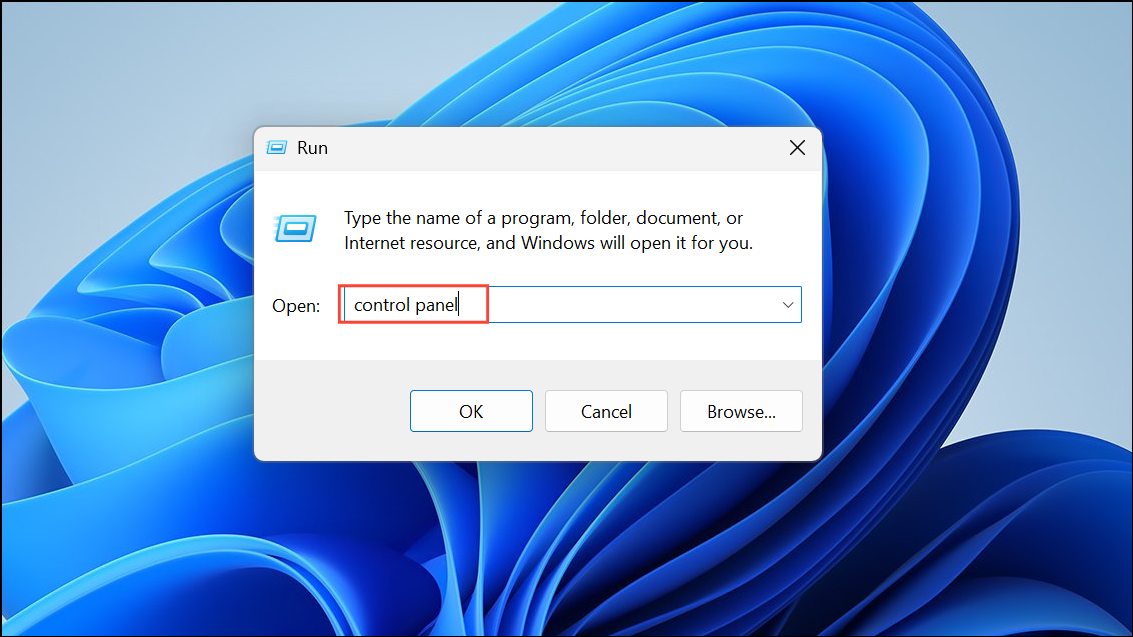
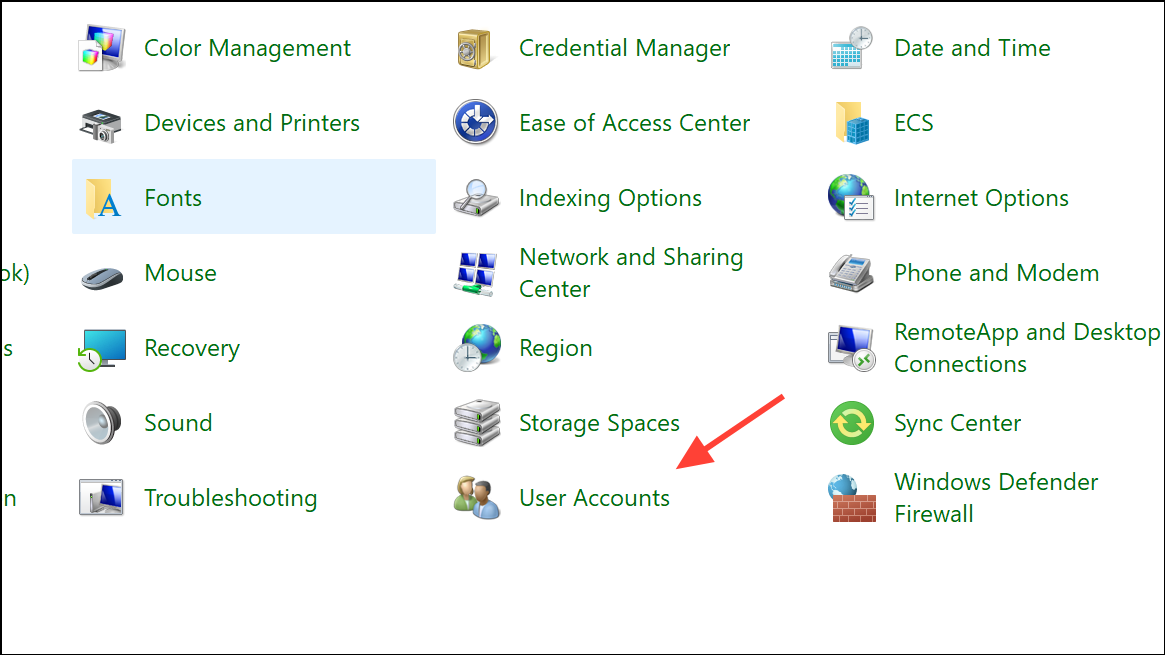
Manage another account. Choose your account from the list, then click Change the account type. Select Administrator, then confirm.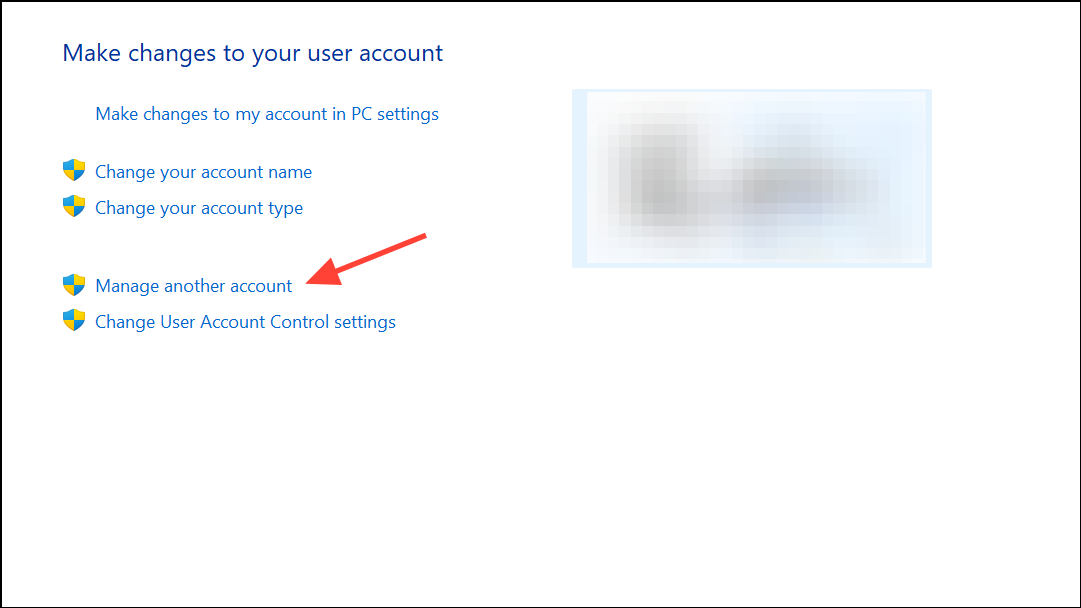
This method is especially useful on systems upgraded from Windows 10, where legacy account management tools may still be active.
Run System File Checker to Fix Privilege Issues
Corrupted system files can prevent users from gaining or keeping administrator rights, even if their account is set correctly.
sfc /scannow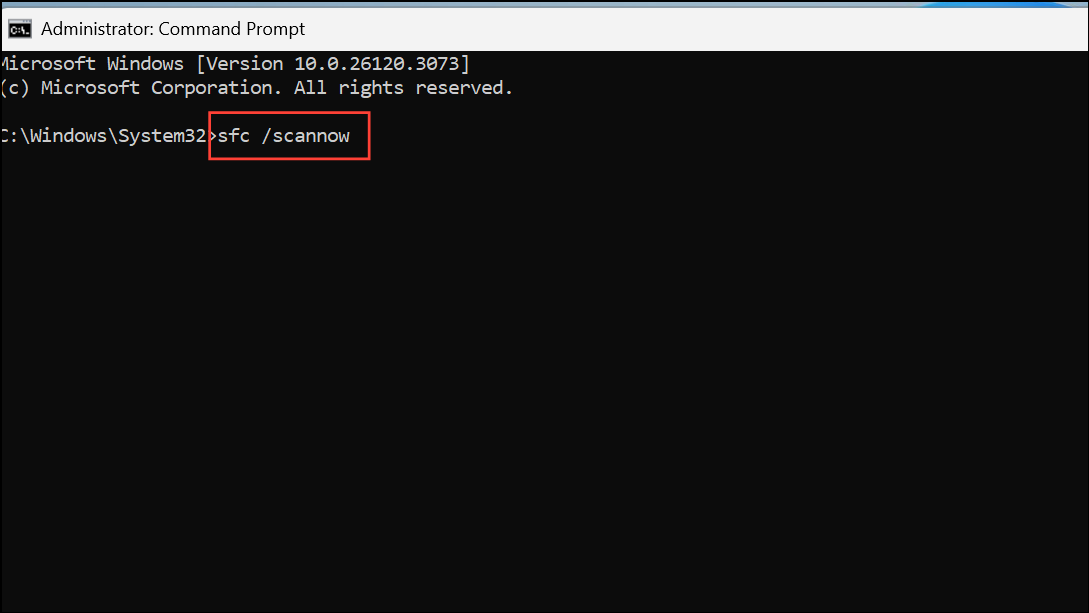
This process checks for and repairs corrupted files that could interfere with account permissions. Once the scan is complete, restart your computer and check if admin access is restored.
Verify Your Account Status Using PowerShell
PowerShell can confirm your current group memberships and whether your account is part of the Administrators group.
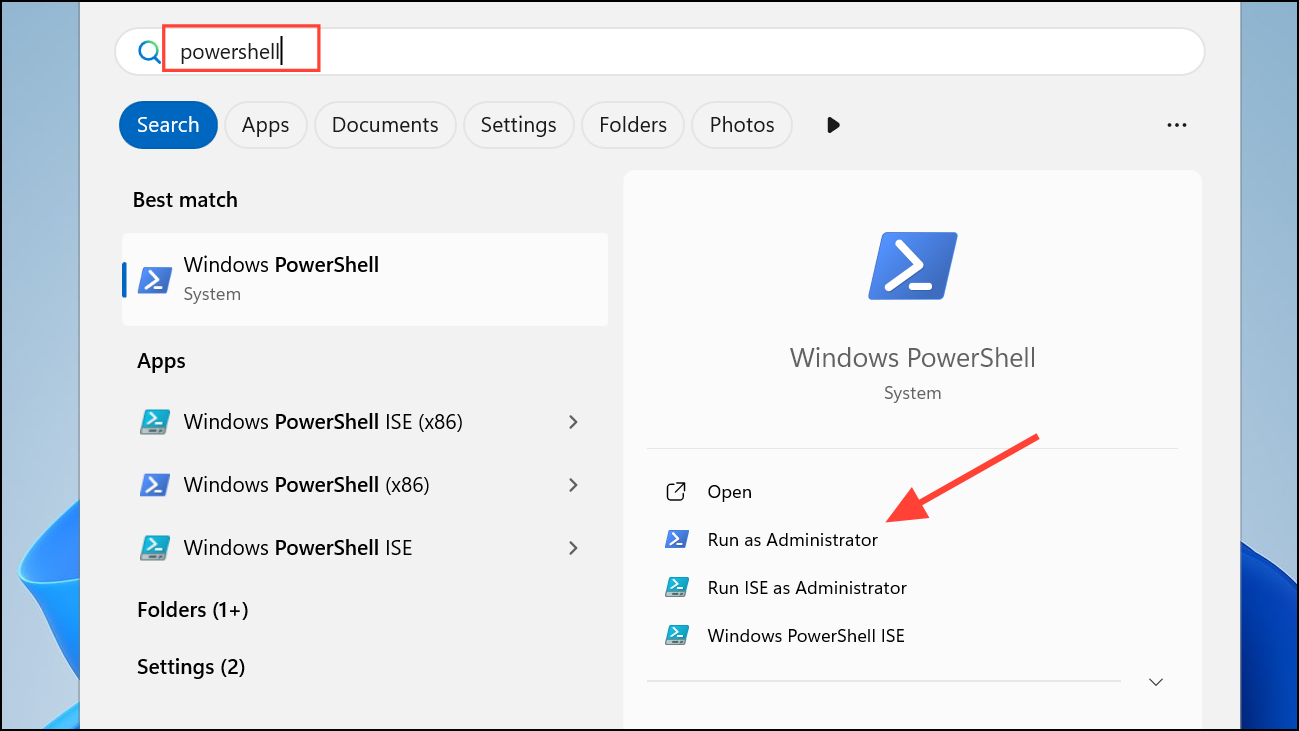
whoami /groups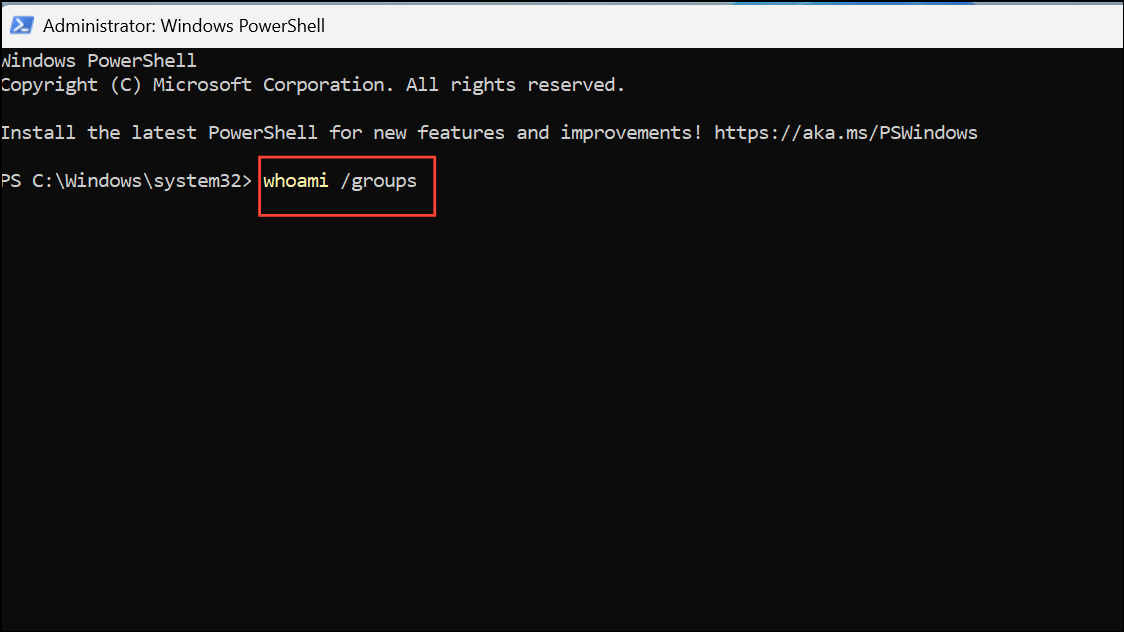
Review the output for Administrators. If your account is listed, you have admin rights. If not, use one of the earlier methods to change your account type.
Additional Tips and Troubleshooting
Some systems may have further restrictions, such as company-managed devices or accounts set up by third-party IT services. In these cases, you may need to contact your IT administrator or the person who originally set up the device for assistance.
For home users, it’s best practice to maintain a separate administrator account and use a standard account for daily activities. This limits the potential for malware infections and accidental system changes. If you must reset admin privileges and cannot access any admin account, consider booting into Safe Mode or using recovery media to reset passwords or adjust account types.
Always back up important data before making significant account or system changes. Changing account types or enabling built-in administrator accounts can affect system security and access to files.
Restoring admin access on a standard account in Windows 11 unlocks full system control and resolves permission-related roadblocks. Regularly review your account status to avoid future lockouts and keep your device secure.



