
Gaming How-To

GTA 6: How to Change Brightness by Turning Off HDR First

The Brightness Level slider in Grand Theft Auto VI only shows up in the DISPLAY tab once HDR is switched off.

The Brightness Level slider in Grand Theft Auto VI only shows up in the DISPLAY tab once HDR is switched off.

If you open the display settings in Grand Theft Auto VI looking for a brightness slider, you won’t see one at first. On a fresh install, HDR is on, and while it’s on the game swaps the brightness option out for HDR Calibration. Turning HDR off brings the brightness setting back.

Quick answer: Open Pause > Settings > DISPLAY and turn HDR off. Next, select “Brightness Calibration” and adjust “Brightness Level” from its default of 15 until you can just make out the symbol.


How to change brightness in GTA 6
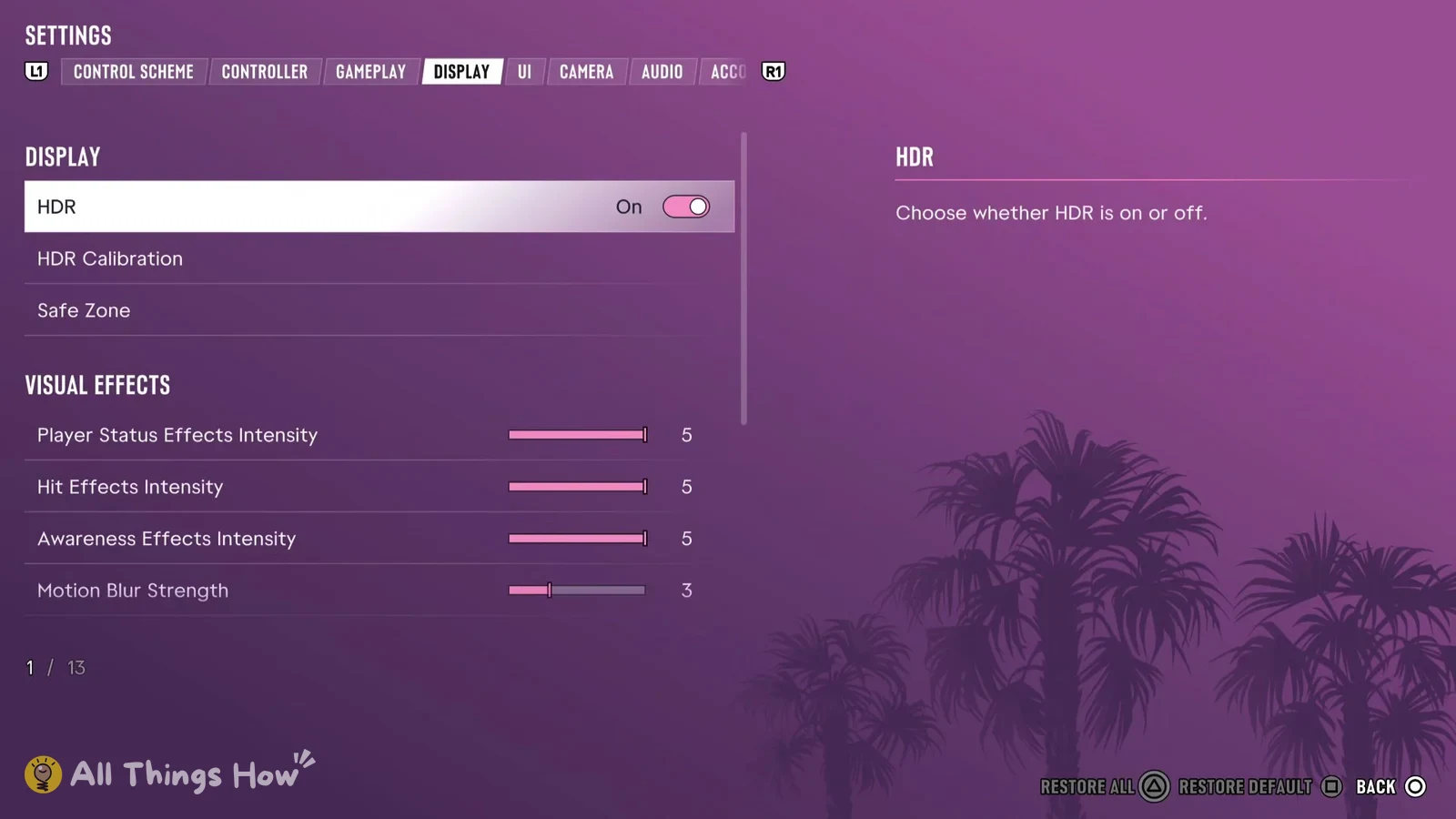
Open the pause menu and choose Settings. Along the top, the tabs appear in this order: CONTROL SCHEME comes first, followed by CONTROLLER; next is GAMEPLAY, then DISPLAY; after that are UI and CAMERA, with AUDIO before ACCOUNT.
Press L1 or R1 to move across to the DISPLAY tab. The first group on that tab is also called DISPLAY, and with HDR on it has three rows: HDR (set to On), “HDR Calibration” and Safe Zone.
The GTA 6 DISPLAY settings tab with HDR On and the HDR Calibration row
HDR On: the second row is HDR Calibration.
Highlight the HDR row and press left or right to switch it to Off. Its description reads “Choose whether HDR is on or off.”
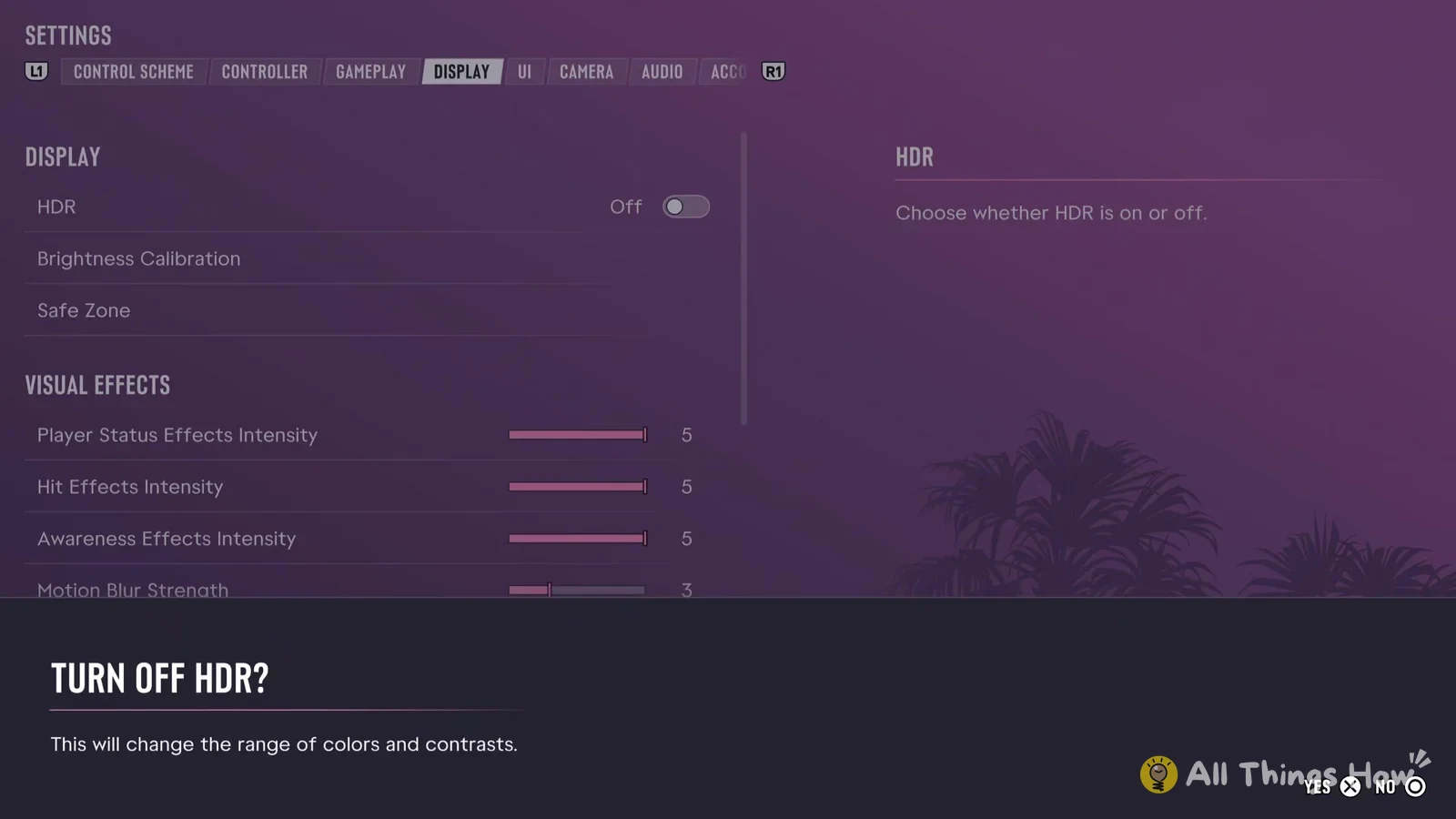
Confirm the change when the game asks. A box titled “TURN OFF HDR?” pops up with the line “This will change the range of colors and contrasts.” Press Cross for YES, or Circle for NO if you change your mind.
The TURN OFF HDR? box in GTA 6 settings with YES and NO
TURN OFF HDR?
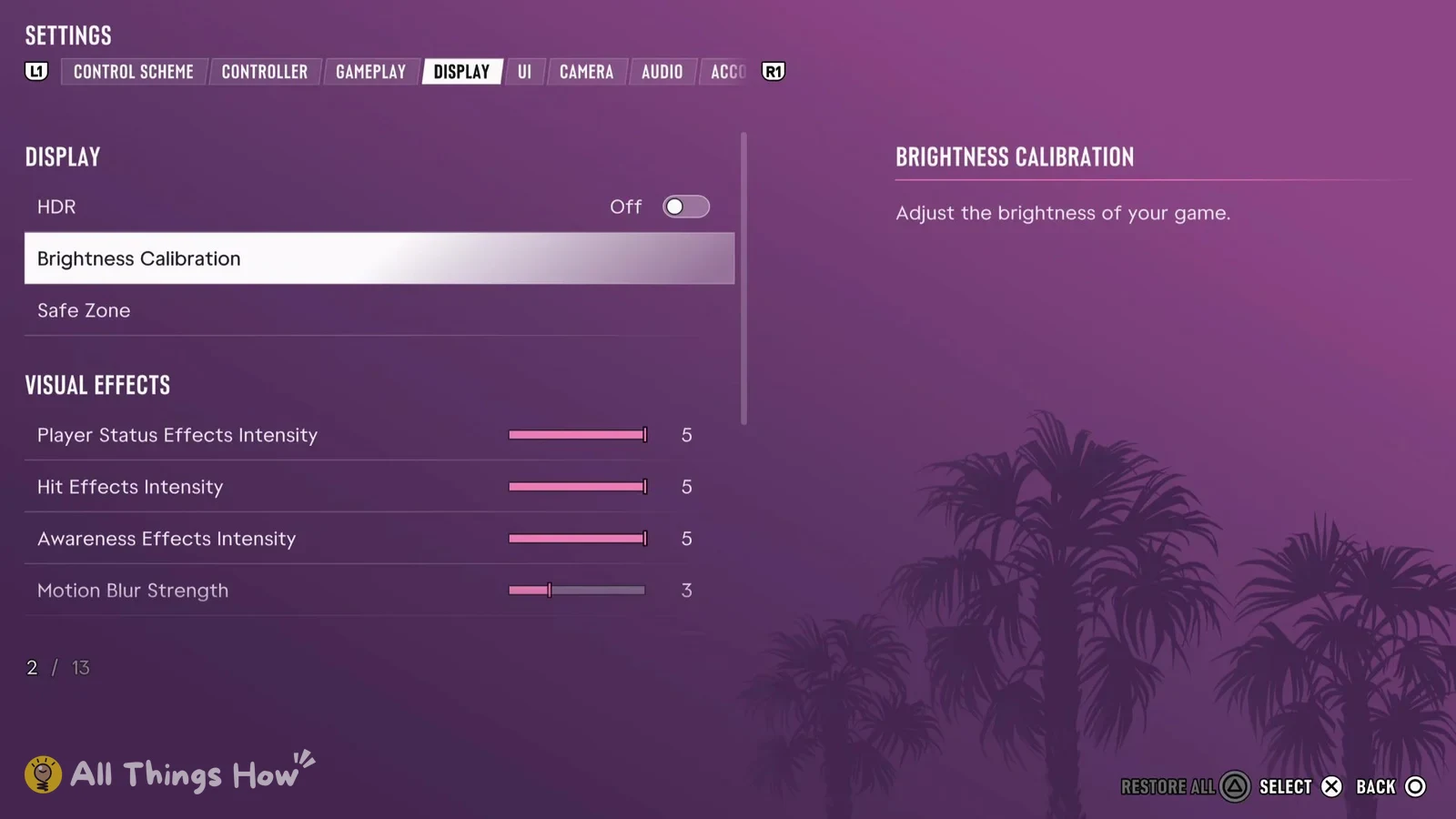
Select the second row, which now reads “Brightness Calibration” instead of “HDR Calibration”. Its description is “Adjust the brightness of your game.”, and the counter next to it shows 2 / 13. Press Cross to open it.
The Brightness Calibration row on the GTA 6 DISPLAY tab with HDR Off
HDR Off: Brightness Calibration appears.
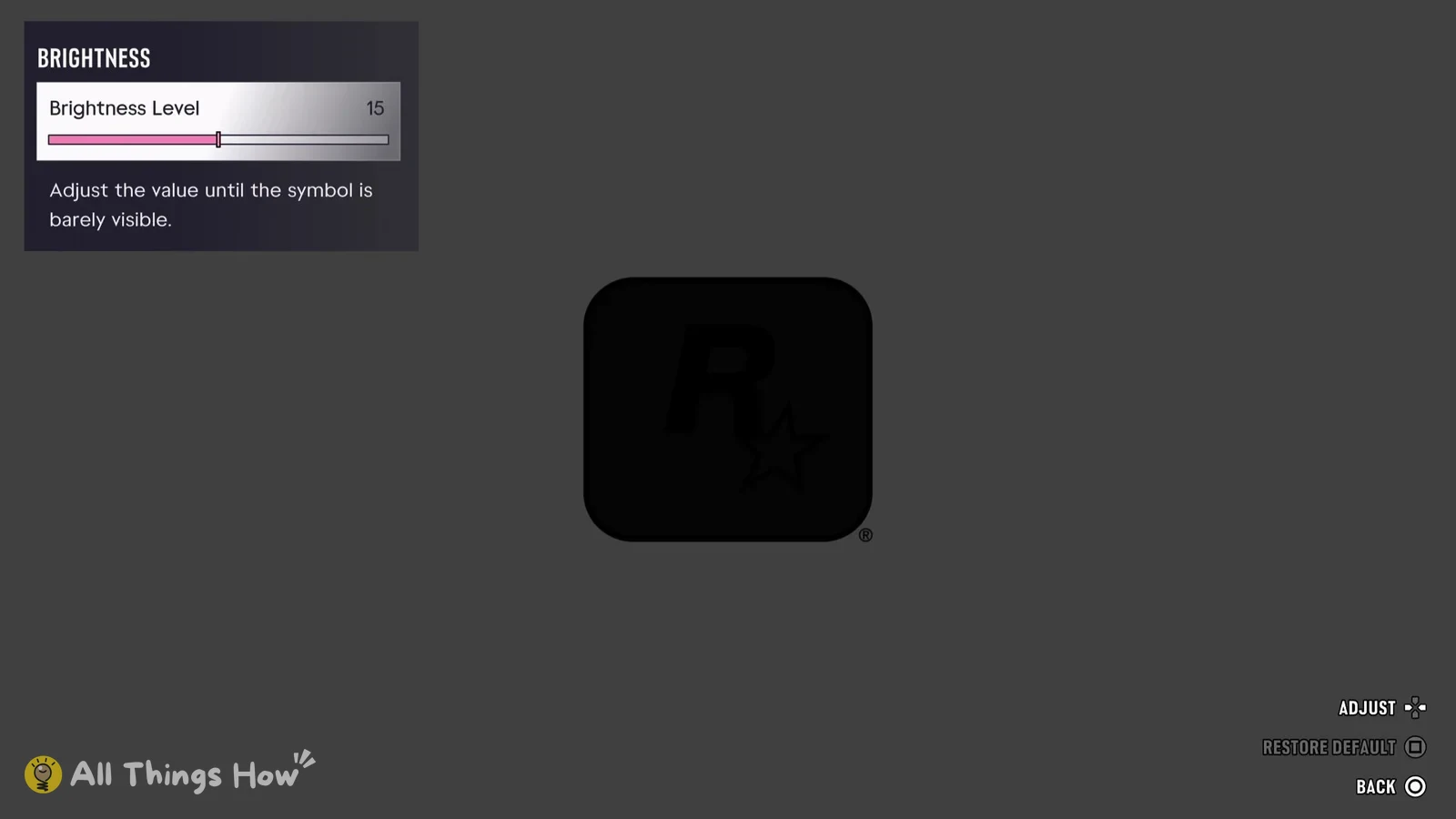
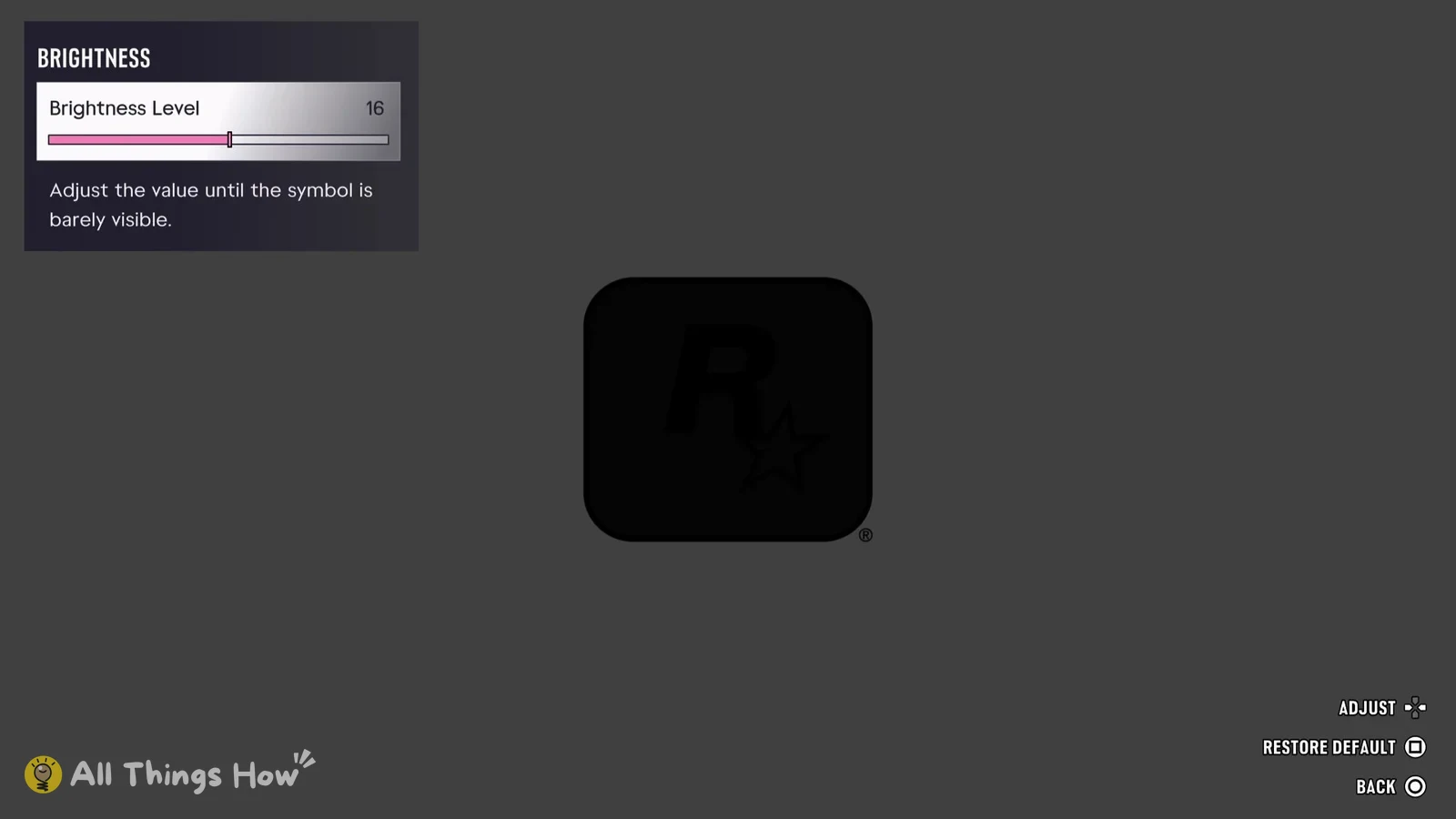
Adjust the “Brightness Level” slider with left and right on the d-pad. The screen is headed “BRIGHTNESS” and shows a dark Rockstar logo in the middle of a grey background, along with the instruction “Adjust the value until the symbol is barely visible.”
The GTA 6 BRIGHTNESS screen with Brightness Level 15 and a dark Rockstar logo
Brightness Level 15.

You’ll know the change took because the number on the slider moves away from 15 and the RESTORE DEFAULT prompt (Square) is no longer greyed out. Press Square any time to snap the slider back to 15, or Circle to back out of the screen. On the DISPLAY tab itself, Triangle is RESTORE ALL.


Why there is no Brightness option in GTA 6 with HDR on

The game hides “Brightness Calibration” whenever HDR is on and puts “HDR Calibration” in the same spot on the DISPLAY tab, so you only ever see one of the two. If you want to keep HDR, you set the picture through HDR Calibration. If you want the plain brightness slider, HDR has to be off.


How to turn HDR back on in GTA 6

Go back to the HDR row on the DISPLAY tab and switch it to On. A “TURN ON HDR?” box appears with the same line about colors and contrasts, and pressing YES puts HDR back. The second row goes back to “HDR Calibration”, and the Brightness Level slider disappears from the menu again.
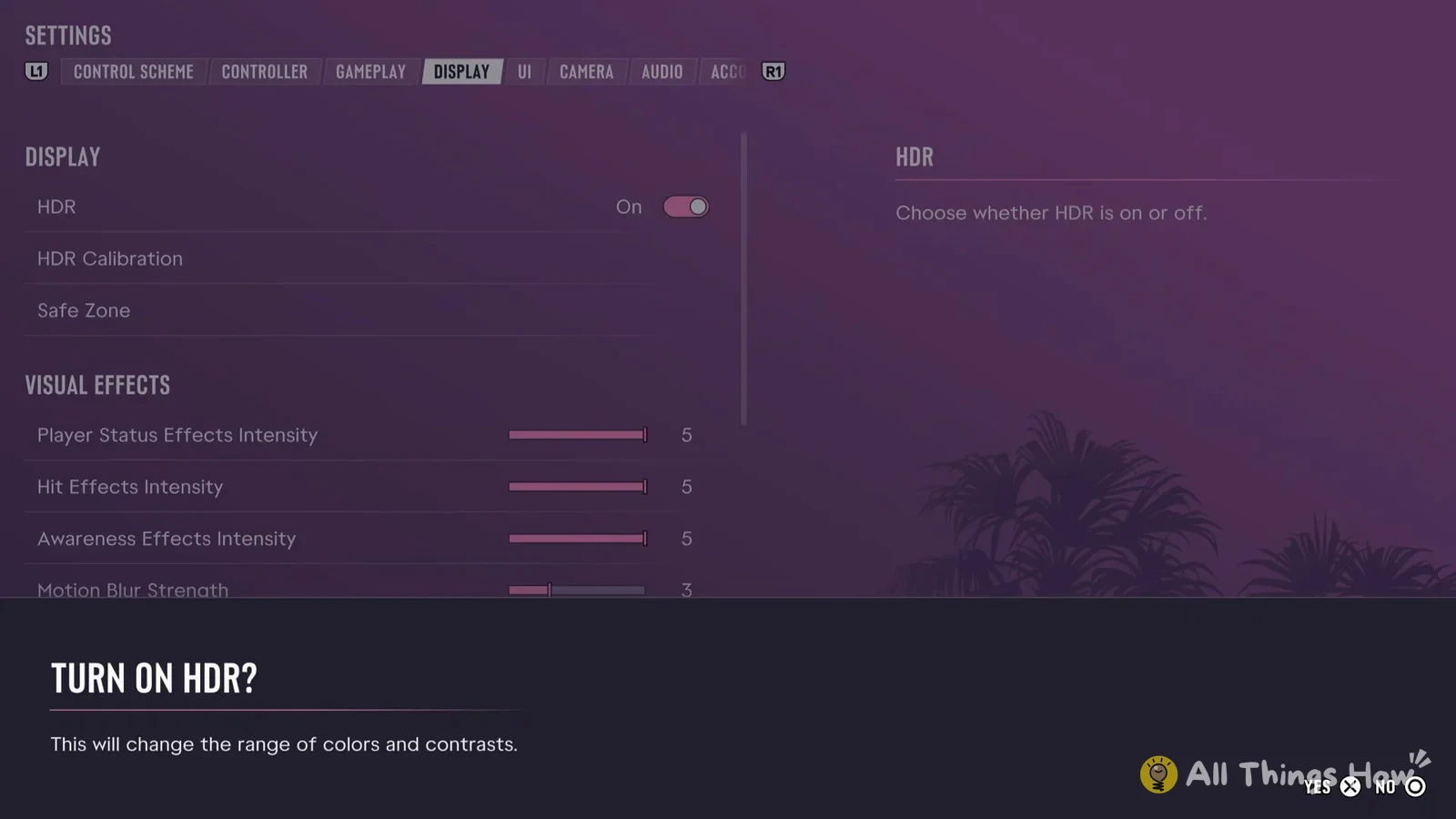
The TURN ON HDR? box in GTA 6 settings
TURN ON HDR?