
In GTA 6, you don’t buy the Cop Scanner, and there’s no store that sells it. It’s a phone plugin that Cal installs for Jason as part of the story, and after that it has its own page inside the phone’s Settings app.
Quick answer: Play the Chapter 1 mission Unwanted Attention. Cal installs the scanner when you reach the police impound in Hamlet. Then open Settings and find “cop_scanner_v3.1.9” under Third-Party Plugins.
How to get the Cop Scanner in GTA 6
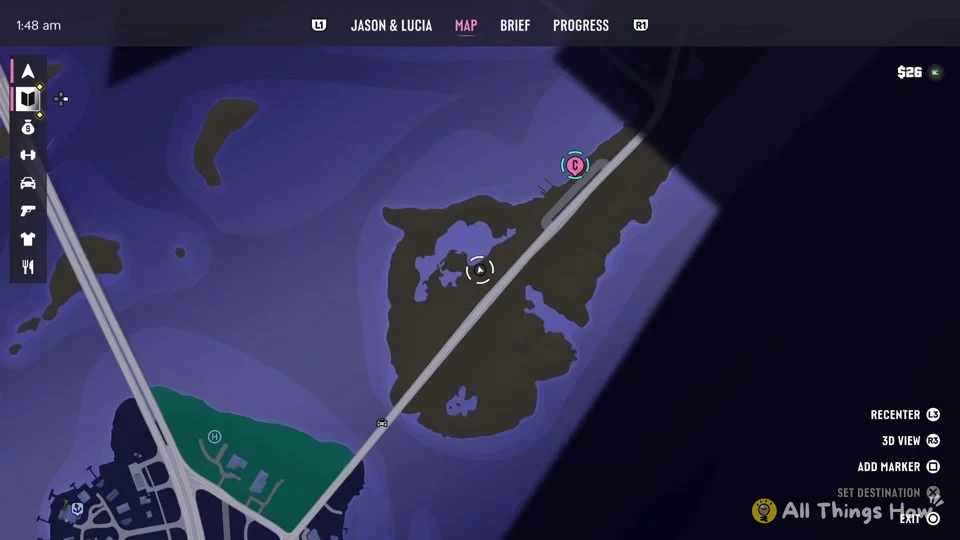
The scanner comes from the mission Unwanted Attention, which the mission pause panel lists under “CHAPTER 1”. To start it, look for the pink C marker labelled “GO SEE CAL” on the pause map. Its description reads “Brian wants something taken care of. Meet up with Cal and find out what it is.” You’ll find Cal at the north-east tip of Key Lento, by the water next to the highway.
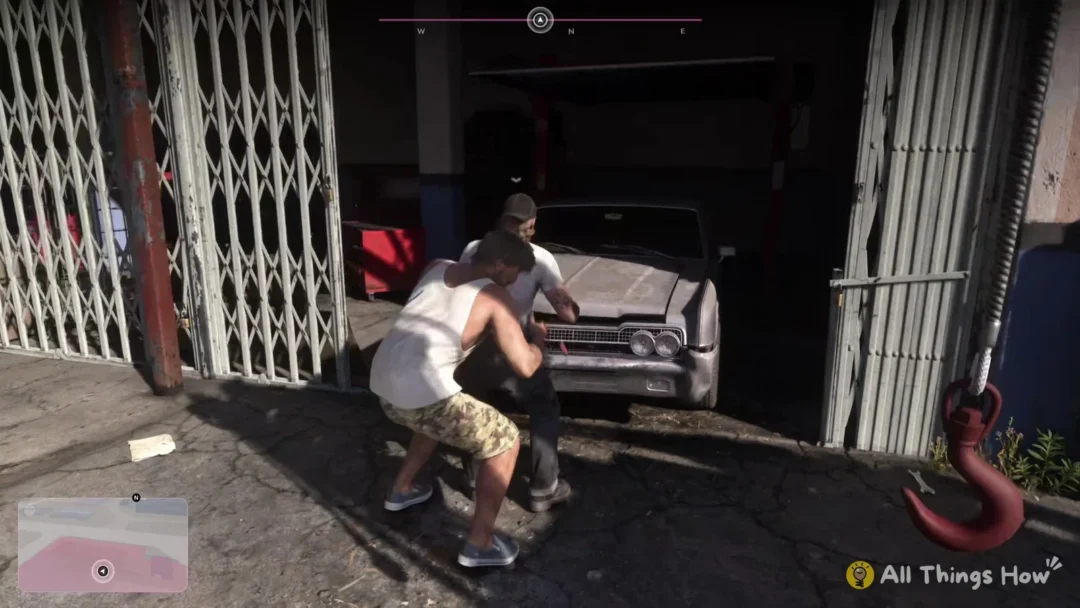
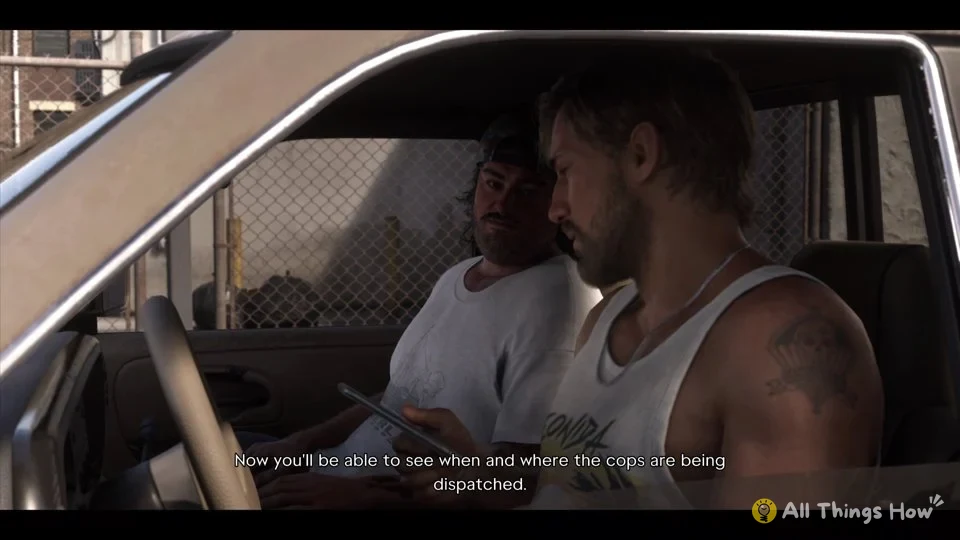
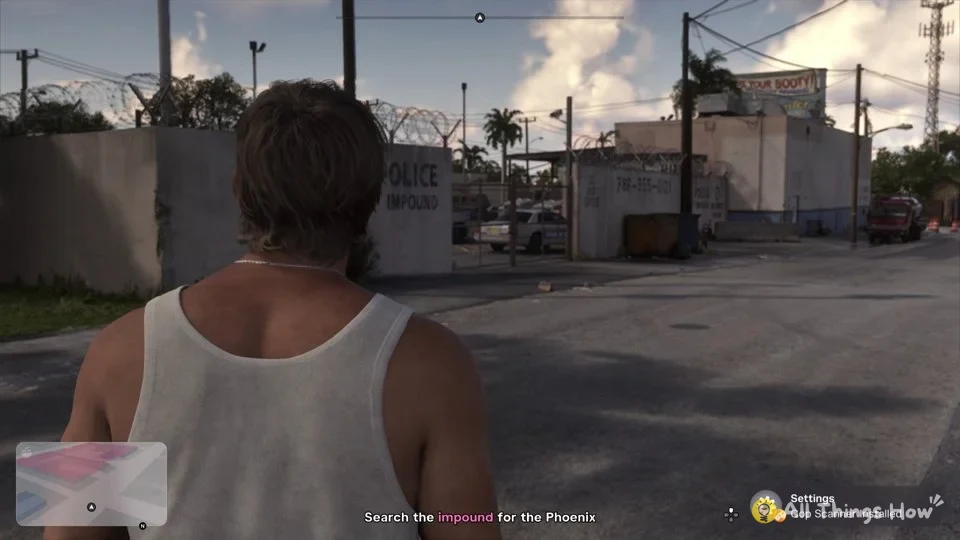
Continue until you and Cal arrive at the police impound in Hamlet. During a truck scene, Cal works on Jason’s phone and says, “Now you’ll be able to see when and where the cops are being dispatched.”
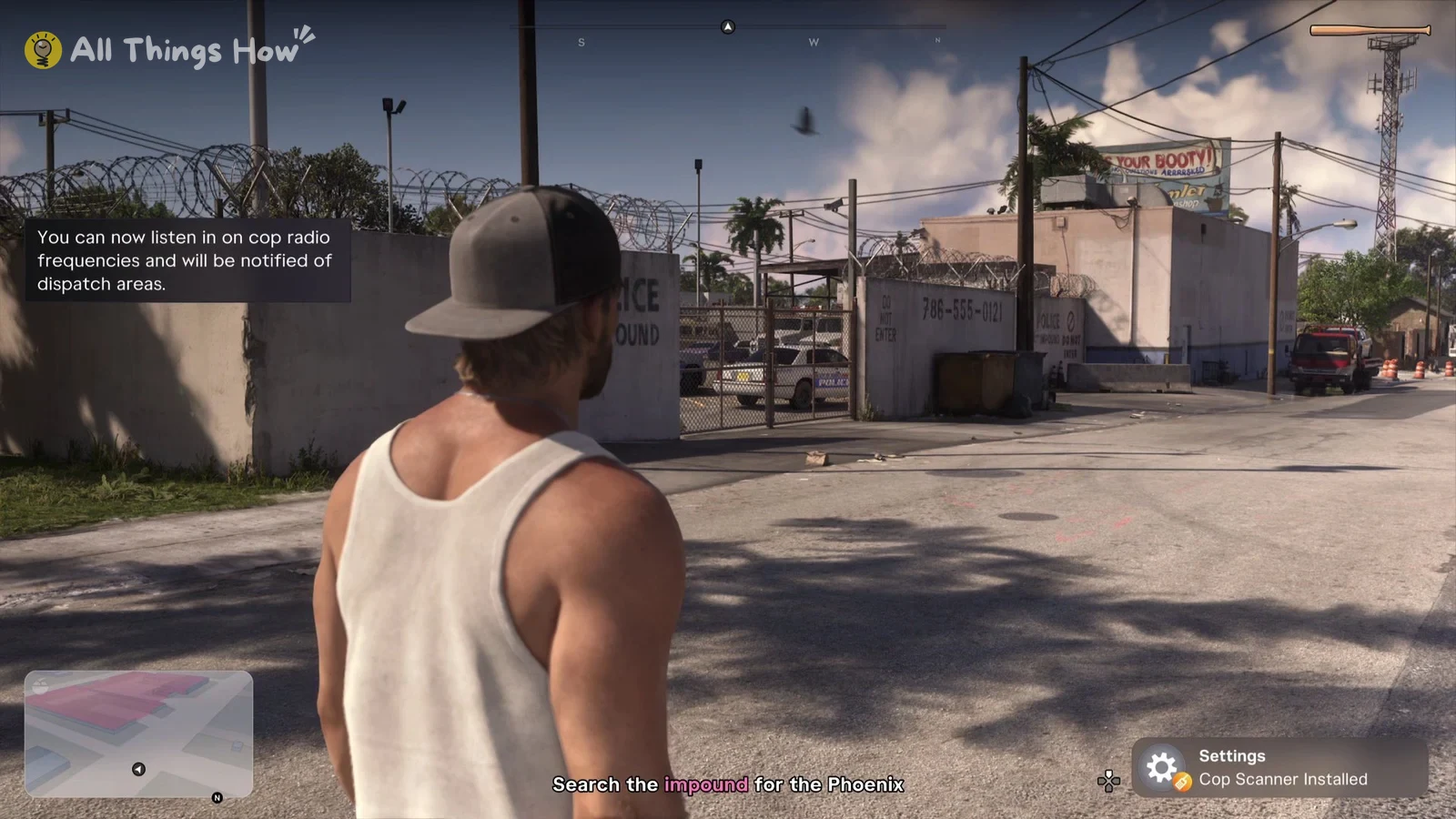
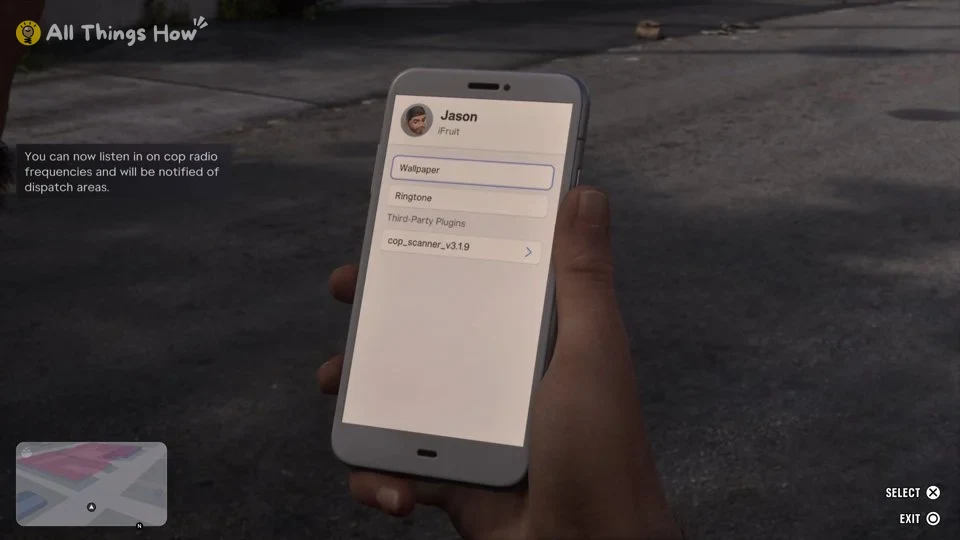
When the scene ends, a notification at the bottom right of the screen reads “Settings – Cop Scanner Installed”. That’s your confirmation that the plugin is on the phone. A help box follows with “You can now listen in on cop radio frequencies and will be notified of dispatch areas.”
Where to find the Cop Scanner on your phone
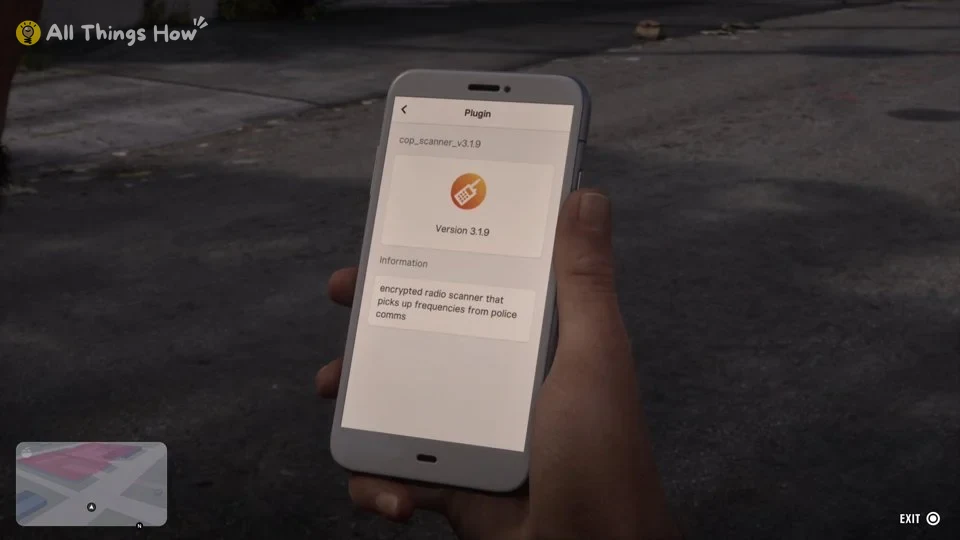
The Plugin page shows the name “cop_scanner_v3.1.9”, an orange radio icon and “Version 3.1.9”. Under “Information” you’ll see the line “encrypted radio scanner that picks up frequencies from police comms”. The page shows no on / off switch, and the only prompt on it is EXIT, on Circle.
What the Cop Scanner does
The game describes the scanner in three places, and they all point to the same job of tapping into police radio and telling you where officers are being sent:
- Cal, in the truck: “Now you’ll be able to see when and where the cops are being dispatched.”
- The help box after the install: “You can now listen in on cop radio frequencies and will be notified of dispatch areas.”
- The Information line on the Plugin page: “encrypted radio scanner that picks up frequencies from police comms”